Login and Logout in ObserveOps
ObserveOps (formerly known as AIOps) restricts access to authenticated users only. This page explains how to log in, set a new password when required, and safely log out.
Logging In
Open a web browser and go to your ObserveOps URL to reach the login page.
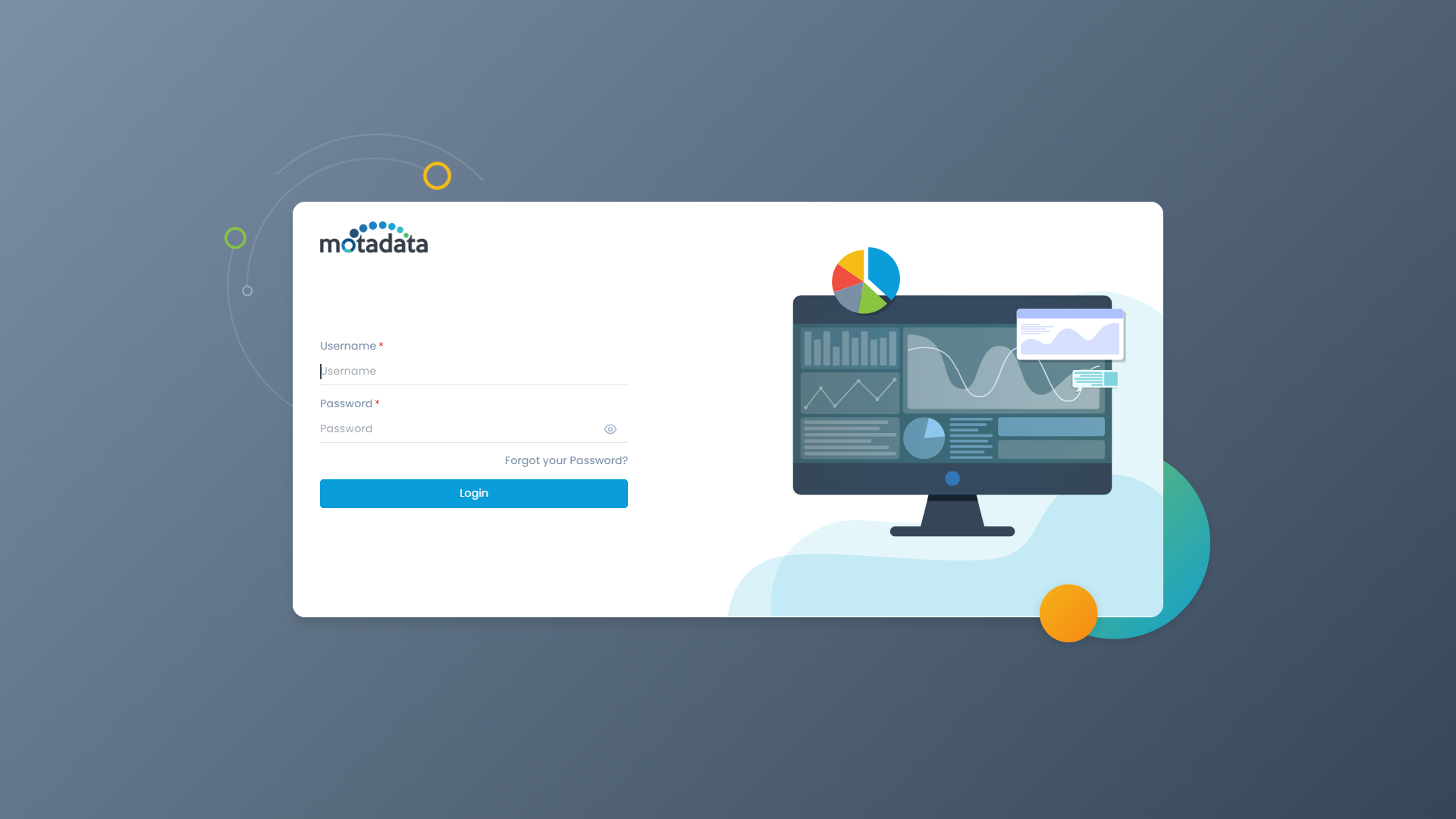
- Enter your Username and Password.
- Select the eye icon to reveal your password if needed.
- Select Login.
After successful login, ObserveOps redirects you to the dashboard. If your account requires a password change, you are redirected to the Set New Password screen instead.
Setting a New Password
ObserveOps prompts you to set a new password in two situations: after a fresh installation using default credentials, or when an administrator created your account with the Require password change at first login option enabled.
- Enter your current Username and Password.
- Select Login.
- On the Set New Password screen, enter your New Password and Confirm New Password.
- Select Change password.
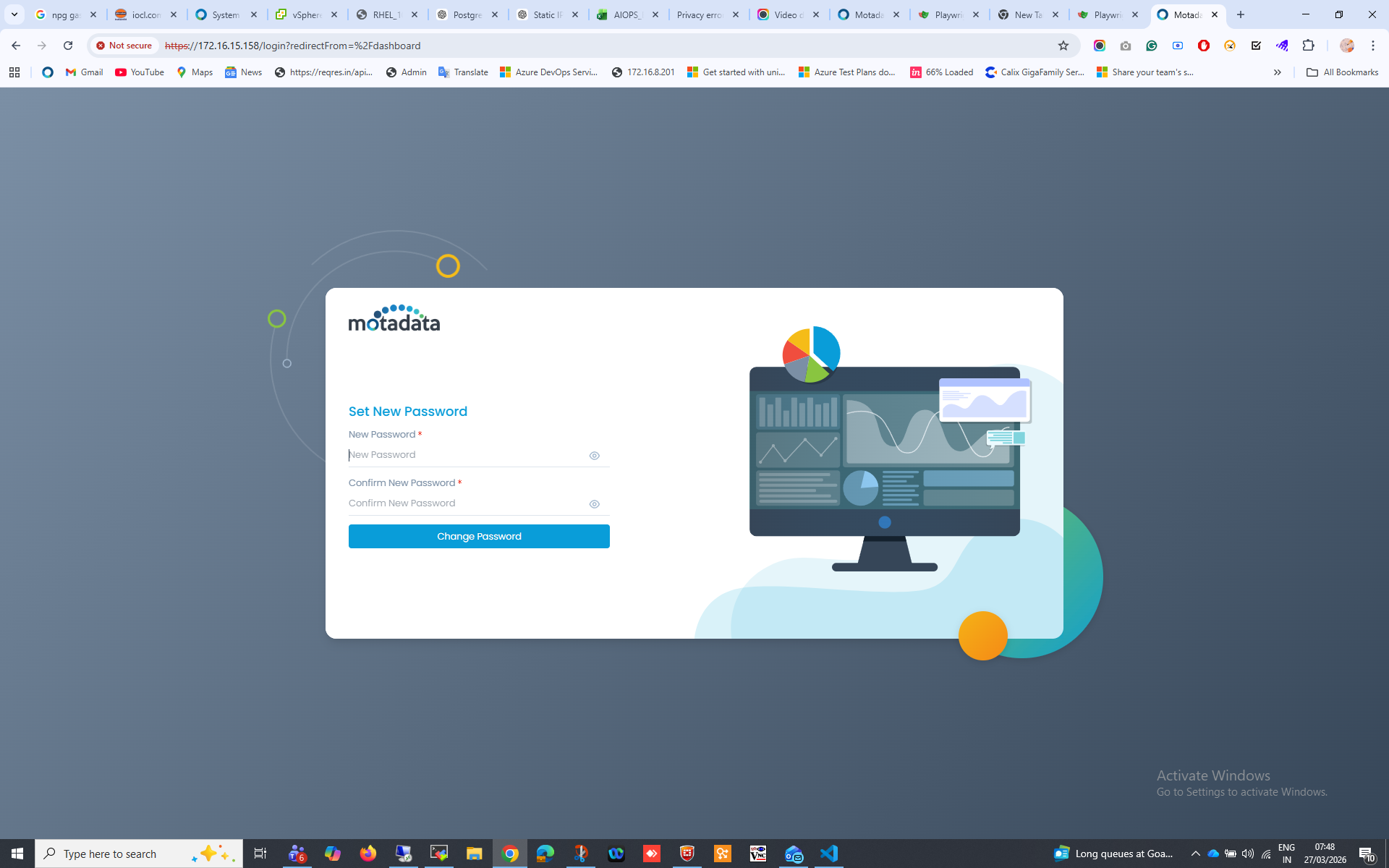
After you set the password, ObserveOps redirects you to the dashboard.
Enabling Forced Password Reset During User Creation
Administrators can require a password change at first login when creating a new user with Local Authentication.
Go to Settings. Select User Management. Select Create User. Set Authentication Type to Local Authentication. Select the Require password change at first login checkbox. Complete the user creation.
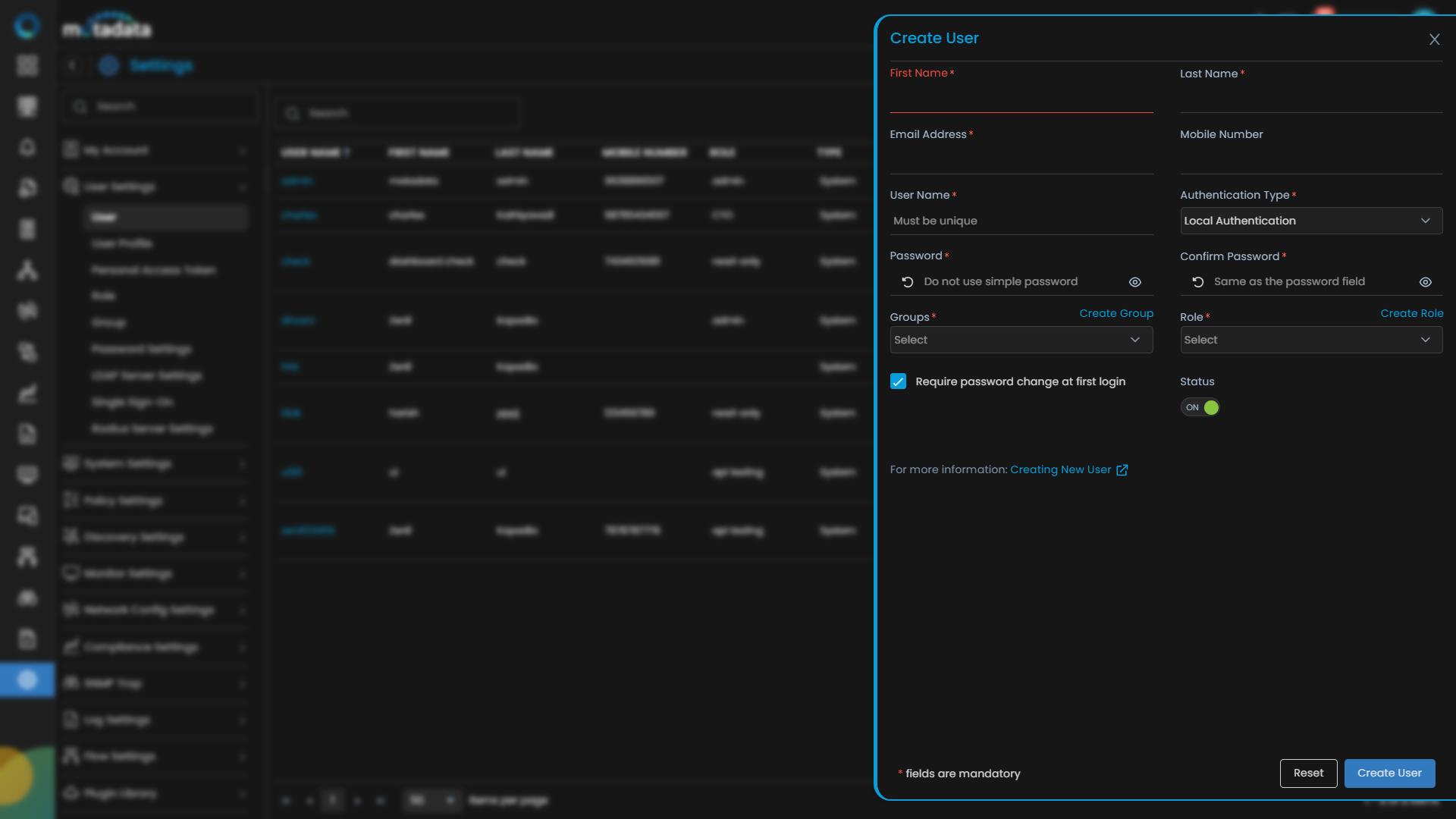
The next time that user logs in, ObserveOps prompts them to set a new password before they can access the platform.
Logging Out
Select your user profile icon in the top-right corner of any screen. Select Logout from the dropdown menu.
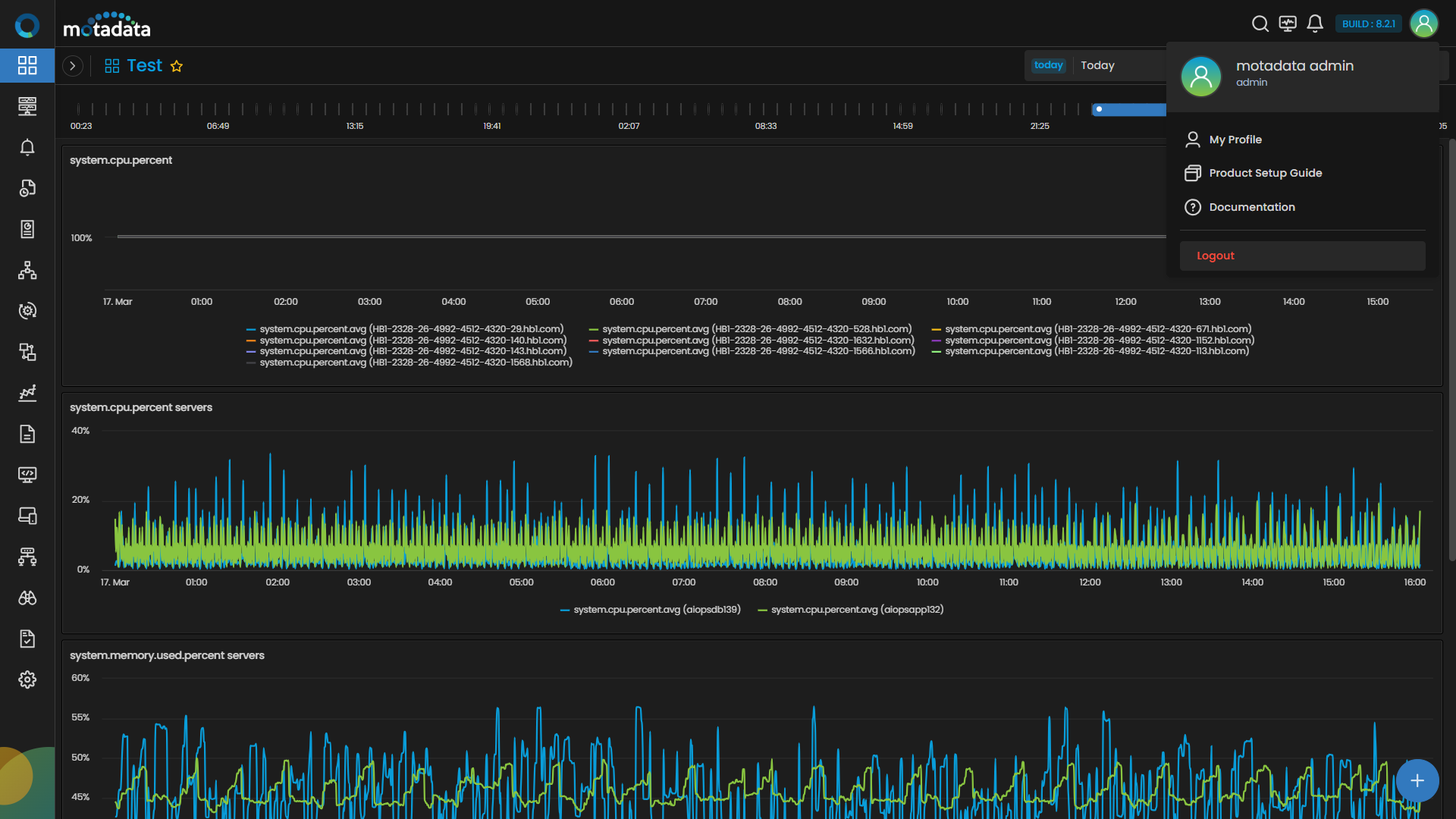
ObserveOps redirects you to the login page.