Endpoint Details Page
The Endpoint Details page consolidates everything ServiceOps knows about a device in one place. Click an endpoint ID on the list page to open it.
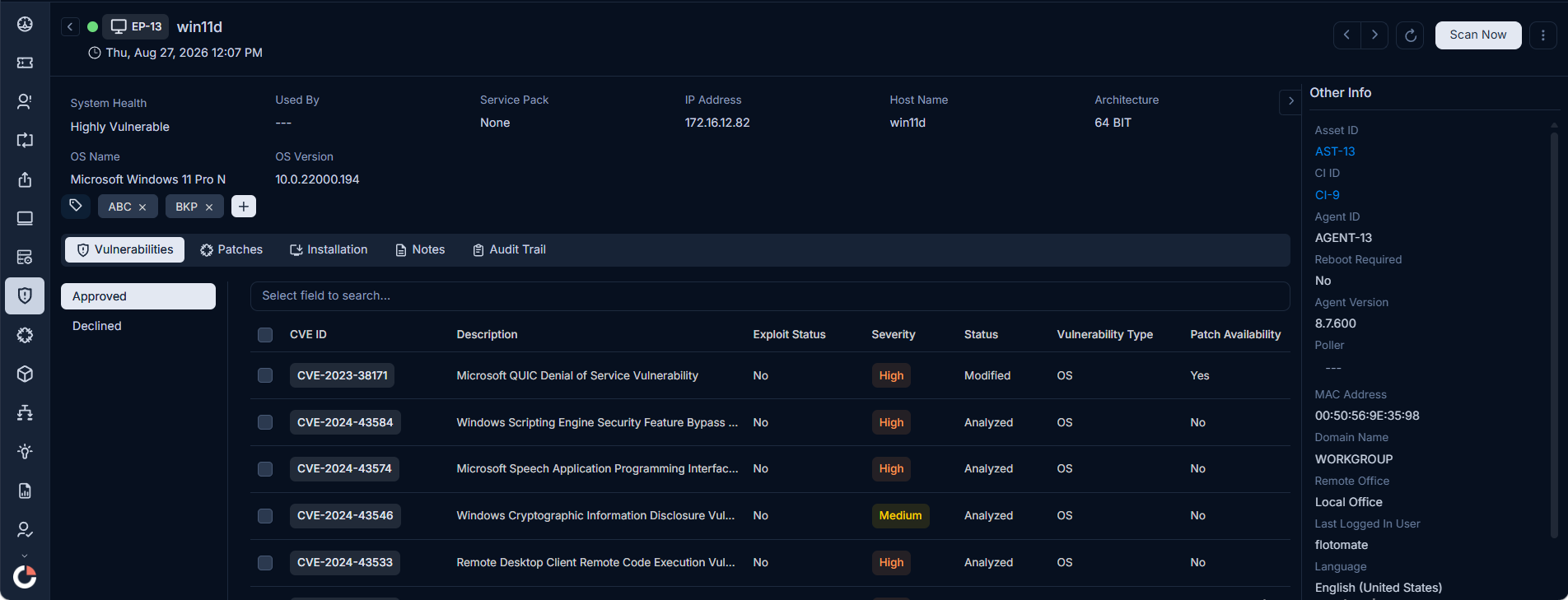
Classifiers of Endpoint
Classifiers show the current state of the endpoint and help you categorise it for filtering and reporting. ServiceOps updates these fields automatically after each scan.

| Parameter | Description |
|---|---|
| System Health | The health status of the endpoint, based on the most recent scan. |
| Used By | The current user assigned to the endpoint. |
| Remote Office | Indicates whether the endpoint is in a remote office or local office. |
| Language | The OS language configured on the endpoint. |
| OS | The current operating system name. |
| Version | The current OS version. |
| Service Pack | The service pack installed on the endpoint. |
| Architecture | The processor architecture of the endpoint. |
| Add Tags | Shows existing tags on this endpoint. Click the blue plus button to add a new tag. |
Associated Actions
Each tab gives you a different view of the endpoint's scan and deployment data. The available tabs are:
- Vulnerabilities
- Patches
- Installation
- Notes
- Audit Trail
This tab displays all vulnerabilities detected on this endpoint, organised into two sub-filters.
Approved
Displays vulnerabilities approved for tracking on this endpoint. Use the search bar to filter by specific criteria. Each entry shows the following details:
| Column | Description |
|---|---|
| CVE ID | The unique CVE identifier. Click the ID to view full vulnerability details. |
| Description | A brief summary of what the vulnerability affects. |
| Exploit Status | Indicates whether a known exploit exists for this vulnerability. |
| Severity | The risk level: Critical, High, Medium, or Low. |
| Status | The current remediation status, such as Analyzed. |
| Vulnerability Type | The category of the vulnerability, such as OS. |
| Patch Available | Indicates whether a patch is available. Displays Y if a patch exists and N if not. |
| Reboot Required | Indicates whether a reboot is required after remediation. |
| Published Date | The date the CVE was publicly disclosed. |
| Discovered Date | The date the CVE was first detected on this endpoint. |
Declined
Displays vulnerabilities declined and excluded from active tracking on this endpoint.
This tab displays all patches associated with this endpoint, grouped into three sub-filters: Missing, Installed, and Ignored.
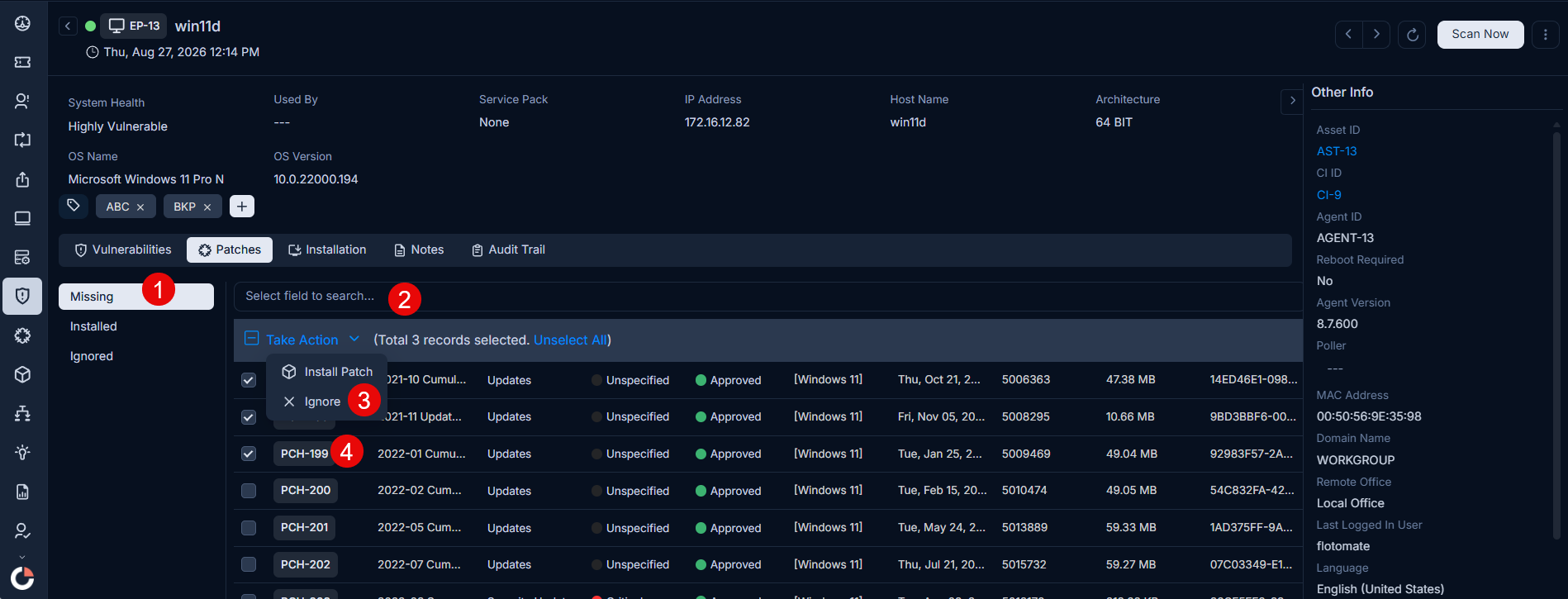
From this tab, you can:
- Search for a specific patch using the search bar.
- Select multiple patches and use bulk actions like Install Patch and Ignore. Use the Installed sub-filter to access the bulk Uninstall action.
- Click a Patch ID to open the full patch details.
If ignored patches are already installed on the endpoint, ServiceOps moves them to the Installed tab in the next scan cycle.
This tab displays all patches that are scheduled for installation or have already been installed on this endpoint.
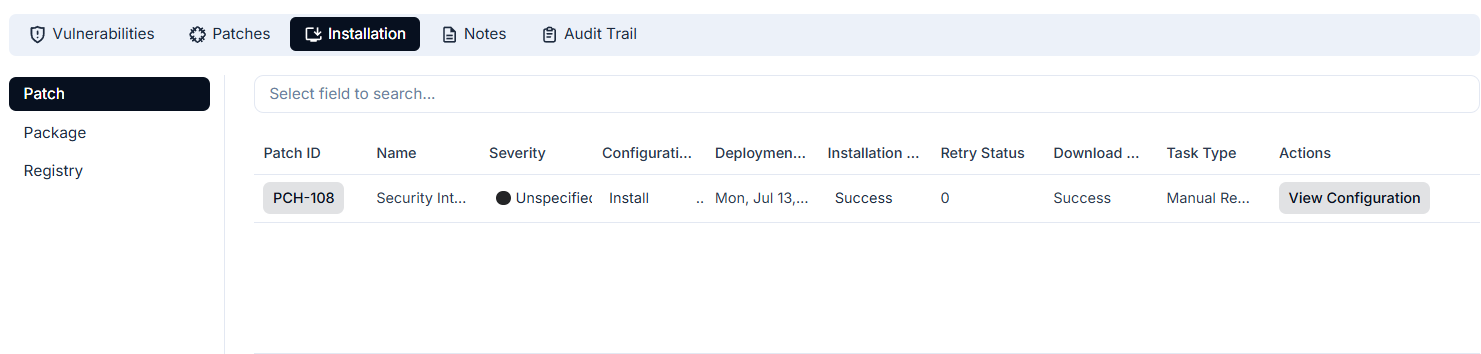
You can view the full list of patches with their configurations and specifications. Click a Patch ID to open its details. Click View Configuration in the Actions column to inspect the deployment configuration used for that patch.
This tab lets you add, edit, delete, and view notes related to this endpoint. Click a username in the Created By column to view that technician's profile.
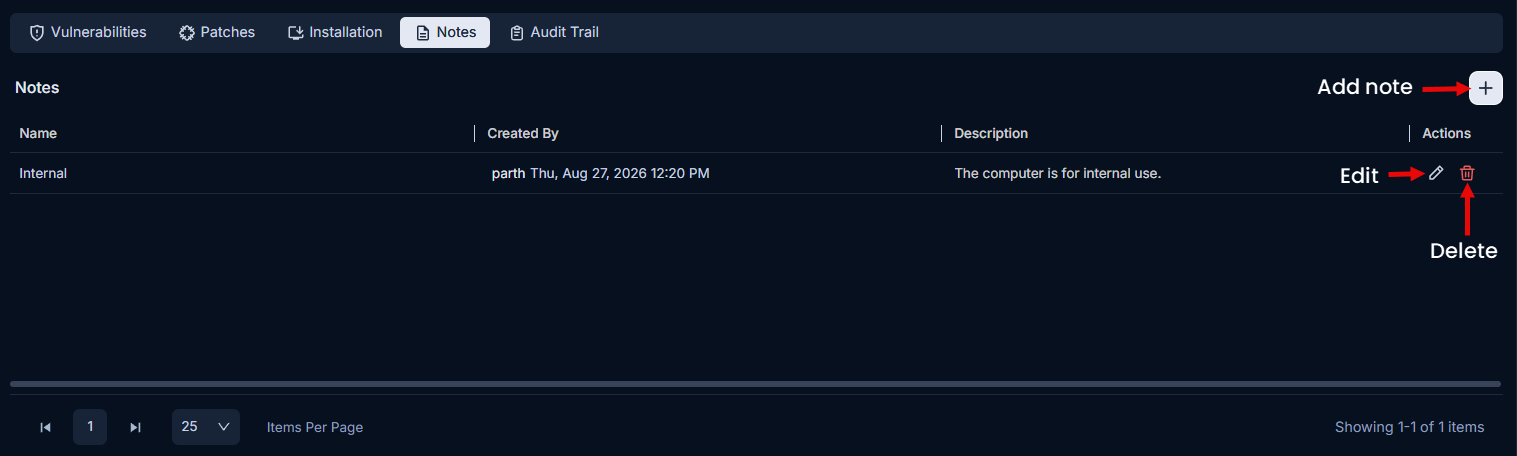
To add a note:
- Click Add Note. A popup appears.
- Enter the Name and Description of the note.
- Click Add.
This tab records every action performed on this endpoint. Use it to review scan history and track all activity for audit and compliance purposes.
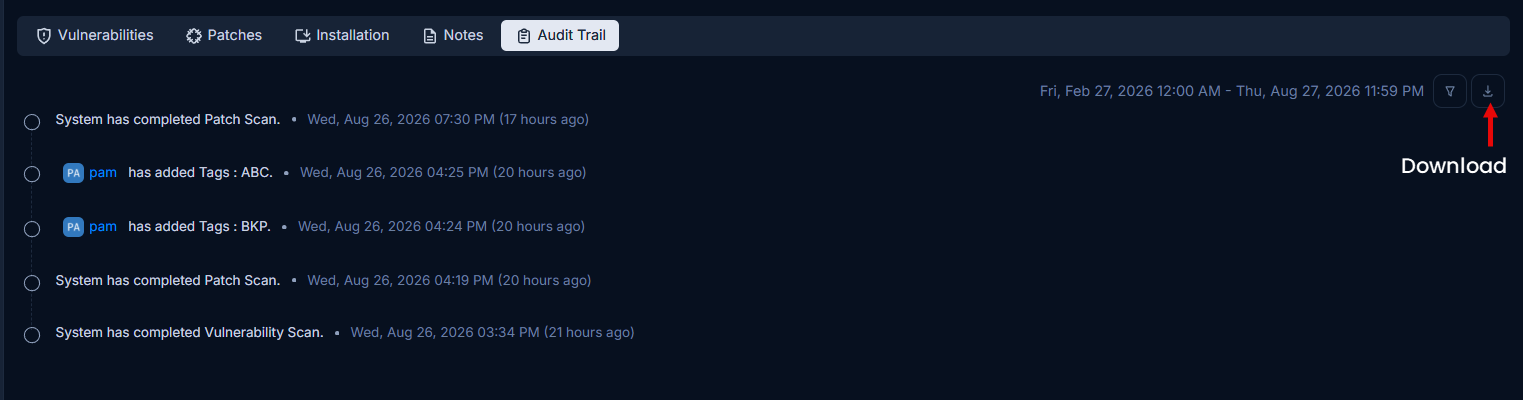
Each entry shows the actor (system or user), the action performed, and a timestamp with a relative time indicator. Typical entries include patch scans completed by the system, vulnerability scans triggered by a user, and manual patch scans.
You can filter the audit trail by date range using the date picker in the top right. Click the Download icon to export the audit trail in PDF, Excel, or CSV format. You can password protect the exported PDF and Excel files for added security.
More Options
The More Options menu on the Endpoint Details page gives you three additional actions beyond the tab views.
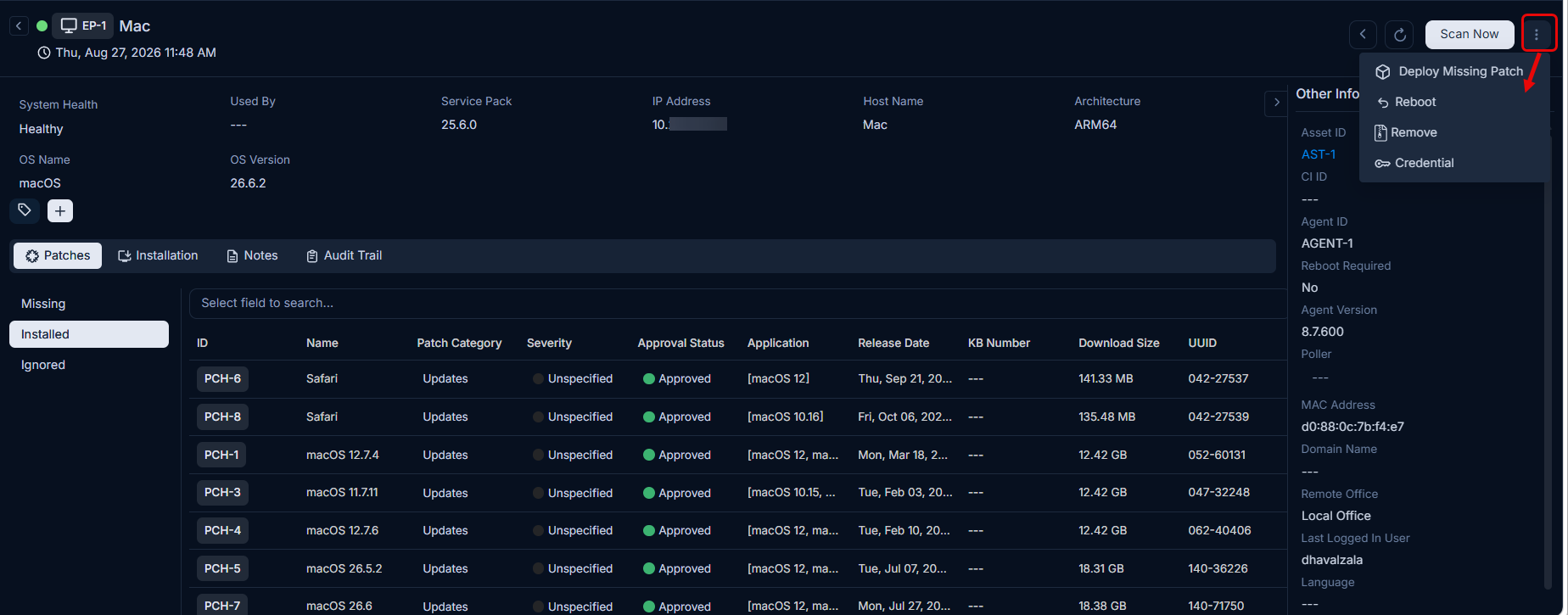
Deploy Missing Patch
Deploy Missing Patch sends all outstanding approved patches to this endpoint in one action.
To deploy:
- Click More Options and select Deploy Missing Patch. A confirmation dialog appears.
- Click Yes to continue. The Create Patch Deployment page opens.
- Enter the deployment details and click Publish. ServiceOps deploys the missing patches to the endpoint.
- Check the installation status from the Installation tab on the Patch Deployment Details page.
Only approved patches are included. Pending and declined patches are excluded from the deployment.
Reboot
Click More Options and select Reboot to restart the endpoint directly from the details page.
Remove
Click More Options and select Remove to remove this endpoint from scope. A confirmation message appears. Click Yes to confirm. ServiceOps removes the endpoint from the list and from the Endpoints Scope.
Credential
Credential lets you save the Administrator login for a macOS endpoint directly in ServiceOps. Once saved, OS Patch Deployment signs in automatically the next time it runs on this endpoint, so no one needs to be physically present at the machine.
This option applies to macOS endpoints only. It is not available for Windows or Linux endpoints.
Saving a credential is optional. If you don't save one, OS Patch Deployment on this endpoint continues to work exactly as it did before, requiring a manual login at the time of deployment.
To save the Administrator credential:
Click More Options and select Credential. The Credential sidebar form opens.
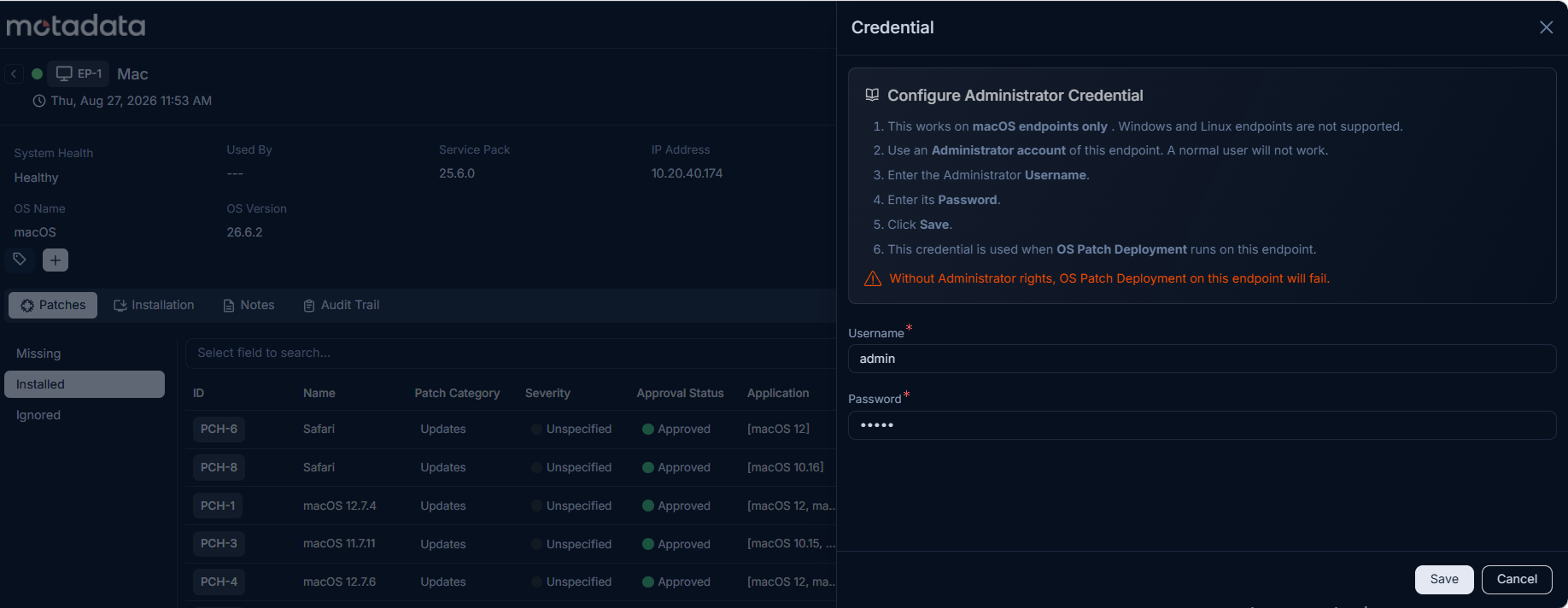
Read the Configure Administrator Credential instructions at the top of the sidebar. These confirm that this option applies to macOS endpoints only and that an Administrator account is required.
Enter the Administrator account's Username.
Enter the corresponding Password.
Click Save. The credential is now saved against this endpoint.
You must have the Username and Password of an Administrator account that already exists on the endpoint. A standard user account will not work, and OS Patch Deployment will fail if one is used.
To leave an endpoint on the existing manual login flow, simply don't save a credential for it. Closing the sidebar without saving discards any values entered and does not affect an existing saved credential.
Other Information
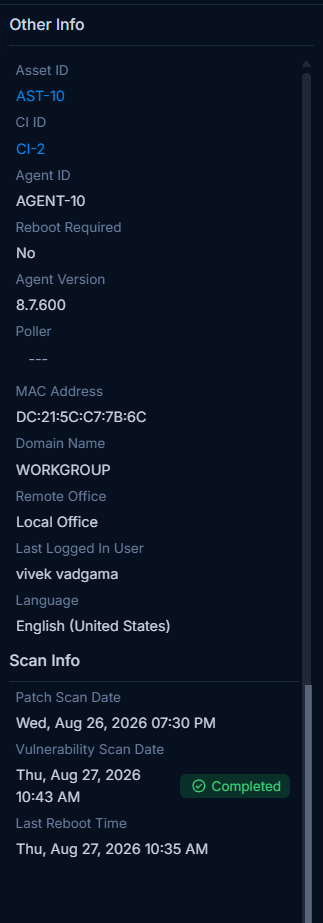
This section displays additional device metadata, split into two groups: Other Info and Scan Info.
Other Info
- Asset ID: The unique asset identifier linked to this endpoint in Asset Management.
- CI ID: The Configuration Item identifier linked to this endpoint in the CMDB.
- Agent ID: The unique identifier assigned to the agent installed on this endpoint.
- Reboot Required: Indicates whether a reboot is required on this endpoint.
- Agent Version: The version of the Motadata agent currently installed on this endpoint.
- Poller: The poller agent assigned to this endpoint, if configured.
- MAC Address: The MAC address of the endpoint's network interface.
- Domain Name: The domain or workgroup the endpoint belongs to.
- Remote Office: The remote office assigned to this endpoint.
- Last Logged In User: The username of the last user who logged into this endpoint.
- Language: The OS language configured on this endpoint.
Scan Info
- Patch Scan Date: The date and time of the last patch scan. The status badge shows whether the scan is In Progress or Completed.
- Vulnerability Scan Date: The date and time of the last vulnerability scan. The status badge shows whether the scan is In Progress or Completed.
- Last Reboot Time: The date and time when this endpoint was last rebooted.
Troubleshooting
If something isn't working as expected, expand the relevant item below for the cause and fix.
Scan results have not updated after a change
Cause: A scan has not run since the change was applied.
Fix: Click More Options and select Scan Now to trigger an immediate scan. The endpoint record updates when the scan completes.
No activity appears in the Audit Trail tab
Cause: The agent is offline or has stopped sending data to ServiceOps.
Fix: Check the agent status on the endpoint's detail page. Use More Options to restart the agent and restore the connection.
Deploy Missing Patch creates no deployment
Cause: No patches on this endpoint have been approved yet.
Fix: Go to the Patches tab, select the required patches, and approve them before running Deploy Missing Patch again.
An endpoint remains in the list after its asset was archived
Cause: Only the Asset record was archived. ServiceOps requires both the linked Asset and CI records to be archived before removing the endpoint automatically.
Fix: Archive the CI record as well. ServiceOps removes the endpoint from scope and logs the action in the audit trail.