Vulnerability in Software Assets
When the Vulnerability license is active, a Vulnerabilities tab appears on supported software asset records in Asset Management. The tab shows the same scan results as the Vulnerability Endpoints detail page, directly inside the record. Your IT team doesn't need to switch to a separate module to understand a product's risk.
Prerequisites
Before the Vulnerabilities tab appears on a software asset record, ensure:
- You have the Vulnerability Manager or Vulnerability Specialist Technician role, or your role has View Vulnerability enabled under Admin > Users > Roles
- A Vulnerability license is active in ServiceOps
- The record is a Software Asset in Asset Management
- The associated endpoint is enrolled in Admin > Vulnerability Management > Endpoints Scope
- At least one vulnerability scan has run for that endpoint
The Vulnerabilities tab is available on Software Assets only.
How Does Vulnerability Visibility in Assets Work?
When an endpoint is enrolled in the vulnerability scope, ServiceOps links the scan results to the corresponding software asset record. After each scan, detected CVEs are written to that link and displayed on the Vulnerabilities tab of the record.
The tab is read-only. It pulls data from the same scan results shown on the Vulnerability Endpoints detail page. No data entry is possible from the asset side.
If you have View Vulnerability permission and click a CVE ID on the tab, ServiceOps takes you to the full CVE detail page in the Vulnerabilities module. If your role doesn't include that permission, CVE IDs appear as plain text with no navigation.
Vulnerabilities Tab Screen
On a Software Asset
Navigate to Asset Management > Software Assets, open a software asset record (for example, an Application such as Google Chrome), then select the Vulnerabilities tab.
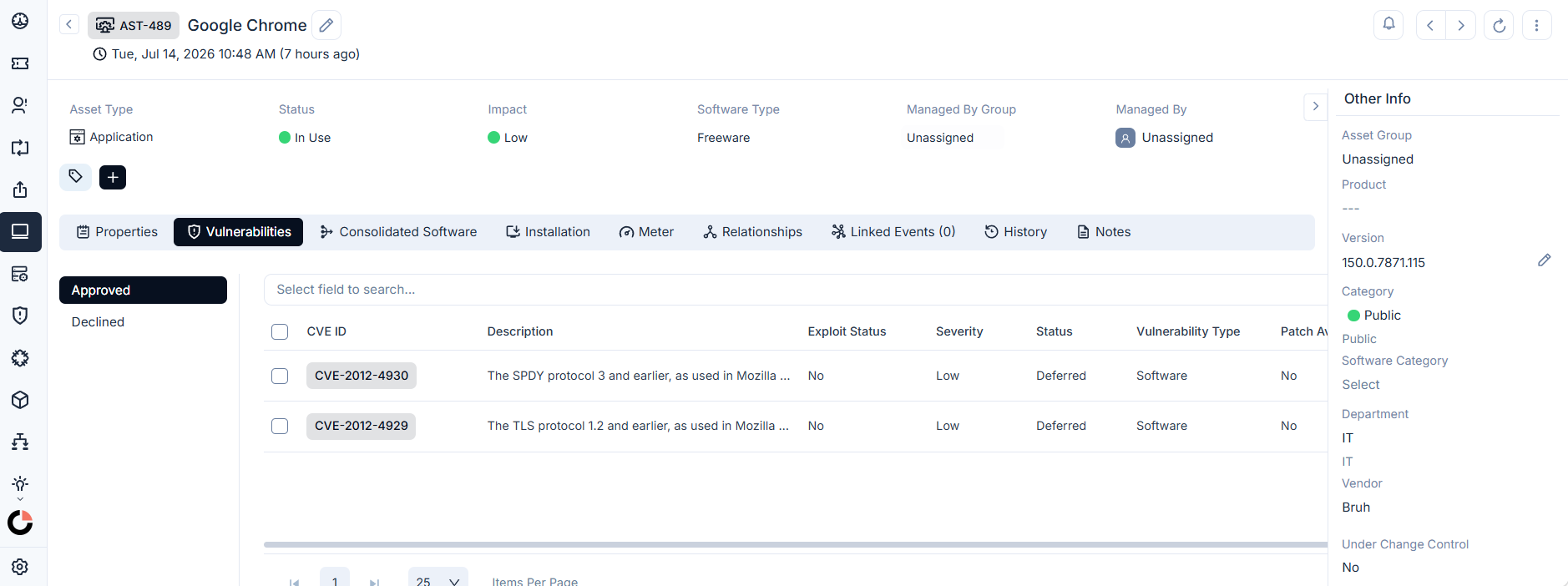
The tab has an Approved / Declined sidebar filter and shows these fields for each detected CVE:
| Field | Description |
|---|---|
| CVE ID | Unique CVE identifier. Clickable if you have View Vulnerability permission. |
| Description | Short summary of the vulnerability |
| Exploit Status | Yes if active exploitation is known |
| Severity | Critical, High, Medium, or Low |
| Published Date | Date the CVE was publicly disclosed |
| Discovered Date | Date the CVE was detected on this record |
| Vulnerability Type | Category of the vulnerability (for example, Software) |
| Status |
Example
A Technician is reviewing a software asset record during a routine audit. They click the Vulnerabilities tab and see three Critical CVEs listed, two of which have Exploit Status = Yes. They click each CVE ID to open the detail page and check how many other endpoints are affected. They flag the findings to the security team without ever leaving the asset record.
Troubleshooting
Vulnerabilities tab is missing on a software asset
Cause: The Vulnerability license is not active, or the associated endpoint is not enrolled in scope.
Fix: Verify the Vulnerability license is active under Admin > Account > Licenses. Confirm the endpoint is enrolled in Endpoint Management.
Vulnerabilities tab is present but shows no CVEs
Cause: No scan has run yet for the associated endpoint, or no vulnerabilities were detected.
Fix: Go to the Vulnerability Endpoints page, open the endpoint's detail page, and click Scan Now. If no vulnerabilities are found after the scan, the empty state is correct.
CVE IDs are plain text and not clickable
Cause: Your role doesn't include the View Vulnerability permission.
Fix: Ask an administrator to enable View Vulnerability on your role under Admin > Users > Roles.
Vulnerabilities tab shows stale data after patching
Cause: A scan hasn't run since the patch was applied.
Fix: Refresh the asset page. If data is still old, go to the Vulnerability Endpoints page and click Scan Now for the associated endpoint.