Create Package Deployment
This page enables you to create a new Package Deployment when planned. To do so,
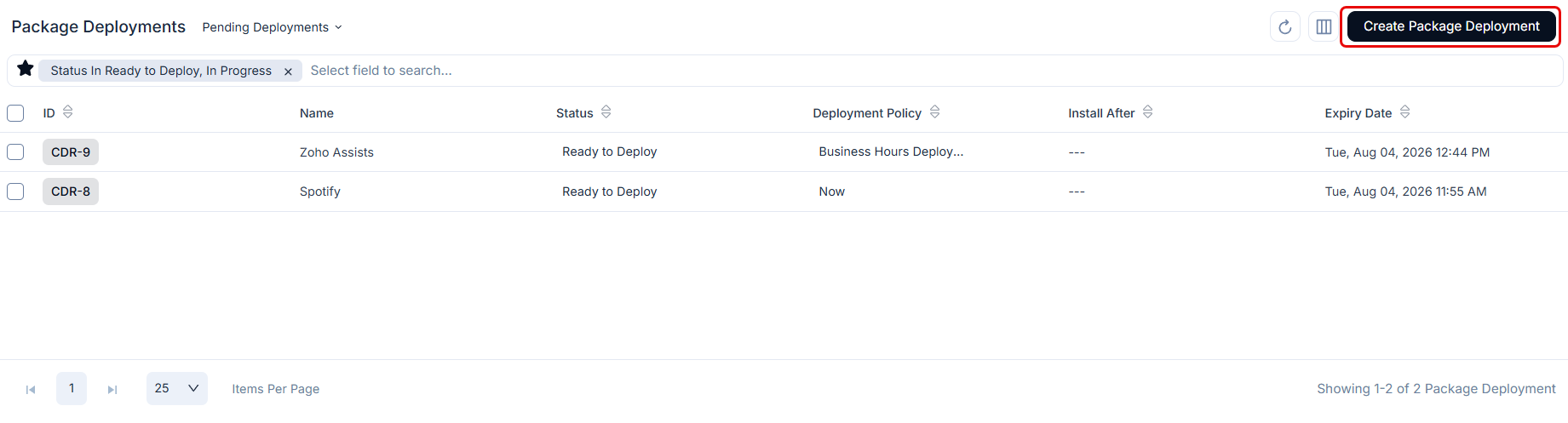
Click the Create Package Deployment button on the top-right corner of the list page. The following page appears as shown below.
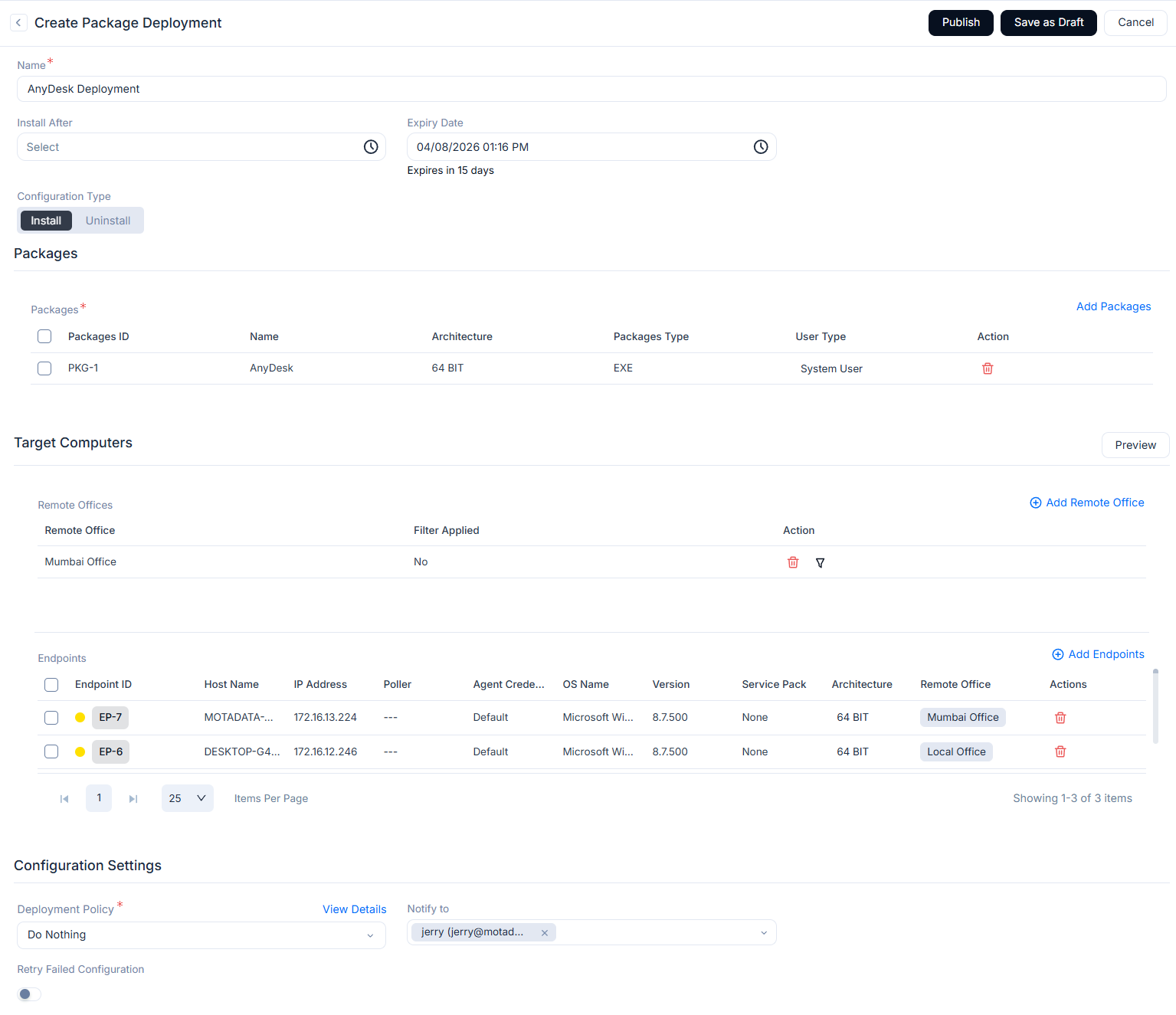
Enter the following details:
- Name: Enter the name of the Package.
- Install After: Select the future date for installation.
- Expiry Date: Select the future expiry date.
- Configuration Type: Select the desired type to perform action. The actions are: include Install or Uninstall.
Packages
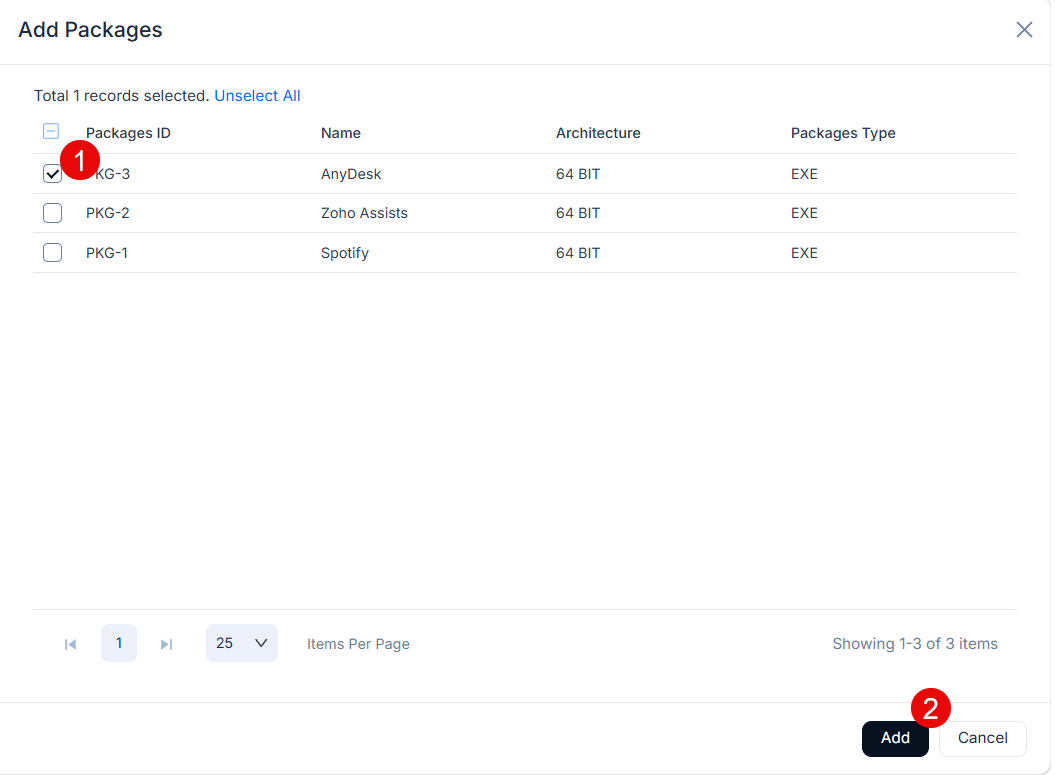
Select the packages using the Add Packages link on the top right corner. It displays the list of packages as per the OS. For example: If your machine is Windows it will display all the Windows packages. To add more packages, refer to the link Packages.

Target Endpoints
Remote Offices
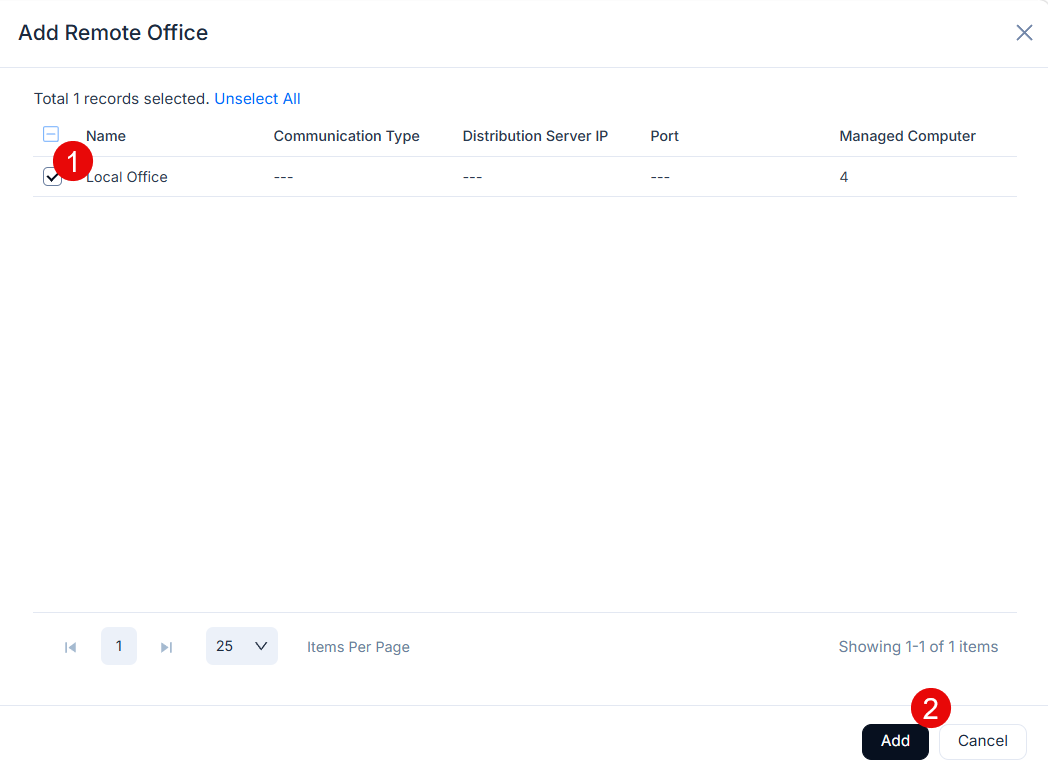
Select the desired remote office using the Add Remote Offices link on the top-right corner. The Remote Offices will be considered for the deployment as shown below. You can add more Remote Offices for selection, refer to the link Remote Offices.

Endpoints
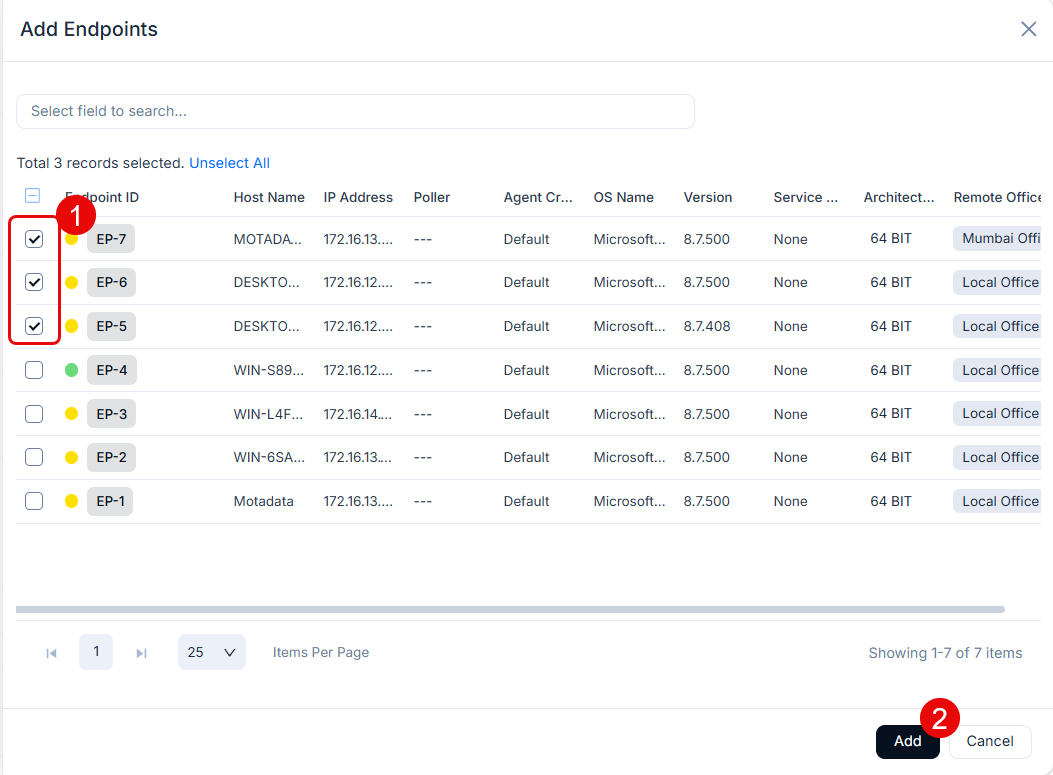
Select the desired agents using the Add Endpoints link on the top right corner. The Endpoints are the agents used in the deployment process and can be multiple as well. You can add more Endpoints for selection, refer to the link End Points Scope.

Configuration Settings
- Deployment Policy: Select the policy as per which the deployment should take place. You can also click the View Details link to view its details in a popup.
- Notify To: Select the technician to whom the email is to be sent about the deployment.
- Retry Failed Configuration: Enable the parameter if the configuration should be retried in case it is failed. By default, it is disabled.
- Retry Count: Enter the number of times the deployment should be retried again, in case once failed.
Once all the configurations are done, either click Publish to publish the deployment or click Save As Draft to save it and publish later. If required, you can also click Cancel to stop the package deployment process. Once published, the status of the package deployment changes to Ready to Deploy and the Installation Status becomes Yet to Receive. This status changes as and when the installation process moves further.
Orchestrating Docker Container and Kubernetes Patches
Motadata ServiceOps provides full support for updating and patching Docker containers and Kubernetes cluster environments via the Package Deployment module.
To maintain security and configuration baselines in containerized setups, technicians deploy automated orchestration packages directly across target container environments. This operational workflow ensures that container vulnerability patches, image tag updates, and application rollouts are seamlessly distributed, executed, and tracked across your entire container infrastructure from a single central console.
Real-World Examples
Example 1: Installing 7-Zip Across All Windows Endpoints
An IT team needs to install 7-Zip on all Windows machines in the organization. Instead of visiting each machine individually, a technician uploads the 7-Zip MSI file as a package in ServiceOps, targets all Windows endpoints, and publishes the deployment. The installation runs automatically on every endpoint, and the technician can track progress in real time from a single place.
Example 2: Deploying Google Chrome Across the Organization
The IT team needs to standardize the browser across all Windows machines. A technician uploads the Chrome MSI package in ServiceOps, targets all Windows endpoints, and publishes the deployment. Chrome installs silently on every machine without any user intervention.
Example 3: Uninstalling a Legacy Application
An organization needs to remove an outdated or unlicensed application from all endpoints before an audit. A technician creates a package with the Uninstall configuration type, targets the relevant endpoints, and publishes. The removal runs automatically across all machines without manual effort.
Example 4: Deploying a VPN Client for Remote Workers
The IT team needs to roll out a VPN client to all remote employees before they can access internal systems. A technician creates a package in ServiceOps, targets remote endpoints, and publishes the deployment. Employees get the VPN client installed without raising individual requests.
Example 5: Distributing Configuration Files Across Servers
A team needs to push an updated configuration file to multiple Linux servers at once. A technician creates a ZIP package containing the file, targets the relevant servers, and publishes. The file is extracted and placed in the correct directory on every server automatically.
Example 6: Orchestrating a Docker Container Patch Rollout
A DevOps team needs to push an emergency security patch to a containerized application stack. Instead of manually accessing individual environments, a technician creates an installation Package configuration, links an automated update script, and targets the containerized infrastructure. The deployment automatically triggers a package execution to pull the securely patched Docker image tag and refresh the containerized application stack seamlessly.