Package Details Page
On the Package Deployment Details page, you can edit and view the complete details of the package and perform the desired activity. Also, you can refresh the page to get the latest data from the server.
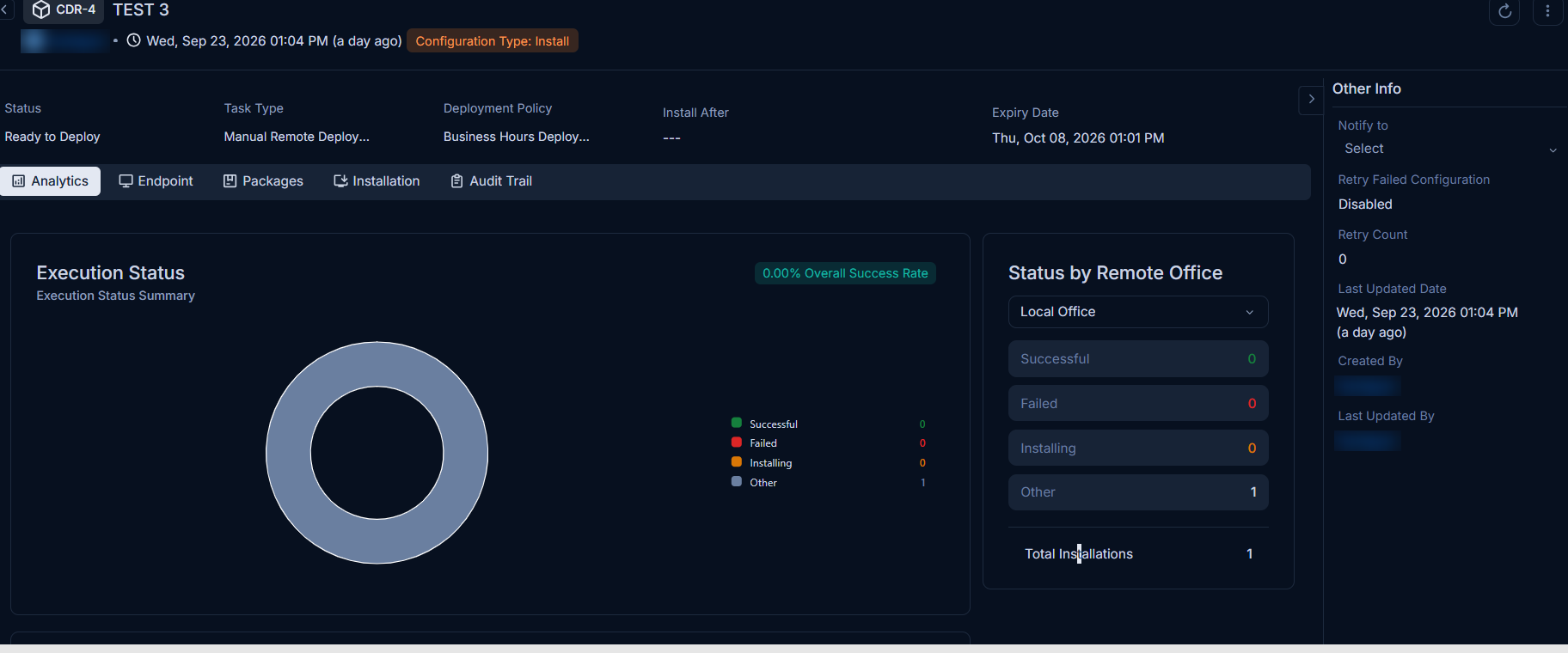
To view the details, on the list page click on the ID, and the below page appears.
Classifiers
These properties tells you the current statistics of the package and help you classify them under the different labels. When someone works on a package, they update the labels accordingly.

| Parameter | Description |
|---|---|
| Status | Displays the current status of the deployment. The values are Draft, Ready to Deploy, In Progress, and finally Completed. |
| Task Type | Displays the type of the deployment. |
| Deployment Policy | Displays the policy selected for the deployment. |
| Install After | Displays the date after which the deployment is to be initiated. |
| Expiry Date | Displays the expiry date mentioned for the deployment. |
Associated Actions
You can create or update different actions and activities as a part of communication, collaboration, and resolution in the package. The available types of actions are:
- Analytics
- Endpoint
- Packages
- Installation
- Audit Trail
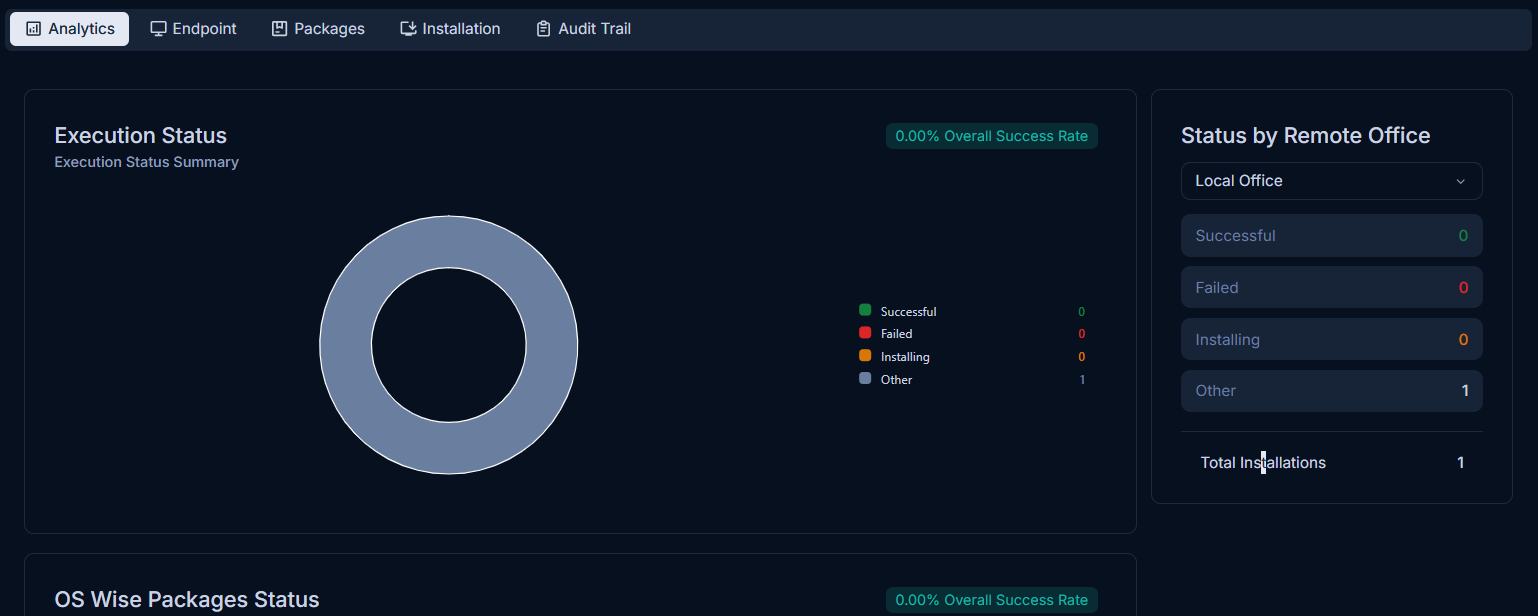
This tab displays the analytical summary of the package deployment, including:
- Success: Displays the number of successful deployments from the Installation tab.
- Failed: Displays the number of failed deployments from the Installation tab.
- In Progress: Displays the number of deployments currently in progress from the Installation tab.
- Other: Displays the number of deployments with other statuses from the Installation tab.
The tab also provides a detailed breakdown of the following:
Download Status
This section provides a summary of the download status, including a pie chart and a legend with counts for Pending, In Progress (File Server), In Progress (Distribution Server), Success, Failed, Cancelled, and Checksum Failed statuses. It also displays the overall success rate.
Status by Remote Office
This section allows you to view the deployment status filtered by remote office. The list displays only those remote offices that are associated with the package deployment via Endpoints. It displays the counts for Success, Failed, In Progress, Other, and Total Installations.
OS Wise Packages Status
This section provides the deployment status based on the operating system, including a donut chart showing the success rate and counts for Success, Failed, In Progress, and Other statuses.
This tab displays the list of Endpoints which are selected for the particular deployment.

Here you can,
- Search for a particular Endpoint with the help of keyword.
- View the agent details by clicking the Agent ID.
- View the user details by clicking the username in the Used By field.
The agents/Endpoints with the Green icon indicate the agent is in Online Status while yellow indicates Offline.
This tab displays the list of packages related to this particular deployment.

Here, you can search for the desired package and view the package details by clicking the Package ID.
This tab displays the endpoints where the package deployment is scheduled to be installed or has already been installed.

For each endpoint, you can view the Endpoint ID, Host Name, Package ID, Name, Deployment Date, Execution Status, Retry Status, Result, and Actions. You can click the Endpoint ID or Package ID to view their details, and search for the required endpoint based on the desired fields. The Execution Status of the package gets updated as each stage is completed, such as Awaiting Endpoint Delivery, Downloading, Installing, Successful, or Failed.
The Audit Trail tab stores all the actions that you and other technicians perform. This tab is common at all places in the system. When you are on the details page of any module, it will display the concerned activity logs only. You can also download the logs in PDF, Excel, and CSV format. Additionally, you can password-protect the PDF and Excel files.

Other Information
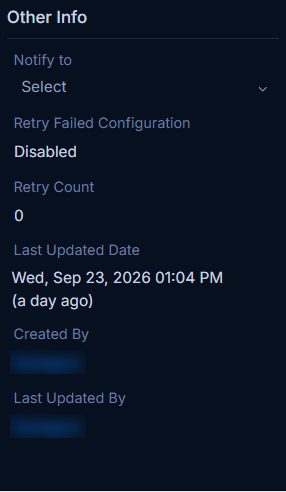
The other information displays additional details about the package.
| Parameter | Description |
|---|---|
| Remote Office | Displays the remote offices. |
| Local Office | Displays the local office. |
| Notify to | You can select the number of users to be notified regarding the deployment from the dropdown. |
| Retry Failed Configuration | Displays if the retry is enabled or disabled. |
| Retry Count | Displays the count of retries, if enabled. |
| Last Updated Date | Displays the last updated date of the deployment. |
| Created By | Displays the user who created the deployment. |
| Last Updated By | Displays the user who last updated the deployment. |