SLA List Page
The SLA List Page offers a centralized view of all configured Service Level Agreements (SLAs), Operational Level Agreements (OLAs), and Underpinning Contracts (UCs). It enables administrators to efficiently track, manage, and prioritize service agreements, ensuring timely delivery and adherence to organizational standards.
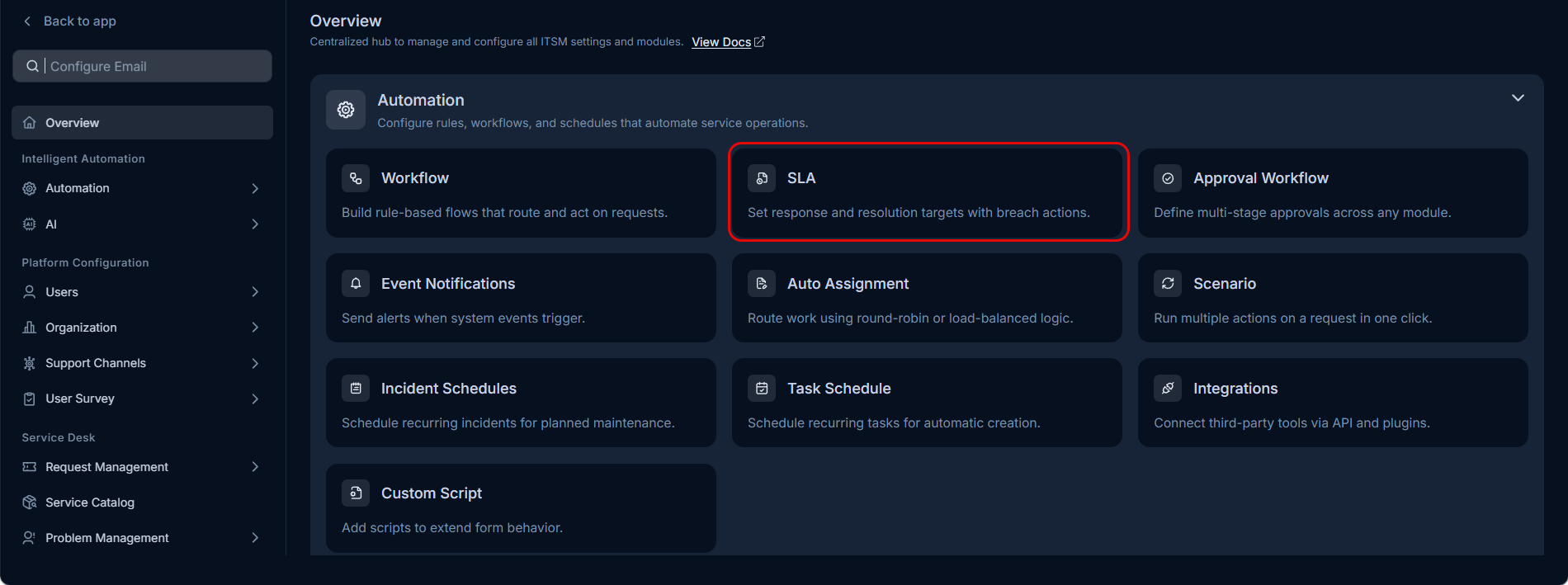
To view the SLA List Page, navigate to Admin > Automation > SLA.
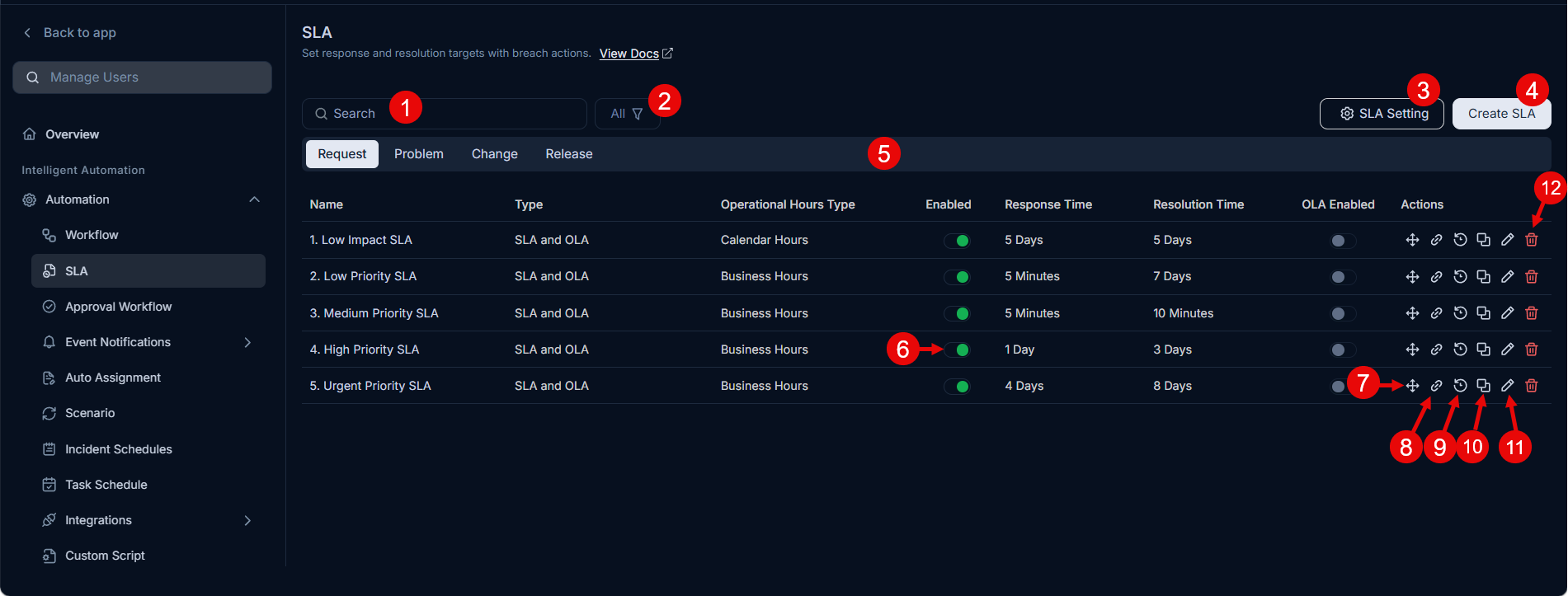
The page provides the following features:
Search: You can enter a word and search for the required SLA that contains the text. The system displays a list of SLAs that contains the word.
Filter: You can filter the SLAs based on their status. The following filters are available:
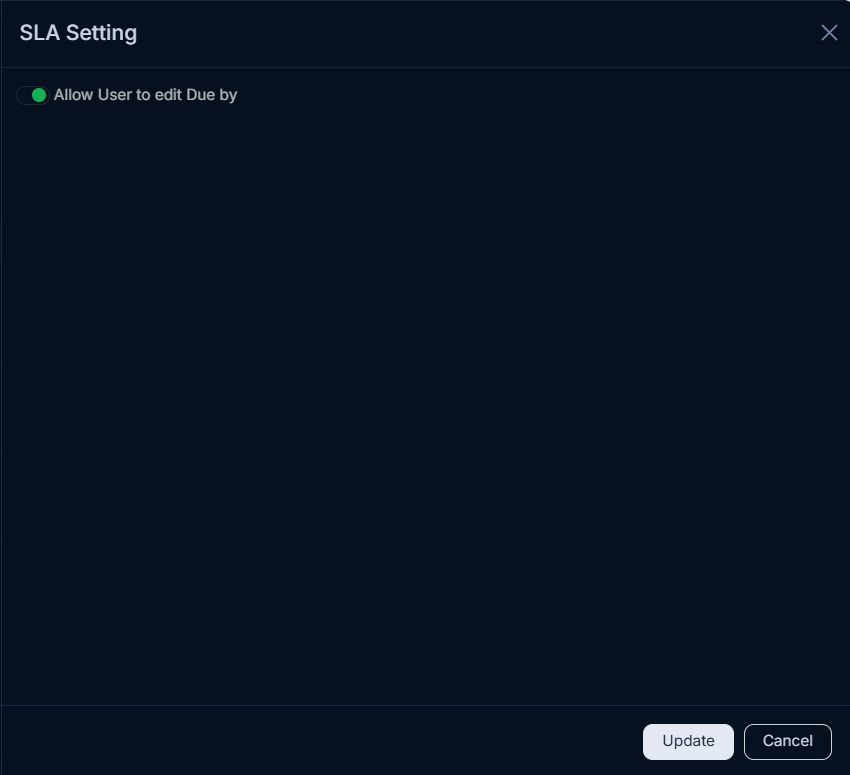
Filter Records Displayed All Displays all SLAs, OLAs, and UCs regardless of their status, including both enabled and disabled agreements. Enabled Displays only those SLAs, OLAs, and UCs that are currently active. The system will evaluate and apply these agreements to matching tickets based on priority order. Disabled Displays only those SLAs, OLAs, and UCs that have been deactivated. Disabled agreements are not evaluated or applied to any tickets until re-enabled. SLA Setting: You can configure the SLA settings.
- Allow User to edit Due by: Enable to allow the user to edit the SLA Due by classifier on the Ticket Details page. By default, this setting is enabled. When disabled, the "Due by" classifier will be set only as per the configured SLA. In such a case, the edit icon will remain hidden. This setting applies to the Request, Problem, Change, and Release modules.
noteIf this field is disabled before the upgrade, the Update Due By role permission will stay disabled for all the OOB and custom roles after the upgrade.
- Create SLA: You can create an SLA.
- Grid: You can view the list of OOB and custom SLAs in the grid.
- Enable/Disable SLA: You can enable or disable an SLA from the list. Enable the SLA to use it. Disable the SLA if you do not want the system to use it.
- Change Priority: You can adjust the priority of an SLA by moving its snowflake icon up or down in the list. This order determines which SLA is applied when multiple conditions are met.
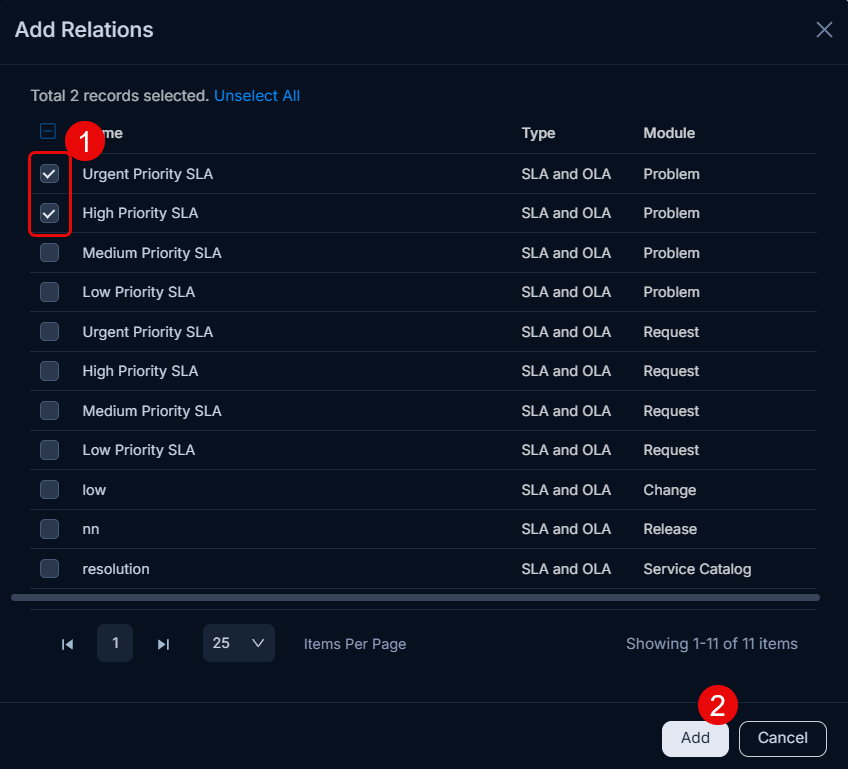
- Relations: You can relate SLA with other SLAs. To create relations,
- Click the Relations icon and a popup appears.
- Click Add Relation.
- Select the desired SLAs with whom you want to relate.
- Click Add.
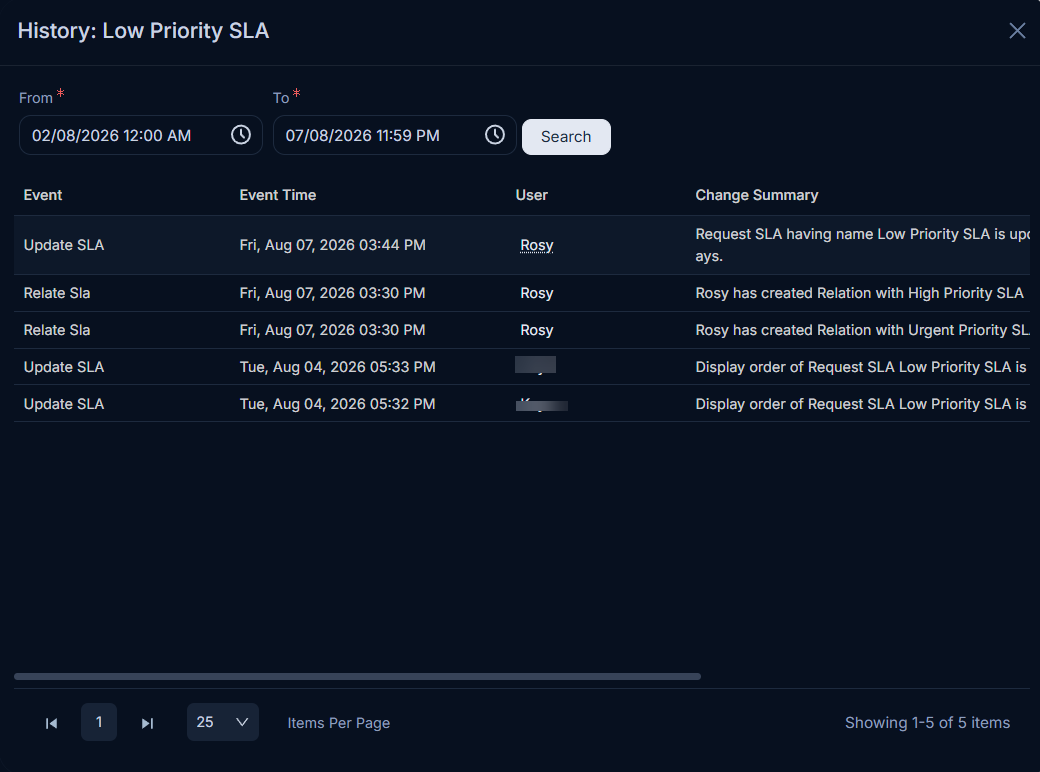
- History: You can view the SLA configuration change history and addition/removal of Relations from an SLA . Also, you can view the user details by clicking on the User name.
- Duplicate: You can create a duplicate SLA of an existing SLA with the same settings.
- Edit: You can edit the required SLA using the edit icon.
- Delete: You can delete the SLA(s) if no longer required. The default SLA can only be edited and not deleted.
Understanding SLA Priority
This section clarifies how the system applies Service Level Agreements (SLAs) when multiple SLAs could potentially apply to a single request. The order of SLAs, as configured on the SLA List Page (by moving the snowflake icon up or down), dictates which SLA is applied. The system always selects the first qualifying SLA from the top of the list.
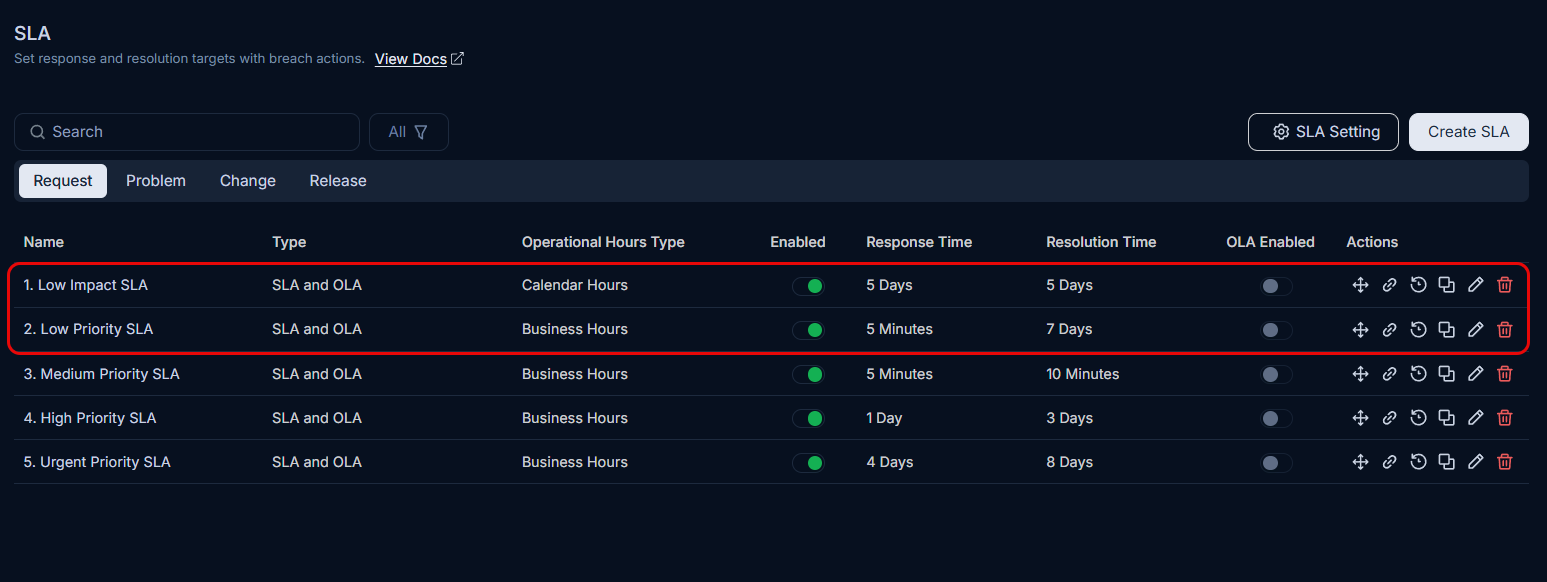
Consider you have two SLAs configured with these conditions and priorities:
- Low Impact SLA (Highest Priority): Applies when
Impact is Low. - Low Priority SLA (Lower Priority): Applies when
Priority is Low.
Scenario 1: Initial Request
When a new request is created with both Priority = Low and Impact = Low:
- The system evaluates SLAs from top to bottom.
- Low Impact SLA (Impact = Low) qualifies first.
- The system applies Low Impact SLA to the request. The audit trail will reflect that Low Impact SLA was applied.
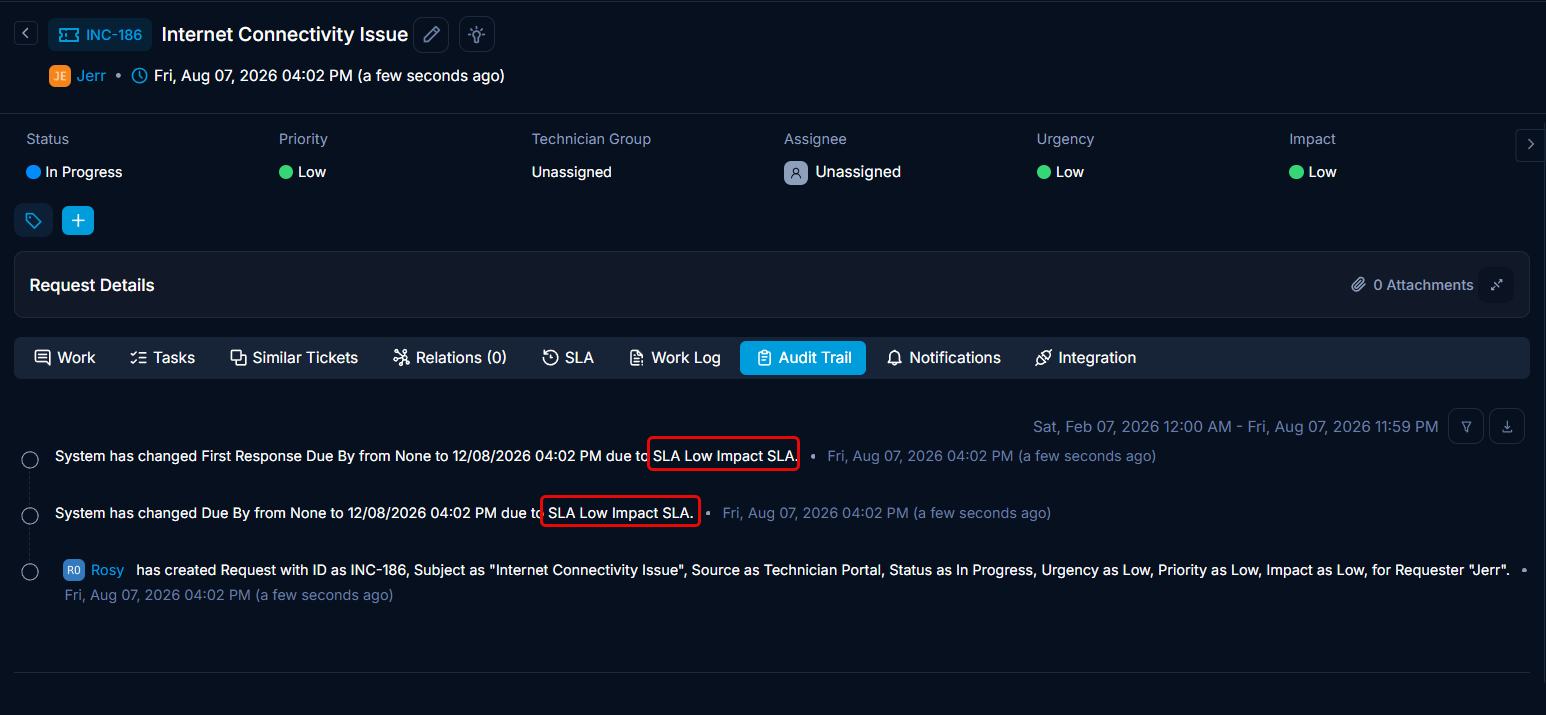
Initially, Low Impact SLA is applied because it's higher in the priority list.
Scenario 2: Request Update
Now, if the Impact of the request is changed from Low to On Users:
- The system re-evaluates all SLAs.
- Low Priority SLA (
Priority is Low) qualifies. - Low Impact SLA (
Impact is Low) no longer qualifies because the impact has changed. - Since Low Impact SLA is still the first qualifying SLA, it remains applied.
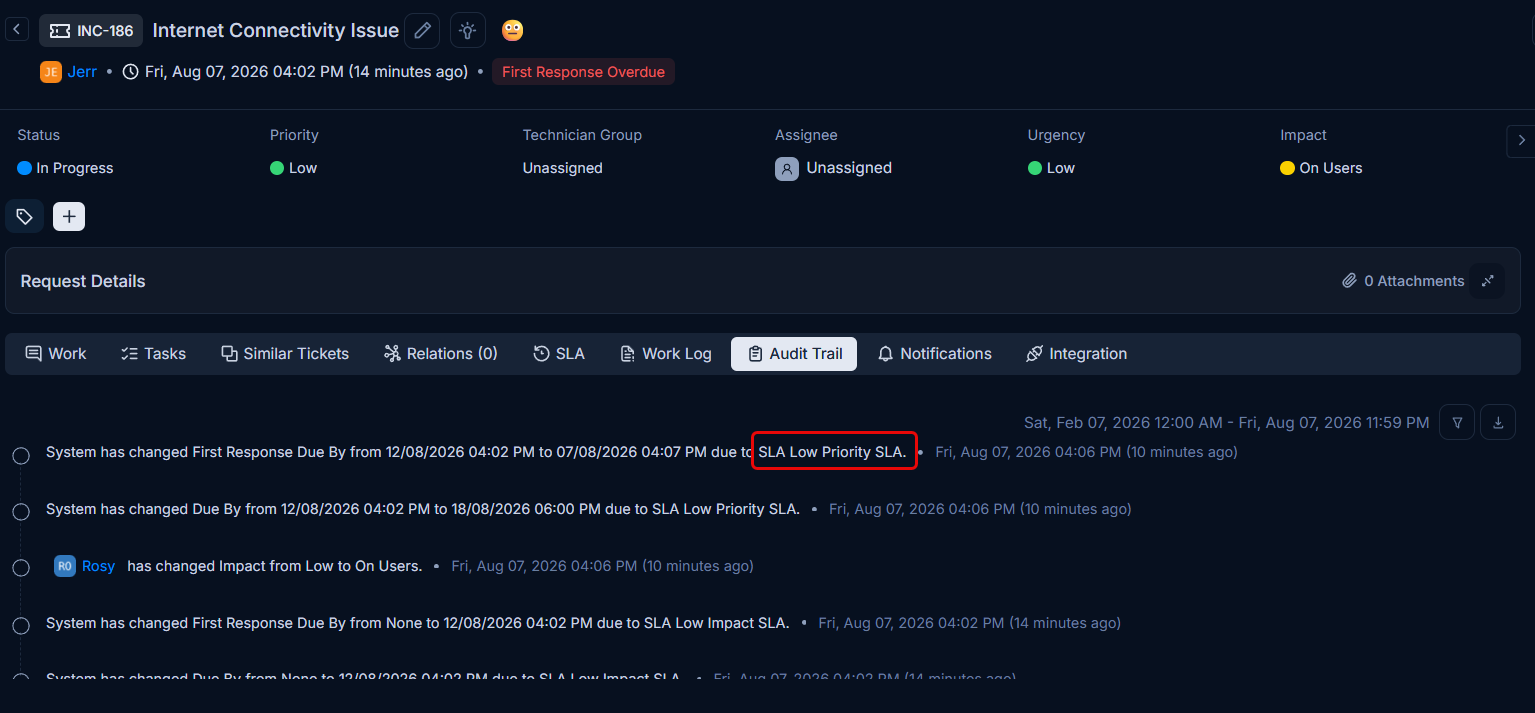
After updating the Impact, the system re-evaluates and applies Low Impact SLA as it remains the first matching SLA based on priority.
Key Considerations for SLA Application:
- Priority Order is Crucial: The system strictly follows the order of SLAs as displayed on the list page. Ensure your most critical or specific SLAs are placed higher in the priority list.
- Dynamic Evaluation: Whenever a change is made to a request, the system re-evaluates all enabled SLAs and applies the first one that matches the current request conditions, based on the defined priority order.
- Due Date Calculation: The due date for any request is always calculated based on its created date, regardless of when an SLA is applied or re-evaluated. Even if a new SLA is applied after a request update, it will use the original created date for its due date computation.
- Administrator Responsibility: As an administrator, it is crucial to carefully manage the enabled SLAs and their priority order to ensure the correct SLAs are applied consistently across all requests.