Use Cases
Service Level Agreements (SLAs) and Operational Level Agreements (OLAs) are vital for defining and maintaining service quality. This document illustrates practical scenarios within ServiceOps, focusing on SLA computation, due dates, and escalation processes.
Use Case 1: SLA and OLA Type - Software Installation Request
Scenario: A marketing team member submits a request to install specialized design software (e.g., "Graphic Design Suite Pro") on their workstation. While important for their role, it is not a critical business function that would halt operations if delayed by a few hours. The IT department needs to ensure a quick acknowledgment (response) and complete the installation within a reasonable timeframe (resolution), coordinating with a software deployment specialist.
This use case demonstrates how ServiceOps automatically calculates SLA due dates, triggers escalations for impending or breached targets, and manages internal team commitments through OLAs for such routine software installation requests.
SLA Configuration:
An SLA is configured with the following settings to handle low-impact software installation requests:
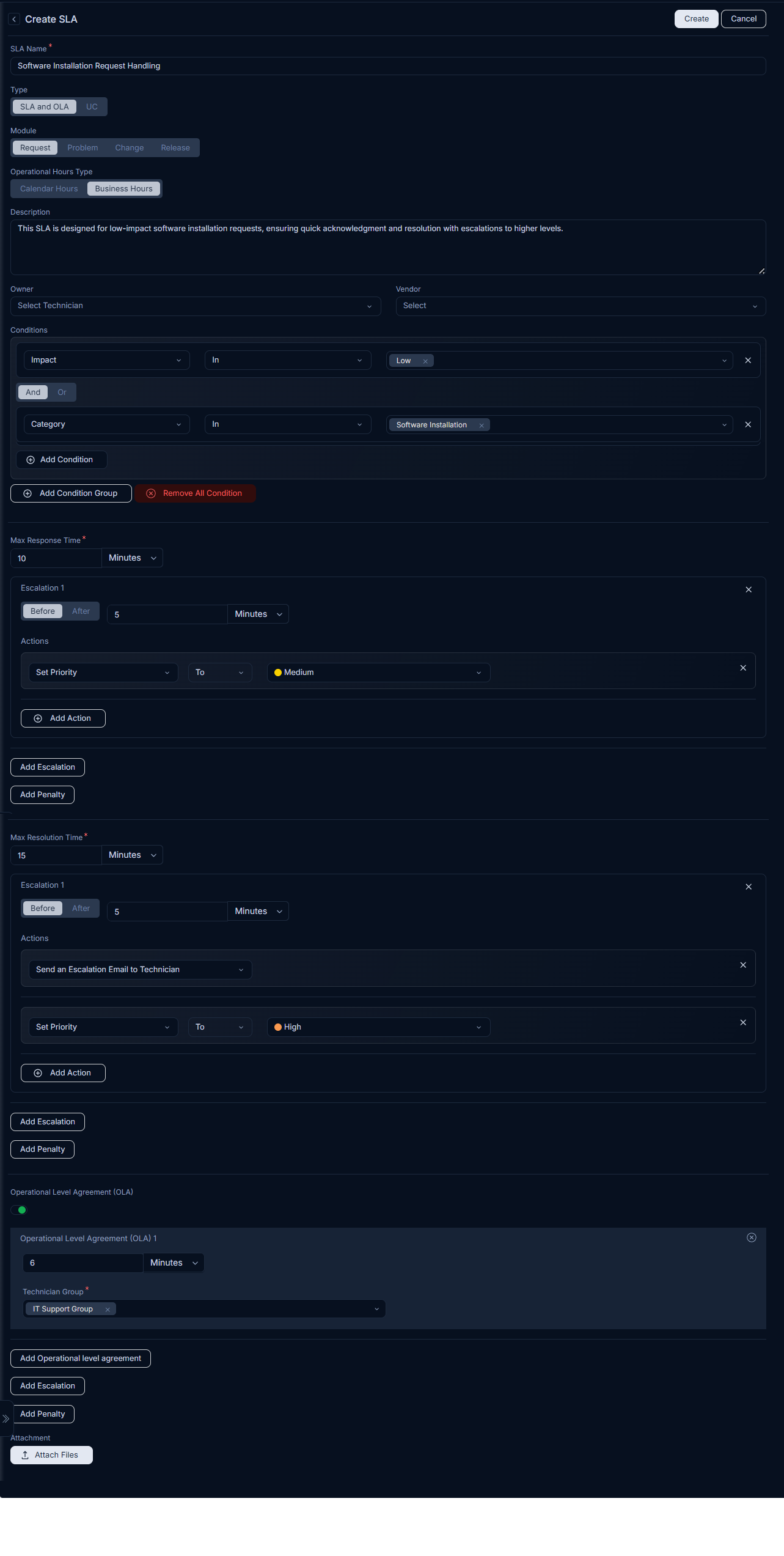
- Name: Software Installation Request Handling
- Type: SLA and OLA
- Module: Request
- Operational Hours Type: Business Hours (Applicable until a technician group is assigned; also applies if an assigned technician group lacks specific business hours).
- Description: This SLA is designed for low-impact software installation requests, ensuring quick acknowledgment and resolution with escalations to higher levels.
- Conditions: SLA is effective when the request
ImpactisLow, andCategoryisSoftware Installation. - Max Response Time: 10 minutes
- Response Escalation:
- Escalation 1: Before 5 minutes
- Action 1: Set Priority to Medium.
- Max Resolution Time: 15 minutes
- Escalation 1: Before 5 minutes
- Action 1: Send Escalation Email to Technician and set Priority to High.
- Operational Level Agreement: Enabled
- OLA 1 Time: 6 minutes
- Technician Group: IT Support Group
Application to a Software Installation Request:
Upon creation of a Software Installation Request, the configured SLA is automatically applied.
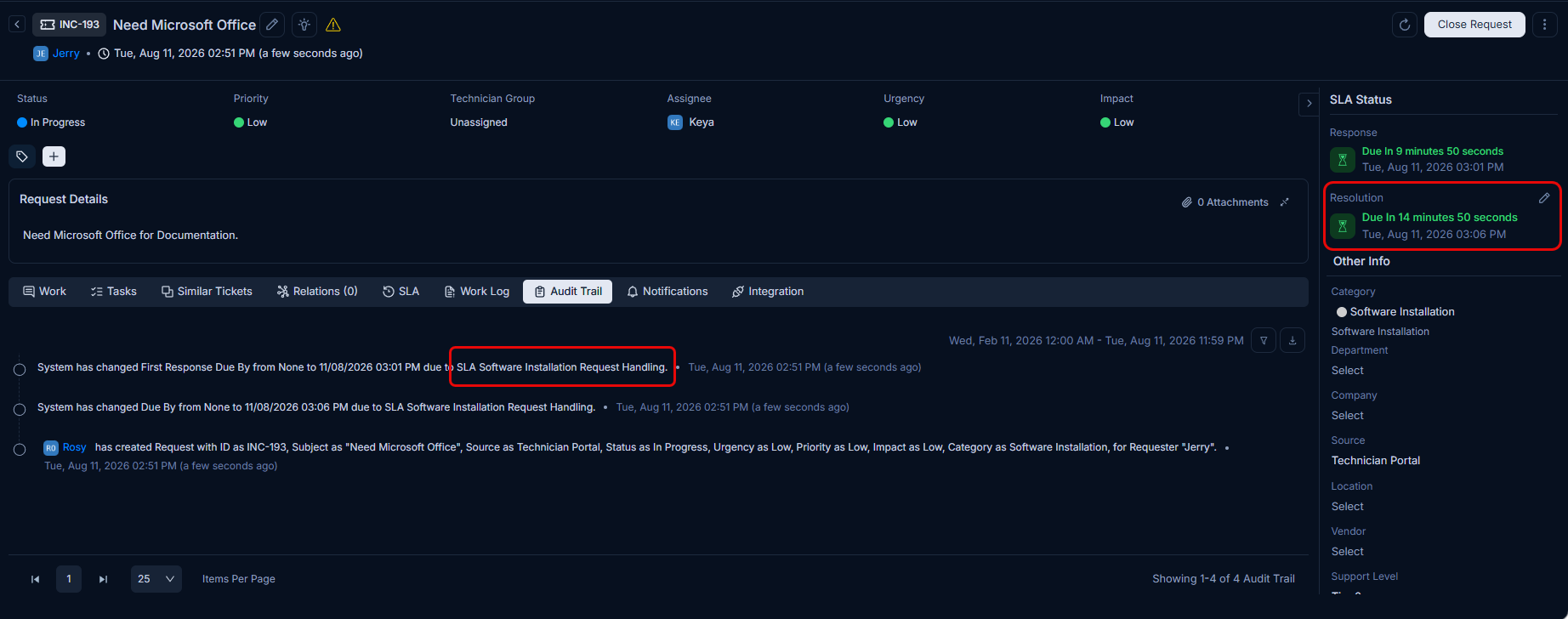
SLA Due Date Calculation (Default Business Hours): Initially, if no specific technician group is assigned, the system calculates the SLA due date based on predefined Default Business Hours (e.g., Mon-Fri, 10:00 AM to 06:00 PM). For a request created on Nov 28, 2025 12:16 PM, with a Max Resolution Time of 15 minutes, the SLA due date for the software installation is set to Nov 28, 2025 12:31 PM.
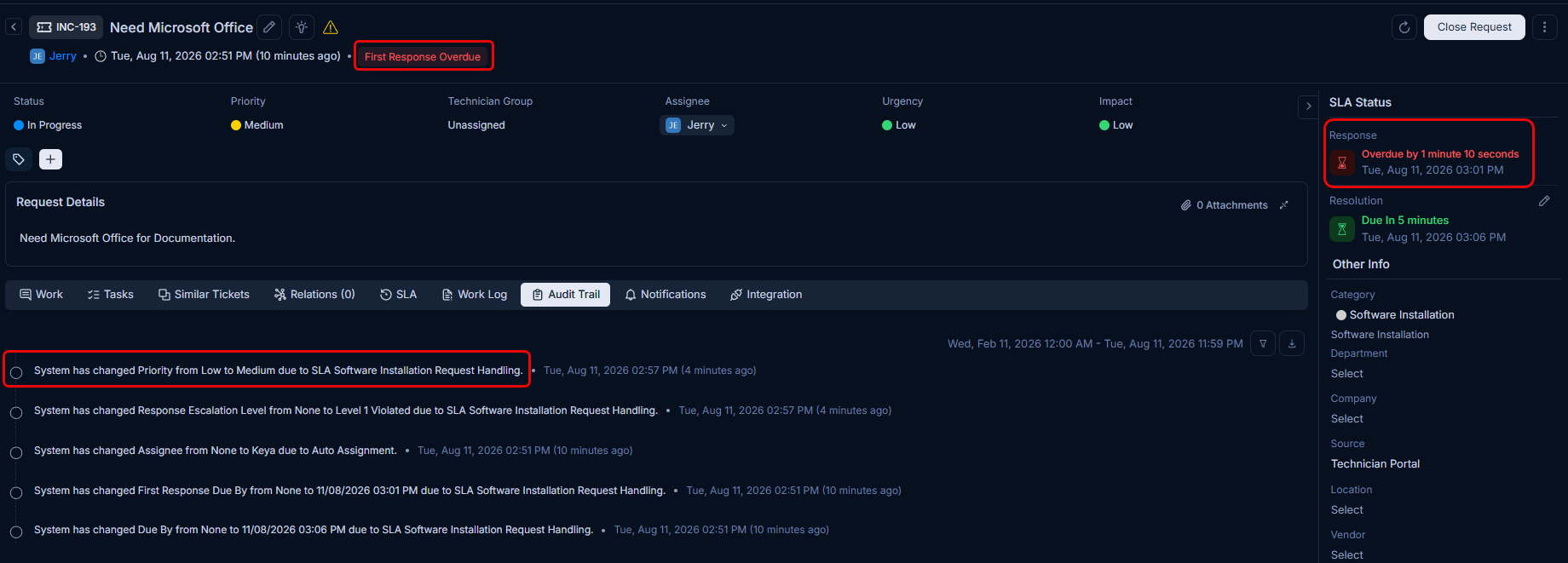
SLA Escalation Trigger: If the software installation request response time exceeds the calculated due date, the SLA escalates. This typically involves an automatic change in the request's Priority to Medium and a visual indication of the First Response Overdue.
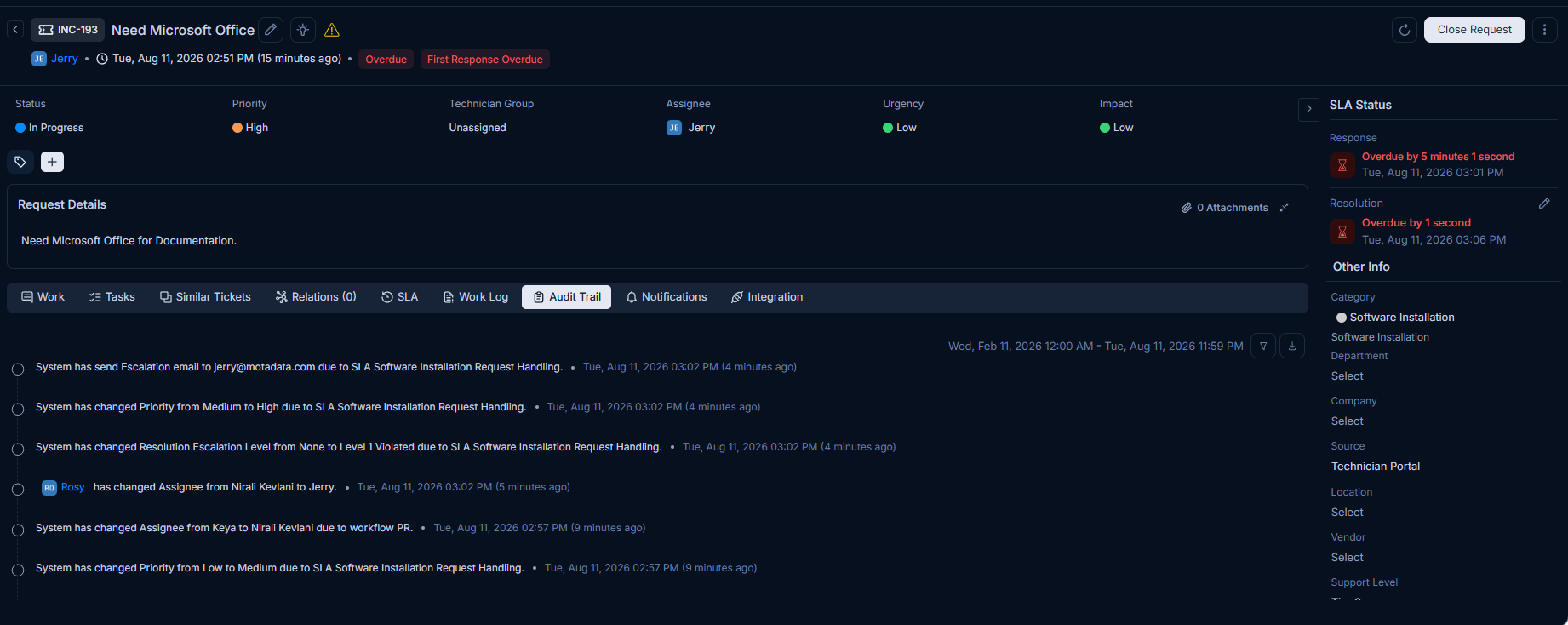
Impact of Technician Group Business Hours: When a Technician Group with specific operational hours (e.g., 24x7) is assigned to the request, the SLA dynamically recalculates the due date. The 15-minute resolution time is then counted based on the technician group's working hours, which adjusts the Overdue Period accordingly for the software installation.
Operational Level Agreement (OLA) for Software Packaging: An OLA, set to 6 minutes, is introduced for the IT Support Group (assigned as the Technician Group) to manage their internal commitment for preparing the software package. When this OLA is applied (e.g., on Nov 28, 2025 12:32 PM), its due date is established for 6 minutes later, i.e., Nov 28, 2025 12:38 PM.
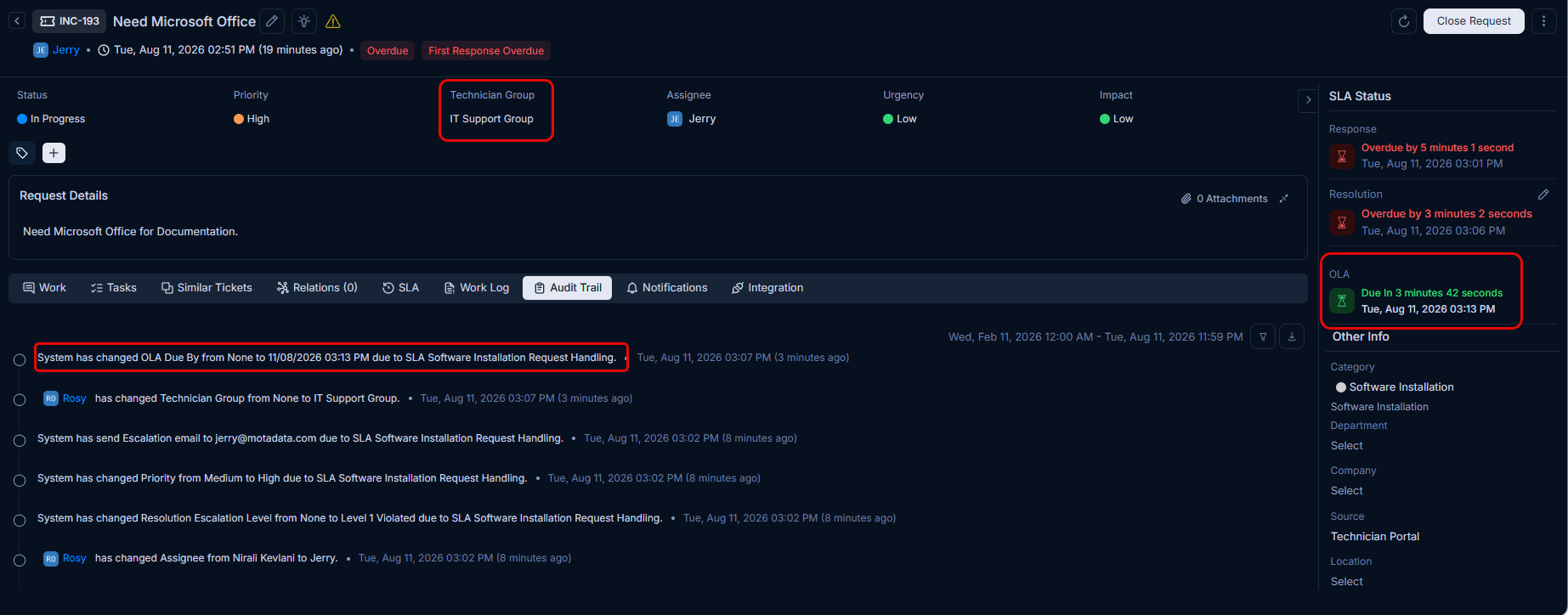
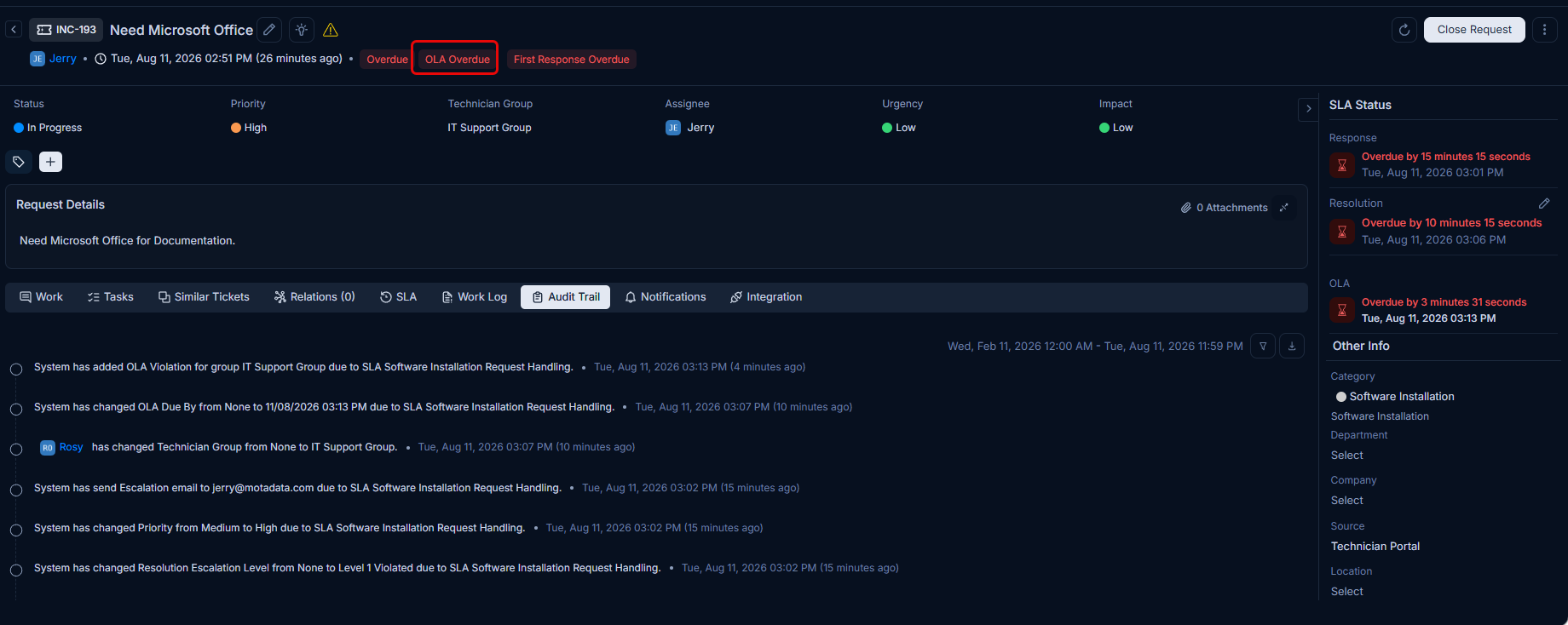
OLA Violation Notification: In the event of an OLA violation by the IT Support Group, the OLA Overdue time is prominently displayed in red, signaling a breach to relevant stakeholders.
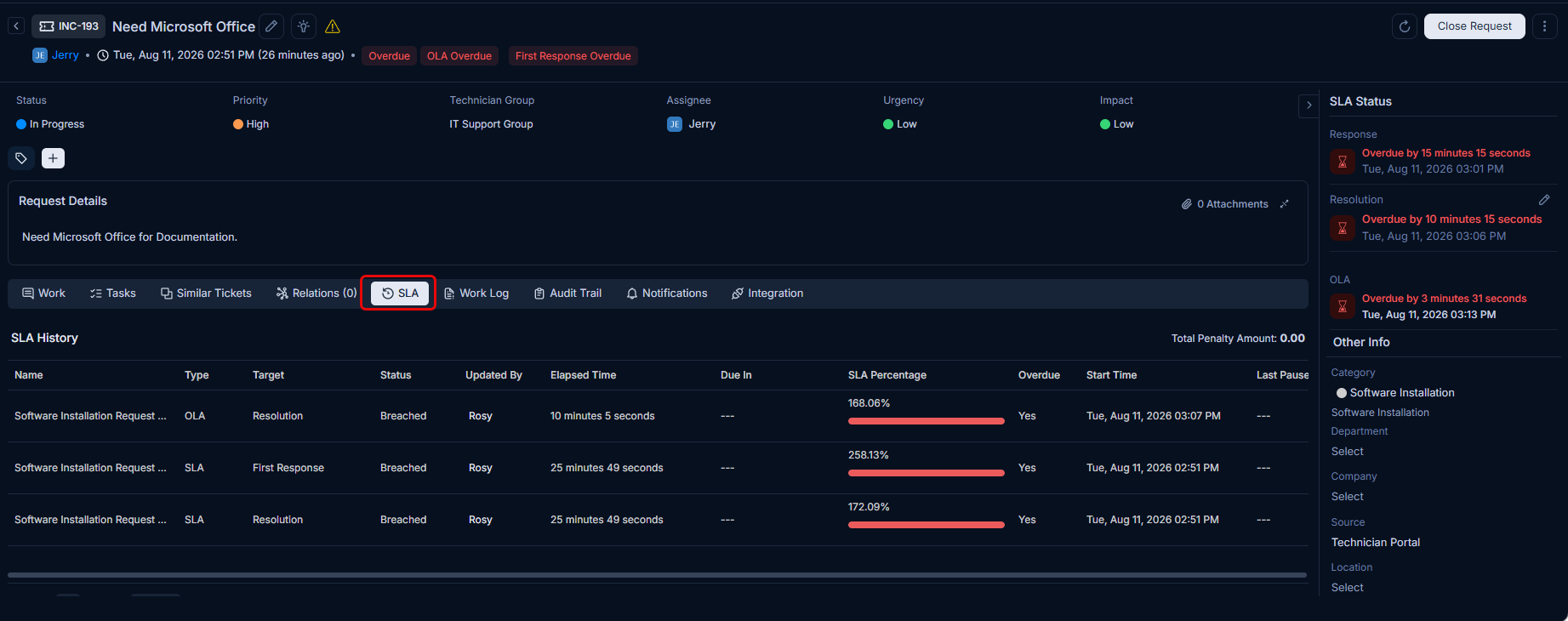
All comprehensive SLA and OLA details, including their real-time status and timelines for the software installation request, are accessible within the dedicated SLA tab of the request.
Use Case 2: SLA Type - Critical Incident Response
Scenario: A high-priority server outage is reported, impacting critical business operations. The IT team needs to respond and resolve this issue within a very tight timeframe to minimize downtime.
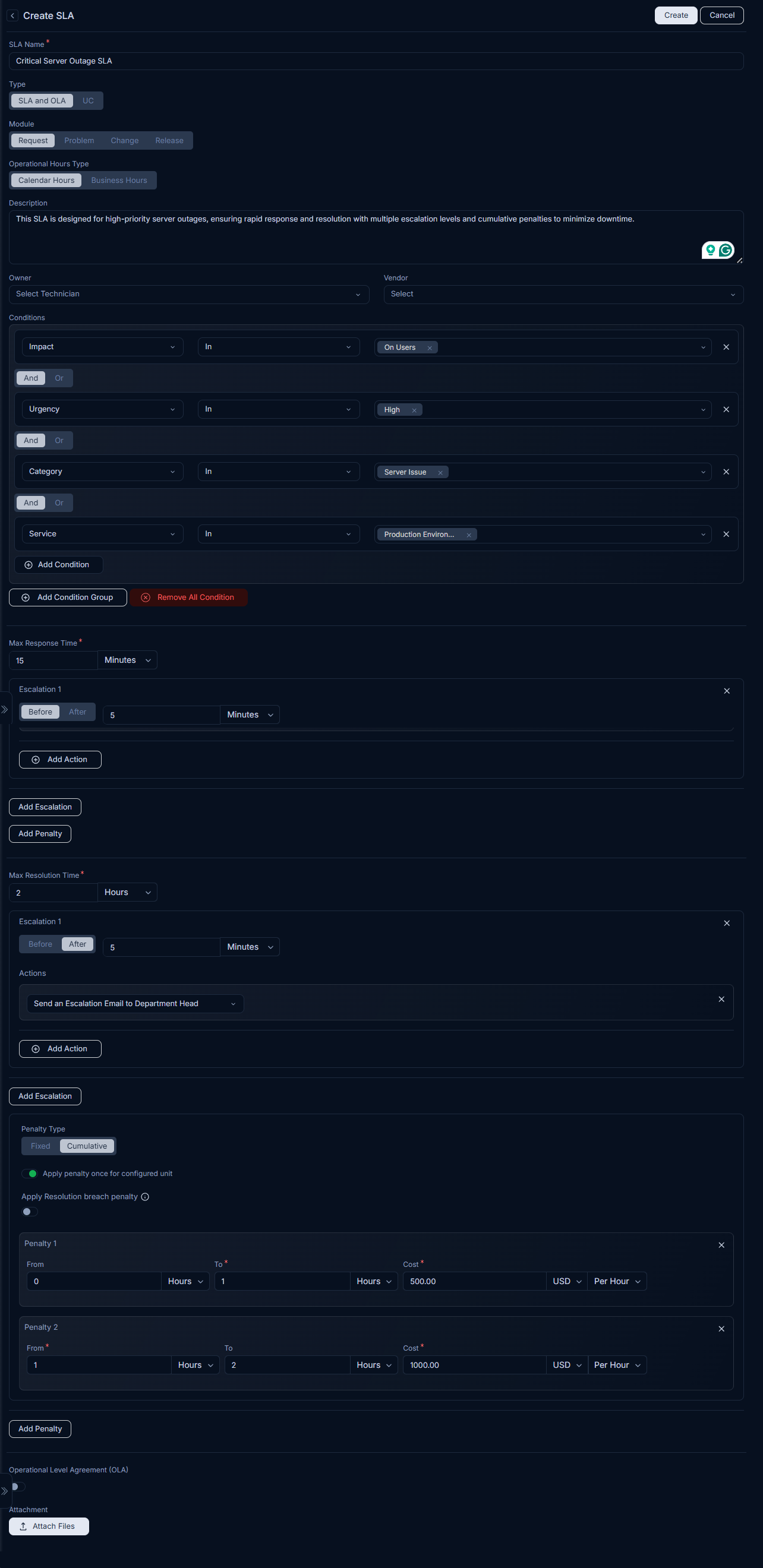
SLA Configuration:
- SLA Name: Critical Server Outage SLA
- SLA Type: SLA and OLA
- Module: Request
- Operational Hours Type: Calendar Hours (24/7)
- Description: This SLA is designed for high-priority server outages, ensuring rapid response and resolution with multiple escalation levels and cumulative penalties to minimize downtime.
- Conditions:
ImpactisOn UsersUrgencyisHighCategoryisServer IssueServiceisProduction Environment
- Max Response Time: 15 minutes
- Response Escalation 1 (Before 5 minutes): Send an Escalation Email to Technician's Manager, change
PrioritytoUrgent. - Response Escalation 2 (After 5 minutes): Send an Escalation Email to Department Head.
- Response Escalation 1 (Before 5 minutes): Send an Escalation Email to Technician's Manager, change
- Max Resolution Time: 2 hours
- Resolution Escalation 1 (Before 30 minutes): Send an Escalation Email to Technician.
- Penalty Type: Cumulative
- Penalty 1: From: 0 To: 1 Hour, Cost: 500 USD per Hour (Apply penalty once for configured unit: Enabled)
- Penalty 2: From: 1 To: 2 Hours, Cost: 1000 USD per Hour (Apply penalty once for configured unit: Enabled)
Explanation: This SLA ensures that critical server outages receive immediate attention. The 24/7 operational hours reflect the urgency. Multiple escalation levels ensure that if the initial response or resolution targets are missed, higher-level personnel are informed, and additional actions are triggered to accelerate resolution. The cumulative penalty highlights the financial impact of prolonged downtime.
Now, create a request with the following details:
- Impact: On Users
- Urgency: High
- Category: Server Issue
- Service: Production Environment
The SLA will get applied to it as shown below.
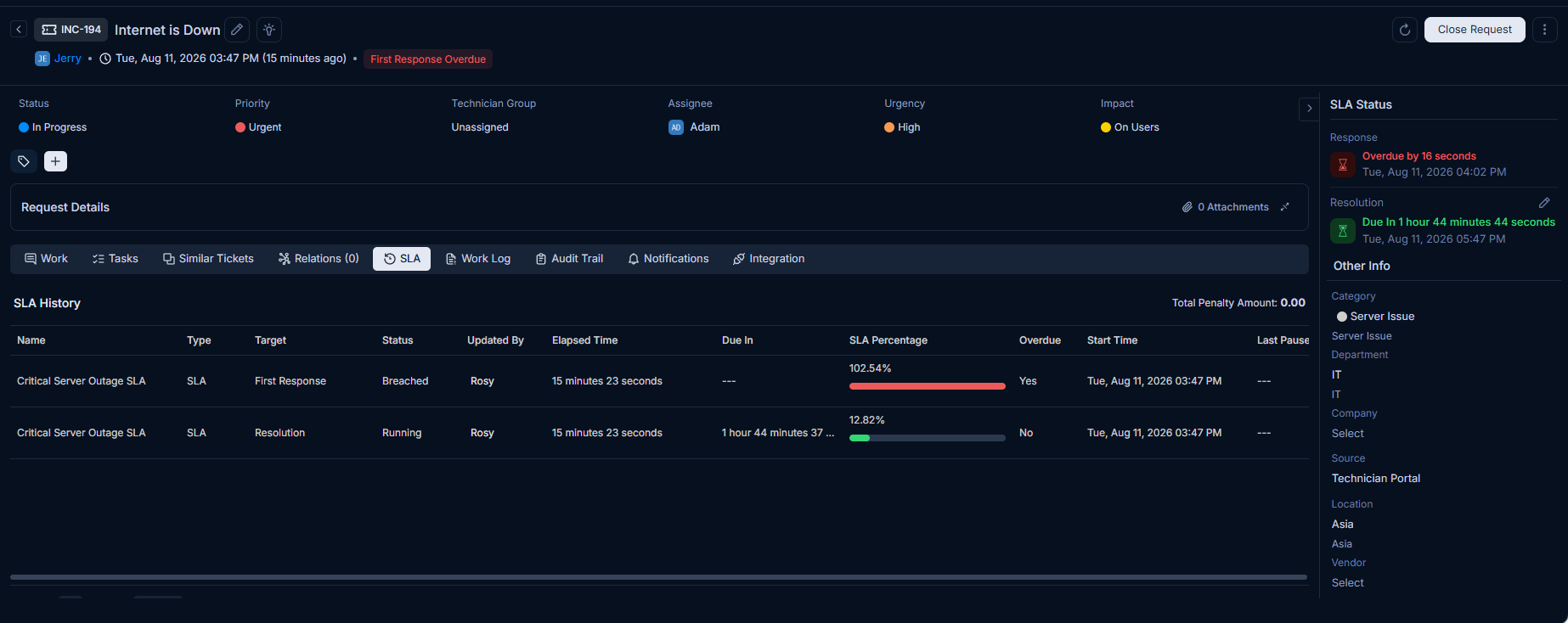
Also, you can view the Audit Trail for the request to see the SLA details as shown below.
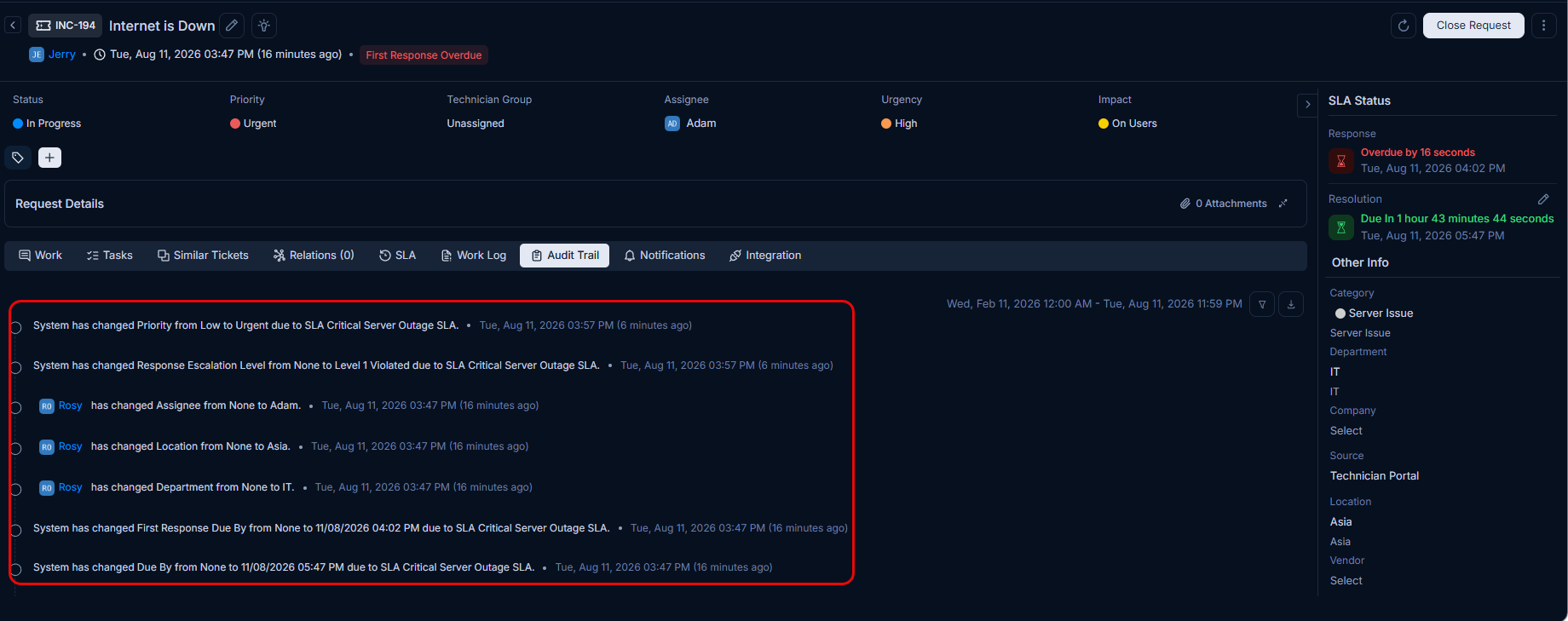
Use Case 3: OLA Type - Internal Team Collaboration (Service Request)
Scenario: A user reports a critical bug in the application, and the Support team needs to coordinate with the Development, QA, and Infrastructure teams to resolve it. The SLA for this request is defined by the customer, but the internal team collaboration needs to be managed efficiently.
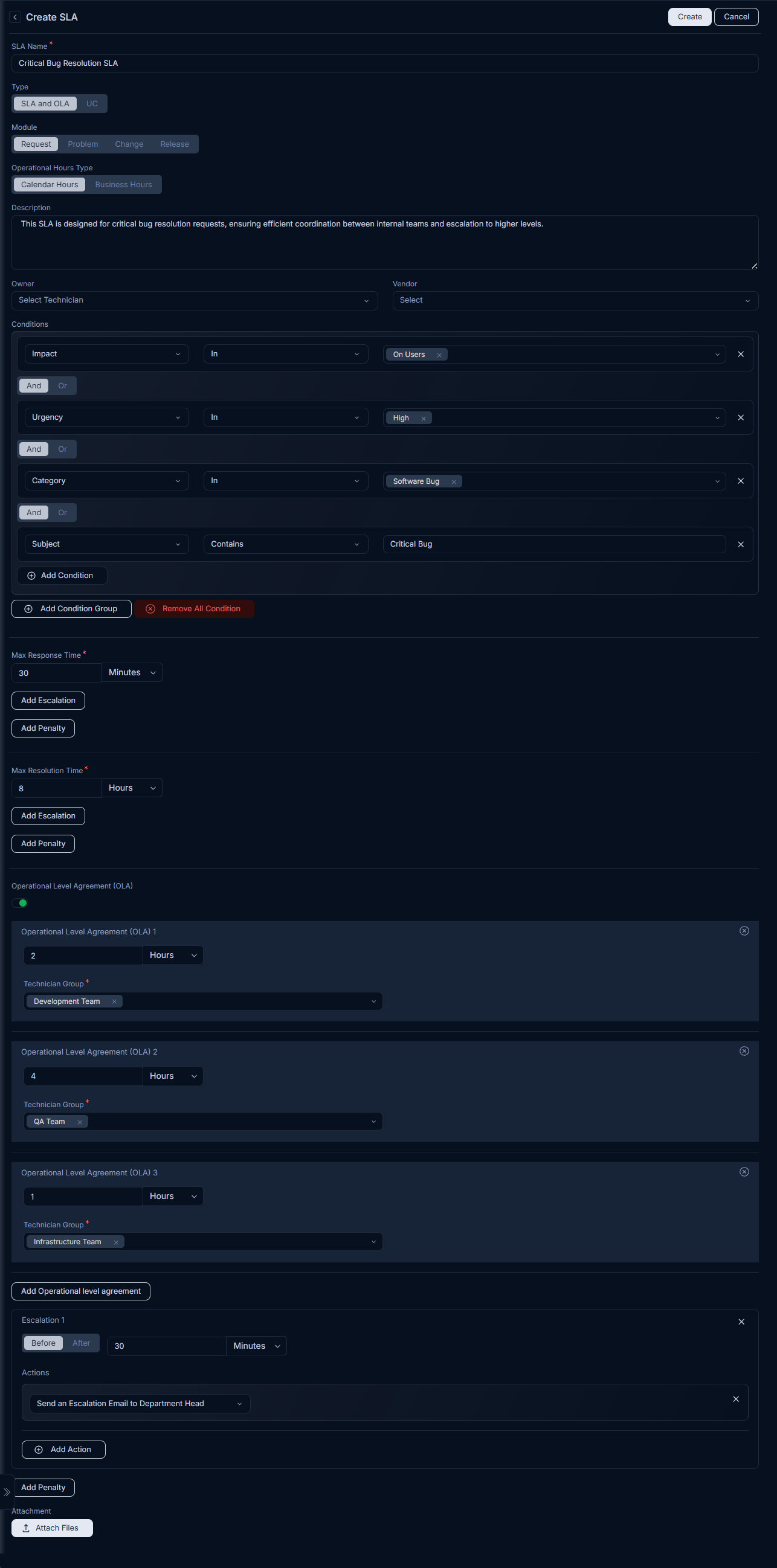
The initial configuration for the "Critical Bug Resolution SLA" is shown below.
SLA Configuration:
An SLA, named "Critical Bug Resolution SLA", is configured with the following settings to manage this critical bug resolution request:
SLA Name: Critical Bug Resolution SLA
SLA Type: SLA and OLA
Module: Request
Operational Hours Type: Business Hours
Description: This SLA is designed for critical bug resolution requests, ensuring efficient coordination between internal teams and escalation to higher levels.
Conditions:
ImpactisOn UsersUrgencyisHighCategoryisSoftware BugSubjectcontainsCritical Bug
Max Response Time: 30 minutes
Max Resolution Time: 8 hours
Operational Level Agreement (OLA): Three distinct OLAs are defined to track the performance of various internal teams:
- OLA 1 (Development Team):
- Time: 2 hours
- Technician Group: Development Team
- OLA 2 (QA Team):
- Time: 4 hours
- Technician Group: QA Team
- OLA 3 (Infrastructure Team):
- Time: 1 hour
- Technician Group: Infrastructure Team
- OLA 1 (Development Team):
Overall OLA Escalation:
- Escalation 1 (Before 30 Minutes):
- Action 1: Send an Escalation Email to
Department Head
- Action 1: Send an Escalation Email to
- Escalation 1 (Before 30 Minutes):
Explanation of OLA Tracking (SLA History View):
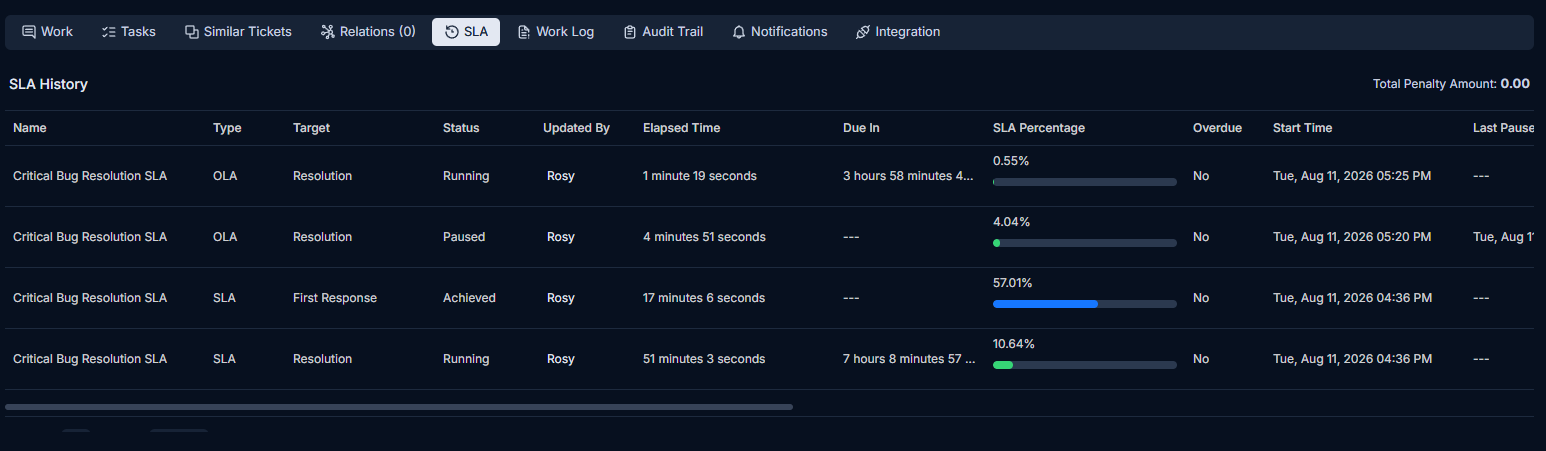
The image below, illustrating the SLA History for a "Critical Bug Resolution SLA", demonstrates how these internal OLAs are tracked in real-time. Each entry provides a clear overview of the status and performance of the involved technician groups.
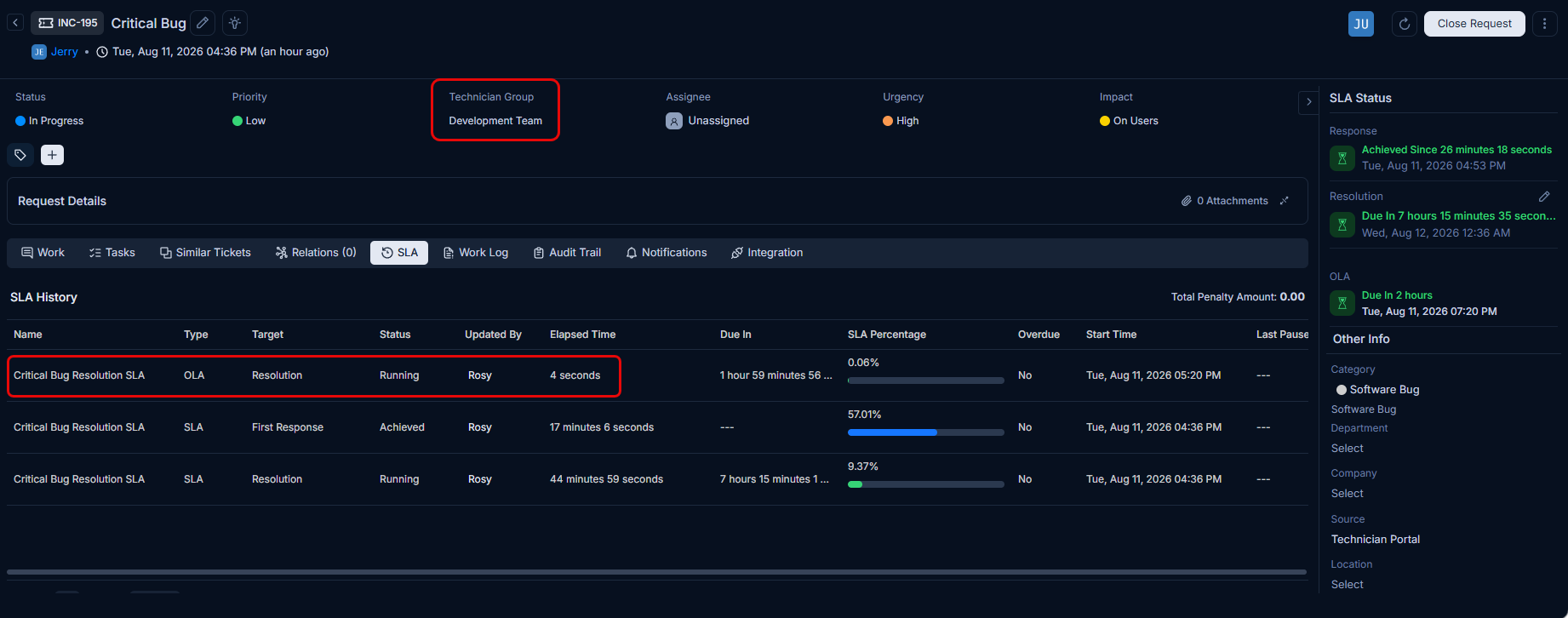
As depicted in the SLA History:
- Multiple OLA Entries: The system displays separate entries for each configured OLA, such as for the
QA Team,Development Team, andInfrastructure Team. Each entry specifies theTypeasOLAand theTargetasResolution. - Real-time Status and Progress: Each OLA shows its
Status(e.g.,Running,Paused),Elapsed Time,Due In(if applicable), andSLA Percentage. For instance, the QA Team's OLA shows3.1%SLA Percentage and5 minutes 49 secondsDue In, while the Development and Infrastructure teams' OLAs arePausedwith their respectiveElapsed TimeandSLA Percentage. - Breached SLA for First Response: The history also includes an entry for the main
SLAforFirst Response, which is shown asBreachedwith216.67%SLA Percentageand5 minutes 50 secondsBreached Duration, indicating a delay in initial response by theQA Team. - Comprehensive Overview: This detailed history ensures transparency and accountability for each internal team's contribution to resolving the critical bug, ultimately supporting the timely fulfillment of the customer-facing SLA.
Use Case 4: UC Type - Vendor-Dependent Hardware Repair (Service Request)
Scenario: A user's laptop requires a hardware repair that necessitates sending it to an external vendor. This is typically initiated as a Service Request. The Underpinning Contract (UC) SLA needs to account for the vendor's turnaround time.
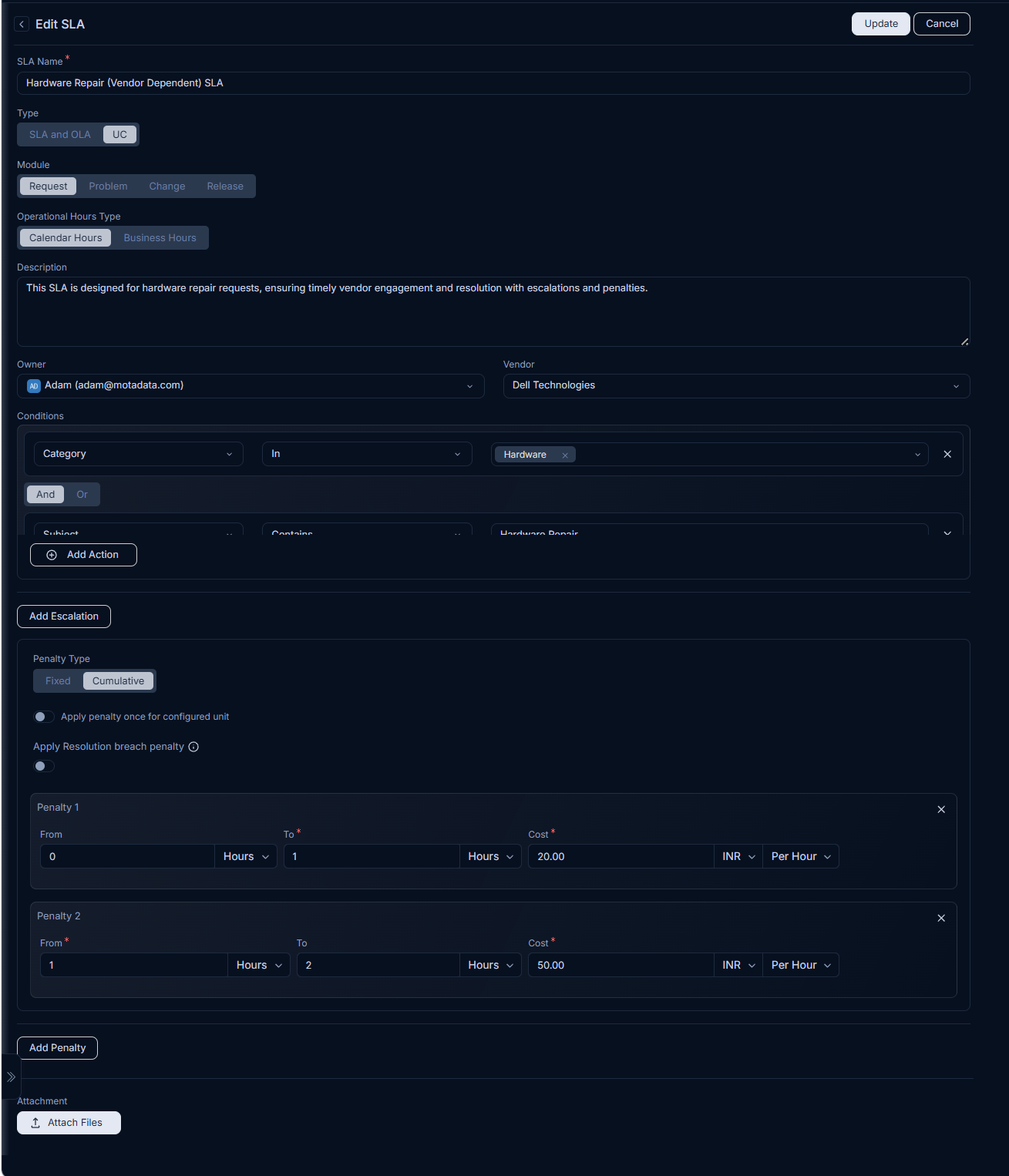
Create an SLA under Hardware Repair Service Request as shown below.
SLA Configuration:
- SLA Name: Hardware Repair (Vendor Dependent) SLA
- SLA Type: UC (Underpinning Contract)
- Module: Request
- Operational Hours Type: Calendar Hours (24/7, for tracking vendor time)
- Description: This SLA is designed for hardware repair requests, ensuring timely vendor engagement and resolution with escalations and penalties.
- Conditions:
CategoryisHardwareSubjectcontainsHardware Repair
- Owner: Adam (adam@motadata.com)
- Vendor: Dell Technologies
- Max Resolution Time: 1 Hour
- Escalation 1:Time: Before 10 Minutes
- Action 1: Set Technician Group
ToIT Procurement Team - Action 2: Send an Escalation Email
toTechnician
- Action 1: Set Technician Group
- Escalation 2:
- Time: After 10 Minutes
- Action 1: Send an Escalation Email
toTechnician
- Escalation 1:Time: Before 10 Minutes
- Penalty Type: Cumulative
- Penalty 1: From: 0 Hours To: 1 Hours, Cost: 20.00 USD per Hour
- Penalty 2: From: 1 Hours To: 2 Hours, Cost: 50.00 USD per Hour
Explanation: This use case demonstrates an Underpinning Contract (UC) which focuses on external vendor performance for a Service Request. The SLA is triggered by the request type, category, and subject, are configured in the UI. A specific internal owner, Larry, is assigned to oversee the process. The Max Resolution Time is set to 1 hour.
Underpinning Contracts (UC) are active only when the ticket status is configured for UC tracking. If a ticket transitions to a status that is not configured for UC (e.g., "Pending"), the UC timer will automatically pause. It will resume running only when the ticket status changes back to a configured, active status (e.g., "In Progress"). For more details, please refer to the Request Status section.
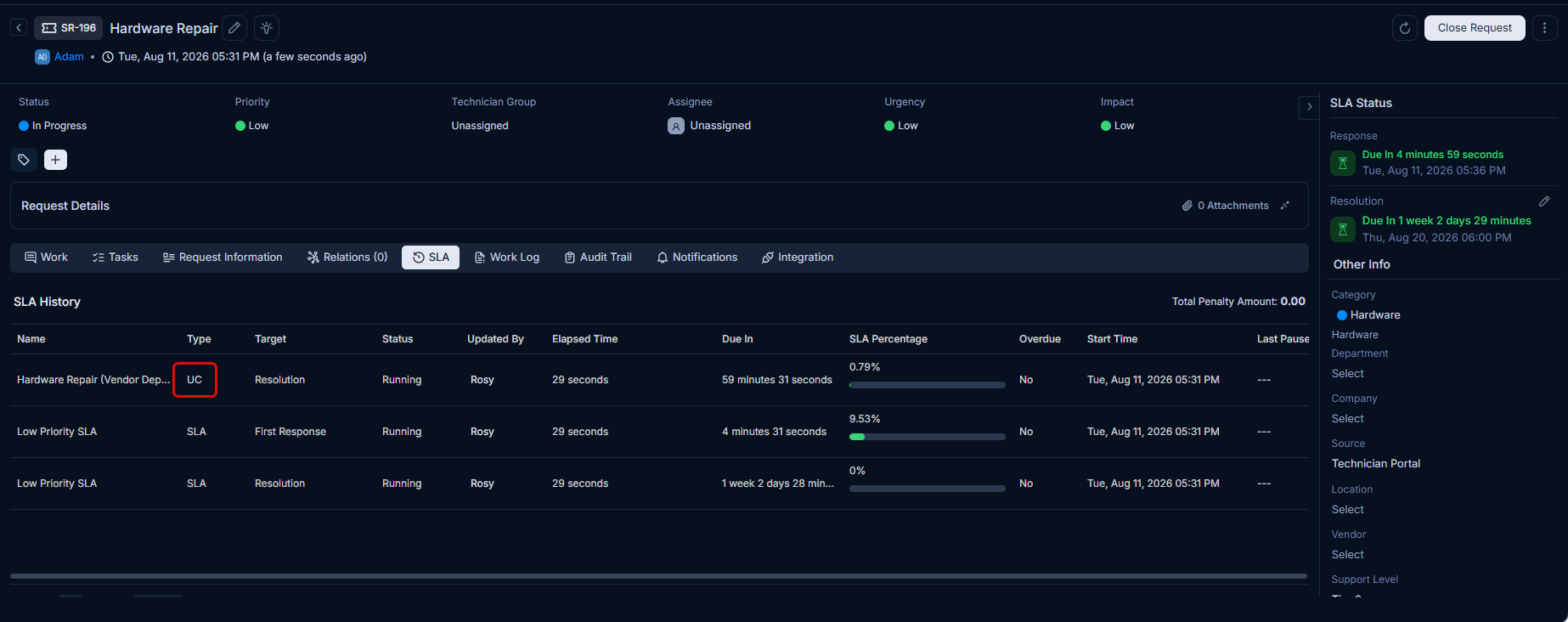
The escalation rules are configured as follows:
- Escalation 1 triggers 10 minutes before the resolution due date, setting the technician group to "IT Procurement Team" and sending an escalation email to the technician, allowing proactive follow-up with the vendor.
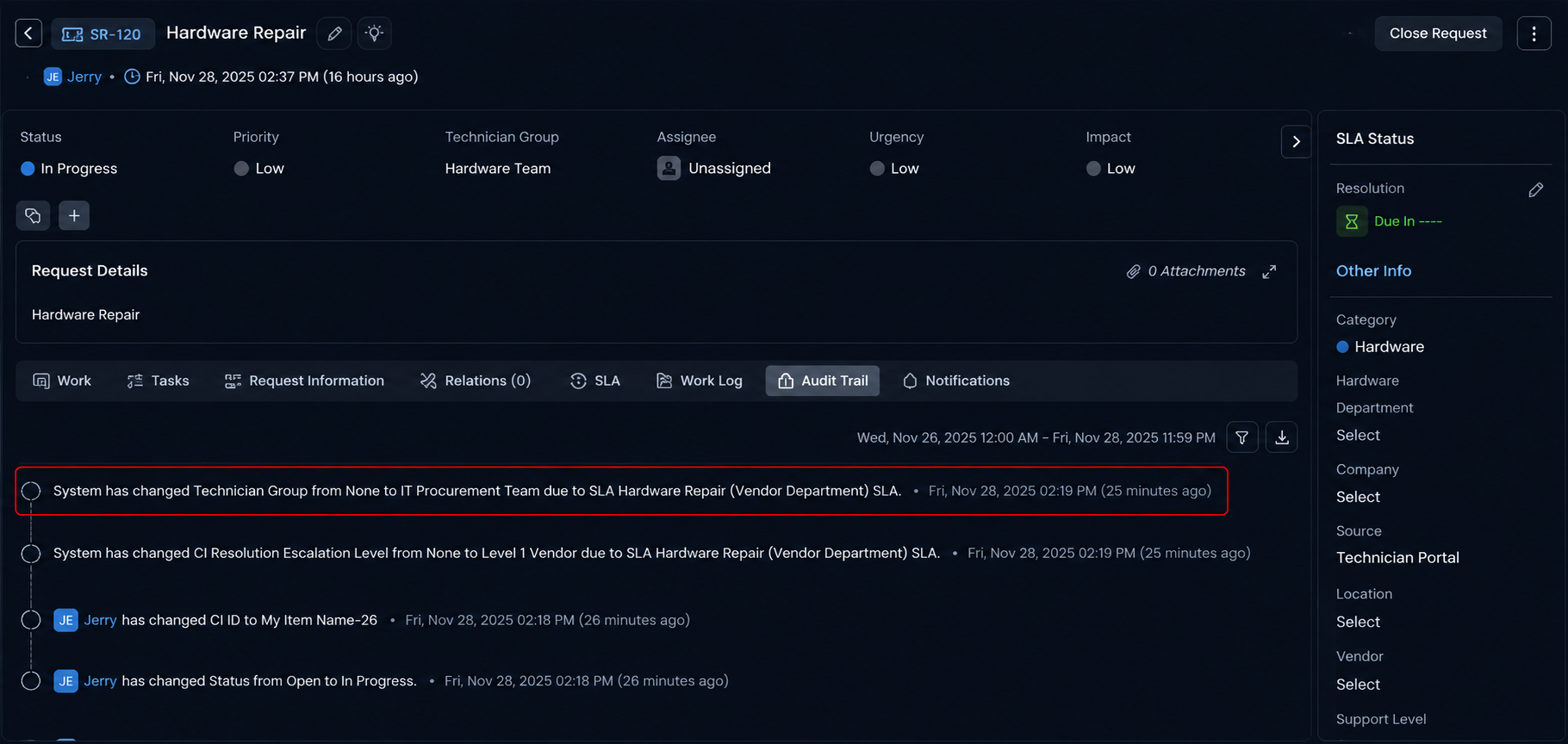
- Escalation 2 triggers 10 minutes after the resolution due date, sending another escalation email to the technician to alert them of the breach.

The cumulative penalty structure is applied to the vendor, with increasing costs for delays: 20 USD per hour for the first 1 hour overdue, and 50 USD per hour for delays between 1 and 2 hours, highlighting the contractual obligations and financial repercussions for delays.
Use Case 5: Multiple SLAs on a Single Request
Scenario: A technician receives a ticket for a login failure reported by a single user. The ticket is initially classified as low priority under the User Support category. As the situation escalates - more users are affected, the priority is raised, the technician group changes, and the ticket temporarily moves to a pending status - different SLAs become applicable at each stage. This use case demonstrates how ServiceOps deactivates the previous SLA and activates a new one each time the ticket's conditions change, and how these transitions are reflected in the SLA Tab, Subject Header, and Right Side Pane.
SLA Configurations
Two SLAs are configured to cover the different stages of this ticket.
SLA A: Standard Login Support SLA
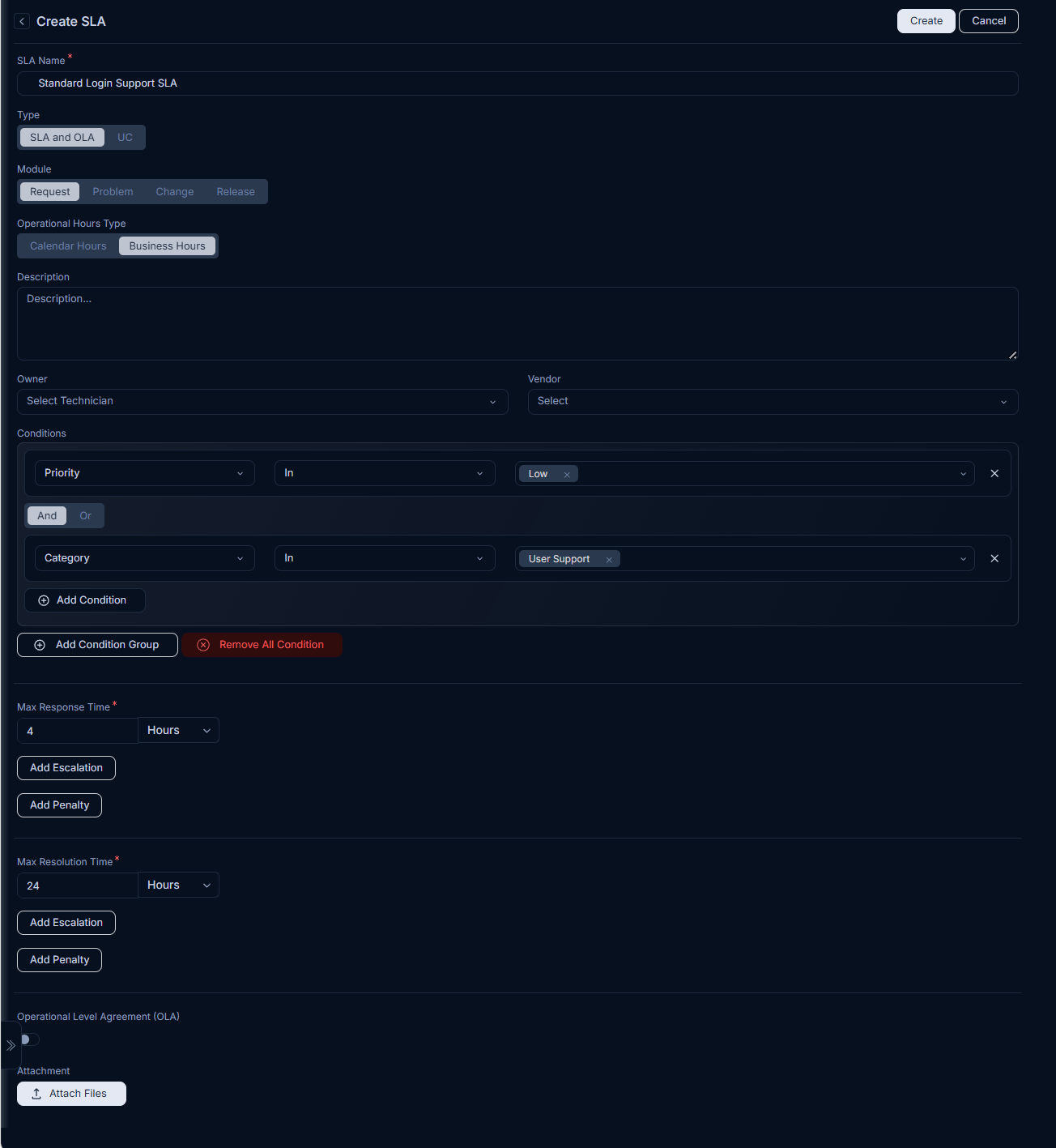
| Field | Value |
|---|---|
| Name | Standard Login Support SLA |
| Type | SLA and OLA |
| Module | Request |
| Operational Hours Type | Business Hours |
| Conditions | Priority = Low, Category = User Support |
| Max Response Time | 4 hours |
| Max Resolution Time | 24 hours |
SLA B: High Priority Authentication SLA
| Field | Value |
|---|---|
| Name | High Priority Authentication SLA |
| Type | SLA and OLA |
| Module | Request |
| Operational Hours Type | Calendar Hours (24x7) |
| Conditions | Priority = High, Category = Authentication Failure |
| Max Response Time | 30 minutes |
| Max Resolution Time | 4 hours |
| Response Escalation 1 | Before 10 minutes: Send escalation email to Technician's Manager |
| Resolution Escalation 1 | Before 30 minutes: Send escalation email to Technician and set Priority to Urgent |
How the SLA Changes Across the Ticket Lifecycle
Stage 1: Ticket Created - SLA A Applied
A user reports a login failure. The ticket is created with:
- Priority: Low
- Category: User Support
ServiceOps evaluates all active SLAs in priority order and finds that SLA A (Standard Login Support SLA) matches the ticket conditions. SLA A is applied immediately. The response due date is set to 4 business hours from ticket creation, and the resolution due date to 24 business hours.
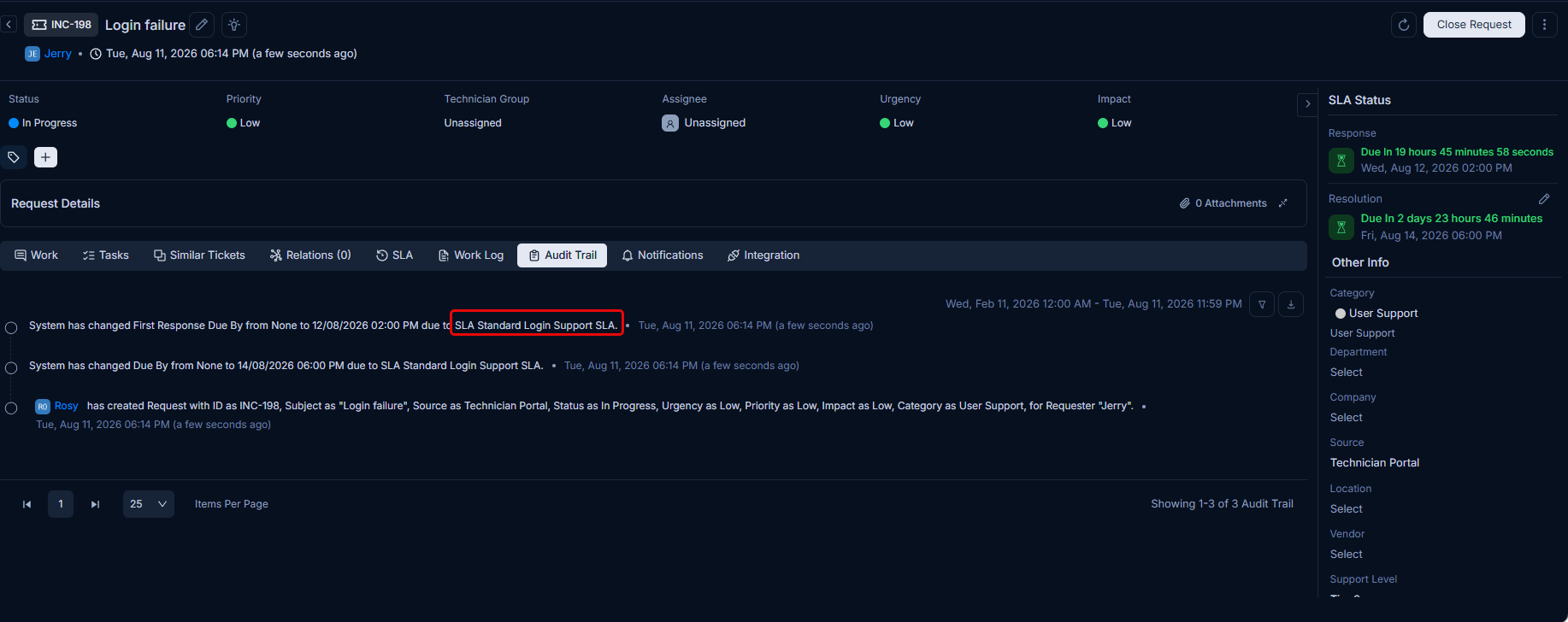
SLA Tab: Shows one entry - SLA A with status Running, elapsed time counting up, and both response and resolution due dates displayed.
Subject Header: Displays the resolution due date badge in green, indicating the ticket is within the SLA window.
Right Side Pane: Shows the active SLA name (Standard Login Support SLA), the response due date, and the resolution due date.
Stage 2: Priority Changed to High and Category Updated - SLA B Applied
The issue widens. Multiple users across two departments can no longer log in. The technician updates:
- Priority: High
- Category: Authentication Failure
ServiceOps detects that the ticket's conditions no longer match SLA A. It immediately stops SLA A and evaluates all active SLAs again. SLA B (High Priority Authentication SLA) now matches. SLA B is applied and its timers start from the moment the conditions changed. The response due date is now 30 minutes and the resolution due date is 4 hours, both calculated from the time of the SLA switch.
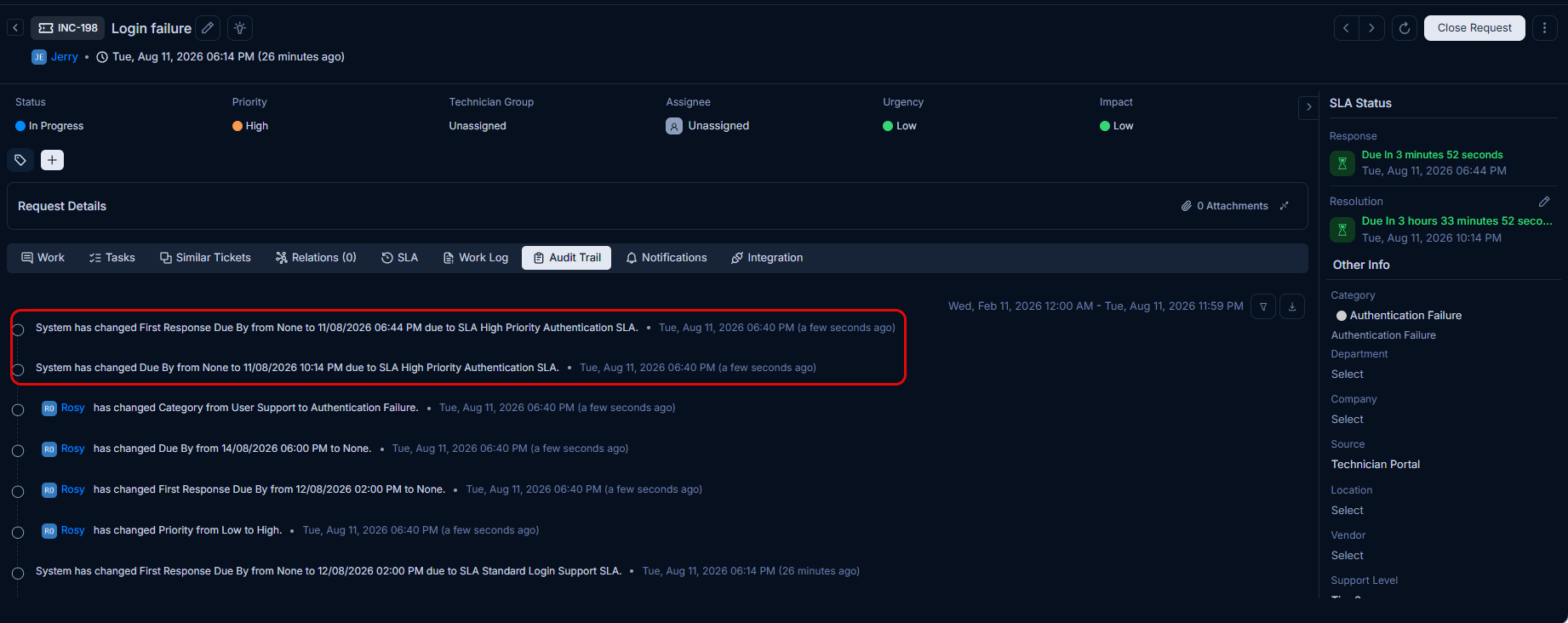
SLA Tab: Now shows two entries:
- SLA A with status Canceled - its elapsed time, the due dates it had, and the point at which it was deactivated are preserved for audit purposes.
- SLA B with status Running - new response and resolution due dates are visible, with elapsed time counting from the switch.
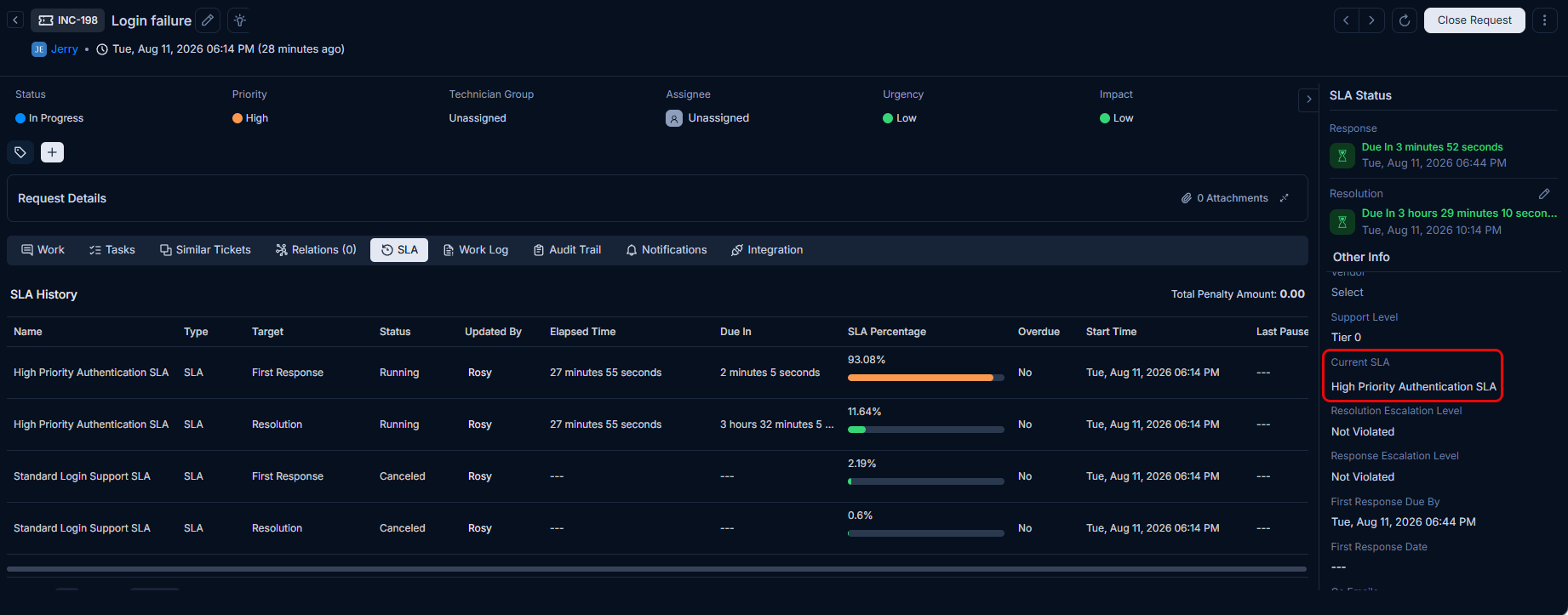
Subject Header: The resolution due date badge updates to reflect SLA B's tighter deadline. If the new 4-hour resolution window is approaching, the badge turns yellow (warning). If the window has passed without resolution, it turns red (breached).
Right Side Pane: Updates to show the new active SLA name (High Priority Authentication SLA) along with the recalculated response and resolution due dates.
Stage 3: Technician Group Changed - SLA Recalculates
The ticket is assigned to the Security Team, which operates on a 24x7 calendar schedule. Because SLA B uses Calendar Hours, no recalculation of operational hours is needed in this case. However, if SLA B had been configured with Business Hours and the Security Team had its own defined business hours, the SLA resolution due date would have recalculated at this point to reflect the Security Team's working schedule.
SLA Tab: The resolution due date in SLA B's entry updates to reflect the recalculated timeline. The elapsed time continues from where it was before the group change; there is no reset.
Subject Header and Right Side Pane: Both update immediately to display the new resolution due date.
Stage 4: Status Changed to Pending - SLA Timer Pauses
The Security Team is waiting for the identity provider vendor to share logs. The technician sets the ticket status to Pending. If the Pending status is configured in ServiceOps to pause the SLA timer, the SLA B clock stops at this moment.
SLA Tab: SLA B's status changes to Paused. The elapsed time freezes and the due date is extended accordingly once the ticket resumes.
Subject Header: The due date badge remains visible but the countdown is suspended.
Right Side Pane: Shows that the SLA is currently paused.
Stage 5: Status Changed Back to In Progress - SLA Resumes
The vendor shares the logs. The technician sets the status back to In Progress. The SLA B timer resumes from where it was paused. The resolution due date is recalculated by adding the remaining time to the current timestamp.
SLA Tab: SLA B's status returns to Running. The new resolution due date reflects the paused duration being excluded from the SLA window.
Subject Header and Right Side Pane: Both update to show the resumed SLA and the recalculated due date.
Summary: SLA Status Across All Views
The table below summarises how the SLA state is reflected across the three UI areas at each stage.
| Stage | Trigger | SLA Tab | Subject Header | Right Side Pane |
|---|---|---|---|---|
| Ticket created | Priority = Low, Category = User Support | SLA A: Running | Green badge - resolution due in 24 hours | SLA A details: response and resolution due dates |
| Priority and category updated | Priority = High, Category = Authentication Failure | SLA A: Stopped, SLA B: Running | Badge updates to SLA B deadline - yellow if close | SLA B details: new response and resolution due dates |
| Technician group assigned | Security Team assigned | SLA B: Running, due date recalculated | Due date updates to recalculated value | Updated resolution due date |
| Status set to Pending | SLA pause status triggered | SLA B: Paused, elapsed time frozen | Due date visible, countdown suspended | SLA paused indicator |
| Status set to In Progress | SLA resumes | SLA B: Running, new due date shown | Badge reflects resumed countdown | Resumed SLA with new due date |
The SLA Tab retains a full history of all SLAs that were applied to the ticket, including stopped ones. This provides a complete audit trail of how service commitments changed as the ticket evolved. Stopped SLAs display their elapsed time and the breach or completion status at the moment they were deactivated.