SNMP Runbook
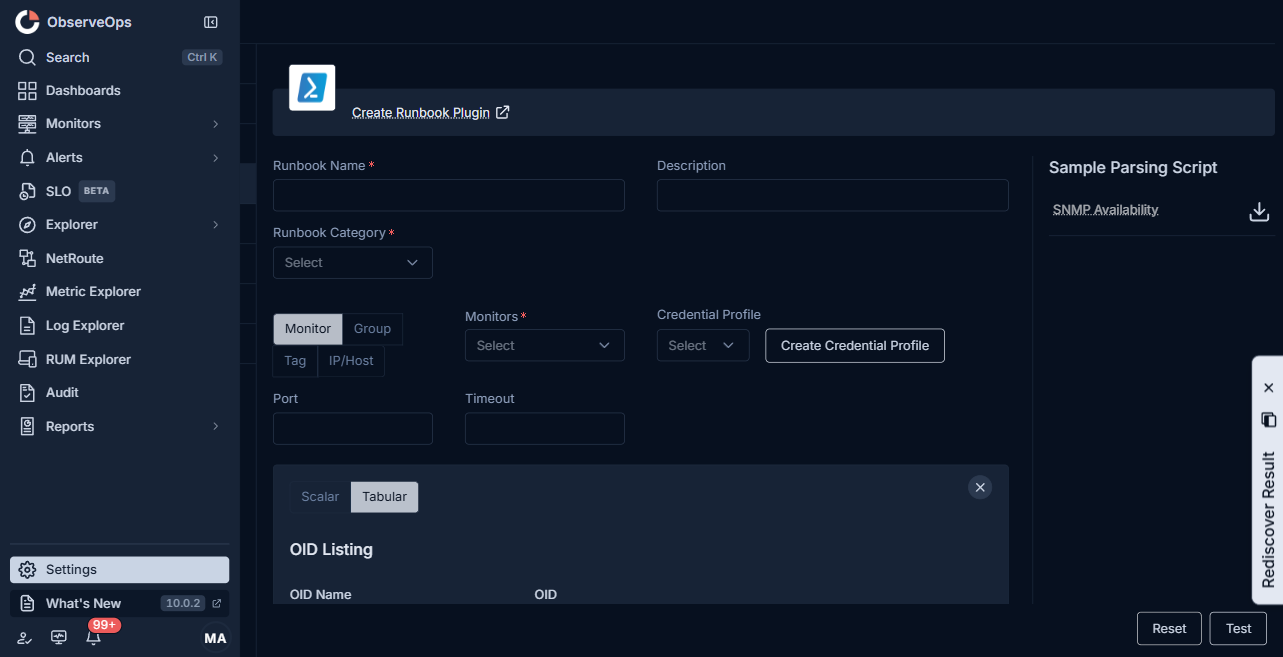
An SNMP runbook reads scalar or tabular OIDs from an SNMP-enabled device and shows the parsed values on the result screen.
When to Use
Use SNMP for switches, routers, firewalls, printers, UPS systems, and other network devices that expose data through SNMP v1, v2c, or v3.
Fields
| Field | What to enter |
|---|---|
| Runbook Name | A short, unique name. |
| Description | One line on what the runbook returns. |
| Runbook Category | Diagnostics, Performance Monitoring, Troubleshooting, System Management, Log Collection, Network Config, or Integration. |
| Monitor | Pick by Group, Tag, IP/Host, or Monitors. |
| Credential Profile | The SNMP credential (community string for v1/v2c, user and auth/priv for v3). Click Create Credential Profile if none fits. |
| Port | SNMP port. Defaults to 161. |
| Timeout | Seconds to wait before marking the run Failed. |
| Scalar / Tabular | Scalar reads one value per OID. Tabular walks a table and returns one row per index. |
| OID Listing | Add one or more entries. Each entry needs: - OID Name to label the value on the result screen. - OID (dotted numeric form) or click Choose OID to pick from the OID picker. |
| Add OID Group | Available when Tabular is selected. Groups a set of OIDs that walk together. |
| Script Language | GO or Python, for the parsing script. |
| Parsing Script | Turns the raw OID values into the result values. |
| Add Variable | Prompts the user for a value at run time. Reference it as $$$variable.name$$$ in the parsing script. |
The right-side Sample Parsing Script > SNMP Availability panel shows a working parser you can copy and adjust.
Steps
- Open Settings > Plugin Library > Runbook and click Create Runbook Plugin.
- Pick SNMP from the top menu.
- Select Scalar or Tabular.
- Add each OID under OID Listing. For a tabular walk, use Add OID Group to group OIDs that share an index.
- Fill in the parsing script.
- Click Test to walk the device once and show the parsed values.
- Click Save.