How to Schedule a Runbook Execution
ObserveOps runs a runbook in three ways: on demand from the monitor's Runbook tab, on a schedule you set, or as the action of an alert policy. This guide covers the second and third paths.
Before You Begin
- The runbook is listed on Settings > Plugin Library > Runbook.
- The runbook is assigned to at least one monitor. If not, open the row menu and click Assign Monitor first.
Scheduling a Runbook
Use a schedule when the runbook must run at a fixed time or interval, for example starting a set of VMs at the start of the business day.
Steps
Go to Settings > Plugin Library > Runbook.
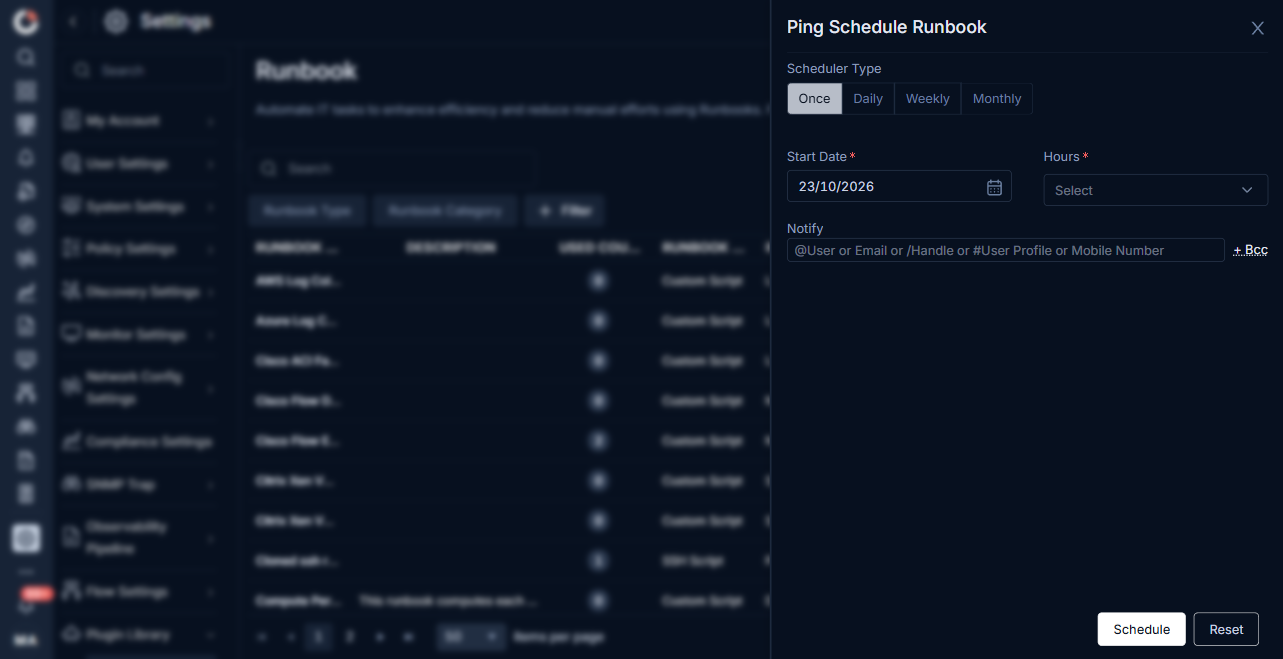
On the row of the runbook, open the actions menu (three-dot icon) and click Schedule Runbook. The {Runbook Name} Schedule Runbook drawer opens.
Fill in the schedule:
Field What to enter Scheduler Type Once, Daily, Weekly, or Monthly. Days The days of the week. Visible when Scheduler Type is Weekly. Months The months of the year. Visible when Scheduler Type is Monthly. Dates The dates of the month. Visible when Scheduler Type is Monthly. Start Date The date the schedule starts. Hours The hour and minute the runbook fires. Notify The user or email address that receives the result after each run.
Click + Bcc to add Bcc recipients.
Click Schedule. The runbook fires at the next matching time against every monitor it is assigned to. Click Reset to clear the form.
Result
The runbook row shows the next run time under the Scheduler column. The result of each run is written to the monitor's runbook history.
Running a Runbook From an Alert Policy
Use a policy action when the runbook must fire the moment a condition is breached, for example listing the top CPU processes when CPU stays above 90% for 5 minutes.
Steps
- Open or create an alert policy under Settings > Policy Settings. For the full policy flow see Configuring Policies to Set Up Alerts.
- In the Take Actions section of the policy, select Runbook as the action type.
- Pick the runbook from the dropdown. Only runbooks that use the same protocol as the policy's target monitor type appear.
- Pick the severity level that triggers the runbook (Warning, Major, or Critical).
- Save the policy.
Result
When the policy breaches at the chosen severity, ObserveOps runs the runbook against every monitor the policy fires on. A fix runbook triggered by a policy does not show the confirmation dialog, because the policy's severity gate is the trigger.
Troubleshooting
| Issue | Cause | Fix |
|---|---|---|
| Scheduled run never fires | The runbook is not assigned to any monitor, or the credential profile is wrong. | Open the row menu, click Assign Monitor, confirm the credential, and save. |
| Policy action does not list the runbook | The runbook type does not match the policy's monitor type. | Create a runbook of the matching protocol or clone an existing one and change the type. |
| Scheduled run shows Failed every time | The monitor is unreachable, or the credential expired. | Open the monitor, test the credential, and run the runbook on demand to confirm the fix. |