How to Create a Runbook
Create a custom runbook when the inbuilt catalogue does not cover a task you need. ObserveOps supports eight runbook types, each with its own form.
Before You Begin
- You can reach Settings > Plugin Library > Runbook.
- A credential profile exists for the monitor the runbook will target (SSH, WinRM, SNMP, Database, or HTTP).
- You know the exact command, OID, SQL query, or endpoint the runbook needs to call.
Steps
Go to Settings
 , open Plugin Library
 , and select Runbook.
Click Create Runbook Plugin. The Create Runbook screen opens.
Pick the runbook type from the top menu: SSH, Telnet, Powershell, SNMP, Trace Route, Database, HTTP, or Custom.
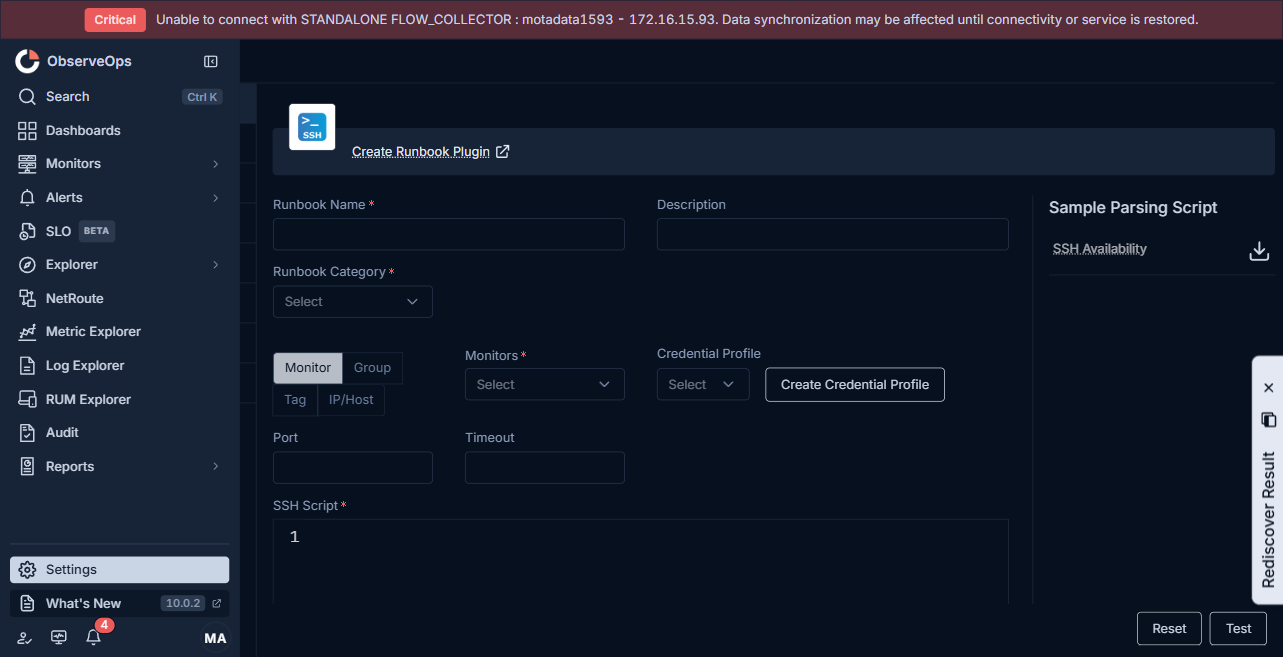
Fill in the common fields:
Field What to enter Runbook Name A short, unique name. Description One line on what the runbook returns or does. Runbook Category Pick the functional group: Diagnostics, Performance Monitoring, Troubleshooting, System Management, Log Collection, Network Config, or Integration. Monitor Pick by Group, Tag, IP/Host, or Monitors and select one or more targets. Credential Profile Pick the saved credential for the protocol. If none exists, click Create Credential Profile. Port The port the runbook connects on. Timeout Seconds to wait before marking the run Failed. Fill in the type-specific fields:
Type Extra fields SSH SSH Script (the shell command), Script Language (defaults to GO), Parsing Script that turns raw output into result values. Telnet Telnet Script. No parsing script. Powershell Powershell Script, Script Language (GO), Parsing Script. SNMP Scalar or Tabular, OID Listing (OID Name, OID, or Choose OID from the OID picker), Add OID Group for a tabular walk, Parsing Script. Trace Route Maximum Hops, Probes, Timeout. No script. Database Type (database engine), SQL Script, Parsing Script. HTTP URL Type (HTTP or HTTPS), URL Method (GET or POST), JSON URL (No or Yes), URL Content, URL Endpoint, optional Parameters and Headers, Parsing Script. Custom Script Language (GO), Script. The agent runs this on the monitor. To expose a value the runbook asks for at run time, click Add Variable and name it. Reference it in the script as
$$$variable.name$$$.noteThe variable name in the script must match the name under Add Variable exactly. Mismatched names show as empty on the result screen.
Click Test. ObserveOps runs the runbook once against the chosen monitor and shows the raw output and the parsed values below the form.
If the result looks right, click Save. The new runbook appears on the Runbook screen.
Result
The runbook is listed on Settings > Plugin Library > Runbook with the category you picked. Open its row menu to assign it to monitors, schedule it, or clone it.
Troubleshooting
| Issue | Cause | Fix |
|---|---|---|
| Test returns "Connection refused" | The port is wrong or blocked. | Confirm the port in the monitor profile and open the firewall. |
| Test returns raw output but no parsed values | The parsing script does not match the output format. | Open the Sample Parsing Script sidebar for the type (SSH Availability, Powershell Availability, SNMP Availability, Database Script, HTTP availability) and copy its pattern. |
| Save is disabled | A required field is empty or a variable in the script has no matching entry under Add Variable. | Fill the red-marked fields and add every placeholder in the script to the variable list. |