Google Chat Runbook
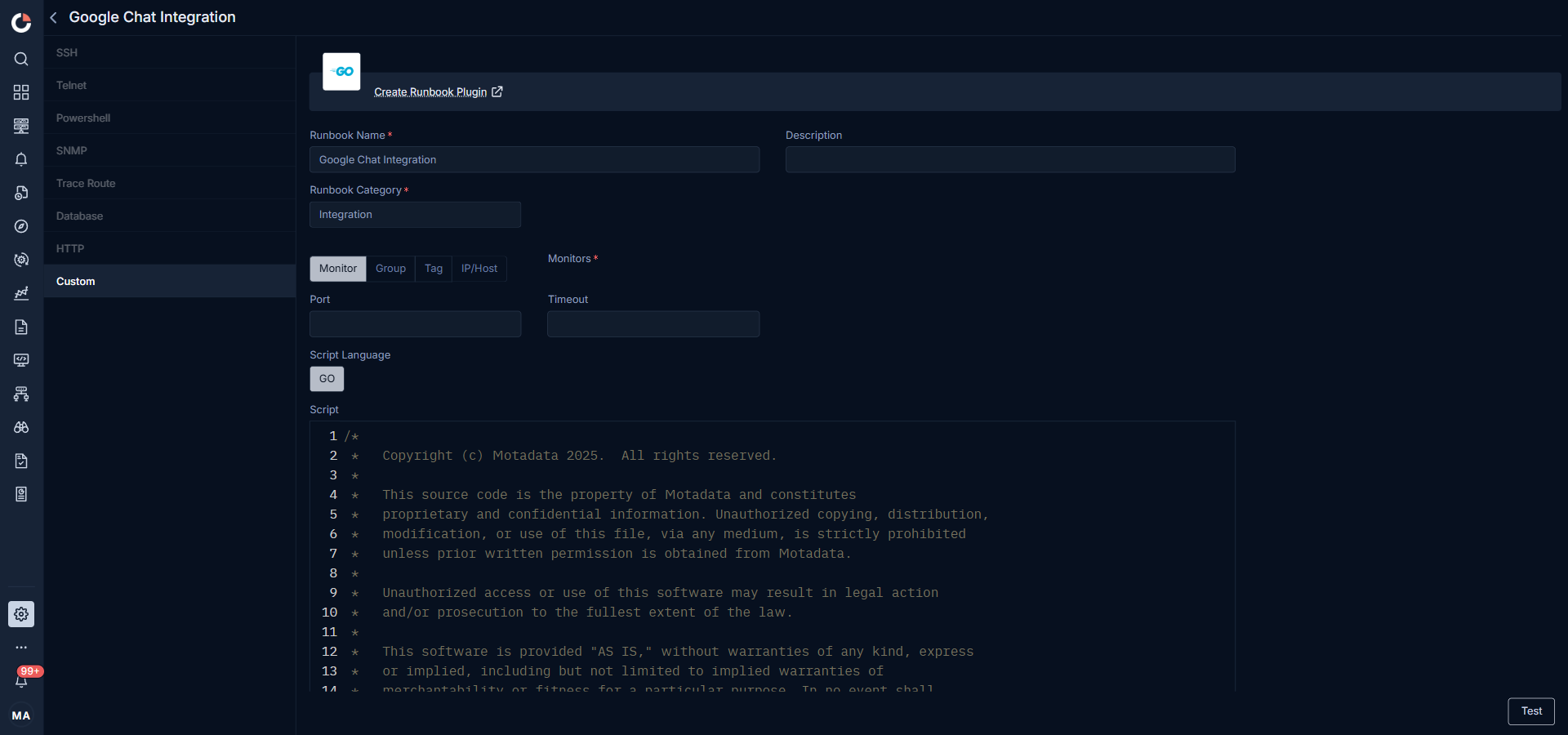
A Google Chat runbook posts alerts and messages to a Google Chat space through an incoming webhook. ObserveOps ships an inbuilt Google Chat Integration runbook under Settings > Plugin Library > Runbook, in the Integration category. The inbuilt runbook is a Custom runbook type with a GO script that calls the webhook; it is read-only. If you need a different payload shape or target endpoint, build an HTTP runbook from scratch.
When to Use
Use a Google Chat runbook when the NOC or on-call team already lives in Google Chat and the alert should land in a space, not an email inbox.
Prerequisites
- A Google Chat space where the webhook will post.
- Permission to add incoming webhooks to that space.
- Permission to create runbooks under Settings > Plugin Library > Runbook.
Create the Incoming Webhook in Google Chat
- Open the Google Chat space.
- Click the space name at the top and open Space settings.
- Select Apps & integrations and click Add webhooks.
- Enter a name, for example
ObserveOps Alerts, and click Save. - Copy the webhook URL. You need it on the runbook form.
Build an HTTP Alternative From Scratch
The inbuilt Google Chat Integration is a read-only Custom runbook. If the payload or endpoint needs to differ, build an HTTP runbook from scratch:
Steps
Go to Settings > Plugin Library > Runbook and click Create Runbook Plugin.
Pick HTTP from the top menu.
Fill in the fields:
Field What to enter Runbook Name A unique name, for example Google-Chat-NOC-Alerts.Description One line on what the runbook posts. Runbook Category Integration. Monitor Pick the monitors whose alerts should post to this space. URL Type HTTPS. URL Method POST. URL Endpoint Paste the Google Chat webhook URL. JSON URL Yes. Click Add Header and add:
Key Value Content-Typeapplication/jsonUnder URL Content, enter the JSON payload Google Chat expects. Use the ObserveOps alert variables as placeholders:
{
  "text": "ObserveOps Alert: $$$alert.name$$$ | Severity: $$$alert.severity$$$ | Monitor: $$$monitor.name$$$ | Time: $$$alert.time$$$"
}
For each placeholder in the payload, click Add Variable and register the matching name.
Click Test. ObserveOps posts a test message to the Google Chat space.
Click Save.
Attach to an Alert Policy
- Go to Settings > Policy Settings and open the policy.
- In Take Actions, select Runbook and pick the Google Chat runbook.
- Pick the severity (Warning, Major, Critical) that triggers it.
- Save the policy.
Every time the policy breaches at the chosen severity, the runbook posts to the Google Chat space.
Troubleshooting
| Issue | Cause | Fix |
|---|---|---|
| Test fails with "Invalid webhook URL" | The webhook URL was copied incorrectly or the webhook was deleted in Google Chat. | Open Space settings > Apps & integrations in Google Chat, confirm the webhook, and paste it fresh into URL Endpoint. |
| Google Chat returns "Invalid argument" on the POST | The JSON payload does not use a top-level text or cards field. | Validate the payload. The simplest working payload is { "text": "message" }. |
| Runbook posts but the message is empty | The payload uses placeholders that have no matching Add Variable entries, so they resolve to empty. | Open the runbook, click Add Variable for each $$$name$$$ placeholder, and save. |