Installation Guide for Single-Box Standalone Deployment
Overview
This installation guide provides step-by-step instructions for installing Motadata ObserveOps in a Single-Box Standalone deployment.
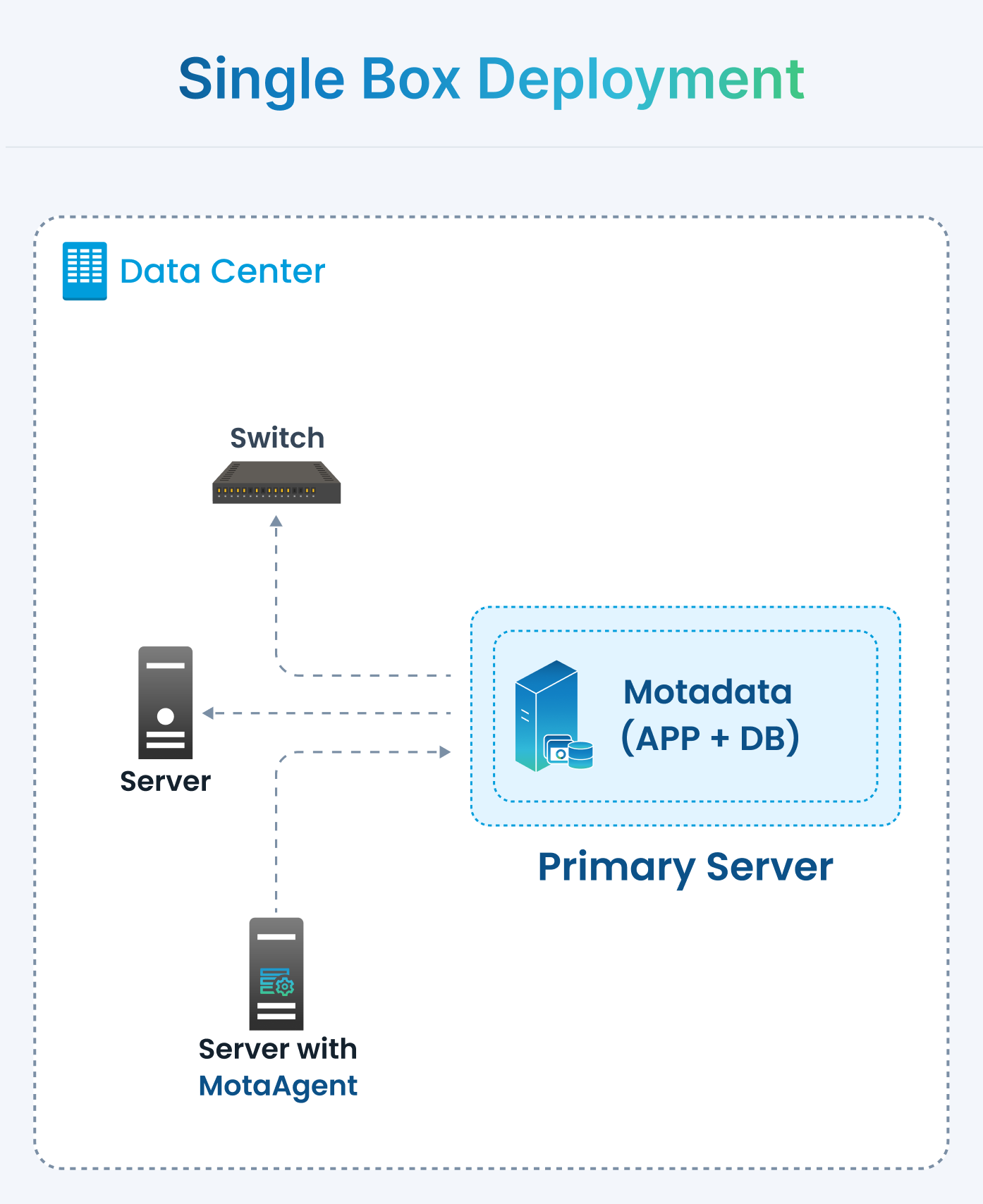
Minimum System Requirements for Motadata ObserveOps Server
Before installing and running Motadata ObserveOps, please ensure that your server meets the minimum system requirements of 12 vCPU, 12 GB of RAM, and 500 GB of disk storage for Observability edition to ensure optimal performance and functionality.
Prerequisites
Before starting the installation, ensure the following prerequisites are met:
- Configure servers based on the sizing requirements of the chosen component.
- Ensure AVX2 (Advanced Vector Extensions 2) instruction set is enabled on the VM CPU.
To verify whether AVX2 is enabled on the VM CPU:
lscpu | grep -o avx2
OR
grep -m1 -o avx2 /proc/cpuinfo
If the output shows avx2, it is enabled and exposed to the VM. If avx2 is missing, enable CPU host passthrough / host CPU mode in the hypervisor settings. The physical host CPU must also support AVX2.
- Download the Motadata ObserveOps installation TAR using the below mentioned links.
| Operating System | Link | MD5 Checksum |
|---|---|---|
| Ubuntu-24 | Download | 621c59a63eaf2ff1a9030d82fd25e36a |
| Ubuntu-26 | Download | 83f50e7c714055e147c4e4801dfafe7f |
- The
/motadatadirectory is mounted and added tofstab. You can verify the mount using:df -Th - The
motadatauser hasNOPASSWDsudo access. Verify that switching to root usingsuworks as expected. - Network Port should be open in Network Firewall and respective servers as defined below:
Network Port Specifications
| Port Name | Port Number | Port Type | Direction | Port To Be Opened At | Purpose |
|---|---|---|---|---|---|
| Motadata Manager | 9440, 9441 | TCP | Bidirectional | Application Server | Facilitates communication with Motadata Manager |
| Motadata Application | 9433, 9455, 9456, 9457, 9477 | TCP | Bidirectional | Motadata Application | Establishes communication for Motadata Application. This port needs to be opened only when the application and database reside on different servers. |
| Event Publisher | 9444 to 9448 | TCP | Bidirectional | Application Server | Facilitates communication between MotaAgent and the Application Server. Typically, 9444 and 9445 ports are mandatory, but multiple ports may need to be open to support load balancing when a significant number of agents are used. |
| Event Subscriber | 9449 to 9453 | TCP | Bidirectional | Application Server | Facilitates communication between MotaAgent and the Application Server. Typically, 9449 and 9450 ports are mandatory, but multiple ports may need to be open to support load balancing when a significant number of agents are used. |
| Database | 9000 TCP, 8123 HTTPS | TCP, HTTPS | Bidirectional | Database Server | Establishes communication between application and database. |
| TCP Log Listener | 5140 | TCP | Bidirectional | Application Server or Collector | Used to ingest logs into Motadata in an encrypted format for secure data transfer. Ensure this port is open on the collector if logs need to be ingested at the collector level. |
| UDP Log Listener | 514 | UDP | Inbound | Application Server or Collector | Used to ingest logs into Motadata. Ensure this port is open on the collector if logs need to be ingested at the collector level. |
| Flow Listener (netflow) | 2055 | UDP | Inbound | Application Server or Collector | Used to ingest flow data into Motadata. Ensure this port is open on the collector if flow data needs to be ingested at the collector level. |
| Flow Listener (sflow) | 6343 | UDP | Inbound | Application Server or Collector | Used to ingest flow data into Motadata. Ensure this port is open on the collector if flow data needs to be ingested at the collector level. |
| Trap Listener (v1/v2) | 1620 | UDP | Inbound | Application Server | Used to ingest trap into Motadata. |
| Trap Listener (v3) | 1630 | UDP | Inbound | Application Server | Used to ingest trap into Motadata. |
| Event Processor | 9443 | TCP | Bidirectional | Application Server | Processes event messages, offloading the processing load from the application server. |
| Web UI | 443 | HTTPS | Bidirectional | Application Server | Enables user interface access from the browser. |
| Upgrade/Restore | 8080 | HTTPS | Bidirectional | Application Server | Used for upgrading Motadata artifacts from the UI |
Motadata ObserveOps (APP, DB, Collector) – Antivirus Whitelist Guidelines
Motadata does not recommend applying Antivirus on Application (APP), Datastore (DB) or Collector components. However, in cases where client compliance mandates Antivirus installation, please carefully follow the guidelines below.
General Considerations
Resource Utilization: Installing antivirus on Motadata components will significantly add resource overhead which may lead to abnormal monitoring activity. Consider increasing resources to compensate this overhead.
VM Snapshot: Before applying Antivirus, take a VM snapshot of all components: APP, DB, and Collector.
Monitoring: Keep the environment under observation after applying the Antivirus with the below prerequisites configured.
Folders & Files to Whitelist
Whitelist the following directory and executables from real-time and scheduled Antivirus scans:
Directory Path: /motadata
Executables (whitelist all matching 'motadata*')
Also, make sure to exclude all listed directory and executables from both real-time scanning and scheduled scans and ensure security agents/firewalls allow continuous communication over the specified ports. Then, apply these rules for both on-premises deployments and remote/endpoint devices running Motadata Agents.
Installation Steps
- Create a virtual machine (VM).
When configuring the VM's disk layout, ensure the following minimum partition sizes are allocated:
- Root partition (
/): Minimum 60 GB is required to accommodate the operating system, system packages, and runtime files. - Motadata partition (
/motadata): Minimum 120 GB is used to store Motadata application data, logs, and database artifacts. Insufficient space on this partition can lead to service failures or data loss during operation.
Obtain sudo permissions by running the following command:
sudo suExtract the TAR at
/motadatapath by following command:cd /motadata
tar -xzvf <TAR_file>Run the installation script:
cd /motadata/<extracted-folder>
sudo ./motadata_install.sh
Navigate to the opt folder using the following command:
cd /optCheck for the existence of the installation script (post-install.sh) using the following command:
lsRun the installation script:
./post-install.shAfter you run the installation script, you will be asked to select the Deployment Type out of the following:
- Single-Box
- Distributed
- Collector
Select the Deployment Type 1. Single-Box and then follow the steps further as demonstrated below.
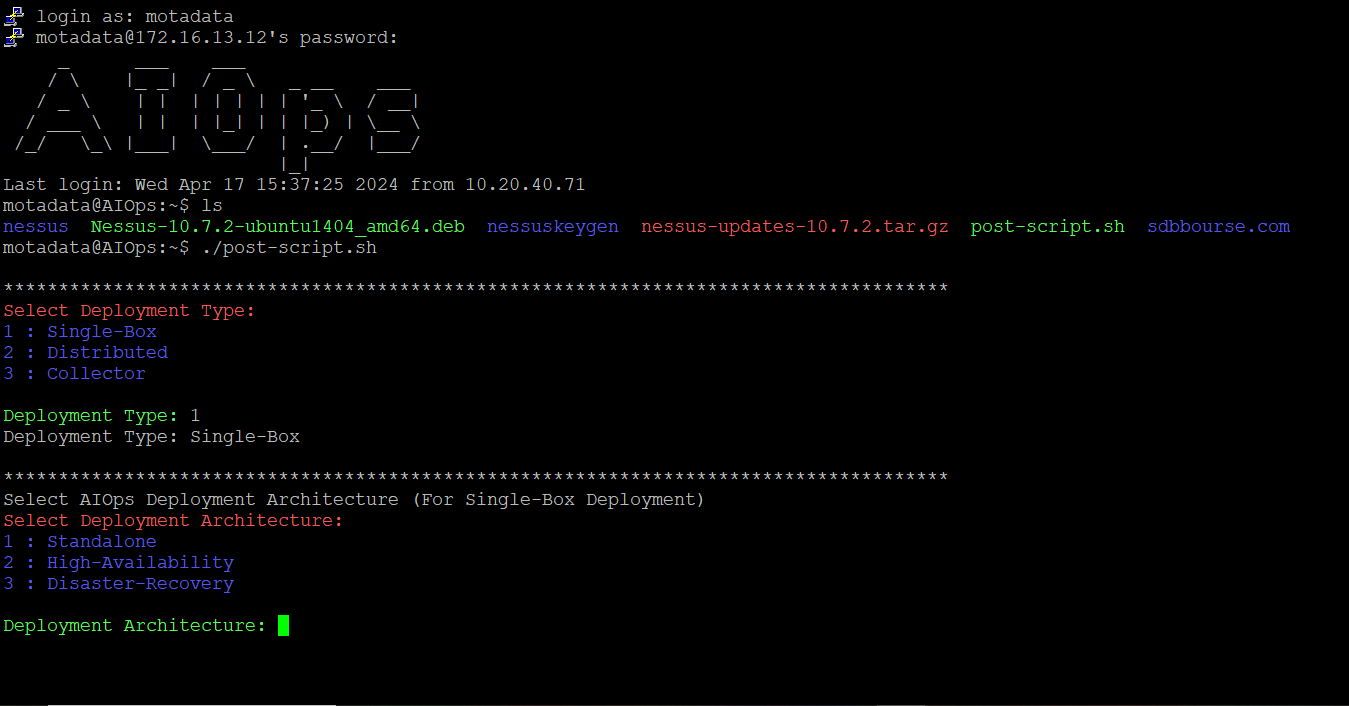
Select the Deployment Architecture as 1. Standalone from the following options:
- Standalone
- High-Availability
- Disaster-Recovery
Change the root password by providing and confirming a new password.
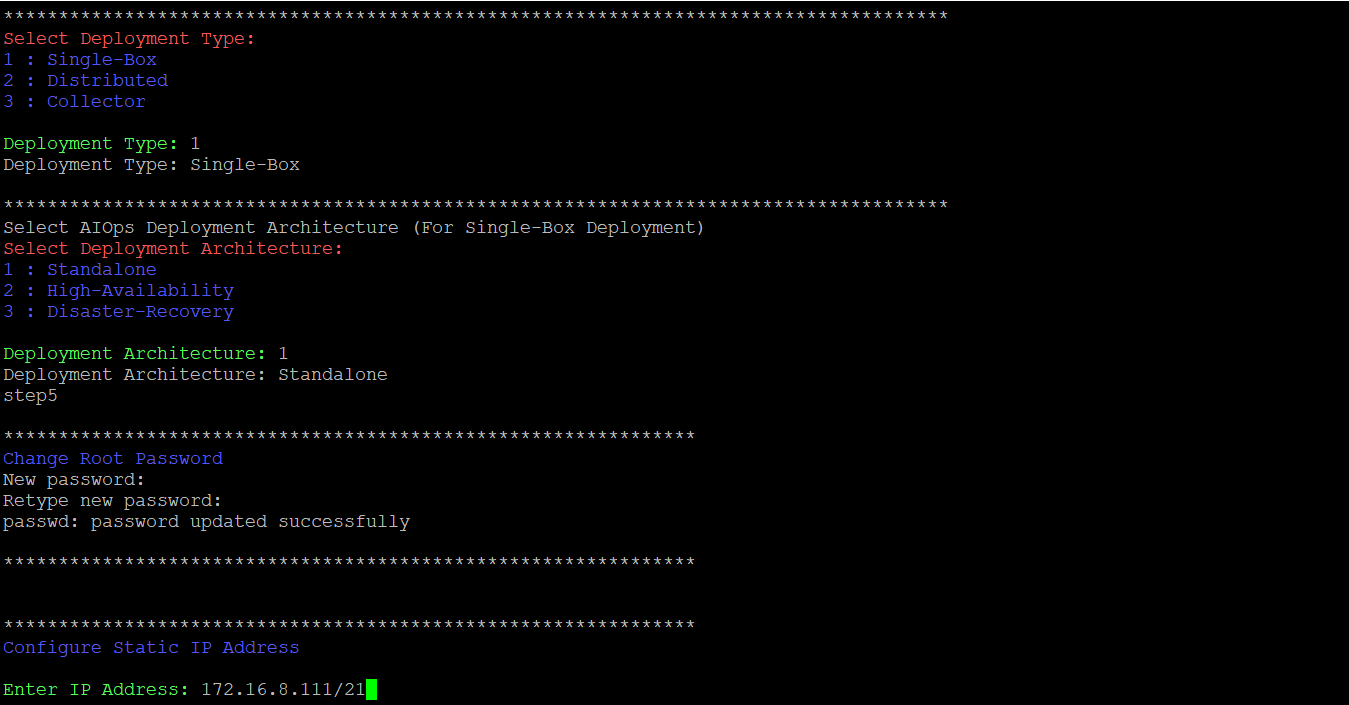
Configure the static IP address, default gateway, and DNS servers. You can change the default DNS servers as per your requirement.
Configure the hostname.
Use only lowercase letters (a–z), digits (0–9), and hyphens (-). Do not start or end the hostname with a hyphen. Each label between dots must be 63 characters or fewer.
Configure the timezone by selecting the region and timezone where you are installing the Motadata ObserveOps Master.
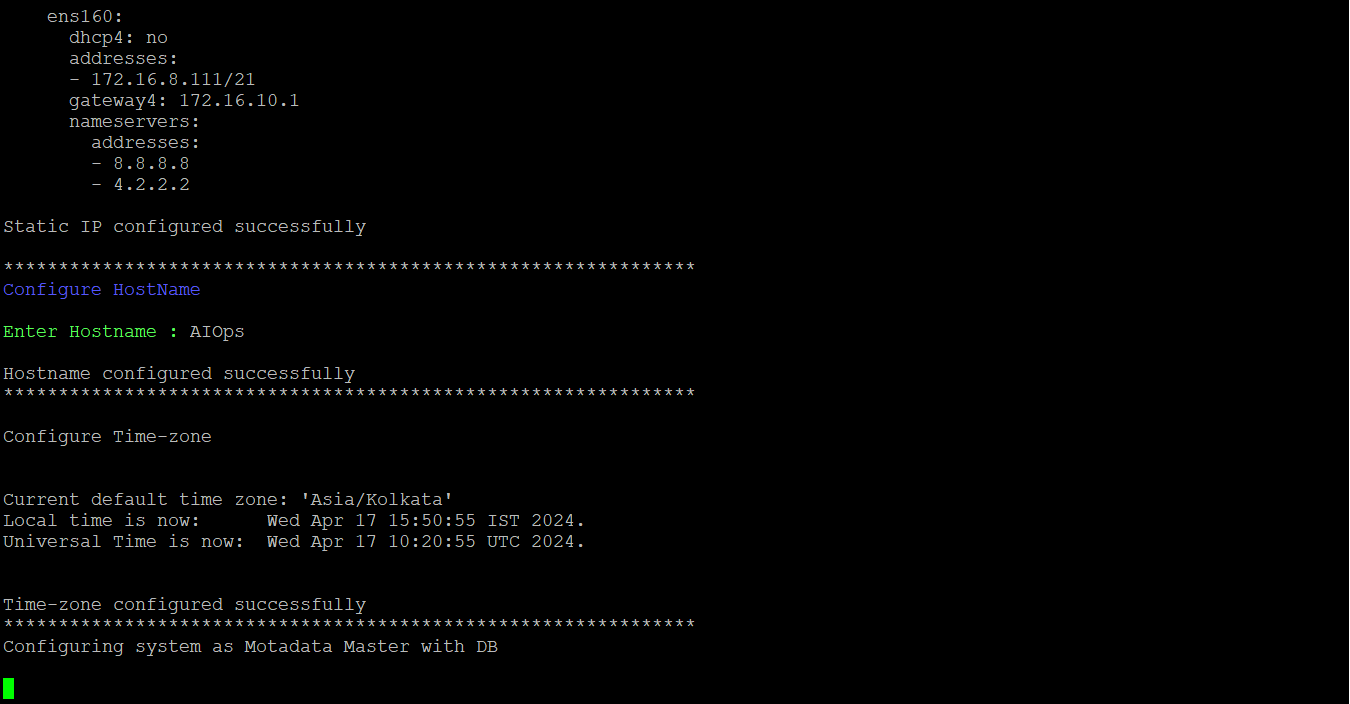
Once the installation process is complete, Motadata ObserveOps application is accessible using the link specified below:
https://[IP]
where [IP] is the static IP you configured.
- Detach the ISO from the virtual machine to complete the installation.
Use admin as the username and password for first-time login. You can change these default credentials using the configuration options listed on Configuring your Motadata ObserveOps Profile