SLA
The SLA tab displays the history details of the all the SLAs and UCs applied to the tickets. It displays details like name, type, target, status, updated by, elapsed time, due in, SLA percentage, overdue, start time, last pause time, stop time, pause duration, breached duration, technician group, Operational Hours Type, and Update Count.
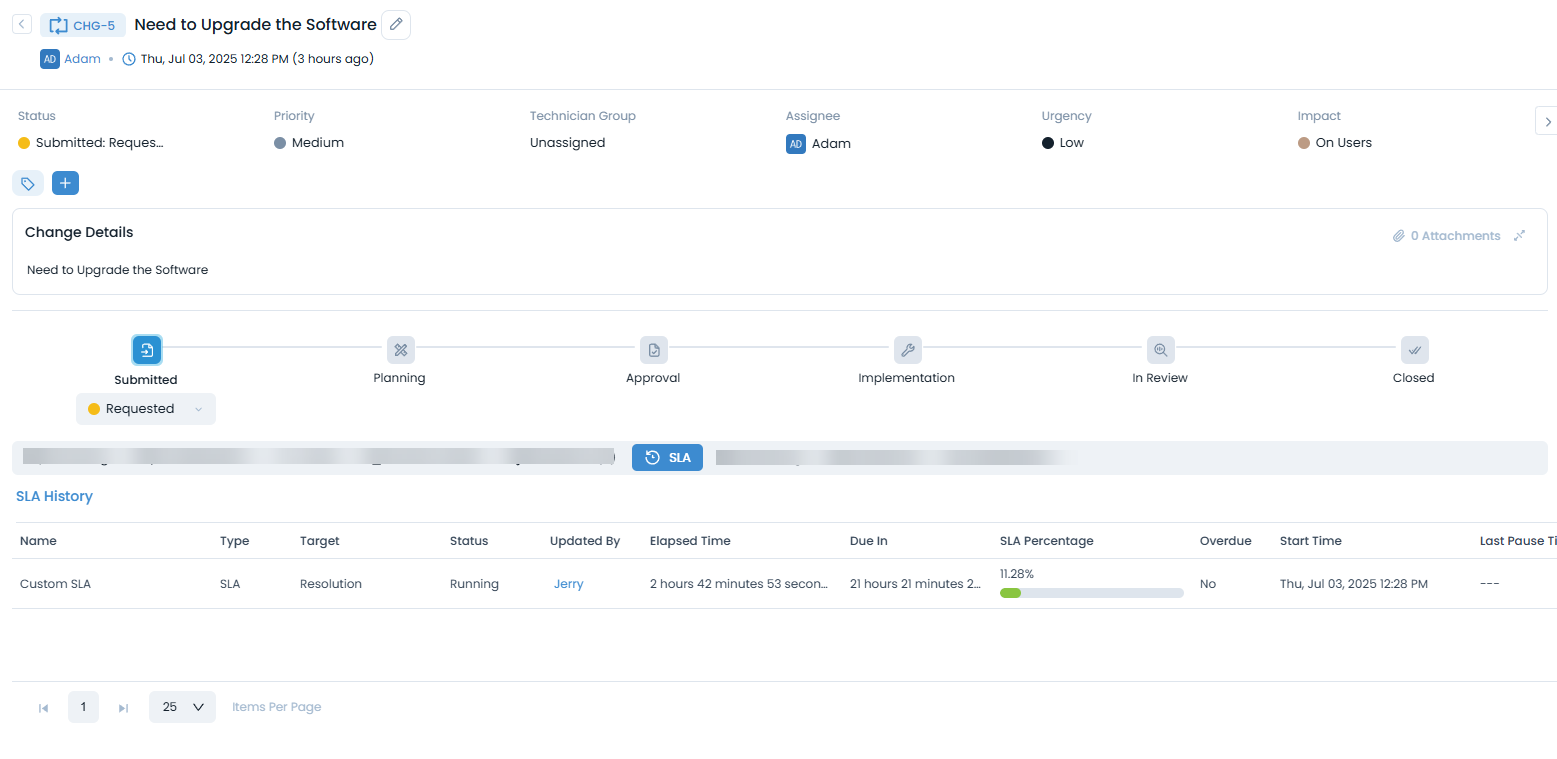
| Parameters | Description |
|---|---|
| Name | Displays the name of the currently applied SLA or UC. For Example: If a Medium Priority SLA is applied to the ticket, the value is shown as Medium Priority SLA. |
| Type | Indicates the category of the SLA currently applied to the ticket. The value can be SLA or UC. - SLA (Service Level Agreement): Applied when a ticket is created or updated, typically based on its priority or predefined SLA conditions. For Example: When a ticket is logged with Medium priority, the default Medium Priority SLA is applied and the Type is shown as SLA. - UC (Underpinning Contract): Applied when a vendor is associated with the ticket and a UC is configured for that vendor. For Example: When a vendor is updated on the ticket, the UC SLA becomes active and the Type is displayed as UC. Each time an SLA or UC is applied, it appears as a separate entry in the SLA History list. |
| Target | Displays the target of the currently applied SLA/UC. If Response timer is applied, First Response will be displayed. If Resolution time is applied, Resolution will be displayed. For Example: If the agreement tracks fixing the ticket, Target shows |
| Status | Displays the current status of the applied SLA or UC. The possible values are: - Running: Indicates that the SLA or UC timer is currently active. - Achieved: Indicates that the configured target (first response or resolution, as defined in the SLA) has been met. - Breached: Indicates that the SLA or UC's total duration time has been exceeded. - Cancelled: Indicates that the SLA or UC was stopped because a new SLA or UC was applied while the previous one was still running. - Paused: Indicates that the SLA or UC timer was temporarily stopped because the ticket moved to a status where Run SLA or Run UC is disabled. |
| Updated By | Indicates who triggered the SLA update. Shows the username for manual actions or System for automatic SLA or UC processing. For Example: If a priority change by Larry applies an SLA, Larry is displayed. |
| Elapsed time | Displays the actual time consumed by the SLA or UC, calculated based on the assigned operation hour type. Only the time during which the SLA/UC is actively running is counted; paused durations are excluded. Example: If the SLA starts at 9:00 AM, is paused for 1 hour, and is checked at 2:00 PM, the Elapsed Time shows 4 hours. |
| Due In | Shows how much time is remaining before the SLA or UC deadline is reached, considering the configured business hours. This value decreases as time passes and helps track how close the ticket is to breaching the defined target. Example: For an 8-hour resolution target with 7 hours already used during business hours, Due In displays 1 hour. |
| SLA Percentage | Shows how much of the SLA or UC time has been consumed, calculated as (Elapsed Time ÷ Total Duration) × 100. • 0–50% – Green (well within target) • 51–75% – Yellow (approaching target) • 76–100% – Orange (near breach) • >100% – Red (breached) Example: If 7 out of 8 hours are used, the SLA Percentage is 87.5% (orange). After breach, the value exceeds 100% (red). |
| Overdue | Displays whether the SLA/UC has been breached. For Example: When the elapsed time exceeds the target duration, Overdue is shown as |
| Start Time | Displays the date and time when the SLA or UC was applied to the ticket. For Example: If the SLA is applied to the ticket at 9:00 AM, Start Time shows |
| Last Pause Time | Displays the most recent time when the SLA or UC timer was paused due to ticket status changes (Run SLA / Run UC disabled) or technician group changes. For Example: Changing the ticket to a status like “Pending Vendor” can pause the timer. |
| Stop Time | Displays the time when the SLA/UC was stopped or cancelled for the ticket. For Example: When the ticket is resolved at 7:00 PM, Stop Time shows |
| Pause Duration | Displays the total duration for which the SLA or UC was paused. For Example: If the SLA is paused from 1:00 PM to 2:00 PM, Pause Duration shows |
| Breached Duration | Displays the total time for which the SLA or UC remained in a breached state. For Example: If the SLA is due at 5:00 PM and the ticket is resolved at 7:00 PM, Breached Duration shows |
| Penalty Amount | Displays the total penalty applied when an SLA or UC is breached, based on the configured penalty type. Examples: 1. Fixed penalty only: If the fixed penalty is 2. Cumulative penalty: If the cumulative penalty is 3. Cumulative penalty (Apply penalty once for configured unit enabled): If the penalty is 4. Cumulative penalty (Apply Response breach penalty enabled): If the one-time Response breach penalty is 5. Cumulative penalty (Apply Resolution breach penalty enabled): If the one-time Resolution breach penalty is |
| Technician Group | Displays the technician group associated with the OLA. This is applicable for Request Management tickets only. For Example: If the OLA is owned by a team, it can show a group like |
| Operational Hours Type | Displays the operational hours used for SLA calculation. Possible values are Calendar Hours and Business Hours. For Example: |
| Update Count | Indicates the number of times an SLA/UC has been activated or resumed (after a pause). For Example: If the SLA started once and was paused (due to status change in which Run SLA or Run UC is disabled)/resumed once, Update Count can show 2. |
For more details, please refer to the SLA page.