Change Management in ServiceOps
ServiceOps Change Management gives your team a governed, auditable path for every change, from pre-approved routine updates to urgent emergency fixes, so you move fast where speed is safe and apply real scrutiny where it counts.
Every change to a production environment carries risk. Change Management in ServiceOps is built on the ITIL 4 change enablement discipline. It captures what is changing, who signs off, how the work rolls out, and how you recover if something goes wrong. Change records link directly to the incidents, problems, releases, and assets they touch, so the people reviewing a request see full context rather than an isolated form.
Prerequisites
Before you work with Change Management, confirm:
- Your role has Change Manager or Technician access under Admin > Users > Roles
- Your administrator has configured change types, workflows, and approval settings under Admin > Change Management
How Does Change Management Work?
When a technician creates a change, ServiceOps assigns it one of three types: Standard, Normal, or Emergency. Each type follows its own workflow, approval path, and required fields.
Normal changes notify the Change Advisory Board (CAB) on creation so the board can review and authorize before implementation begins. Emergency changes notify the Emergency Change Advisory Board (ECAB) for expedited authorization. Change Model transition automation moves a change through its lifecycle stages according to defined logic, so records cannot skip required steps.
Once approved, the technician follows the Implementation Plan, Rollout Plan, and Backout Plan captured on the record. Tasks track the individual work items. After implementation, the change moves to review and then closure.
You can also watch the video Change Management to see the module in action.
Change Types
ServiceOps ships with three out-of-the-box change types, each calibrated to its level of risk. Not all changes deserve the same scrutiny, and treating them identically slows down low-risk work while under-governing high-risk work.
| Change Type | When to Use | Approval Path |
|---|---|---|
| Standard | Pre-approved, repeatable work with known and accepted risk | Pre-approved; no CAB review required |
| Normal | Planned work that needs full assessment and authorization | CAB reviews and authorizes before implementation |
| Emergency | Urgent fixes where waiting extends an outage or exposes the business to risk | ECAB provides expedited authorization |
Each type carries its own configuration so the process fits the risk level instead of forcing every request through one rigid flow.
What Can You Do With Change Management?
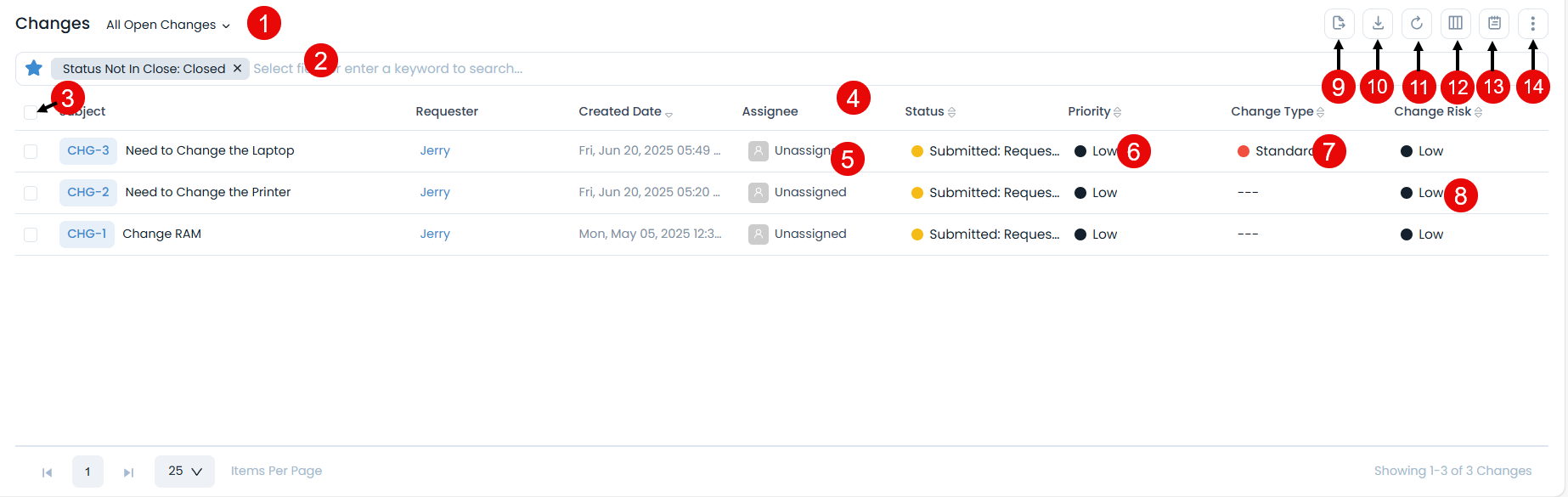
Change Management gives technicians and change managers a single workspace to create, plan, approve, implement, and close changes. Go to Change Management from the main navigation.
Planning and Backout
Every change record captures three plan fields before implementation begins.
| Plan | Purpose |
|---|---|
| Implementation Plan | Describes exactly how the work will be carried out |
| Rollout Plan | Defines the schedule and sequence for deploying the change |
| Backout Plan | Documents how to reverse the change if the rollout fails |
Impact analysis fields sit alongside the plans, prompting the requester to assess and document what the change affects before it reaches the board.
An administrator can turn on Planning Rules to make Rollout Plan Dates a mandatory field. When this rule is active, a change cannot move forward without a scheduled rollout window already defined. See Change Custom Rules.
Approval Governance
ServiceOps routes each change type to the right approval authority automatically.
- Normal changes notify the CAB on creation. The board reviews the plans, impact assessments, and linked records before authorizing, turning approval into an informed decision rather than a formality.
- Emergency changes notify the ECAB so urgent work reaches the people empowered to authorize it quickly.
- Custom approval workflows let you configure a single sign-off or a multi-stage, condition-based chain of approvers to match your governance model.
Assignment
ServiceOps assigns changes to technicians automatically using one of two methods.
- Round Robin: Cycles new changes evenly across a technician group.
- Smart Balance: Accounts for existing workload so a change lands with whoever has capacity rather than piling onto whoever is already busiest.
You can also manually assign or claim a change from the details page.
Tasks
Tasks break the work inside a change into individual trackable steps, such as a pre-change validation, the rollout activity itself, or a post-change verification check.
Tasks carry custom statuses, support bulk actions (Update, Archive, Close, Restore, Delete), and sort by Start Date, End Date, Status, or Priority so the whole team can follow the schedule at a glance.
Change Calendar
The Change Calendar gives a visual layout of all scheduled changes so planners can see what is booked and when across the environment. Go to Change Management > Change Calendar to open it.
Connected Records
A change links to the incidents and problems that prompted it, the releases that carry it forward, and the assets it modifies. Anyone opening a change sees not just the task in front of them but everything it touches, giving approvers and implementers full context in one place.
Notifications
ServiceOps sends event notifications using predefined templates across Email, SMS, Microsoft Teams, WhatsApp, and Google Chat, so a change moving through approval, scheduling, or closure reaches the right people on the channel they use.
Reports and Audit Trail
Custom reports and dashboards show how many changes are open by type, how approvals are trending, and how a particular category of change performs over time. The Audit Trail records who did what and when across a change's full life, from the first form submission through every approval, edit, and status transition.
Example
Your operations team identifies that a core network switch needs a firmware update to close a security vulnerability. A technician creates a Normal change, completes the Implementation Plan, Rollout Plan, and Backout Plan, and links the related incident record. ServiceOps notifies the CAB. The board reviews the plans, impact assessment, and linked records, then authorizes the update. The technician deploys the firmware during the scheduled maintenance window and confirms success in a post-implementation review. The change closes with a complete audit trail capturing every decision from creation to closure.
Troubleshooting
Expand an item below for the cause and fix.
Change record is stuck and will not advance to the next status
Cause: A Change Model transition rule or a custom rule such as Assignee Mandatory or Rollout Plan Date Required is blocking the transition.
Fix: Check the change for missing required fields. Go to Admin > Change Management > Change Custom Rules to review which rules are active and identify which condition the record does not meet.
CAB or ECAB members are not receiving approval notifications
Cause: The notification template for the change type is not configured, or the approval workflow does not include the correct CAB members.
Fix: Go to Admin > Change Management and verify the approval workflow configuration. Check Admin > Automation > Notifications to confirm the template is active for the change approval event.
Change Calendar shows no scheduled changes
Cause: Change records do not have a Rollout Plan Date set, so they do not appear on the calendar.
Fix: Open each change and set the Rollout Plan Date in the Planning section. To make this field mandatory going forward, ask your administrator to enable the Planning Rule in Admin > Change Management > Change Custom Rules.
Known Limitations
The following boundaries apply to Change Management in ServiceOps.
- The Change Calendar displays only changes that have a Rollout Plan Date set. Changes without this field do not appear on the calendar.
- Emergency changes follow an expedited approval path. Full CAB review is not required before implementation, but a retrospective review after implementation is expected.
- Custom approval workflows, change types, and planning rules are configured by administrators. Technicians cannot modify these settings from within a change record.
- Auto-assignment uses either Round Robin or Smart Balance. You cannot apply both methods to the same technician group simultaneously.
Related Topics
- Creating a Change: step-by-step guide to submitting a new change request
- Change List View: how to navigate, filter, and export the change list
- Change Details Page: full reference for every field, tab, and action on a change record
- Planning a Change: how to complete the implementation, rollout, and backout plans
- Change Workflow: how Change Model automation moves a change through its lifecycle
- Change Management Admin Settings: configure change types, approval workflows, custom rules, and more