Problem Custom Rules
The Problem Custom Rules page allows administrators to configure compliance checks that govern how problems are processed, resolved, and closed. By defining these rules, organizations can ensure that technicians follow consistent processes, provide adequate documentation, and complete all dependent activities before a problem reaches its final state.
These rules act as safeguards to maintain data integrity, enforce communication standards, and align problem handling with organizational policies and ITSM best practices.
To view the Problem Custom Rules page, navigate to Admin > Problem Management > Problem Custom Rules.
The page is organized into multiple rule categories, each accessible from the left-hand panel:
Resolution Rules
This tab allows administrators to define validation checks that must be met before a problem can be transitioned into the Resolved state. These rules ensure that technicians provide necessary information and complete dependent activities prior to resolution. By configuring these rules, administrators can enforce organizational standards for resolution quality and accountability.
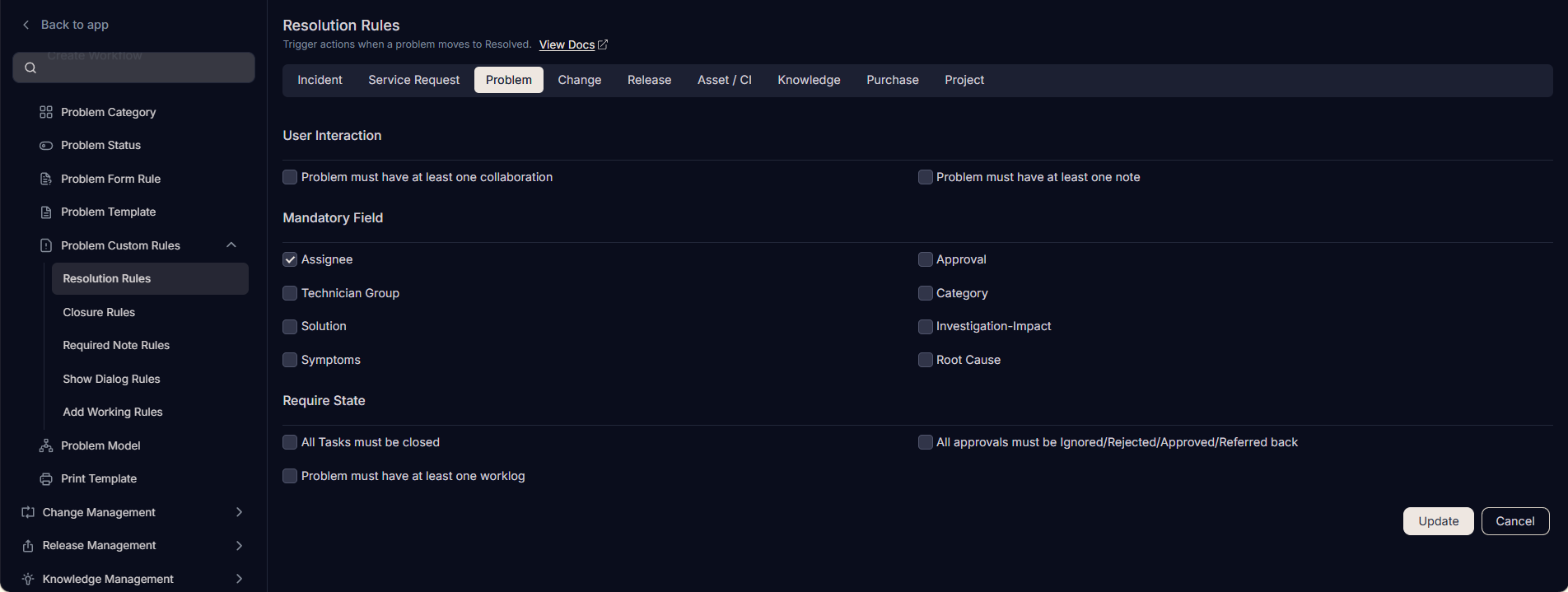
1. User Interaction
Defines communication requirements before resolving a problem.
- Problem must have at least one collaboration: Ensures there is at least one collaboration entry.
- Problem must have at least one note: Enforces that technicians add internal documentation or updates before resolution.
2. Mandatory Field
Specifies fields that must be completed before the problem can be resolved.
- Assignee: Ensures that a responsible technician is assigned to the problem.
- Technician Group: Requires assigning the problem to a valid group.
- Solution: Requires documenting the applied solution.
- Symptoms: Requires documenting the problem's symptoms.
- Approval: Ensures necessary approvals are recorded.
- Category: Ensures correct categorization of the problem.
- Investigation-Impact: Requires documenting the investigation and impact.
- Root Cause: Requires documenting the root cause of the problem.
3. Require State
Defines related items or dependencies that must be completed prior to resolution.
- All Tasks must be closed: Prevents resolution if linked tasks are still pending.
- Problem must have at least one worklog: Requires technicians to log work performed.
- All approvals must be Ignored/Rejected/Approved/Referred back: Ensures no pending approvals are left open.
When Rules Are Enforced
Resolved Rules are checked whenever a technician attempts to move a problem into the Resolved state. If any required condition is unmet, the system prevents the transition until compliance is achieved.
Closure Rules
The Closure Rules section allows administrators to define specific compliance checks that must be satisfied before a problem can be closed. These rules ensure that all mandatory fields are updated, dependent requests and tasks are completed, and essential interactions are recorded. By enforcing these checks, you can maintain data quality and adherence to organizational processes.
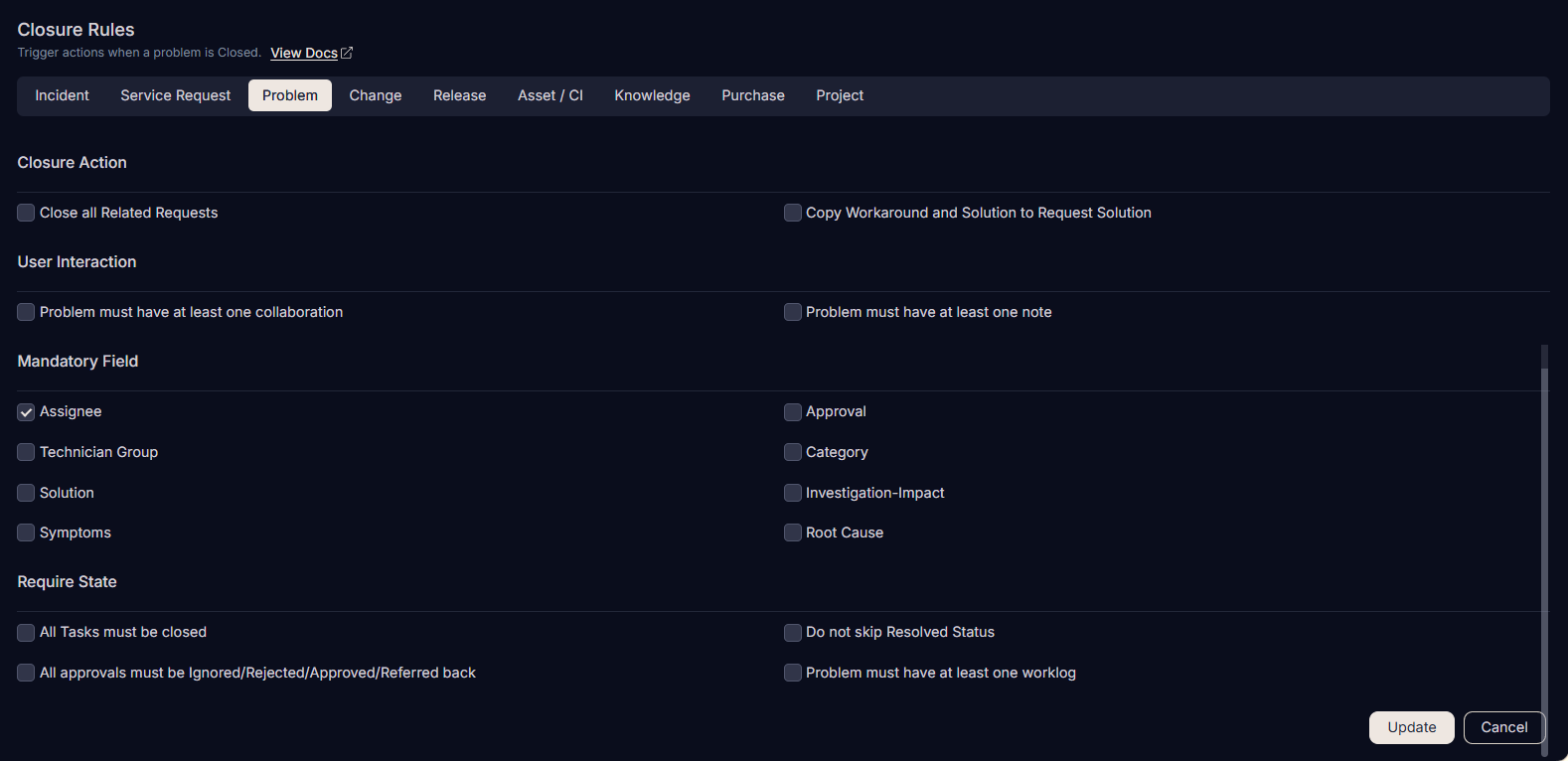
1. Closure Action
Defines actions to be taken upon closing a problem.
- Close all Related Requests: Automatically closes all requests linked to the problem.
- Copy Workaround and Solution to Request Solution: Copies the workaround and solution from the problem to all linked requests.
2. User Interaction
Defines minimum communication requirements before closure.
- Problem must have at least one collaboration: Ensures there has been at least one collaboration entry.
- Problem must have at least one note: Ensures internal documentation is added before closure.
3. Mandatory Field
Specifies fields that must be filled out before the problem can be closed.
- Assignee: A technician must be assigned.
- Technician Group: The problem must belong to a valid group.
- Solution: A solution must be documented.
- Symptoms: The symptoms of the problem must be recorded.
- Approval: Closure requires approval information if applicable.
- Category: The problem must be categorized properly.
- Investigation-Impact: The investigation and impact must be recorded.
- Root Cause: The root cause must be recorded.
4. Require State
Defines dependencies on related records and workflow states before the problem can be closed.
- All Tasks must be closed: Prevents closure if linked tasks remain open.
- All approvals must be Ignored/Rejected/Approved/Referred back: All approval items must be resolved.
- Do not skip Resolved Status: Forces problems to pass through the Resolved state before closure.
- Problem must have at least one worklog: Ensures worklog entries are recorded.
When Rules Are Enforced
Closed Rules are evaluated when a technician attempts to close a problem. The system verifies:
- Mandatory fields are filled in.
- Notes exist.
- All dependent items (tasks, changes, problems, releases) are resolved.
- At least one worklog entry is present.
If any required condition is not met, the problem cannot be closed until compliance is ensured.
Required Note Rules
The Required Note Rules section under Problem Custom Rules allows administrators to enforce that technicians add mandatory notes whenever specific actions are taken on a problem. This ensures proper documentation of decisions, updates, or state changes, which improves transparency, accountability, and audit readiness.
By configuring these rules, you can guarantee that important updates-such as changes in priority, assignment, or status-are always accompanied by explanatory notes.
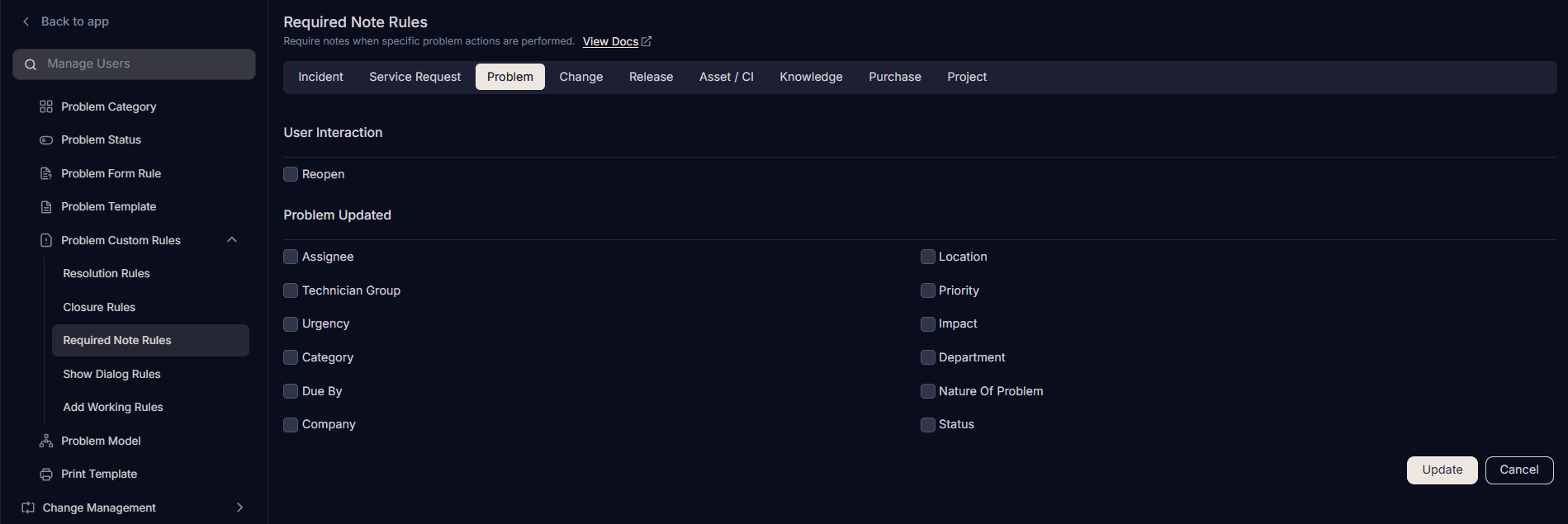
The page contains the following categories of rules:
1. User Interaction
- Reopen: Enforces that a note must be added whenever a problem is reopened. This ensures technicians document the reason or context for reopening the problem.
2. Problem Updated
Specifies which field changes require the technician to provide a note. For example:
- Assignee: A note must be added when changing the assigned technician.
- Technician Group: Requires a note when the problem is moved to a different group.
- Urgency: Ensures justification when urgency is updated.
- Category: Captures reasoning when the problem is re-categorized.
- Support Level: Requires notes for changes in escalation/support tier.
- Due By: Enforces notes when SLA due dates are modified.
- Location: Requires a note when the problem’s location is updated.
- Priority: Captures justification when the problem priority changes.
- Impact: Enforces documentation when impact values are updated.
- Source: Requires a note if the source of the problem is changed.
- Department: Enforces notes when reassigning to another department.
- Status: Requires a note whenever the problem status is updated.
When Rules Are Enforced
Required Note Rules are triggered whenever a technician:
- Reopens a problem
- Updates any of the selected fields (e.g., Priority, Category, Status)
The system will prompt the technician to enter a note, and the action cannot be completed without one.
Show Dialog Rules
The Show Dialog Rules section allows administrators to configure confirmation prompts (dialogs) that appear when certain key fields of a problem are updated. These dialogs act as checkpoints to remind technicians of the importance of their changes, ensuring awareness, accuracy, and accountability.
This feature is particularly useful for sensitive fields such as Priority, Status, or Assignee, where updates may directly affect SLAs, escalations, or ownership.
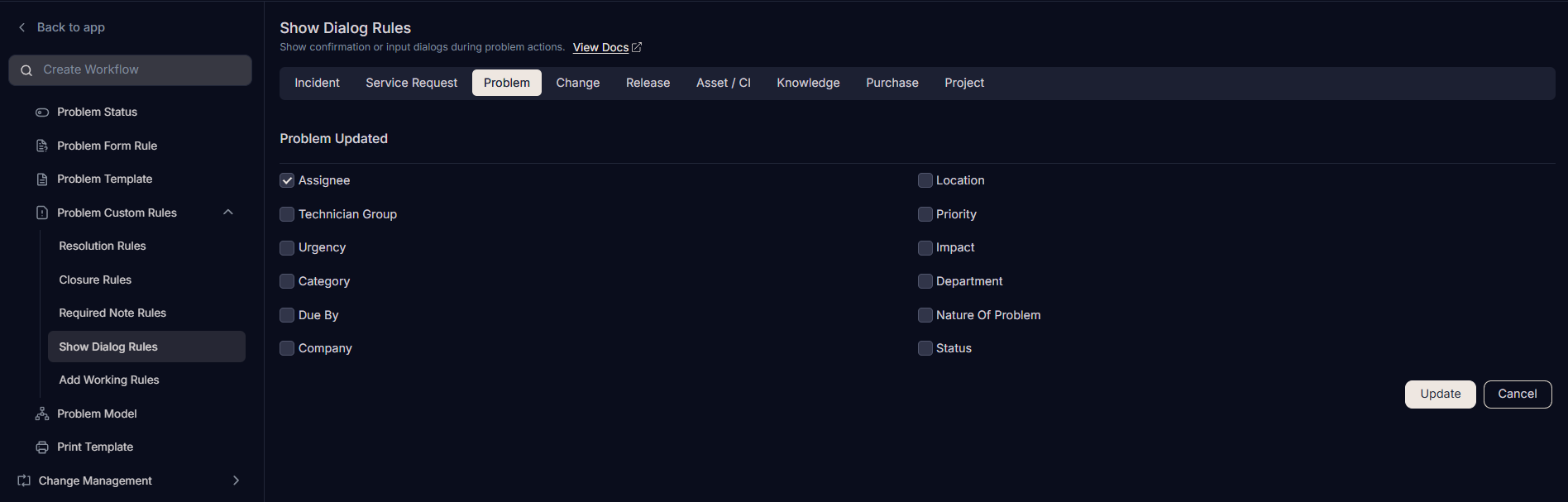
The Show Dialog Rules page consists of a list of problem fields. When any of these fields are updated by a technician, a confirmation dialog is displayed before the update is applied.
Problem Updated
- Assignee: Show a dialog when the problem is reassigned to another technician.
- Technician Group: Display confirmation when transferring problems across groups.
- Urgency: Show a dialog when urgency level is updated.
- Category: Confirm changes to problem categorization.
- Due By: Confirm changes to SLA due date.
- Status: Show a dialog when the problem status is updated.
- Location: Show a dialog when location details are updated.
- Priority: Confirm priority updates, since this affects SLAs and escalations.
- Impact: Show confirmation when changing impact assessment.
- Department: Confirm when problems are reassigned to a different department.
- Nature of Problem: Show a dialog when the nature of the problem is updated.
When Rules Are Enforced
Show Dialog Rules are triggered whenever a technician attempts to update one of the selected fields. Before the update is finalized, the system will display a confirmation dialog to ensure the technician validates the change.
Add Working Rules
The Add Working Rules section allows administrators to control which technicians are permitted to add worklog entries to a problem. Worklogs capture the time spent, activities performed, and updates made during problem handling. By restricting who can add worklogs, organizations can ensure accuracy, accountability, and cleaner audit trails.
Check whether the user has permission to add work log. The "Add Worklog" button appearing in the Worklog tab of the respective ticket's details page will be unavailable if the user is not given access.
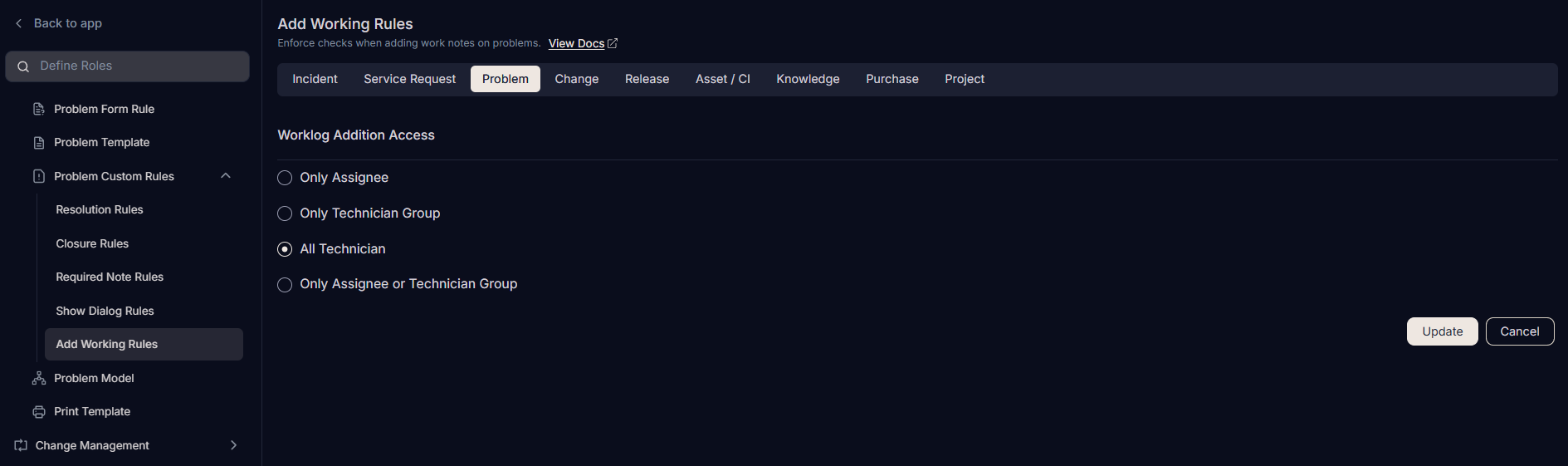
The Worklog Addition Access section provides four options for defining who can add worklogs:
Only Assignee Only the technician assigned to the problem is allowed to add worklog entries. Use Case: When accountability is strictly tied to a single technician.
Only Technician Group Any technician within the assigned group can add worklogs. Use Case: For group-based ownership where multiple team members may contribute.
All Technicians Any technician in the system can add worklogs to the problem. Use Case: For collaborative environments where multiple teams may provide updates.
Only Assignee or Technician Group Both the assigned technician and members of the assigned group can add worklogs. Use Case: When the primary assignee owns the ticket but team members may also contribute updates.
Tasks created without any reference module will not have any configuration; hence, all technicians can add a worklog.
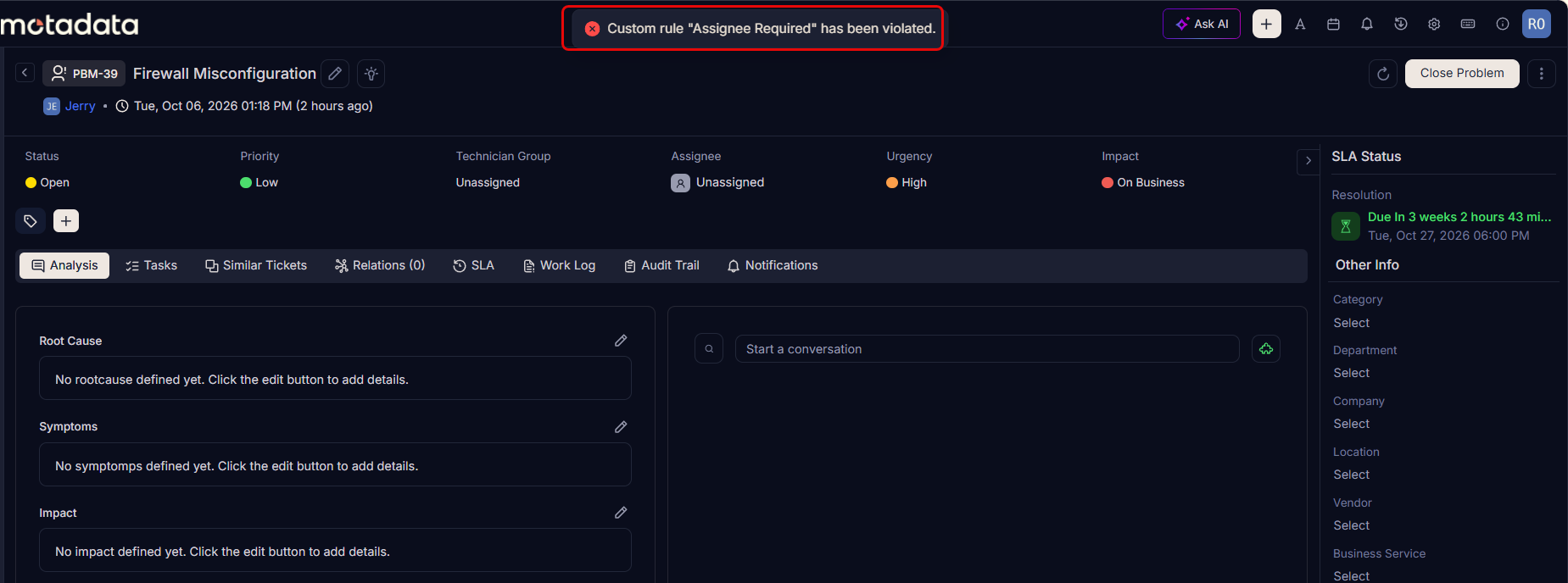
Example Scenario: When there is no technician assigned and someone tries to close the problem, the system gives a validation message, and does not allow to close it.