Backup and Restore for NCCM device
Efficient backup and restore processes are integral components of network configuration and compliance management (NCCM) in Motadata AIOps. This section outlines how administrators can schedule backups, attach storage profiles, and restore configurations for individual devices or perform bulk restores.
NCCM Device Backup
Go to Menu. Select Settings  . After that, select Network Config Settings
  . Select Device Inventory. Navigate to the device for which you want to schedule the backup. From the Actions tab, select Schedule Backup.
A tab to schedule the backup is displayed.
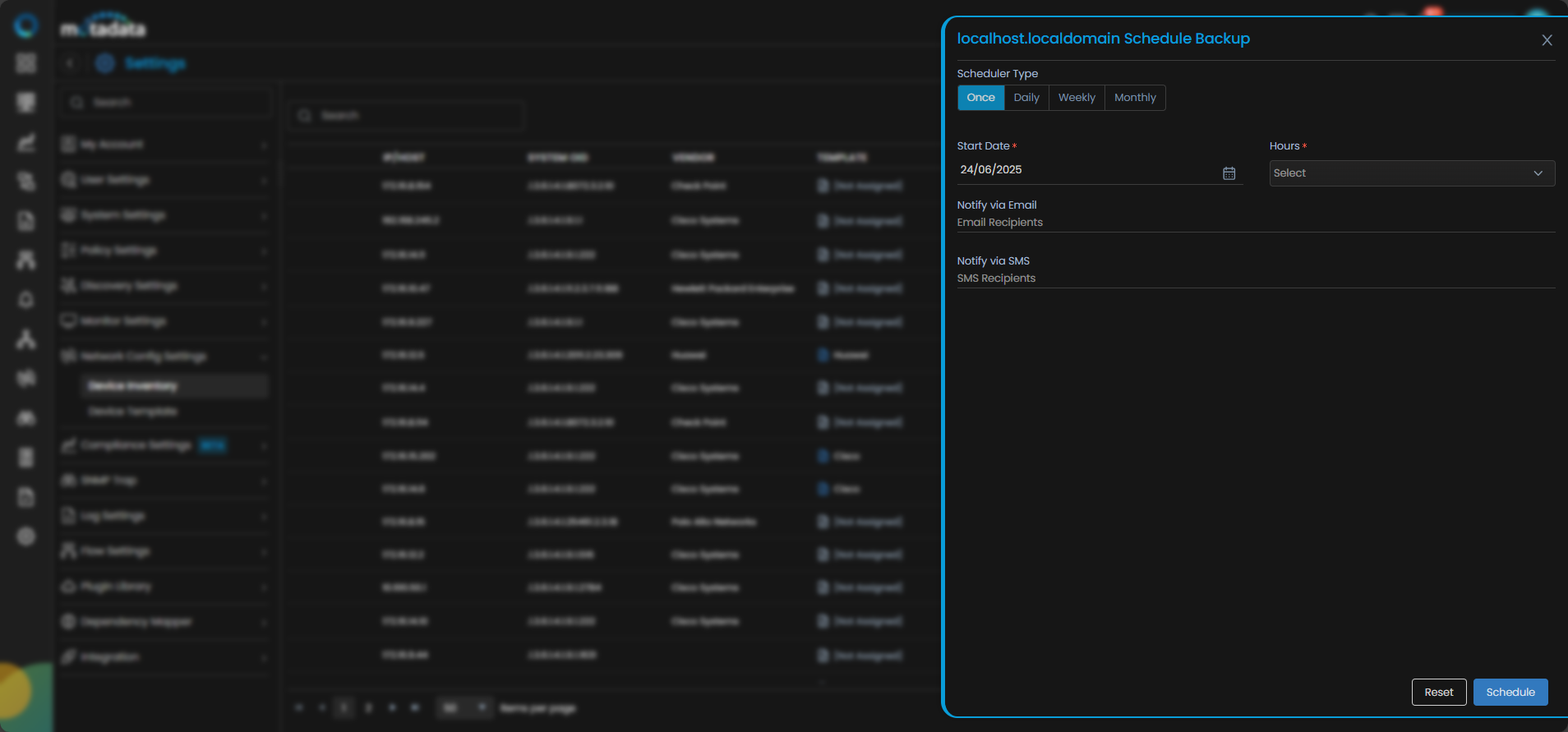
Fill the details in the pop-up to create a scheduler.
| Field | Description |
|---|---|
| Scheduler Type | Select the frequency at which you want to schedule the execution. |
| Start Date | Select the date at which you want to start the NCCM execution. |
| Hours | Select the time at which you want to start the NCCM execution. |
| Notify via Email | Enter the E-mail addresses to receive a notification after the execution of the NCCM is complete. |
| Notify via SMS | Enter the SMS to receive a notification after the execution of the NCCM is complete. |
| Days | Select the days on which you want to schedule the NCCM execution. This field is only available when you select the Scheduler Type as Weekly. |
| Months | Select the months in which you want to schedule the NCCM execution. This field is only available when you select the Scheduler Type as Months. |
| Dates | Select the dates of the month on which you want to schedule the NCCM execution. This field is only available when you select the Scheduler Type as Months |
Select Schedule to schedule the Backup as per the details you configure.
Scheduling Backup to External Server
Apart from the local NCCM device backup, you can also ensure data redundancy by taking the backup on a external server. Attach a Storage Profile to the NCCM device if you wish to store backups externally.This external server can be configured in addition to local backups on the Motadata AIOps server.
Go to Menu. Select Settings . After that, select Network Config Settings . Select Device Inventory. Navigate to the device for which you want to attach Storage Profile. From the Actions tab, select Attach Storage Profile.
Next, select the Storage Profile that you wish to assign to the NCCM device. Once the scheduled backup for the NCCM device is completed, the same backup will also be taken in the Storage Destination mentioned in the Storage Profile.
Bulk Backup of NCCM Devices
You can backup the devices in bulk from the NCCM Explorer instantly.
Select the devices that you want to backup using the checkbox in front of all the devices in the NCCM explorer as shown below. In case you want to take backup of all the devices instantly, select the checkbox at the top of all the devices as shown in the diagram below.
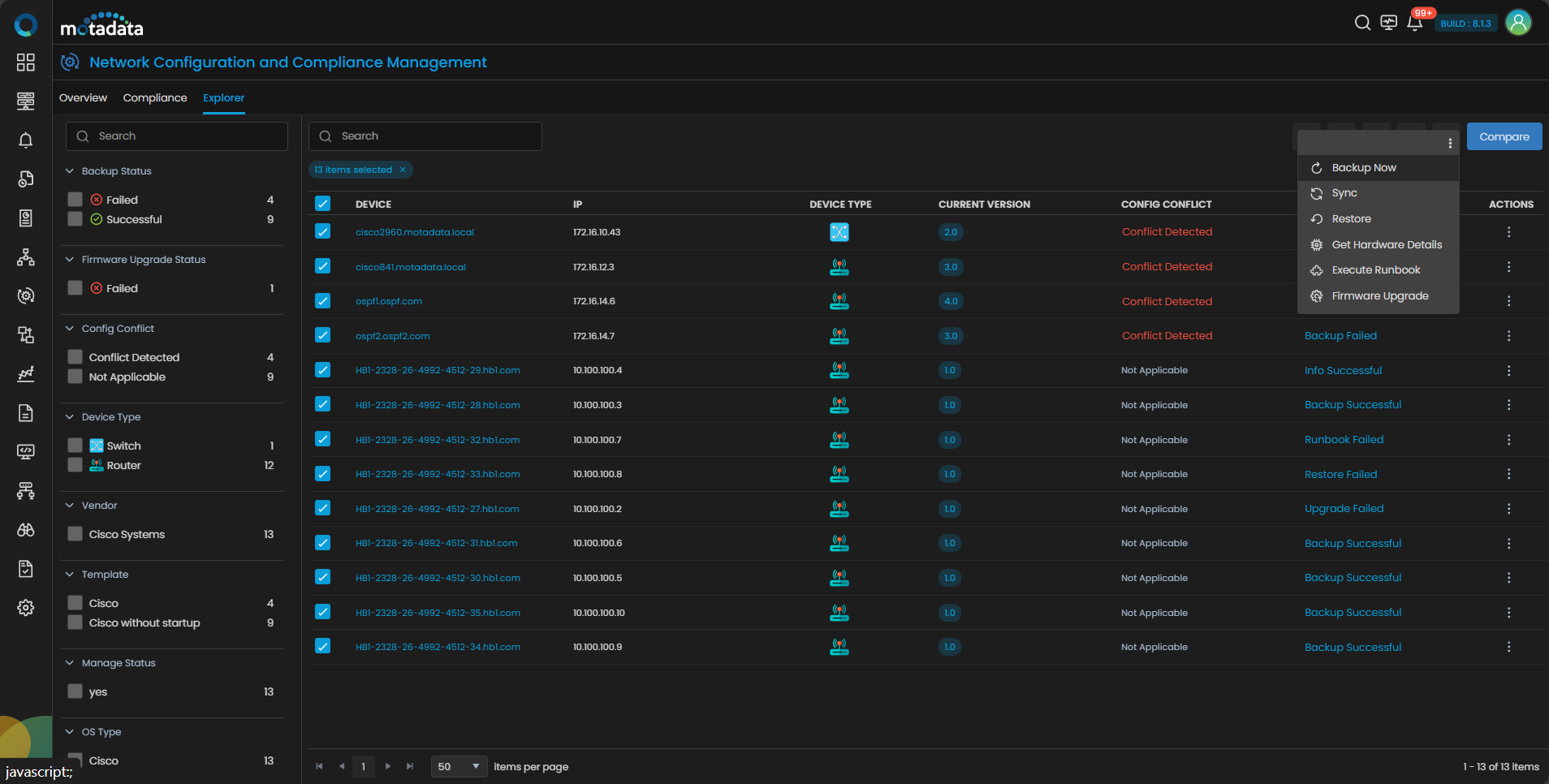
Once you have selected the devices that you want to backup, select the  button at the top of the screen besides the Compare button and select Backup Now.
The Backup process will start in the backend and you can view the status of the backup of all devices in the Last Backup Status column.
NCCM Device Restore
Go to Menu. Select NCCM . After that, select the tab Explorer. Navigate to the device for which you want to restore the configuration to a previous version. From the Actions tab, select Restore  .
.
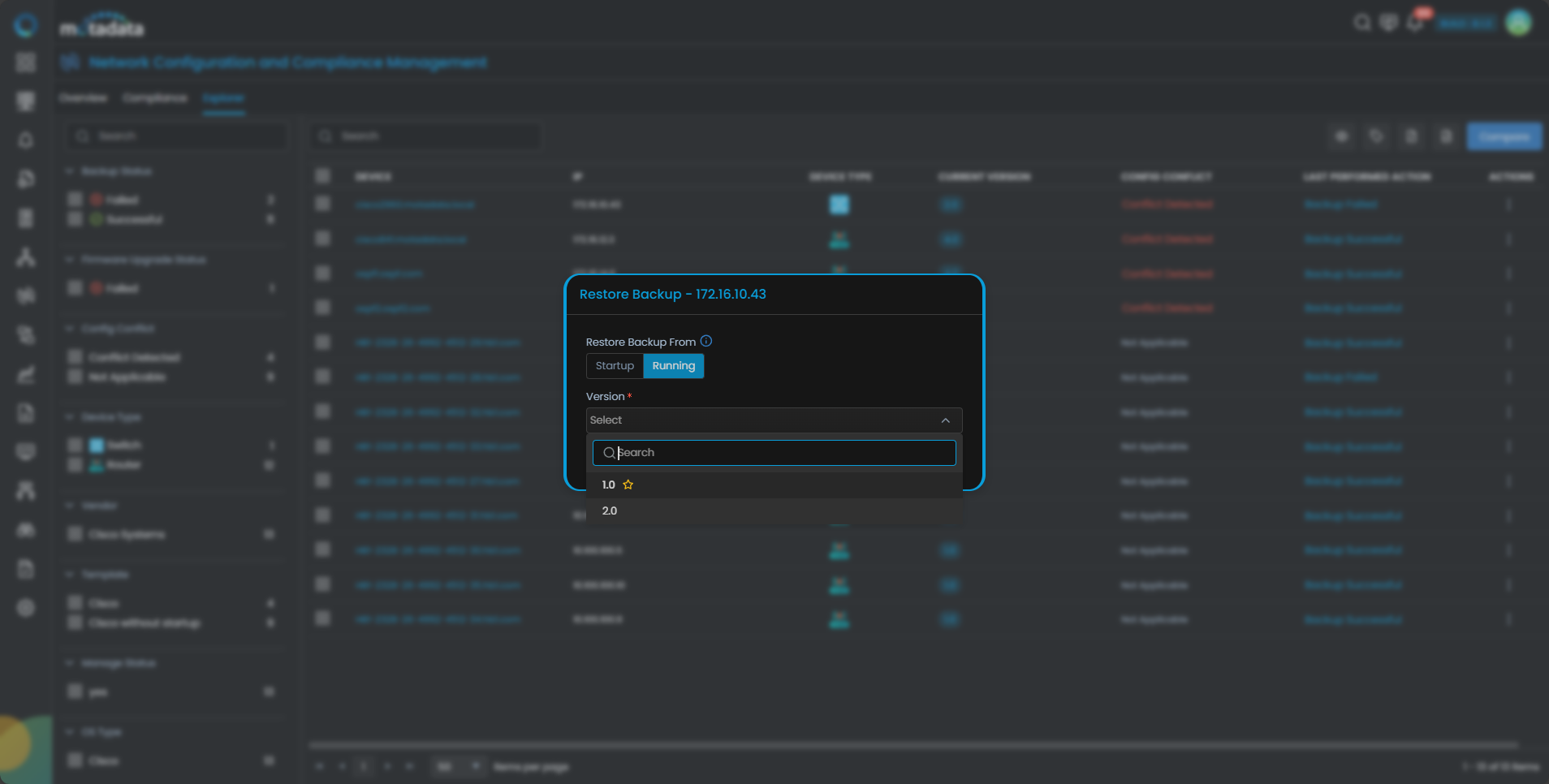
The system prompts you to select the file you want to restore to the running config of the NCCM device.
| Field | Description |
|---|---|
| Restore Backup From | Specify the source configuration file type (Running config or Startup config) from which you want to restore the configuration. |
| Version | Select the version of the config file you wish to restore. |
Bulk Restore of NCCM Devices
You can restore the devices in bulk from the NCCM Explorer instantly.
Select the devices that you want to restore using the checkbox in front of all the devices in the NCCM explorer. In case you want to restore all the devices instantly, select the checkbox at the top of the list of NCCM devices in the NCCM Explorer.
Once you have selected the devices that you want to backup, select the button at the top of the screen besides the Compare button and select Restore.
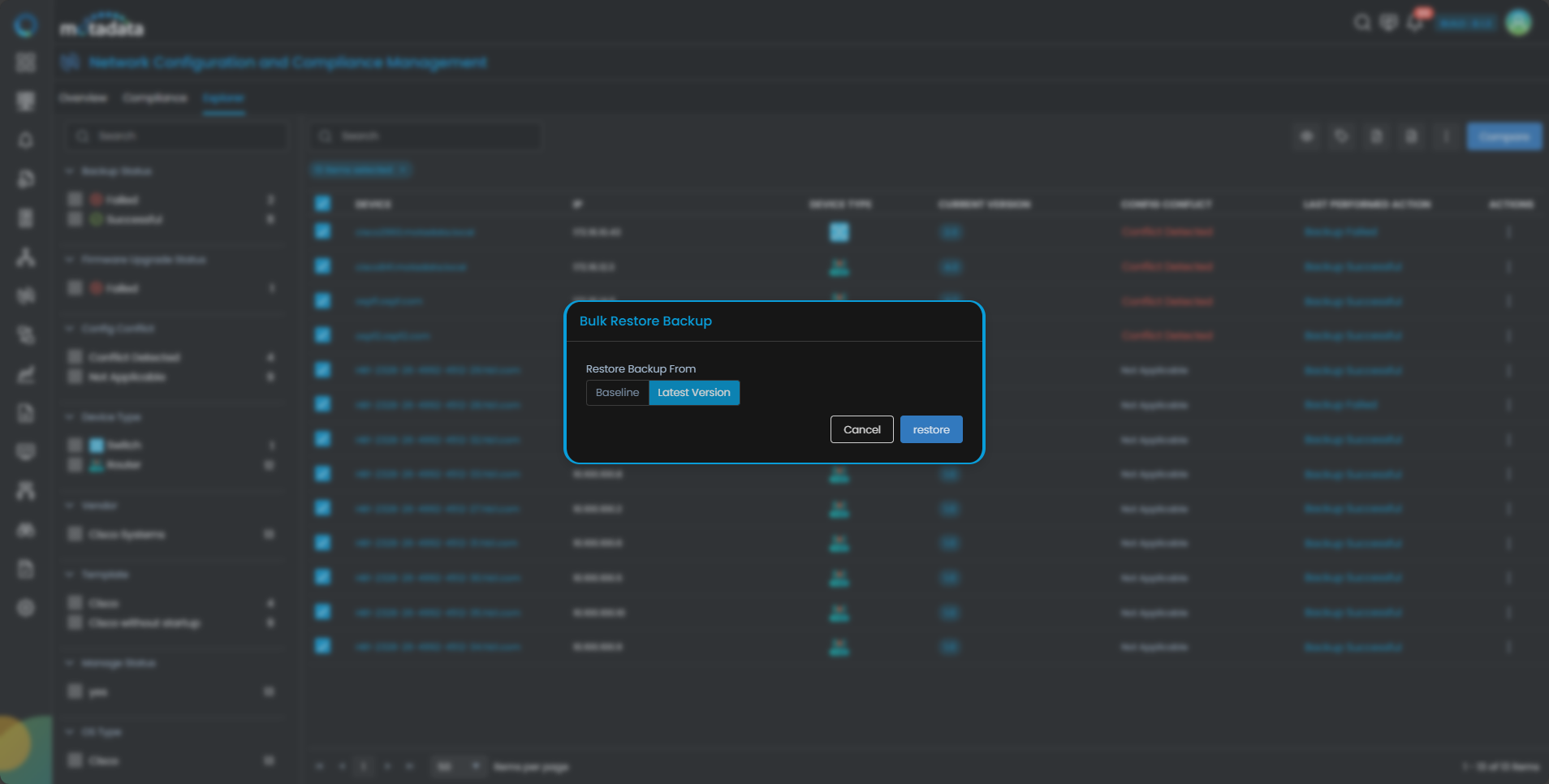
Select Baseline if you want to restore the running config of all the NCCM devices to the baseline version of the running config.
Select Latest Version if you want to restore the running config of the NCCM devices to the latest version of the running config.
After selecting the Restore Backup From, select the Restore button to bulk restore the NCCM devices as per your selection.
NCCM in Motadata AIOps provides a user-friendly interface for scheduling backups and restoring configurations. Whether working on individual devices or streamlining bulk restores, administrators gain precise control over version selection and configuration file types, ensuring the integrity of network configurations.