User Surveys
The page enables you to track and manage all the surveys at one place. It displays a list of already created surveys in the system. Also, you can search, create, and edit surveys as per requirement.
To view the User Surveys page, navigate to the Admin > User Survey > User Surveys, and the list page appears.
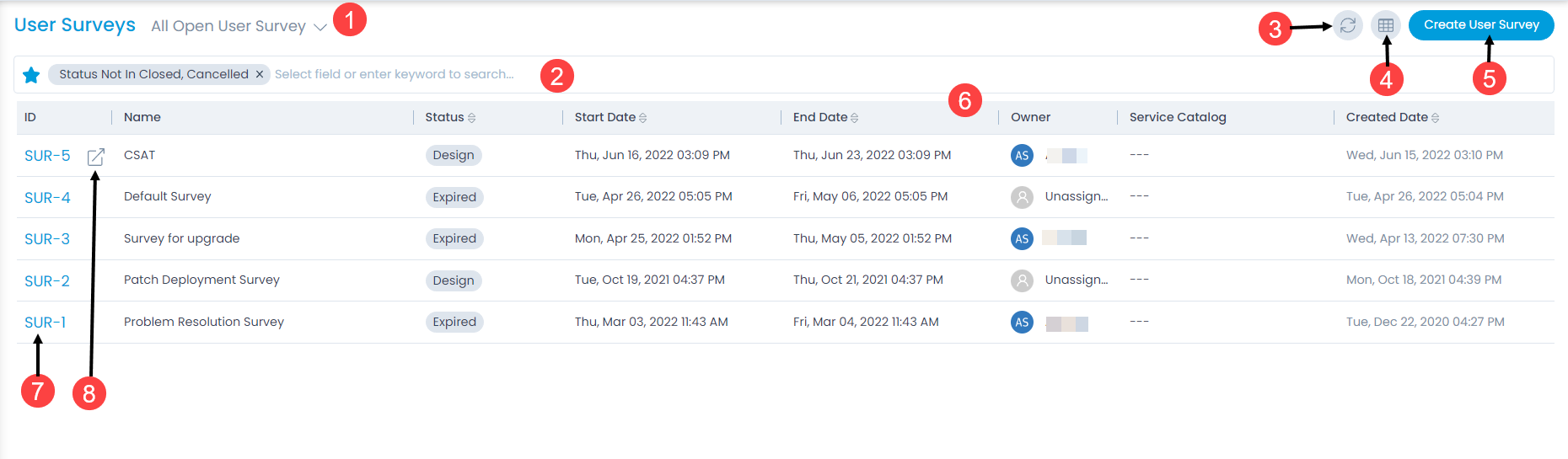
Filter: You can filter the surveys by clicking the desired option. The following filters are available:
Filter Records Displayed All Open User Survey Displays all surveys that are currently in an open state, including those with a Design status (still being built) and Expired status (past the end date but not yet closed). All Live User Survey Displays only those surveys that are currently active and being served to users for responses. Survey Expiring in Next 7 days Displays surveys whose end date falls within the next 7 days, helping administrators take timely action before they expire. Survey Expired in Previous 7 days Displays surveys that have expired within the last 7 days, allowing administrators to review recently closed surveys. All Cancelled Survey Displays all surveys that have been cancelled and are no longer active or collecting responses. All Survey Displays all survey records in the system regardless of their status, including open, live, expired, cancelled, and archived surveys. All Archived Survey Displays surveys that have been archived. Archived surveys are removed from the active list but their records are retained in the system for reference. Search: You can look for specific user survey by searching them. The search is a faceted search and allows you to find with specific criteria. The filter option uses a predefined criteria and segregates the list accordingly. You can find more details in the search section.
Refresh: You can refresh the user survey list. This is useful when multiple people are working on the user survey and contents are updated frequently.
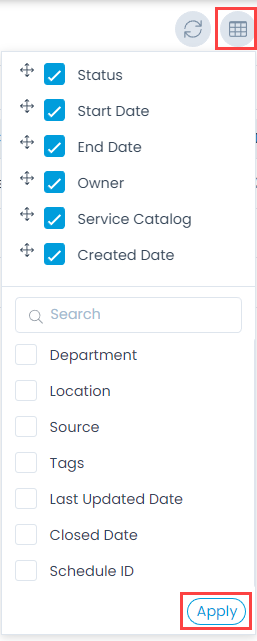
Column Selection: You can select the columns to be displayed in the grid table as shown below.
- Create User Survey: You can create a new user survey.
- Grid: Displays a list of already created user surveys along with their details.
- View Details Page: You can click the User Survey ID to view the User Survey Details page.
- View Details Page in a new tab: You can click the arrow icon next to the ID to view the details page in a new tab.