AI Similarity
This page allows you to perform configurations for identifying and displaying similar Incident, Problem, Change, and Suggested Knowledge Base articles when creating tickets.
Additionally, the similarity score can be configured to determine and display a list of similar requests, problems, changes, and knowledge articles when creating a ticket. It consists of two tabs:
- AI Similarity Configurations: Allows you to select modules and embedding models to determine how similar tickets are identified. It also enables the configuration of the minimum similarity score and the number of results to be displayed.
- Embedding Parameters Configurations: Defines the fields whose input will be used for similarity matching. By default, Subject and Description are pre-selected. The available modules depend on the selections made in the AI Similarity Configurations tab. For example, if the Request and Problem modules are selected, they will also appear in the Embedding Parameters Configurations tab.
AI Similarity Configurations
To configure AI Similarity,
- Enable the functionality (it is disabled by default).

Once enabled, the following parameters will be available.
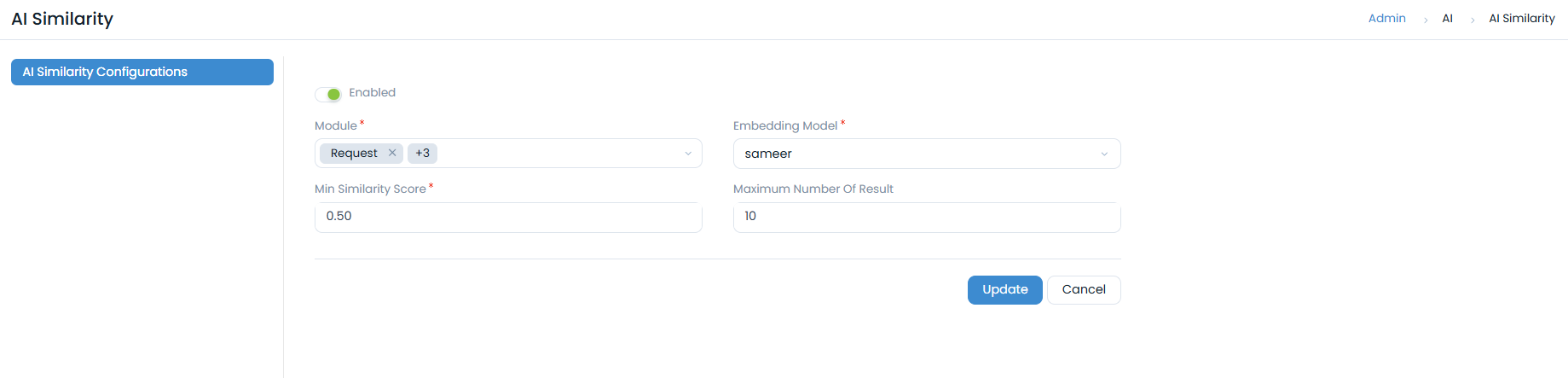
- Enter the following details:
- Module: Select the module for which you want to view similar tickets.
- Embedding Model: Select the embedding model from the dropdown. This option appears only if configured in the AI Models tab.
- Min. Similarity Score: This is the minimum vector score required for identifying similar items. The value must be between 0.00 and 1.
- Maximum Number of Results: Enter the maximum number of results to display. For example, if 10 is set, the system will search and display the top 10 similar tickets by comparing the vector embedding of user input and available data vectors.
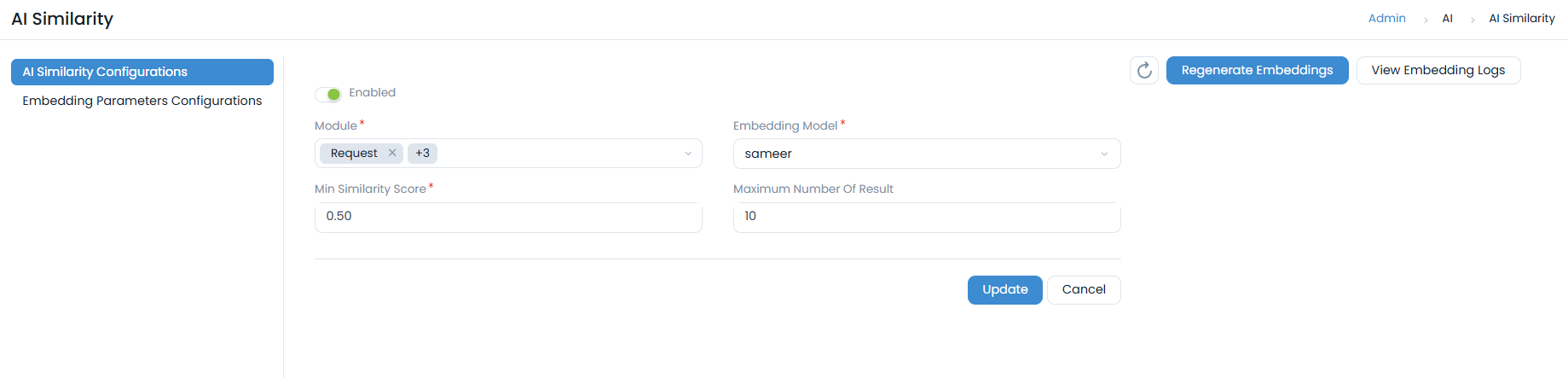
- Once completed, click Update. The following features will then appear:
- Refresh: Click to refresh the embeddings.
- Regenerate Embeddings: Click to regenerate the embeddings based on the current configurations. It is recommended to regenerate embeddings whenever changes are made to the configurations. Once generated, the logs will appear in View Embedding Logs.
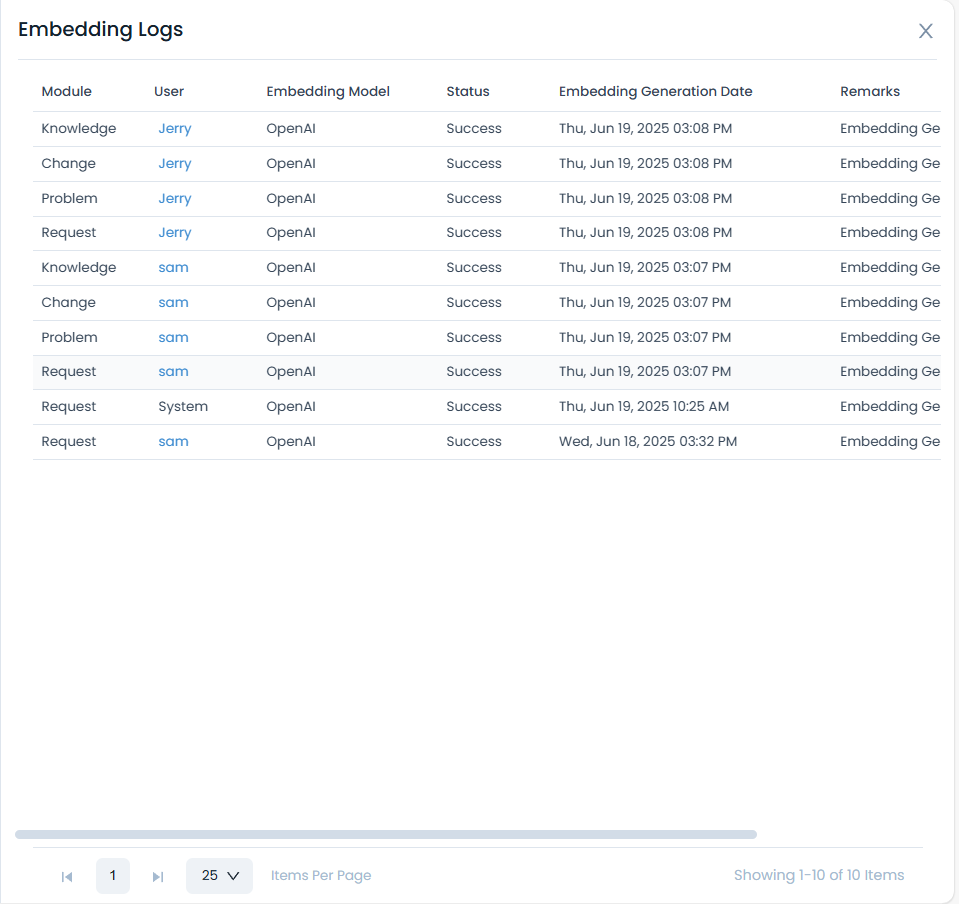
- View Embedding Logs: Logs display the status of the generated embeddings, including details such as module, user, embedding model, status, Embedding Generation Date, and remarks. If the generation failed, the reason will be displayed in the Remarks column.
Embedding Parameters Configurations
This tab allows you to select fields for each module to identify similar tickets and Knowledge Base (KB) articles. By default, Subject and Description are pre-selected for all modules and cannot be removed. You can also choose Custom Fields for embedding.
- Embedding will be applied only to the selected fields.
- The available modules depend on the selections made in the AI Similarity Configurations tab.
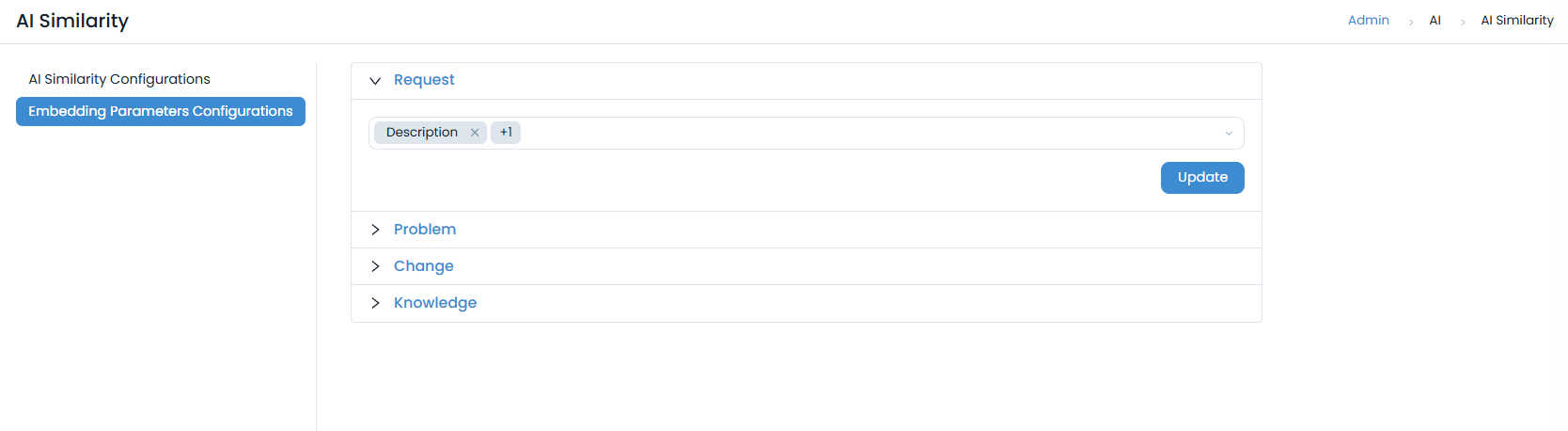
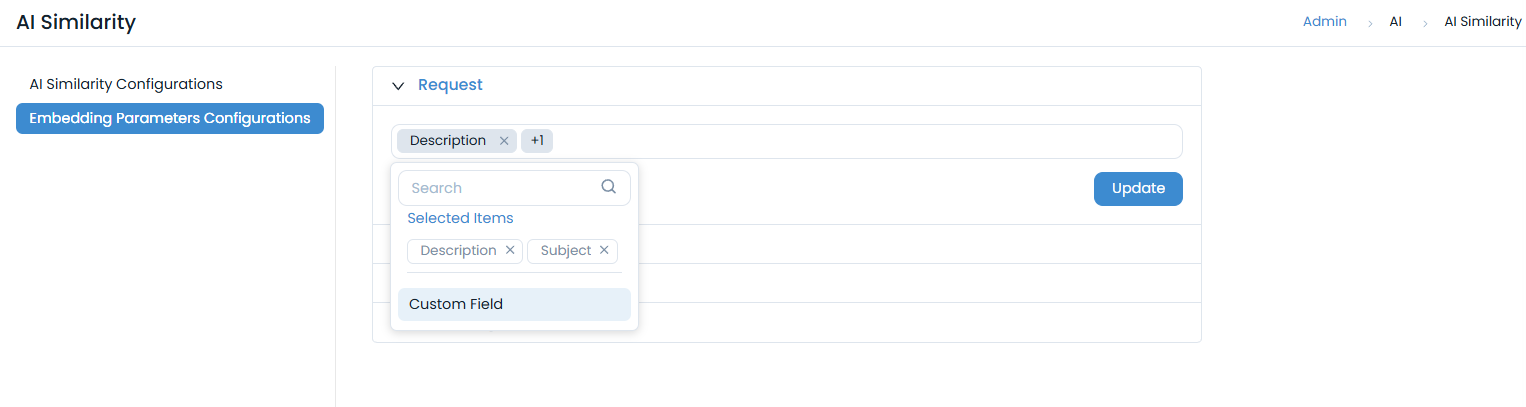
Once completed, click Update.
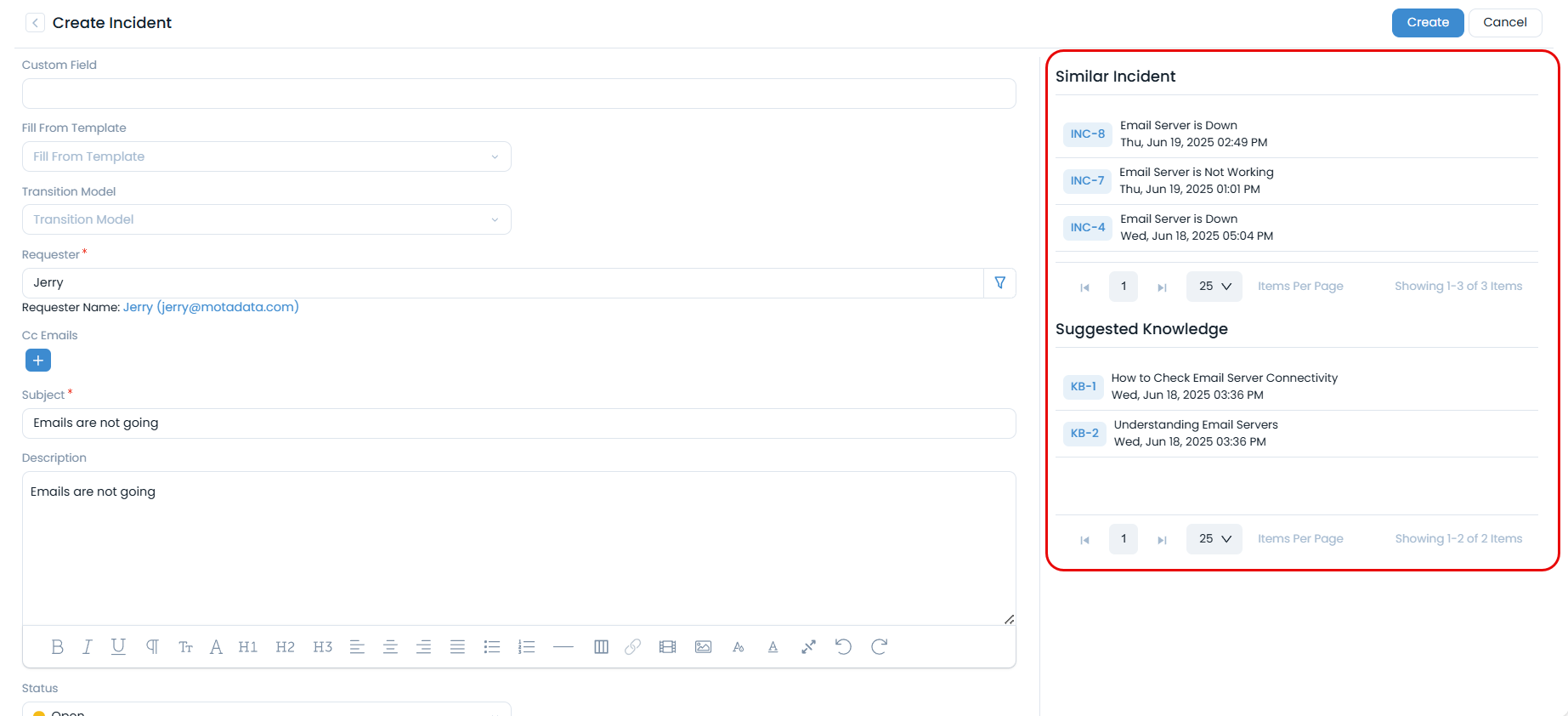
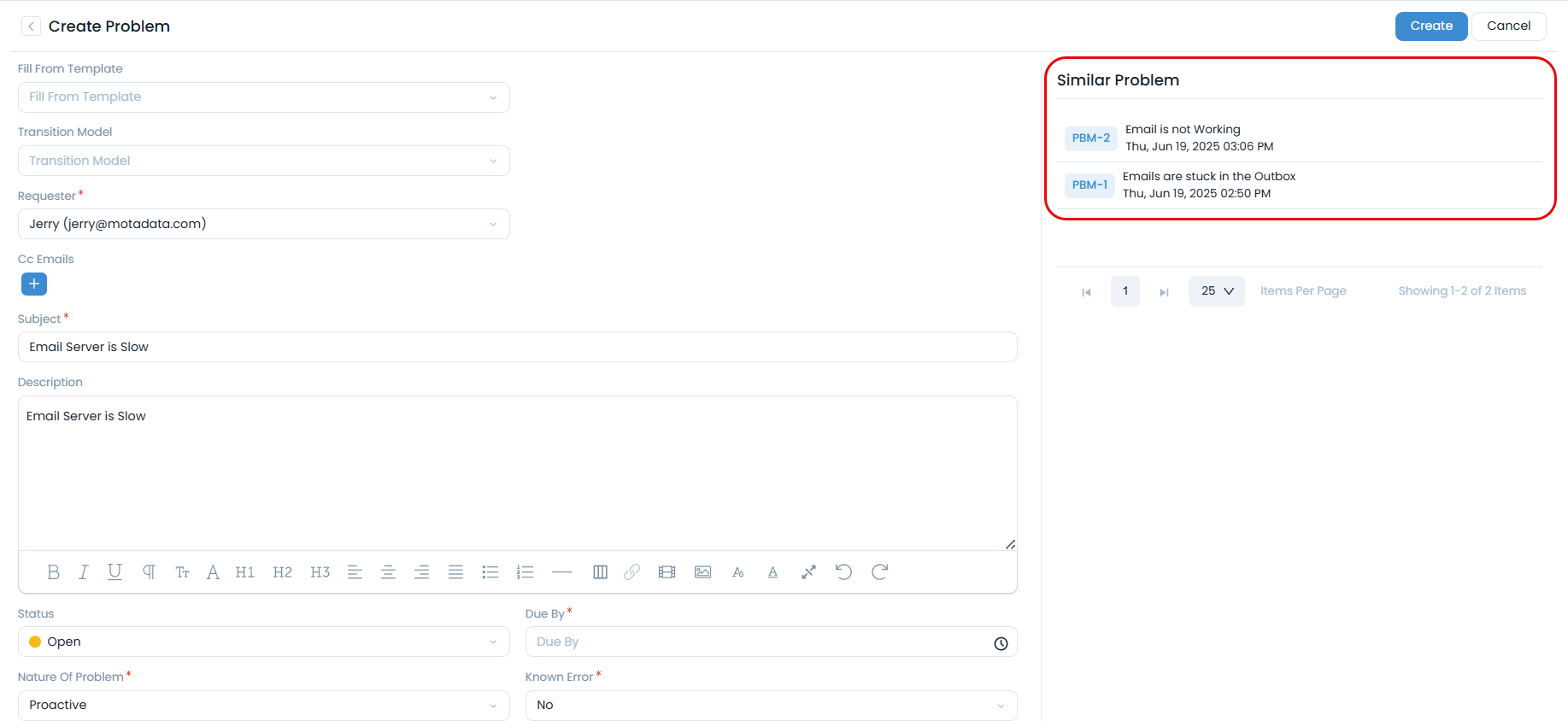
Now, when you create a ticket (Request, Problem, or Change), the system will display similar items on the right-hand side of the page based on your configurations, as shown below.
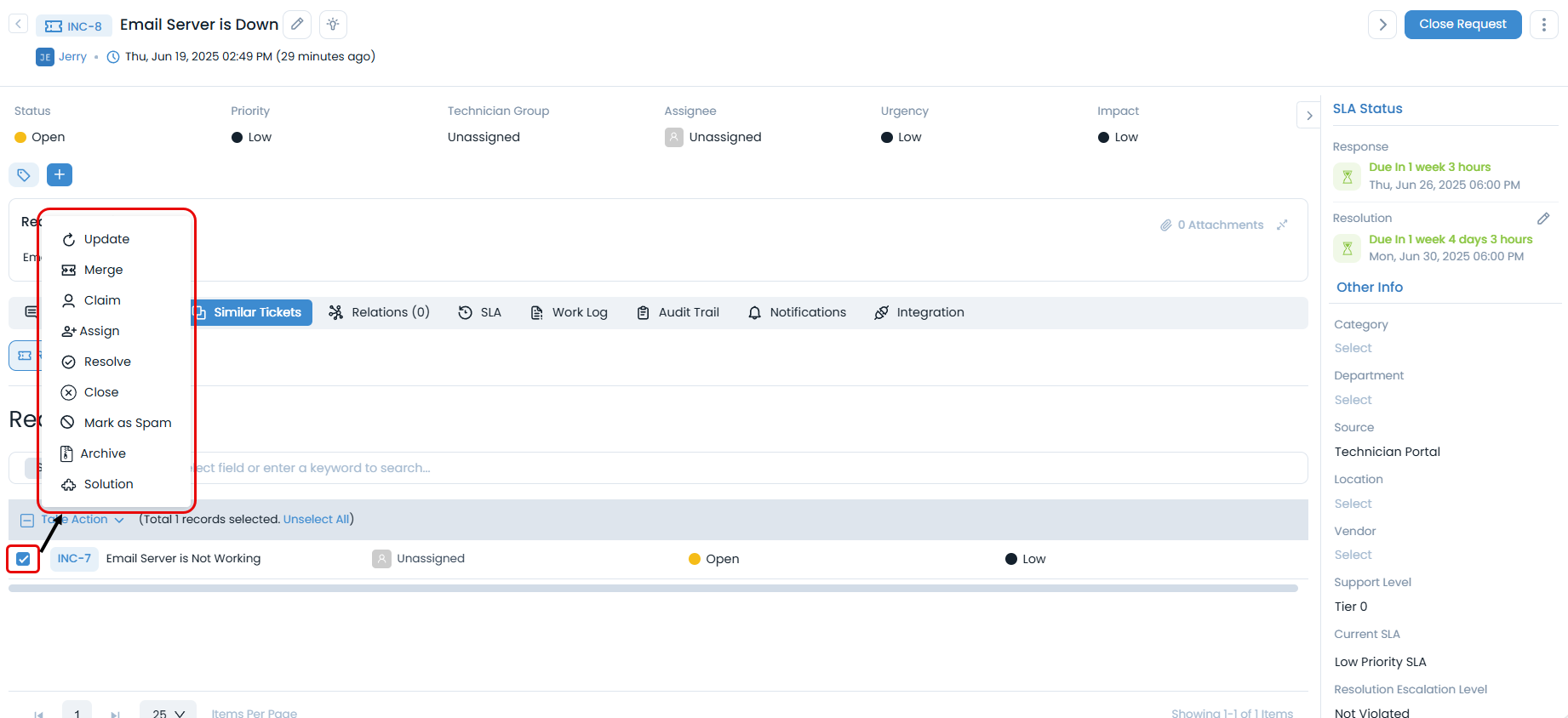
Additionally, on the ticket's Details page, you can view "Similar Tickets" and perform bulk operations as needed.