Create a Log Parser in ObserveOps
A parser extracts structured fields from raw log text. You add parsers inside a pipeline. When a log enters the pipeline, ObserveOps tries each parser in order. The first parser that matches the log extracts its fields. Unmatched logs move to the next parser in the pipeline.
Add a Parser to a Pipeline
Open a pipeline from Settings > Observability Pipeline > Log Pipeline. Click + Create New Parser inside the pipeline.
The Create Parser screen opens with three tabs.
Tab 1 - Indexed Logs
This tab loads the logs that match this pipeline's filter conditions, are unparsed and have arrived in the last 15 minutes. Columns shown: TIMESTAMP, MESSAGE, SEVERITY, LOG TYPE, SOURCE.
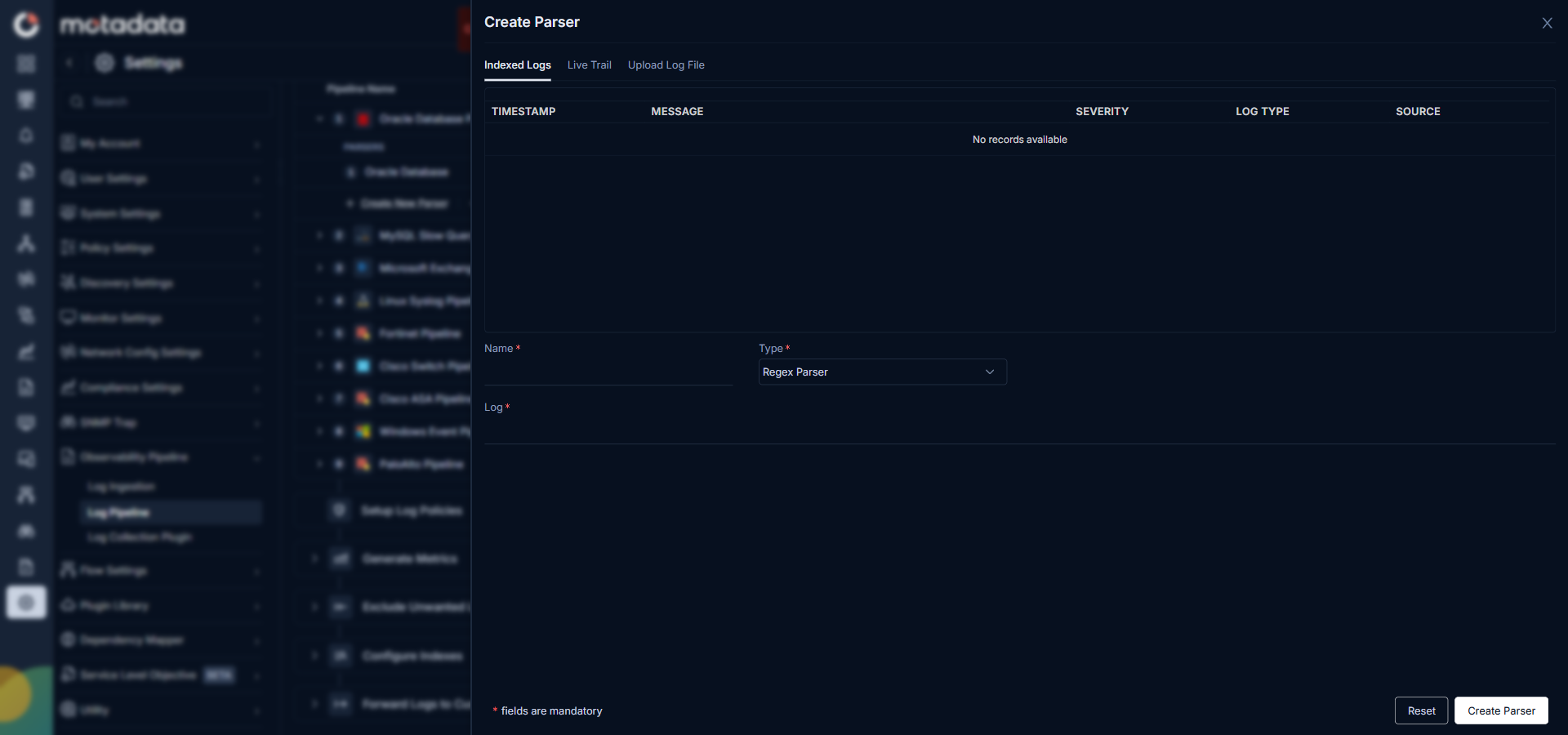
Clicking any log also fills it in as the sample log in the test panel below, in the exact raw format the log arrived.
Tab 2 - Upload Log File
Upload a sample log file to test your parser against. ObserveOps runs the parser against the file and shows the results.
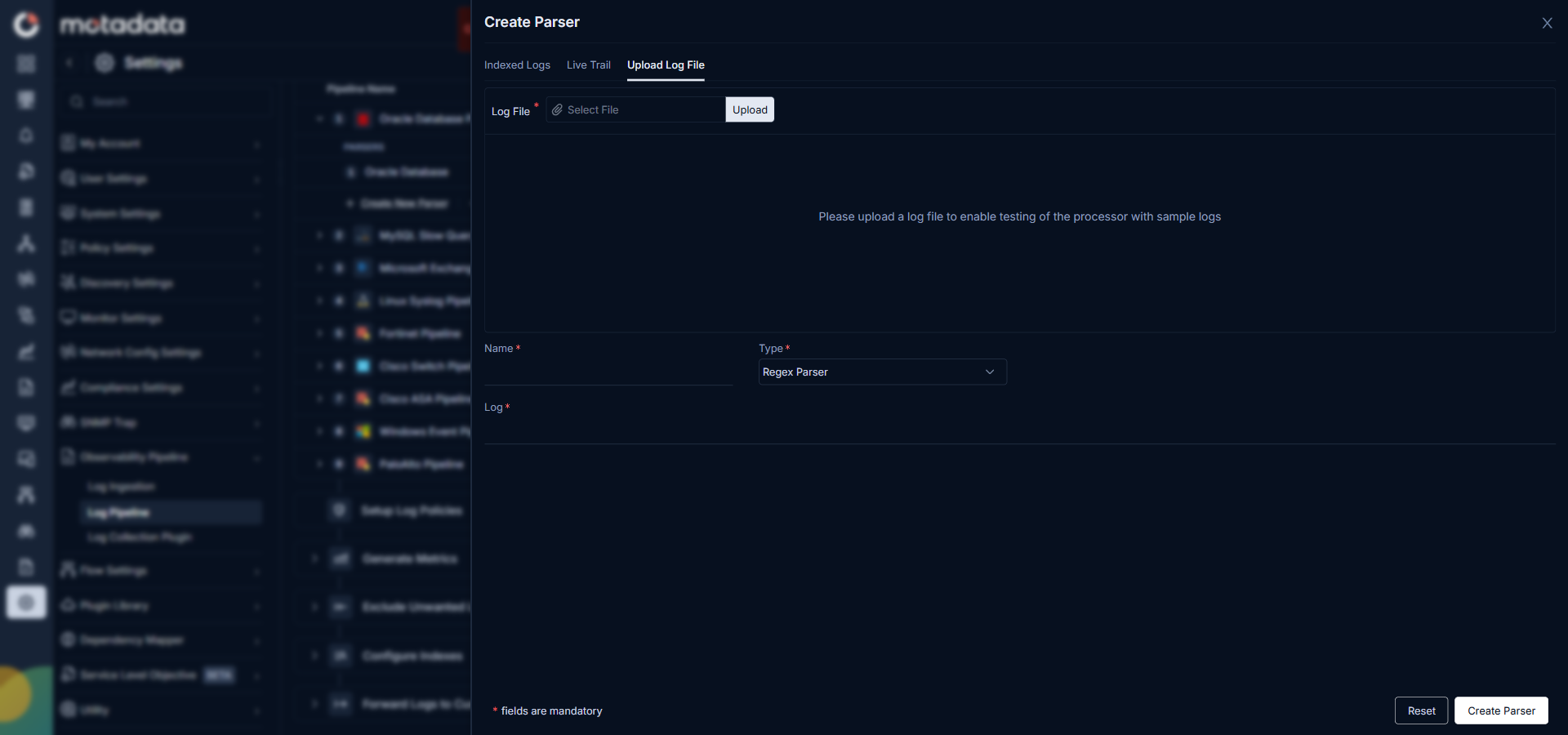
Clicking any log from the upload output also fills it as the sample log below in its exact raw format.
Parser Types
ObserveOps supports four parser types. Select the type when you create a parser.
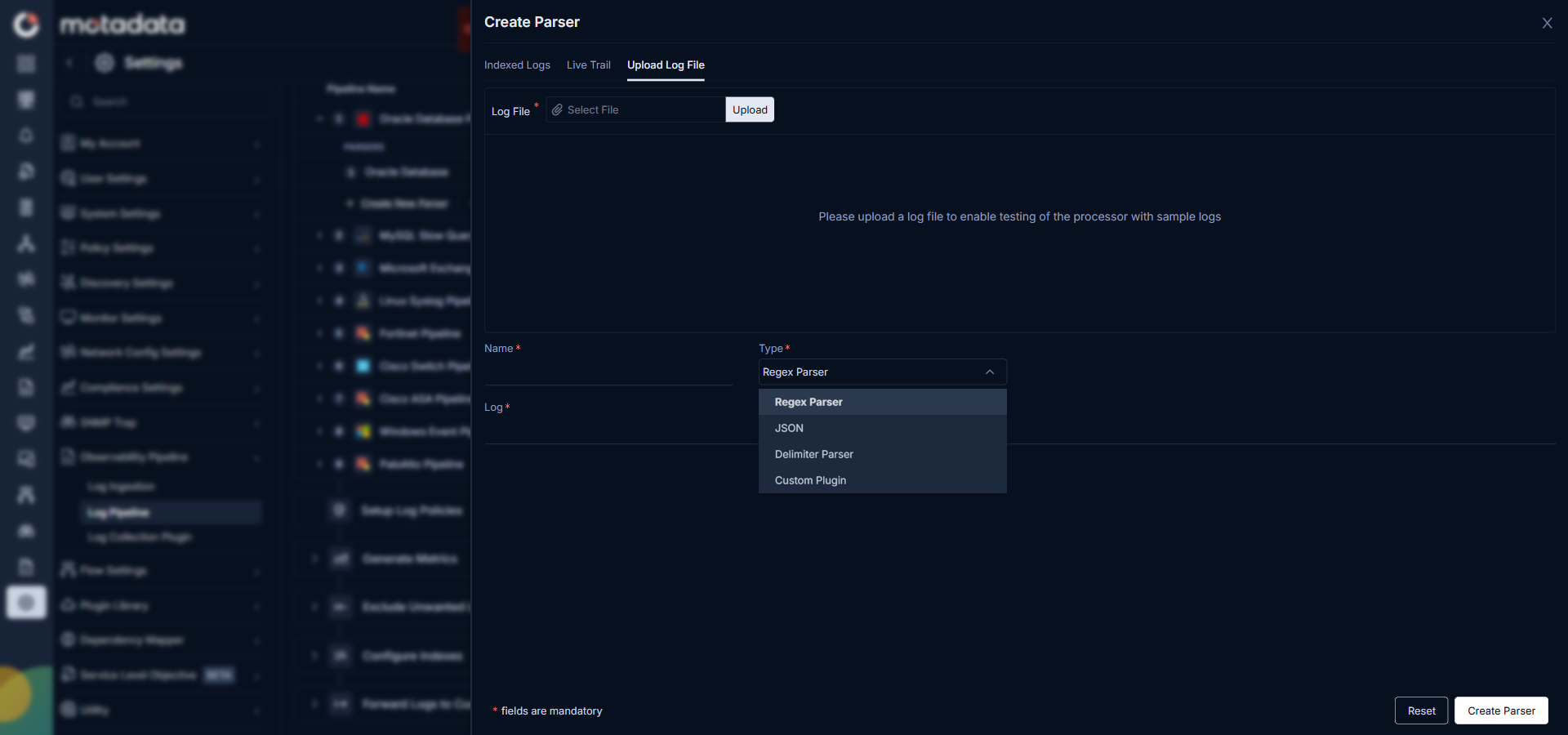
Regex Parser
The Regex parser extracts fields from a log event using a regular expression. You enter a sample log, select the parts you want to extract, and ObserveOps auto-generates the regex pattern. Each selected part becomes a named field in the parsed log.
How to configure:
- Select Regex as the parser type.
- Enter a sample log event from the log file you want to parse in the Log field. You can also click any log in the Indexed Logs or Upload Log File tabs to fill it in automatically.
- Select the part of the log event you want to identify and separate. ObserveOps auto-generates the corresponding regex in the Regex field.
- Continue selecting additional parts of the log event to expand the regex. Each new selection updates the regex to include the additional field. For example, after selecting the process name, select the process ID — the regex is updated to capture both fields along with the timestamp.
- Provide a name for each parsed field. The names you enter are used to identify the fields in Log Search when viewing log details.
- Click Test to verify the output against your sample log.
The timestamp from the log event is parsed by default and does not need to be added to the regex.
Test results:
When you run a test on a sample log or uploaded file, ObserveOps shows:
- The extracted fields and their values
- The field distribution alongside each field, showing how often that field appears across the sample set
Delimiter Parser
The Delimiter parser splits log lines at a specific character or string. You pick which positions to extract and name them.
How to configure:
- Select Delimiter as the parser type.
- Enter the delimiter character or string (for example,
,for CSV or|for pipe-separated logs). - After setting the delimiter, ObserveOps shows a checkbox next to each detected field position.
- Select the checkboxes for the fields you want to extract. Only checked positions are parsed.
- Enter a name for each selected field.
- Upload sample log file and click Test to verify the output.
You must check the fields you want first. You cannot name a field until you select its checkbox. Only checked fields appear in the parsed output.
JSON Parser
The JSON parser allows you to extract key value fields from the JSON logs. Use it when your logs arrive in exact JSON syntax.
How to configure:
- Select JSON as the parser type.
- Set the Field(s) in the sample logs that you want to extract.
- Enter a name for each selected field.
- Upload sample log file and click Test to verify the output.
Custom Plugin Parser
The Custom Plugin parser lets you select a pre-built plugin from the ObserveOps plugin library to handle log formats with specialized parsing requirements.
How to configure:
- Select Custom Plugin as the parser type.
- Choose the plugin from the available plugin list.
- Configure the plugin parameters as required.
- Click Test to verify the output against your sample log.
The Custom Plugin parser works the same way it did in the previous version.
Parser Ordering
Inside a pipeline, parsers run in order from top to bottom. ObserveOps tries each parser against the incoming log until one matches. Once a parser matches, parsing is complete. The log does not move to any further parsers.
Parsers always appear above processors in the pipeline view. You can drag parsers to reorder them among themselves, but you cannot move a parser below a processor.
-->