Log Collection Plugin in ObserveOps
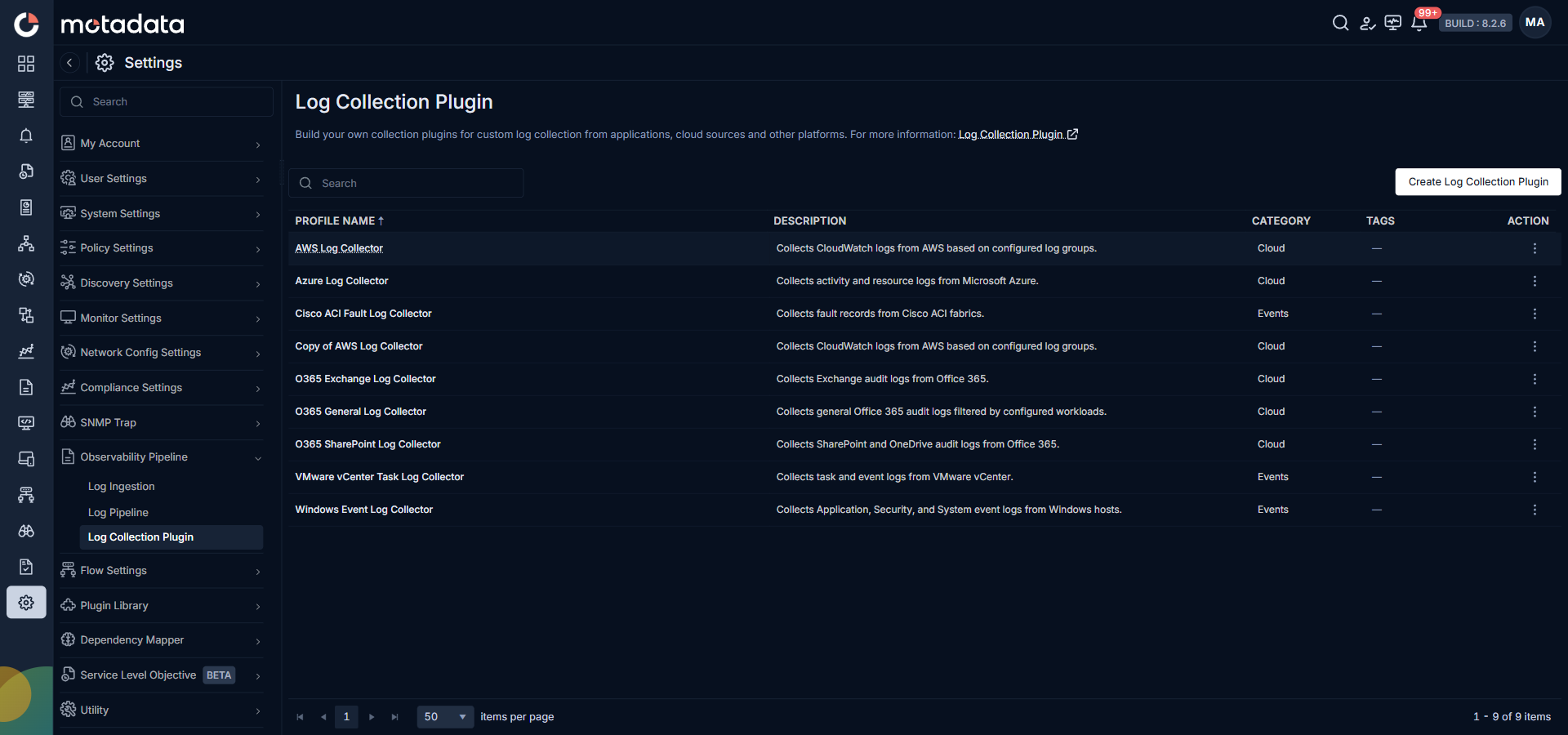
The Log Collection Plugin screen in ObserveOps is your central library for agentless log ingestion. It lists every collection plugin available in your system, including eight out-of-the-box (OOTB) plugins that ship with ObserveOps and cover the most common cloud and enterprise log sources. You use these plugins to collect logs from platforms where installing MotaAgent is not possible or not required.
Prerequisites
- You have a Runbook configured for log collection, or you create one during setup.
- The target device is reachable from the ObserveOps server and the user has the required credentials and permissions.
How It Works
Each plugin is a script written in GO or Python that ObserveOps runs on a schedule to pull logs from a remote source. The script connects directly to the target platform using that platform's own API or protocol. No agent installation is needed on the source device. Collected logs flow into the standard Observability Pipeline where they are parsed, processed, and stored.
ObserveOps ships with eight OOTB plugins for the most widely used platforms. These plugins are read-only. You can clone any OOTB plugin to create your own version and customize the script. You can also build a plugin from scratch using the built-in script editor.
Out-of-the-Box Plugins
Go to Settings. Select Observability Pipeline, then select Log Collection Plugin.
The list shows all available plugins. The eight OOTB plugins ship with ObserveOps and are ready to use immediately.
| Plugin Name | Description | Category |
|---|---|---|
| AWS Log Collector | Collects CloudWatch logs from AWS based on configured log groups. | Cloud |
| Azure Log Collector | Collects activity and resource logs from Microsoft Azure. | Cloud |
| Cisco ACI Fault Log Collector | Collects fault records from Cisco ACI fabrics. | Events |
| O365 Exchange Log Collector | Collects Exchange audit logs from Office 365. | Cloud |
| O365 General Log Collector | Collects general Office 365 audit logs filtered by configured workloads. | Cloud |
| O365 SharePoint Log Collector | Collects SharePoint and OneDrive audit logs from Office 365. | Cloud |
| VMware vCenter Task Log Collector | Collects task and event logs from VMware vCenter. | Events |
| Windows Event Log Collector | Collects Application, Security, and System event logs from Windows hosts. | Events |
The table shows these columns for every plugin:
| Column | What It Shows |
|---|---|
| Profile Name | The plugin name. |
| Description | A short description of what the plugin collects and from where. |
| Category | The source type: Cloud for API-based cloud platforms, Events for on-premises or event-driven sources. |
| Tags | Any tags assigned to the plugin for filtering and organization. |
| Action | The three-dot menu. OOTB plugins show Clone only. User-created plugins show Edit, Clone, and Delete. |
Clone an OOTB Plugin
OOTB plugins are read-only. To use an OOTB plugin for your environment, clone it first and configure the cloned copy.
- In the Action column of the plugin you want, click the three-dot menu.
- Select Clone Log Collection Plugin.
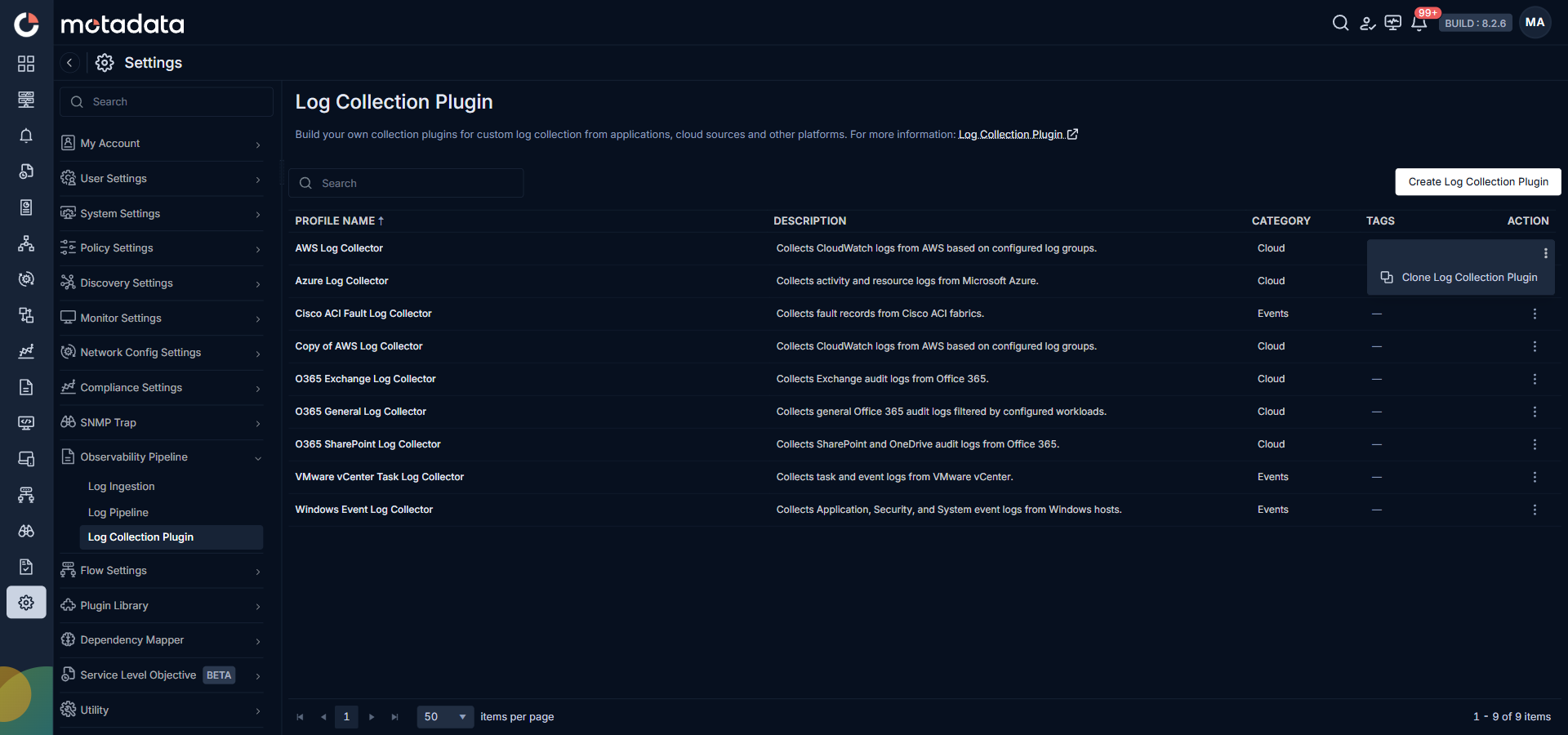
ObserveOps creates a copy of the plugin. The copy opens in edit mode and gives you full access to the script and all settings.
Create a Log Collection Plugin
To build a plugin from scratch, click Create Log Collection Plugin in the top right corner.
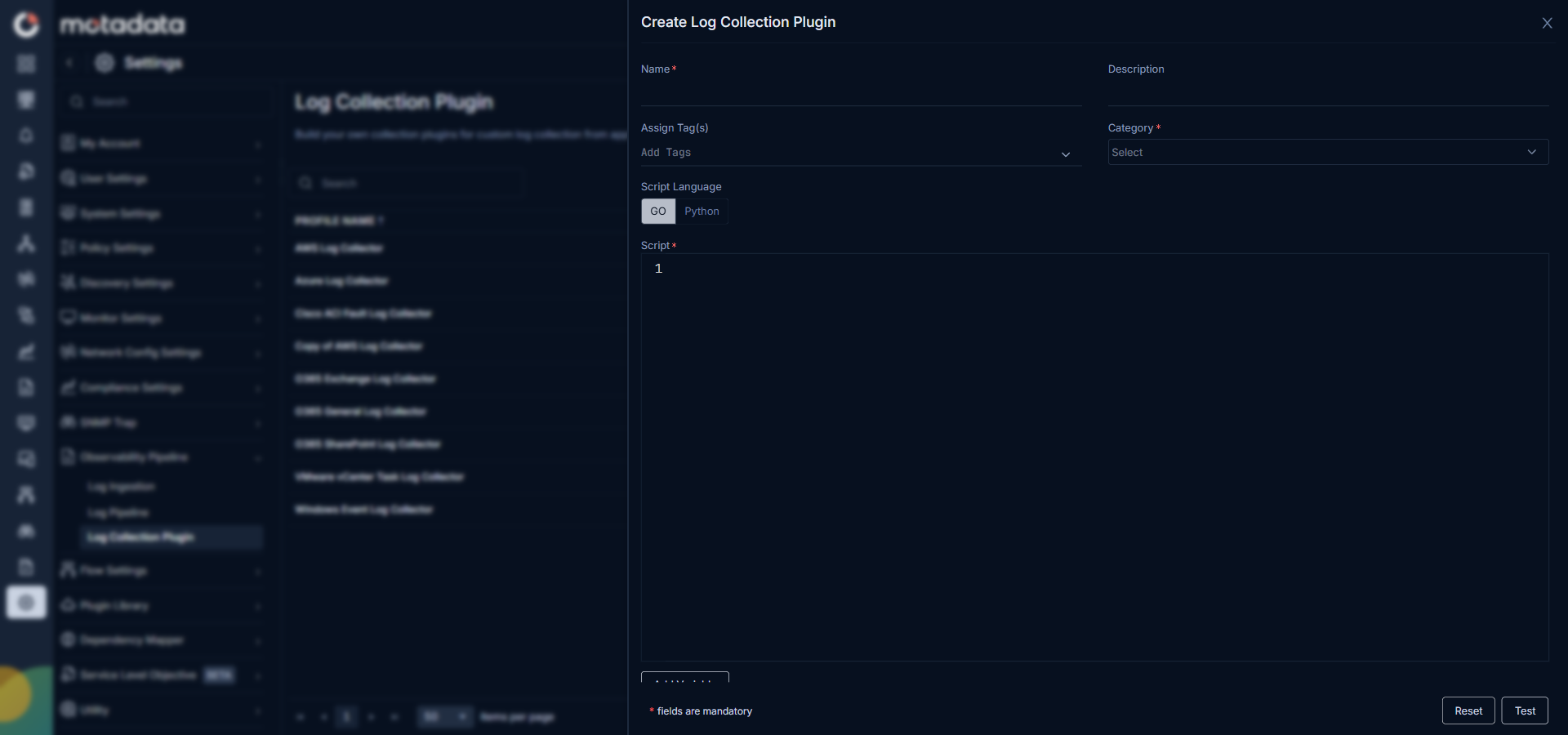
Fill in the form:
| Field | Description |
|---|---|
| Name | A unique name for this plugin. Use a name that describes the source it collects from. |
| Description | A short explanation of what this plugin collects and from where. |
| Assign Tag(s) | Optional. Add tags to group this plugin with related plugins for easier filtering. |
| Category | The source type this plugin collects from. Select Cloud for API-based sources or Events for event log and on-premises sources. |
| Script Language | The language your collection script is written in. Select GO or Python. |
| Script | The collection script. Write the logic that connects to the source, retrieves the logs, and returns them to ObserveOps. |
| Add Variable | Define input variables that the script uses at runtime, such as API keys, hostnames, or log group names. |
Click Test to run the script against the target source and verify it returns logs before saving. Click Reset to clear all fields. Click Create Log Collection Plugin to save the plugin.
Manage User-Created Plugins
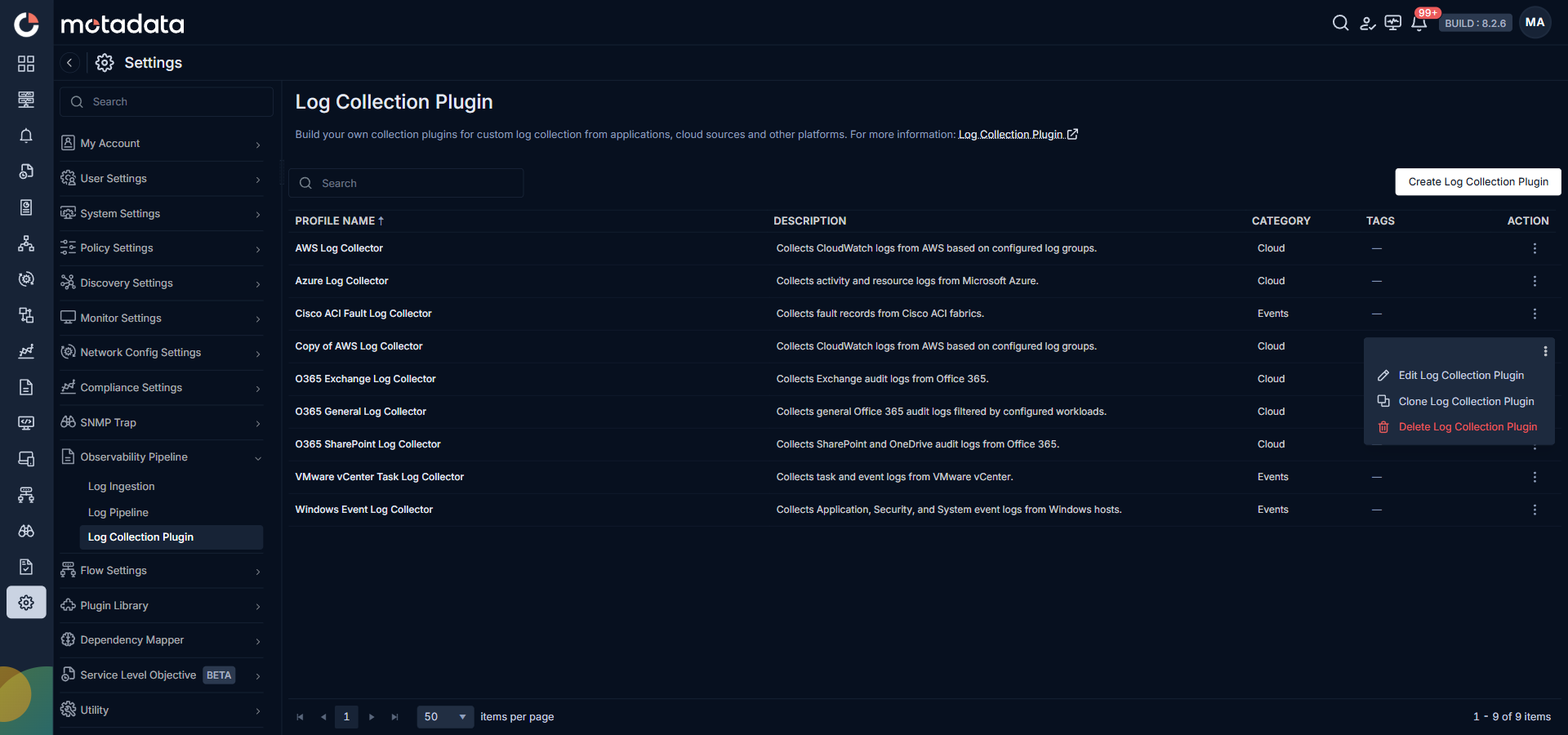
User-created and cloned plugins have three actions available in the three-dot menu:
| Action | What It Does |
|---|---|
| Edit Log Collection Plugin | Opens the plugin form so you can update the script, fields, or variables. |
| Clone Log Collection Plugin | Creates a copy of the plugin. Use this to build a new plugin based on an existing one. |
| Delete Log Collection Plugin | Permanently removes the plugin. This action cannot be undone. |