Forward Logs to Custom Destination in ObserveOps
ObserveOps lets you forward ingested logs to an external destination for further analysis or archiving. You choose a forwarder type, set the destination, apply optional filters, and select the format in which logs are sent. Logs continue to be stored in ObserveOps normally. Forwarding sends a copy to the external system.
Prerequisites
- The destination IP and port are reachable from the ObserveOps server.
How It Works
A log forwarder listens for ingested logs that match its source filter. When a match is found, it sends the log to the configured destination in the format you selected. You can run multiple forwarders simultaneously, each routing different sets of logs to different destinations.
ObserveOps supports two forwarder types:
| Forwarder Type | Use Case |
|---|---|
| TCP | Reliable delivery where connection confirmation is needed |
| UDP | Low-overhead forwarding for high-volume log streams |
Logs can be forwarded in JSON format or as Raw Logs, depending on configured forwarder.
The Forward Logs Screen
Go to Settings > Observability Pipeline > Log Pipeline, then click Forward Logs to Custom Destinations to expand the section.
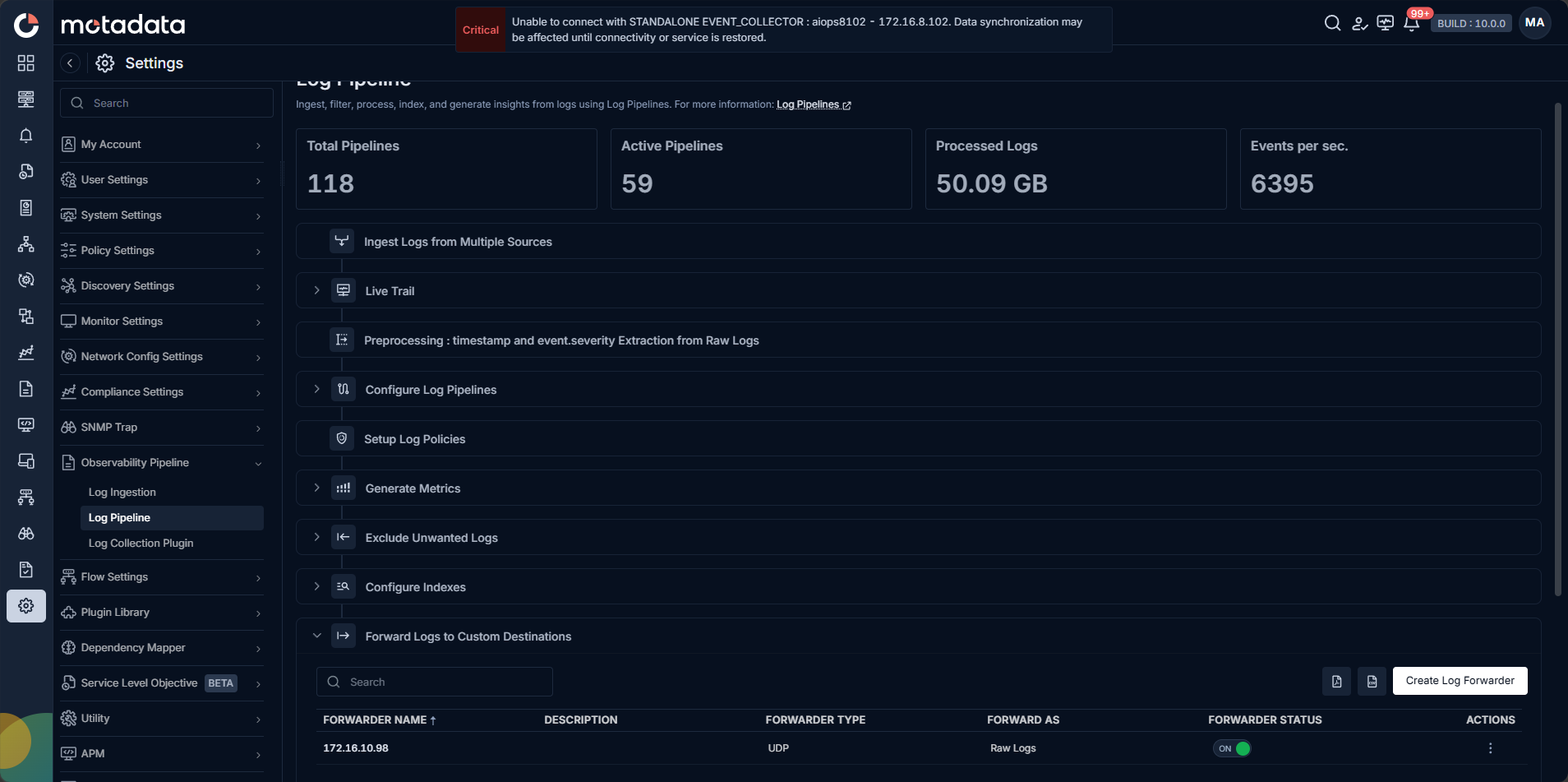
The list shows all configured log forwarders:
| Column | Description |
|---|---|
| FORWARDER NAME | The name assigned to the log forwarder, typically the destination IP address or a meaningful identifier for the external system. |
| DESCRIPTION | An optional description of the forwarder, such as what it is used for or where it sends logs. |
| FORWARDER TYPE | The protocol used to send logs — either UDP for low-overhead forwarding or TCP for reliable delivery with connection confirmation. |
| FORWARD AS | The format in which logs are sent to the destination — either Raw Logs or JSON. |
| FORWARDED STATUS | A toggle that enables or disables the forwarder without deleting it. When enabled, matching logs are actively forwarded to the destination. |
| ACTIONS | Icons to edit the forwarder configuration or permanently delete it from the list. |
Click Create Log Forwarder to add a new one. See Create a Log Forwarder.
-->