Adding Container Runtime for Monitoring
ObserveOps (formerly known as AIOps) monitors container runtimes by connecting to Docker through a credential profile attached to an existing Linux monitor. Once set up, ObserveOps continuously collects performance metrics and generates alerts based on what it finds.
Container Runtimes Supported
| Container Runtime |
|---|
| Docker |
Prerequisites
Enable remote API access on your Docker host before adding it to ObserveOps.
- Open the Docker service file:
nano /lib/systemd/system/docker.service
- Update the
ExecStartline to expose the Docker REST API on port2375:
ExecStart=/usr/bin/dockerd -H fd:// -H=tcp://0.0.0.0:2375
- Reload the daemon and restart Docker:
systemctl daemon-reload
sudo service docker restart
Adding Docker
ObserveOps discovers Docker containers through an existing Linux monitor. The workflow has two steps: create a credential profile, then add the Container Runtime to the Linux monitor.
1. Create a Credential Profile
Go to Menu. Select Settings  . Select Discovery Settings
  . Select Credential Profile. The Credential Profile screen opens. Select Create Credential Profile.
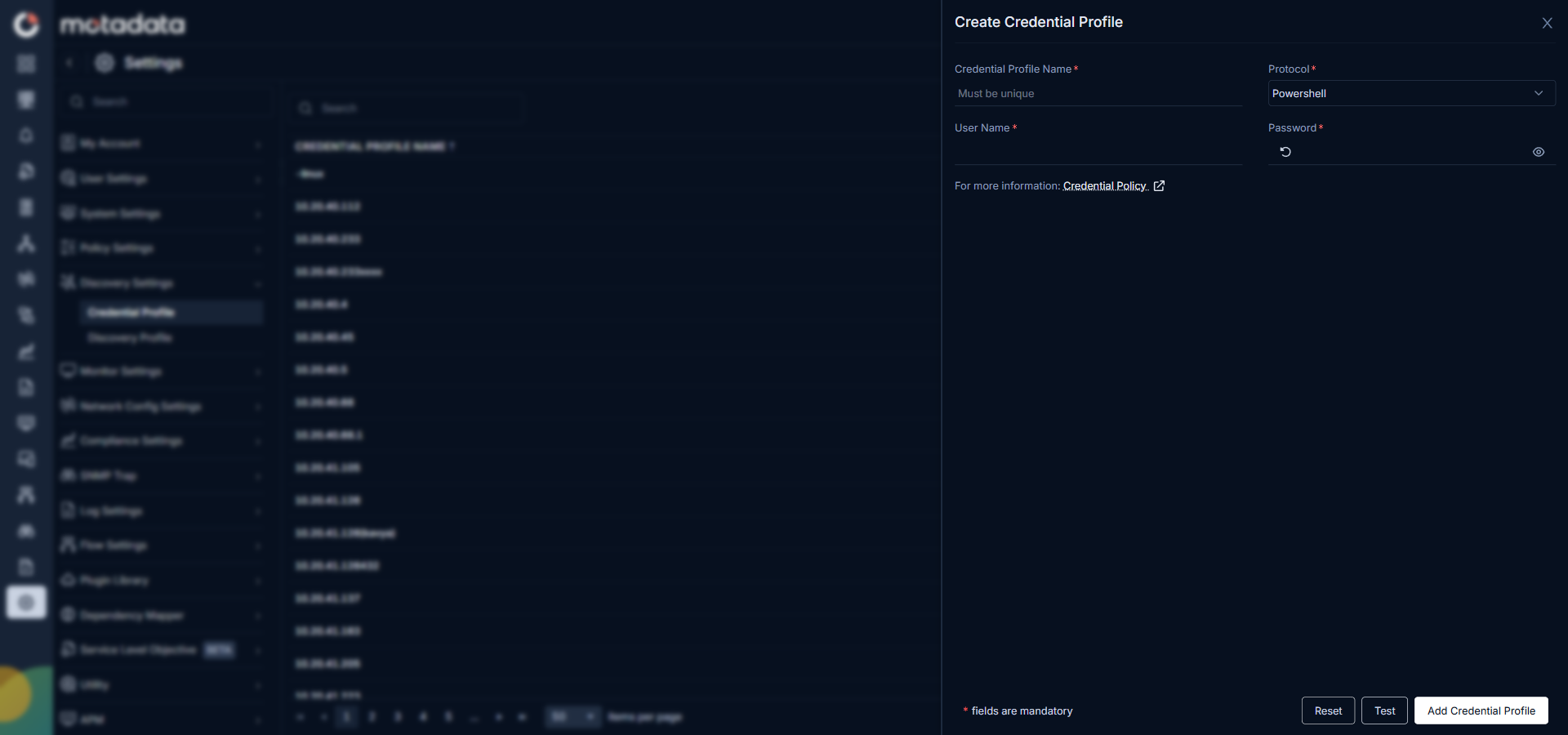
The Create Credential Profile form opens.
| Field | What to Enter |
|---|---|
| Credential Profile Name | A unique name to identify this profile |
| Protocol | Select HTTP/HTTPS |
| Authentication | Select Basic |
| Username | The Docker host username |
| Password | The password for that account |
Select Reset to clear all fields. Select Add Credential Profile to save.
2. Add Container Runtime to a Monitor
Go to Menu. Select Monitor. Select Server & Apps. Open the Linux monitor for the host running Docker. Select the container runtime icon  .
.
The Add Container Runtime panel opens.

| Field | What to Enter |
|---|---|
| Container Runtime | Select Docker |
| Credential Profile | Select the credential profile you just created |
| Tags | Tags to assign to the discovered containers |
| Port | The Docker REST API port. Default is 2375. |
| Discover Available Containers | Toggle on to discover all containers regardless of their current status. |
Select Save & Run to save and start discovery immediately. Select Reset to clear all fields.
3. Provision the Discovered Containers
After the discovery run completes, ObserveOps shows all discovered containers. Select the ones you want to add as Monitors.
Select Add Selected Objects to provision the selected containers as monitors. ObserveOps now collects metrics continuously.
To view the monitors, go to Menu. Select Monitor. Select Server & Apps. Open the Linux monitor where you added the Container Runtime. Select the Docker tab.