Manage Knowledge Articles
Empower technicians to create, manage, and refine knowledge articles, ensuring an up-to-date and effective knowledge base.
As a technician, you play a crucial role in maintaining a robust and accessible knowledge base. The Knowledge Management section provides a suite of features designed to help you efficiently create new knowledge articles and manage existing ones. These features facilitate effective content management, ensuring that relevant information is always available to those who need it.
Key features for effective knowledge article management include:
- Rich Text Editor: Create comprehensive and visually appealing articles with support for images, audio, and video.
- Folder Organization: Structure articles logically within different folders for easy navigation.
- Draft Option: Save changes as drafts before publishing to ensure content readiness.
- Article Tags: Utilize tags to improve searchability and help users quickly find relevant articles.
- Article Feedback: Gather insights on article helpfulness through user feedback (likes and dislikes).
- Performance Sections: View analytics such as most read, most helpful articles, and most searched keywords.
- Edit and Delete: Update existing articles and remove obsolete information to maintain accuracy.
- Review Schedules: Implement systematic reviews to keep articles current and accurate.
Articles List
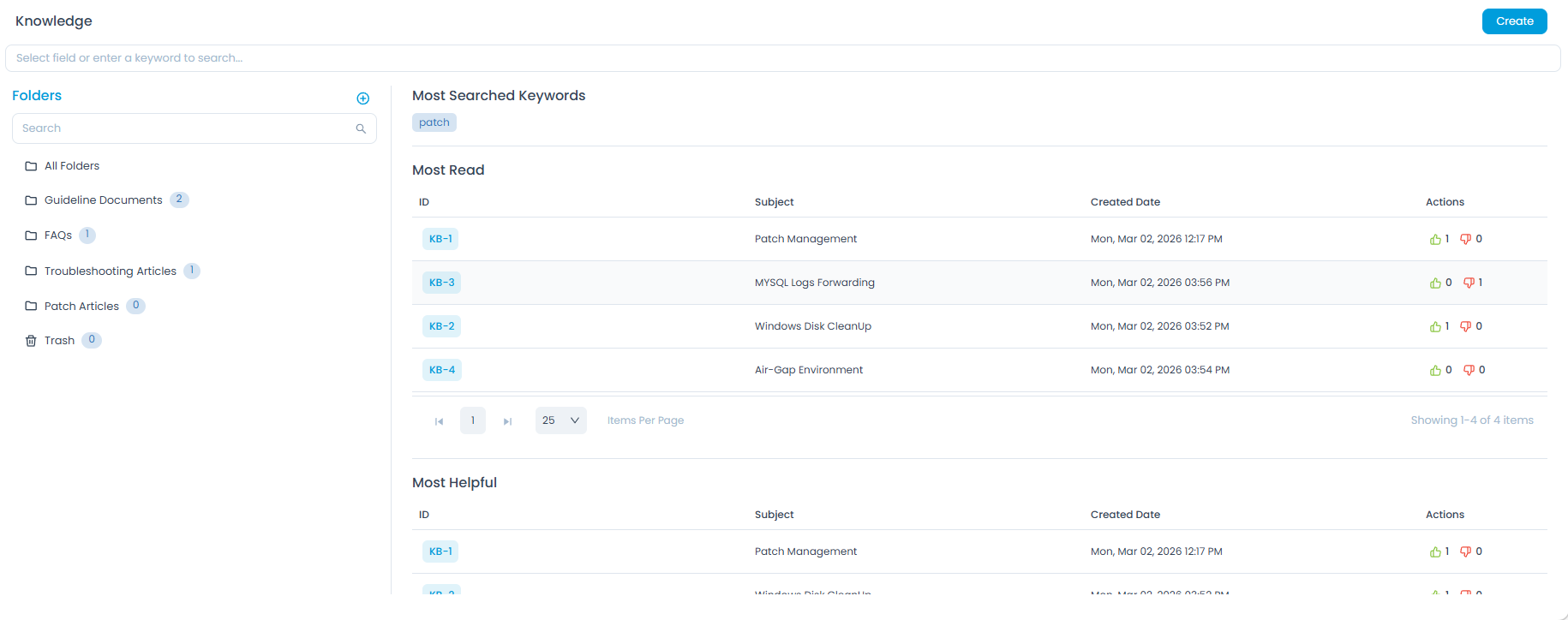
The knowledge menu presents articles organized in various ways to enhance discoverability. The home page typically displays articles based on the following categories:
- Folders: All articles are categorized into folders. Click on a desired folder to view its contents, or select All Folders to see all articles in one place.
- Most Read: Highlights articles that have been viewed most frequently by users.
- Most Helpful: Showcases articles that users have rated as most useful.
- Most Searched Keywords: Displays a list of keywords that are frequently used in searches, indicating popular topics.
Creating an Article
To create an article,
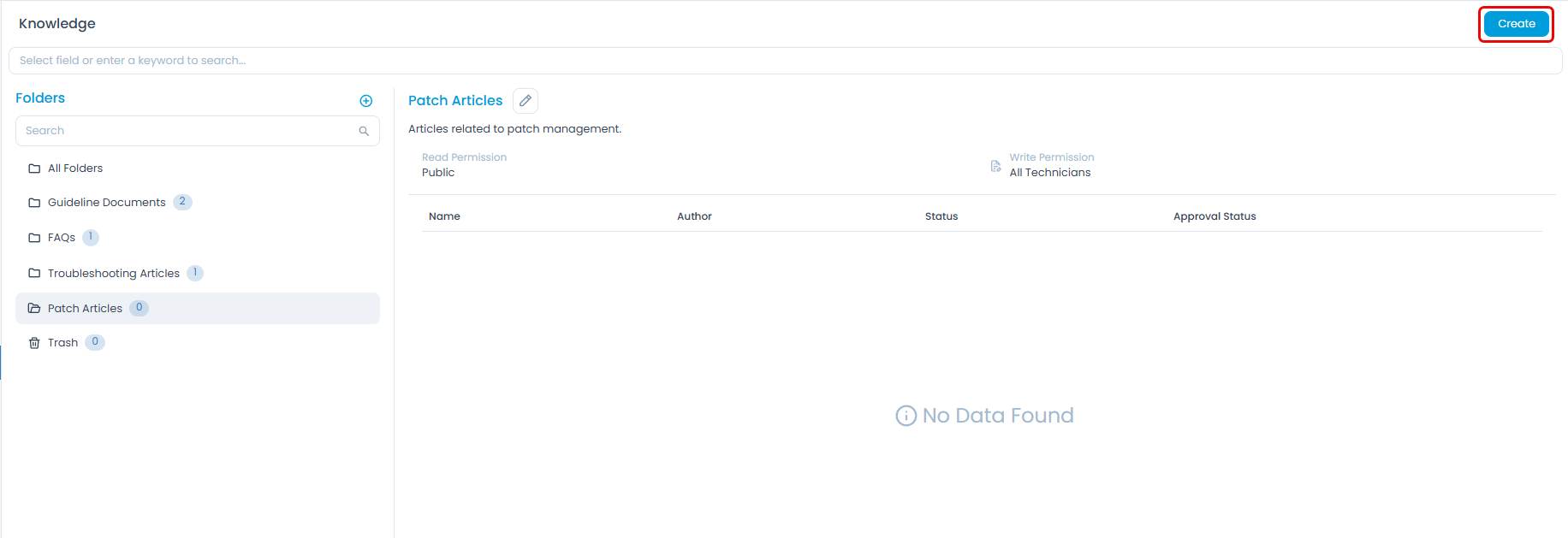
- Click the Create button on the top-right corner of the page. The Create Knowledge page appears.
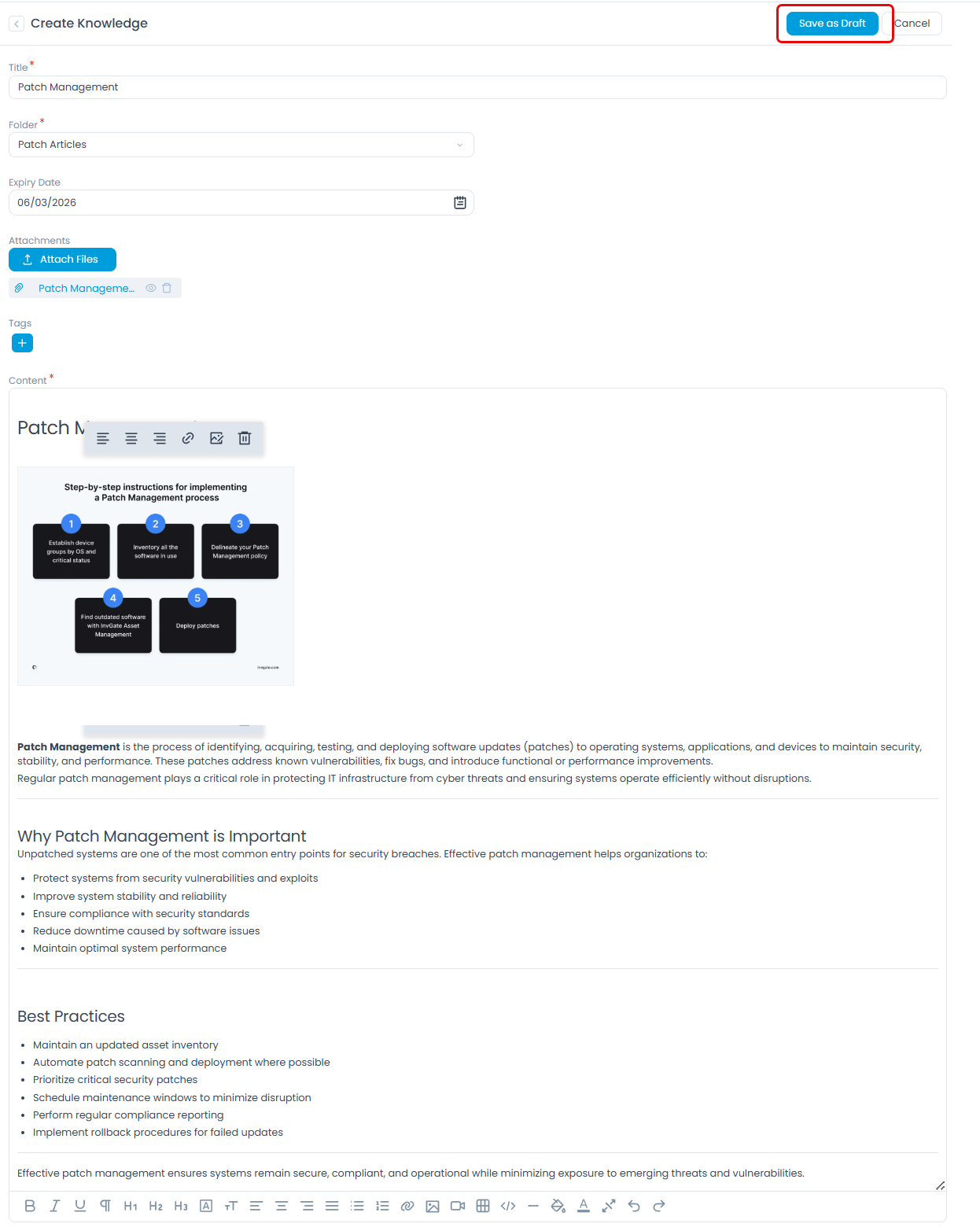
- Enter the following details:
- Title: Enter the title of the article.
- Folder: Select the folder in which the article should belong. By default it displays the selected folder.
- Expiry Date: Set an expiry date for the Knowledge Base(KB) articles to avail latest and valid articles. Once the KB expires, its status will change to Expired and unavailable in the Search throughout the system. It will only be visible in the Technician Portal Knowledge Base with view and delete rights.
- Attachments: Attach the related document. Once attached, you can preview or even delete it using the respective icons.
- Tags: Add tags for the article so that it can be searched easily.
- Content: Enter the content of the article. You can also add images and align them as per requirement in the article.
- Click Save as Draft and the details page appears as shown below.
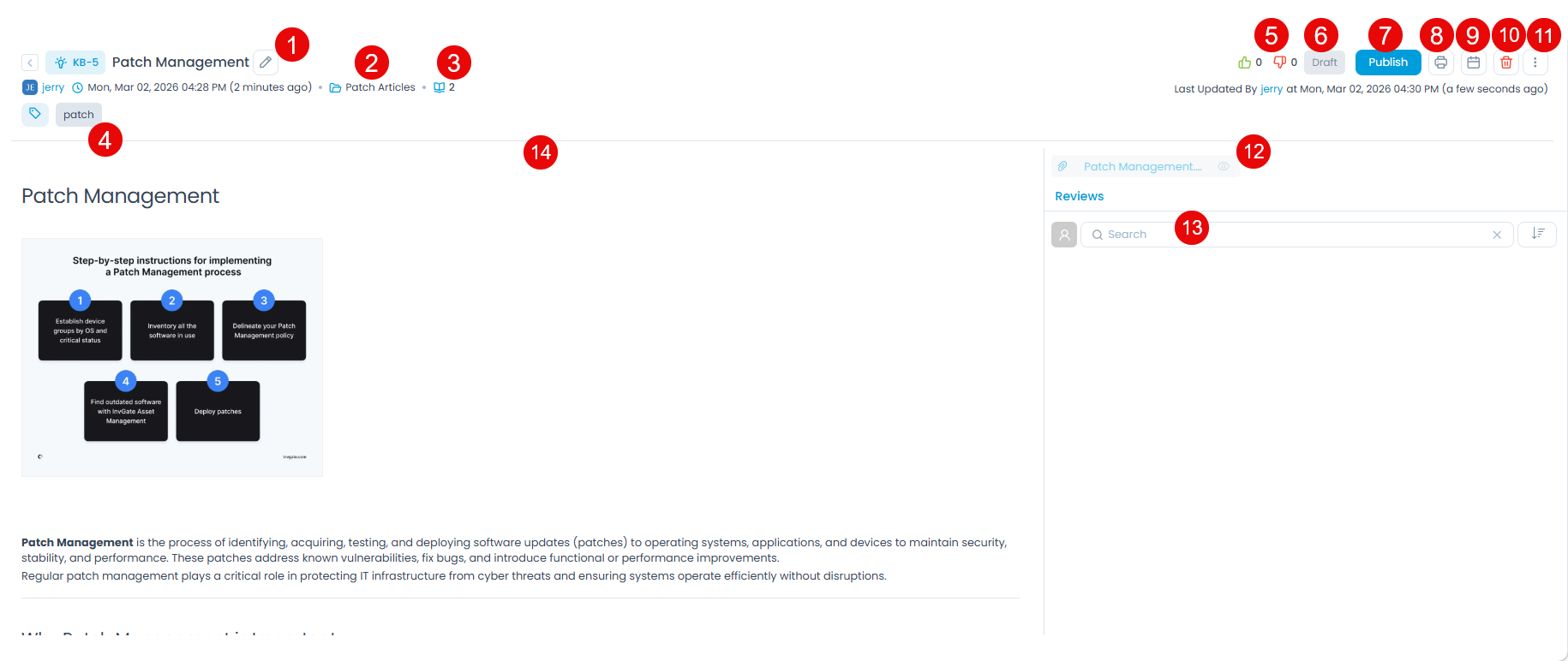
Article Details Page
Here, you can view the details as well as perform the following activities:
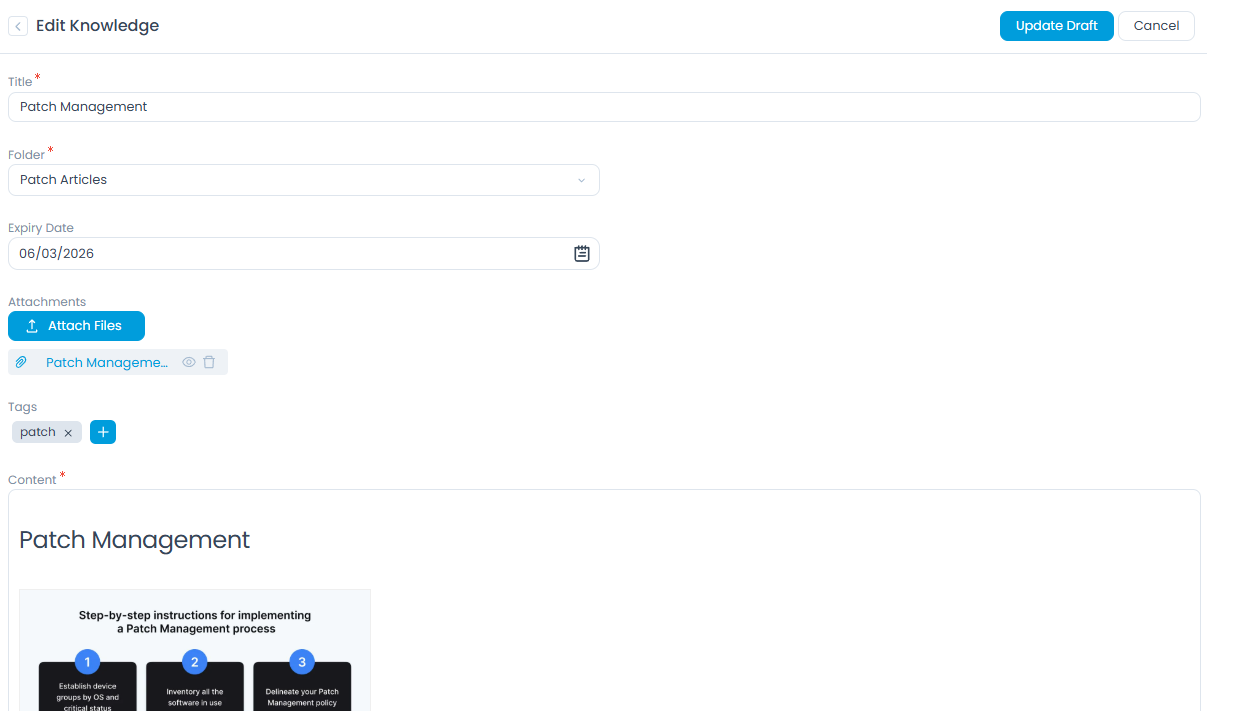
Edit: You can edit the article. On clicking, Edit Knowledge page appears as shown below. Make the required changes and click Update Draft.
Folder: Displays the folder name.
Total Read: Displays the number of views of the article.
Tags: Displays the tags.
Likes and Dislikes: Displays the total number of likes and dislikes for the article.
Status: Displays the status of the article. Once the KB expires, its status will change to Expired and will be unavailable in the Search throughout the system. It will only be visible in the Technician Portal Knowledge Base with view and delete rights.
Publish: You can publish the article.
Print: You can print the article
Review Schedule: You can now create a schedule for reviewing the KB articles to check their performance and data accuracy. The technicians will be allowed to submit their reviews based on this schedule.
- The "Review Schedule" option is available only to the users with "Manage Review" permission enabled.
- Once the KB article expires or is moved to Trash, the scheduler data will be deleted, and the option will become unavailable.
Delete: You can delete the article. When you delete a Draft article, it is permanently deleted. But when you delete a Published article, it stays in the Trash folder.
Options: Displays the following options.
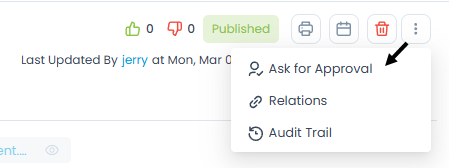
- Ask for Approval: You can ask for approval of the article.
- View Approvals: You can view the approvals of the article.
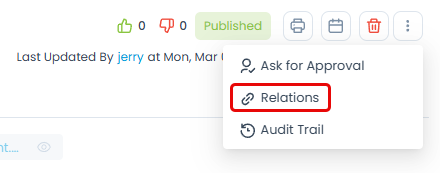
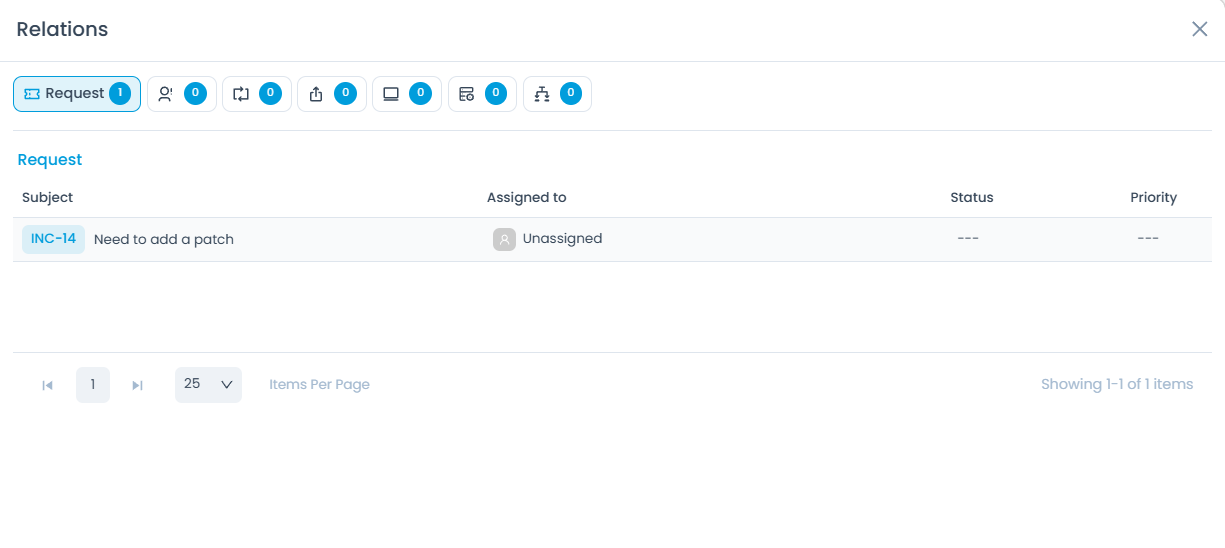
- Relations: You can view the related requests, changes, problems, releases, assets, and projects.
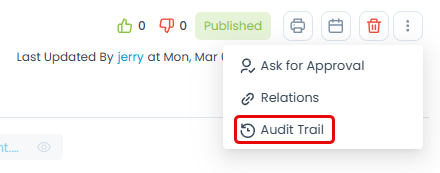
- Audit Trail: You can view the audit logs of the user performing different activities related to the article.
Attachments: Displays the attachments.
Reviews: Displays the reviews given by the reviewers.
Description: Displays the description of the article.
Printing an Article Details Page
To print the article,
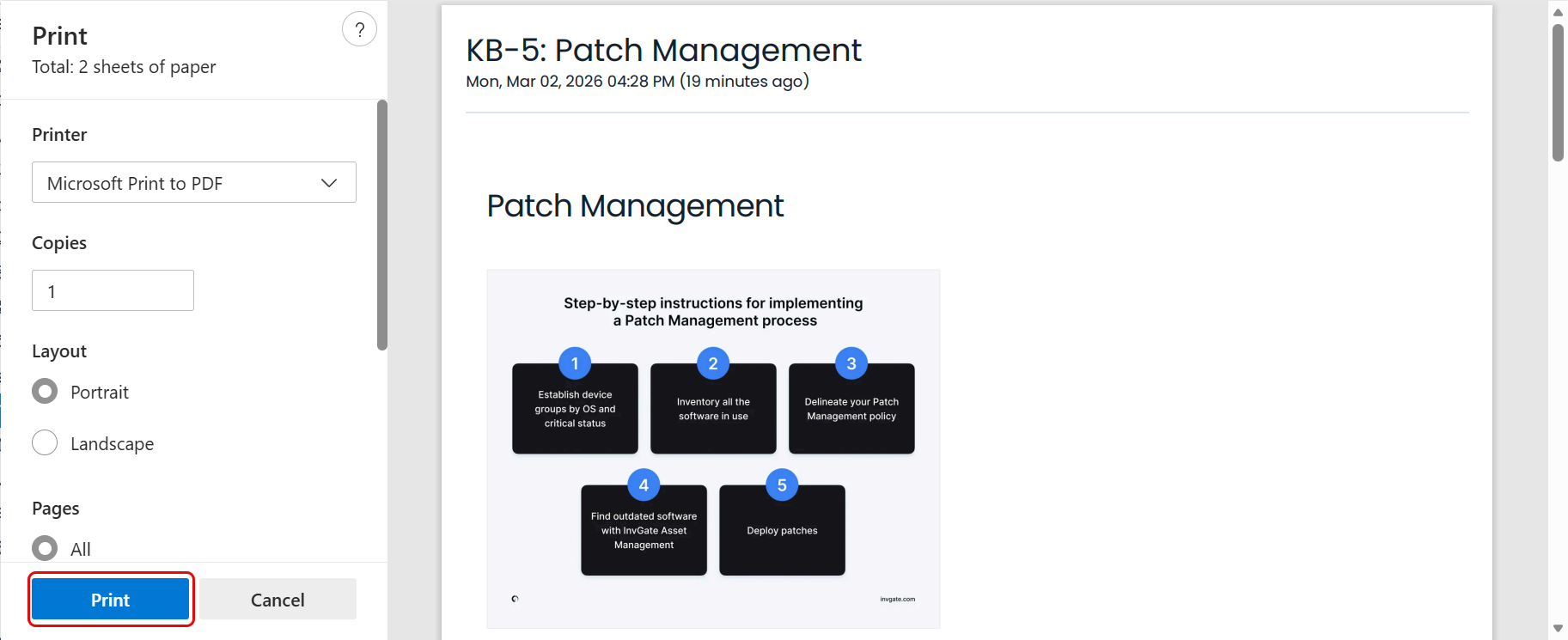
- Click the Print icon on the top-right corner and a popup appears as shown below.
- Click Print.
Review Schedule
To ensure the accuracy and correctness of the articles, schedule regular reviews. Once a review schedule is created, the assigned technicians will receive notifications at the specified times and can then manually add their reviews. To create a review schedule, follow these steps:
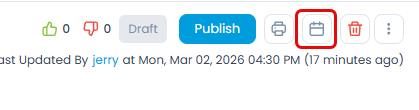
- Once the KB article is created, on its details page, click the Review Schedule icon, and the following popup appears.
- The "Review Schedule" option is available only to the users with "Manage Review" permission enabled.
- Once the KB article expires or is moved to Trash, the scheduler data will be deleted, and the option will become unavailable.
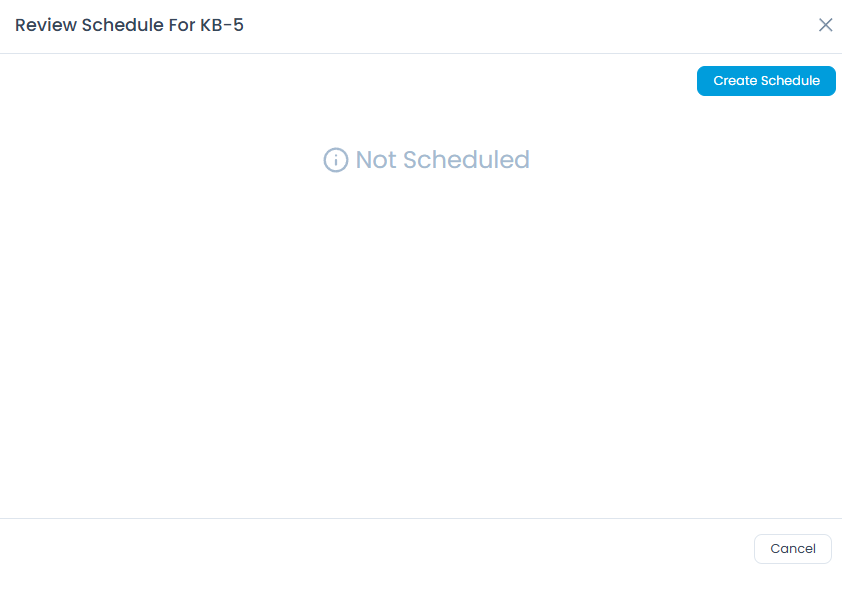
- Click Create Schedule.
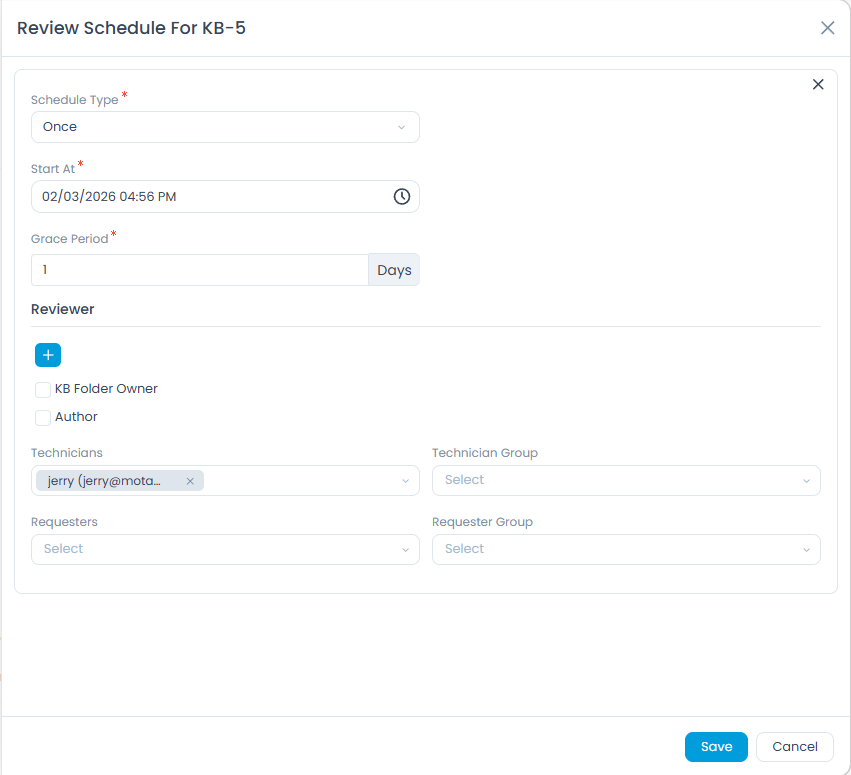
- Enter the below details:
- Schedule Type: Select the schedule type as:
- Once: If selected the schedule will run only once as per the start date selected in the Start At field.
- Monthly: If selected, choose when the scheduler should run:
- On Specific Date: Allows you to select the Date and Month for the schedule to run.
- On Specific Day: Allows you to select the Occurrence (e.g., first, second) and Weekday (e.g., Monday, Tuesday) for the schedule to run, along with the Month.
- Grace Period: Enter the grace period in days until the reviewer can submit or edit the review. The grace period can be between 1 to 365 days. Once the grace period is over, the Review button will be unavailable.
- Reviewer: Select the reviewers whom you want to review the KB article. At least one reviewer is required. The options are:
- Add Email: You can manually add the reviewer's email address.
- KB Folder Owner
- KB Author
- Technicians
- Technician Groups
- Requesters
- Requester Groups
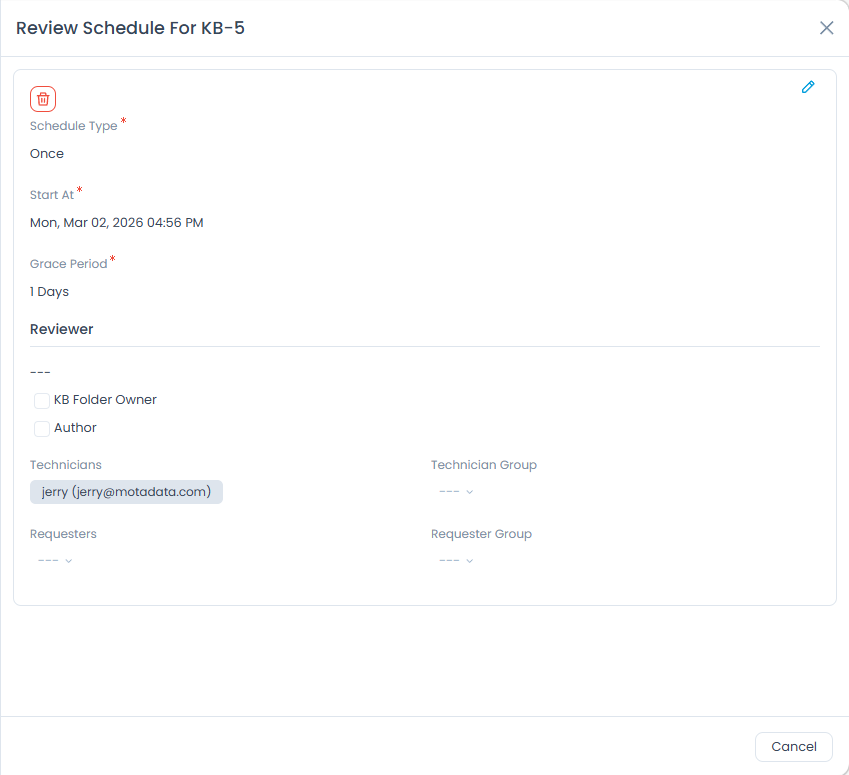
- Once done, click Save, and the created schedule will appear as shown below. From here, you can edit or delete the review schedule using the respective icons.
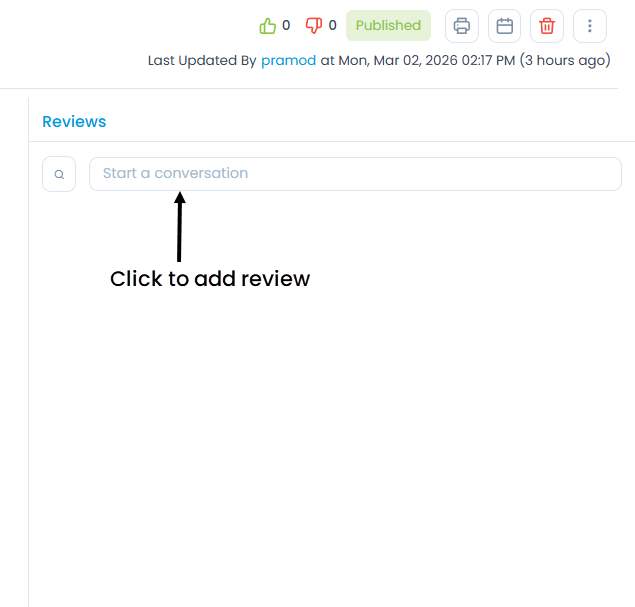
Once the schedule is created, when the review date arrives, the Search field will be converted to Start a Conversation allowing the reviewer to give their reviews on the KB article. There might be a little delay for the Start a Conversation field to appear for review.
Once the Start a Conversation field appears, to add a review, follow the steps:
Click on the Start a Conversation field.
Enter the review in the rich text editor and add attachments if needed.
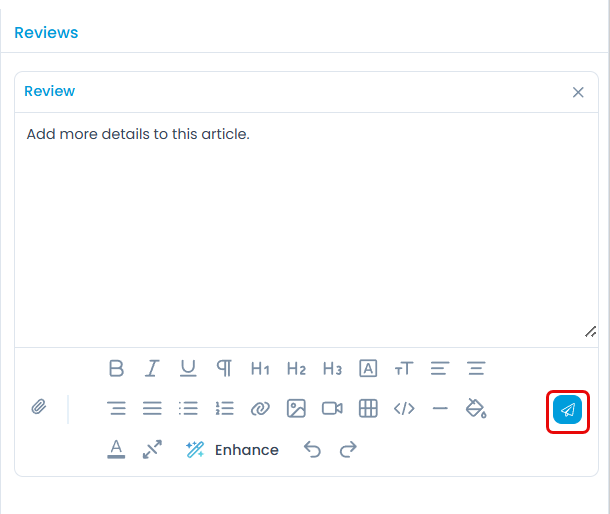
Once the review is added, click the Save button to save the review. The review will be displayed in the Reviews section as shown below.
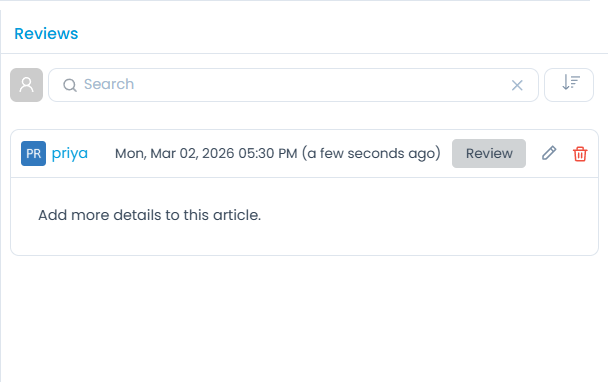
- Here, you can also edit or delete the review using the respective icons.
- Anyone accessing the KB articles can view the reviews in the Technician Portal.
- In the Requester Portal, reviews given by the logged-in requester will only be visible. Other reviews will be hidden.
- Reviews will not be visible to the Guest Requesters.
- Technicians/Requesters can delete or update their added reviews within the grace period.
Approval Process
An approval process makes sure that there are no unauthorized actions. You can ask for an approval only if a technician is assigned to the knowledge. For some, the approvals can be mandatory to process a knowledge article.
To ask for approval,
- Click the Options icon (vertical 3 dots) and select Ask for Approval option. the Create Approval page appears.
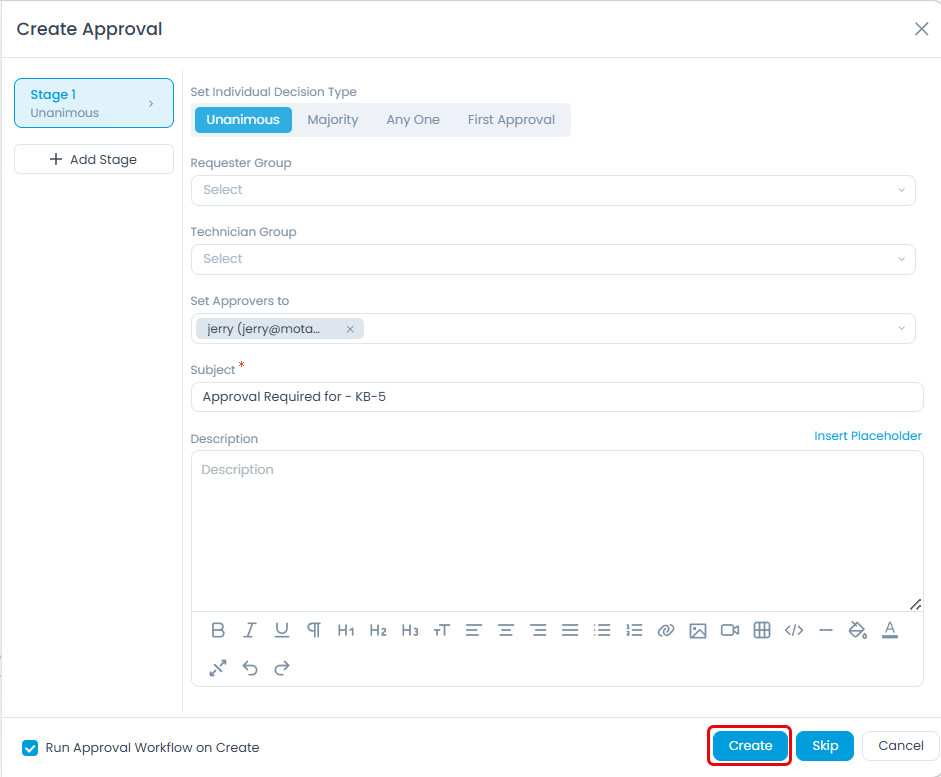
- Enter the following details:
| Parameter | Description |
|---|---|
| Set Individual Decision Type | Select the type of decision. - Unanimous: Everybody selected as approver has to approve the Knowledge. - Majority: Majority of approvers should approve the Knowledge. - Anyone: Any one approver can approve the Knowledge - First Approval: If selected, the first approval received (Approved or Reject) will be considered and the rest will be ignored. For example, If 3 approvers are set and if the first approval received is Approved, then this is considered. The approvals from the rest of the approvers will be Ignored, though rejection is received later from other approvers. |
| Requester Group | Select the requester group whose members can give the approval. |
| Technician Group | Select the technician group whose members can give the approval. |
| Set Approvers to | If you want specific people to approve, select the name of the approvers. |
| Subject | Default subject is 'Approval Required for - [KB-No]'. You can replace it with your own subject. |
| Description | Type the description so approvers can gain sufficient information about the approval required. You can also format the description using the rich text editor and add attachments to the description. For more details, refer to the Request Form section. |
| Add Stage | If the approval process is a multi-level process, click on 'Add Stage' to another approval form. For example: When someone wants to publish multiple articles simultaneously, initially his/her manager/s should approve. Secondly, Its department should approve. |
- Once all the details are provided, click any of the below options to send the article for approval:
Create + Run Approval Workflow on Create: If the option "Run Approval Workflow on Create" is enabled and the Create button is clicked, two approvals will get created i.e. Manual and Approval Workflow Approval. By default, this option is enabled.
Create: If the option "Run Approval Workflow on Create" is disabled and the Create button is clicked, a single Manual approval will get created.
noteThe field "Allow User to Create Manual Approval" should be enabled from the Approval Settings page.
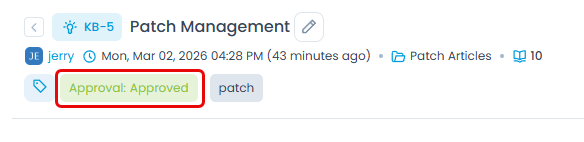
Skip: If Skip is clicked, the approval request gets pre-approved and the status is displayed next to the Add Tag option as shown below. The pre-approved requests are not displayed in the Approvals tab.
noteThe knowledge request will get pre-approved only if there is no active Approval Workflow whose conditions match the knowledge details. If the Approval Workflow exists, the knowledge will not get pre-approved, and the Approval Workflow with matching conditions will get executed.
- Cancel: Click to cancel the approval request if not required.
Viewing Approvals
To view the pending/approved/referred back approvals, click the Approval tag, and a popup appears displaying all the approvals done or pending for the knowledge.
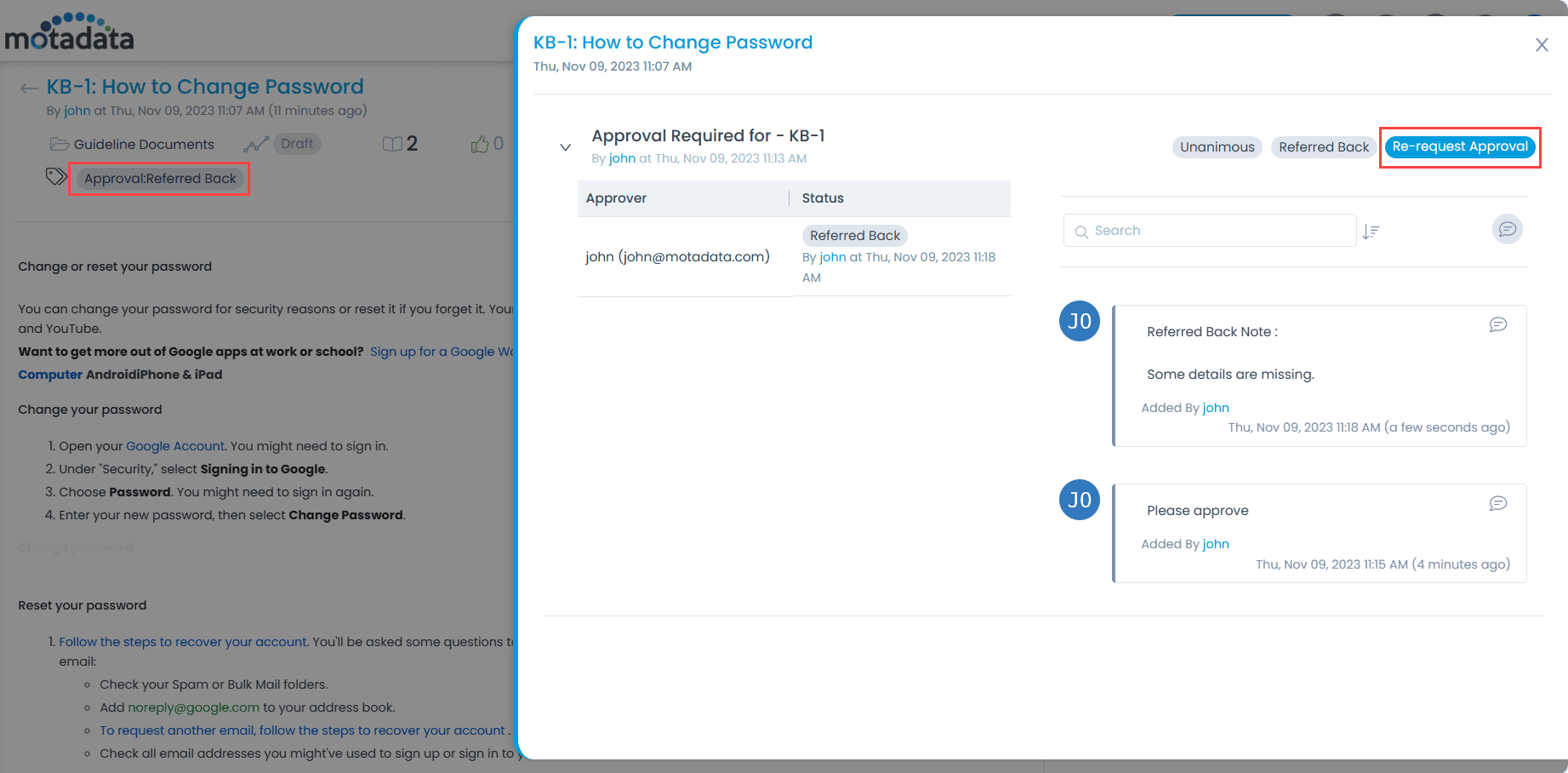
From this page, you can ignore the approval if no longer needed, remind the approver to take an action on it, delete an approver's approval, or re-request the approver for approval if it is referred back due to reasons like missing/incorrect details, need additional info in the approval, etc.
In case of delete approval,
- If there is a single approver for the process and the approver is deleted, no approval would be required.
- If there are multiple stages of approval and an approver is removed, the approval of that user will no longer be required and will skip to the next level/approver .
- If the deleted approver happens to be the final approver, the previous level approver would now be treated as final.
- Once the user takes the act of approval or rejection, the Delete option for Approval will not be visible.
- Ignore and Delete options for approvals will only be visible if the user has the Ignore Approval and Delete Approval role permissions respectively.
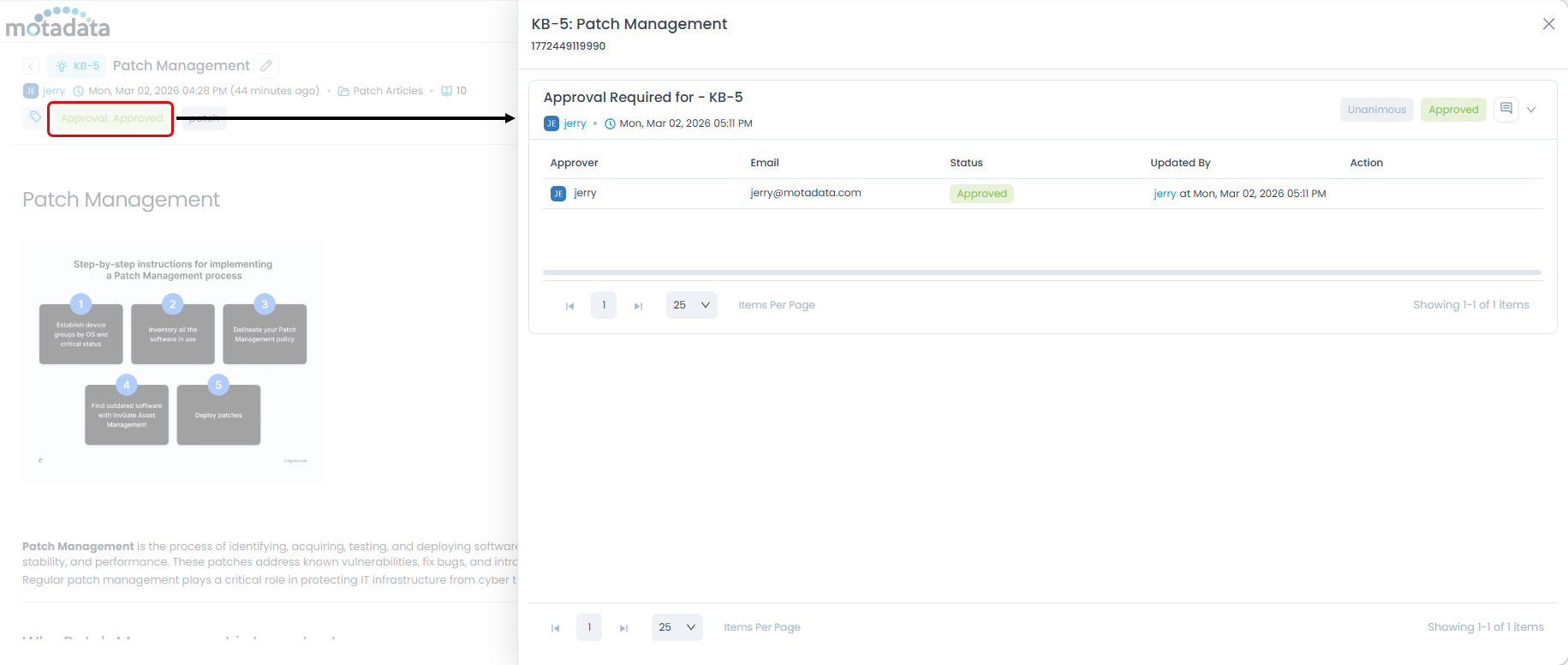
Once the approver approves or rejects the approval request, it will also be updated here.
In case, the approver finds some details missing or needs additional info before approval, the approval request is referred back, and its status will also get updated from Pending to Referred Back.
Once the KB expires, its approval status will be ignored if it is pending. Also, when the approval tag is clicked, the approval history will be available in non-editable mode.
Viewing Relations
The relations popup displays the association of the knowledge article with the requests, problems, changes, releases, assets, and projects. Click on the vertical-three dots and choose Relations.
Viewing Audit Trail
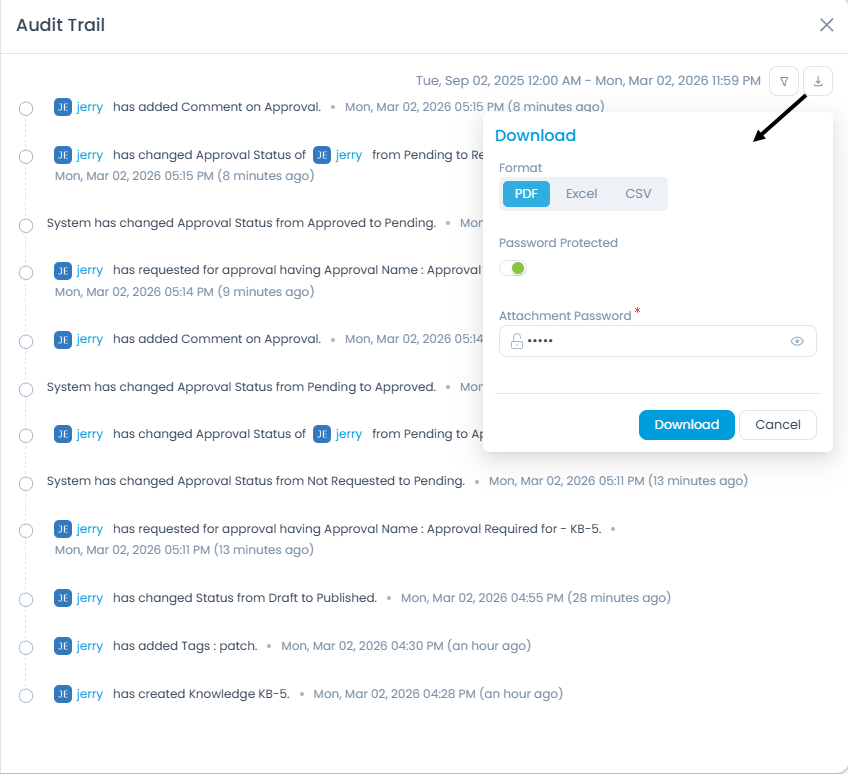
The Audit Trail displays all the activities done in the knowledge article. It helps you understand who and when did the changes took place. You can also download the logs in PDF, Excel, and CSV format.