Manage Folders
Effectively manage knowledge article folders through robust folder creation, editing, and deletion capabilities, ensuring streamlined access for technicians.
Folders are essential for organizing content within the knowledge base, grouping related knowledge articles for easy access and management. While some default folders are readily available, you have the flexibility to create new folders as needed to suit your specific organizational structure. Proper folder management ensures that knowledge content is categorized logically, improving discoverability and overall efficiency for IT Staff and Technicians.
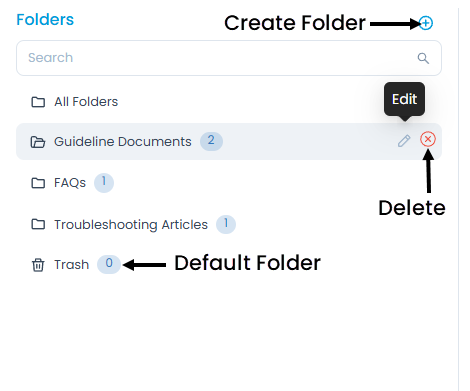
Creating a Folder
To create a new folder within the knowledge base:
- Click the + icon located in the top-right corner of the folder list. A popup window will appear.
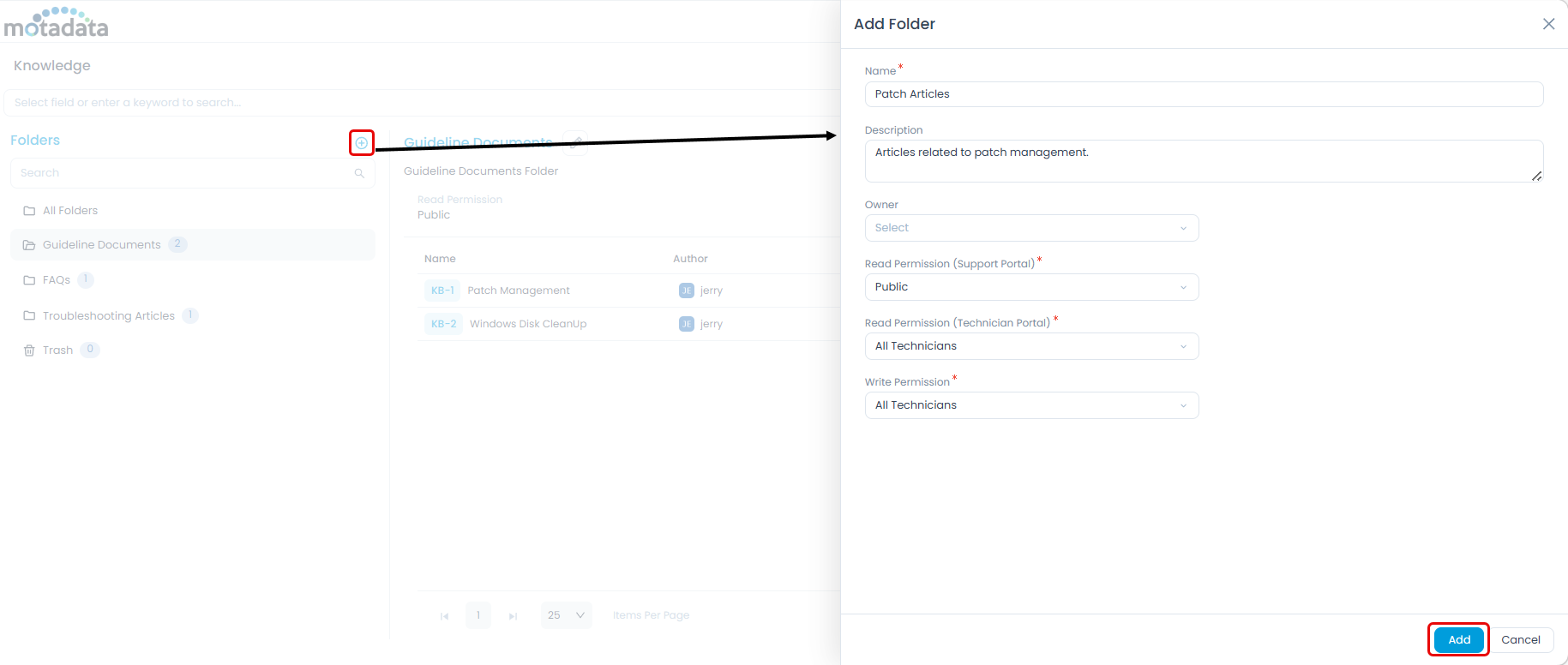
Enter the following details in the popup:
- Name: Provide a clear and descriptive name for the folder.
- Description: Briefly describe the purpose or content of the folder.
- Owner: Select the owner of this folder.
- Company: Select the companies that should have access to this folder. You can select multiple companies. Requesters belonging to the selected companies will be able to access articles within this folder (in addition to default accessible articles). If no company is selected, the folder will be accessible to all.
noteThe Company field is only available if the Managed Services Provider feature is enabled.
- Read Permission (Support Portal): Configure who can view the folder's content in the Support Portal:
- All Logged In Users: All registered and logged-in users can access the content.
- Requesters: Specific guest users with ticket raising access can access the content. If selected, you can specify individual requesters.
- Requester Group: All members of a selected Requester Group can access the content.
- Read Permission (Technician Portal): Configure who can view the folder's content in the Technician Portal:
- All Technicians: All technicians can view knowledge base articles within this folder.
- Technicians: Specific technicians can view knowledge base articles. If selected, you can specify individual technicians.
- Technician Group: All members of a selected Technician Group can view knowledge base articles. If selected, you can specify the desired Technician Groups.
- Write Permission: Configure which technicians can manage the folder (create, edit, delete articles):
- All Technicians: All technicians can manage the folder.
- Technicians: Specific technicians can manage the folder. If selected, you can specify individual technicians.
- Technician Group: All members of a selected Technician Group can manage the folder. If selected, you can specify the desired Technician Groups.
Once all details are entered, click Add. The new folder will be added to the list.
Editing a Folder
To modify an existing folder:
- Click the edit icon within the Folders panel, or select the folder and then click the Edit button from the Articles panel on the right-hand side.
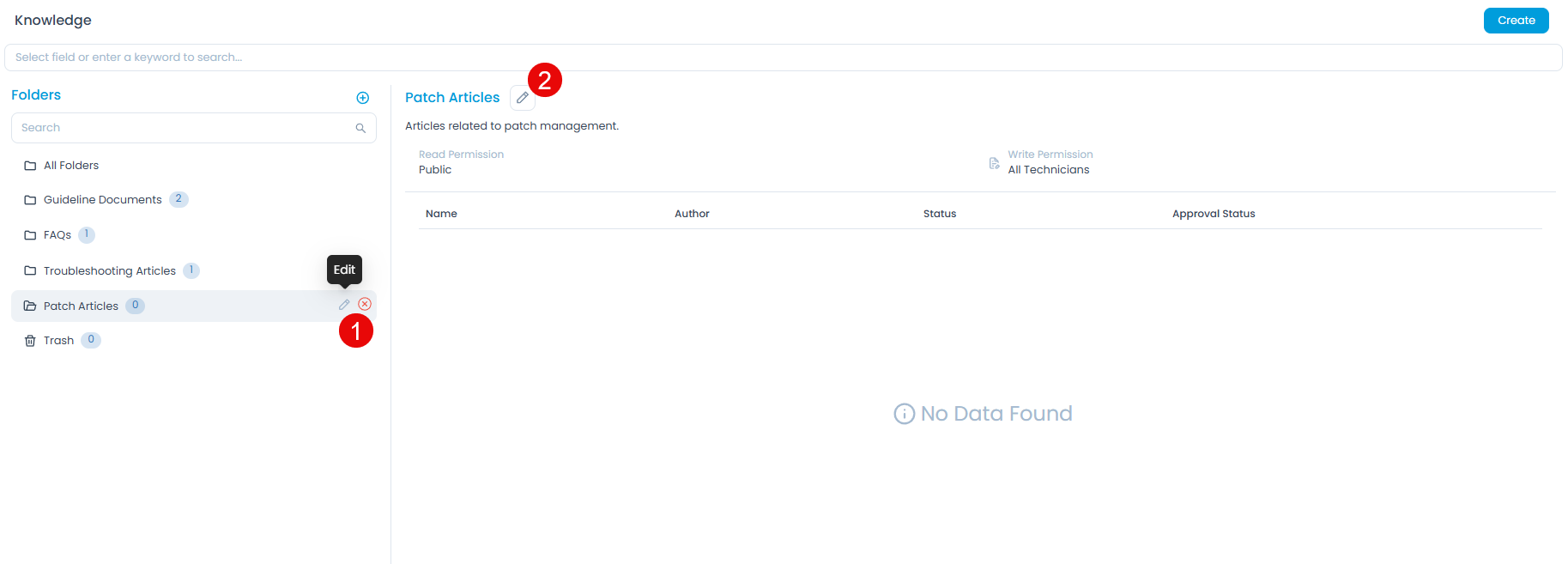
- The Edit Folder page will appear. Make the necessary changes to the folder details.
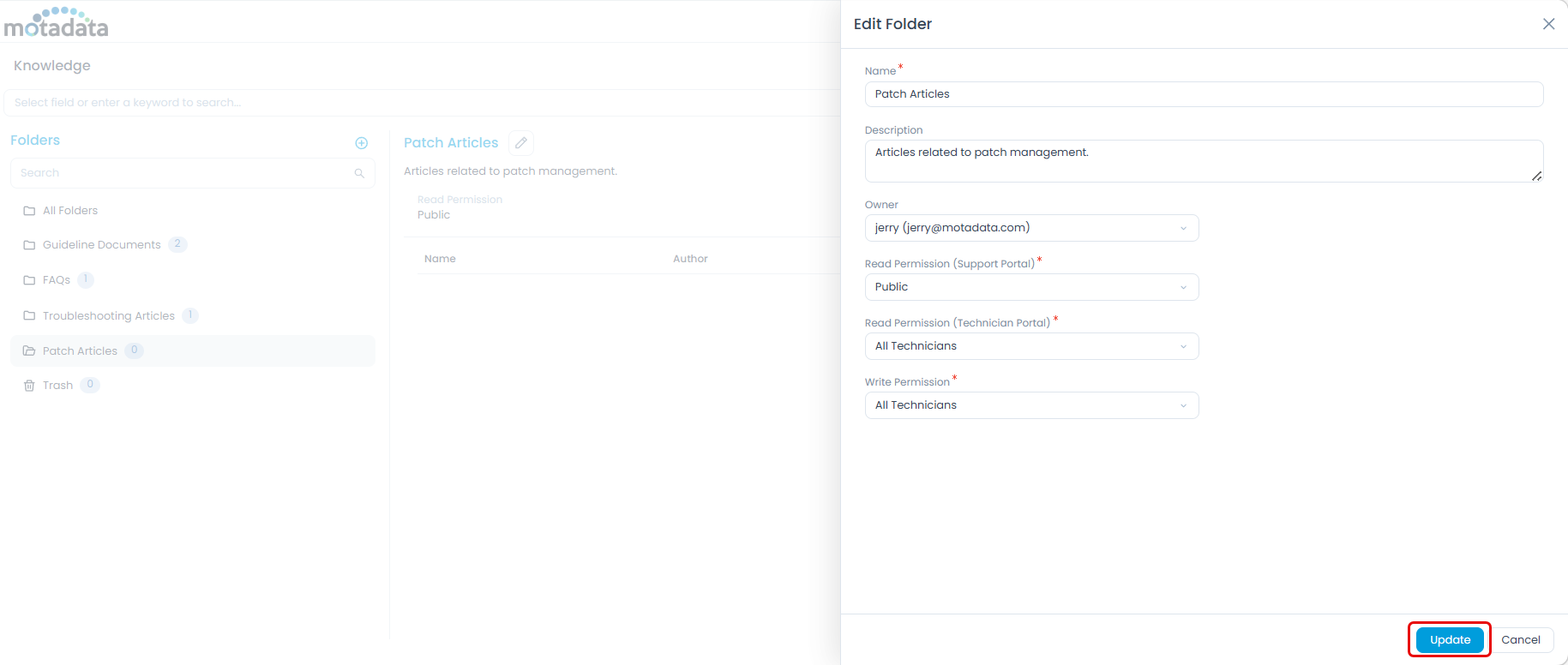
- Click Update to save your changes.
Delete Folder
To delete a folder:
- In the Folders panel, hover your mouse over the desired folder and click the red delete icon.
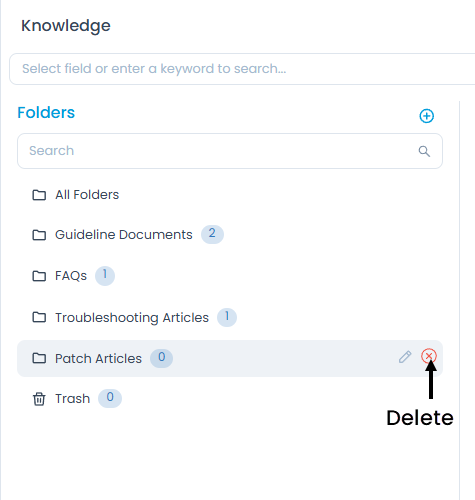
- A confirmation message will appear. Click Yes to proceed with the deletion, or Cancel to abort.
- If Yes is clicked, all published content within the folder will be moved to the Trash folder.
- All draft content within the folder will be permanently deleted.