Credential Profile in ObserveOps
A Credential Profile stores the login details ObserveOps uses to connect to your devices. You create one profile per protocol, then reuse it across as many devices and discovery runs as you need. When credentials change on a device, you update a single profile instead of editing every monitor individually.
Use the Credential Profile screen when you're adding new devices to monitoring for the first time, when credentials change on existing devices, or when you need to assign the same credentials to a new discovery profile.
Navigation
Go to Menu. Select Settings  . Select Discovery Settings
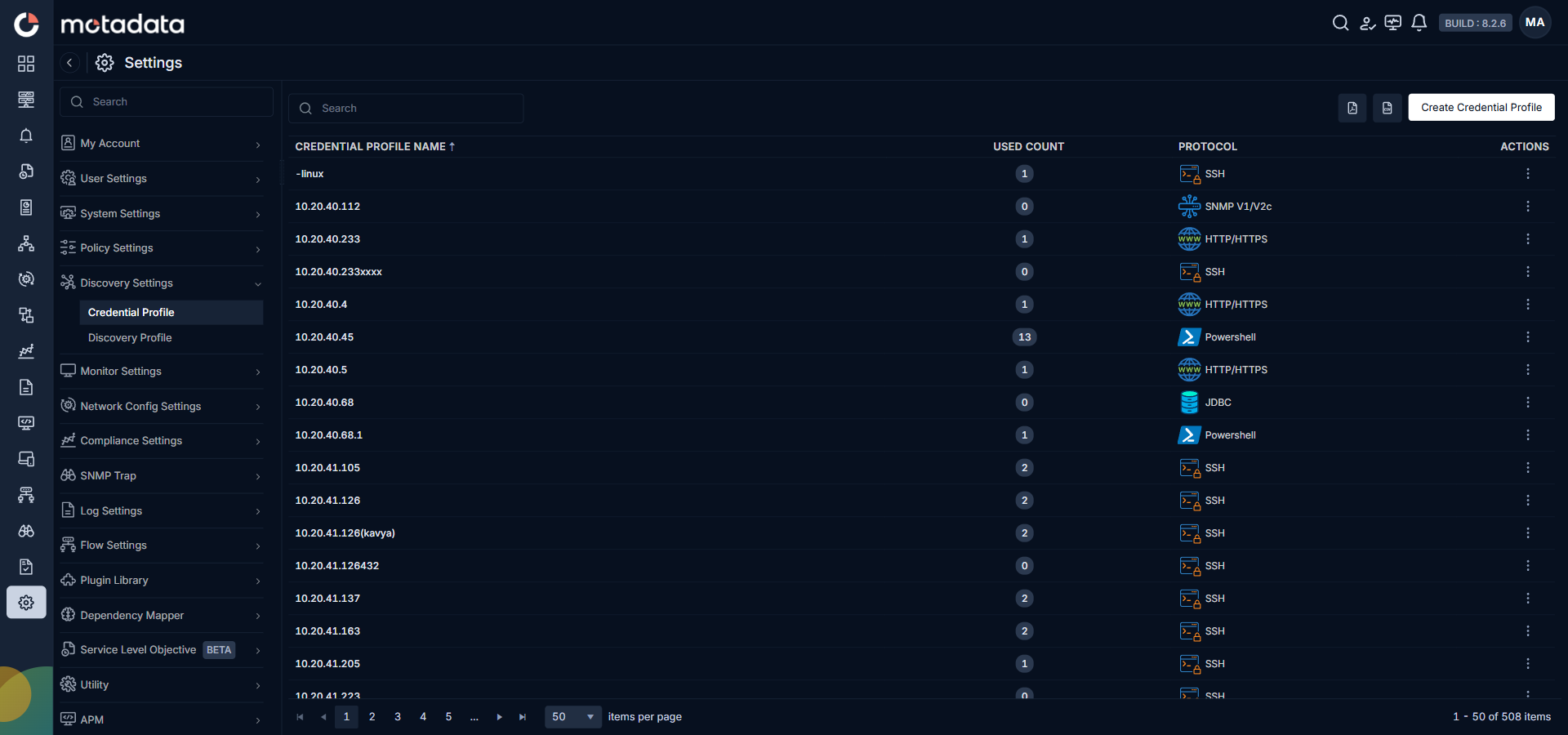
  . Select Credential Profile. The Credential Profile screen opens.
What the Screen Shows
Each row in the Credential Profile grid shows one saved credential profile.
| Column | What It Shows | When to Use It |
|---|---|---|
| Credential Profile Name | The name you gave the profile when you created it | Identify which profile to edit when credentials change |
| Used Count | How many entities use this profile. Click the number to see a breakdown by Discoveries, Monitors, Apps, and Metrics | Check before deleting. A profile in use cannot be safely removed |
| Protocol | The communication protocol this profile covers, such as SSH, SNMP V3, or HTTP/HTTPS | Quickly confirm the right profile when assigning to a new discovery |
| Actions | Three-dot menu with Edit, Assign, and Delete options | Manage the profile after creation |
How to Create a Credential Profile
Select + Create Credential Profile in the top-right corner of the screen. A drawer opens on the right side.
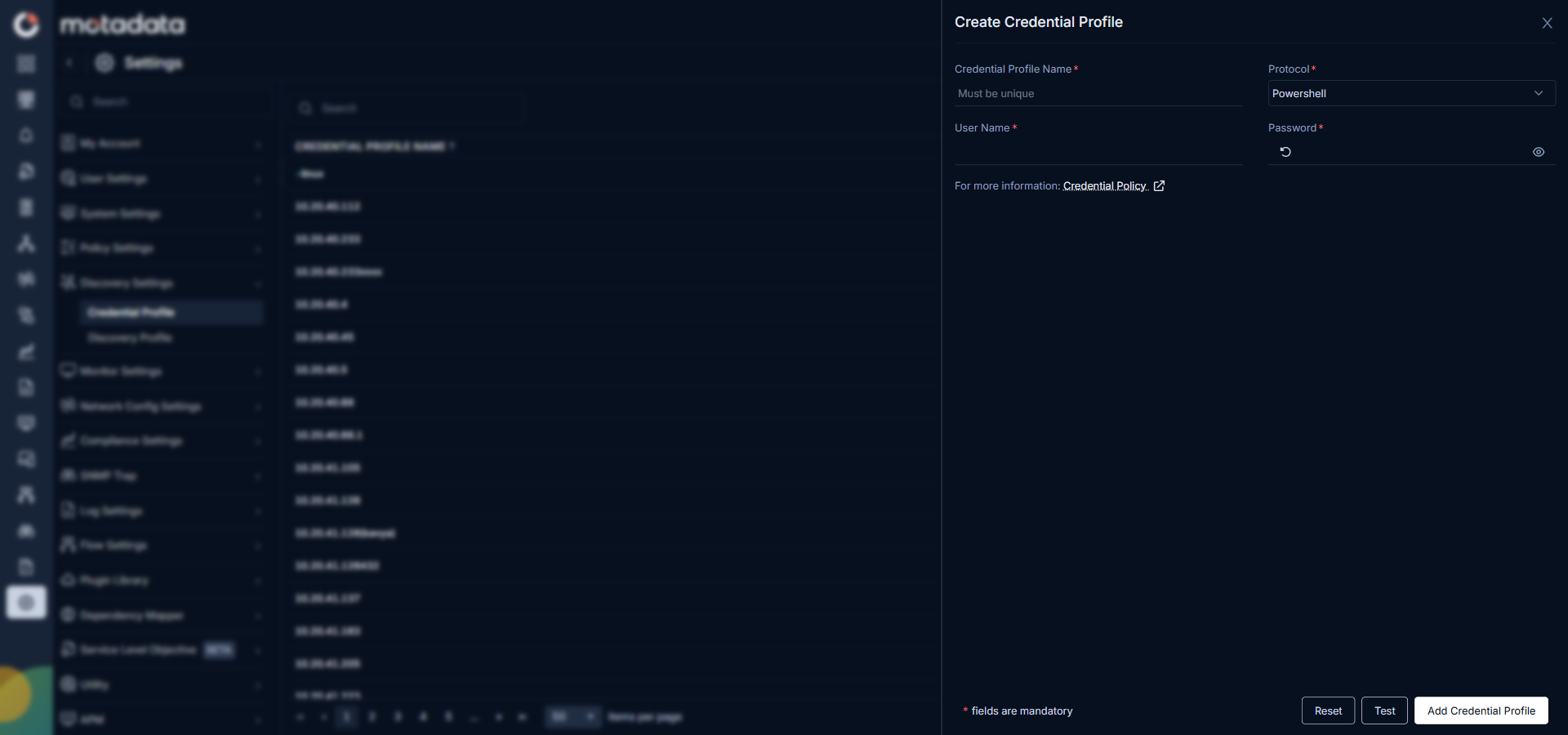
Enter a name in the Credential Profile Name field. Then select a protocol from the Protocol dropdown.
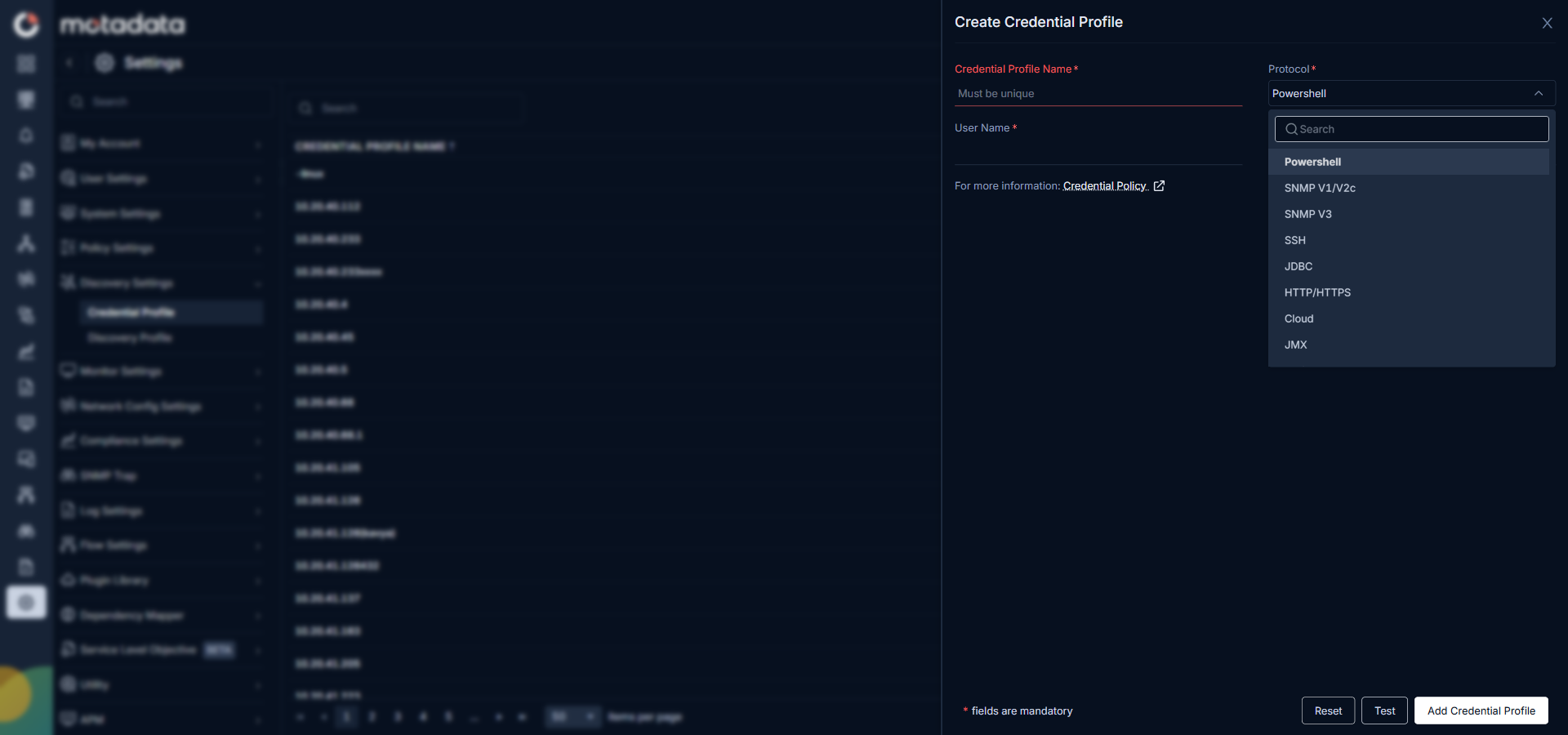
The fields below the protocol change based on what you select. See the pages in this section for the required fields for each protocol.
After filling in all required fields, select Save to create the profile. Select Test first if you want to verify the credentials work on a specific device before saving.
| Protocol | Used For |
|---|---|
| PowerShell | Windows devices through PowerShell remoting |
| SNMP V1/V2c | Network devices and servers supporting SNMP version 1 or 2c |
| SNMP V3 | Devices requiring encrypted and authenticated SNMP v3 |
| SSH | Linux and Unix servers through Secure Shell |
| JDBC | Database servers through Java Database Connectivity |
| HTTP/HTTPS | Web applications, APIs, and HTTP/HTTPS endpoints |
| Cloud | Cloud infrastructure across AWS, Azure, Office 365, Oracle Cloud, and Google Cloud |
| JMX | Java applications through Java Management Extensions |
| JMS | Messaging systems through Java Message Service |
| Telnet | Legacy devices that only support Telnet access |
How to Edit a Credential Profile
Select  in the Actions column for the profile you want to change. Select Edit Credential Profile
  .
.
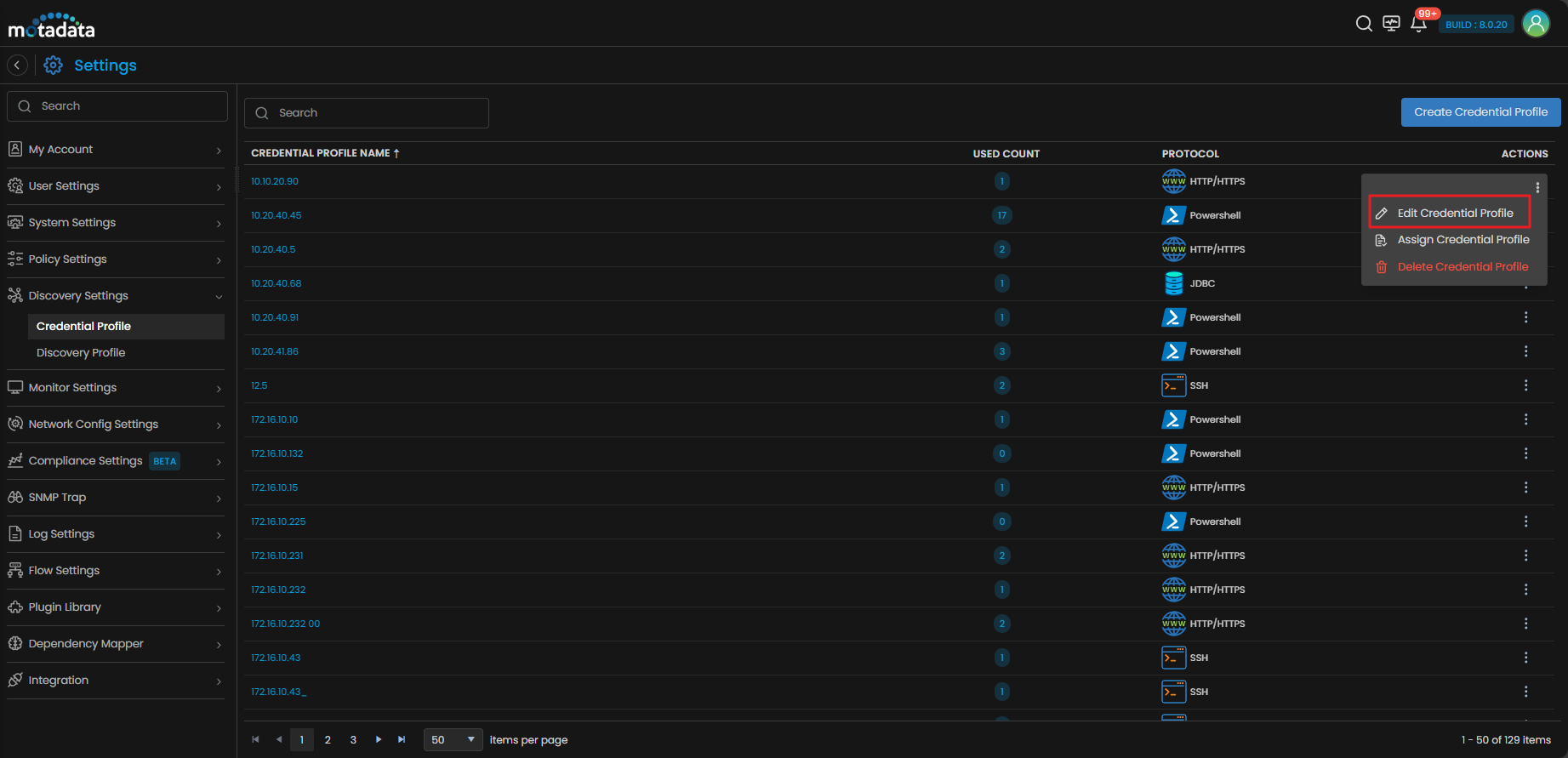
The edit form opens. Change the fields you need to update.
Select Test to verify the updated credentials connect to a device successfully before saving.
Select Reset to discard your changes and restore the original values.
Select Update Credential Profile to save your changes.
How to Delete a Credential Profile
Select in the Actions column. Select Delete Credential Profile  . A confirmation dialog appears. Select Yes to confirm the deletion.
Check the Used Count column before deleting. A profile with a non-zero count is actively used by discoveries, monitors, apps, or metric policies. Deleting it removes the credentials from all of those entities.
How to Assign a Credential Profile
Use this action when you want to attach an existing profile to one or more monitors without running a discovery.
Select in the Actions column. Select Assign Credential Profile  .
.
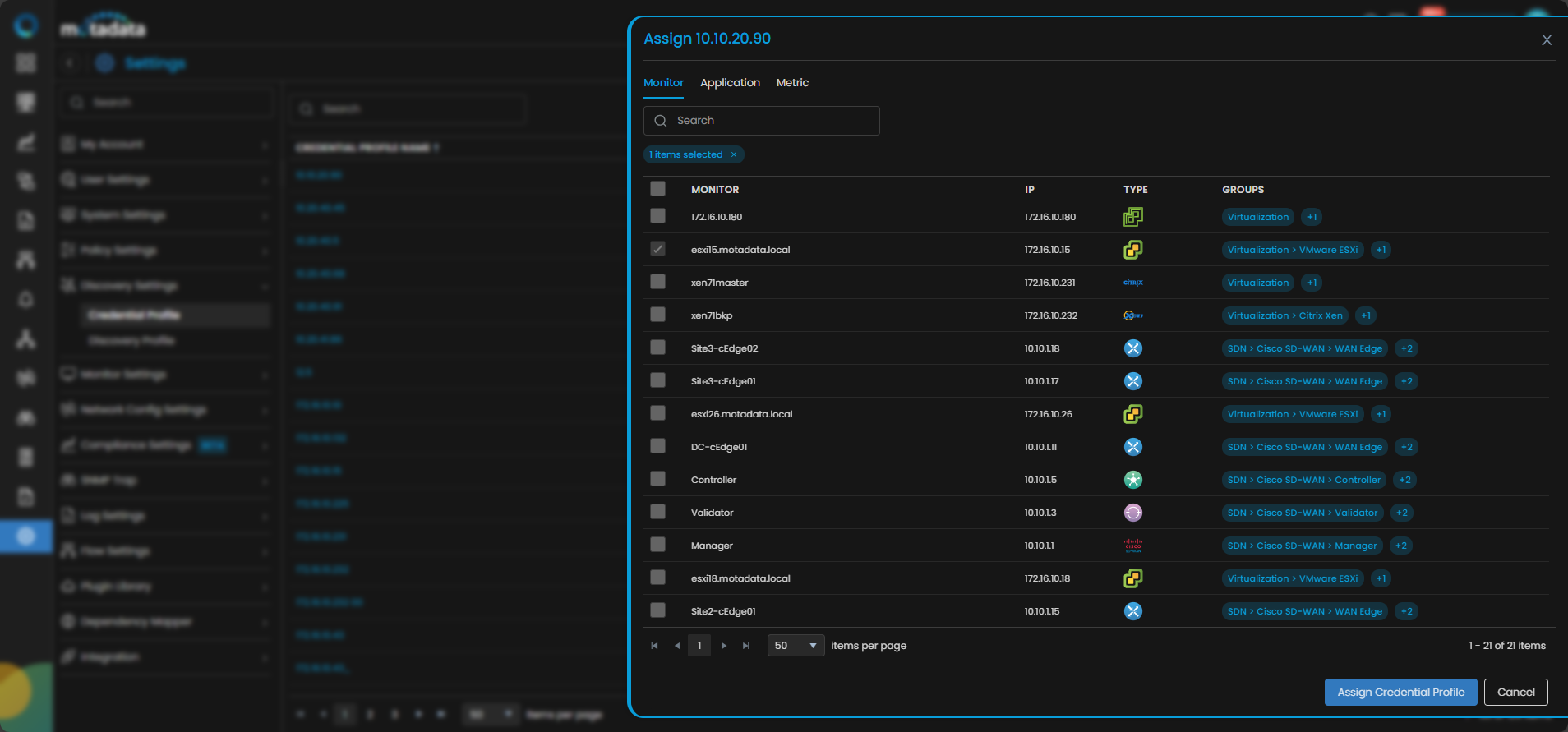
A panel opens showing all monitors that share the same protocol as this credential profile. Select the checkboxes next to the monitors you want to assign. Select Assign Credential Profile to confirm.
Troubleshooting
The Test button returned a connection failure. Check that the device is reachable from the ObserveOps server. Verify the IP address or hostname in your network settings. Confirm the credentials are correct and the protocol is enabled on the target device.
The profile was saved but the discovery run failed to connect. The device may be behind a firewall that blocks the protocol port. Confirm the required port is open between the ObserveOps server and the device. Port 22 for SSH, port 161 for SNMP, port 80 or 443 for HTTP/HTTPS.
The Used Count shows 0 but I can't delete the profile. Refresh the page and try again. If the issue persists, the profile may be referenced by a scheduled task that hasn't run yet.
Known Limitations
- You cannot share one credential profile across different protocols. Each protocol requires its own profile.
- Credential profiles do not store encrypted keys in a retrievable format. You cannot view a saved password after creation.
- Deleting a credential profile does not automatically remove it from associated discovery profiles. You must reassign those discovery profiles before deleting the credential profile.
Related Topics
- Discovery Profile: assign a credential profile to a discovery run
- Adding Cloud Devices: step-by-step guide including Cloud credential setup
- Adding Network Devices: step-by-step guide including SNMP credential setup
- Adding Servers: step-by-step guide including SSH and PowerShell credential setup