Adding WAN Link For Monitoring
Overview
In order to monitor WAN Link statistics, you will need to add a supported network device to Motadata ObserveOps (formerly known as AIOps). Motadata ObserveOps supports WAN Link monitoring for Cisco IP SLA links and Juniper RPM (Real-Time Performance Monitoring) links. This guide will walk you through the entire process of adding and enabling a supported link to Motadata ObserveOps.
At a high level, this process includes creating a credential profile and adding the WAN Link from its corresponding provisioned monitor. Once the WAN Link has been added, you can then start monitoring it and receive all the network insights.
This will enable Motadata ObserveOps to continuously monitor the resources and generate alerts and insights based on their performance metrics. You can also customize the Monitor Settings for each monitor, such as the polling interval, threshold values, and alert notifications.
Prerequisites
SNMP Protocol
- Ensure the device you are adding has the IP SLA capabilities.
- Ensure Port 161 is enabled for the device you wish to monitor.
- Ensure you have the Write Community and Read Community string before creating a credential profile for WAN Link.
SSH Protocol
- Ensure SSH is enabled on the network device you want to monitor.
- Ensure Port 22 is open and accessible from the ObserveOps server.
- Ensure you have the Username and Password or the SSH Key or the Passphrase, for the device before creating a credential profile.
Let us now look into the process to add a WAN Link for monitoring.
- Cisco IP SLA
- Juniper RPM
Adding a Cisco IP SLA
1. Create a Credential Profile
We will start by creating a credential profile for the device we are trying to add.
Navigation
Go to Menu. Select Settings  . After that, Go to Discovery Settings
  and select Credential Profile. The credential profile screen is displayed. Select Create Credential Profile to create a new credential profile.
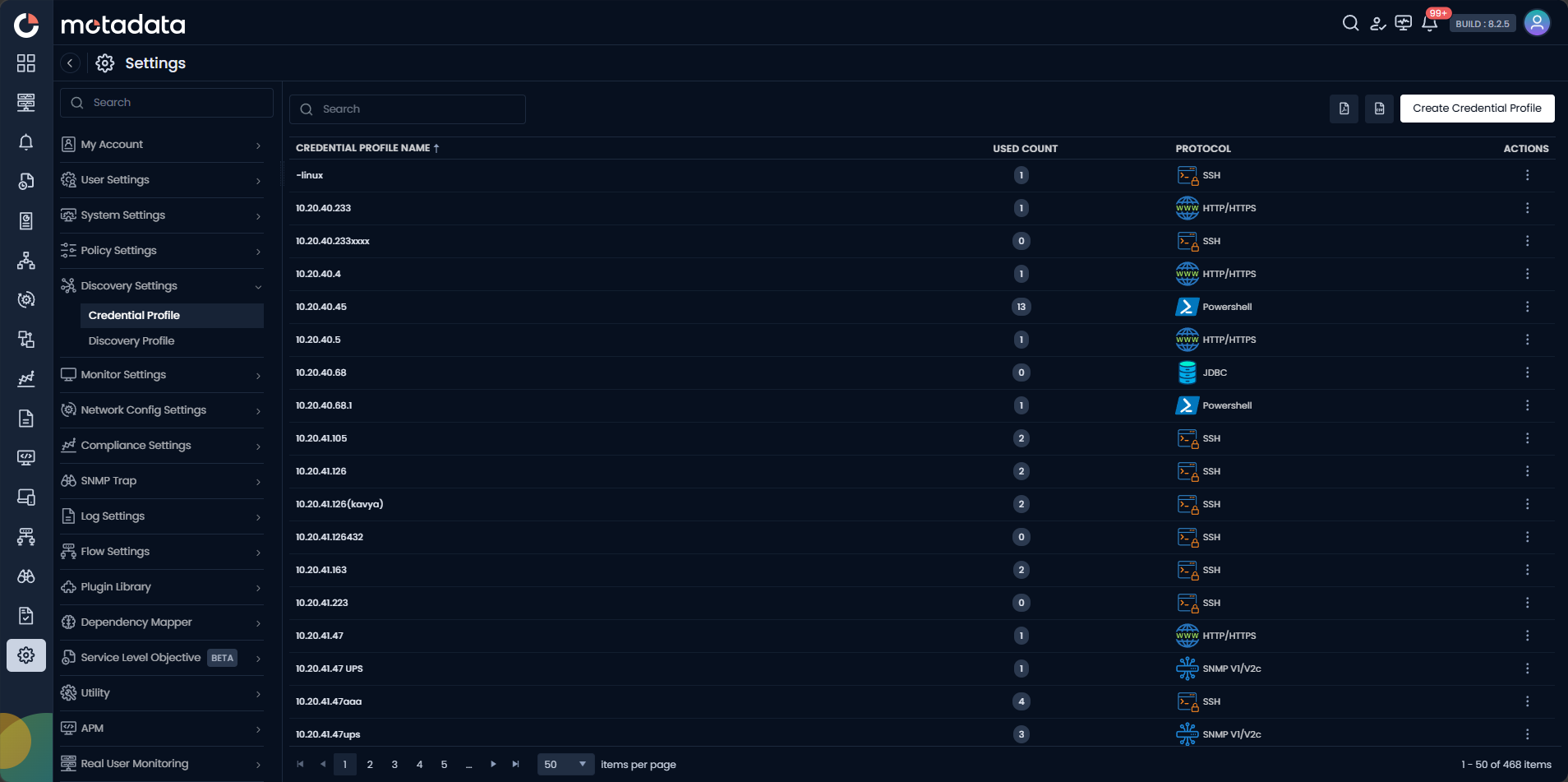
A pop-up for entering the credential profile details is displayed.
Credential Profile Parameters
Creating an SNMP Credential Profile
Enter the required details in the pop-up as follows:
| Field | Description |
|---|---|
| Credential Profile Name | Provide a unique Credential Profile Name. This name is used to identify a credential profile. |
| Protocol | Select SNMP V1/V2c or SNMP V3 as Protocol from the drop-down based on the configuration of your device.The option to provide the credential details is then displayed based on the protocol selected. - In case you select SNMP V1/V2C, enter the credential details including the SNMP Version, Read Community string, and Write Community string. - In case you select SNMP V3, enter the credential details including Security User Name and Security Level. |
If the Write Community field is blank, the IP SLA operation will fail.
Select Test to check if the credential details you provided are working against the device you want to discover by providing the details of the device IP.
Select Reset to erase all the current field values entered in the pop-up, if required.
Select Create Credential Profile to create the credential profile in the system. The credential profile is now created.
You can view the newly created profile in the credential profile screen by using the Search option available above the list of profiles.
Creating an SSH Credential Profile
If you plan to monitor WAN Link using the SSH protocol, you will need to create a separate credential profile with SSH as the protocol. Follow the same navigation steps above to open the Create Credential Profile pop-up, then enter the required details as follows:
| Field | Description |
|---|---|
| Credential Profile Name | Provide a unique Credential Profile Name. This name is used to identify a credential profile. |
| Protocol | Select SSH as the Protocol from the drop-down. The fields for SSH credentials are then displayed. |
| Username and Password | Enter the Username and Password for the network device you want to monitor. |
| SSH Key and Passphrase | Enter the SSH Key and Passphrase if you want to authenticate using key-based access instead of a password. |
Use Reset to clear all inputs, Test to validate the credentials against the device, and Add Credential Profile to save the profile.
2. Add WAN Link
After creating the credential profile, you will need to add the WAN Link to start monitoring it.
The WAN Link you want to monitor must be associated with an existing monitor. You cannot add a WAN Link that is not linked to an existing monitor.
Navigation
Go to Menu. Select Monitors. After that, select the Network option. Then, select the monitor from which you wish to monitor the WAN Link. Finally, click on the WAN Link button in the top right hand side corner.
A new screen to Add WAN Link will be displayed. The SNMP protocol is selected by default. Selecting it monitors WAN link performance by collecting key metrics through SNMP, offering insights into network behavior. If you want to monitor WAN link health by capturing performance data via SSH, providing visibility into network operations, you can select the SSH protocol.
- SNMP
- SSH
The Single WAN Link Configuration is selected by default.
Now, let us look into the setup of both Single WAN Link Configuration and Bulk WAN Link Configuration.
- Single WAN Link Configuration
- Bulk WAN Link Configuration
Adding WAN Link Parameters
Enter the required details in the screen as follows:
| Field | Description |
|---|---|
| Credential Profile | Select an already created Credential Profile to assign it to the discovery profile. You can also create a new credential profile from this screen using the Create Credential Profile button. In this case, we will select the credential profile we created in the 1st step while creating a credential profile. |
| WAN Probe | Select the Probe type using the drop-down. Every Probe type provides different insights and statistics of WAN link. Choose one according to your requirements: ICMP Echo: The ICMP Echo operation measures end-to-end response time between a Cisco router and any devices using IP. Response time is computed by measuring the time taken between sending an ICMP Echo request message to the destination and receiving an ICMP Echo reply. ICMP Jitter: ICMP Jitter uses two ICMP time stamp messages, an ICMP Timestamp Request and an ICMP Timestamp Reply, to provide jitter, packet loss, Round Trip Time (RTT), and latency. IP SLAs utilizes the time stamps to calculate jitter for each direction, based on the difference between arrival and departure delay for two successive packets. ICMP Path Echo: ICMP Path Echo monitors end-to-end as well as hop-by-hop response time between source and destination routers. ICMP Path Echo operation determines the hop-by-hop response time using the Traceroute facility. The results of the ICMP Path Echo operation can be analyzed to determine how ICMP is performing. |
| Internet Service Provider | Enter the name of destination Internet Service Provider. This will help in bifurcation of WAN Links coming from same source. |
| Source Interface | Choose the specific interface of the device for the originating link. If none is chosen, by default, Motadata ObserveOps will select the default IP which can generate unwanted results if your device has 2 or more interfaces. |
| Source Router Location | You can enter the city, office location, or any other geo-location related information that will help you identify the router location. The location will be displayed on the monitor screen which will help you quickly identify where the device is situated. |
| Destination IP | Enter the IP address for the destination device. |
| Destination Router Location | Specify the location of the destination device. |
| Payload | Define the size of ping packet that will be exchanged between the source and destination devices. |
| Type of Service | Type of Service value defines the type of IP SLA operation you wish to perform. The default value for ICMP operations is 30. |
| Frequency | Define the time interval (in milliseconds) between two consecutive pings between source and destination device. |
| Timeout | Specify the time interval Motadata ObserveOps will wait after a failed ping to assume the destination is in the down state. |
Discovery Profile Parameters
Enter the required details in the screen as follows:
| Field | Description |
|---|---|
| Credential Profile | Select an already created Credential Profile to assign it to the discovery profile. You can also create a new credential profile from this screen using the Create Credential Profile button. In this case, we will select the credential profile we created in the 1st step while creating a credential profile. |
| CSV | Upload the CSV file comprising multiple WAN Links using the Upload File option. Create the CSV file as per the format of the sample csv file available in this field. |
| Payload | Define the size of ping packet that will be exchanged between the source and destination devices. |
| Type of Service | Type of Service value defines the type of IP SLA operation you wish to perform. The default value for ICMP operations is 30. |
| Frequency | Define the time interval (in miliseconds) between two consecutive pings between source and destination device. |
| Timeout | Specify the time interval Motadata ObserveOps will wait after a failed ping to assume the destination is in the down state. |
The Single WAN Link Configuration is selected by default.
Now, let us look into the setup of both Single WAN Link Configuration and Bulk WAN Link Configuration.
- Single WAN Link Configuration
- Bulk WAN Link Configuration
Adding WAN Link Parameters
Enter the required details in the screen as follows:
| Field | Description |
|---|---|
| Credential Profile | Select an already created Credential Profile to assign it to the discovery profile. You can also create a new credential profile from this screen using the Create Credential Profile button. In this case, we will select the credential profile we created in the 1st step while creating a credential profile. |
| WAN Probe | Select the Probe type using the drop-down. Every Probe type provides different insights and statistics of WAN link. Choose one according to your requirements: ICMP Echo: The ICMP Echo operation measures end-to-end response time between a Cisco router and any devices using IP. Response time is computed by measuring the time taken between sending an ICMP Echo request message to the destination and receiving an ICMP Echo reply. ICMP Path Jitter: ICMP Path Jitter measures the variation in delay across each hop in a network path using ICMP probes, providing visibility into jitter, latency, and packet behavior at every intermediate node. It helps identify unstable segments within the path by analyzing delay differences between successive packets across multiple hops. ICMP Path Echo: ICMP Path Echo monitors end-to-end as well as hop-by-hop response time between source and destination routers. ICMP Path Echo operation determines the hop-by-hop response time using the Traceroute facility. The results of the ICMP Path Echo operation can be analysed to determine how ICMP is performing. IPSLA SSH UDP Echo: UDP Echo measures the round-trip time for UDP packets sent from a source Cisco router to a destination device. It helps evaluate the responsiveness and availability of UDP-based services across the WAN link. IPSLA SSH UDP Jitter: UDP Jitter measures the variation in delay (jitter), latency, and packet loss between a source and destination device using UDP packets. It provides granular one-way and two-way delay measurements, making it suitable for monitoring voice and video traffic quality over a WAN link. |
| Internet Service Provider | Enter the name of destination Internet Service Provider. This will help in bifurcation of WAN Links coming from same source. |
| Source Interface | Choose the specific interface of the device for the originating link. If none is chosen, by default, Motadata ObserveOps will select the default IP which can generate unwanted results if your device has 2 or more interfaces. |
| Source Router Location | You can enter the city, office location, or any other geo-location related information that will help you identify the router location. The location will be displayed on the monitor screen which will help you quickly identify where the device is situated. |
| Destination IP | Enter the IP address for the destination device. |
| UDP Port | Enter the destination port if selected WAN Probe as UDP Echo or UDP Jitter. |
| Destination Router Location | Specify the location of the destination device. |
| Payload | Define the size of ping packet that will be exchanged between the source and destination devices. |
| Type of Service | Type of Service value defines the type of IP SLA operation you wish to perform. The default value for ICMP operations is 30. |
| Frequency | Define the time interval (in Milliseconds) between two consecutive pings between source and destination device. |
| Timeout | Specify the time interval Motadata ObserveOps will wait after a failed ping to assume the destination is in the down state. |
Discovery Profile Parameters
Enter the required details in the screen as follows:
| Field | Description |
|---|---|
| Credential Profile | Select an already created Credential Profile to assign it to the discovery profile. You can also create a new credential profile from this screen using the Create Credential Profile button. In this case, we will select the credential profile we created in the 1st step while creating a credential profile. |
| CSV | Upload the CSV file comprising multiple WAN Links using the Upload File option. Create the CSV file as per the format of the sample csv file available in this field. |
| Payload | Define the size of ping packet that will be exchanged between the source and destination devices. |
| Type of Service | Type of Service value defines the type of IP SLA operation you wish to perform. The default value for ICMP operations is 30. |
| Frequency | Define the time interval (in miliseconds) between two consecutive pings between source and destination device. |
| Timeout | Specify the time interval Motadata ObserveOps will wait after a failed ping to assume the destination is in the down state. |
If configuring for IPSLA SSH UDP Echo or IPSLA SSH UDP Jitter, you need to add Destination Port column manually in the downloaded sample CSV.
3. Provision Discovered WAN Links
After initiating the adding of WAN Links, ObserveOps starts the process to look for all availaible WAN Links.
Once the discovery execution is complete, the list of all the links discovered is displayed. Select the devices that you want to be listed as Monitors in the system.
Click on Add Selected Objects to add the selected links as Monitors. These WAN links listed as Monitors will now be monitored further by ObserveOps.
These links can be viewed under the Monitor tab from the Main Menu. Select the Monitor tab from the main menu. After that, Select WAN Link to view all the monitors that are added to the system.
Adding a Juniper RPM
1. Create a Credential Profile
We will start by creating a credential profile for the device we are trying to add.
Navigation
Go to Menu. Select Settings . After that, Go to Discovery Settings and select Credential Profile. The credential profile screen is displayed. Select Create Credential Profile to create a new credential profile.
A pop-up for entering the credential profile details is displayed.
Credential Profile Parameters
Creating an SNMP Credential Profile
Enter the required details in the pop-up as follows:
| Field | Description |
|---|---|
| Credential Profile Name | Provide a unique Credential Profile Name. This name is used to identify a credential profile. |
| Protocol | Select SSH as the Protocol from the drop-down. The fields for SSH credentials are then displayed. |
| Username and Password | Enter the Username and Password for the network device you want to monitor. |
| SSH Key and Passphrase | Enter the SSH Key and Passphrase if you want to authenticate using key-based access instead of a password. |
Use Reset to clear all inputs, Test to validate the credentials against the device, and Add Credential Profile to save the profile.
Select Test to check if the credential details you provided are working against the device you want to discover by providing the details of the device IP.
Select Reset to erase all the current field values entered in the pop-up, if required.
Select Create Credential Profile to create the credential profile in the system. The credential profile is now created.
You can view the newly created profile in the credential profile screen by using the Search option available above the list of profiles.
2. Add WAN Link
After creating the credential profile, you will need to add the WAN Link to start monitoring it.
The WAN Link you want to monitor must be associated with an existing monitor. You cannot add a WAN Link that is not linked to an existing monitor.
Navigation
Go to Menu. Select Monitors. After that, select the Network option. Then, select the Juniper monitor from which you wish to monitor the WAN Link. Finally, click on the WAN Link button in the top right hand side corner.
A new screen to Add WAN Link will be displayed. The Single WAN Link Configuration is selected by default.
Now, let us look into the setup of both Single WAN Link Configuration and Bulk WAN Link Configuration.
- Single WAN Link Configuration
- Bulk WAN Link Configuration
Adding WAN Link Parameters
Enter the required details in the screen as follows:
| Field | Description |
|---|---|
| Credential Profile | Select an already created Credential Profile to assign it to the discovery profile. You can also create a new credential profile from this screen using the Create Credential Profile button. In this case, we will select the credential profile we created in the 1st step while creating a credential profile. |
| Internet Service Provider | Enter the name of the destination Internet Service Provider. This will help in bifurcation of WAN Links coming from the same source. The ISP name is also used to construct the monitor name in the format: ISP Name : Source IP (Source Location) > Destination IP (Destination Location). |
| WAN Probe | Juniper RPM currently supports ICMP Ping as the WAN probe type. ICMP Ping measures end-to-end response time, latency, and availability between the source Juniper device and the destination by sending ICMP echo requests and measuring the round-trip time. |
| Source Interface | Choose the specific interface of the device for the originating link. Selecting a source interface is optional — if none is chosen, Motadata ObserveOps will use the default interface of the device. |
| Source Router Location | You can enter the city, office location, or any other geo-location related information that will help you identify the router location. The location will be displayed on the monitor screen which will help you quickly identify where the device is situated. |
| Destination IP | Enter the IP address for the destination device. |
| Destination Router Location | Specify the location of the destination device. |
Juniper RPM Operations Test Parameters
| Field | Description |
|---|---|
| Payload | Define the size of the ping packet that will be exchanged between the source and destination devices. |
| Type of Service | Type of Service value defines the priority and handling of the RPM probe packet. The default value for ICMP Ping operations is 0. |
| Frequency | Define the time interval (in milliseconds) between two consecutive pings between the source and destination device. |
| Operation Timeout | Specify the time interval Motadata ObserveOps will wait after a failed ping to assume the destination is in the down state. |
Discovery Profile Parameters
Enter the required details in the screen as follows:
| Field | Description |
|---|---|
| Credential Profile | Select an already created Credential Profile to assign it to the discovery profile. You can also create a new credential profile from this screen using the Create Credential Profile button. In this case, we will select the credential profile we created in the 1st step while creating a credential profile. |
| CSV | Upload the CSV file comprising multiple WAN Links using the Upload CSV option. Use the Sample CSV download link to get the correct format for your CSV file before uploading. |
| Timeout | Specify the overall timeout value for the bulk WAN Link addition operation. |
Juniper RPM Operations Test Parameters
| Field | Description |
|---|---|
| Payload | Define the size of the ping packet that will be exchanged between the source and destination devices. |
| Type of Service | Type of Service value defines the priority and handling of the RPM probe packet. The default value for ICMP Ping operations is 0. |
| Frequency | Define the time interval (in milliseconds) between two consecutive pings between the source and destination device. |
| Operation Timeout | Specify the time interval Motadata ObserveOps will wait after a failed ping to assume the destination is in the down state. |
We have created a credential profile in the 1st step. After that, we have added the WAN Link parameters in the 2nd step using a credential profile. After selecting Add WAN Link, Motadata ObserveOps creates the RPM SLA operation on the respective Juniper device and initiates a re-discovery run, which leads us to our next step — provisioning the discovered WAN Links as Monitors.
3. Provision Discovered WAN Links
After initiating the adding of WAN Links, ObserveOps starts the process to look for all available WAN Links associated with the Juniper RPM operations.
Once the re-discovery execution is complete, the list of all the links discovered is displayed. Select the devices that you want to be listed as Monitors in the system. You can also modify the Monitor Name during provisioning before finalizing.
Click on Add Selected Objects to add the selected links as Monitors. These WAN links listed as Monitors will now be monitored further by ObserveOps.
These links can be viewed under the Monitor tab from the Main Menu. Select the Monitor tab from the main menu. After that, Select WAN Link to view all the monitors that are added to the system.