Customizing Report Headers and Footers
This section explains how to configure and apply custom reporting templates in Motadata ServiceOps. By modifying the provided YAML file, you can customize headers and footers in generated PDF reports to match your organization’s branding. The steps below guide you through editing the template, updating configuration files, and enabling the customization feature.
Configuration Steps:
1. Edit the YAML template file
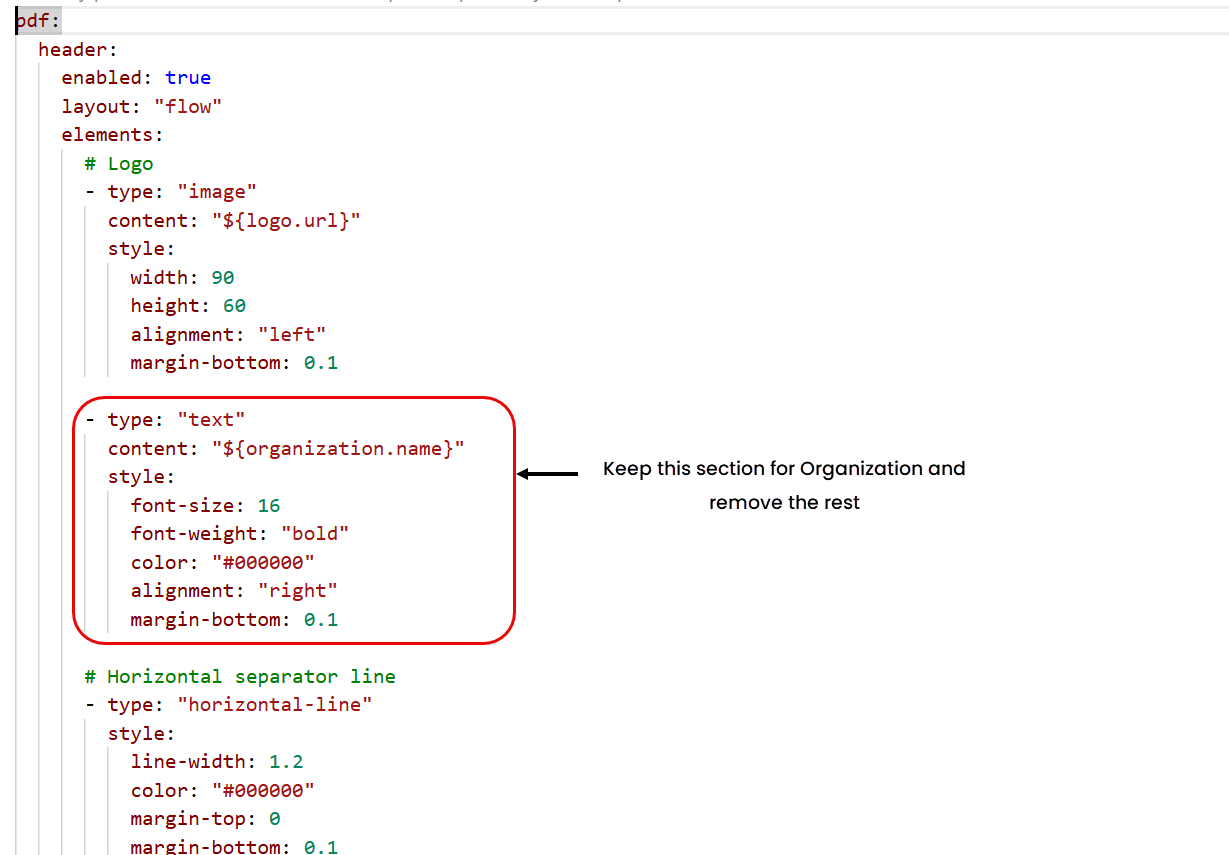
Open the YAML file received from the Motadata Support team and make the required changes. Here, pdf-template.yaml is used as a sample file.
Example: To include only the organization name in the header, keep the organization.name section and remove all other sections.
To change alignment, update the alignment property (e.g., change from right to left).
2. Save the updated YAML file
After editing, save the file to retain changes.
3. Access the terminal server
Log in to the terminal server as the root user.
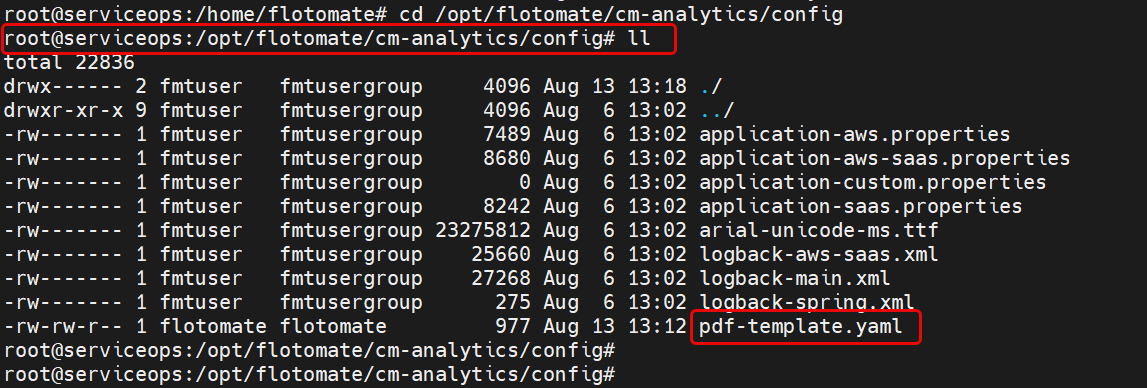
4. Replace the existing YAML file
Place the edited YAML file into the /config folder at:
/opt/flotomate/cm-analytics/config
5. Update application properties
Navigate to the path:
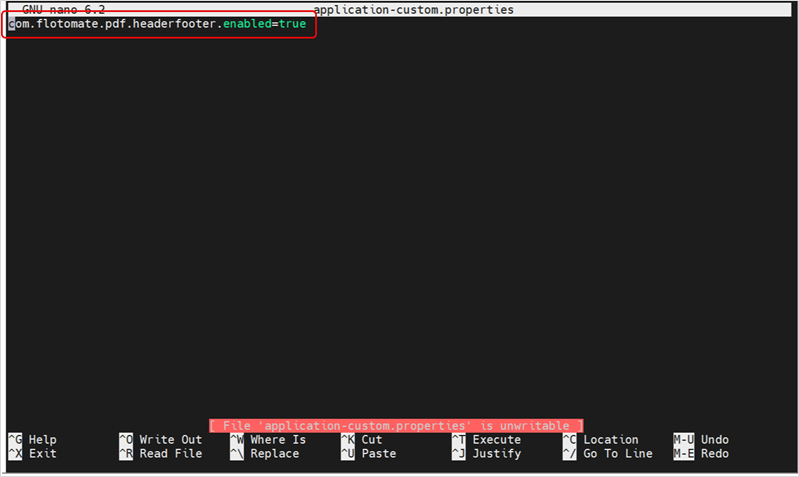
/opt/flotomate/cm-analytics/config/application-custom.properties
6. Enable header/footer customization
Edit the file and set the following property
com.flotomate.pdf.headerfooter.enabled=true
7. Save and apply changes
Save the file. Once completed, any report downloaded or exported as a PDF will display the customized header and/or footer.