Collaboration
In the Collaboration tab, you can collaborate and make notes for the purchase order.
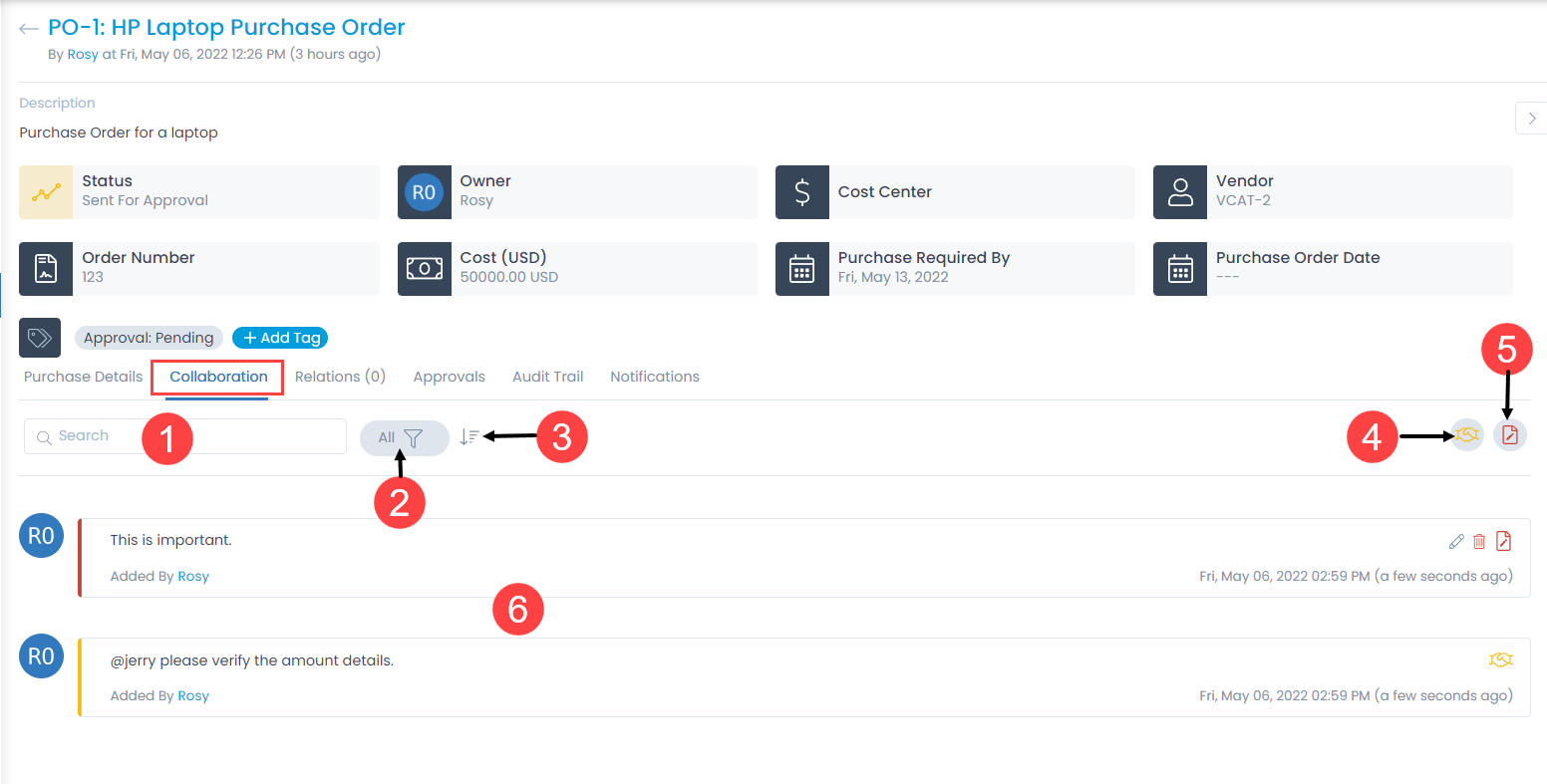
The Collaboration tab displays all the work and communication done for a purchase order. Here, you can do the following activities:
Search: The search works on the content of the notes and collaboration message in the tab. It matches your query with all the content (that technicians have entered) to find the results.
Filter: You can filter the activity items by their type. The following filters are available:
Filter Records Displayed All Displays all activity items for the purchase order, including both collaboration messages and notes. Collaborations Displays only the internal collaboration messages posted by technicians. These cannot be edited or deleted once added. Notes Displays only the internal notes added by technicians. Notes can be edited or deleted after being saved. Sort: You can sort all the items in ascending or descending order.
Collaborate: You can collaborate with other technicians. You can start a message thread which is visible to other concerned people. Once added, you cannot edit or delete a collaboration message.
Notes: You can add additional information about the order so that others can view the same. You can edit and delete a note message.
Collaboration List: You can view a list of collaborations and notes.
Adding a New Collaboration
- Select the type of collaboration: Collaborate or Notes.
- Enter the body of the message. To mention someone in collaboration message, press "@". You will see a list of available names. Choose the person whom you want to tag.
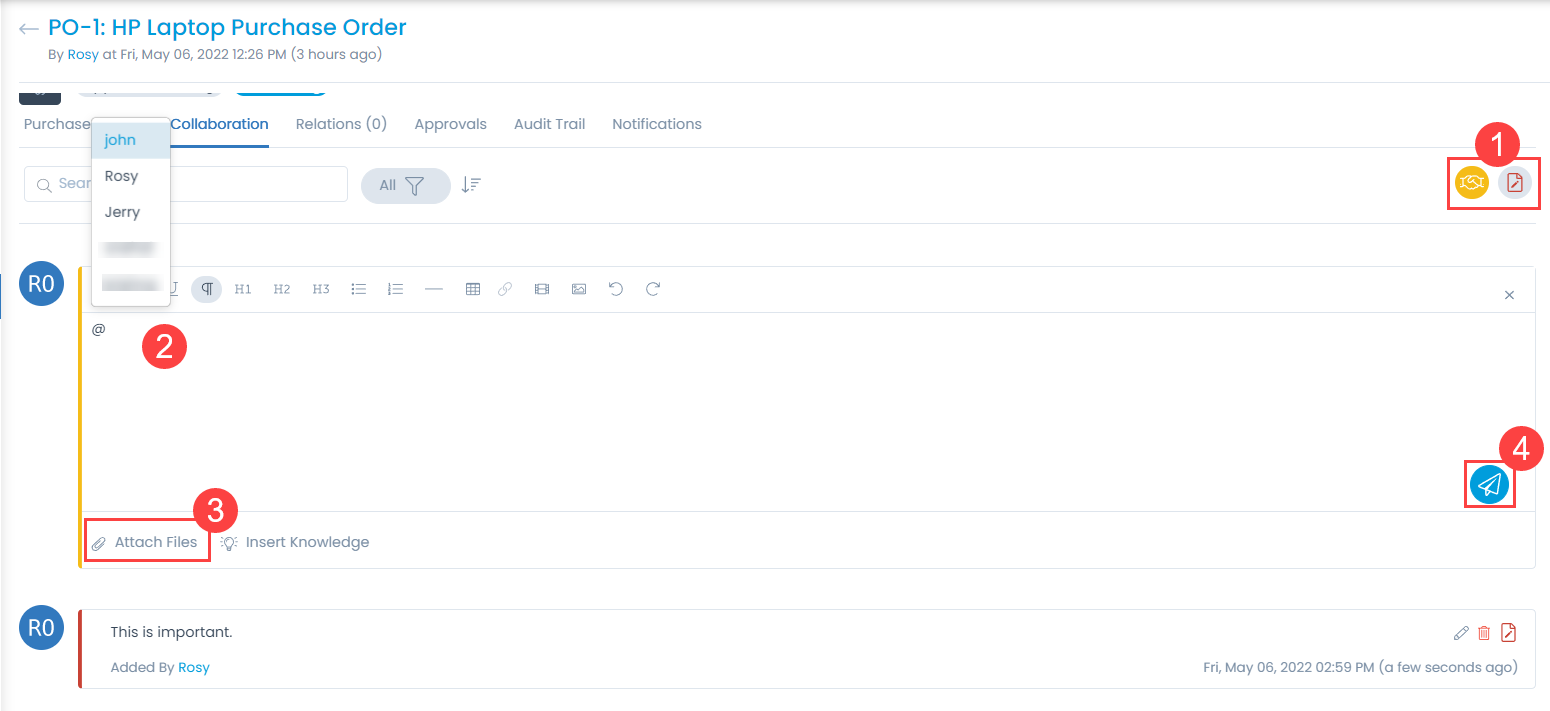
- Attach the required files.
- Click Save and the message get saved.