Service Monitor Settings
Overview
The Service Monitor Settings is a pre-loaded repository of all the well-known services present in a server (virtual or bare-metal). This feature allows you to monitor services and rediscover applications easily. When you discover a server, ObserveOps checks if any of the services present in this list are running on the server, and if so, these services are provisioned as monitors.
The pre-loaded list covers most of the well-known services you need to monitor, making it a comprehensive and efficient solution. However, you can add any specific services that you want to monitor, giving you complete control over the monitoring process. Once you add a service to the list, you can start monitoring it by executing a rediscovery run.
The list of services and processes also helps you rediscover applications. This is a crucial aspect of the monitoring process, as it ensures that you can easily detect and monitor instances within a monitor.
To rediscover an application present on a Windows server, the corresponding process and service should be available in the Process Monitor Settings and Service Monitor Settings, respectively. If they are not already present, you can create a new record for these processes and services and then execute a rediscovery run to monitor the application.
To rediscover an application present on a Linux server, the corresponding service should be available in the Service Monitor Settings. If it is not already present, you can create a new record for these services and then execute a rediscovery run to monitor the application.
Service Monitoring lets you track your services and applications and keep your infrastructure running as expected. See Monitor Rediscovery for details on how to add new services after a device is provisioned.
Navigation
Go to Menu, Select Settings  . After that, Go to Monitoring
  . Select Service Monitor Settings to display the list of all the services that are pre-configured in the system.
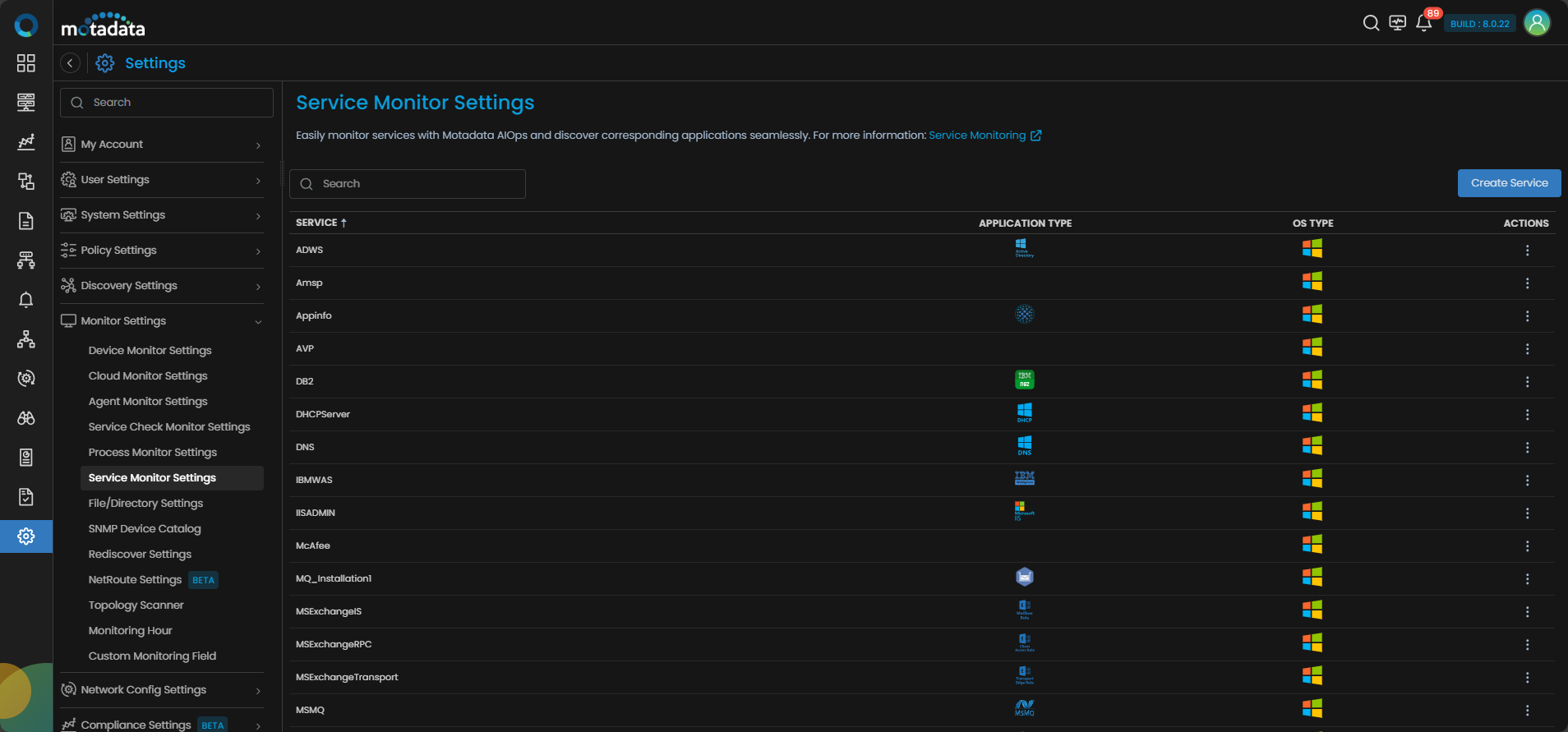
Service List
The Service List displays the following fields:
| Field | Description |
|---|---|
| Service | The name of the service that can be monitored. |
| Application Type | The type of application to which the service belongs. |
| OS Type | The type of operating system to which the service belongs i.e., Windows  |
| Actions | Select - Edit Service: Select this button to edit the name, application type, and OS type of the service. - Delete Service: Select this button to delete the service from the system. |
 to display permissible actions on the service. The following actions are available for each service:
How to add a new service for monitoring?
You can add a service to the existing list if the service you need to monitor is not already present.
Select  present above the list of services. A new entry is created in the service list.
Enter the following details to create a new service:
| Field | Description |
|---|---|
| Service | Enter the name of the service as it appears on the server that is set up as a monitor. |
| Application Type | Select the application type to which this service belongs from the drop down. |
| OS Type | Select the OS to which this service belongs from the drop down. |
Select  to add this service to the service list.
Select  if you do not wish to add this service to the service list.