Custom Monitoring Fields
Overview
In our ObserveOps product, you have the flexibility to add a custom monitoring field with a fixed value to the monitors. This custom field can be used for grouping or tagging purposes to filter out certain monitors as per your requirement.
For example, if you have multiple monitors located at a particular location, you can add a custom field at the monitor level to mention the location of monitors. By creating a custom field with a fixed value, you can assign the field to all the monitors discovered from that particular location. The field will then be available to view against these monitors on the Monitor Screen, as well as the Device/Agent/Cloud/Service Monitor Settings Screen.
This feature allows you to customize your monitoring needs and organize your monitors in a more efficient manner.
Navigation
Go to Menu, Select Settings  . After that, go to Monitoring
  . Select Custom Monitoring Field. The list of existing custom monitoring fields is now displayed.
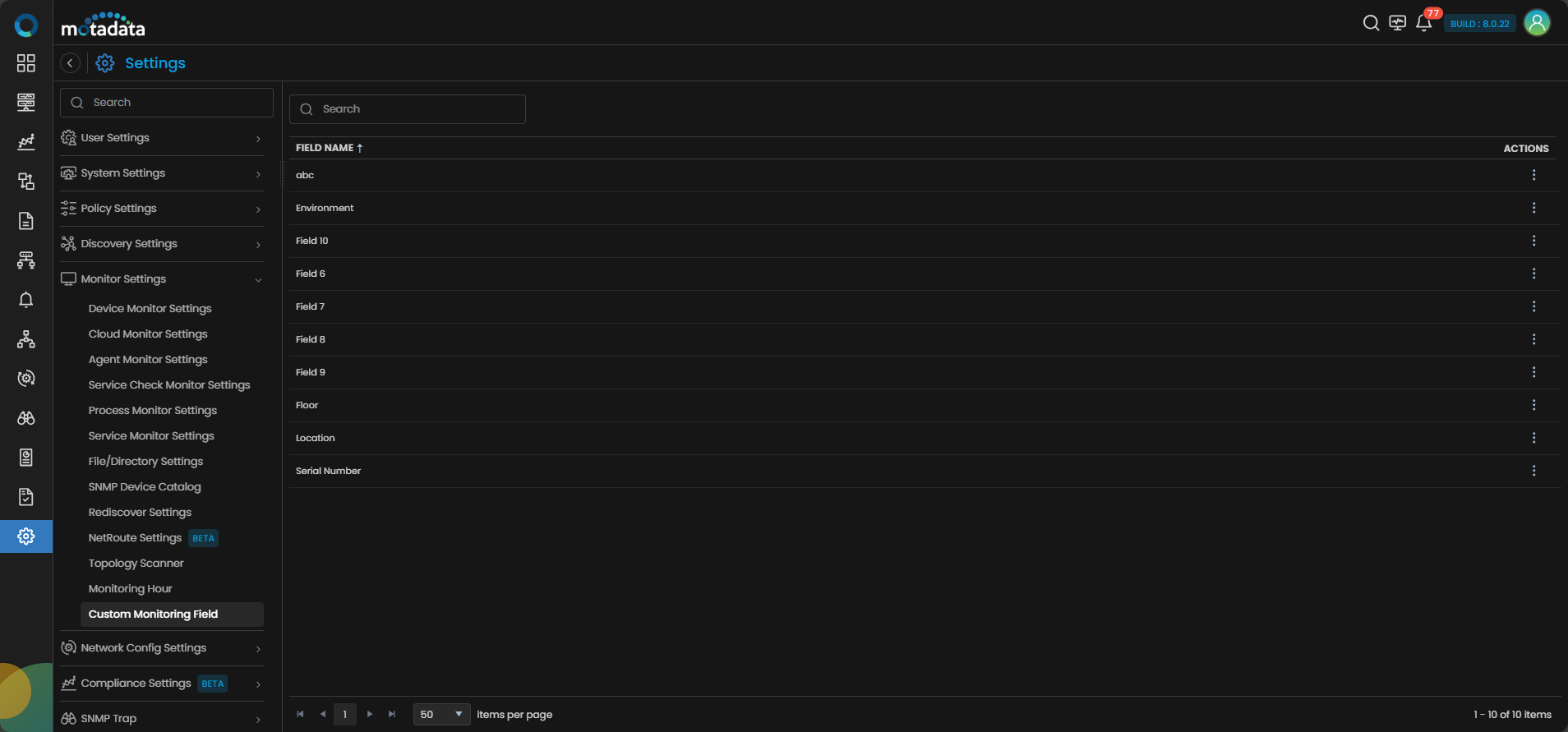
Custom Monitoring Field List
The Custom Monitoring Field screen shows all custom fields that have been created.

| Column | Description |
|---|---|
| FIELD NAME | The name of the custom field. Click the column header to sort alphabetically. |
| ACTIONS | Opens the action menu for the row. Select Edit to update the field name. Select Delete to remove the field permanently. |
How to Create a Custom Monitoring Field
Custom monitoring fields are created from within the monitor's edit screen, not from the Custom Monitoring Field settings screen.
To create a custom field, go to Device/Agent/Cloud/Service Check Monitor Settings. Select the Edit option for the monitor. On the edit screen, select Add Custom Monitoring Field to create and assign a new custom field to that monitor.
The field you create is then available in the Custom Monitoring Field list and can be assigned to other monitors from their edit screens.