Configuring ObserveOps to ManageEngine ServiceDesk Plus Integration
Overview
The ManageEngine ServiceDesk Plus (SDP) integration lets ObserveOps raise a request in SDP when an alert triggers, and clear the alert in ObserveOps when the SDP request moves to Resolved or Closed. SDP is an IT Service Management (ITSM) platform where tickets are called Requests.
Navigation
Select Settings  . After that, go to Integration
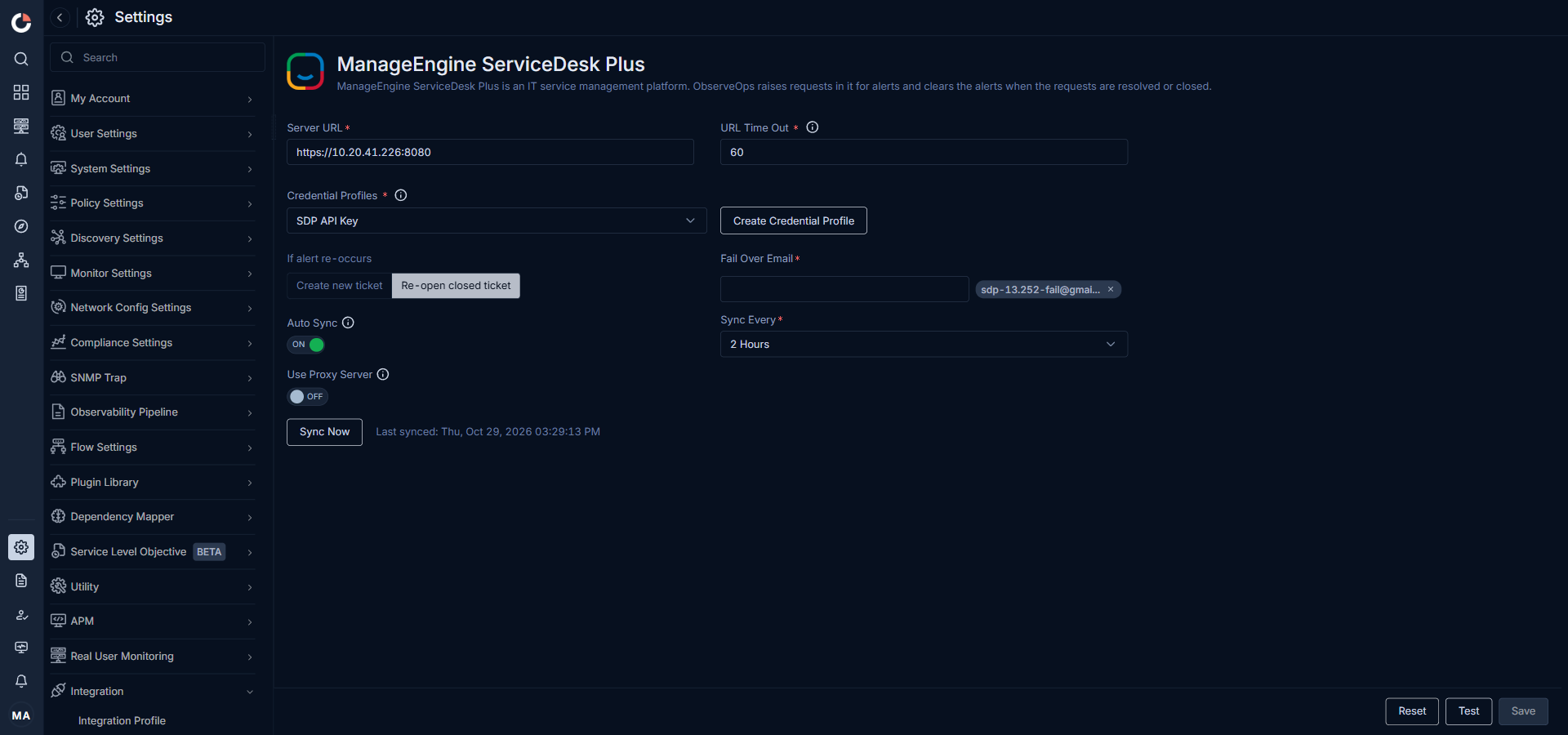
 and select ManageEngine ServiceDesk Plus. The ManageEngine ServiceDesk Plus integration screen is displayed.
Integration Steps
Ensure you have the Server URL and the Technician API Key for the SDP account you want to use. Enter the following details on the integration screen:
| Field | Description |
|---|---|
| Server URL | Enter the SDP server URL, including the port if required (for example, https://sdp.example.com:8080). |
| URL Time Out | Specify the time, in seconds, that ObserveOps waits to establish a connection with the SDP server. If the server does not respond within this time, ObserveOps marks SDP as unreachable. The default value is 60. |
| Credential Profile | Select a credential profile that stores the SDP Technician API Key, or create a new profile using the Create Credential Profile button. |
| If alert re-occurs | Create new ticket: Creates a new request every time the alert is triggered. Re-open closed ticket: Reopens the previously closed request for the same monitor and metric if the alert triggers again. |
| Fail Over Email | Specify the email address that receives a notification when ObserveOps cannot reach the SDP server. |
| Auto Sync | Toggle on to periodically pull SDP metadata. When on, select the pull interval from the Sync Every dropdown. The last successful sync time is displayed next to the Sync Now button. |
| Sync Every | Available only when Auto Sync is on. Select how often ObserveOps pulls updates from SDP. |
| Use Proxy Server | Enable this option to route the integration traffic through the configured proxy server. |
Select the Reset button to clear the current field values.
Select the Test button to validate the connection to SDP using the entered values.
Select the Save button to save the integration configuration.
Once you have saved the integration configuration the Sync Now button is visible. Clicking the Sync Now button will sync the latest SDP metadata.