Generating the Google Maps API Key for Motadata Geo Map
This how-to describes the end-to-end procedure to generate a Google Maps Platform API key from the Google Cloud Console and use it inside Motadata ObserveOps → Settings → Integration → Geo Map to enable map rendering, location search, and asset/device visualization.
Prerequisites
Before generating a Google Maps API key, ensure the following requirements are met.
- A valid Google account is required to access the Google Cloud Console.
- Create a Google Cloud project or select an existing one where the Google Maps APIs will be configured.
- Billing must be enabled for the Google Cloud project, as Google Maps Platform APIs require a billing-enabled project.
- Enable the required Google Maps Platform APIs based on the functionality needed. For GeoMap and address search, enable Places API, Geocoding API, Maps JavaScript API, and Places API (New) where applicable.
- The Google account must have IAM permission to create and manage API keys in the selected project.
- Configure Application restrictions and API restrictions to prevent unauthorized use of the key and restrict it to only the APIs required by the application.
- Keep the Google Cloud Project ID and project name handy, as the API key must be generated under the correct project.
- The Motadata server or application using the Google Maps API must have outbound HTTPS connectivity to Google API endpoints over TCP port 443.
Step 1. Open APIs & Services and Enable APIs
Sign in to the Google Cloud Console, select the correct project, then navigate to APIs & Services → Enabled APIs & services. Click the + Enable APIs and services button at the top.
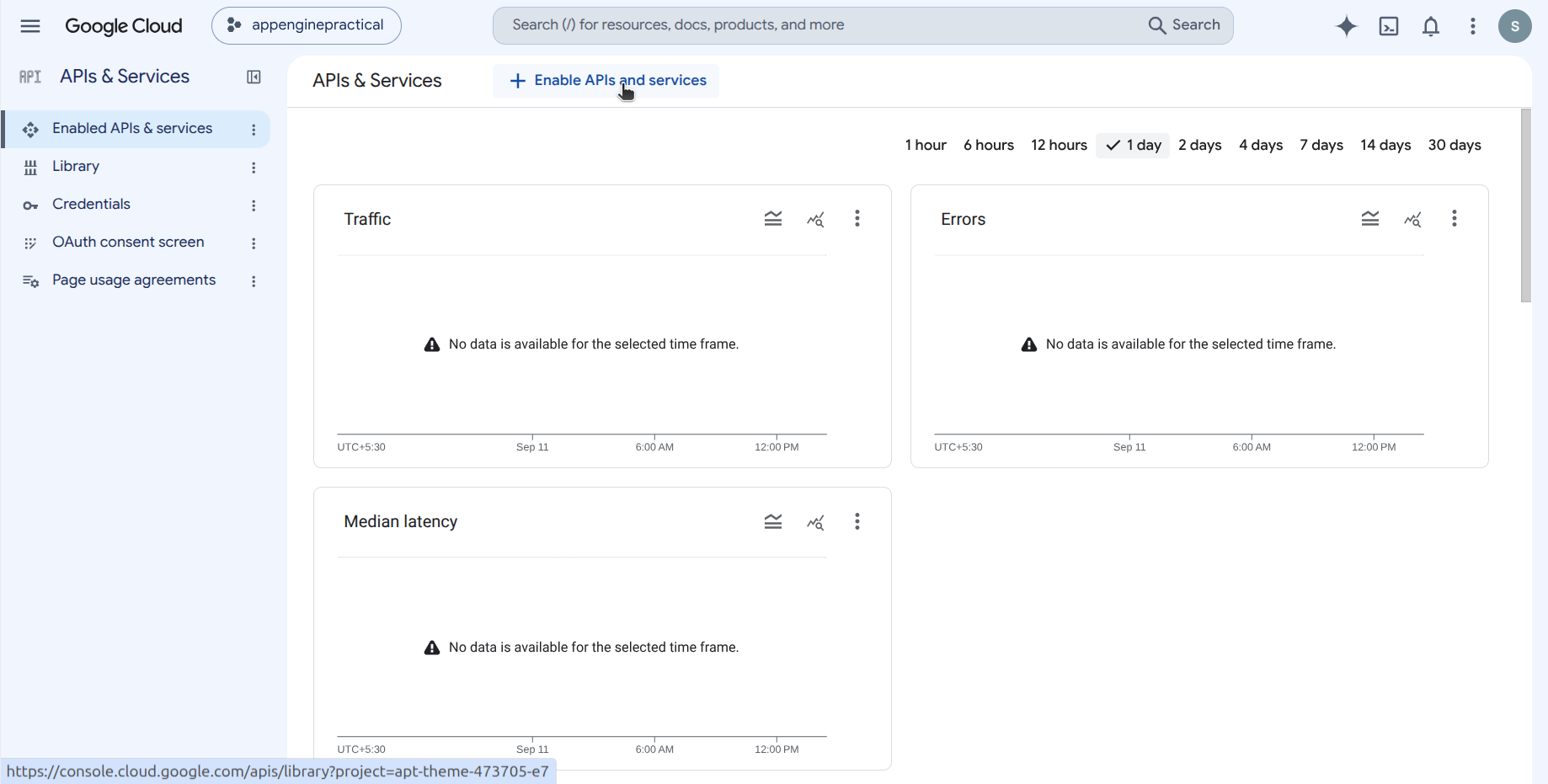
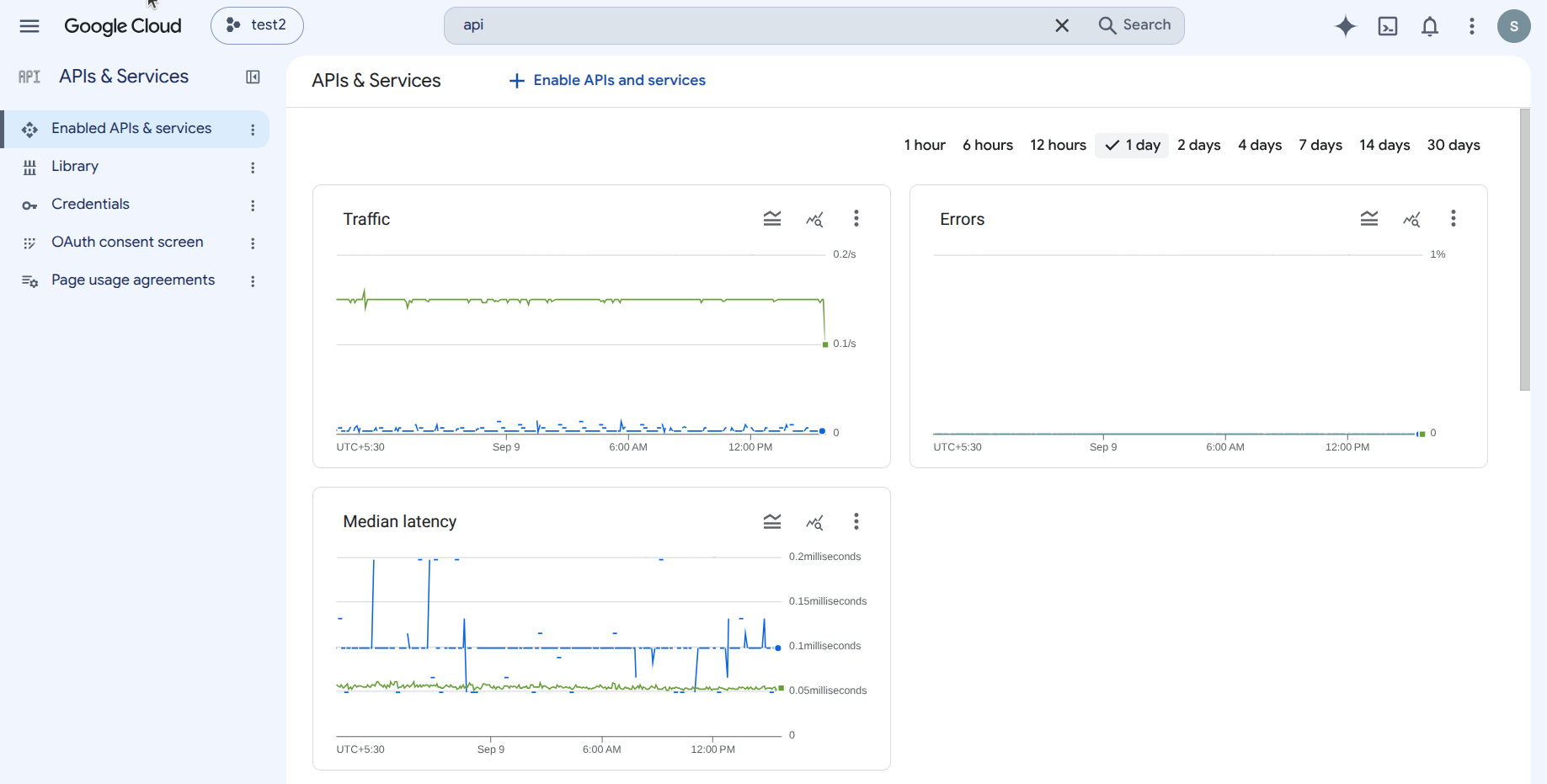
Once APIs are enabled you can monitor traffic, errors, and latency for each API from this screen.
Open the API Library
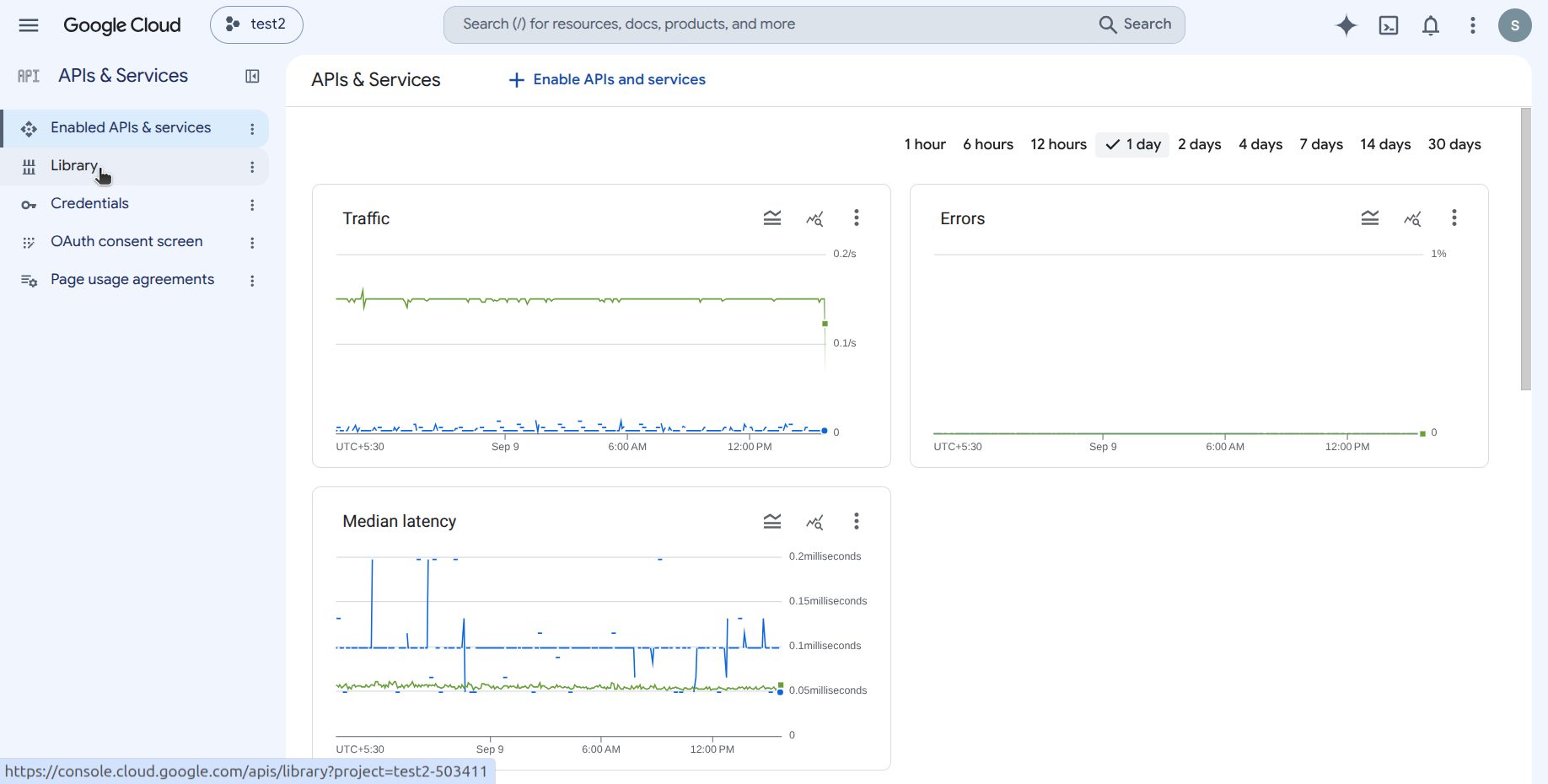
From the left-hand menu, click Library to open the API Library where all Google Cloud APIs can be searched and enabled.
Step 2. Enable the Required Maps APIs
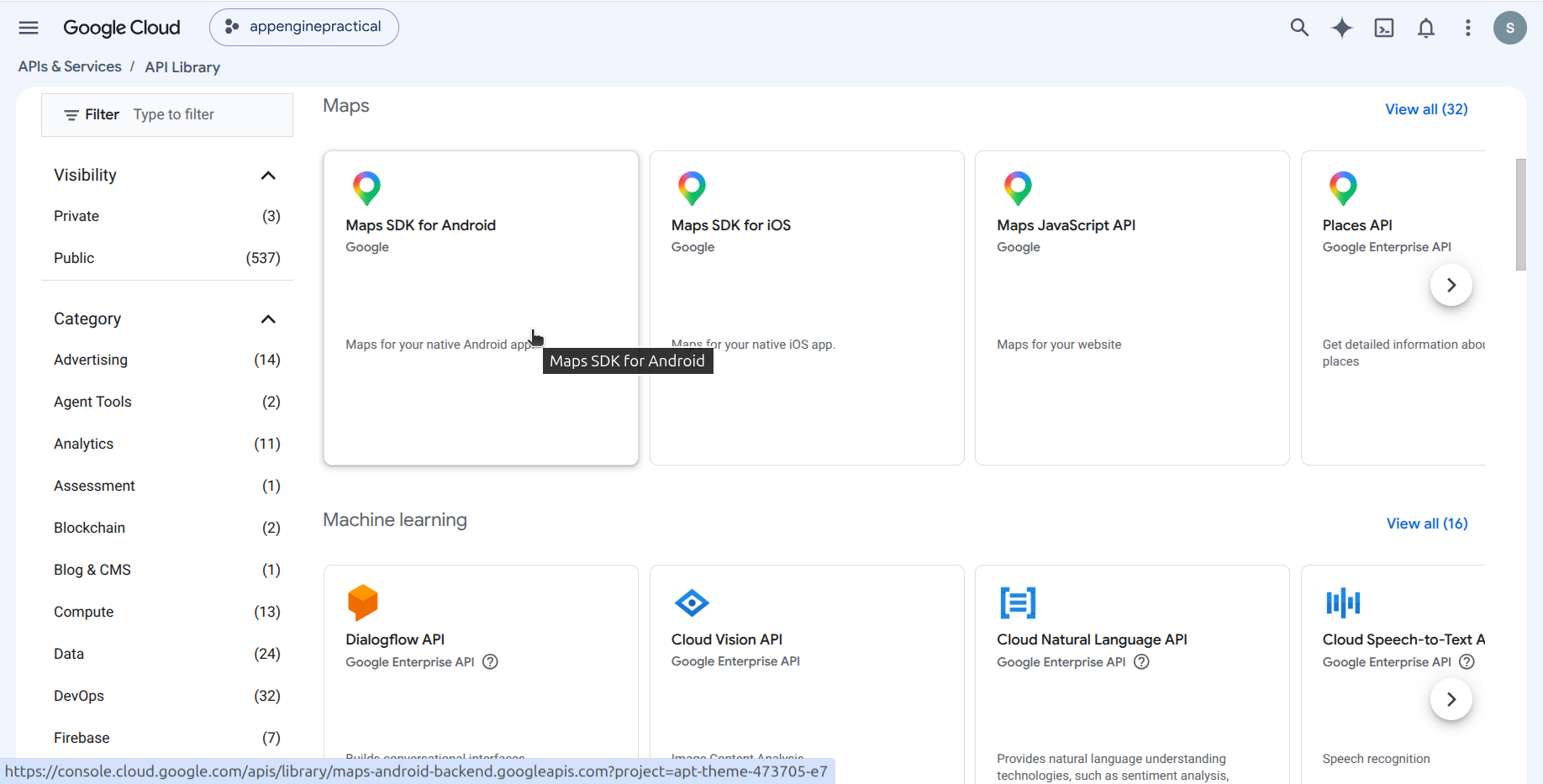
In the API Library, search for maps. Select the required Maps APIs and enable them one by one. At a minimum, enable:
- Maps JavaScript API: required for map rendering and interaction.
- Places API: required for location search, place details, and autocomplete.
- Geocoding API: required to convert addresses to coordinates and vice versa.
- Geolocation API: required when location is determined using network data.
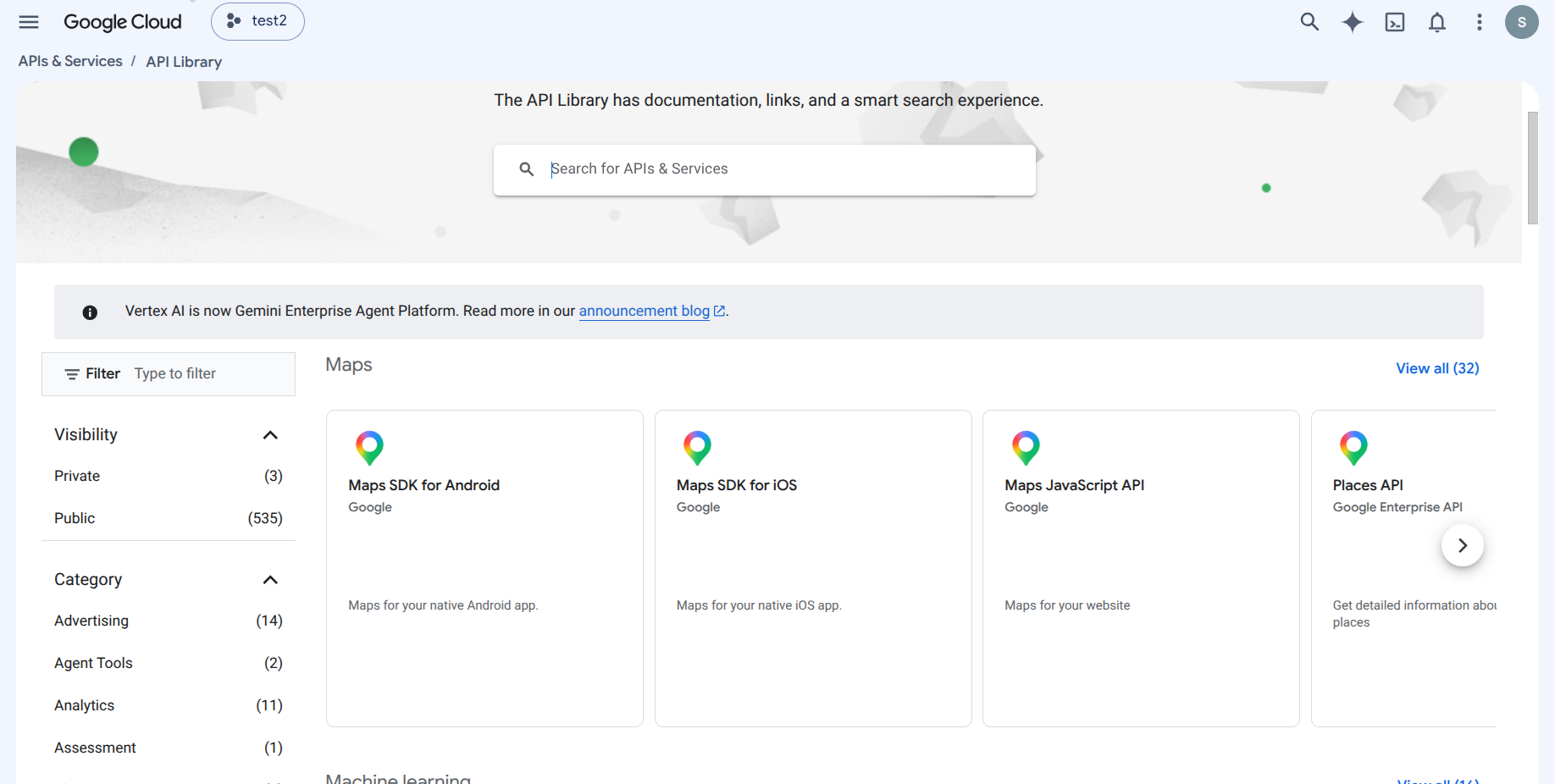
Filtered Maps section. Click on the API you want to enable.
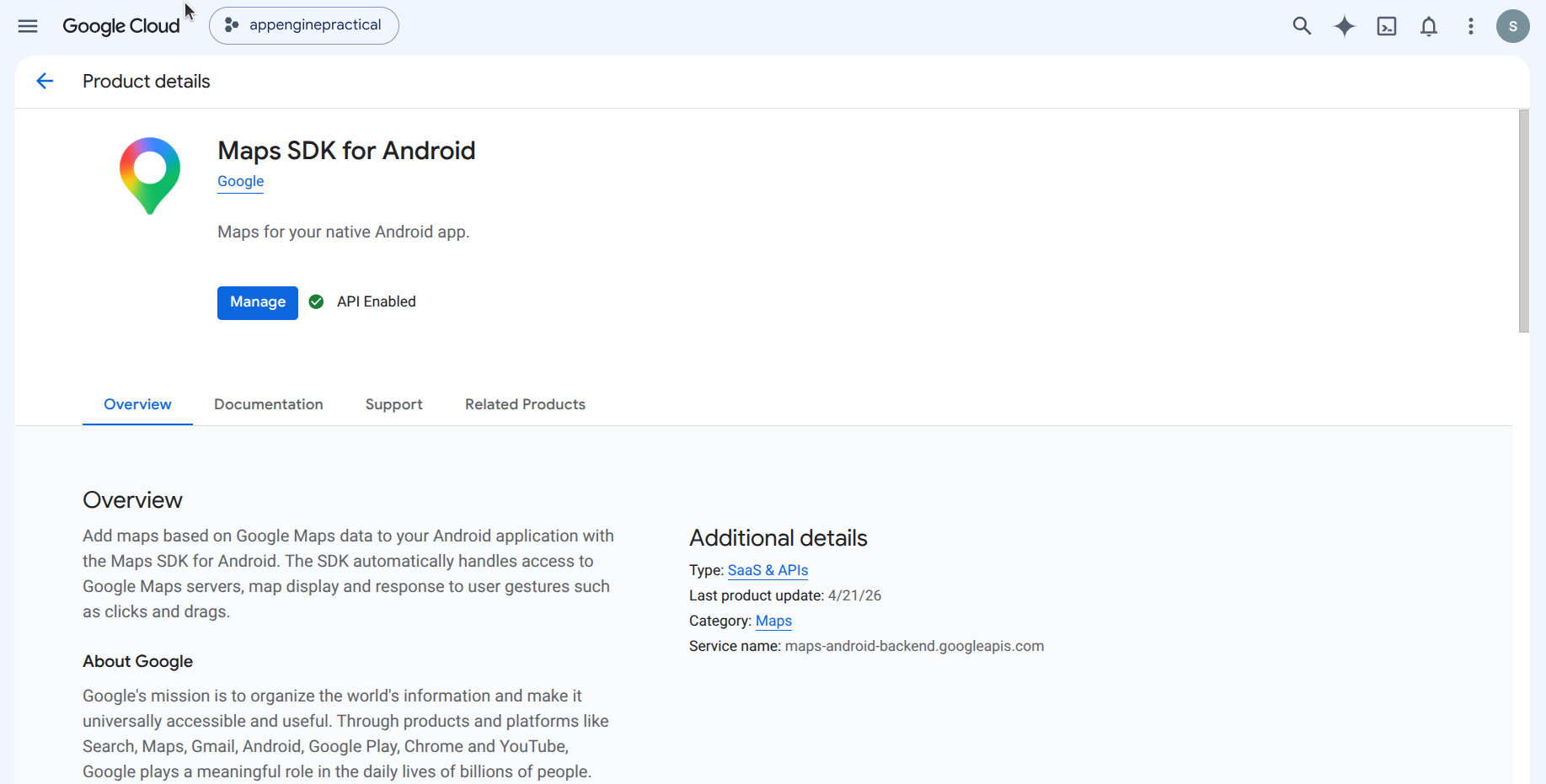
On the product details page, click Manage to enable / manage the API. The green API Enabled badge confirms it is active.
Step 3. Complete the Google Maps Platform Onboarding
The first time you enable a Maps API, Google shows a short onboarding wizard. Answer the questions so Google can generate a suitable API key. For a Motadata GeoMap deployment select the options shown below.
| Question | Recommended Selection for Motadata GeoMap |
|---|---|
| What's your industry of focus? | Software & Services |
| Which services are most important to you? | ✓ Show current location on map ✓ Visualize data on a map ✓ Add place details on a map ✓ Track assets & devices ✓ Enable address autocomplete (only if address search / autocomplete is required) |
| Preferred development approach | Full-code development |
| Target platform | Web / Server-side |
| Framework | Vue.js (+ Nuxt), or as per your deployment |
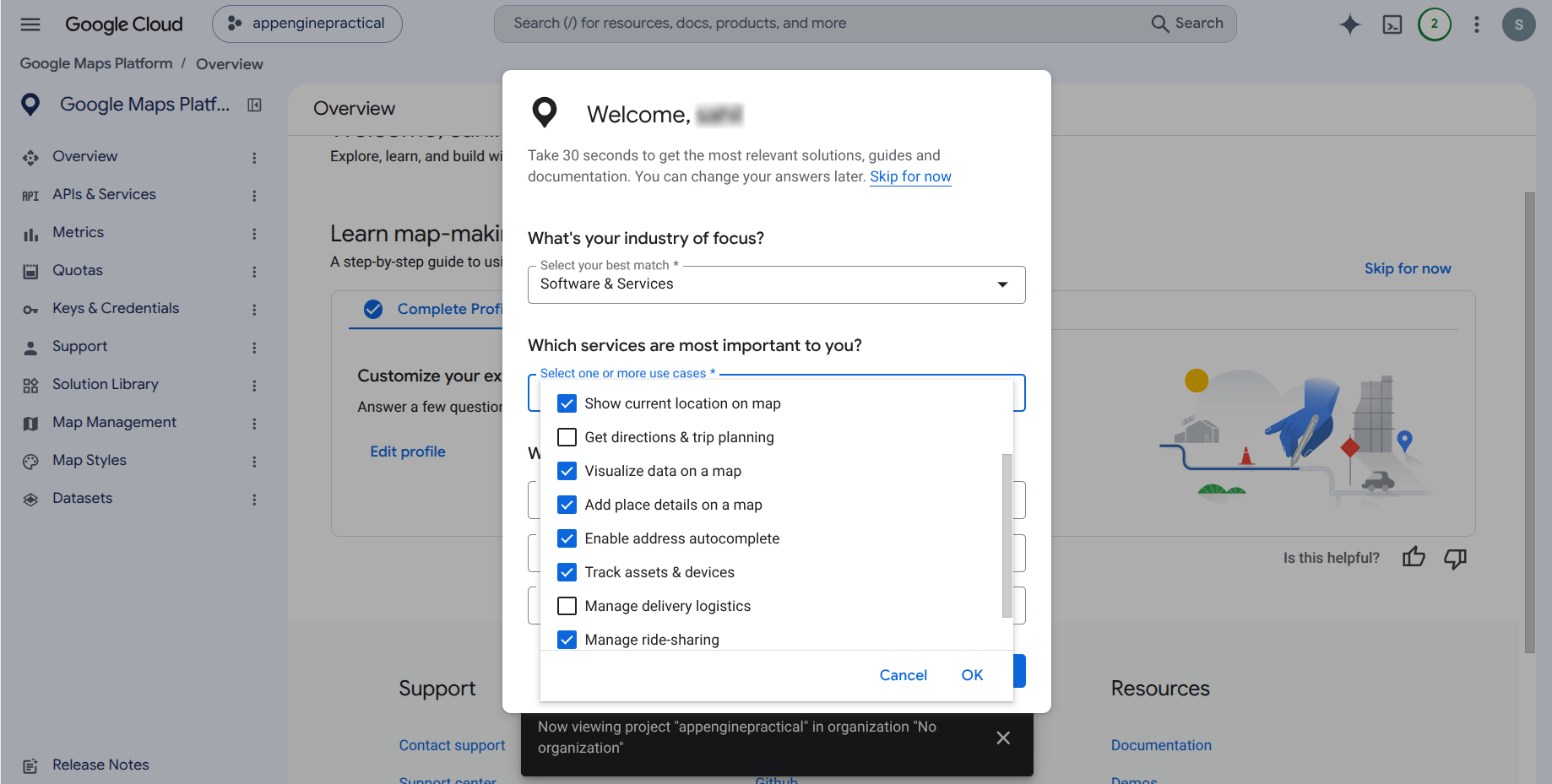
On the Google Maps Platform onboarding screen, select the industry, use cases, development approach, platform, and framework. Then click Submit.
API Key Generated
After submitting, Google displays the newly generated API key. Copy the key using the copy icon and store it securely. You will need it in Step 5 for Motadata configuration.
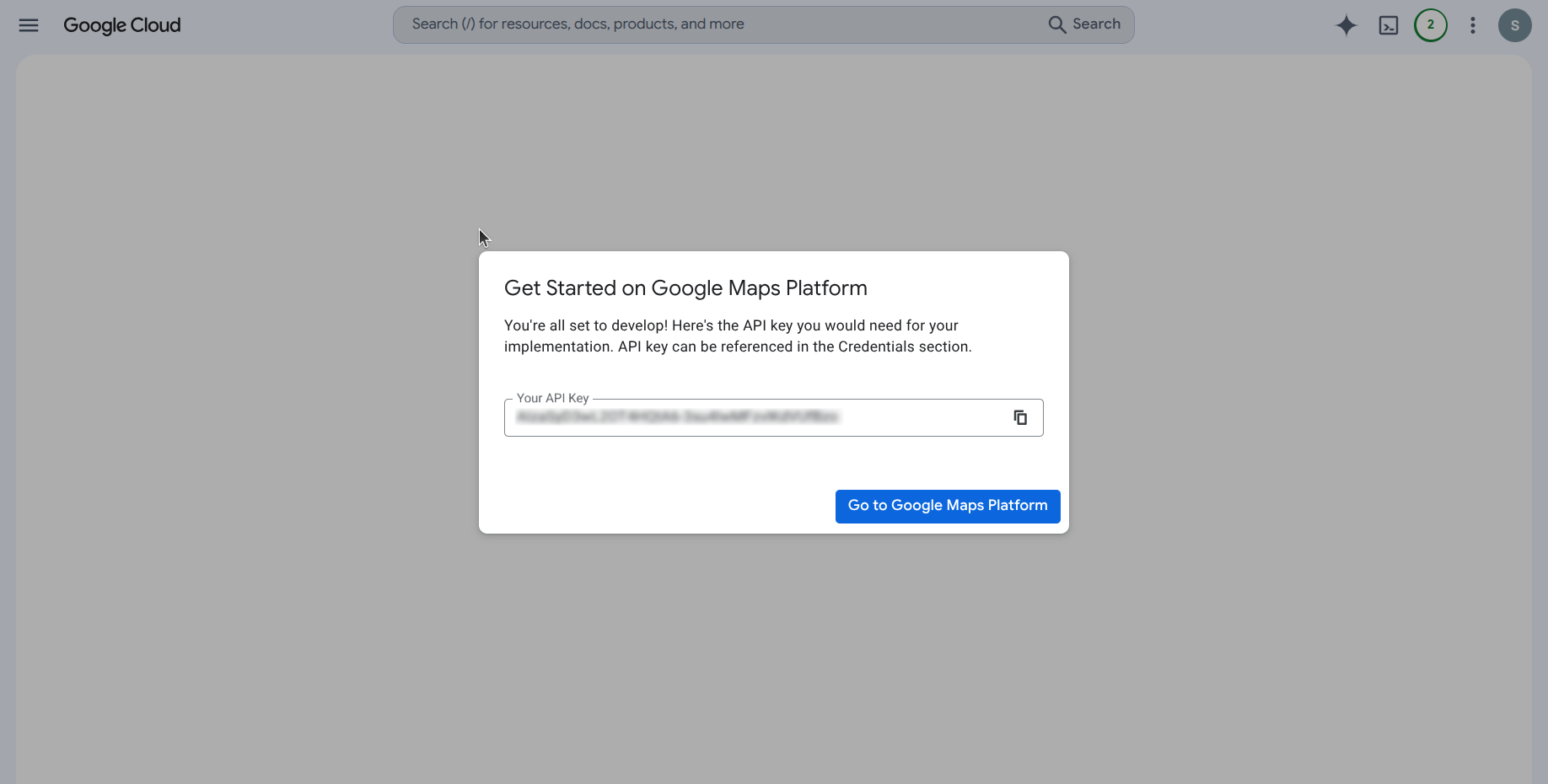
The API key is also available later under APIs & Services → Credentials → API Keys.
Step 4. Protect the API Key (Restrictions)
Google will prompt you to protect your key. This step ensures the key can only be used from authorized domains and only against the APIs you actually need.
4.1 Application (Referrer) Restriction
Under Application restrictions, select Websites and add your Motadata deployment URL as an authorized referrer, for example www.example.motadata.com. Click Restrict key.
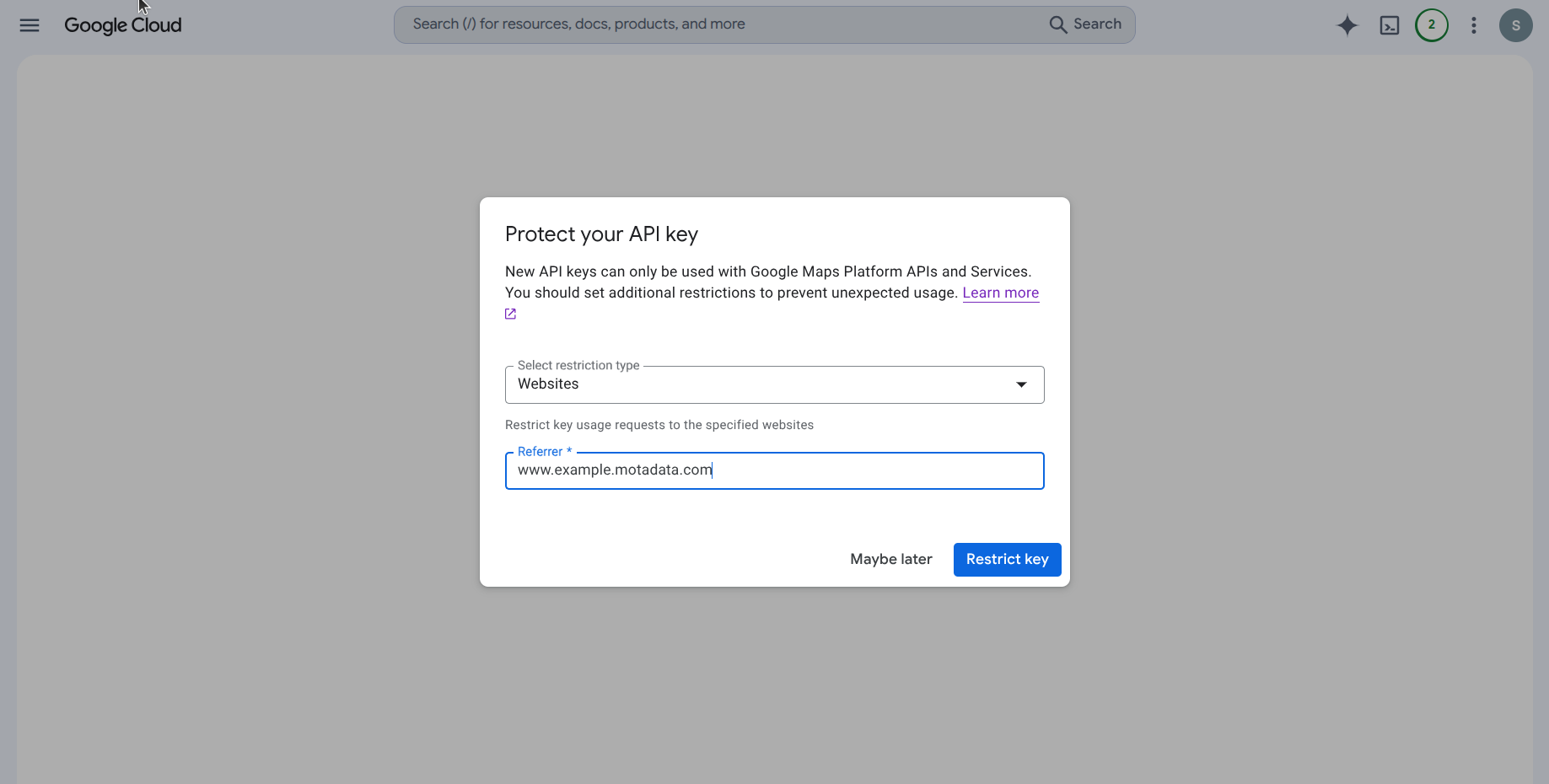
For the initial GeoMap validation, you may keep Application restrictions set to None so the key can be tested without domain, IP, or browser-origin restrictions. Enable the restriction only after functionality is verified.
4.2 API Restriction
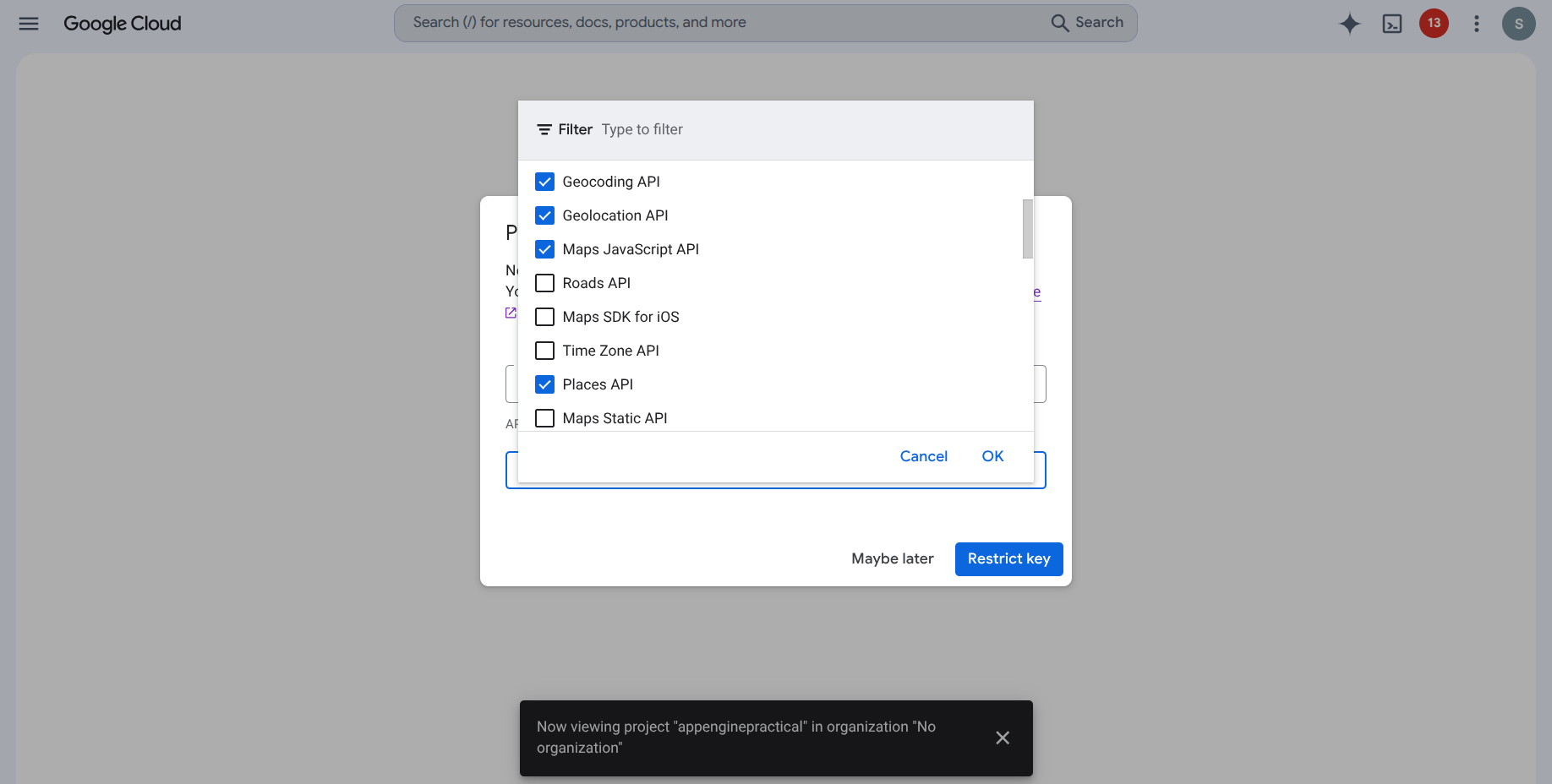
Under API restrictions, choose Restrict key and enable only the APIs required for GeoMap functionality. Scoping the key to a minimal, explicit list of Google Maps Platform services prevents accidental use against unrelated Google Cloud APIs, keeps billing predictable, and ensures Motadata GeoMap has access to every capability it needs at runtime.
Enable the following APIs on the key:
- Geocoding API: required for converting addresses into geographical coordinates and vice versa. GeoMap uses this service to translate street addresses, city names, and location strings that administrators enter into the latitude and longitude values plotted on the map, and to run the reverse lookup when a user clicks a point on the canvas.
- Geolocation API: required when location information needs to be determined using network-based location data. It provides an approximate device position from Wi-Fi and cell signals when precise GPS coordinates are unavailable, so assets without explicit latitude and longitude can still be centered on the map.
- Maps JavaScript API: required if Google Maps JavaScript functionality is used for map rendering or interaction. This is the core rendering engine that draws the base map, tiles, markers, clusters, and overlays inside every Motadata GeoMap widget, dashboard, and monitor screen.
- Places API: required for location search, place details, and address autocomplete. GeoMap depends on this service to power the search box, return place metadata such as name and formatted address, and suggest matches in real time as an administrator types a location.
Click OK, then click Restrict key to apply the restrictions.
4.3 Edit API Key Restrictions Later
You can update the application restrictions or the list of allowed APIs on an existing key at any time. Use this flow whenever a new Motadata GeoMap capability requires an additional Google Maps Platform API, or when you need to tighten or relax an existing restriction.
From the Google Cloud Console overview page, or from the left navigation under APIs & Services, click Credentials.
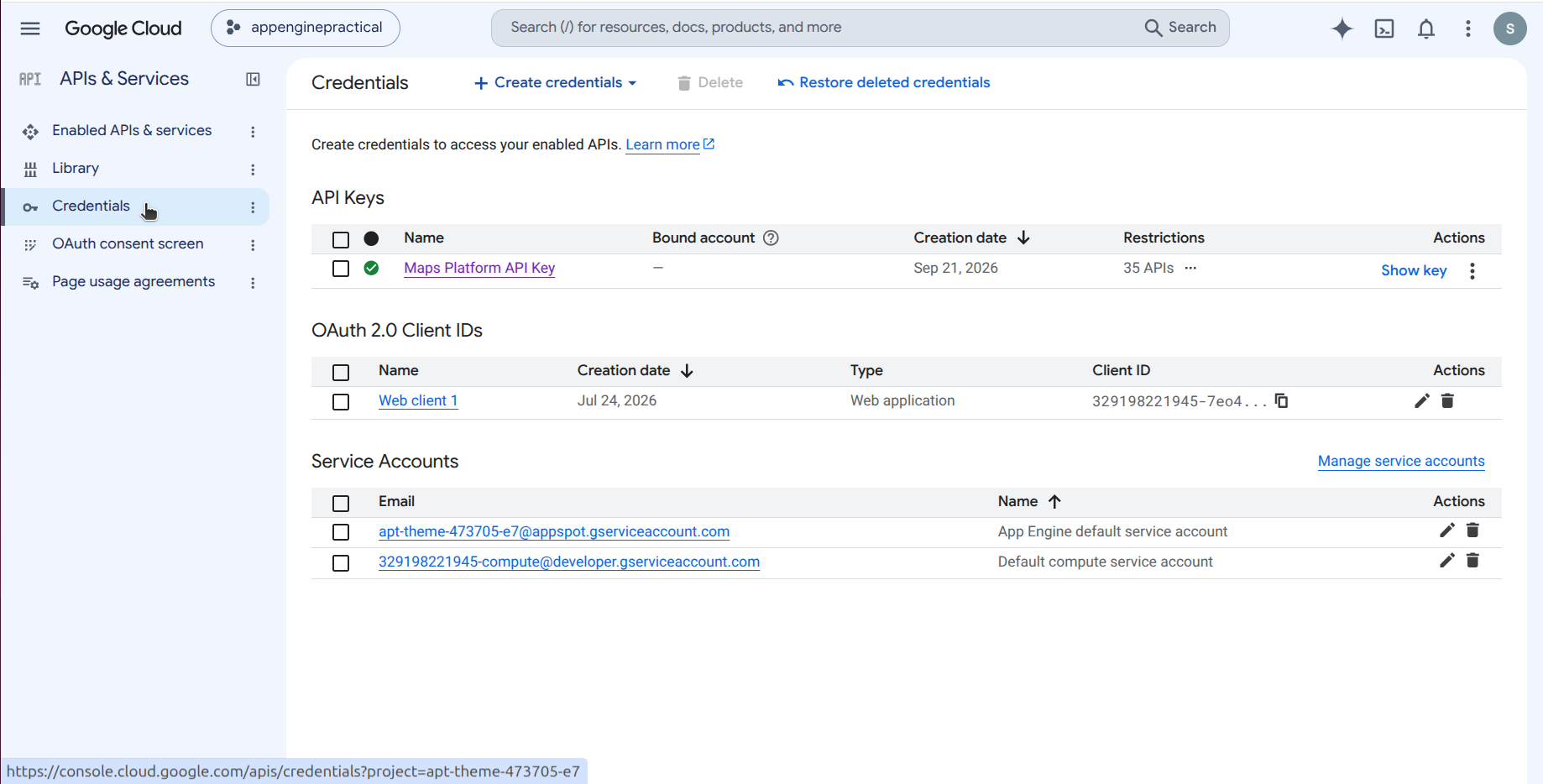
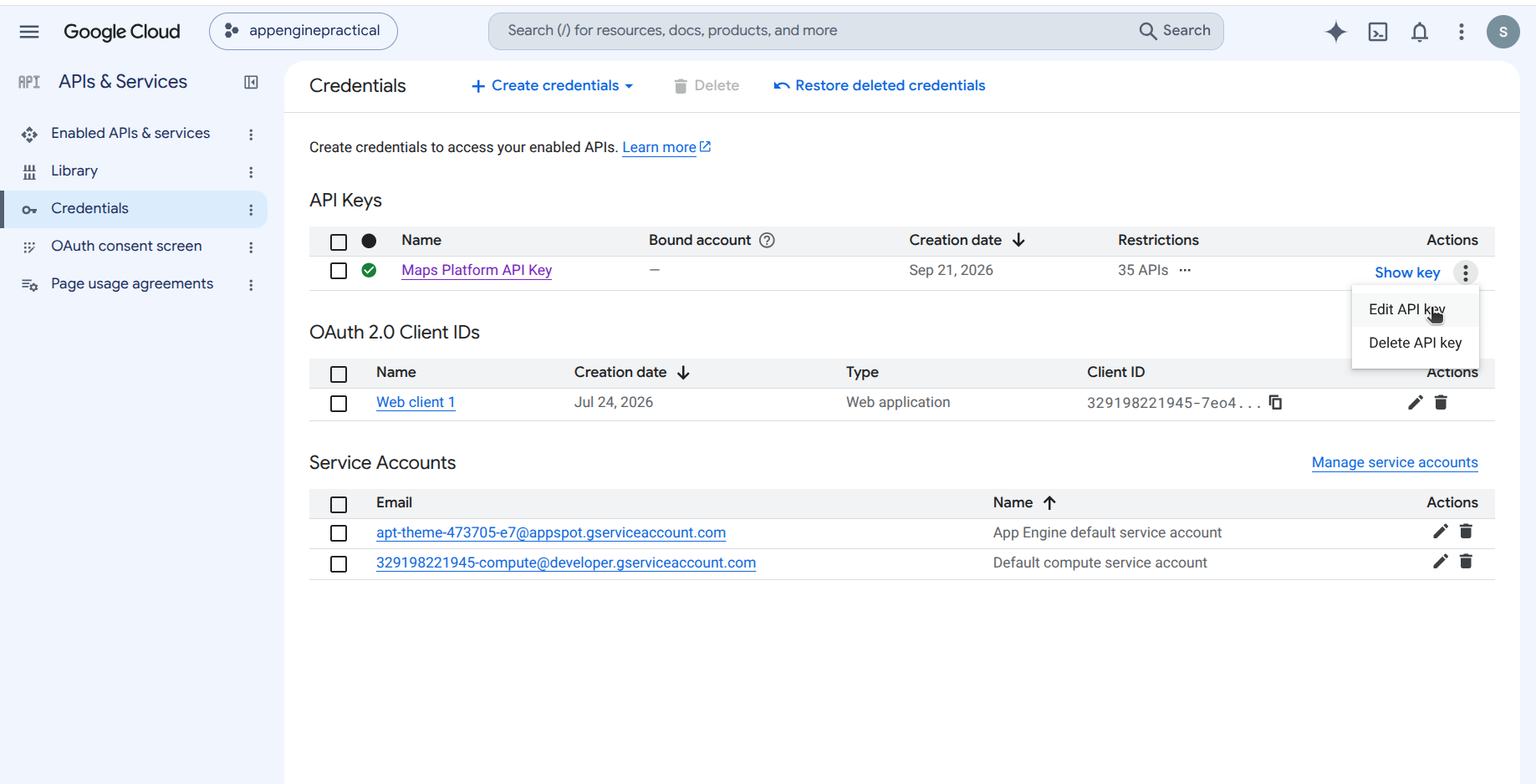
In the API Keys table, locate the key you want to modify, click the Actions menu (three dots) on the right, then click Edit API key.
On the Edit API key page, open the Select API restrictions dropdown, select or clear the APIs as required, then click OK. The updated APIs appear in the restriction list.
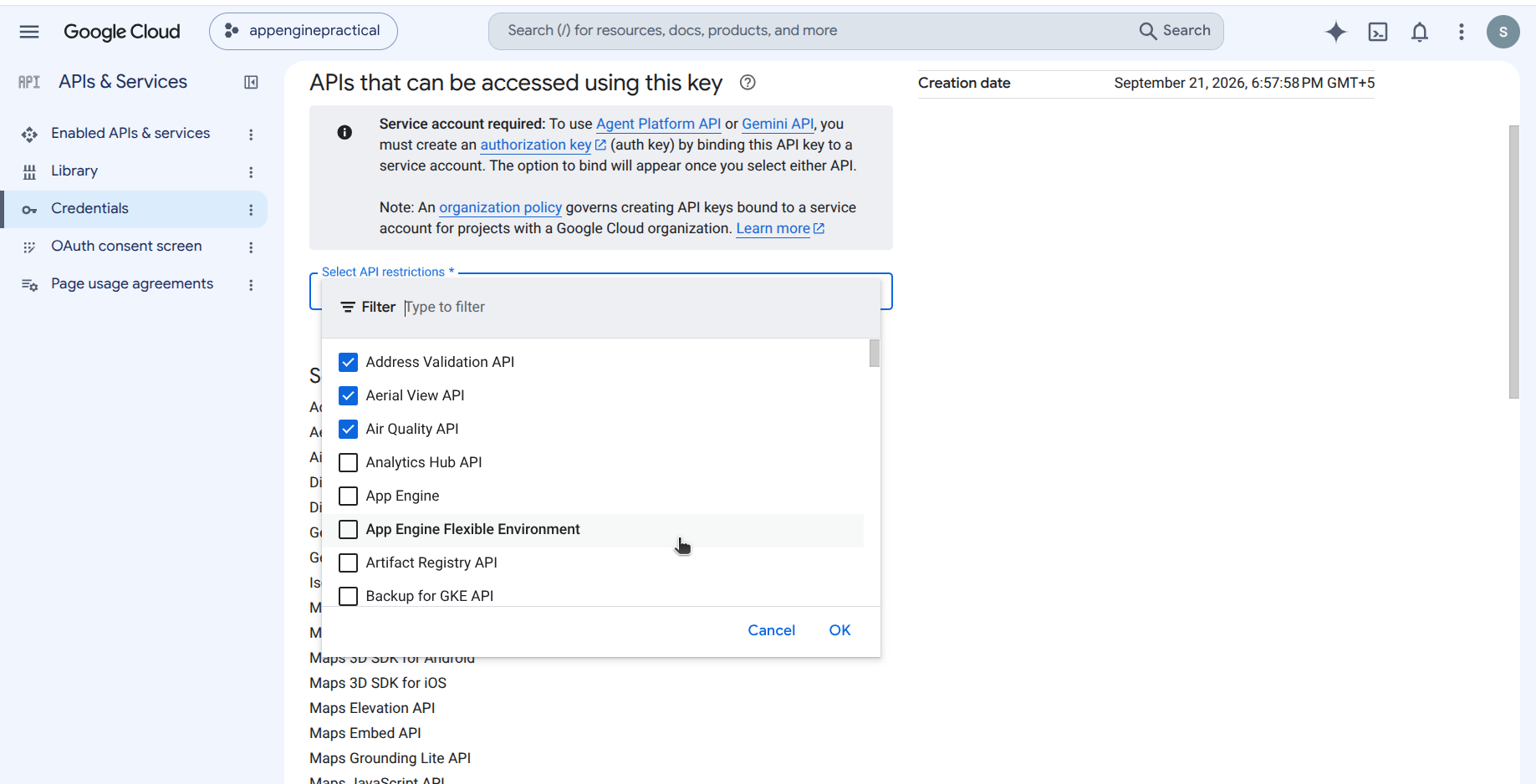
Click Save to apply the changes to the key.
Changes to key restrictions take a few minutes to propagate across Google's edge. If Motadata GeoMap continues to report an authorization error after the edit, wait a few minutes and retry.
Step 5. Configure the API Key in Motadata Geo Map
Log in to Motadata ObserveOps as an administrator, then navigate to:
Menu → Settings  → Integration
  → Geo Map
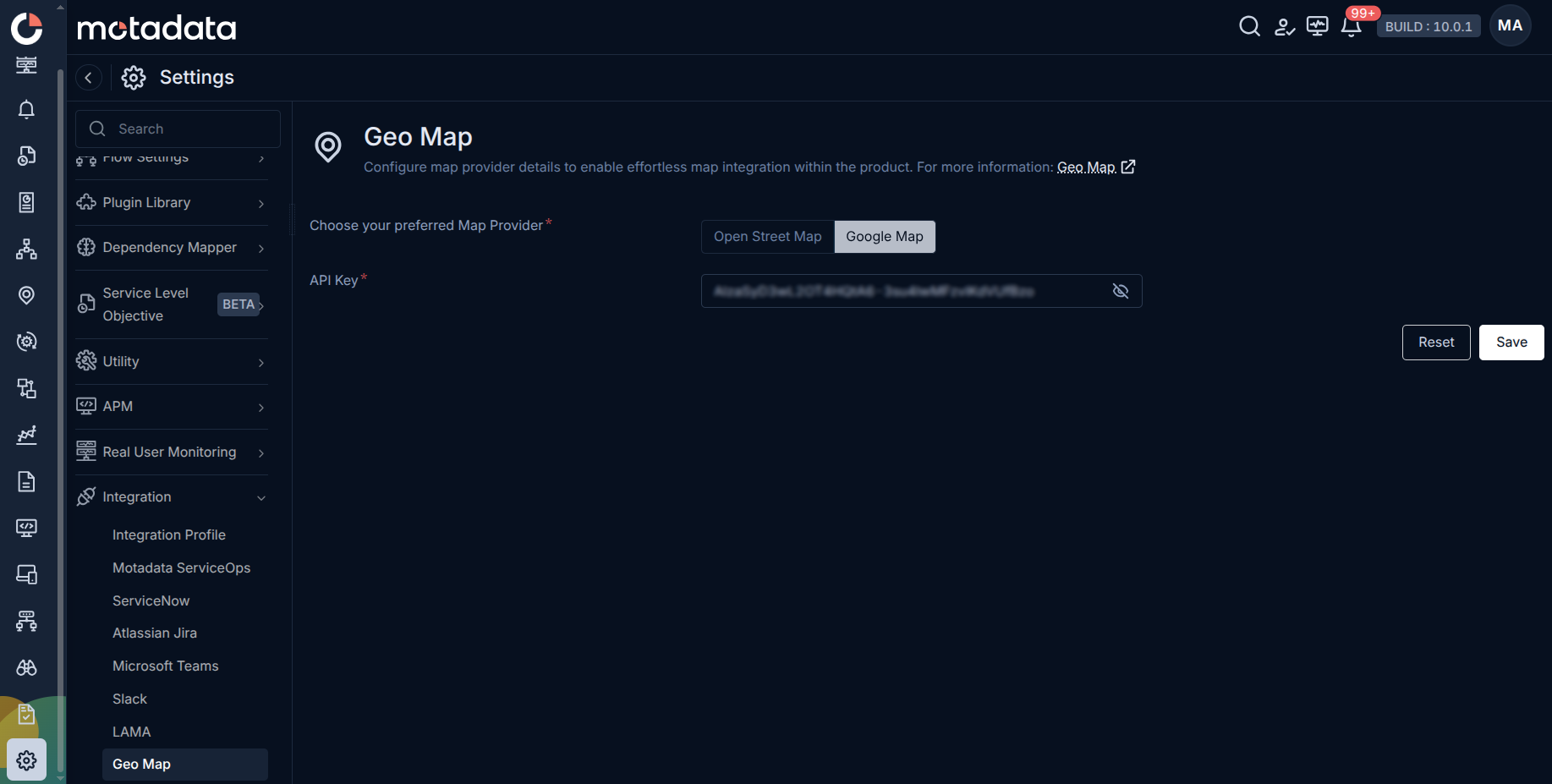
- Under Choose your preferred Map Provider, select Google Map.
- Paste the API key copied in Step 3 into the API Key field.
- Click Save.
Validation
After saving the key, verify that Motadata can successfully call the Google Maps Platform.
- Open a monitor / dashboard widget that renders a map.
- Test the location search and address autocomplete functionality. It should return suggestions from Google.
- Confirm that monitored devices/assets are plotted on the map without console errors.
Optional: Retrieve the Key from Cloud Shell
You can also retrieve or verify a key string via gcloud:
gcloud services api-keys get-key-string <API_KEY_ID>

# Example output:
# keyString: AIzaSyDR79P9leYBYmhAGJglI7X4qIY5a5VCZpU
Security: Never share or commit an unrestricted API key. Rotate the key if it is exposed and always apply both application and API restrictions before production use.
Troubleshooting
| Symptom | Probable Cause | Resolution |
|---|---|---|
| Map does not load / grey tiles | Maps JavaScript API not enabled, or referrer restriction blocking | Enable Maps JavaScript API and add Motadata domain to Website referrers. |
| Address autocomplete returns nothing | Places API not enabled | Enable Places API (and Places API (New) if applicable). |
| "This API project is not authorized" error | API not in the key's allowed API list | Add the API under API restrictions for that key. |
| "Billing not enabled" error | No billing account linked to the project | Link a billing account under Billing in Google Cloud Console. |
| 401 / 403 responses | Referrer / IP restriction mismatch | Verify the Motadata deployment URL matches an entry under Application restrictions. |
Related Topics
- Configuring Geo Map Integration: how to set the map provider and paste the API key in Motadata.
- Using the Geo Map: how to interact with the Geo Map screen after configuration.