Auto Instrumentation
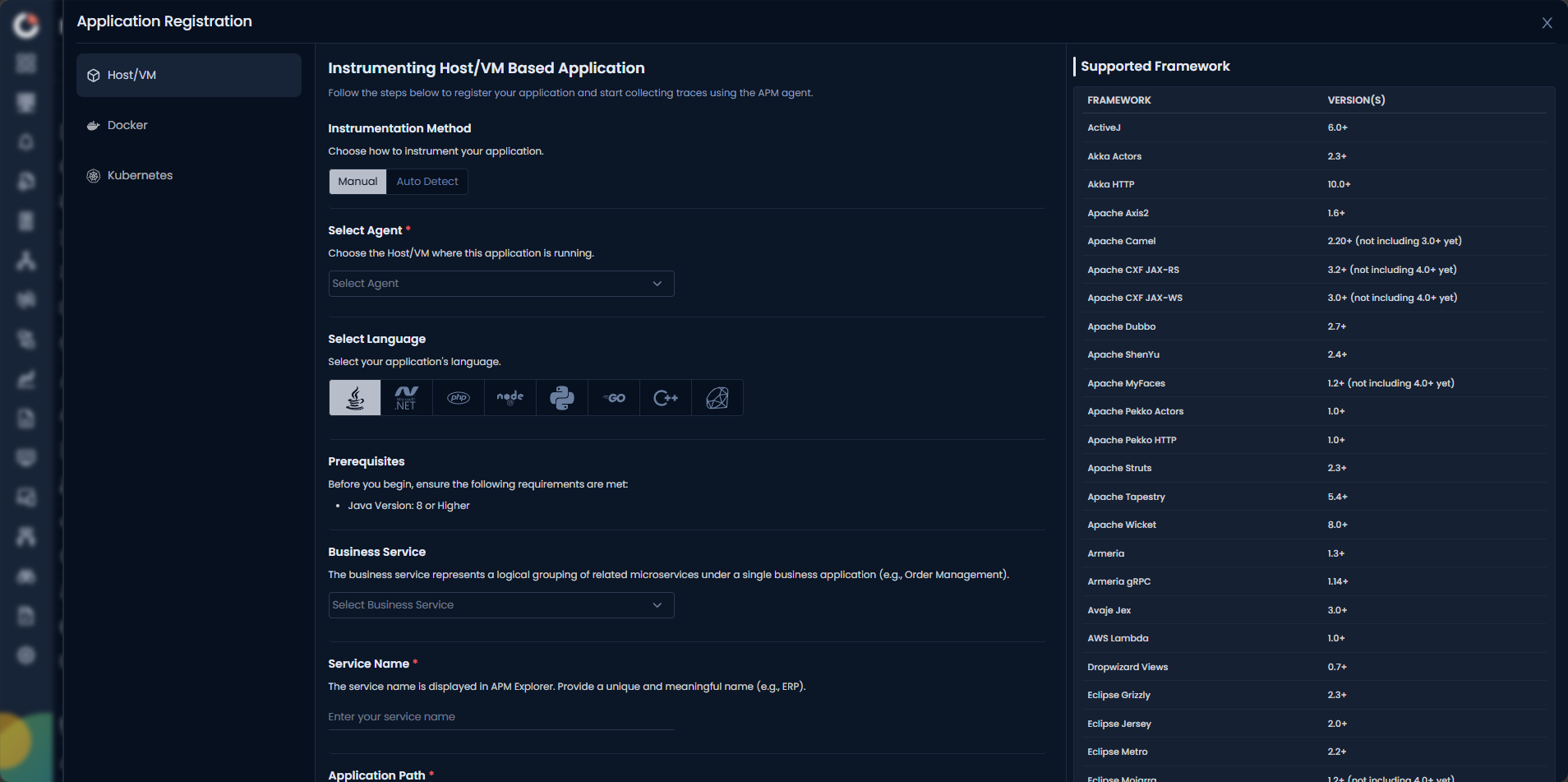
The APM agent can automatically scan your servers, virtual machines, and Docker hosts to find Java and .NET applications that are ready to be instrumented. You can turn on monitoring for them with a single click directly from the UI, on both Linux and Windows hosts.
For Docker deployments, the Motadata Agent installed on the Docker host discovers the applications running inside containers, identifies the supported runtimes, and lists the containerised applications the same way it lists Host/VM applications. You can register a discovered containerised application from the same Application Registration screen — no separate flow is required.
Prerequisites
Before you begin, ensure the following requirements are met:
The Motadata Agent must be installed and running on the server where the application is deployed. The
otelcolprocess must also be running as part of the Motadata Agent.To check the agent status, open a Linux terminal and run the following command:
service motadata-agent statusinfoIf the agent is not running, restart it using the following commands:
service motadata-agent stop
service motadata-agent start
For Java applications, Java version 8 or higher is required. To verify the installed version, run:
java -versionFor .NET applications, a supported .NET runtime must be installed on the host. To verify the installed version, run:
dotnet --versionMotadata Agent and application must meet the minimum supported version for auto detection.
Navigation
Select Auto Detect as the Instrumentation Method.
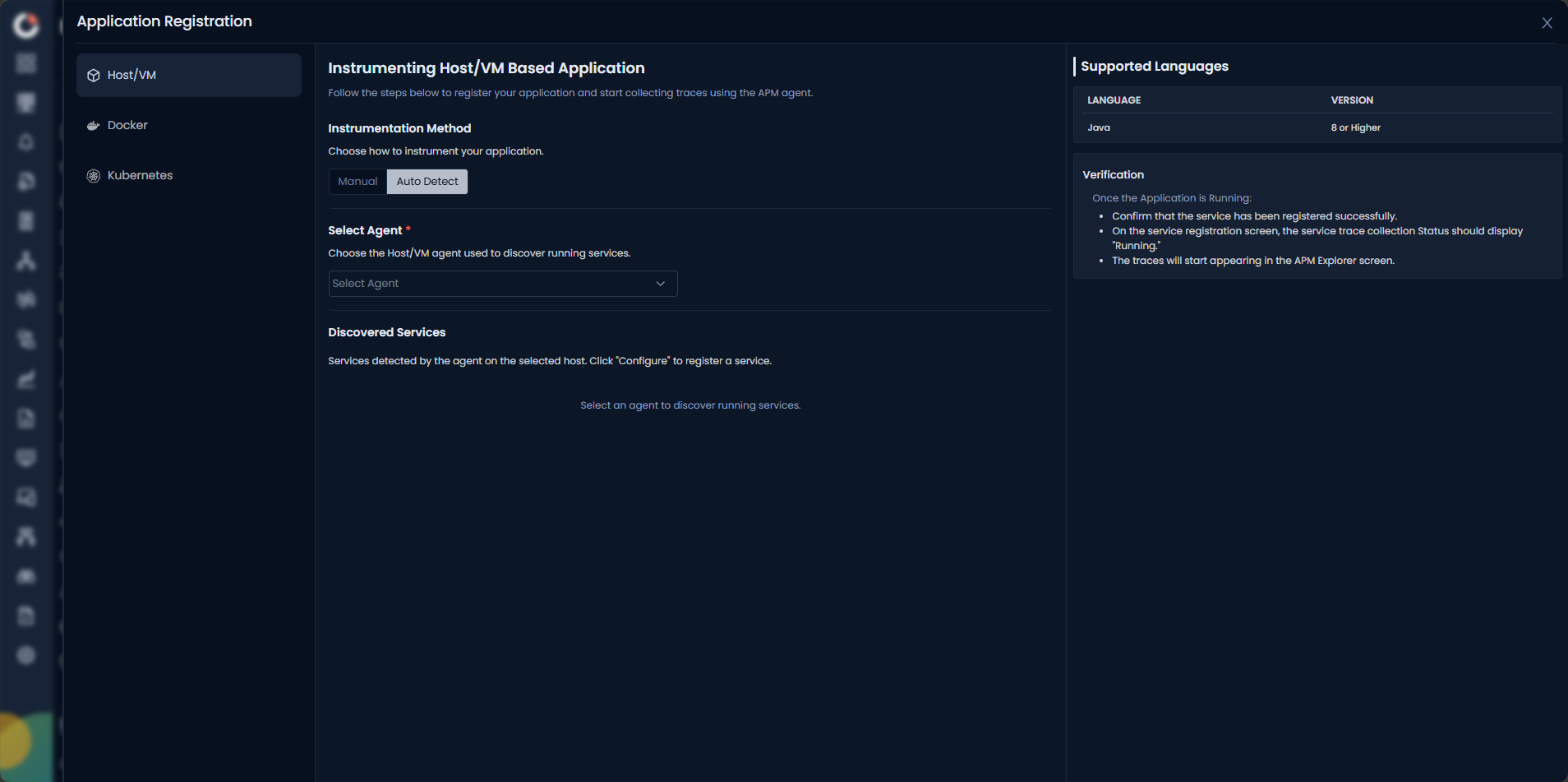
Select the Linux or Windows agent for the Host/VM method from the Select Agent list. The Setup Command is displayed — copy it and run it in the CLI of the server where you want to instrument the application.
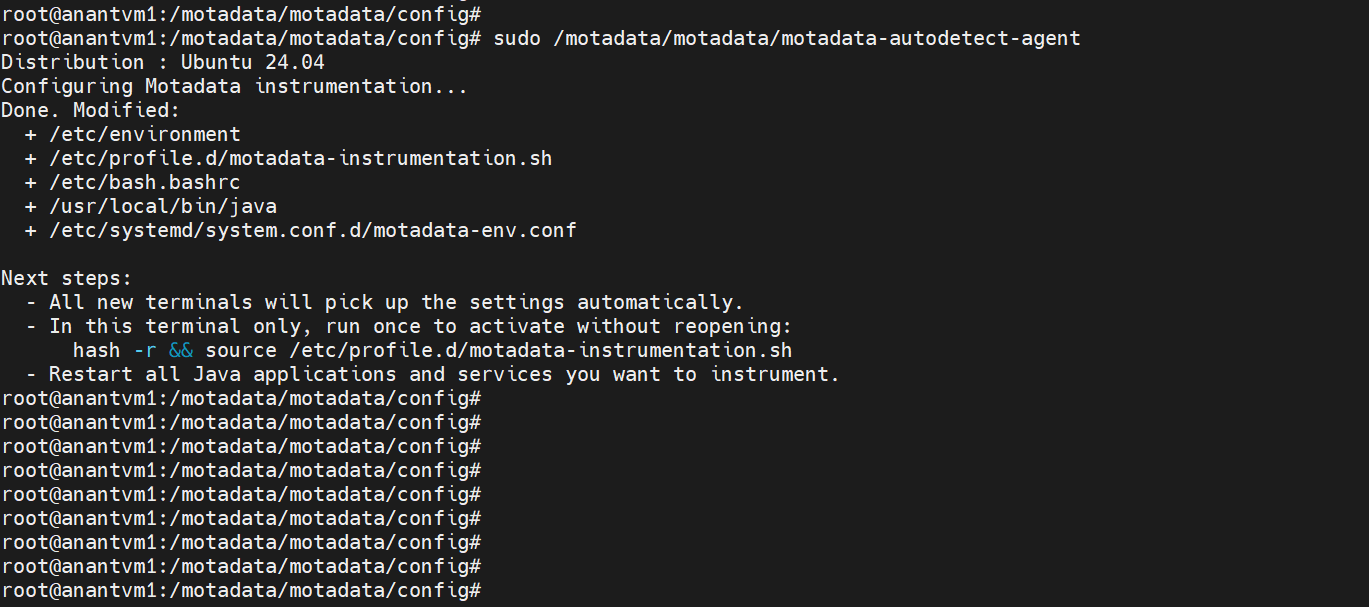
Once the above steps are applied, the list of discovered applications is displayed.
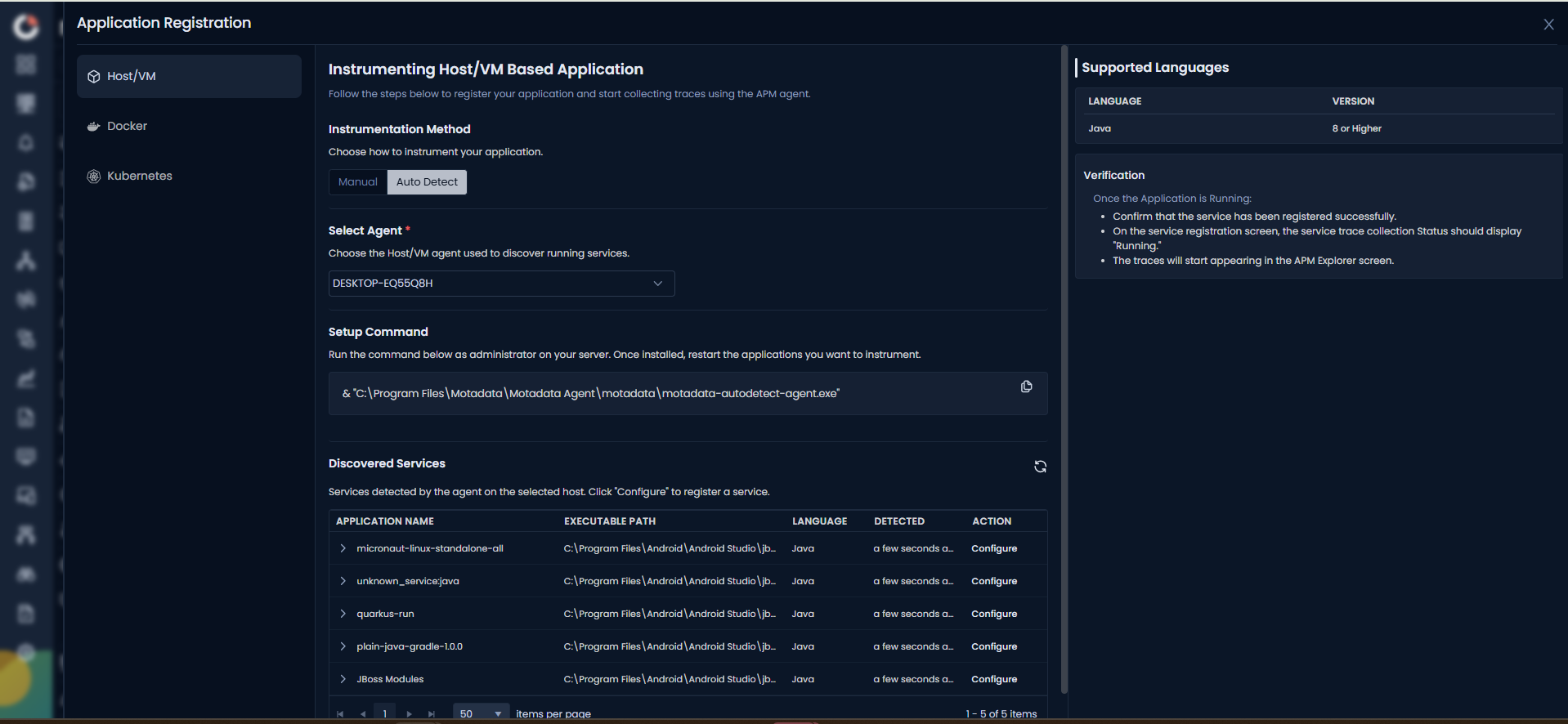
Click the Configure button in the Action column for the application you want to register.
Services with a name starting with unknown_service* cannot be registered. Additionally, if a service with the same name already exists, it cannot be configured again.
Once configured, a registration confirmation is displayed on the screen. Trace collection starts automatically, and the application becomes visible in the APM Explorer.
Troubleshooting: Java Agent JAR Access Issues
Symptoms
The application server (such as Tomcat) fails to start with errors similar to:
Error opening zip file or JAR manifest missing
Error occurred during initialization of VM
agent library failed to init
Cause
The Java agent JAR may exist with correct file permissions, but the application still cannot access it. This happens when one or more parent directories in the path lack execute (traverse) permission.
On Linux, a process needs execute (x) permission on every directory in the path to reach a file. Even if the JAR itself is readable, the application cannot load it if any parent directory blocks traversal.
This commonly occurs when the installer creates the instrumentation directory hierarchy with owner-only (700) permissions, and the application runs as a non-root service user.
Verification Steps
Verify that the JAR file exists:
ls -la <path-to-agent-jar>Identify the user running the application. Do not assume it runs as
root.Check the permissions of every directory in the path:
namei -l <path-to-agent-jar>Look for parent directories that show
drwx------or otherwise deny execute (x) permission to the application user or group.
Solution
Grant traverse (execute) permission on each affected parent directory:
chmod o+x /opt/motadata
chmod o+x /opt/motadata/motadata
chmod o+x /opt/motadata/motadata/motadata
chmod o+x /opt/motadata/motadata/motadata/instrumentation
Alternatively, adjust group ownership and permissions according to your organization's security policies.
Restart the application server after updating the permissions. The Java agent should now load without errors.
When you see "Error opening zip file or JAR manifest missing", check the permissions of the entire directory path first, not just the JAR file. The namei -l command shows permission issues on every parent directory in one output.