Office 365 Integration Steps
Integration through the O365 Portal
Integrate your O365 account with Motadata AIOps from the O365 portal with the following steps:
Retrieve the Tenant ID of the Active Directory
Login to the O365 account you want to setup for monitoring.
Click on the App Launcher icon from the panel on the left of the your screen and then select Admin.

Click on the Show All button.
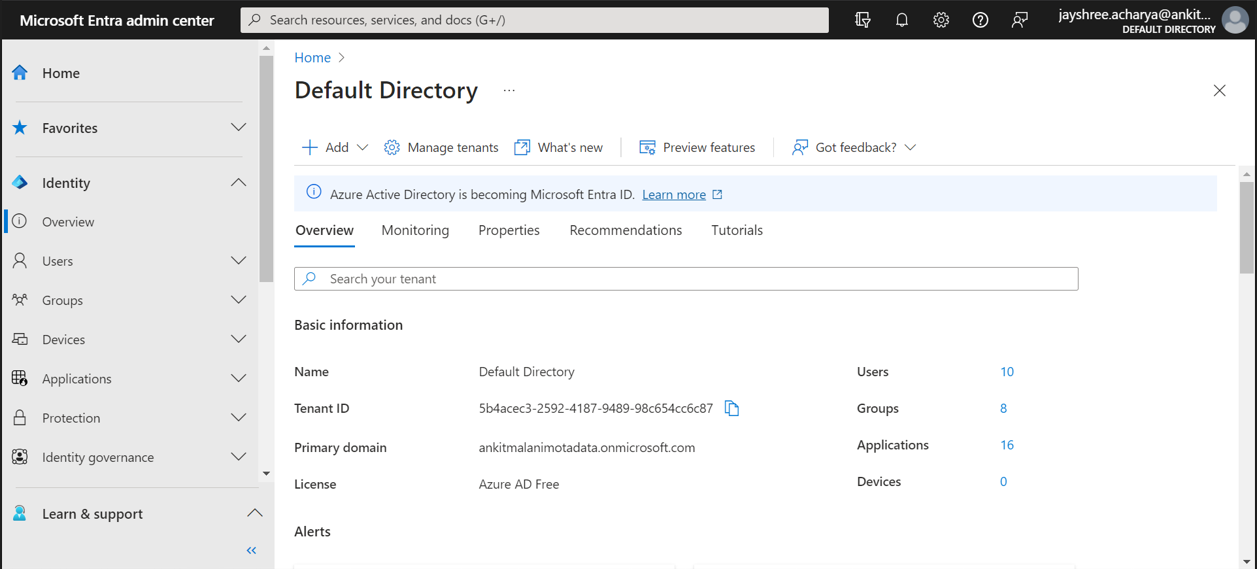
Under Admin Center, Click on Identity.

The Tenant ID is now available on the screen under the Overview section. Note down the Tenant ID to use later when discovering the O365 resources.
Retrieve the Client ID by registring an Application
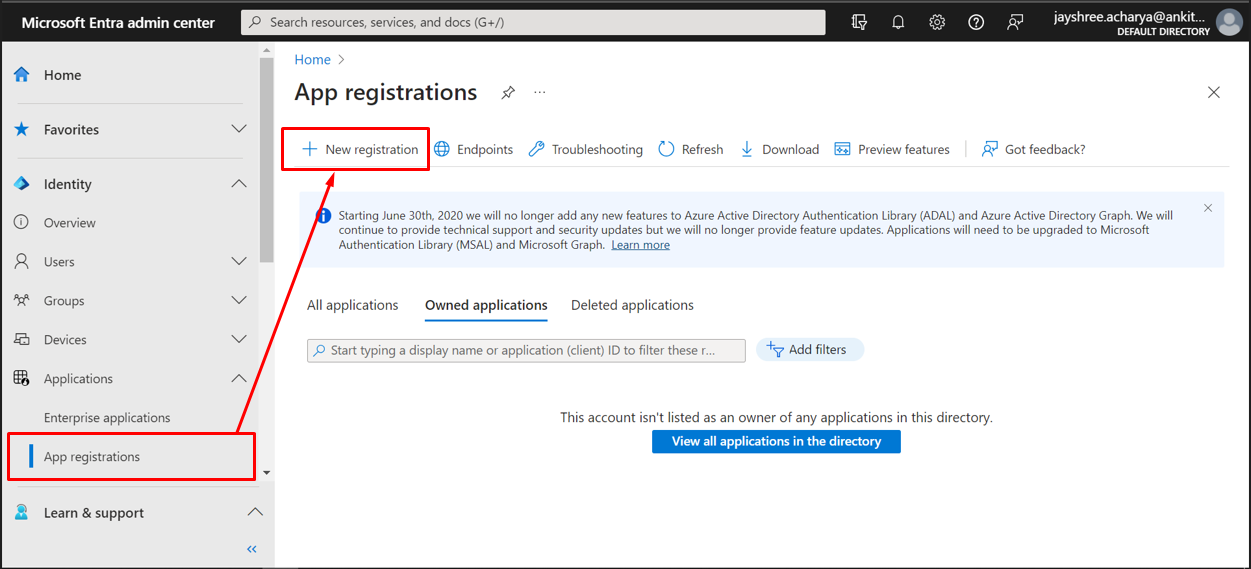
Click on Applications from the the panel on the left of your screen and then select App Registrations.
Select New registration.
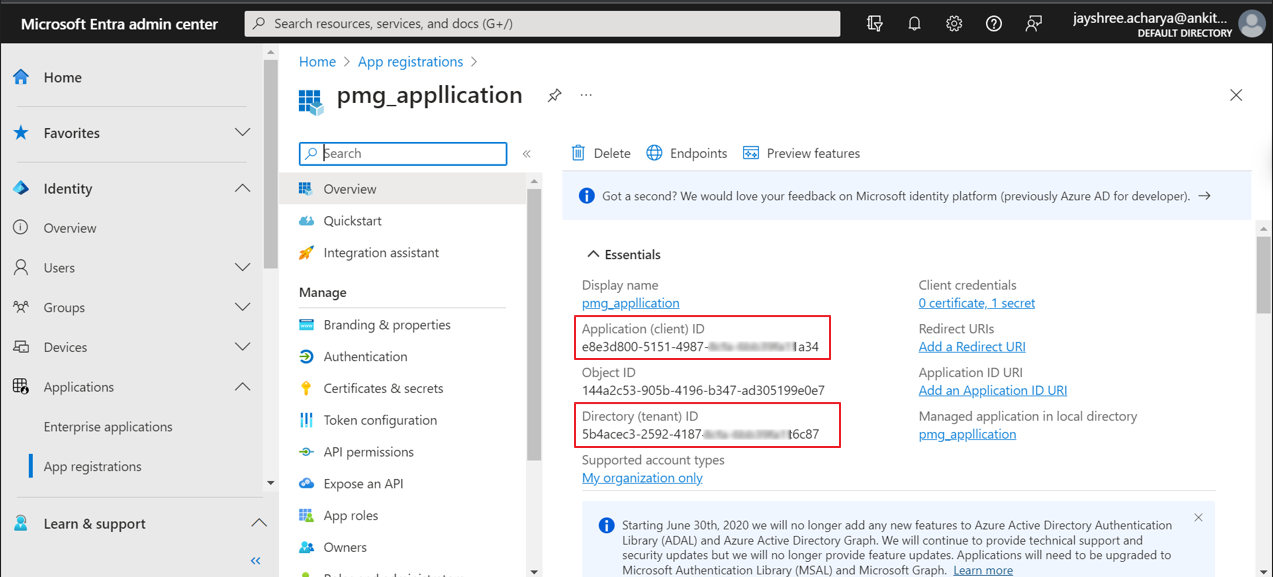
Enter the details required to register the application and then click on Register.
The Application(Client) ID is now available on the screen under the Essentials details. Note down the Application(Client) ID to use later when discovering the O365 resources.
Retrieve the Secret Key
Click on Certificates & secrets and then click on New Client Secret.
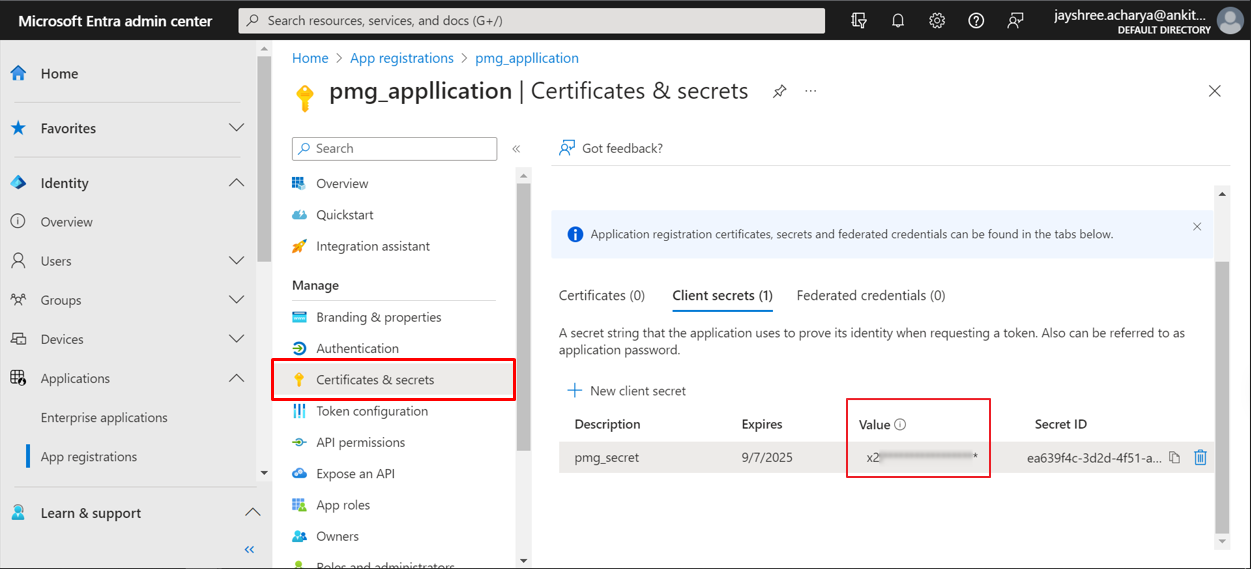
The secret Value is available under the Client secrets tab. Note down this value to use later when discovering the O365 resources.
The secret value is displayed only when you create a new client secret. If it is not copied at that time, returning to the screen later will show the value in a masked format with asterisks.
Add API Permissions
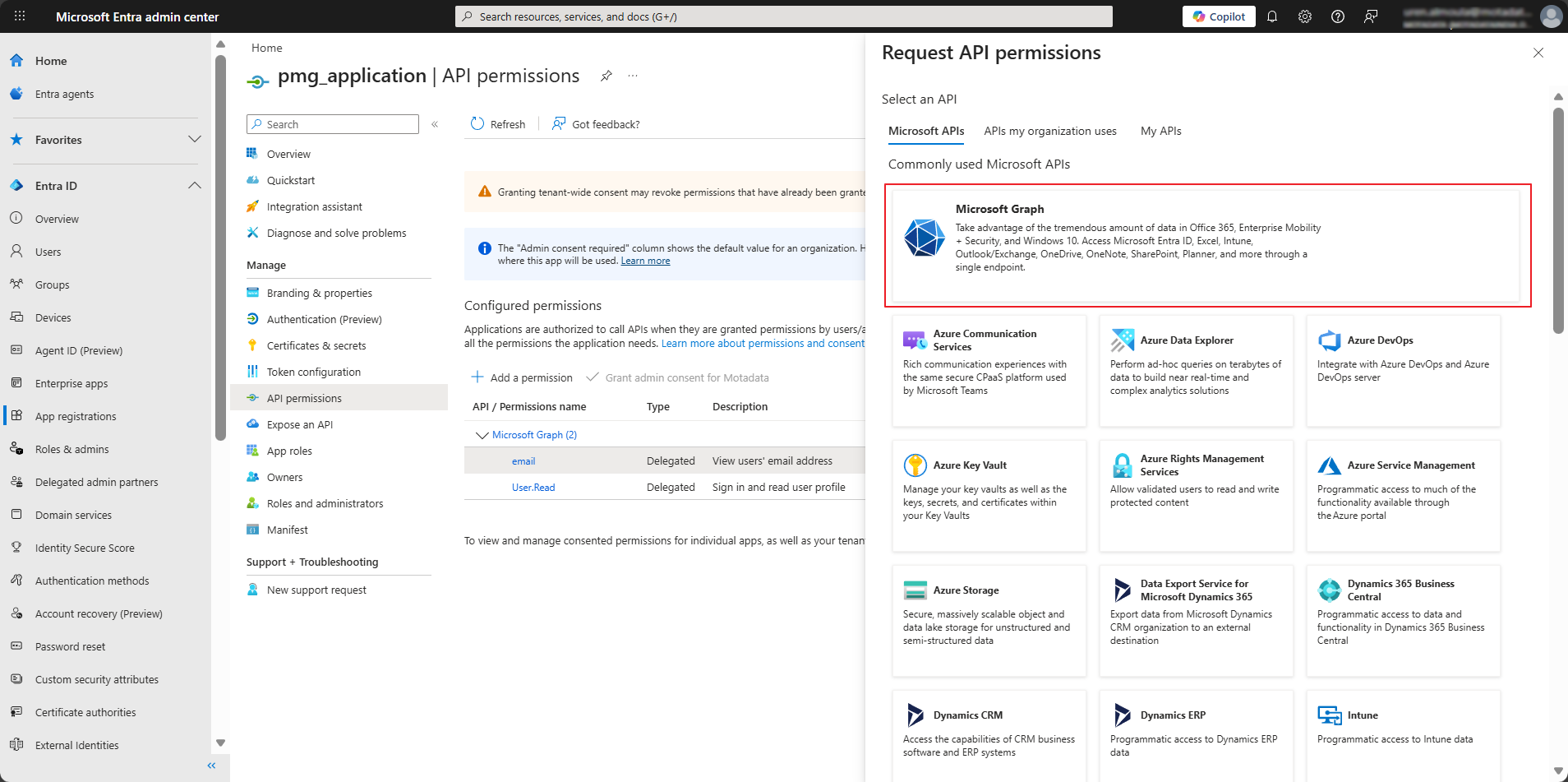
- Click on API permissions and then click on Add a permission. This drill-downs Request API Permissions page.
- Select Microsoft Graph displayed under the Microsoft APIs tab.
- Select the Application permissions option and search the below permissions.
- Organization.Read.All
- User.Read.All
- Reports.Read.All
- Directory.Read.All
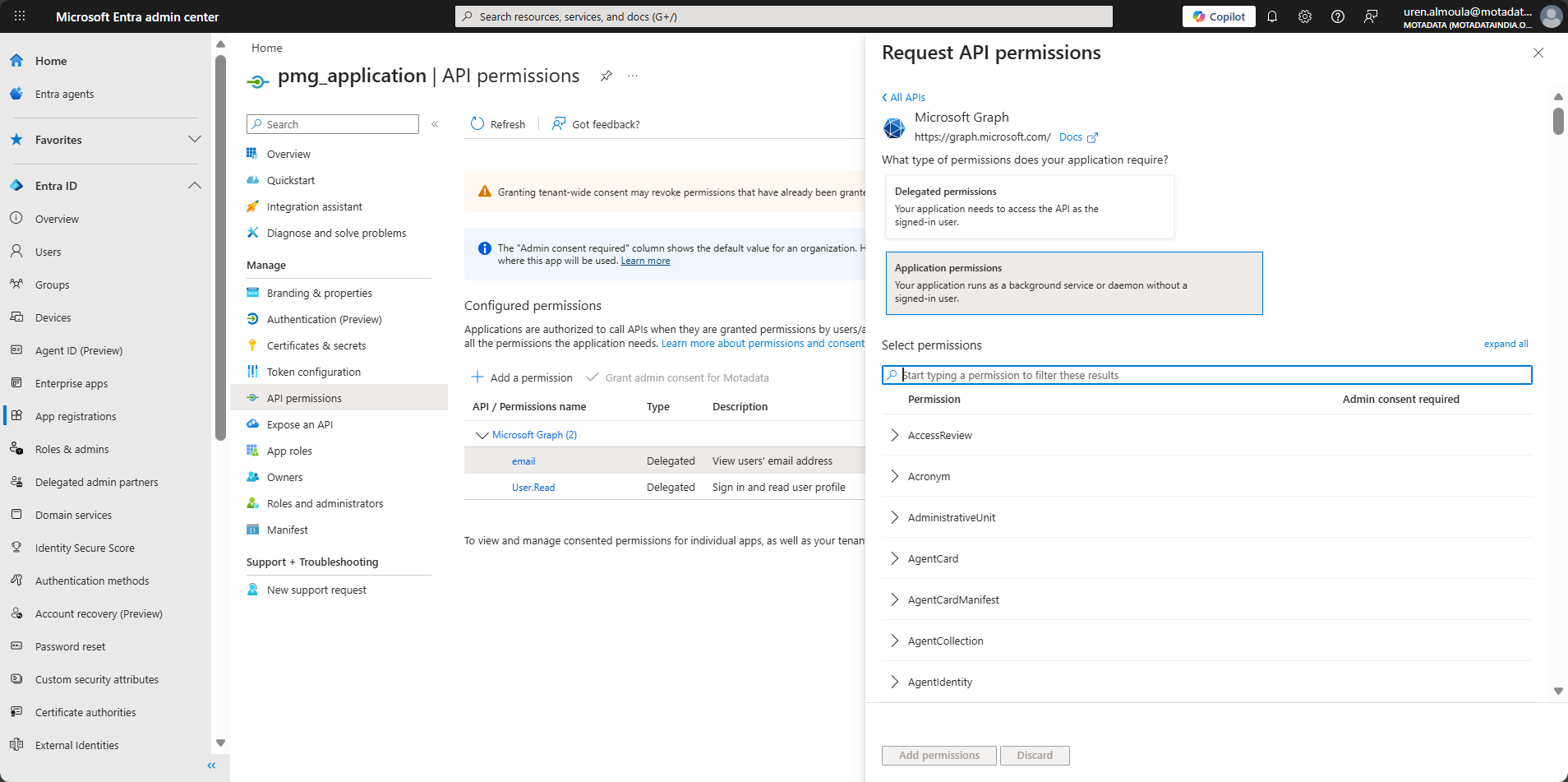
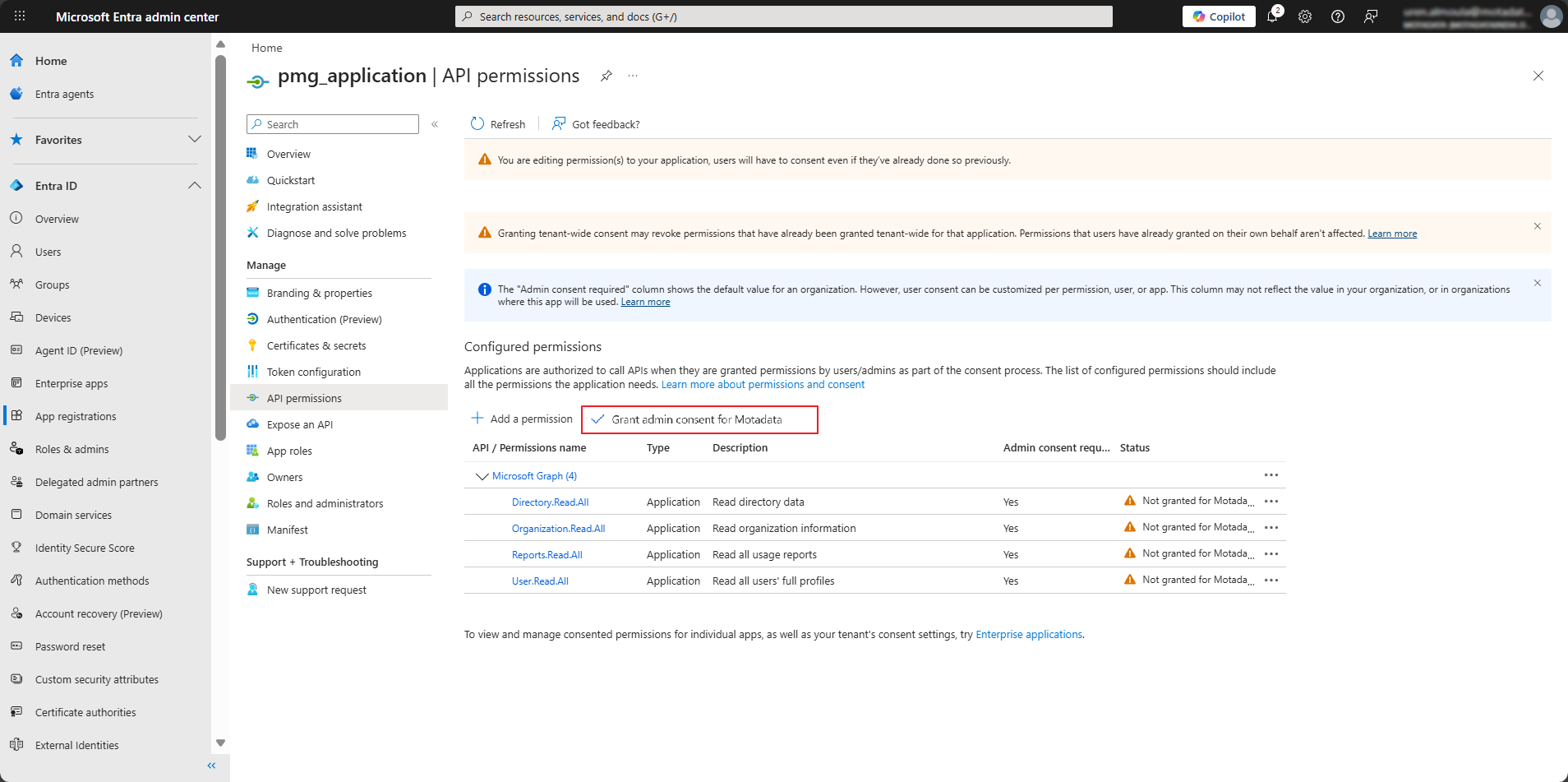
Select the respective checkboxes for each permissions and click the Add permissions button. You will routed to API Permissions dashboard again. Here, you can see the selected permission(s) listed under the API/ Permissions name column.
Clicking the Grant admin consent button allows the API to access the listed permissions within your domain.
Now, Client ID, Tenant ID, and Secret Key Value are available to discover O365 resources for monitoring.