Integration through the Google Cloud Console
Overview
To monitor Google Cloud Platform (GCP) resources in Motadata ObserveOps (formerly known as ObserveOps (formerly known as AIOps)), you need to retrieve the following credentials from the Google Cloud Console:
- Client ID
- Client Secret
You also need to enable the specific GCP service APIs you want to monitor. This guide walks you through each step.
Save the Client Secret immediately after creating the OAuth client, Google will not display it again after you close the dialog. You can also download the JSON file once Client Secret is created.
Step 1: Enable Consent Screen
Log in to the Google Cloud Console.
Open the Navigation Menu using top-left hamburger icon.
Go to APIs & Services and select OAuth Consent Screen.
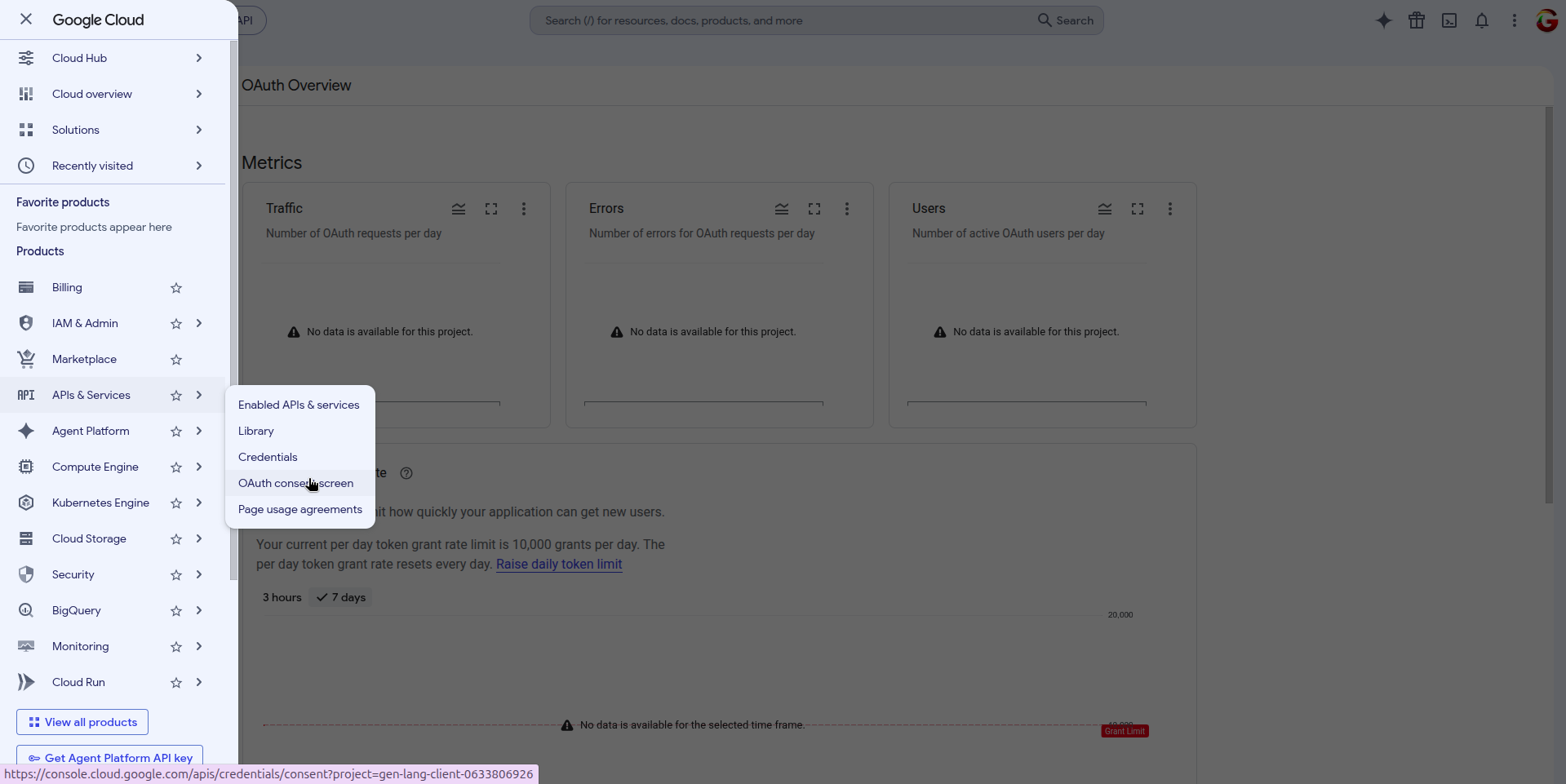
This displays you the OAuth Overview page.
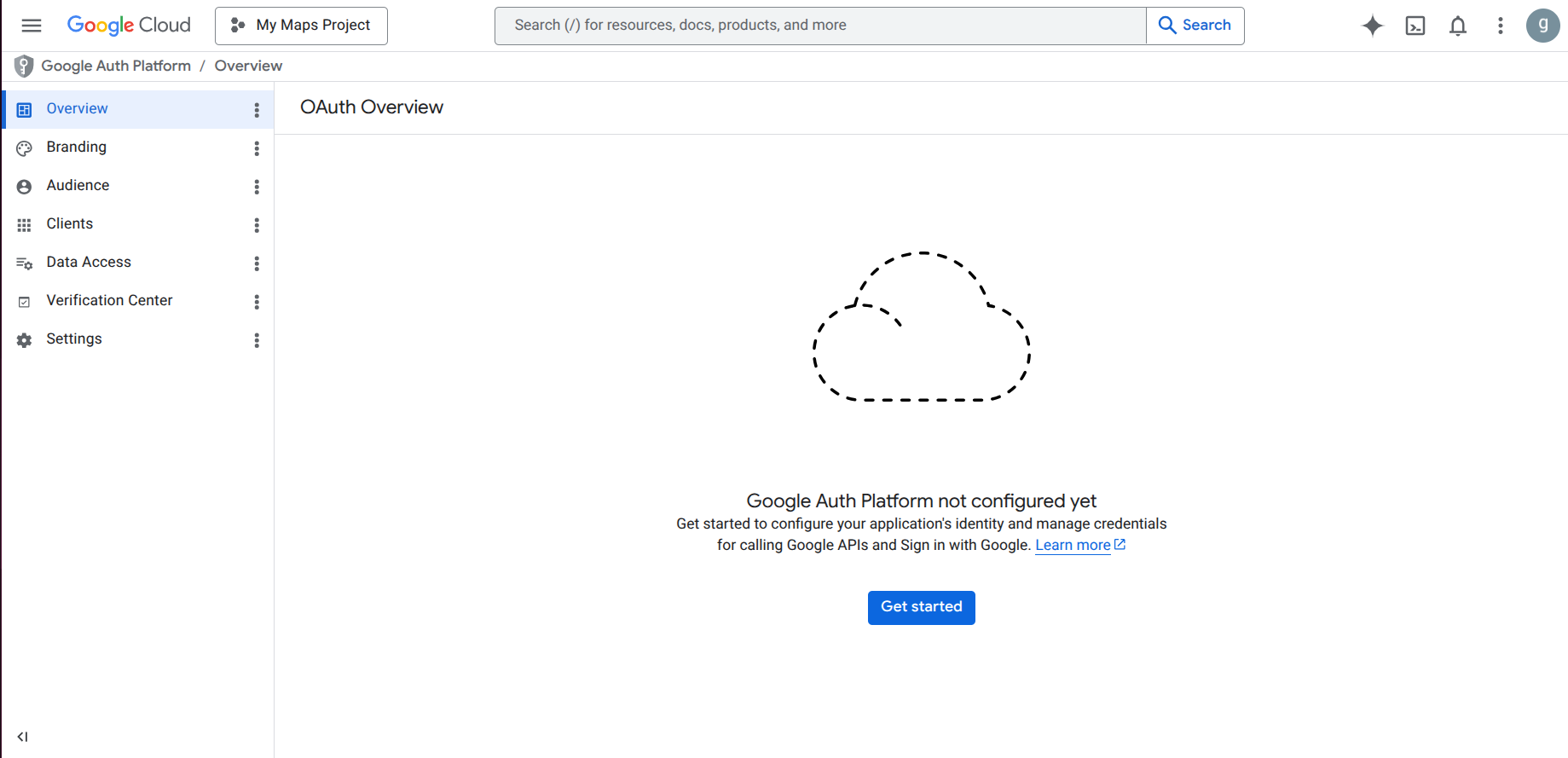
If consent is already enabled for your project, start from Step 2 after navigating to the OAuth Overview page.
Click the Get Started button to configure the consent screen.
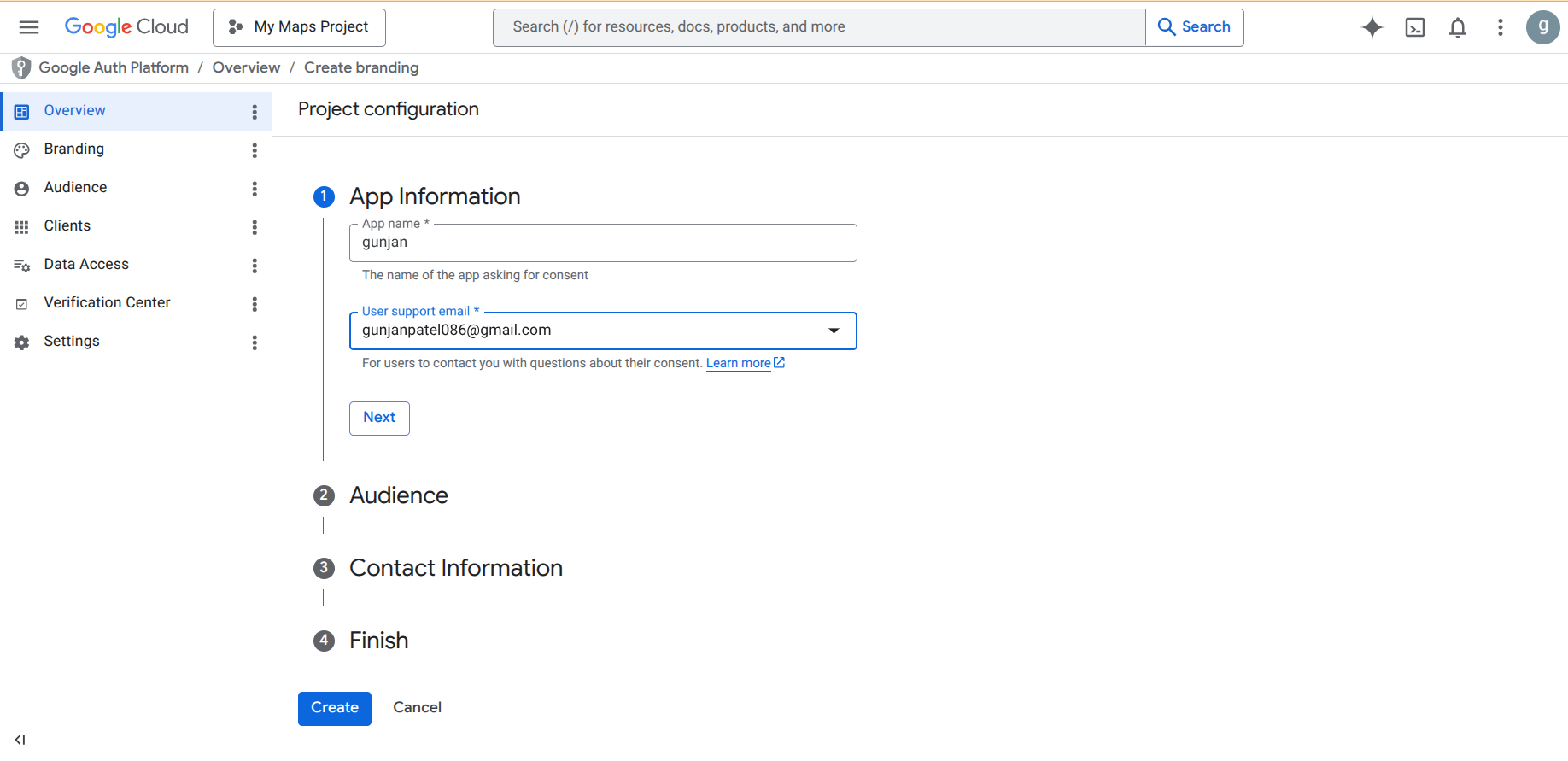
Enter the details such as App Name for which you are asking for consent and User Support Email where users can ask questions regarding this consent, under the App Information section and click the Next button.
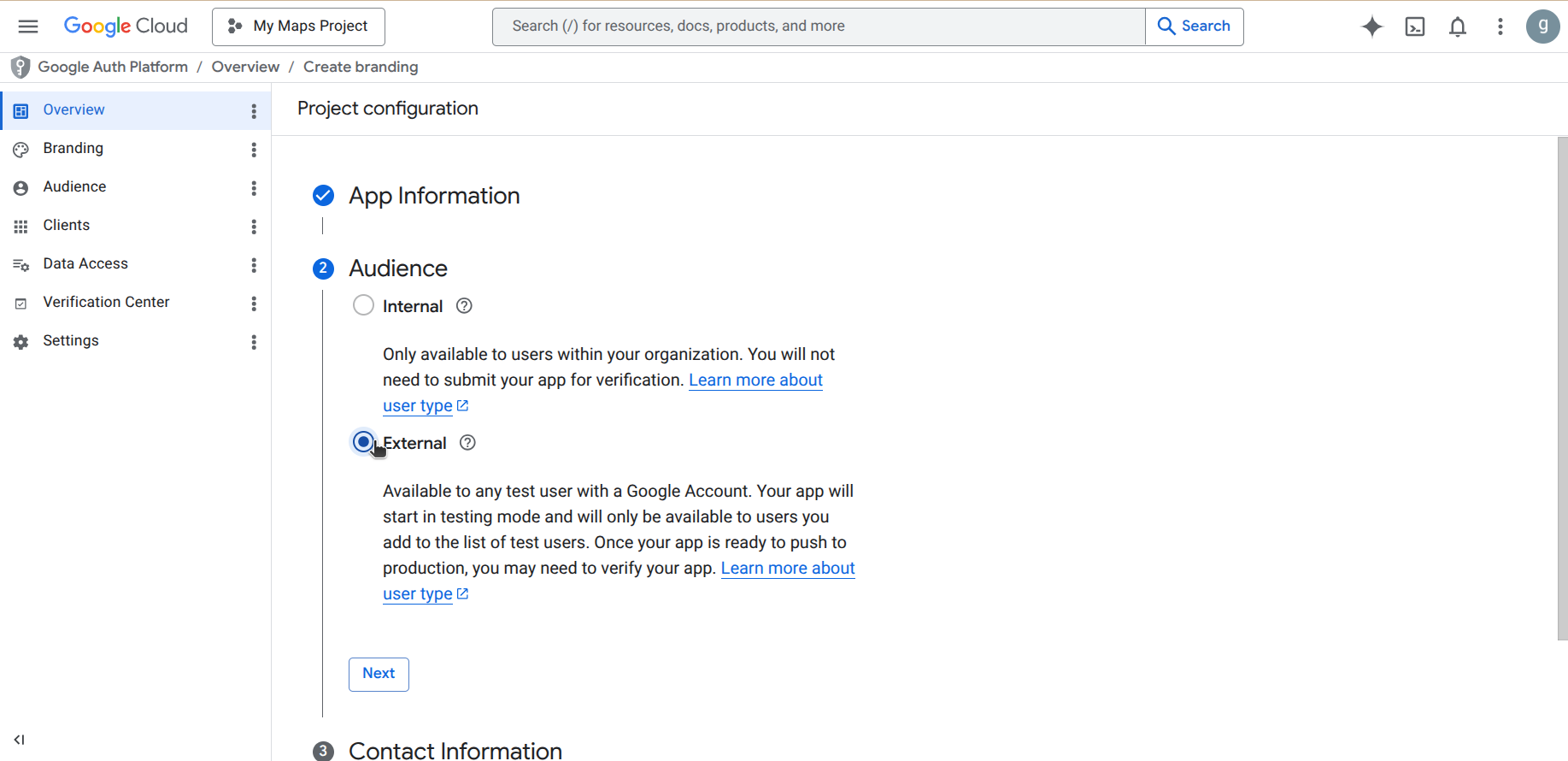
- Select the External option from the Audience list, and click the Next button.
- Provide Email Address to which Google will notify you about any changes to your project. Clicking the Next button will lead you to Finish the steps.
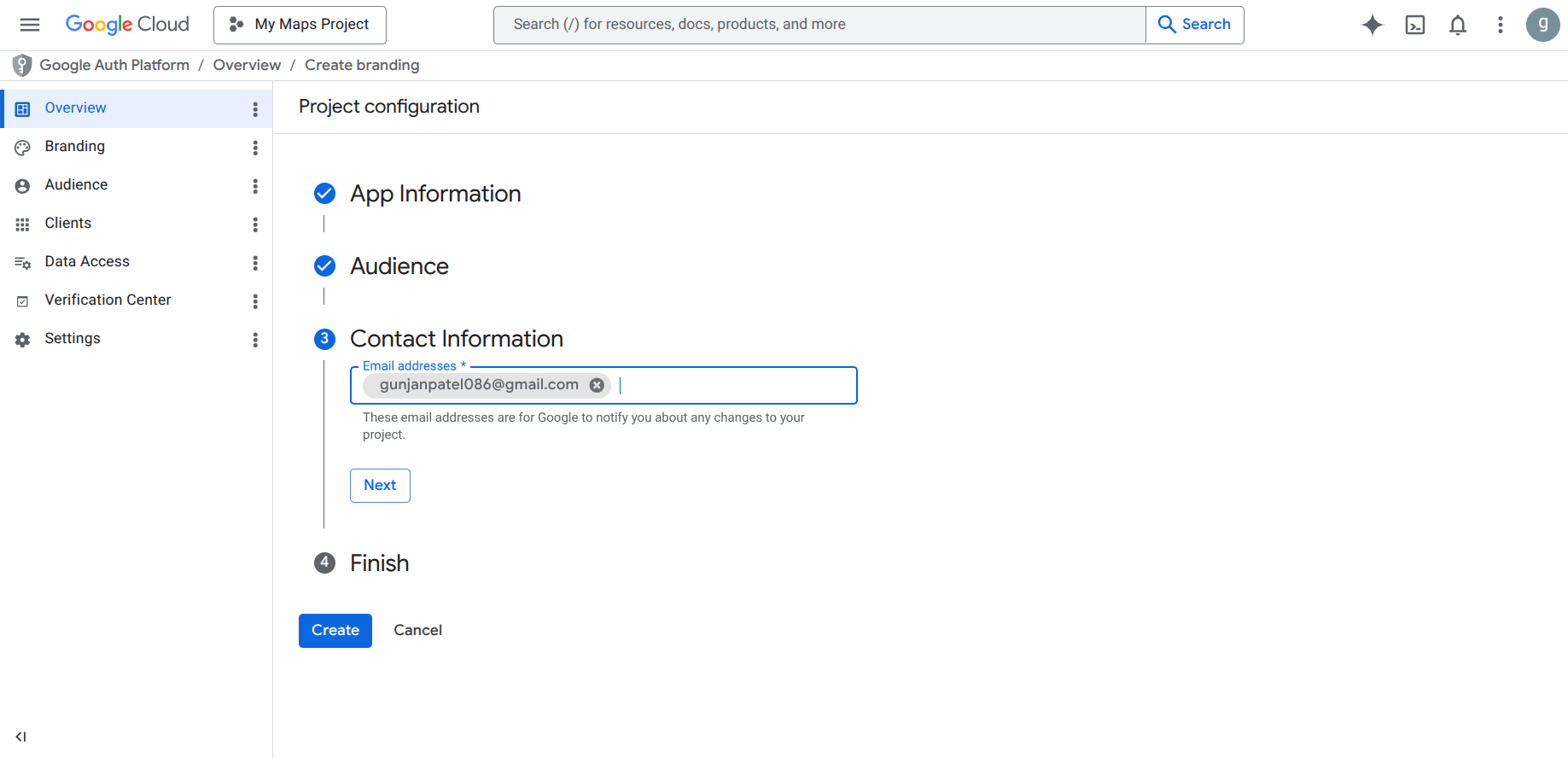
- Click the Create button to enable the the consent.
Step 2: Add Test User
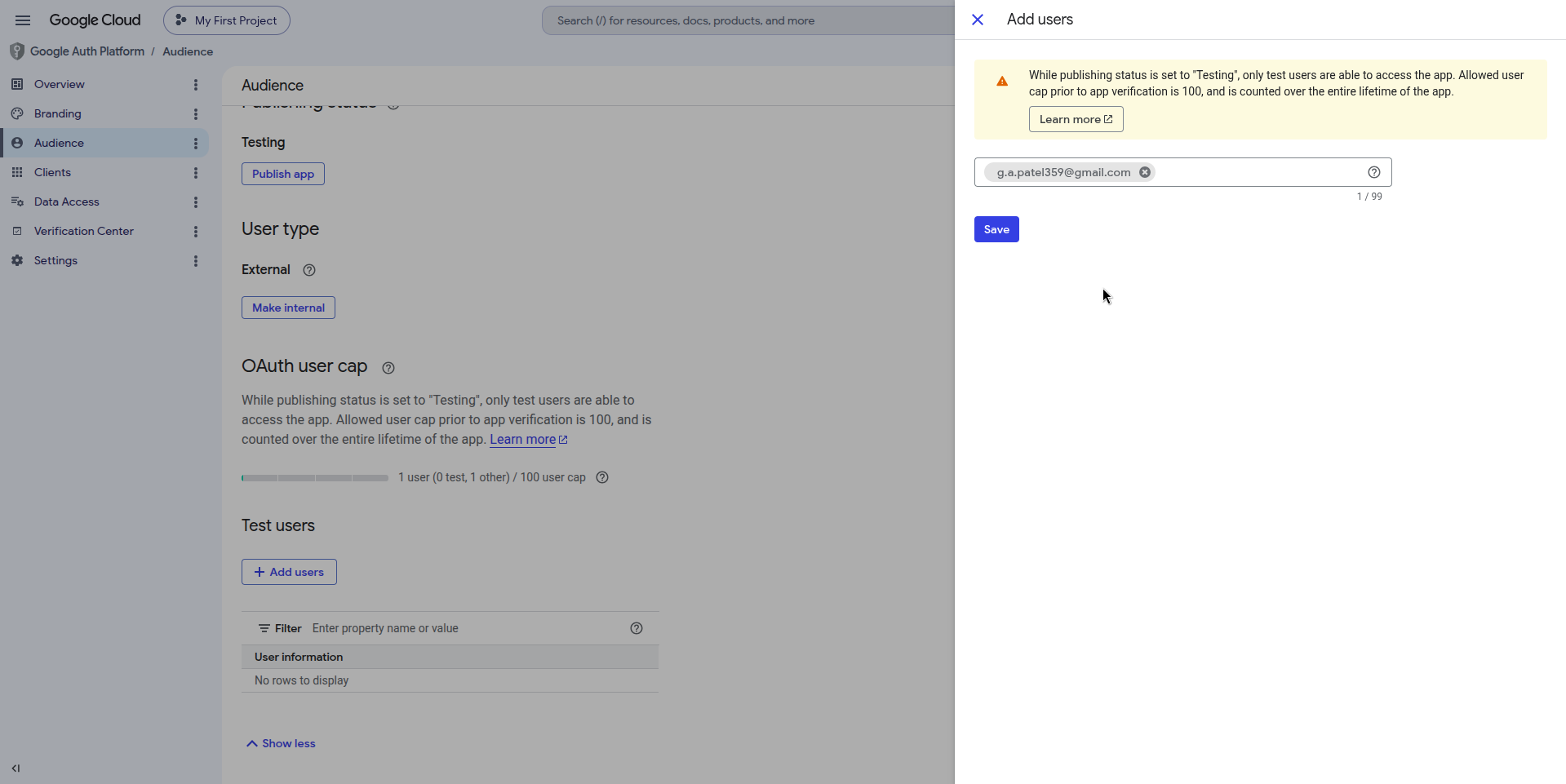
In the left-side panel under Google Auth Platform screen, click the Audience option.
Click the Add Users button under the Test Users section.
Provide the email id(s) for testing purpose only.
Step 3: Configure Data Access Scopes
In the left-side panel under Google Auth Platform screen, select Data Access.
Review the listed scopes. The following are the example of scopes, which are required for ObserveOps to collect GCP monitoring data:
| Scope | Purpose |
|---|---|
../auth/cloud-platform | Full access to Google Cloud services. |
../auth/cloudplatformprojects.readonly | View Cloud Platform projects. |
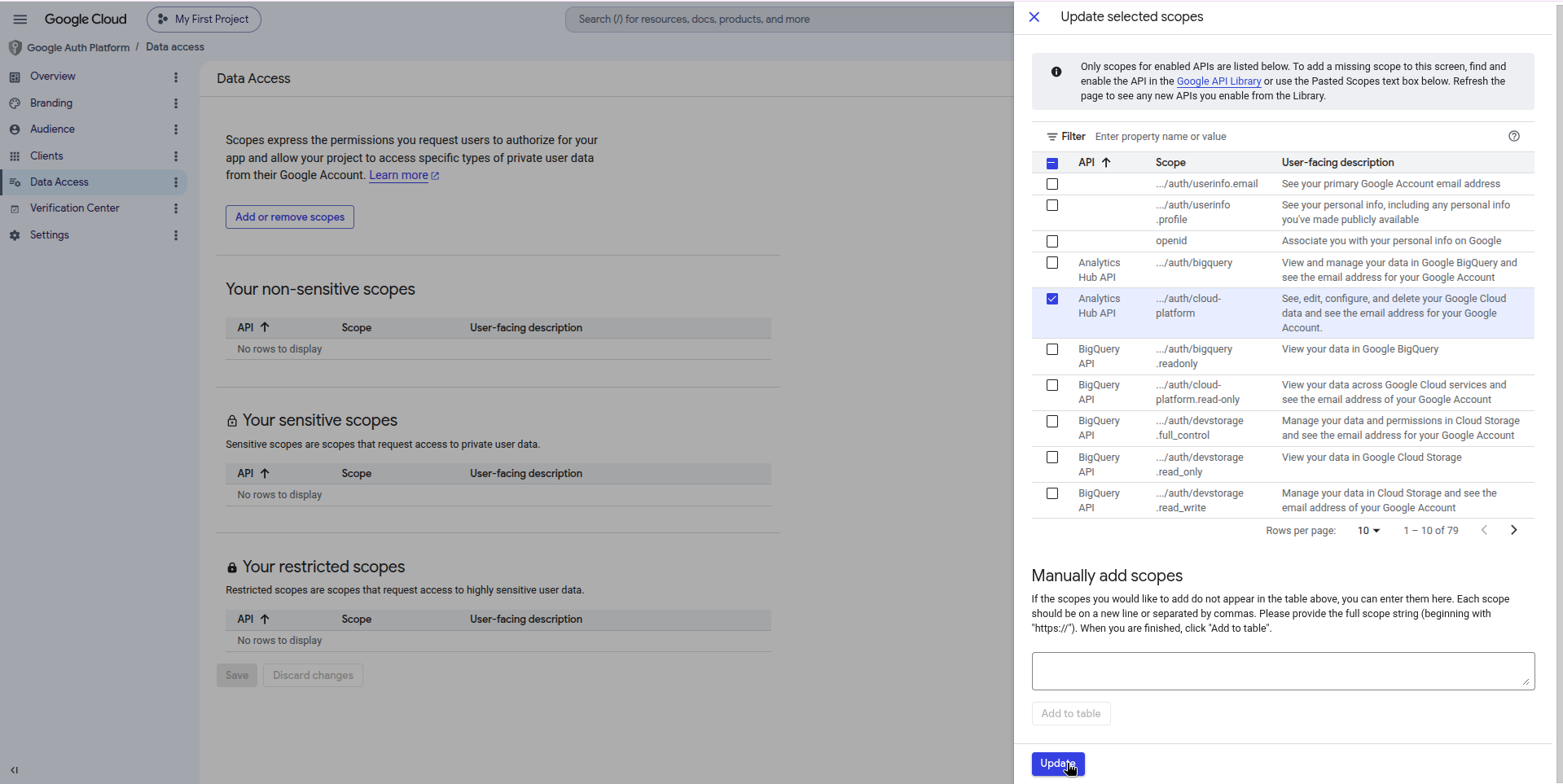
- Click Add or remove scopes if any required scope is missing, and add it.
Step 4: Create an OAuth Client ID
Open the Navigation Menu using top-left hamburger icon.
Go to APIs & Services and select Credentials.
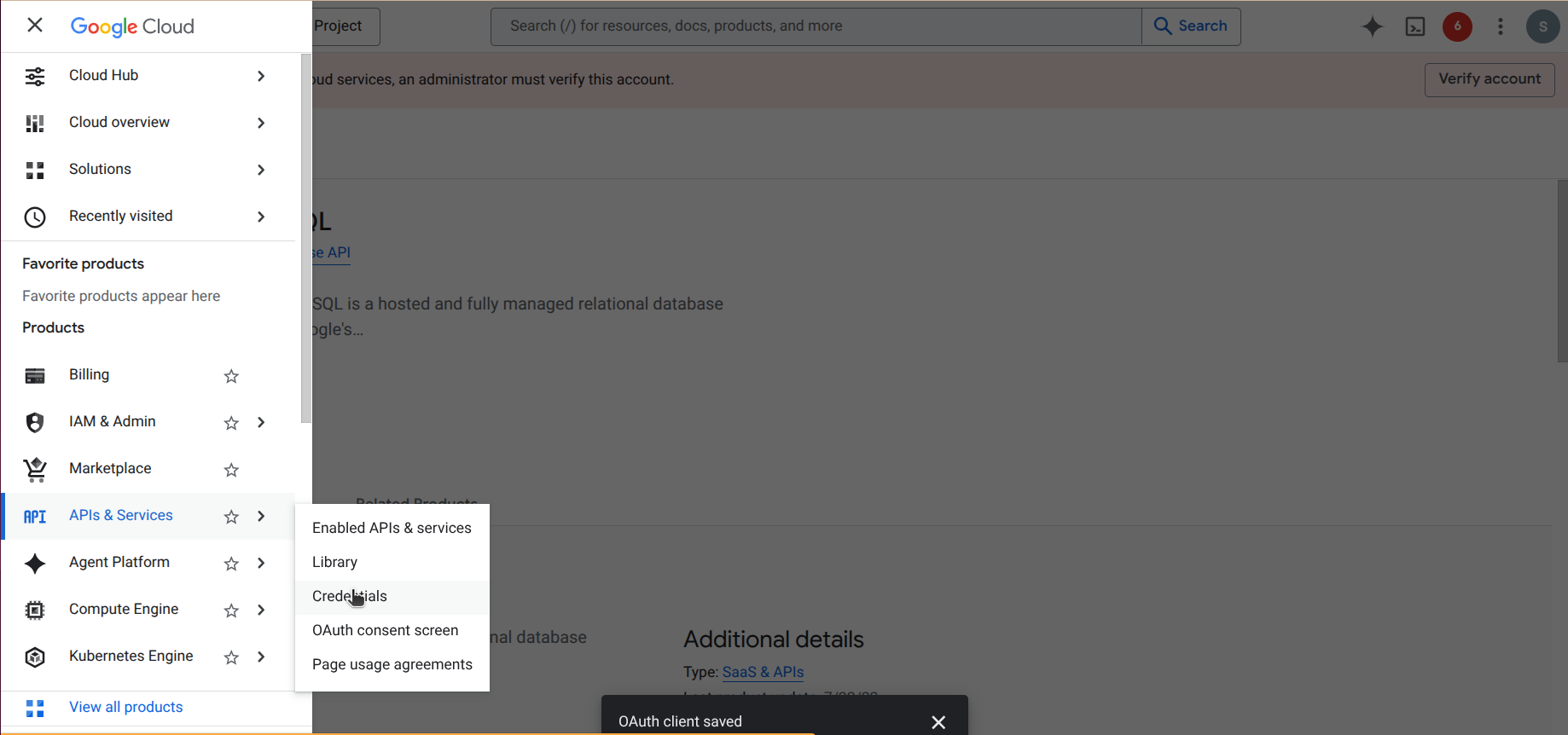
On the Credentials page, click + Create credentials option available in the top bar. From the displayed list select OAuth client ID option.
In the Create OAuth client ID form, set Application type to Web application.
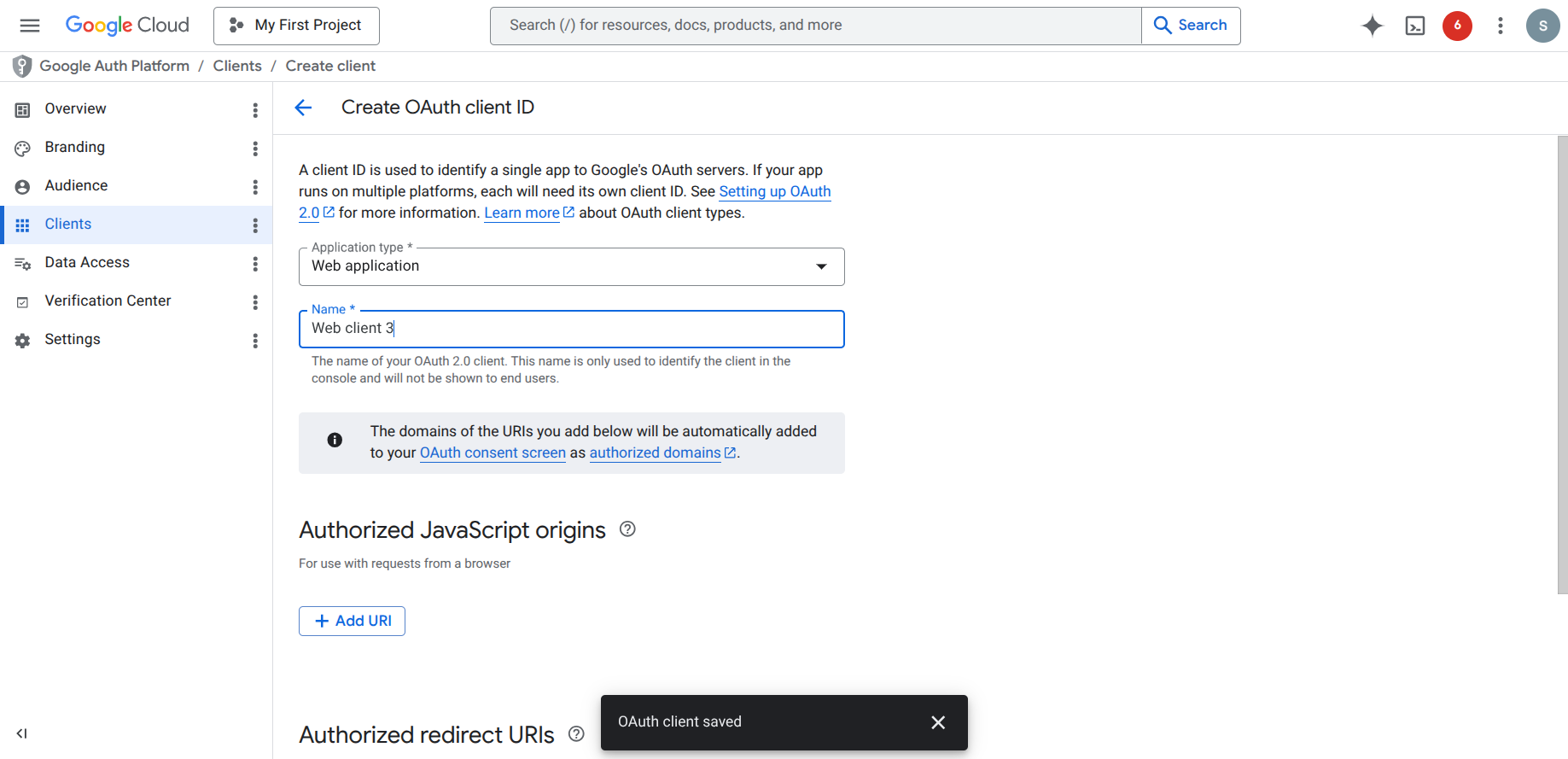
Give the client a name.
- Provide URL(s) in the Authorized JavaScript origins section. i.e.,
{Motadata_Application_Domain}.
You have to provide the domain only, it will not work with the IP address.
- In Authorized redirect URls section, provide the Redirect URL you have copied while creating the credential profile, then click the Create button.
Completing this step, Google displays the OAuth client created dialog with your Client ID and Client Secret.
Copy and securely save both values before closing this dialog. The Client Secret cannot be retrieved again without it, syncing GCP data with ObserveOps is not possible.
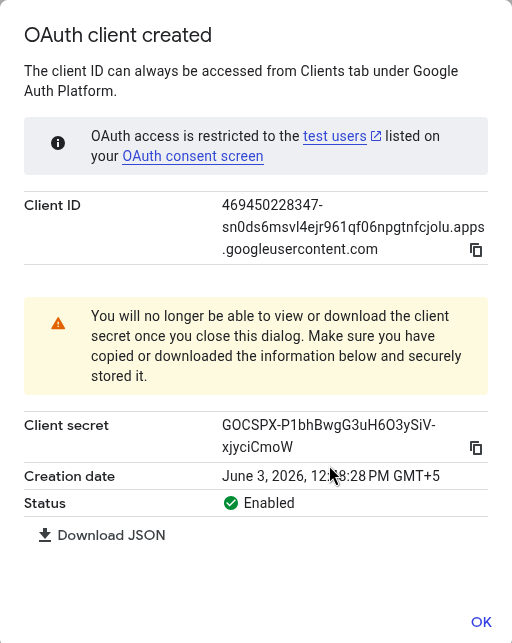
- Click OK to close the dialog.
Step 5: Enable Required GCP Service APIs
ObserveOps can only collect metrics for GCP services whose APIs are enabled in your project. You must enable each service API before ObserveOps can discover and monitor it.
- Open the Navigation Menu, go to APIs & Services, and select Enabled APIs & services.
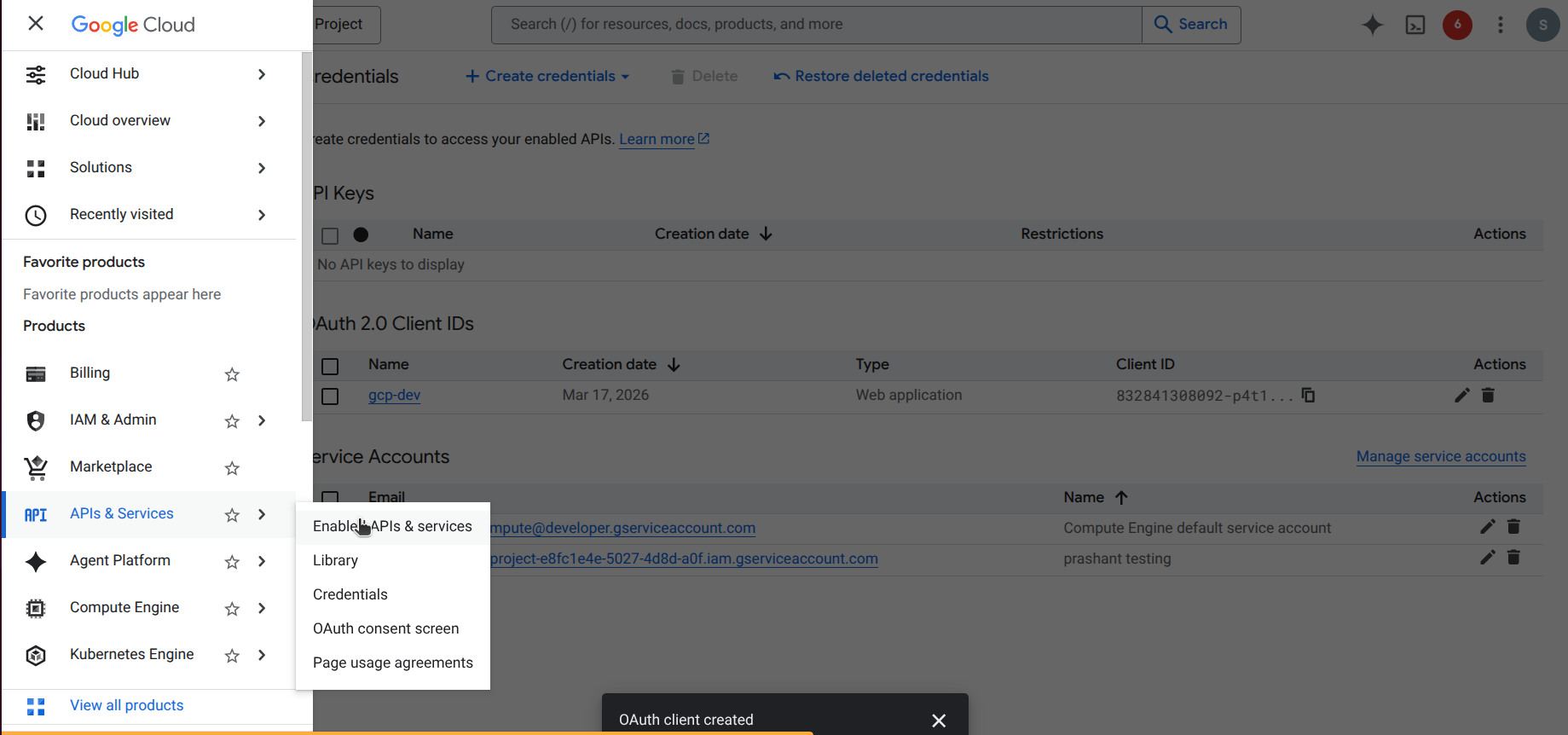
Click + Enable APIs and services.
Search for each service you want to monitor and click Enable.
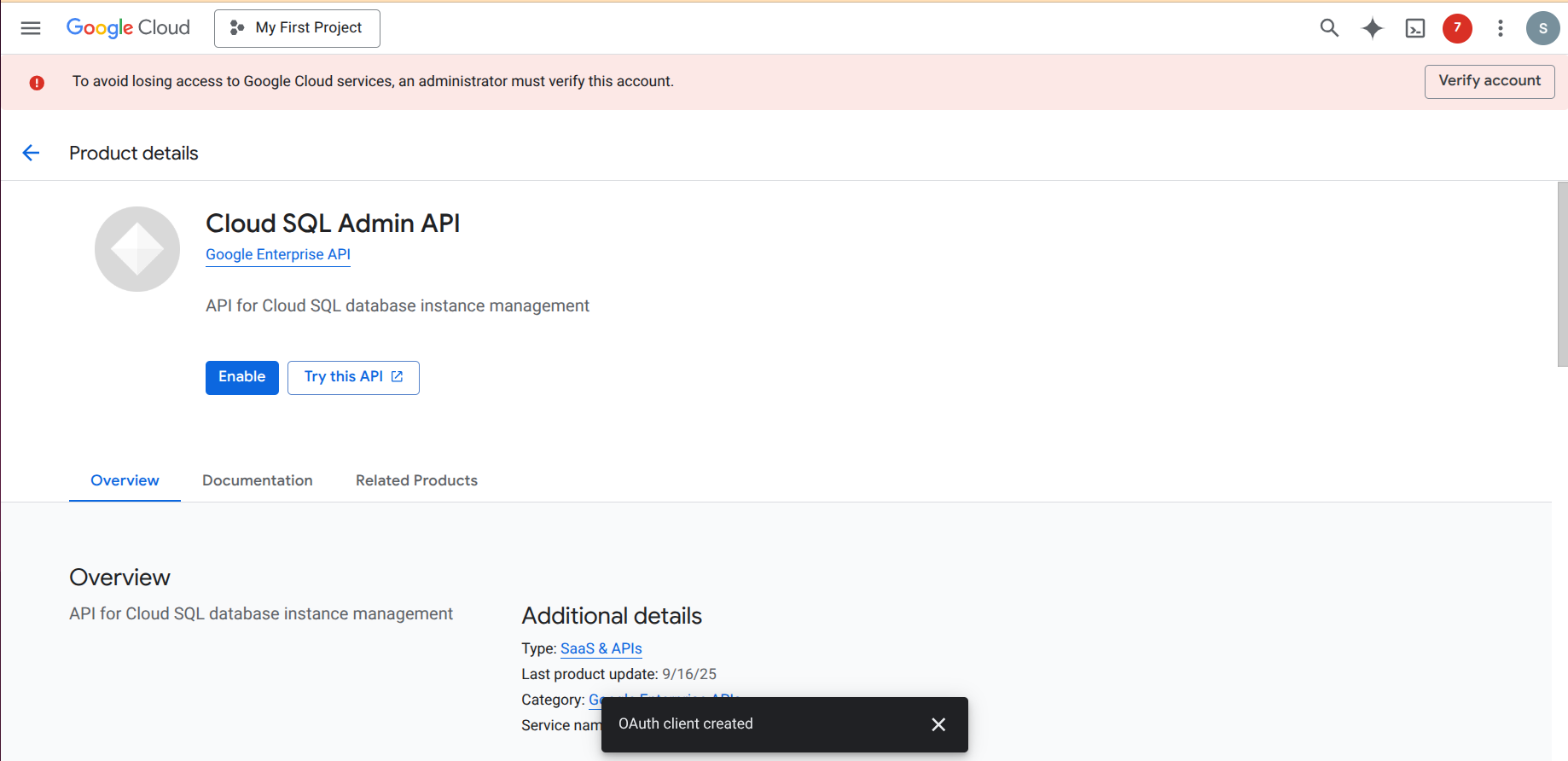
The following APIs are commonly required:
| API | Monitors |
|---|---|
| Cloud Monitoring API | GCP metrics and alerting |
| Compute Engine API | VM instances |
| Cloud Filestore API | Managed file storage |
| Cloud Resource Manager API | Project and resource hierarchy |
| Cloud Storage API | Object storage buckets |
- Repeat for each additional service you want ObserveOps to monitor.
Summary
You now have all the credentials and API access required to integrate Google Cloud with Motadata ObserveOps:
| Item | Where to Find It |
|---|---|
| Client ID | APIs & Services → Credentials → OAuth client → Client ID |
| Client Secret | APIs & Services → Credentials → OAuth client → Client Secret (save at creation) |
| Enabled APIs | APIs & Services → Enabled APIs & services |
Use the Client ID and Client Secret when creating a credential profile for Google Cloud in ObserveOps. Refer to Adding Cloud Devices for Monitoring to continue.