Adding Storage Devices for Monitoring
Overview
In order to start monitoring Storage devices, we need to first add the devices to Motadata AIOps in turn enable it to collect data from these devices for monitoring. This guide helps you with the process of adding Storage devices to Motadata AIOps so that you are able to start monitoring them.
At a high level, this process includes creating a credential profile and a discovery profile, assigning the credential profile to a discovery profile, and executing a successful discovery run.
This is followed by provisioning the discovered devices as monitors in the system. This will enable Motadata AIOps to continuously monitor the resources and generate alerts and insights based on their performance metrics. You can also customize the Monitor Settings for each monitor, such as polling interval, threshold values, and alert notifications.
Storage Solutions Supported
| Vendors |
|---|
| HPE |
| NetApp |
| Dell |
| IBM |
| Huawei |
| Hitachi |
| Fibrenetix |
| QNAP |
| QSAN |
- NetApp ONTAP
- HPE StoreOnce
- HPE 3PAR
- HPE Primera
- HPE MSA
- Dell EMC Unity
- Dell EMC VNX Storage Processor
- Dell EMC VNX Control Station
- IBM FlashSystem5000
- Huawei OceanStor
- Hitachi VSP E Series
- Fibrenetix
- QNAP TS
- QSAN XCubeNXT
Adding a NetApp ONTAP Device
Motadata AIOps supports discovery of Nodes, Server Virtual Machine (SVM), Logical Unit Number (LUN), Disks, and Pool. The discovery is facilitated through ONTAP cluster, which once discovered will fetch the holistic details of all corresponding components.
Prerequisites
Before you begin the discovery process for NetApp ONTAP devices, ensure that:
Make sure that the device you're adding is reachable from the server where the AIOps is deployed.
The ONTAP API version used must be higher than 9.6.
1. Create a Credential Profile
We will start by creating a credential profile.
Navigation
Go to menu. Select Settings . After that, go to Discovery Settings
 and select Credential Profile. The credential profile screen is displayed. Select Create Credential Profile to create a new credential profile.
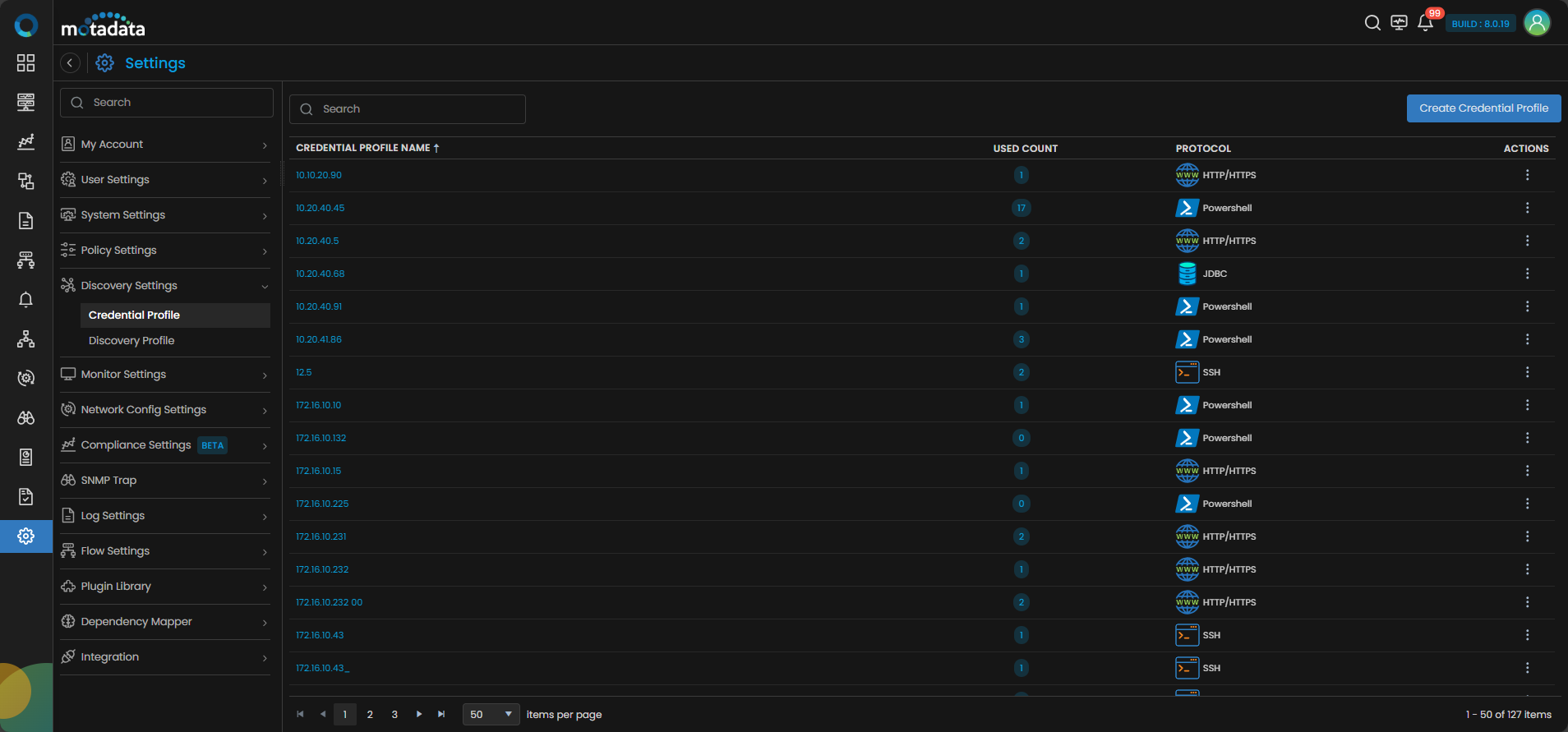
A pop-up for entering the credential profile details is displayed.
Credential Profile Parameters
Enter the required details in the pop-up as follows:
| Field | Description |
|---|---|
| Credential Profile Name | Provide a unique Credential Profile Name. This name is used to identify a credential profile. |
| Protocol | Select HTTP/HTTPS as Protocol from the drop-down. The option to provide the credential details is then displayed based on the protocol selected. |
| Username and Password | Enter these details for the virtual device you want to monitor. |
Select Reset to erase all the current field values entered in the pop-up, if required.
Select Add Credential Profile to create the credential profile in the system. The credential profile is now created.
You can view the newly created profile in the credential profile interface by using the Search option available above the list of profiles.
Now, let's move to the next step and create a discovery profile.
2. Create Discovery Profile
Let us create a discovery profile for the device we are trying to add. Discovery profile allows us to discover devices in an infrastructure using the device address and associated credential profile.
Go to Menu. Select Settings . After that, Go to Discovery Settings and select Discovery Profile. The discovery profile screen is displayed. Select Create Discovery Profile to create a new discovery profile.
A new screen to create the discovery profile is now displayed. Select Storage from the menu as shown below:
Discovery Profile Parameters
Enter the required details in the screen as follows:
| Field | Description |
|---|---|
| Discovery Profile Name | Provide a unique Discovery Profile Name. This name is used to identify the discovery profile. |
| IP/Host | The IP address(IPv4 or IPv6) of the device to be discovered. |
| Collectors | Select one or more Collectors that should be used for collecting data from the devices discovered using this Discovery Profile. Select multiple Collectors for load balancing and failover mechanism. In case you don’t select a Collector, the AIOps shall automatically select a relevant collector to leverage the load balancing feature. |
Ensure that you select correct Collector(s), based on how you want to distribute the load across all Collectors.
| Field | Description |
|---|---|
| Vendor | Select NetApp as vendor using the dropdown menu. |
| Device Model | Select a device model as NetApp ONTAP Cluster using the dropdown menu. |
| Groups | Select one or more Groups that will be assigned to the monitors you provision using this discovery profile. |
| Credential Profile | Select an already created Credential Profile to assign it to the discovery profile. You can also create a new credential profile from this screen using the Create Credential Profile button. In this case, we will select the credential profile which we created in the 1st step while creating a credential profile. |
| Tags | Select one or more Tags that you wish to assign to the devices you want to discover and setup as a monitor. |
| Port | You can see the default Port number here. Also, you can modify it if required. |
| URL Type | Select on of the URL types. By default, HTTPS will be selected. |
| Ping Check | The Ping Check button is switched ON by default. This means that AIOps will only discover the device if the ping is available for that device. Toggle this button OFF if you want AIOps to discover the device without doing a ping check. |
| Notify Team | The system allows notifying users about new service discovery through e-mail, handle, user name, and user profiles:
|
Select Reset to erase all the current field values, if required.
Select Save and Exit if you have created the discovery profile but do not want to execute a discovery run.
Select Save and Run if you want execute the discovery run immediately after creation.
Adding an HPE StoreOnce Device
Motadata AIOps supports discovery of Local and Cloud storage, Disks, Volumes, and Service Sets. The holistic view of all device types will be facilitated through HPE StoreOnce Controller.
Prerequisites
Before you begin the discovery process for HPE StoreOnce devices, ensure that:
Make sure that the device you're adding is reachable from the server where the AIOps is deployed.
The model supported with StoreOnce appliance running software version 4.x and newer. It is not compatible with StoreOnce appliances running software versions 3.x or older.
1. Create a Credential Profile
We will start by creating a credential profile.
Navigation
Go to menu. Select Settings. After that, go to Discovery Settings and select Credential Profile. The credential profile screen is displayed. Select Create Credential Profile to create a new credential profile.
A pop-up for entering the credential profile details is displayed.
Credential Profile Parameters
Enter the required details in the pop-up as follows:
| Field | Description |
|---|---|
| Credential Profile Name | Provide a unique Credential Profile Name. This name is used to identify a credential profile. |
| Protocol | Select HTTP/HTTPS as Protocol from the drop-down. The option to provide the credential details is then displayed based on the protocol selected. |
| Username and Password | Enter these details for the virtual device you want to monitor. |
Select Reset to erase all the current field values entered in the pop-up, if required.
Select Add Credential Profile to create the credential profile in the system. The credential profile is now created.
You can view the newly created profile in the credential profile interface by using the Search option available above the list of profiles.
Now, let's move to the next step and create a discovery profile.
2. Create Discovery Profile
Let us create a discovery profile for the device we are trying to add. Discovery profile allows us to discover devices in an infrastructure using the device address and associated credential profile.
Go to Menu. Select Settings . After that, Go to Discovery Settings and select Discovery Profile. The discovery profile screen is displayed. Select Create Discovery Profile to create a new discovery profile.
A new screen to create the discovery profile is now displayed. Select Storage from the menu as shown below:
Discovery Profile Parameters
Enter the required details in the screen as follows:
| Field | Description |
|---|---|
| Discovery Profile Name | Provide a unique Discovery Profile Name. This name is used to identify the discovery profile. |
| IP/Host | The IP address(IPv4 or IPv6) of the device to be discovered. |
| Collectors | Select one or more Collectors that should be used for collecting data from the devices discovered using this Discovery Profile. Select multiple Collectors for load balancing and failover mechanism. In case you don’t select a Collector, the AIOps shall automatically select a relevant collector to leverage the load balancing feature. |
Ensure that you select correct Collector(s), based on how you want to distribute the load across all Collectors.
| Field | Description |
|---|---|
| Vendor | Select HPE as vendor using the dropdown menu. |
| Device Model | Select a device model as HPE StoreOnce using the dropdown menu. |
| Groups | Select one or more Groups that will be assigned to the monitors you provision using this discovery profile. |
| Credential Profile | Select an already created Credential Profile to assign it to the discovery profile. You can also create a new credential profile from this screen using the Create Credential Profile button. In this case, we will select the credential profile which we created in the 1st step while creating a credential profile. |
| Tags | Select one or more Tags that you wish to assign to the devices you want to discover and setup as a monitor |
| Port | You can see the default Port number here. Also, you can modify it if required. |
| URL Type | Select on of the URL types. By default, HTTPS will be selected. |
| Ping Check | The Ping Check button is switched ON by default. This means that AIOps will only discover the device if the ping is available for that device. Toggle this button OFF if you want AIOps to discover the device without doing a ping check. |
| Notify Team | The system allows notifying users about new service discovery through e-mail, handle, user name, and user profiles:
|
Select Reset to erase all the current field values, if required.
Select Save and Exit if you have created the discovery profile but do not want to execute a discovery run.
Select Save and Run if you want execute the discovery run immediately after creation.
Adding an HPE 3PAR Device
HPE 3PAR Storage monitoring in Motadata AIOps allows you to discover, provision, and monitor your HPE 3PAR storage devices. This capability provides comprehensive visibility into the health, performance, and capacity of your storage infrastructure, enabling proactive management and timely issue resolution.
By monitoring HPE 3PAR Storage through Motadata AIOps, you can track critical metrics such as storage utilization, disk health, port status, and system performance. This allows for early detection of capacity bottlenecks or hardware issues, ensuring consistent storage availability and performance for dependent systems and applications.
Prerequisites
Before you begin the discovery process for HPE 3PAR devices, ensure that:
- The HPE 3PAR device is reachable from the server where Motadata AIOps is deployed.
- WSAPI server status is confirmed and running on the device:
- SSH into the device and run
showwsapicommand to check the WSAPI server status (can be executed by any role). - If the WSAPI server is not running, start it using the
startwsapicommand (requires Super, Service, or a role with wsapi_set permission).
- SSH into the device and run
- Note the URL type and configured port from the
showwsapicommand output. The default port is 443. - Valid HTTP/HTTPS credentials for accessing the HPE 3PAR device.
1. Create a Credential Profile
We will start by creating a credential profile.
Navigation
Go to menu. Select Settings. After that, go to Discovery Settings and select Credential Profile. The credential profile screen is displayed. Select Create Credential Profile to create a new credential profile.
A pop-up for entering the credential profile details is displayed.
Credential Profile Parameters
Enter the required details in the pop-up as follows:
| Field | Description |
|---|---|
| Credential Profile Name | Provide a unique Credential Profile Name. This name is used to identify a credential profile. |
| Protocol | Select HTTP/HTTPS as Protocol from the drop-down. The option to provide the credential details is then displayed based on the protocol selected. |
| Username and Password | Enter these details for the virtual device you want to monitor. |
Select Reset to erase all the current field values entered in the pop-up, if required.
Select Add Credential Profile to create the credential profile in the system. The credential profile is now created.
You can view the newly created profile in the credential profile interface by using the Search option available above the list of profiles.
Now, let's move to the next step and create a discovery profile.
2. Create Discovery Profile
Let us create a discovery profile for the device we are trying to add. Discovery profile allows us to discover devices in an infrastructure using the device address and associated credential profile.
Go to Menu. Select Settings . After that, Go to Discovery Settings and select Discovery Profile. The discovery profile screen is displayed. Select Create Discovery Profile to create a new discovery profile.
A new screen to create the discovery profile is now displayed. Select Storage from the menu as shown below:
Discovery Profile Parameters
Enter the required details in the screen as follows:
| Field | Description |
|---|---|
| Discovery Profile Name | Provide a unique Discovery Profile Name. This name is used to identify the discovery profile. |
| IP/Host | The IP address(IPv4 or IPv6) of the device to be discovered. |
| Collectors | Select one or more Collectors that should be used for collecting data from the devices discovered using this Discovery Profile. Select multiple Collectors for load balancing and failover mechanism. In case you don’t select a Collector, the AIOps shall automatically select a relevant collector to leverage the load balancing feature. |
Ensure that you select correct Collector(s), based on how you want to distribute the load across all Collectors.
| Field | Description |
|---|---|
| Vendor | Select HPE as vendor using the dropdown menu. |
| Device Model | Select a device model as HPE 3PAR using the dropdown menu. |
| Groups | Select one or more Groups that will be assigned to the monitors you provision using this discovery profile. |
| Credential Profile | Select an already created Credential Profile to assign it to the discovery profile. You can also create a new credential profile from this screen using the Create Credential Profile button. In this case, we will select the credential profile which we created in the 1st step while creating a credential profile. |
| Tags | Select one or more Tags that you wish to assign to the devices you want to discover and setup as a monitor |
| Port | You can see the default Port number here. Also, you can modify it if required. |
| URL Type | Select on of the URL types. By default, HTTPS will be selected. |
| Ping Check | The Ping Check button is switched ON by default. This means that AIOps will only discover the device if the ping is available for that device. Toggle this button OFF if you want AIOps to discover the device without doing a ping check. |
| Notify Team | The system allows notifying users about new service discovery through e-mail, handle, user name, and user profiles:
|
Select Reset to erase all the current field values, if required.
Select Save and Exit if you have created the discovery profile but do not want to execute a discovery run.
Select Save and Run if you want execute the discovery run immediately after creation.
Adding an HPE Primera Device
HPE Primera Storage monitoring in Motadata AIOps enables you to discover, provision, and monitor your HPE Primera storage systems. This provides comprehensive visibility into the health, performance, and capacity of your storage infrastructure, allowing for proactive management and timely resolution of potential issues.
By monitoring HPE Primera Storage through Motadata AIOps, you can track critical metrics such as storage utilization, disk health, port status, and system performance. This allows for early detection of capacity bottlenecks or hardware issues, ensuring consistent storage availability and performance for dependent systems and applications.
Prerequisites
Before you begin the discovery process for HPE Primera devices, ensure that:
- The HPE Primera device is reachable from the server where Motadata AIOps is deployed.
- WSAPI server status is confirmed and running on the device:
- SSH into the device and run
showwsapicommand to check the WSAPI server status (can be executed by any role). - If the WSAPI server is not running, start it using the
startwsapicommand (requires Super, Service, or a role with wsapi_set permission).
- SSH into the device and run
- Note the URL type and configured port from the
showwsapicommand output. The default port is 443. - Valid HTTP/HTTPS credentials for accessing the HPE Primera device.
1. Create a Credential Profile
We will start by creating a credential profile.
Navigation
Go to menu. Select Settings. After that, go to Discovery Settings and select Credential Profile. The credential profile screen is displayed. Select Create Credential Profile to create a new credential profile.
A pop-up for entering the credential profile details is displayed.
Credential Profile Parameters
Enter the required details in the pop-up as follows:
| Field | Description |
|---|---|
| Credential Profile Name | Provide a unique Credential Profile Name. This name is used to identify a credential profile. |
| Protocol | Select HTTP/HTTPS as Protocol from the drop-down. The option to provide the credential details is then displayed based on the protocol selected. |
| Username and Password | Enter these details for the virtual device you want to monitor. |
Select Reset to erase all the current field values entered in the pop-up, if required.
Select Add Credential Profile to create the credential profile in the system. The credential profile is now created.
You can view the newly created profile in the credential profile interface by using the Search option available above the list of profiles.
Now, let's move to the next step and create a discovery profile.
2. Create Discovery Profile
Let us create a discovery profile for the device we are trying to add. Discovery profile allows us to discover devices in an infrastructure using the device address and associated credential profile.
Go to Menu. Select Settings . After that, Go to Discovery Settings and select Discovery Profile. The discovery profile screen is displayed. Select Create Discovery Profile to create a new discovery profile.
A new screen to create the discovery profile is now displayed. Select Storage from the menu as shown below:
Discovery Profile Parameters
Enter the required details in the screen as follows:
| Field | Description |
|---|---|
| Discovery Profile Name | Provide a unique Discovery Profile Name. This name is used to identify the discovery profile. |
| IP/Host | The IP address(IPv4 or IPv6) of the device to be discovered. |
| Collectors | Select one or more Collectors that should be used for collecting data from the devices discovered using this Discovery Profile. Select multiple Collectors for load balancing and failover mechanism. In case you don’t select a Collector, the AIOps shall automatically select a relevant collector to leverage the load balancing feature. |
Ensure that you select correct Collector(s), based on how you want to distribute the load across all Collectors.
| Field | Description |
|---|---|
| Vendor | Select HPE as vendor using the dropdown menu. |
| Device Model | Select a device model as HPE Primera using the dropdown menu. |
| Groups | Select one or more Groups that will be assigned to the monitors you provision using this discovery profile. |
| Credential Profile | Select an already created Credential Profile to assign it to the discovery profile. You can also create a new credential profile from this screen using the Create Credential Profile button. In this case, we will select the credential profile which we created in the 1st step while creating a credential profile. |
| Tags | Select one or more Tags that you wish to assign to the devices you want to discover and setup as a monitor. |
| Port | You can see the default Port number here. Also, you can modify it if required. |
| URL Type | Select on of the URL types. By default, HTTPS will be selected. |
| Ping Check | The Ping Check button is switched ON by default. This means that AIOps will only discover the device if the ping is available for that device. Toggle this button OFF if you want AIOps to discover the device without doing a ping check. |
| Notify Team | The system allows notifying users about new service discovery through e-mail, handle, user name, and user profiles:
|
Select Reset to erase all the current field values, if required.
Select Save and Exit if you have created the discovery profile but do not want to execute a discovery run.
Select Save and Run if you want execute the discovery run immediately after creation.
Adding an HPE MSA Device
HPE MSA Storage monitoring in Motadata AIOps enables you to discover, provision, and monitor your HPE MSA storage systems. This provides comprehensive visibility into the health, performance, and capacity of your storage infrastructure, allowing for proactive management and timely resolution of potential issues.
By monitoring HPE MSA Storage through Motadata AIOps, you can track critical metrics such as storage utilization, disk health, port status, and system performance. This allows for early detection of capacity bottlenecks or hardware issues, ensuring consistent storage availability and performance for dependent systems and applications.
Prerequisites
Before you begin the discovery process for HPE MSA devices, ensure that:
- Make sure that the device you're adding is reachable from the server where the AIOps is deployed.
1. Create a Credential Profile
We will start by creating a credential profile.
Navigation
Go to menu. Select Settings. After that, go to Discovery Settings and select Credential Profile. The credential profile screen is displayed. Select Create Credential Profile to create a new credential profile.
A pop-up for entering the credential profile details is displayed.
Credential Profile Parameters
Enter the required details in the pop-up as follows:
| Field | Description |
|---|---|
| Credential Profile Name | Provide a unique Credential Profile Name. This name is used to identify a credential profile. |
| Protocol | Select HTTP/HTTPS as Protocol from the drop-down. The option to provide the credential details is then displayed based on the protocol selected. |
| Username and Password | Enter these details for the virtual device you want to monitor. |
Select Reset to erase all the current field values entered in the pop-up, if required.
Select Add Credential Profile to create the credential profile in the system. The credential profile is now created.
You can view the newly created profile in the credential profile interface by using the Search option available above the list of profiles.
Now, let's move to the next step and create a discovery profile.
2. Create Discovery Profile
Let us create a discovery profile for the device we are trying to add. Discovery profile allows us to discover devices in an infrastructure using the device address and associated credential profile.
Go to Menu. Select Settings . After that, Go to Discovery Settings and select Discovery Profile. The discovery profile screen is displayed. Select Create Discovery Profile to create a new discovery profile.
A new screen to create the discovery profile is now displayed. Select Storage from the menu as shown below:
Discovery Profile Parameters
Enter the required details in the screen as follows:
| Field | Description |
|---|---|
| Discovery Profile Name | Provide a unique Discovery Profile Name. This name is used to identify the discovery profile. |
| IP/Host | The IP address(IPv4 or IPv6) of the device to be discovered. |
| Collectors | Select one or more Collectors that should be used for collecting data from the devices discovered using this Discovery Profile. Select multiple Collectors for load balancing and failover mechanism. In case you don’t select a Collector, the AIOps shall automatically select a relevant collector to leverage the load balancing feature. |
Ensure that you select correct Collector(s), based on how you want to distribute the load across all Collectors.
| Field | Description |
|---|---|
| Vendor | Select HPE as vendor using the dropdown menu. |
| Device Model | Select a device model as HPE MSA using the dropdown menu. |
| Groups | Select one or more Groups that will be assigned to the monitors you provision using this discovery profile. |
| Credential Profile | Select an already created Credential Profile to assign it to the discovery profile. You can also create a new credential profile from this screen using the Create Credential Profile button. In this case, we will select the credential profile which we created in the 1st step while creating a credential profile. |
| Tags | Select one or more Tags that you wish to assign to the devices you want to discover and setup as a monitor |
| Port | You can see the default Port number here. Also, you can modify it if required. |
| URL Type | Select on of the URL types. By default, HTTPS will be selected. |
| Ping Check | The Ping Check button is switched ON by default. This means that AIOps will only discover the device if the ping is available for that device. Toggle this button OFF if you want AIOps to discover the device without doing a ping check. |
| Notify Team | The system allows notifying users about new service discovery through e-mail, handle, user name, and user profiles:
|
Select Reset to erase all the current field values, if required.
Select Save and Exit if you have created the discovery profile but do not want to execute a discovery run.
Select Save and Run if you want execute the discovery run immediately after creation.
Adding a Dell EMC Unity Device
Dell EMC Unity Storage monitoring in Motadata AIOps enables you to discover, provision, and monitor your dell EMC storage systems. This provides comprehensive visibility into the health, performance, and capacity of your storage infrastructure, allowing for proactive management and timely resolution of potential issues.
By monitoring Dell EMC Unity Storage through Motadata AIOps, you can track critical metrics such as storage utilization, disk health, port status, and system performance. This allows for early detection of capacity bottlenecks or hardware issues, ensuring consistent storage availability and performance for dependent systems and applications.
Prerequisites
Before you begin the discovery process for Dell EMC Unity devices, ensure that:
Make sure that the device you are adding is reachable from the server where the AIOps isdeployed.
Ensure that the Unity storage array is running firmware version 4.2 or higher.
Supported models
Model Series Supported Models All Flash 350F, 450F, 550F, 650F Hybrid 300, 380, 400, 500, 600
1. Create a Credential Profile
We will start by creating a credential profile.
Navigation
Go to menu. Select Settings. After that, go to Discovery Settings and select Credential Profile. The credential profile screen is displayed. Select Create Credential Profile to create a new credential profile.
A pop-up for entering the credential profile details is displayed.
Credential Profile Parameters
Enter the required details in the pop-up as follows:
| Field | Description |
|---|---|
| Credential Profile Name | Provide a unique Credential Profile Name. This name is used to identify a credential profile. |
| Protocol | Select HTTP/HTTPS as Protocol from the drop-down. The option to provide the credential details is then displayed based on the protocol selected. |
| Username and Password | Enter these details for the virtual device you want to monitor. |
Select Reset to erase all the current field values entered in the pop-up, if required.
Select Add Credential Profile to create the credential profile in the system. The credential profile is now created.
You can view the newly created profile in the credential profile interface by using the Search option available above the list of profiles.
Now, let's move to the next step and create a discovery profile.
2. Create Discovery Profile
Let us create a discovery profile for the device we are trying to add. Discovery profile allows us to discover devices in an infrastructure using the device address and associated credential profile.
Go to Menu. Select Settings . After that, Go to Discovery Settings and select Discovery Profile. The discovery profile screen is displayed. Select Create Discovery Profile to create a new discovery profile.
A new screen to create the discovery profile is now displayed. Select Storage from the menu as shown below:
Discovery Profile Parameters
Enter the required details in the screen as follows:
| Field | Description |
|---|---|
| Discovery Profile Name | Provide a unique Discovery Profile Name. This name is used to identify the discovery profile. |
| IP/Host | The IP address(IPv4 or IPv6) of the device to be discovered. |
| Collectors | Select one or more Collectors that should be used for collecting data from the devices discovered using this Discovery Profile. Select multiple Collectors for load balancing and failover mechanism. In case you don’t select a Collector, the AIOps shall automatically select a relevant collector to leverage the load balancing feature. |
Ensure that you select correct Collector(s), based on how you want to distribute the load across all Collectors.
| Field | Description |
|---|---|
| Vendor | Select Dell as vendor using the dropdown menu. |
| Device Model | Select a device model as Dell EMC Unity using the dropdown menu. |
| Groups | Select one or more Groups that will be assigned to the monitors you provision using this discovery profile. |
| Credential Profile | Select an already created Credential Profile to assign it to the discovery profile. You can also create a new credential profile from this screen using the Create Credential Profile button. In this case, we will select the credential profile which we created in the 1st step while creating a credential profile. |
| Tags | Select one or more Tags that you wish to assign to the devices you want to discover and setup as a monitor. |
| Port | You can see the default Port number here. Also, you can modify it if required. |
| URL Type | Select on of the URL types. By default, HTTPS will be selected. |
| Ping Check | The Ping Check button is switched ON by default. This means that AIOps will only discover the device if the ping is available for that device. Toggle this button OFF if you want AIOps to discover the device without doing a ping check. |
| Notify Team | The system allows notifying users about new service discovery through e-mail, handle, user name, and user profiles:
|
Select Reset to erase all the current field values, if required.
Select Save and Exit if you have created the discovery profile but do not want to execute a discovery run.
Select Save and Run if you want execute the discovery run immediately after creation.
Adding a Dell EMC VNX Storage Processor Device
Dell EMC VNX Storage Processor Storage monitoring in Motadata AIOps enables you to discover, provision, and monitor your dell EMC storage systems. This provides comprehensive visibility into the health, performance, and capacity of your storage infrastructure, allowing for proactive management and timely resolution of potential issues.
By monitoring Dell EMC VNX Storage through Motadata AIOps, you can track critical metrics such as storage utilization, disk health, port status, and system performance. This allows for early detection of capacity bottlenecks or hardware issues, ensuring consistent storage availability and performance for dependent systems and applications.
Prerequisites
Before you begin the discovery process for Dell EMC VNX Storage Processor devices, ensure that:
- NavisecCLI must be installed on your AIOPs server host.
To install NavisecCLI on your AIOps server, first download Linux x64 file in your local machine. make sure while downloading this file it doesn’t matter whether your local machine is windows or linux.
On your local machine open command prompt and run the below command:
scp C:\Users\<your-user>\Downloads\NaviCLI-Linux-64-x86-en_US-7.33.21.3.22-3.x86_64.rpm ubuntu@<AIOPS_SERVER_IP>:/tmp/
Replace <AIOPS_SERVER_IP> with your server’s IP.
This is to copy the path of NavisecCLI in your AIOps server.
- On your Motadata AIOps Ubuntu server, run:
cd /tmp
wget https://dl.dell.com/downloads/XY9D7_Navisphere-CLI-7.33.21.3.22-for-Linux-x64.rpm
This will download the Navisphere CLI .rpm into /tmp.
- Since your server is Ubuntu (Debian-based), you can’t install .rpm directly. You’ll need to convert it to .deb using alien:
sudo apt update
sudo apt install alien -y
sudo alien -k /tmp/NaviCLI-Linux-64-x86-en_US-7.33.21.3.22-3.x86_64.rpm
This will generate a .deb file in /tmp. Then install it with:
sudo dpkg -i /tmp/navicli_7.33.21.3.22-3_amd64.deb
- Then run the below command to know the path of deb file (i.e., where default path is /opt/Navisphere/bin)
sudo find /opt -name naviseccli
If it displays /opt/Navisphere/bin/naviseccli, then add it permanently:
echo 'export PATH=$PATH:/opt/Navisphere/bin' >> ~/.bashrc
source ~/.bashrc
- Finally, verify it’s installed using:
naviseccli –h
which naviseccli
- In case of an HA/DR deployment with three nodes, the tool must be installed on all three nodes to ensure consistent discovery and monitoring.
- Ensure that the TCP port 6389 is open from the AIOPs server to the Storage Processor.
You need to discover both SPs separately to ensures Service Check continued data collection during failover.
1. Create a Credential Profile
We will start by creating a credential profile.
Navigation
Go to menu. Select Settings. After that, go to Discovery Settings and select Credential Profile. The credential profile screen is displayed. Select Create Credential Profile to create a new credential profile.
A pop-up for entering the credential profile details is displayed.
Credential Profile Parameters
Enter the required details in the pop-up as follows:
| Field | Description |
|---|---|
| Credential Profile Name | Provide a unique Credential Profile Name. This name is used to identify a credential profile. |
| Protocol | Select SSH as Protocol from the drop-down. The option to provide the credential details is then displayed based on the protocol selected. |
| Username and Password | Enter these details for the virtual device you want to monitor. |
| SSH Key and Passphrase | Enter these details for the Linux server you want to monitor if you want to access the server using the SSH Key and Passphrase |
| Cli options | Selecting the checkbox displays multiple options to configure. - Select Config Transfer Protocol from the Drop-down. - Enter the Enable User Name, associated Enable Password, Enable Command, Enable Prompt, Config Mode Command, Config Password and VRF Number associated with the device's enable mode. |
Select Reset to erase all the current field values entered in the pop-up, if required.
Select Add Credential Profile to create the credential profile in the system. The credential profile is now created.
You can view the newly created profile in the credential profile interface by using the Search option available above the list of profiles.
Now, let's move to the next step and create a discovery profile.
2. Create Discovery Profile
Let us create a discovery profile for the device we are trying to add. Discovery profile allows us to discover devices in an infrastructure using the device address and associated credential profile.
Go to Menu. Select Settings . After that, Go to Discovery Settings and select Discovery Profile. The discovery profile screen is displayed. Select Create Discovery Profile to create a new discovery profile.
A new screen to create the discovery profile is now displayed. Select Storage from the menu as shown below:
Discovery Profile Parameters
Enter the required details in the screen as follows:
| Field | Description |
|---|---|
| Discovery Profile Name | Provide a unique Discovery Profile Name. This name is used to identify the discovery profile. |
| IP/Host | The IP address(IPv4 or IPv6) of the device to be discovered. |
| Collectors | Select one or more Collectors that should be used for collecting data from the devices discovered using this Discovery Profile. Select multiple Collectors for load balancing and failover mechanism. In case you don’t select a Collector, the AIOps shall automatically select a relevant collector to leverage the load balancing feature. |
Ensure that you select correct Collector(s), based on how you want to distribute the load across all Collectors.
| Field | Description |
|---|---|
| Vendor | Select Dell as vendor using the dropdown menu. |
| Device Model | Select a device model as Dell EMC VNX Storage Processor using the dropdown menu. |
| Groups | Select one or more Groups that will be assigned to the monitors you provision using this discovery profile. |
| Credential Profile | Select an already created Credential Profile to assign it to the discovery profile. You can also create a new credential profile from this screen using the Create Credential Profile button. In this case, we will select the credential profile which we created in the 1st step while creating a credential profile. |
| Tags | Select one or more Tags that you wish to assign to the devices you want to discover and setup as a monitor. |
| Port | You can see the default Port number here. Also, you can modify it if required. |
| Ping Check | The Ping Check button is switched ON by default. This means that AIOps will only discover the device if the ping is available for that device. Toggle this button OFF if you want AIOps to discover the device without doing a ping check. |
| Notify Team | The system allows notifying users about new service discovery through e-mail, handle, user name, and user profiles:
|
Select Reset to erase all the current field values, if required.
Select Save and Exit if you have created the discovery profile but do not want to execute a discovery run.
Select Save and Run if you want execute the discovery run immediately after creation.
Adding a Dell EMC VNX Control Station Device
Dell EMC VNX Control Station Storage monitoring in Motadata AIOps enables you to discover, provision, and monitor your dell EMC storage systems. This provides comprehensive visibility into the health, performance, and capacity of your storage infrastructure, allowing for proactive management and timely resolution of potential issues.
By monitoring Dell EMC VNX Control Station Storage through Motadata AIOps, you can track critical metrics such as storage utilization, disk health, port status, and system performance. This allows for early detection of capacity bottlenecks or hardware issues, ensuring consistent storage availability and performance for dependent systems and applications.
Prerequisites
Before you begin the discovery process for Dell EMC VNX Control Station devices, ensure that:
- You need to discover both Control Stations separately to ensure continued data collection during failover.
1. Create a Credential Profile
We will start by creating a credential profile.
Navigation
Go to menu. Select Settings. After that, go to Discovery Settings and select Credential Profile. The credential profile screen is displayed. Select Create Credential Profile to create a new credential profile.
A pop-up for entering the credential profile details is displayed.
Credential Profile Parameters
Enter the required details in the pop-up as follows:
| Field | Description |
|---|---|
| Credential Profile Name | Provide a unique Credential Profile Name. This name is used to identify a credential profile. |
| Protocol | Select SSH as Protocol from the drop-down. The option to provide the credential details is then displayed based on the protocol selected. |
| Username and Password | Enter these details for the virtual device you want to monitor. |
| SSH Key and Passphrase | Enter these details for the Linux server you want to monitor if you want to access the server using the SSH Key and Passphrase |
| Cli options | Selecting the checkbox displays multiple options to configure. - Select Config Transfer Protocol from the Drop-down. - Enter the Enable User Name, associated Enable Password, Enable Command, Enable Prompt, Config Mode Command, Config Password and VRF Number associated with the device's enable mode. |
Select Reset to erase all the current field values entered in the pop-up, if required.
Select Add Credential Profile to create the credential profile in the system. The credential profile is now created.
You can view the newly created profile in the credential profile interface by using the Search option available above the list of profiles.
Now, let's move to the next step and create a discovery profile.
2. Create Discovery Profile
Let us create a discovery profile for the device we are trying to add. Discovery profile allows us to discover devices in an infrastructure using the device address and associated credential profile.
Go to Menu. Select Settings . After that, Go to Discovery Settings and select Discovery Profile. The discovery profile screen is displayed. Select Create Discovery Profile to create a new discovery profile.
A new screen to create the discovery profile is now displayed. Select Storage from the menu as shown below:
Discovery Profile Parameters
Enter the required details in the screen as follows:
| Field | Description |
|---|---|
| Discovery Profile Name | Provide a unique Discovery Profile Name. This name is used to identify the discovery profile. |
| IP/Host | The IP address(IPv4 or IPv6) of the device to be discovered. |
| Collectors | Select one or more Collectors that should be used for collecting data from the devices discovered using this Discovery Profile. Select multiple Collectors for load balancing and failover mechanism. In case you don’t select a Collector, the AIOps shall automatically select a relevant collector to leverage the load balancing feature. |
Ensure that you select correct Collector(s), based on how you want to distribute the load across all Collectors.
| Field | Description |
|---|---|
| Vendor | Select Dell as vendor using the dropdown menu. |
| Device Model | Select a device model as Dell EMC VNX Storage Processor using the dropdown menu. |
| Groups | Select one or more Groups that will be assigned to the monitors you provision using this discovery profile. |
| Credential Profile | Select an already created Credential Profile to assign it to the discovery profile. You can also create a new credential profile from this screen using the Create Credential Profile button. In this case, we will select the credential profile which we created in the 1st step while creating a credential profile. |
| Tags | Select one or more Tags that you wish to assign to the devices you want to discover and setup as a monitor. |
| Port | You can see the default Port number here. Also, you can modify it if required. |
| Ping Check | The Ping Check button is switched ON by default. This means that AIOps will only discover the device if the ping is available for that device. Toggle this button OFF if you want AIOps to discover the device without doing a ping check. |
| Notify Team | The system allows notifying users about new service discovery through e-mail, handle, user name, and user profiles:
|
Select Reset to erase all the current field values, if required.
Select Save and Exit if you have created the discovery profile but do not want to execute a discovery run.
Select Save and Run if you want execute the discovery run immediately after creation.
Adding a IBM FlashSystem5000 Device
IBM FlashSystem5000 Storage monitoring in Motadata AIOps enables you to discover, provision, and monitor your IBM FlashSystem5000 storage systems. This provides comprehensive visibility into the health, performance, and capacity of your storage infrastructure, allowing for proactive management and timely resolution of potential issues.
By monitoring IBM FlashSystem5000 Storage in Motadata AIOps, you can track critical metrics such as storage utilization, disk health, port status, and system performance. This allows for early detection of capacity bottlenecks or hardware issues, ensuring consistent storage availability and performance for dependent systems and applications.
Prerequisites
Before you begin the discovery process for IBM FlashSystem5000 devices, ensure that:
- Make sure that the device you are adding is reachable from the server where the AIOps is deployed.
1. Create a Credential Profile
We will start by creating a credential profile.
Navigation
Go to menu. Select Settings. After that, go to Discovery Settings and select Credential Profile. The credential profile screen is displayed. Select Create Credential Profile to create a new credential profile.
A pop-up for entering the credential profile details is displayed.
Credential Profile Parameters
Enter the required details in the pop-up as follows:
| Field | Description |
|---|---|
| Credential Profile Name | Provide a unique Credential Profile Name. This name is used to identify a credential profile. |
| Protocol | Select HTTP/HTTPS as Protocol from the drop-down. The option to provide the credential details is then displayed based on the protocol selected. |
| Username and Password | Enter these details for the virtual device you want to monitor. |
Select Reset to erase all the current field values entered in the pop-up, if required.
Select Add Credential Profile to create the credential profile in the system. The credential profile is now created.
You can view the newly created profile in the credential profile interface by using the Search option available above the list of profiles.
Now, let's move to the next step and create a discovery profile.
2. Create Discovery Profile
Let us create a discovery profile for the device we are trying to add. Discovery profile allows us to discover devices in an infrastructure using the device address and associated credential profile.
Go to Menu. Select Settings . After that, Go to Discovery Settings and select Discovery Profile. The discovery profile screen is displayed. Select Create Discovery Profile to create a new discovery profile.
A new screen to create the discovery profile is now displayed. Select Storage from the menu as shown below:
Discovery Profile Parameters
Enter the required details in the screen as follows:
| Field | Description |
|---|---|
| Discovery Profile Name | Provide a unique Discovery Profile Name. This name is used to identify the discovery profile. |
| IP/Host | The IP address(IPv4 or IPv6) of the device to be discovered. |
| Collectors | Select one or more Collectors that should be used for collecting data from the devices discovered using this Discovery Profile. Select multiple Collectors for load balancing and failover mechanism. In case you don’t select a Collector, the AIOps shall automatically select a relevant collector to leverage the load balancing feature. |
Ensure that you select correct Collector(s), based on how you want to distribute the load across all Collectors.
| Field | Description |
|---|---|
| Vendor | Select IBM as vendor using the dropdown menu. |
| Device Model | Select a device model as IBM FlashSystem5000 using the dropdown menu. |
| Groups | Select one or more Groups that will be assigned to the monitors you provision using this discovery profile. |
| Credential Profile | Select an already created Credential Profile to assign it to the discovery profile. You can also create a new credential profile from this screen using the Create Credential Profile button. In this case, we will select the credential profile which we created in the 1st step while creating a credential profile. |
| Tags | Select one or more Tags that you wish to assign to the devices you want to discover and setup as a monitor. |
| Port | You can see the default Port number here. Also, you can modify it if required. |
| URL Type | Select on of the URL types. By default, HTTPS will be selected. |
| Ping Check | The Ping Check button is switched ON by default. This means that AIOps will only discover the device if the ping is available for that device. Toggle this button OFF if you want AIOps to discover the device without doing a ping check. |
| Notify Team | The system allows notifying users about new service discovery through e-mail, handle, user name, and user profiles:
|
Select Reset to erase all the current field values, if required.
Select Save and Exit if you have created the discovery profile but do not want to execute a discovery run.
Select Save and Run if you want execute the discovery run immediately after creation.
Adding a Huawei OceanStor Device
Motadata AIOps supports discovery and monitoring of Huawei OceanStor arrays. Once provisioned, the built-in template surfaces health, capacity, and performance KPIs under Monitor → Storage.
Prerequisites
- Make sure that the device you're adding is reachable from the server where the AIOps is deployed.
- Supported models: 5300v3 and 6800v3
1. Create a Credential Profile
We will start by creating a credential profile.
Navigation
Go to menu. Select Settings. After that, go to Discovery Settings and select Credential Profile. The credential profile screen is displayed. Select Create Credential Profile to create a new credential profile.
A pop-up for entering the credential profile details is displayed.
Credential Profile Parameters
| Field | Description |
|---|---|
| Credential Profile Name | Provide a unique Credential Profile Name. This name is used to identify a credential profile. |
| Protocol | Select SNMP V1/V2c or SNMP V3 as Protocol from the drop-down based on the configuration of your device.The option to provide the credential details is then displayed based on the protocol selected. - In case you select SNMP V1/V2C, enter the credential details including the SNMP Version, Community string, and the Write Community string. |
Select Test to check if the credential details you provided are working against the device you want to discover by providing the details of the device IP.
Select Reset to erase all the current field values entered in the pop-up, if required.
Select Add Credential Profile to create the credential profile in the system. The credential profile is now created.
You can view the newly created profile in the credential profile interface by using the Search option available above the list of profiles.
Now, let's move to the next step and create a discovery profile.
2. Create a Discovery Profile
Let us create a discovery profile for the device we are trying to add. Discovery profile allows us to discover devices in an infrastructure using the device address and associated credential profile.
Go to Menu. Select Settings . After that, Go to Discovery Settings and select Discovery Profile. The discovery profile screen is displayed. Select Create Discovery Profile to create a new discovery profile.
A new screen to create the discovery profile is now displayed. Select Storage from the menu as shown below:
Discovery Profile Parameters
| Field | Description |
|---|---|
| Discovery Profile Name | A unique name for this discovery profile. |
| IP/Host | Management IP/Hostname of the OceanStor array (IPv4/IPv6). |
| Collectors | Select one or more Collectors that should be used for collecting data from the devices discovered using this Discovery Profile. Select multiple Collectors for load balancing and failover mechanism. In case you don’t select a Collector, the AIOps shall automatically select a relevant collector to leverage the load balancing feature. |
Ensure that you select correct Collector(s), based on how you want to distribute the load across all Collectors.
| Field | Description |
|---|---|
| Vendor | Select Huawei as vendor using the drop-down menu. |
| Device Model | Select a device model as OceanStor using the dropdown menu. |
| Groups | Select one or more Groups that will be assigned to the monitors you provision using this discovery profile. |
| Credential Profiles | Select an already created Credential Profile to assign it to the discovery profile. You can also create a new credential profile from this screen using the Create Credential Profile button. In this case, we will select the credential profile which we created in the 1st step while creating a credential profile. |
| Tags | Select one or more Tags that you wish to assign to the devices you want to discover and setup as a monitor. |
| Port | You can see the default Port number here. Also, you can modify it if required. |
| Retry Count | Enter the count for how much times you want to retry the discovery if fails. |
| Ping Check | The Ping Check button is switched ON by default. This means that AIOps will only discover the device if the ping is available for that device. Toggle this button OFF if you want AIOps to discover the device without doing a ping check. |
| Notify Team | The system allows notifying users about new service discovery through e-mail, handle, user name, and user profiles:
|
Select Reset to erase all the current field values, if required.
Select Save and Exit if you have created the discovery profile but do not want to execute a discovery run.
Select Save and Run if you want execute the discovery run immediately after creation.
Adding a Hitachi VSP E Series Device
Motadata AIOps provides monitoring and discovery for Hitachi VSP E Series devices through a dedicated Storage Discovery Profile. This will allow users to monitor critical metrics such as storage capacity, performance, and system health, ensuring optimal operation of your storage environment.
Prerequisites
Before you begin the discovery process for Hitachi VSP E Series, ensure the following:
- Make sure that the IP address is of the SVP. Supported models: 5300v3 and 6800v3
1. Create a Credential Profile
We will start by creating a credential profile.
Navigation
Go to menu. Select Settings. After that, go to Discovery Settings and select Credential Profile. The credential profile screen is displayed. Select Create Credential Profile to create a new credential profile.
A pop-up for entering the credential profile details is displayed.
Credential Profile Parameters
| Field | Description |
|---|---|
| Credential Profile Name | Provide a unique Credential Profile Name. This name is used to identify a credential profile. |
| Protocol | Select HTTP/HTTPS as Protocol from the drop-down. The option to provide the credential details is then displayed based on the protocol selected. |
| Username and Password | Enter these details for the virtual device you want to monitor. |
Select Reset to erase all the current field values entered in the pop-up, if required.
Select Add Credential Profile to create the credential profile in the system. The credential profile is now created.
You can view the newly created profile in the credential profile interface by using the Search option available above the list of profiles.
Now, let's move to the next step and create a discovery profile.
2. Create a Discovery Profile
Let us create a discovery profile for the device we are trying to add. Discovery profile allows us to discover devices in an infrastructure using the device address and associated credential profile.
Go to Menu. Select Settings . After that, Go to Discovery Settings and select Discovery Profile. The discovery profile screen is displayed. Select Create Discovery Profile to create a new discovery profile.
A new screen to create the discovery profile is now displayed. Select Storage from the menu as shown below:
Discovery Profile Parameters
Enter the required details in the screen as follows:
| Field | Description |
|---|---|
| Discovery Profile Name | Provide a unique Discovery Profile Name. This name is used to identify the discovery profile. |
| IP/Host | The IP address(IPv4 or IPv6) of the device to be discovered. |
| Collectors | Select one or more Collectors that should be used for collecting data from the devices discovered using this Discovery Profile. Select multiple Collectors for load balancing and failover mechanism. In case you don’t select a Collector, the AIOps shall automatically select a relevant collector to leverage the load balancing feature. |
Ensure that you select correct Collector(s), based on how you want to distribute the load across all Collectors.
| Field | Description |
|---|---|
| Vendor | Select Hitachi as vendor using the dropdown menu. |
| Device Model | Select a device model as VSP E Series using the dropdown menu. |
| Groups | Select one or more Groups that will be assigned to the monitors you provision using this discovery profile. |
| Credential Profile | Select an already created Credential Profile to assign it to the discovery profile. You can also create a new credential profile from this screen using the Create Credential Profile button. In this case, we will select the credential profile which we created in the 1st step while creating a credential profile. |
| Tags | Select one or more Tags that you wish to assign to the devices you want to discover and setup as a monitor |
| URL Type | Select on of the URL types. By default, HTTP/ HTTPS will be selected. |
| Port | You can see the default Port number here. Also, you can modify it if required. |
| Notify Team | The system allows notifying users about new service discovery through e-mail, handle, user name, and user profiles:
|
Select Reset to erase all the current field values, if required.
Select Save and Exit if you have created the discovery profile but do not want to execute a discovery run.
Select Save and Run if you want execute the discovery run immediately after creation.
Adding a Fibrenetix E88 Device
Motadata AIOps provides monitoring and discovery for Fibrenetix E88 devices through a dedicated Storage Discovery Profile. This will allow users to monitor critical metrics such as storage capacity, performance, and system health, ensuring optimal operation of your storage environment.
Prerequisites
Before you begin the discovery process for Fibrenetix E88, ensure the following:
- Make sure that the device you're adding is reachable from the server where the AIOps is deployed.
Supported models: Fibrenetix E88 12-BAY 2U
1. Create a Credential Profile
We will start by creating a credential profile.
Navigation
Go to menu. Select Settings. After that, go to Discovery Settings and select Credential Profile. The credential profile screen is displayed. Select Create Credential Profile to create a new credential profile.
A pop-up for entering the credential profile details is displayed.
Credential Profile Parameters
| Field | Description |
|---|---|
| Credential Profile Name | Provide a unique Credential Profile Name. This name is used to identify a credential profile. |
| Protocol | Select SNMP V1/V2c or SNMP V3 as Protocol from the drop-down based on the configuration of your device.The option to provide the credential details is then displayed based on the protocol selected. - In case you select SNMP V1/V2C, enter the credential details including the SNMP Version, Community string, and the Write Community string. |
Select Test to check if the credential details you provided are working against the device you want to discover by providing the details of the device IP.
Select Reset to erase all the current field values entered in the pop-up, if required.
Select Add Credential Profile to create the credential profile in the system. The credential profile is now created.
You can view the newly created profile in the credential profile interface by using the Search option available above the list of profiles.
Now, let's move to the next step and create a discovery profile.
2. Create a Discovery Profile
Let us create a discovery profile for the device we are trying to add. Discovery profile allows us to discover devices in an infrastructure using the device address and associated credential profile.
Go to Menu. Select Settings . After that, Go to Discovery Settings and select Discovery Profile. The discovery profile screen is displayed. Select Create Discovery Profile to create a new discovery profile.
A new screen to create the discovery profile is now displayed. Select Storage from the menu as shown below:
Discovery Profile Parameters
Enter the required details in the screen as follows:
| Field | Description |
|---|---|
| Discovery Profile Name | Provide a unique Discovery Profile Name. This name is used to identify the discovery profile. |
| IP/Host | The IP address(IPv4 or IPv6) of the device to be discovered. |
| Collectors | Select one or more Collectors that should be used for collecting data from the devices discovered using this Discovery Profile. Select multiple Collectors for load balancing and failover mechanism. In case you don’t select a Collector, the AIOps shall automatically select a relevant collector to leverage the load balancing feature. |
Ensure that you select correct Collector(s), based on how you want to distribute the load across all Collectors.
| Field | Description |
|---|---|
| Vendor | Select Fibrenetix as vendor using the dropdown menu. |
| Device Model | Select a device model as E88 using the dropdown menu. |
| Groups | Select one or more Groups that will be assigned to the monitors you provision using this discovery profile. |
| Credential Profile | Select an already created Credential Profile to assign it to the discovery profile. You can also create a new credential profile from this screen using the Create Credential Profile button. In this case, we will select the credential profile which we created in the 1st step while creating a credential profile. |
| Tags | Select one or more Tags that you wish to assign to the devices you want to discover and setup as a monitor |
| Port | You can see the default Port number here. Also, you can modify it if required. |
| Retry Count | Enter the count for how much times you want to retry the discovery if fails. |
| Ping Check | The Ping Check button is switched ON by default. This means that AIOps will only discover the device if the ping is available for that device. Toggle this button OFF if you want AIOps to discover the device without doing a ping check. |
| Notify Team | The system allows notifying users about new service discovery through e-mail, handle, user name, and user profiles:
|
Select Reset to erase all the current field values, if required.
Select Save and Exit if you have created the discovery profile but do not want to execute a discovery run.
Select Save and Run if you want execute the discovery run immediately after creation.
Adding a QNAP TS Device
QNAP TS Storage monitoring in Motadata AIOps enables you to discover, provision, and monitor your QNAP storage system. This provides visibility into storage health, hardware status, capacity utilization, and overall system performance.
By monitoring QNAP TS through Motadata AIOps, you can proactively identify storage issues and ensure reliable storage availability for dependent systems and applications.
Prerequisites
Before you begin the discovery process for QNAP TS, ensure that:
- Make sure that the device you're adding is reachable from the server where the AIOps is deployed.
Supported Models
| Model Series | Supported Models |
|---|---|
| QNAP TS | TS-832PXU_RP |
1. Create a Credential Profile
We will start by creating a credential profile.
Navigation
Go to Menu. Select Settings . After that, go to Discovery Settings and select Credential Profile.
Select Create Credential Profile to create a new credential profile. A pop-up for entering the credential profile details is displayed.
Credential Profile Parameters
Enter the required details in the pop-up as follows:
| Field | Description |
|---|---|
| Credential Profile Name | Provide a unique name for the credential profile. |
| Protocol | Select SNMP V1/V2c as Protocol. |
| Version | Select V1 or V2c. |
| Community | Enter the SNMP community string configured on the QNAP device. |
| Write Community | You can provide write community string as a non mandatory field. |
Select Reset to erase all the current field values entered in the pop-up, if required.
Select Add Credential Profile to create the credential profile in the system.
You can verify the newly created profile using the Search option.
Now, let's move to the next step and create a discovery profile.
2. Create Discovery Profile
Let us create a discovery profile for the device we are trying to add. Discovery profile allows you to discover devices in the infrastructure using the device address and associated credential profile.
Go to Menu. Select Settings . After that, go to Discovery Settings and select Discovery Profile. Select Create Discovery Profile.
A new screen to create the discovery profile is displayed. Select Storage from the left-side menu.
Discovery Profile Parameters
Enter the required details in the screen as follows:
| Field | Description |
|---|---|
| Discovery Profile Name | Provide a unique name for the discovery profile. |
| IP/Host | Enter the IPv4 or IPv6 address of the QNAP device. |
| Collector Type | Select the Collector Type. |
| Collectors | Select one or more Collectors to collect data from the device. If not selected, the system automatically assigns an appropriate collector. |
| Vendor | Select QNAP from the dropdown. |
| Device Model | Select QNAP TS from the dropdown. |
| Groups | Select one or more Groups that will be assigned to the monitors provisioned using this profile. |
| Credential Profiles | Select the created SNMP credential profile. You can also create a new credential profile using the Create Credential Profile button. |
| Tags | Select one or more Tags to assign to the device. |
| Port | The default SNMP port (161) is displayed. Modify if required. |
| Retry Count | Specify the number of retry attempts for device communication. The default value is 1. |
| Ping Check | Enabled by default. The device will only be discovered if reachable via ping. Disable if required. |
| Notify | Specify users, email addresses, or handles to receive discovery notifications. |
Select Reset to erase all current field values, if required.
Select Save and Exit if you want to save the discovery profile without executing it immediately.
Select Save and Run to execute the discovery immediately after saving.
Adding a QSAN XCubeNXT Device
QSAN storage monitoring in Motadata AIOps enables you to discover, provision, and monitor your QSAN storage system. This provides visibility into hardware health, storage capacity, performance metrics, and system status, helping ensure continuous availability of storage infrastructure.
By monitoring QSAN through Motadata AIOps, administrators can proactively identify potential issues and maintain optimal performance across dependent workloads.
Prerequisites
Before you begin the discovery process for QSAN, ensure that:
- Make sure that the device you're adding is reachable from the server where the AIOps is deployed.
Supported Models
| Model Series | Supported Models |
|---|---|
| QSAN | XCubeNXT XN5112D |
1. Create a Credential Profile
We will start by creating a credential profile.
Navigation
Go to Menu. Select Settings . After that, go to Discovery Settings and select Credential Profile.
Select Create Credential Profile to create a new credential profile. A pop-up for entering the credential profile details is displayed.
Credential Profile Parameters
Enter the required details in the pop-up as follows:
| Field | Description |
|---|---|
| Credential Profile Name | Provide a unique name for the credential profile. |
| Protocol | Select SNMP V1/V2c as Protocol. |
| Version | Select V1 or V2c. |
| Community | Enter the SNMP community string configured on the QNAP device. |
| Write Community | You can provide write community string as a non mandatory field. |
Select Reset to erase all the current field values entered in the pop-up, if required.
Select Add Credential Profile to create the credential profile in the system.
You can verify the newly created profile using the Search option.
Now, let's move to the next step and create a discovery profile.
2. Create Discovery Profile
Let us create a discovery profile for the device we are trying to add. Discovery profile allows you to discover devices in the infrastructure using the device address and associated credential profile.
Go to Menu. Select Settings . After that, go to Discovery Settings and select Discovery Profile. Select Create Discovery Profile.
A new screen to create the discovery profile is displayed. Select Storage from the left-side menu.
Discovery Profile Parameters
Enter the required details in the screen as follows:
| Field | Description |
|---|---|
| Discovery Profile Name | Provide a unique name for the discovery profile. |
| IP/Host | Enter the IPv4 or IPv6 address of the QSAN device. |
| Collector Type | Select the Collector Type. |
| Collectors | Select one or more Collectors. If no Collector is selected, the system automatically assigns a relevant collector. |
| Vendor | Select QSAN from the dropdown menu. |
| Device Model | Select XCubeNXT XN5112D from the dropdown menu. |
| Groups | Select one or more Groups that will be assigned to the monitors provisioned using this profile. |
| Credential Profiles | Select the SNMP credential profile created in Step 1. You can also create a new credential profile using the Create Credential Profile button. |
| Tags | Select one or more Tags to assign to the device. |
| Port | The default SNMP port (161) is displayed. Modify if required. |
| Retry Count | Specify the number of retry attempts for communication. The default value is 1. |
| Ping Check | Enabled by default. The device will only be discovered if reachable via ping. Disable if required. |
| Notify | Specify users, email addresses, handles, or mobile numbers to receive discovery notifications. |
Select Reset to erase all current field values, if required.
Select Save and Exit if you want to save the discovery profile without executing it immediately.
Select Save and Run to execute the discovery immediately after saving.
3. Provision the Discovered Devices as Monitors
After initiating the discovery profile execution, AIOps starts the process to discover the devices.
Click on Add Selected Objects to add the selected devices as Monitors. These devices listed as Monitors will now be monitored further by AIOps.
These devices can be viewed under the Monitor tab from the Main Menu. Select the Monitor tab from the main menu. After that, Select Storage to view all the monitors that are added to the system.
The storage devices are now successfully added to AIOps.