Adding Database Devices for Monitoring
Overview
To monitor database devices, Motadata AIOps introduces support for different clusters. This guide walks you through the process of adding these devices as monitored devices. The steps include creating a credential profile, configuring discovery parameters, and provisioning the discovered master node for monitoring.
Supported Database Devices
- Oracle RAC Cluster
- Oracle Database
- MariaDB
- MySQL
- SQL Server
- PostgreSQL
- SAP HANA
- MongoDB
- Redis DB
- Elasticsearch
Adding Database Devices
1. Create a Credential Profile
We will start by creating a credential profile for the database you are trying to discover and monitor.
Navigation
Go to Menu. Select Settings  . After that, Go to Discovery Settings
  and select Credential Profile. The credential profile screen is displayed. Select Create Credential Profile to create a new credential profile.
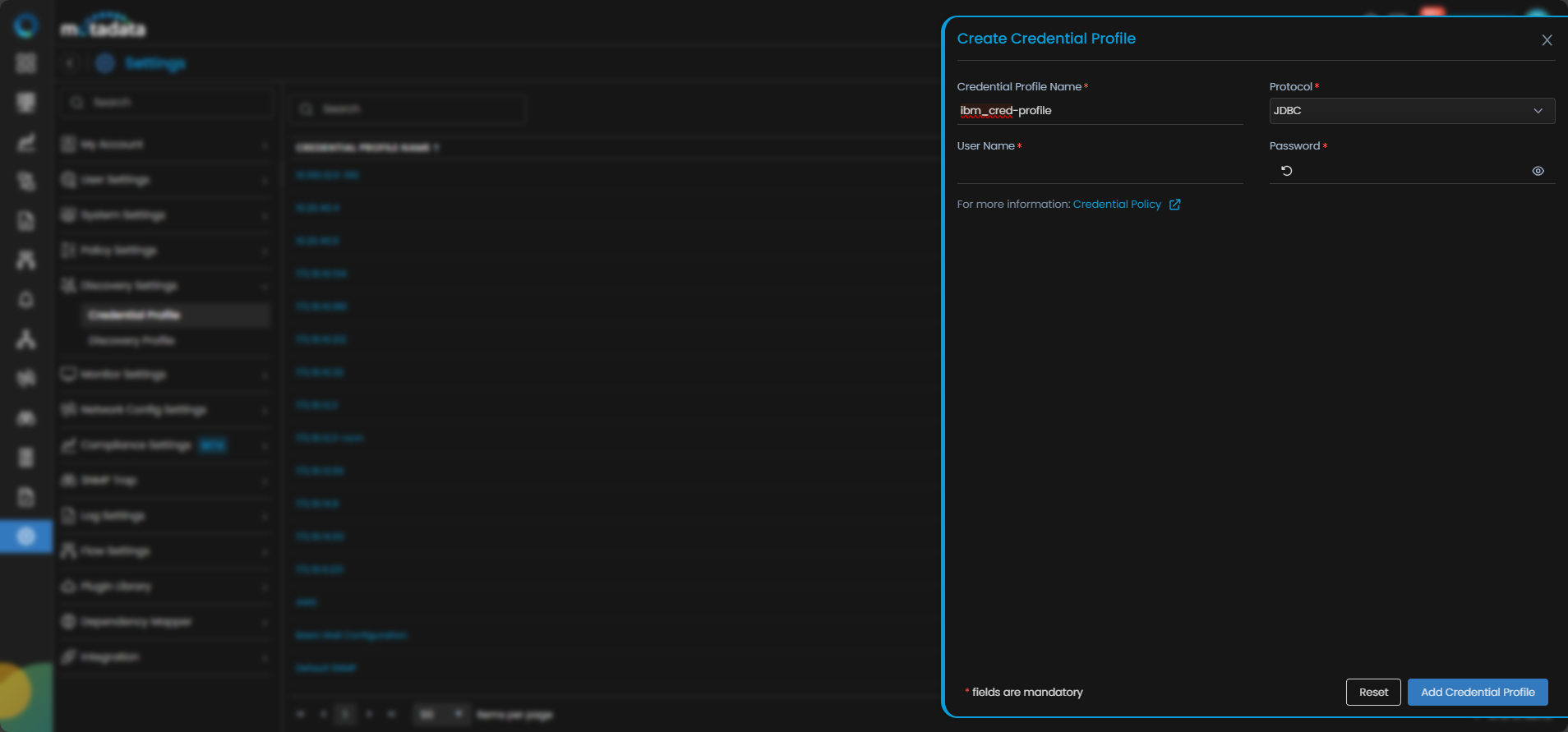
Credential Profile Parameters
| Field | Description |
|---|---|
| Credential Profile Name | Provide a unique Credential Profile Name. This name is used to identify a credential profile. |
| Protocol | Select JDBC from the drop-down. The option to provide the credential details is then displayed based on the protocol selected. |
| Username and Password | Enter these details for the Linux server you want to monitor. |
You can use Reset to clear the inputs, Test to test the inputs and Add Credential Profile to save the profile.
2. Add Database Device
Once the credential profile is ready, proceed to add the database device(s) for monitoring.
Navigation
Go to Menu. Select Settings . After that, Go to Discovery Settings and select Discovery Profile. The discovery profile screen is displayed. Select Create Discovery Profile to create a new discovery profile. Select Database from the list.
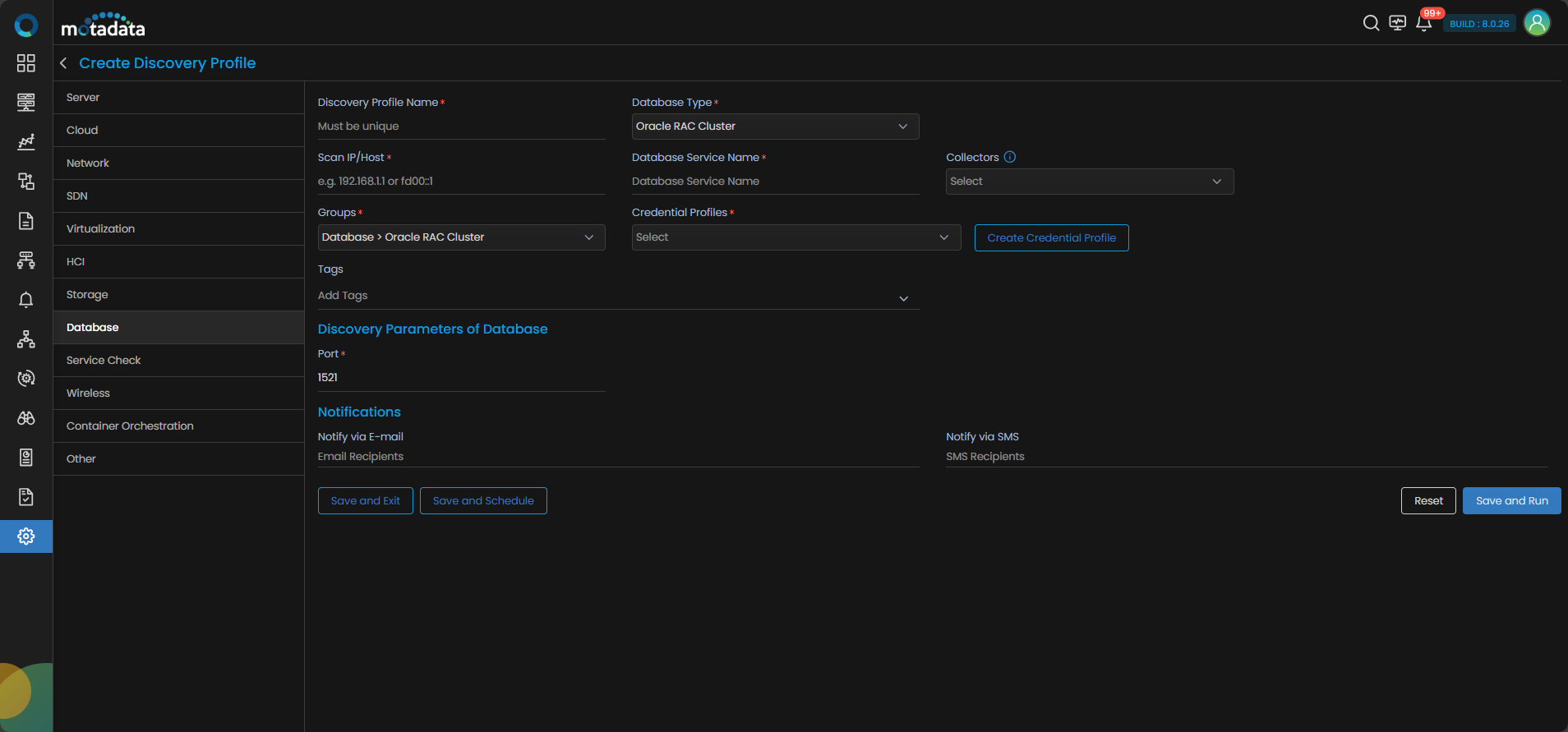
Discovery Parameters
| Field | Description |
|---|---|
| Discovery Profile Name | Provide a name for this discovery configuration. |
| Database Type | Select the database type from the list. |
| Scan IP/Host | Enter the IP address(IPv4 or IPv6) of the database to be discovered. |
| Database Service Name | Enter the service name associated with the database to be discovered. |
| Collectors | Select one or more Collectors that should be used for collecting data from the devices discovered using this Discovery Profile. Select multiple Collectors for load balancing and failover mechanism. In case you don’t select a Collector, the AIOps shall automatically select a relevant collector to leverage the load balancing feature. |
| Groups | Select one or more Groups that will be assigned to the monitors you provision using this discovery profile. |
| Credential Profiles | Select an already created Credential Profile to assign it to the discovery profile. You can also create a new credential profile from this screen using the Create Credential Profile button. In this case, we will select the credential profile which we created in the 1st step while creating a credential profile. |
| Tags | Select one or more Tags that you wish to assign to the devices you want to discover and setup as a monitor. |
| URL Type | This option displays for the Elasticsearch Database Type only. Select on the URL types. By default, HTTP/ HTTPS will be selected. |
| Port | The Port number field is already populated. |
| Notify Team | The system allows notifying users about new service discovery through e-mail, handle, user name, and user profiles:
|
Select Reset to erase all the current field values, if required.
Select Save and Exit if you have created the discovery profile but do not want to execute a discovery run.
Select Save and Schedule if you have created the discovery profile and wish to schedule its run at a specific time.
Select Save and Run if you want execute the discovery run immediately after creation.