Adding Container Orchestration Devices for Monitoring
Overview
To monitor container orchestration platforms, Motadata AIOps introduces support for Tanzu Kubernetes clusters. This guide walks you through the process of adding these platforms as monitored devices. The steps include creating a credential profile, configuring discovery parameters, and provisioning the discovered master node for monitoring.
Supported Orchestration Platforms
- Kubernetes
- Tanzu Kubernetes
- OpenShift
- Kubernetes
- Tanzu Kubernetes
- OpenShift
Adding Kubernetes
1. Create a Credential Profile
We will start by creating a credential profile for the cluster you are trying to discover and monitor.
Navigation
Go to Menu. Select Settings  . After that, Go to Discovery Settings
  and select Credential Profile. The credential profile screen is displayed. Select Create Credential Profile to create a new credential profile.
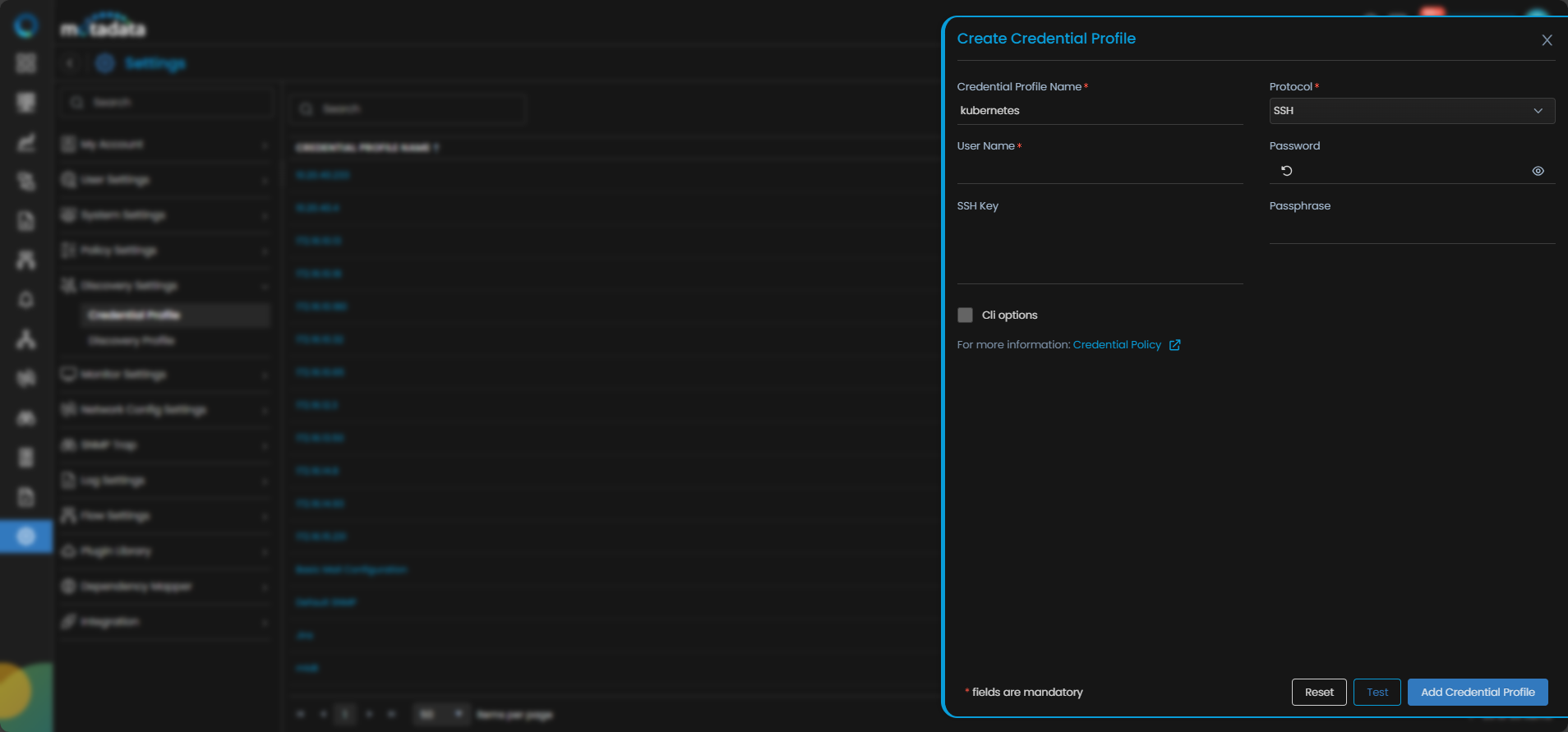
Credential Profile Parameters
| Field | Description |
|---|---|
| Credential Profile Name | Provide a unique Credential Profile Name. This name is used to identify a credential profile. |
| Protocol | Select SSH as Protocol from the drop-down. The option to provide the credential details is then displayed based on the protocol selected. |
| Username and Password | Enter these details for the Linux server you want to monitor. |
| SSH Key and Passphrase | Enter these details for the Linux server you want to monitor if you want to access the server using the SSH Key and Passphrase |
| Cli options | Selecting the checkbox displays multiple options to configure. - Select Config Transfer Protocol from the Drop-down. - Enter the Enable User Name, associated Enable Password, Enable Command, Enable Prompt, Config Mode Command, Config Password and VRF Number associated with the device's enable mode. |
You can use Reset to clear the inputs, Test to test the inputs and Add Credential Profile to save the profile.
2. Add Kubernetes Device
Once the credential profile is ready, proceed to add the Kubernetes cluster for monitoring.
Navigation
Go to Menu. Select Settings . After that, Go to Discovery Settings and select Discovery Profile. The discovery profile screen is displayed. Select Create Discovery Profile to create a new discovery profile. Select Container Orchestration and click on the Kubernetes tab.
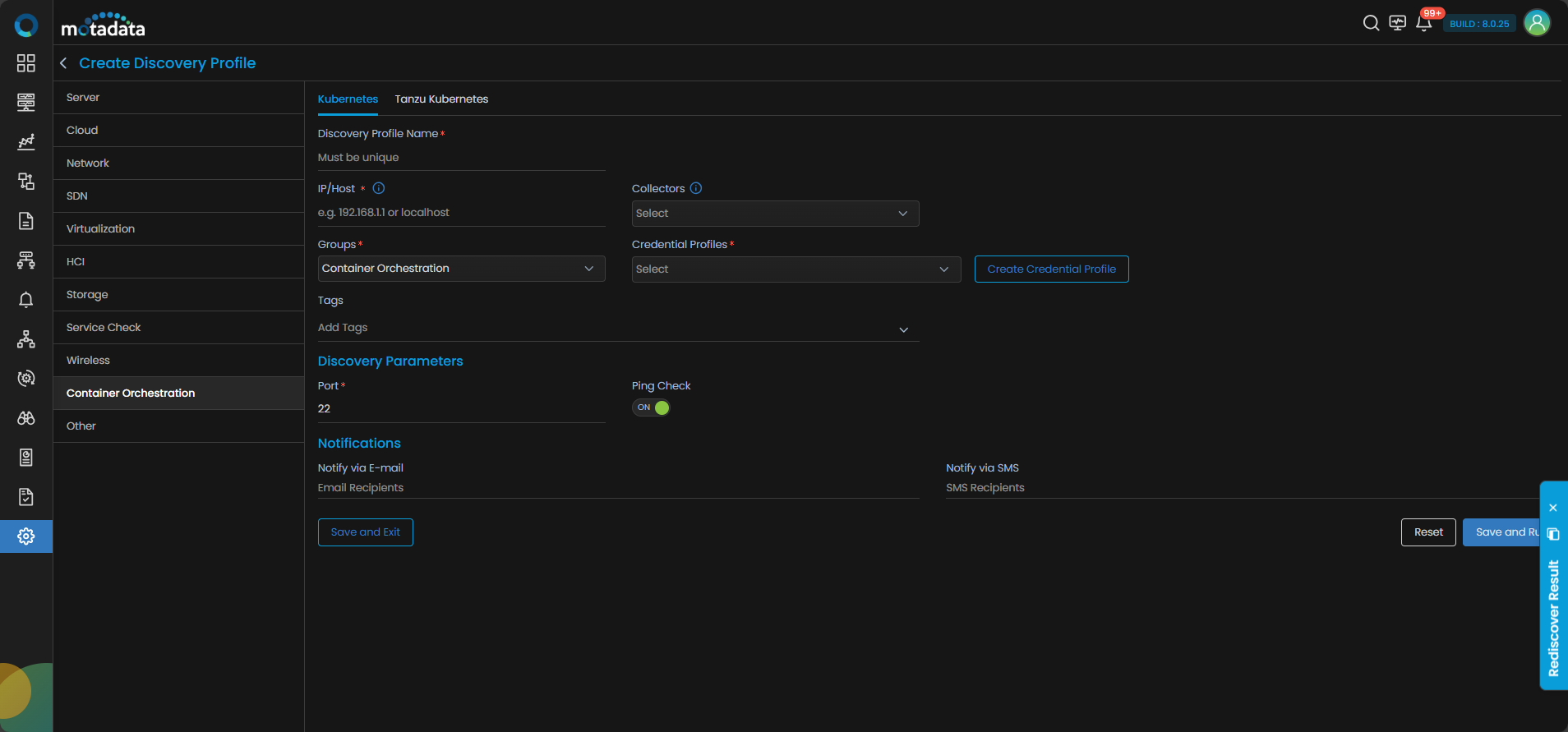
Discovery Parameters
| Field | Description |
|---|---|
| Discovery Profile Name | Provide a name for this discovery configuration. |
| IP/Host | The IP address(IPv4 or IPv6) of the device to be discovered. |
| Collectors | Select one or more Collectors that should be used for collecting data from the devices discovered using this Discovery Profile. Select multiple Collectors for load balancing and failover mechanism. In case you don’t select a Collector, the AIOps shall automatically select a relevant collector to leverage the load balancing feature. |
| Groups | Select one or more Groups that will be assigned to the monitors you provision using this discovery profile. |
| Credential Profiles | Select an already created Credential Profile to assign it to the discovery profile. You can also create a new credential profile from this screen using the Create Credential Profile button. In this case, we will select the credential profile which we created in the 1st step while creating a credential profile. |
| Tags | Select one or more Tags that you wish to assign to the devices you want to discover and setup as a monitor. |
| Ping Check | The Ping Check button is switched ON by default. This means that AIOps will only discover the device if the ping is available for that device. Toggle this button OFF if you want AIOps to discover the device without doing a ping check. |
| Port | The Port number field is already populated. |
| Notify Team | The system allows notifying users about new service discovery through e-mail, handle, user name, and user profiles:
|
Select Reset to erase all the current field values, if required.
Select Save and Exit if you have created the discovery profile but do not want to execute a discovery run.
Select Save and Run if you want execute the discovery run immediately after creation.
Adding Tanzu Kubernetes
1. Create a Credential Profile
We will start by creating a credential profile for the cluster you are trying to discover and monitor.
Navigation
Go to Menu. Select Settings . After that, Go to Discovery Settings and select Credential Profile. The credential profile screen is displayed. Select Create Credential Profile to create a new credential profile.
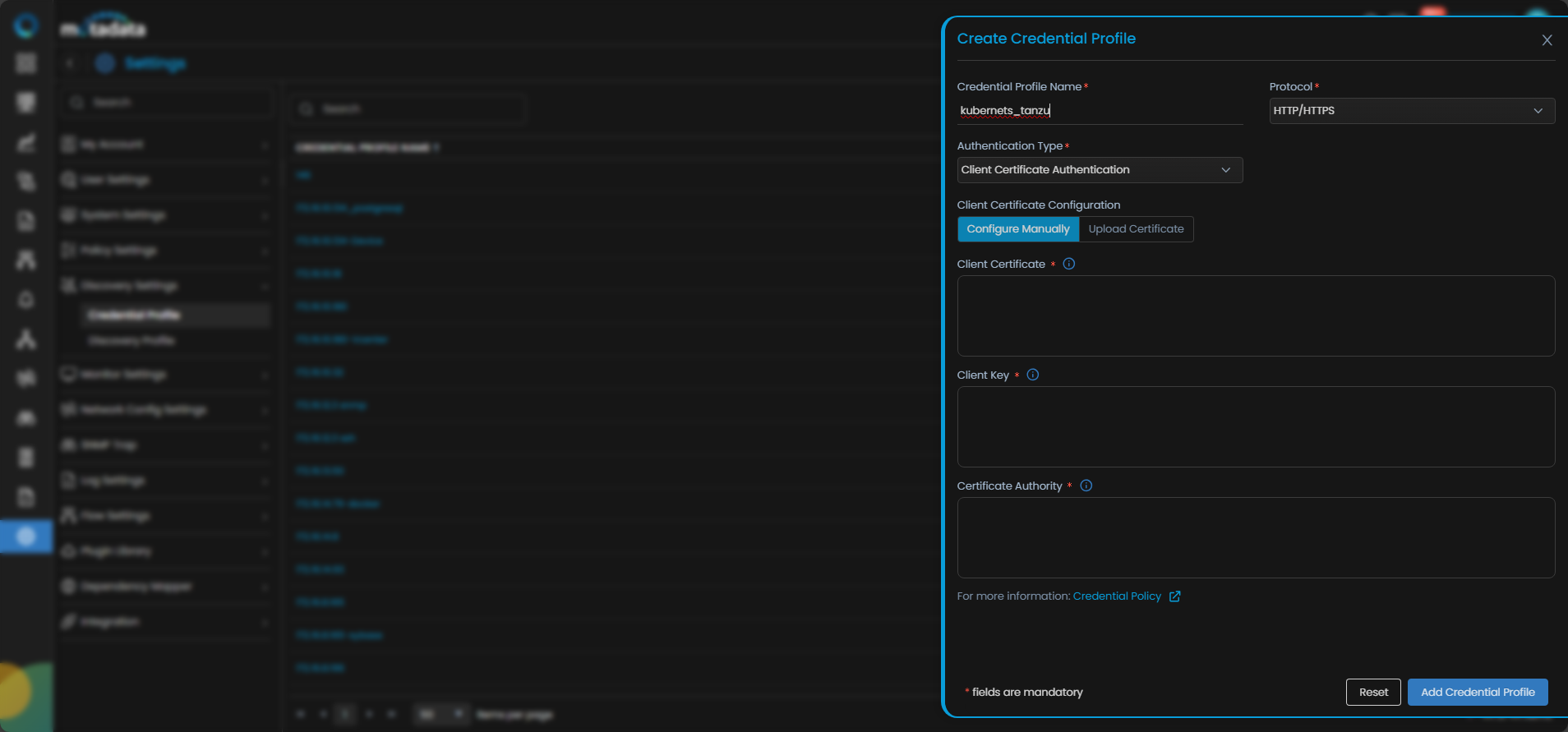
Credential Profile Parameters
| Field | Description |
|---|---|
| Credential Profile Name | Provide a unique name to identify this credential profile. |
| Protocol | Select HTTP or HTTPS as Protocol from the drop-down. The option to provide the credential details is then displayed based on the protocol selected. |
| Authentication Type | Select Client Certificate Authentication. |
| Client Certificate Configuration | If Client Certificate Authentication is selected, choose either Configure Manually or Upload Certificate. |
| Client Certificate | Specify/ Upload the Base64-encoded string that uniquely identifies the certificate. |
| Client Key | Specify/ Upload the private key associated with the client certificate in Base64-encoded format. |
| Certificate Authority | Specify/ Upload the Base64-encoded string of the certificate authority that issued the client certificate. |
You can use Reset to clear the inputs, Test to test the inputs and Add Credential Profile to save the profile.
2. Add Tanzu Kubernetes Device
Once the credential profile is ready, proceed to add the Tanzu Kubernetes cluster for monitoring.
Navigation
Go to Menu. Select Settings . After that, Go to Discovery Settings and select Discovery Profile. The discovery profile screen is displayed. Select Create Discovery Profile to create a new discovery profile. Select Container Orchestration and click on the Tanzu Kubernetes tab.
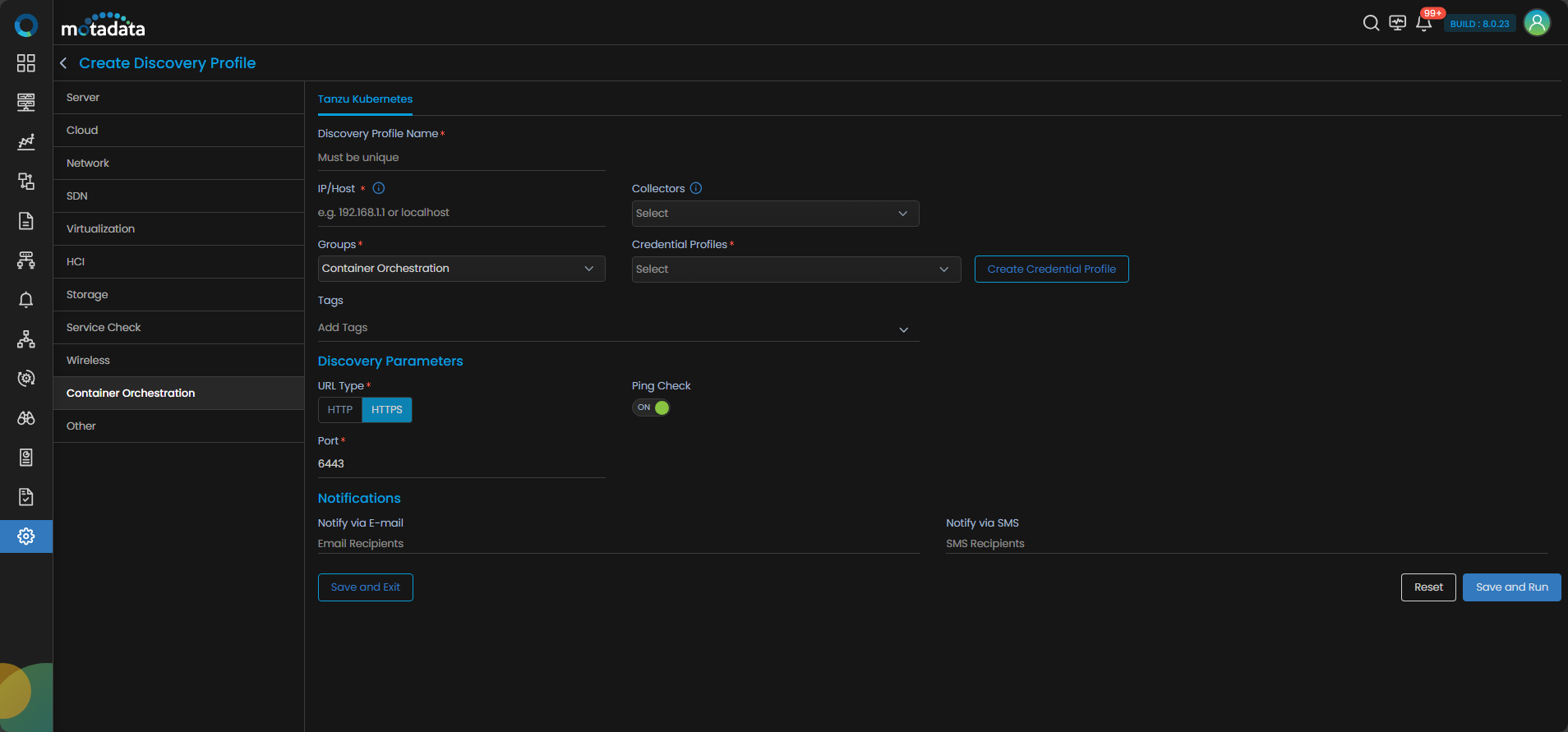
Discovery Parameters (Tanzu Kubernetes)
| Field | Description |
|---|---|
| Discovery Profile Name | Provide a name for this discovery configuration. |
| IP/Host | The IP address(IPv4 or IPv6) of the device to be discovered. |
| Collectors | Select one or more Collectors that should be used for collecting data from the devices discovered using this Discovery Profile. Select multiple Collectors for load balancing and failover mechanism. In case you don’t select a Collector, the AIOps shall automatically select a relevant collector to leverage the load balancing feature. |
| Groups | Select one or more Groups that will be assigned to the monitors you provision using this discovery profile. |
| Credential Profiles | Select an already created Credential Profile to assign it to the discovery profile. You can also create a new credential profile from this screen using the Create Credential Profile button. In this case, we will select the credential profile which we created in the 1st step while creating a credential profile. |
| Tags | Select one or more Tags that you wish to assign to the devices you want to discover and setup as a monitor. |
| Url Type | Select the url type from the displayed choices. |
| Ping Check | The Ping Check button is switched ON by default. This means that AIOps will only discover the device if the ping is available for that device. Toggle this button OFF if you want AIOps to discover the device without doing a ping check. |
| Port | The Port number field is already populated. |
| Notify Team | The system allows notifying users about new service discovery through e-mail, handle, user name, and user profiles:
|
Select Reset to erase all the current field values, if required.
Select Save and Exit if you have created the discovery profile but do not want to execute a discovery run.
Select Save and Run if you want execute the discovery run immediately after creation.
Prerequisites
The prerequisites for connecting OpenShift Cluster to API Server for Discovery
- The dns hostname
api.openshift-cluster.motadata.localshould be accessible to be used during discovery.
The steps to access the hostname are as below:
- Access to a Kubeconfig File: The kubeconfig provides authentication and TLS certificates required for secure API communication.
You must have a valid kubeconfig file that contains Cluster API endpoint server: https://<cluster-domain>:6443 and Certificate authority certificate-authority-data.
- Locate the Kubeconfig File: Ensure the file has read permissions for the user performing discovery.
If you are unsure where the file is, then run:
sudo find / -type f -name "kubeconfig" 2>/dev/null
- Set the KUBECONFIG Environment Variable: This tells OpenShift CLI and discovery tools to use this kubeconfig instead of the default location (~/.kube/config).
To use the specific kubeconfig file with oc or API clients, run:
export KUBECONFIG=/var/home/core/kubeconfig
- Verify API Server Connectivity: Confirm you can connect to the OpenShift API server by running:
oc whoami --show-server
If you follow the above steps then the expected output is the full API server URL.
- The dns name to the cluster ip need be resolved. For this, you need to edit the Windows hosts file (C:\Windows\System32\drivers\etc\hosts) to manually map a hostname to an IP address.
Steps to resolve dns name to the cluster ip:
- Open Notepad as Administrator. In Notepad, click File and select Open. Then, navigate to: C:\Windows\System32\drivers\etc\hosts.
You may need to switch file type to All Files to see it.
- At the bottom of the file, add the line: "ip dns name"
For Example:
172.16.11.76 api.openshift-cluster.motadata.local
- Save the file.
The line you add:
172.16.11.76 api.openshift-cluster.motadata.local
tells Windows: “Whenever I try to connect to api.openshift-cluster.motadata.local, go to IP 172.16.11.76.”
Adding OpenShift
1. Create a Credential Profile
We will start by creating a credential profile for the cluster you are trying to discover and monitor.
Navigation
Go to Menu. Select Settings . After that, Go to Discovery Settings and select Credential Profile. The credential profile screen is displayed. Select Create Credential Profile to create a new credential profile.
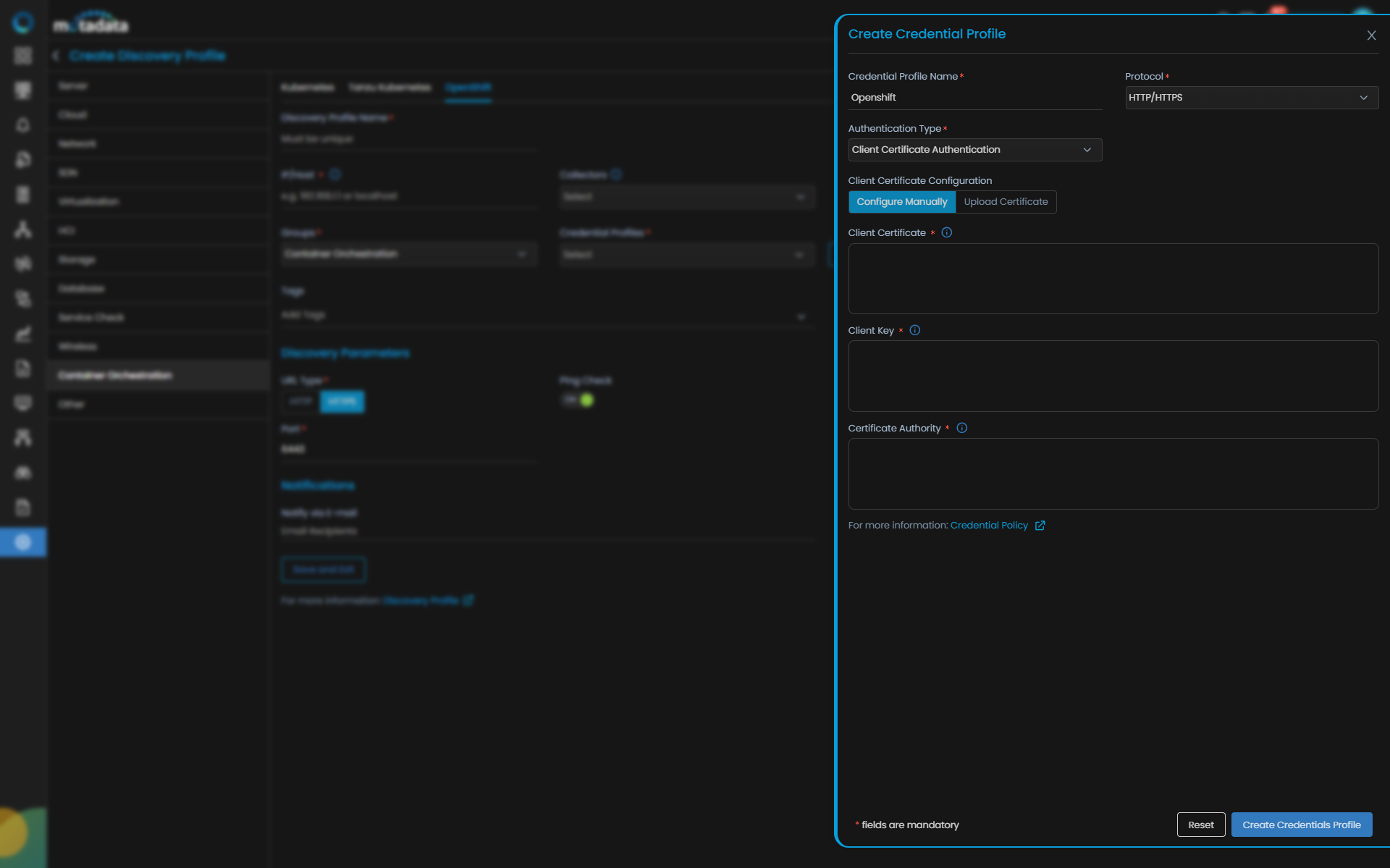
Credential Profile Parameters
| Field | Description |
|---|---|
| Credential Profile Name | Provide a unique Credential Profile Name. This name is used to identify a credential profile. |
| Protocol | Select HTTP or HTTPS as Protocol from the drop-down. The option to provide the credential details is then displayed based on the protocol selected. |
| Authentication Type | Select Client Certificate Authentication. |
| Client Certificate Configuration | If Client Certificate Authentication is selected, choose either Configure Manually or Upload Certificate. |
| Client Certificate | Specify/ Upload the Base64-encoded string that uniquely identifies the certificate. |
| Client Key | Specify/ Upload the private key associated with the client certificate in Base64-encoded format. |
| Certificate Authority | Specify/ Upload the Base64-encoded string of the certificate authority that issued the client certificate. |
You can use Reset to clear the inputs, Test to test the inputs and Add Credential Profile to save the profile.
2. Add OpenShift Device
Once the credential profile is ready, proceed to add the OpenShift cluster for monitoring.
Navigation
Go to Menu. Select Settings . After that, Go to Discovery Settings and select Discovery Profile. The discovery profile screen is displayed. Select Create Discovery Profile to create a new discovery profile. Select Container Orchestration and click on the OpenShift tab.
Discovery Parameters
| Field | Description |
|---|---|
| Discovery Profile Name | Provide a name for this discovery configuration. |
| IP/Host | The IP address(IPv4 or IPv6) of the device to be discovered. |
| Collectors | Select one or more Collectors that should be used for collecting data from the devices discovered using this Discovery Profile. Select multiple Collectors for load balancing and failover mechanism. In case you don’t select a Collector, the AIOps shall automatically select a relevant collector to leverage the load balancing feature. |
| Groups | Select one or more Groups that will be assigned to the monitors you provision using this discovery profile. |
| Credential Profiles | Select an already created Credential Profile to assign it to the discovery profile. You can also create a new credential profile from this screen using the Create Credential Profile button. In this case, we will select the credential profile which we created in the 1st step while creating a credential profile. |
| Tags | Select one or more Tags that you wish to assign to the devices you want to discover and setup as a monitor. |
| Port | The Port number field is already populated. |
| Ping Check | The Ping Check button is switched ON by default. This means that AIOps will only discover the device if the ping is available for that device. Toggle this button OFF if you want AIOps to discover the device without doing a ping check. |
| Notify Team | The system allows notifying users about new service discovery through e-mail, handle, user name, and user profiles:
|
Select Reset to erase all the current field values, if required.
Select Save and Exit if you have created the discovery profile but do not want to execute a discovery run.
Select Save and Run if you want execute the discovery run immediately after creation.