Adding Virtualization Devices for Monitoring
Overview
In order to get started with the monitoring for virtualization devices, we need to first add the devices to Motadata AIOps and in turn enable it to collect data from these devices for monitoring. This guide helps you with the process of adding virtualization devices to Motadata AIOps so that you are able to start monitoring them.
At a high level, this process includes creating a credential profile and a discovery profile, assigning the credential profile to a discovery profile, and executing a successful discovery run.
This is followed by provisioning the discovered devices as monitors in the system. This will enable Motadata AIOps to continuously monitor the resources and generate alerts and insights based on their performance metrics. You can also customize the Monitor Settings for each monitor, such as the polling interval, threshold values, and alert notifications.
Virtualization Vendors Supported
You can add devices to AIOps to monitor them from all the major virtualization vendors which include the following:
| Virtualization Solutions Supported |
|---|
| Citrix Xen |
| Citrix Xen Cluster |
| ESXi |
| Vcenter |
| Hyper-V |
| Hyper-V Cluster |
| Proxmox VE Node |
| Proxmox VE Cluster |
Let us look into the process to add a device from each vendor.
- Citrix Xen
- Citrix Xen Cluster
- ESXi
- vCenter
- Hyper-V
- Hyper-V Cluster
- Proxmox VE Node
- Proxmox VE Cluster
Adding a Citrix Xen device
1. Create a Credential Profile
We will start by creating a credential profile for the device we are trying to add.
Navigation
Go to Menu. Select Settings  . After that, Go to Discovery Settings
  and select Credential Profile. The credential profile screen is displayed. Select Create Credential Profile to create a new credential profile.
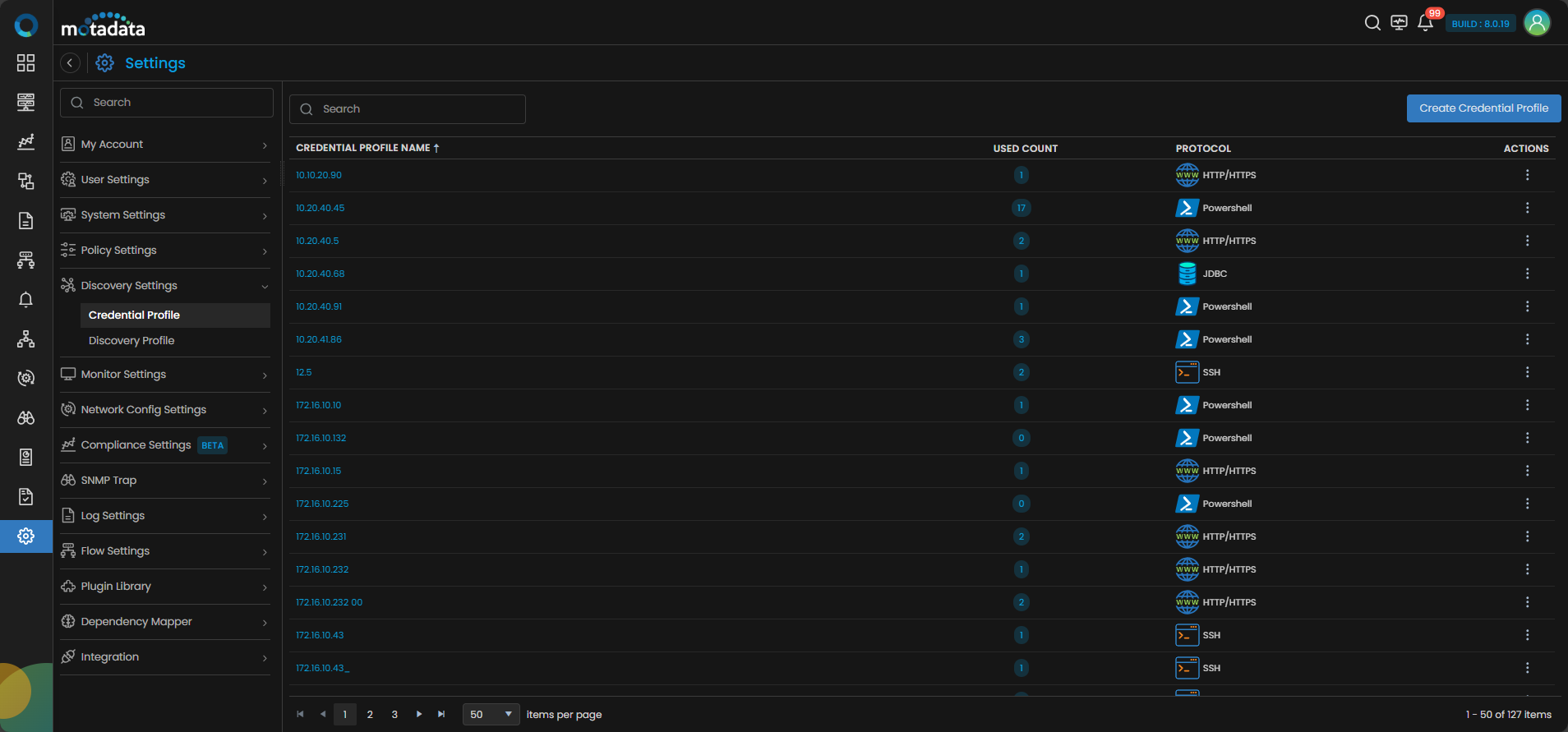
A pop-up for entering the credential profile details is displayed.
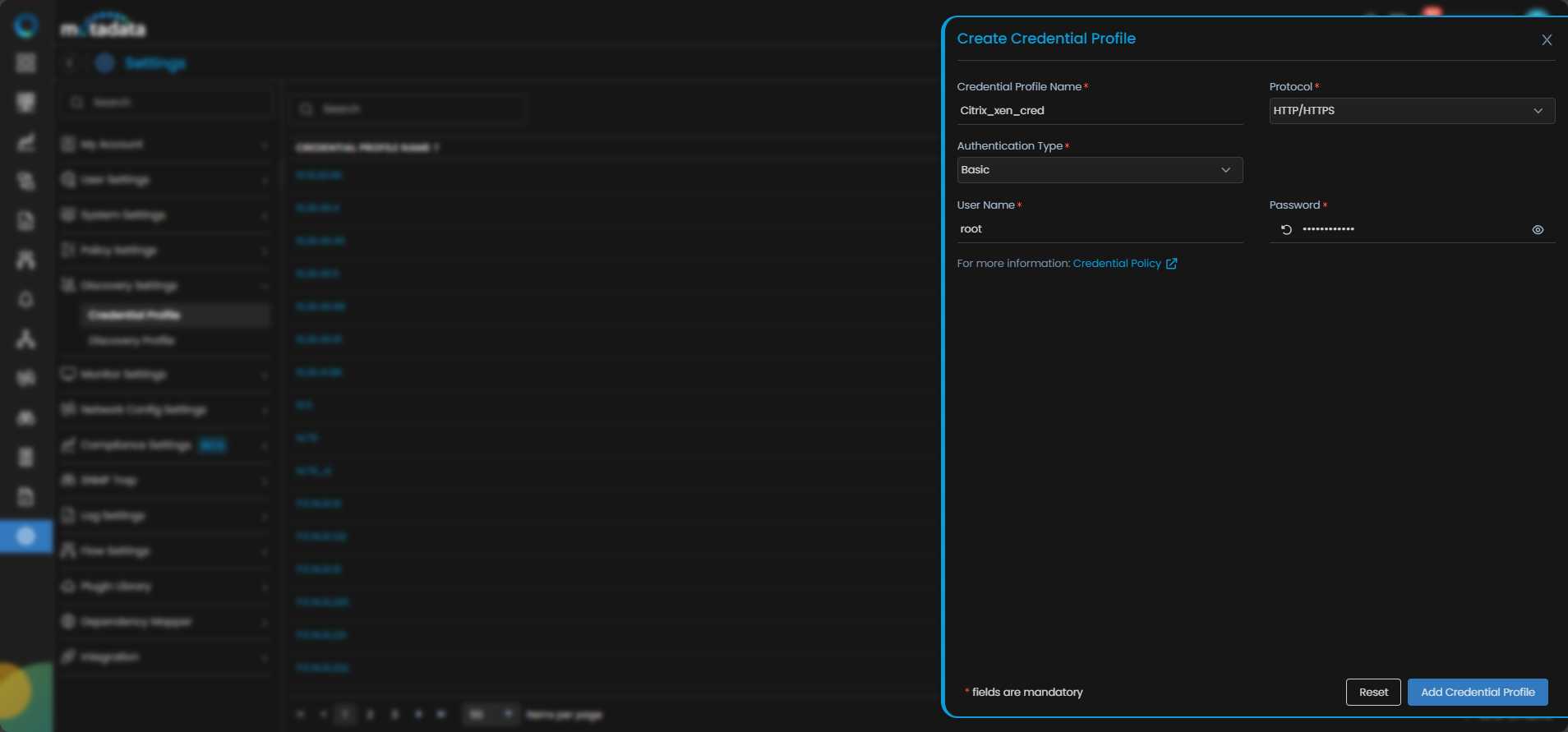
Credential Profile Parameters
Enter the required details in the pop-up as follows:
| Field | Description |
|---|---|
| Credential Profile Name | Provide a unique Credential Profile Name. This name is used to identify a credential profile. |
| Protocol | Select HTTP/HTTPS as Protocol from the drop-down. The option to provide the credential details is then displayed based on the protocol selected. |
| Username and Password | Enter these details for the virtual device you want to monitor. |
| Authentication Type | Select the correct Authentication Type based on the authentication of the device. |
Select Test to check if the credential details you provided are working against the device you want to discover by providing the details of the device IP.
Select Reset to erase all the current field values entered in the pop-up, if required.
Select Create Credential Profile to create the credential profile in the system. The credential profile is now created.
You can view the newly created profile in the credential profile interface by using the Search option available above the list of profiles.

Now, let's move to the next step and create a discovery profile.
2. Create a Discovery Profile
Let us create a discovery profile for the device we are trying to add. Discovery profile allows us to discover devices in an infrastructure using the device address and associated credential profile.
Navigation
Go to Menu. Select Settings . After that, Go to Discovery Settings and select Discovery Profile. The discovery profile screen is displayed. Select Create Discovery Profile to create a new discovery profile.
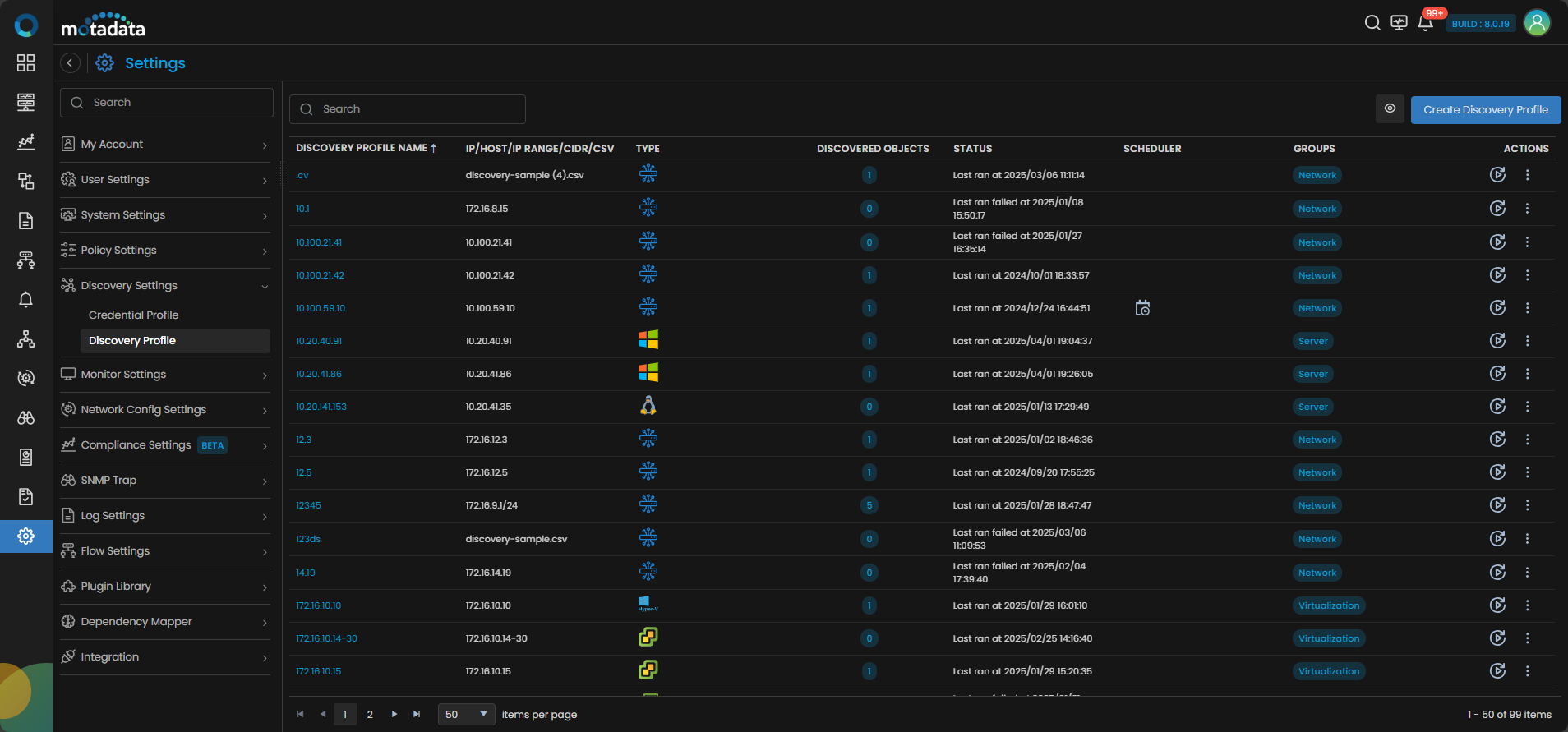
A new screen to create the discovery profile is now displayed. Select Virtualization from the menu as shown below:
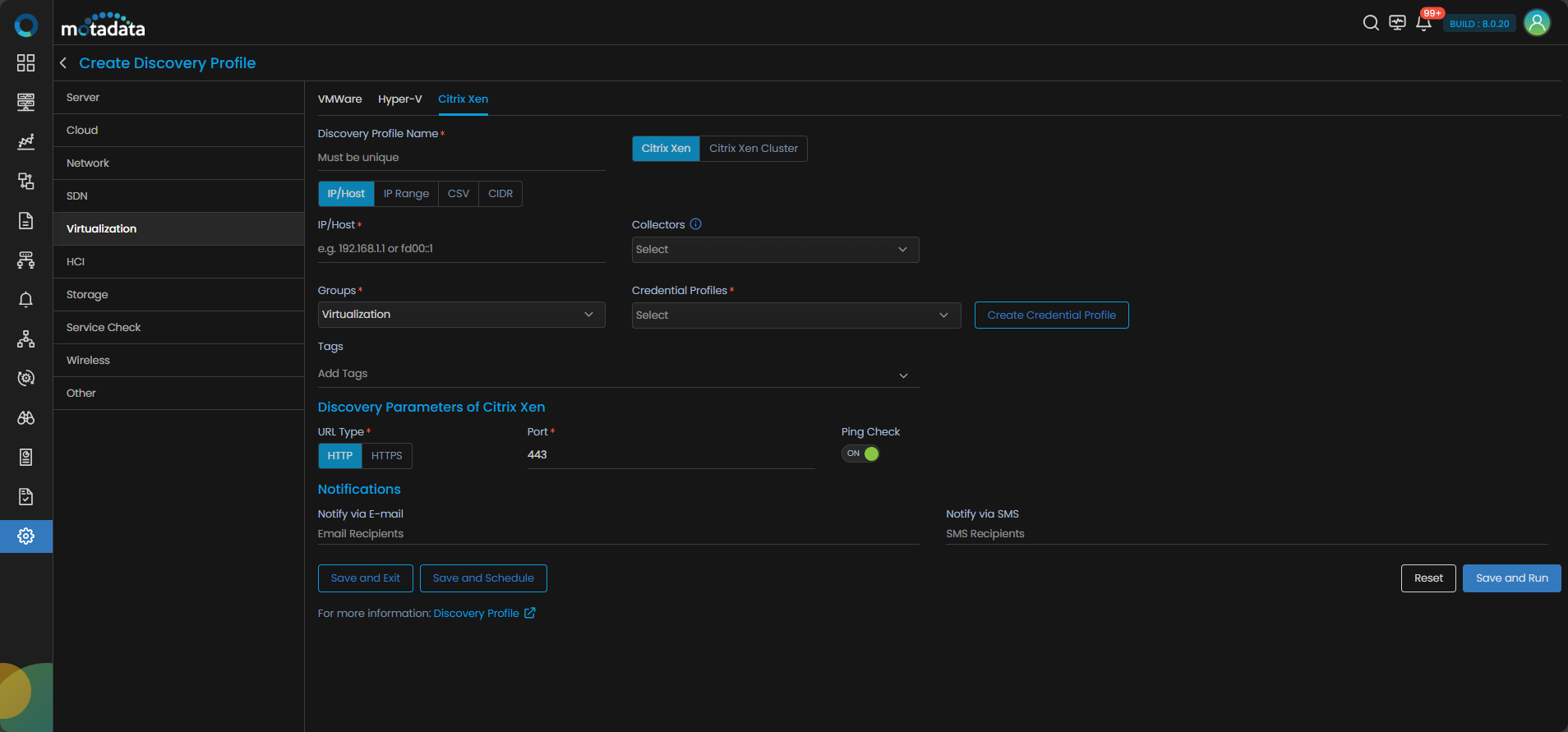
Select Citrix Xen to create a discovery profile.
Discovery Profile Parameters
Enter the required details in the screen as follows:
| Field | Description |
|---|---|
| Discovery Profile Name | Provide a unique Discovery Profile Name. This name is used to identify a discovery profile. |
| IP-Host/IP Range/CIDR/CSV | The address of the device to be discovered in one of the following formats: - IP: The IP address(IPv4 or IPv6) of the device to be discovered. - IP Range: A range of IP addresses(IPv4) in case multiple devices need to be discovered using the same profile. - CIDR: A range of IP addresses(IPv4) using the CIDR notation if multiple devices need to be discovered using the same profile. - CSV: The name of the CSV file used to import a range of addresses. You can enter IPv4, IPv6, or a combination of both addresses in the CSV file that you wish to upload. |
| Collectors | Select one or more Collectors that should be used for collecting data from the devices discovered using this Discovery Profile. Select multiple Collectors for load balancing and failover mechanism. In case you don’t select a Collector, the AIOps shall automatically select a relevant collector to leverage the load balancing feature. |
Ensure that you select correct Collector(s) based on how you want to distribute the load across all Collectors.
| Field | Description |
|---|---|
| Groups | Select one or more Groups that will be assigned to the monitors you provision using this discovery profile. |
| Credential Profile | Select a created Credential Profile to assign it to the discovery profile you are trying to create. You can also create a new credential profile from this screen using the Create Credential Profile button. In this case, we will select the credential profile Citrix_xen_cred we created in the 1st step while creating a credential profile. |
| Tags | Select one or more Tags that you wish to assign to the discovery profile. |
| Port | The port number field is already populated. |
| Ping Check | The Ping Check button is switched ON by default. This means that AIOps will only discover the device if the ping is available for that device. Toggle this button OFF if you want AIOps to discover the device withouth doing a ping check. |
| Notify Team | The system allows notifying users about new service discovery through e-mail, handle, user name, and user profiles:
|
Select Reset to erase all the current field values, if required.
Select Save and Exit if you have created the discovery profile but do do want to execute a discovery run.
Select Save and Schedule if you have created the discovery profile and wish to schedule its run at a specific time.
Select Save and Run if you want execute the discovery run immediately after creation.
We have created a credential profile Citrix_xen_Cred in the 1st step. After that, we have created a discovery profile Citrix_xen_Dis in the 2nd step and assigned the credential profile to the discovery profile. After selecting, Save and Run, we have initiated a discovery run which leads us to our next step, which is, Provision the Discovered Devices as Monitors.
3. Provision the Discovered Devices as Monitors
After initiating the discovery profile execution, AIOps starts the process to discover the devices.
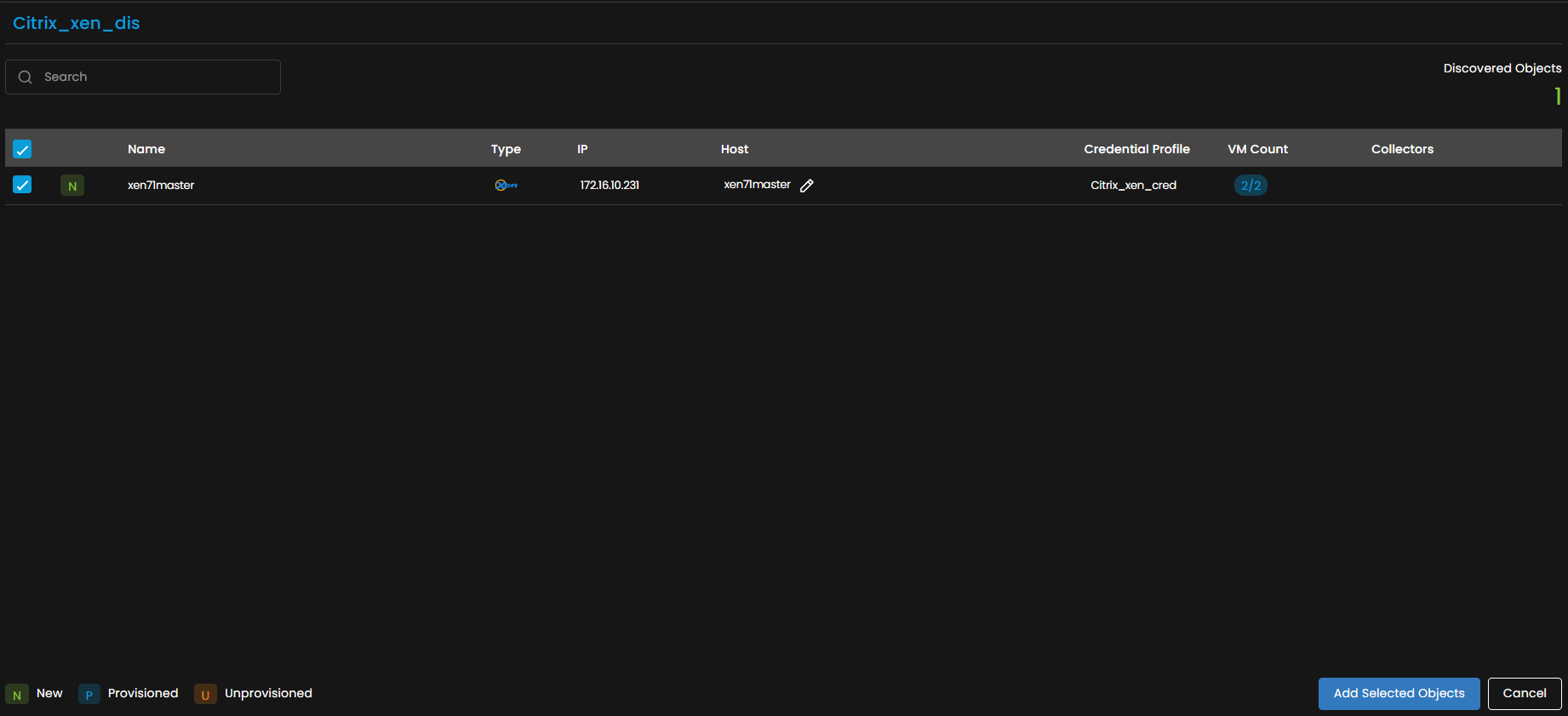
Once the discovery execution is complete, the list of all the devices discovered is displayed. Select the devices that you want to be listed as Monitors in the system.

Click on Add Selected Objects to add the selected devices as Monitors. These devices listed as Monitors will now be monitored further by AIOps.
These devices can be viewed under the Monitor tab from the Main Menu. Select the Monitor tab from the main menu. After that, Select Virtualization to view all the monitors that are added to the system.
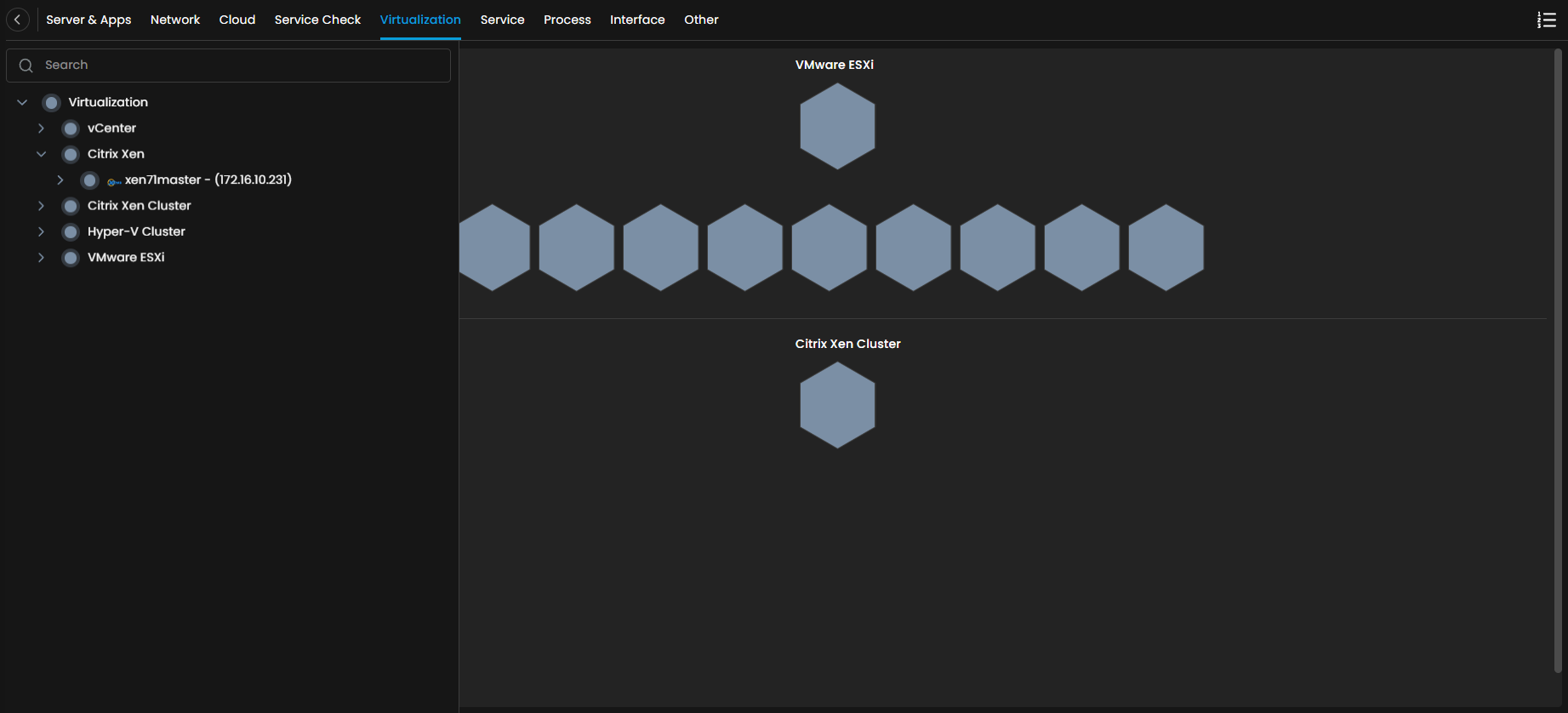
The Citrix Xen devices are now successfully added to AIOps.
Adding a Citrix Xen Cluster
1. Create a Credential Profile
We will start by creating a credential profile for the device we are trying to add.
Navigation
Go to Menu. Select Settings . After that, Go to Discovery Settings and select Credential Profile. The credential profile screen is displayed. Select Create Credential Profile to create a new credential profile.
A pop-up for entering the credential profile details is displayed.
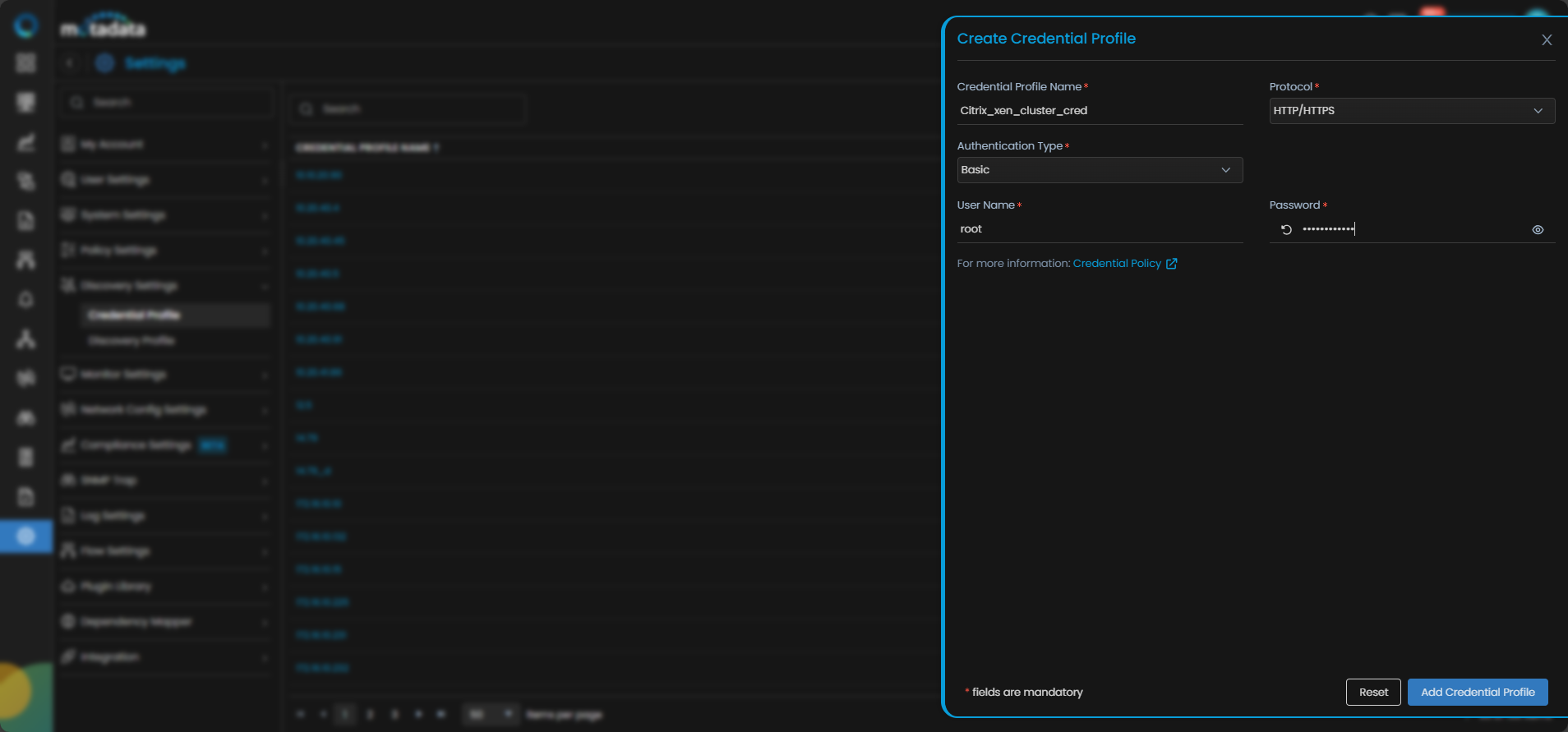
Credential Profile Parameters
Enter the required details in the pop-up as follows:
| Field | Description |
|---|---|
| Credential Profile Name | Provide a unique Credential Profile Name. This name is used to identify a credential profile. |
| Protocol | Select HTTP/HTTPS from the drop-down. The option to provide the credential details is then displayed based on the protocol selected. |
| Username and Password | Enter these details for the wireless device you want to monitor. |
| Authentication Type | Select the correct Authentication Type based on the authentication of the device. |
Select Reset to erase all the current field values entered in the pop-up, if required.
Select Create Credentials Profile to create the credential profile in the system. The credential profile is now created.
You can view the newly created profile in the credential profile interface by using the Search option available above the list of profiles.
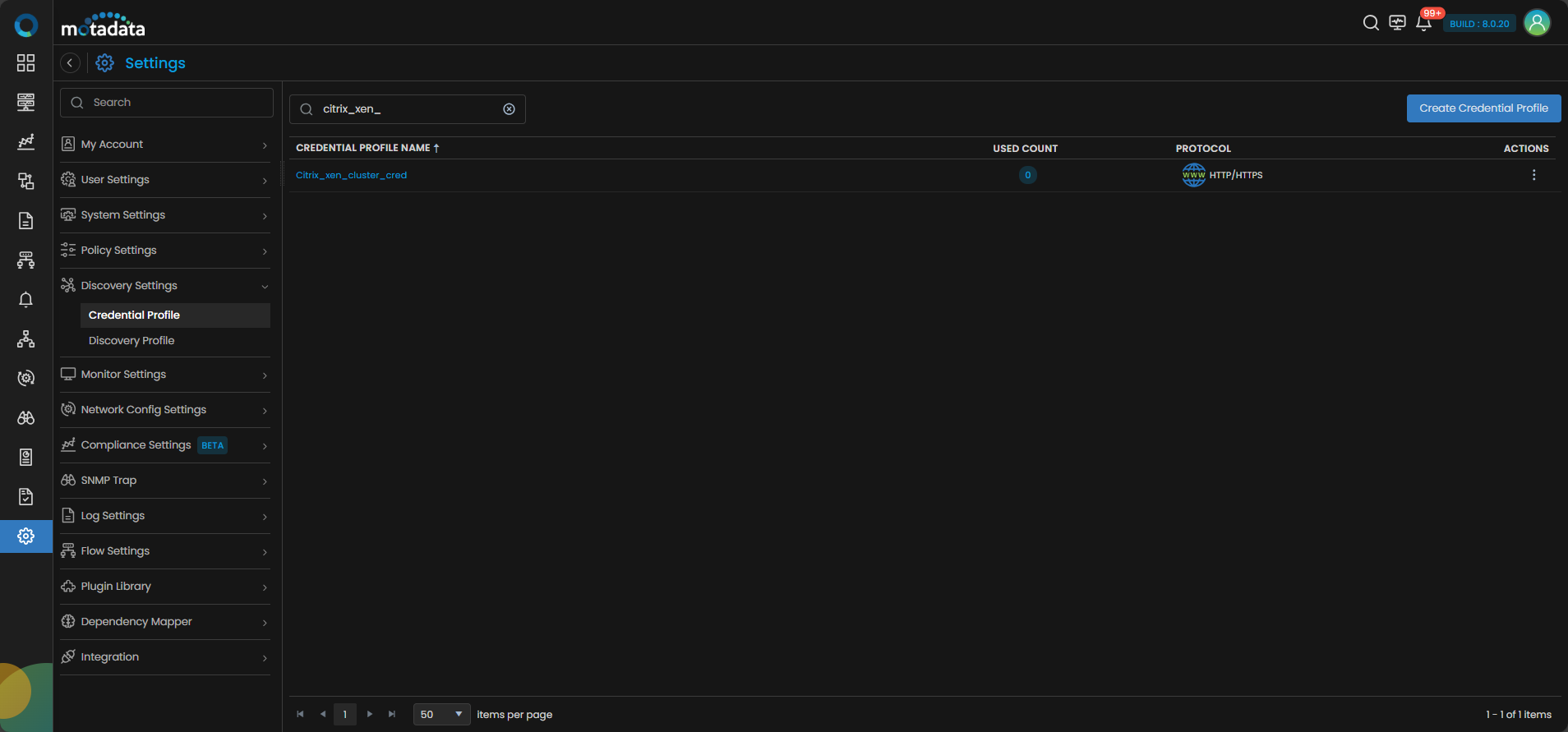
Now, let's move to the next step and create a discovery profile.
2. Create a Discovery Profile
Let us create a discovery profile for the device we are trying to add. Discovery profile allows us to discover devices in an infrastructure using the device address and associated credential profile.
Navigation
Go to Menu. Select Settings . After that, Go to Discovery Settings and select Discovery Profile. The discovery profile screen is displayed. Select Create Discovery Profile to create a new discovery profile.
A new screen to create the discovery profile is now displayed. Select Virtualization from the menu as shown below:
Select Citrix Xen Cluster to create a discovery profile.
Discovery Profile Parameters
Enter the required details in the screen as follows:
| Field | Description |
|---|---|
| Discovery Profile Name | Provide a unique Discovery Profile Name. This name is used to identify a discovery profile. |
| IP/Host | The IP address(IPv4 or IPv6) of the device to be discovered. |
| Collectors | Select one or more Collectors that should be used for collecting data from the devices discovered using this Discovery Profile. Select multiple Collectors for load balancing and failover mechanism. In case you don’t select a Collector, the AIOps shall automatically select a relevant collector to leverage the load balancing feature. |
Ensure that you select correct Collector(s) based on how you want to distribute the load across all Collectors.
| Field | Description |
|---|---|
| Groups | Select one or more Groups that will be assigned to the monitors you provision using this discovery profile. |
| Credential Profile | Select a created Credential Profile to assign it to the discovery profile you are trying to create. You can also create a new credential profile from this screen using the Create Credential Profile button. In this case, we will select the credential profile Citrix_xen_cluster_cred we created in the 1st step while creating a credential profile. |
| Tags | Select one or more Tags that you wish to assign to the discovery profile. These tags will in turn be assigned to the device that you discover. |
| URL Type | Select HTTP/HTTPS as per your protocol. |
| Port | Port number field is already populated. |
| Ping Check | The Ping Check button is switched ON by default. This means that AIOps will only discover the device if the ping is available for that device. Toggle this button OFF if you want AIOps to discover the device withouth doing a ping check. |
| Notify Team | The system allows notifying users about new service discovery through e-mail, handle, user name, and user profiles:
|
Select Reset to erase all the current field values, if required.
Select Save and Exit if you have created the discovery profile but do do want to execute a discovery run.
Select Save and Run if you want execute the discovery run immediately after creation.
We have created a credential profile Citrix_xen_cluster_Cred in the 1st step. After that, we have created a discovery profile Citrix_xen_cluster_Dis in the 2nd step and assigned the credential profile to the discovery profile. After selecting, Save and Run, we have initiated a discovery run which leads us to our next step, which is, Provision the Discovered Devices as Monitors.
3. Provision the Discovered Devices as Monitors
After initiating the discovery profile execution, AIOps begins the process to discover the devices.
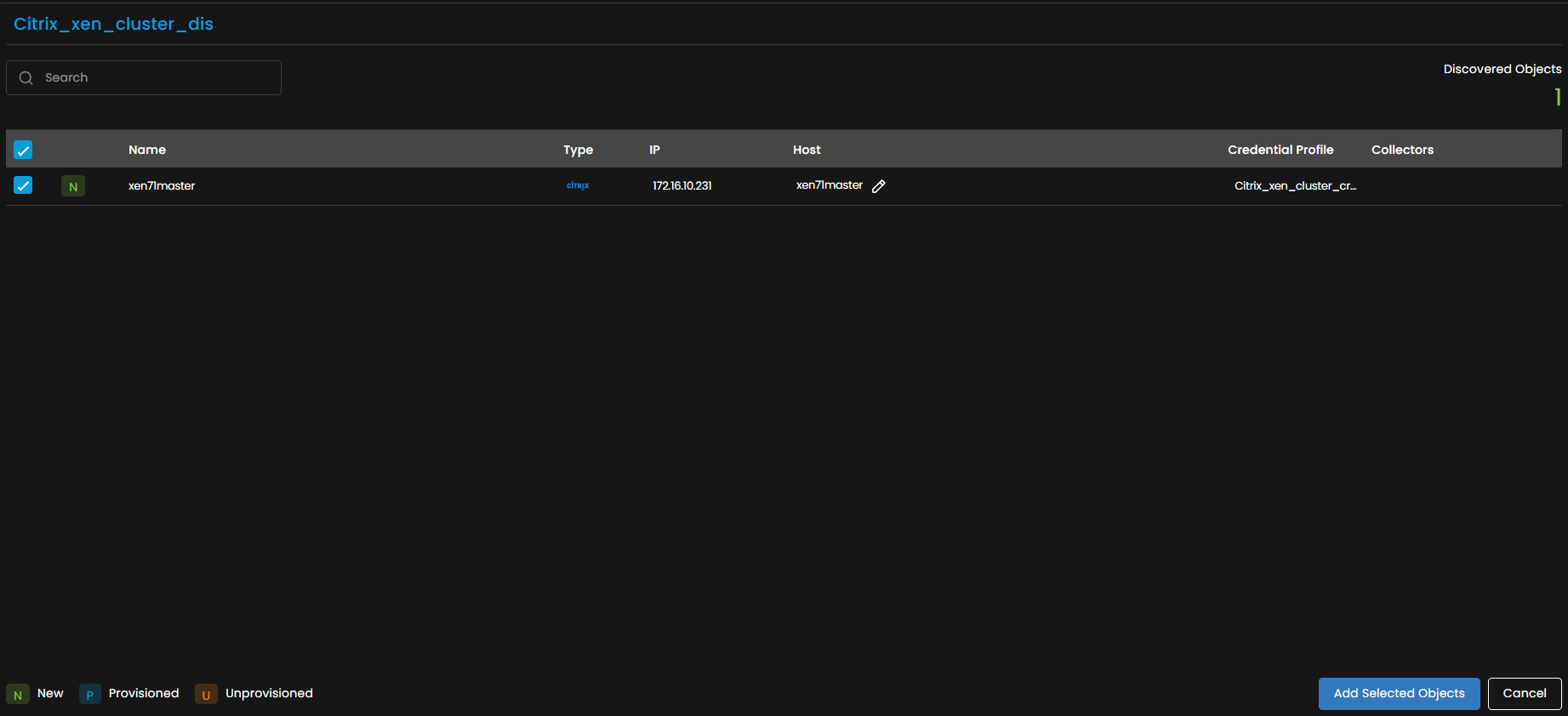
Once the discovery execution is complete, the list of all the devices discovered is displayed. Select the devices that you want to be listed as Monitors in the system.
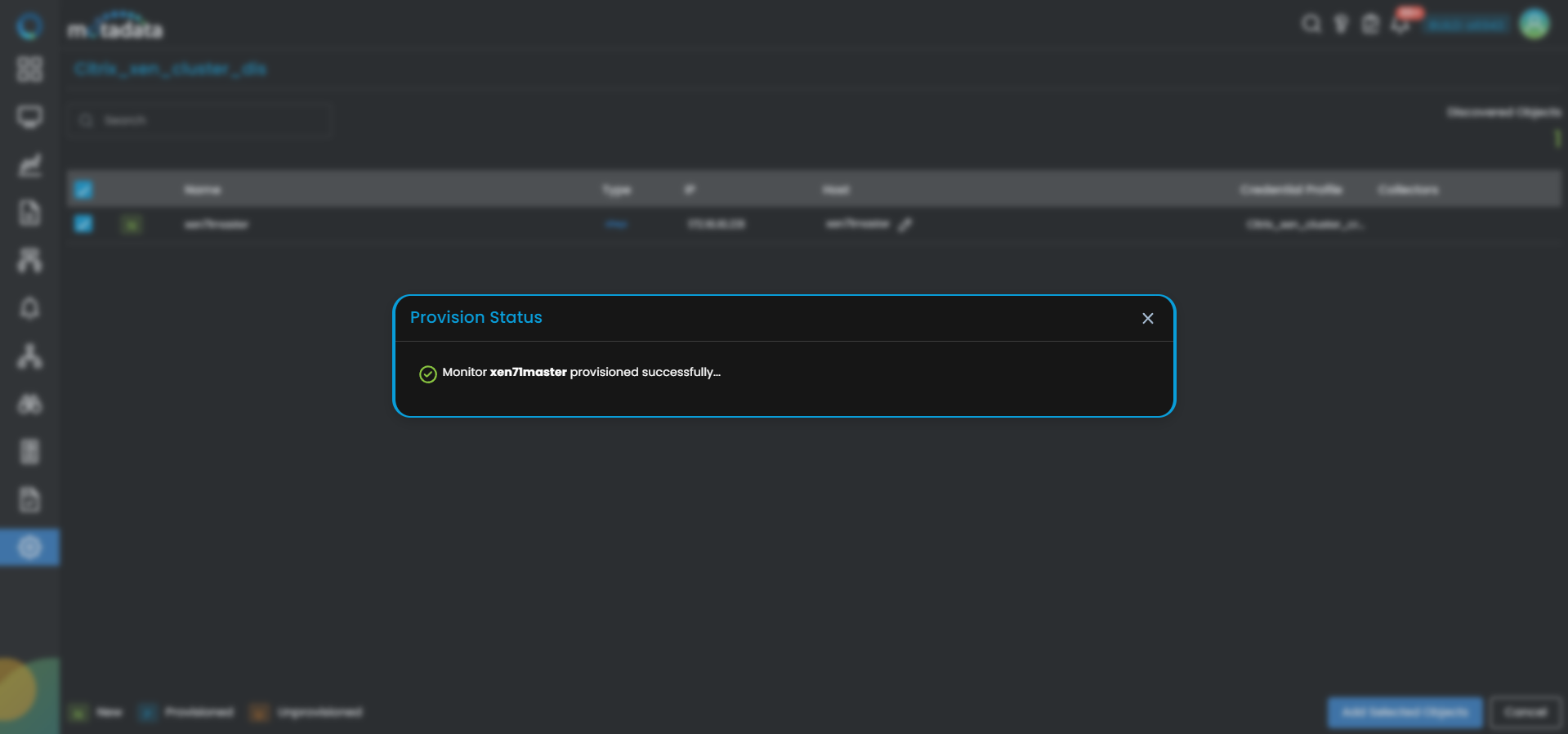
The Provisioning screen will show three separate tabs:
- Citrix Hypervisor
- Citrix Resource Pool
- Virtual Machine
Each of these tabs allows for individual selection and provisioning of discovered components.
Credential Profile Attachment to Citrix Hypervisor and Virtual Machine tabs
You can attach single or multiple credential profiles to each Citrix Hypervisor or Virtual Machine via the Select Credential Profile option.
You can assign credential profiles to bulk Citrix Hypervisor by selecting the multiple checkboxes for the nodes.
A side pop-up lets you assign a credential profile, create a new one, and configure the port. After that, the system will test the profile:
- If successful, the credential profile will be applied and confirmed with a green success message.
- If failed, the credential profile will not be assigned, and a red error message will be shown.
Click on Add Selected Objects to add the selected devices as Monitors. These devices will now be monitored further by AIOps.
- Citrix Hypervisor will appear under the Virtualization tab as the Citrix Hypervisor section.
- Citrix Resource Pool will appear under the Virtualization tab as the Citrix Resource Pool section.
- Virtual Machines will appear under the Virtualization tab with their discovered Citrix Hypervisor or Citrix Resource Pool, and also under Server & Apps if provisioned by assigning the credential profile.
Citrix Hypervisor Nodes will be auto-tagged with resource_pool, depends_on, citrix.
For Virtual Machines, the tags hypervisor:citrix, depends_on, type:vm, os, and vm will be applied.
In case of VMotion, the Citrix Hypervisor tag on VMs will be updated during polling.
These devices can be viewed under the Monitor tab from the Main Menu. Select the Monitor tab from the main menu, then select Virtualization to view all the monitors that have been added to the system.
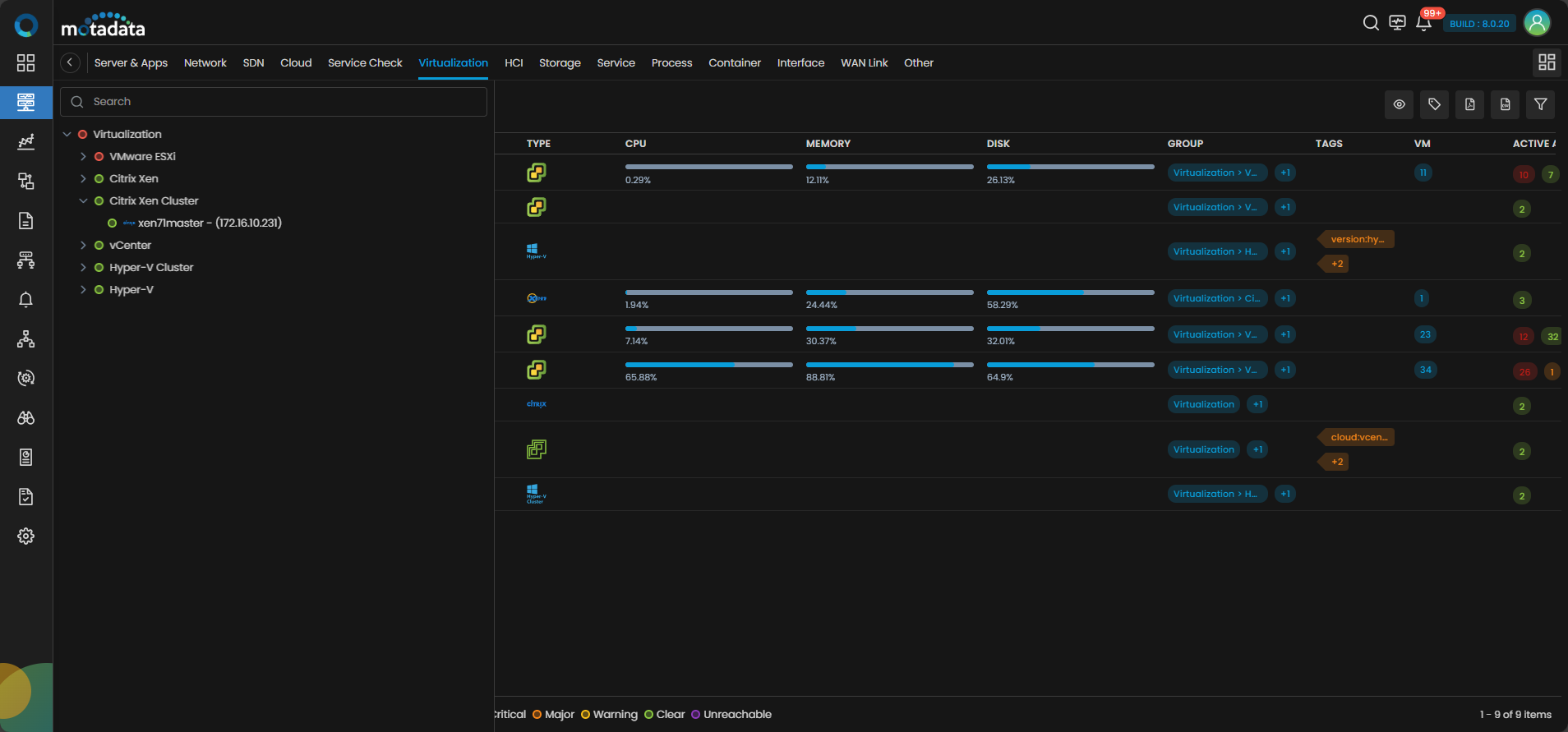
The Citrix Hypervisor devices are now successfully added to AIOps.
Adding an ESXi
1. Create a Credential Profile
We will start by creating a credential profile for the device we are trying to add.
Navigation
Go to Menu. Select Settings . After that, Go to Discovery Settings and select Credential Profile. The credential profile screen is displayed. Select Create Credential Profile to create a new credential profile.
A pop-up for entering the credential profile details is displayed.
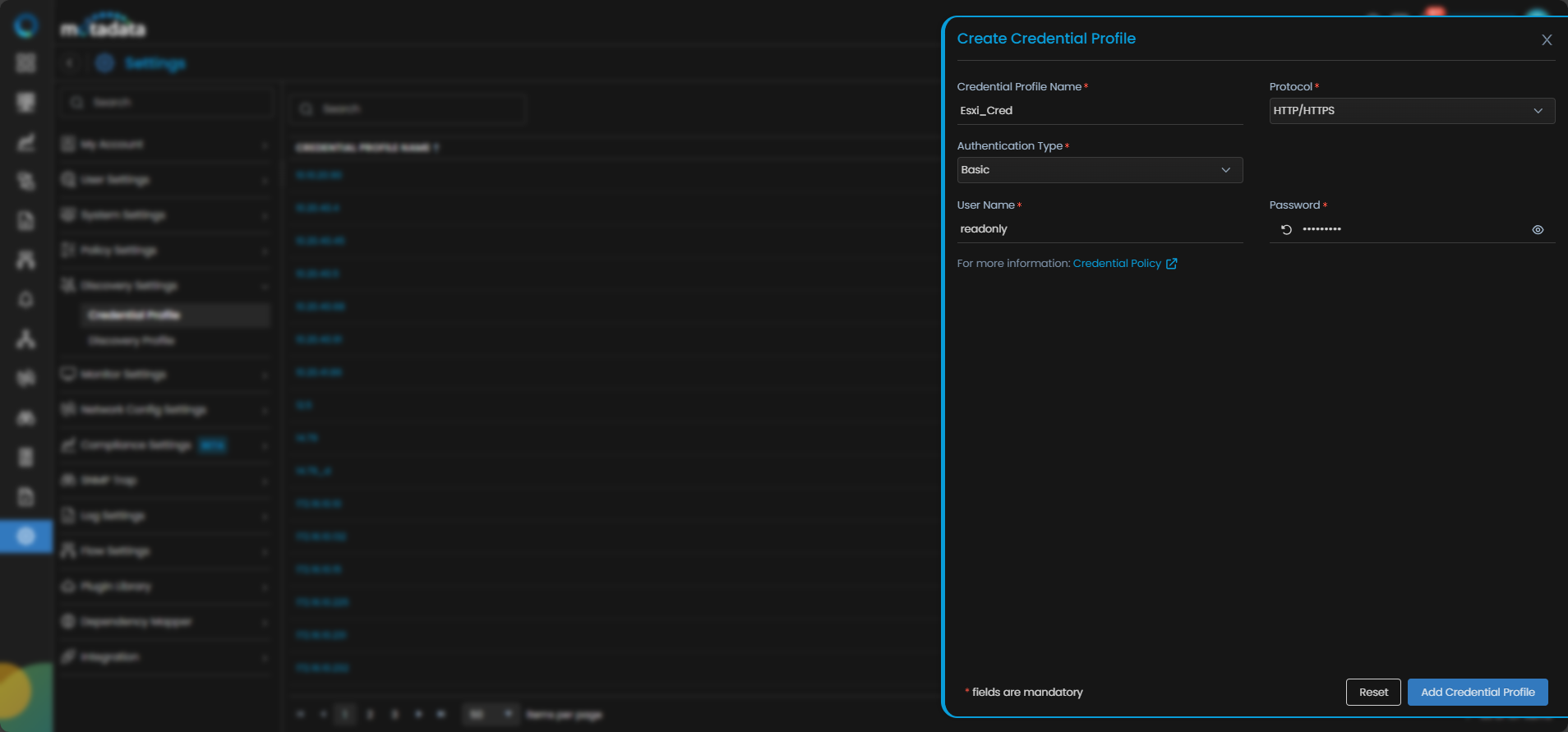
Credential Profile Parameters
Enter the required details in the pop-up as follows:
| Field | Description |
|---|---|
| Credential Profile Name | Provide a unique Credential Profile Name. This name is used to identify a credential profile. |
| Protocol | Select HTTP/HTTPS as Protocol from the drop-down.The option to provide the credential details is then displayed based on the protocol selected. |
| Username and the Password | Enter these details for the wireless device you want to monitor. |
| Authentication Type | Select the correct Authentication Type based on the authentication of the device. |
Select Reset to erase all the current field values entered in the pop-up, if required.
Select Create Credentials Profile to create the credential profile in the system. The credential profile is now created.
You can view the newly created profile in the credential profile screen by using the Search option available above the list of profiles.
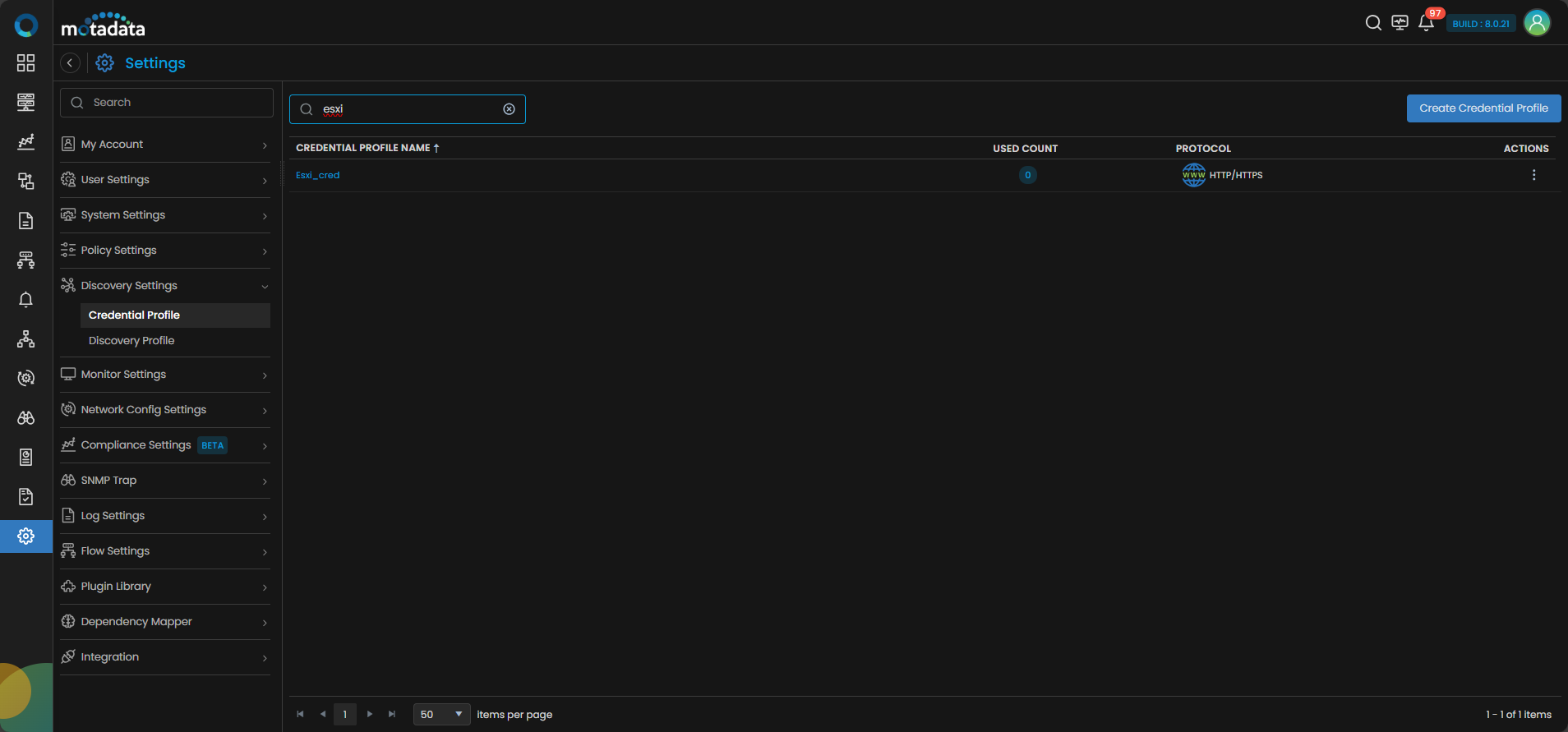
Now, let's move to the next step and create a discovery profile.
2. Create a Discovery Profile
Let us create a discovery profile for the device we are trying to add. Discovery profile allows us to discover devices in an infrastructure using the device address and associated credential profile.
Navigation
Go to Menu. Select Settings . After that, Go to Discovery Settings and select Discovery Profile. The discovery profile screen is displayed. Select Create Discovery Profile to create a new discovery profile.
A new screen to create the discovery profile is now displayed. Select Virtualization from the menu.
Move to the VMWare tab and then select ESX/ESXi to create a discovery profile for ESXi.
Discovery Profile Parameters
Enter the required details in the screen as follows:
| Field | Description |
|---|---|
| Discovery Profile Name | Provide a unique Discovery Profile Name. This name is used to identify a discovery profile. |
| IP-Host/IP Range/CIDR/CSV | The address of the device to be discovered in one of the following formats: - IP: The IP address(IPv4 or IPv6) of the device to be discovered. - IP Range: A range of IP addresses(IPv4) in case multiple devices need to be discovered using the same profile. - CIDR: A range of IP addresses(IPv4) using the CIDR notation if multiple devices need to be discovered using the same profile. - CSV: The name of the CSV file used to import a range of addresses. You can enter IPv4, IPv6, or a combination of both addresses in the CSV file that you wish to upload. |
| Collectors | Select one or more Collectors that should be used for collecting data from the devices discovered using this Discovery Profile. Select multiple Collectors for load balancing and failover mechanism. In case you don’t select a Collector, the AIOps shall automatically select a relevant collector to leverage the load balancing feature. |
Ensure that you select correct Collector(s) based on how you want to distribute the load across all Collectors.
| Field | Description |
|---|---|
| Groups | Select one or more Groups that will be assigned to the monitors you provision using this discovery profile. |
| Credential Profile | Select a created Credential Profile to assign it to the discovery profile you are trying to create. You can also create a new credential profile from this screen using the Create Credential Profile button. In this case, we will select the credential profile Esxi_cred we created in the 1st step while creating a credential profile. |
| Tags | Select one or more Tags that you wish to assign to the discovery profile. These tags will in turn be assigned to the device that you discover. |
| Port | Port number field is already populated. |
| Ping Check | The Ping Check button is switched ON by default. This means that AIOps will only discover the device if the ping is available for that device. Toggle this button OFF if you want AIOps to discover the device withouth doing a ping check. |
| Notify Team | The system allows notifying users about new service discovery through e-mail, handle, user name, and user profiles:
|
Select Reset to erase all the current field values, if required.
Select Save and Exit if you have created the discovery profile but do do want to execute a discovery run.
Select Save and Schedule if you have created the discovery profile and wish to schedule its run at a specific time.
Select Save and Run if you want execute the discovery run immediately after creation.
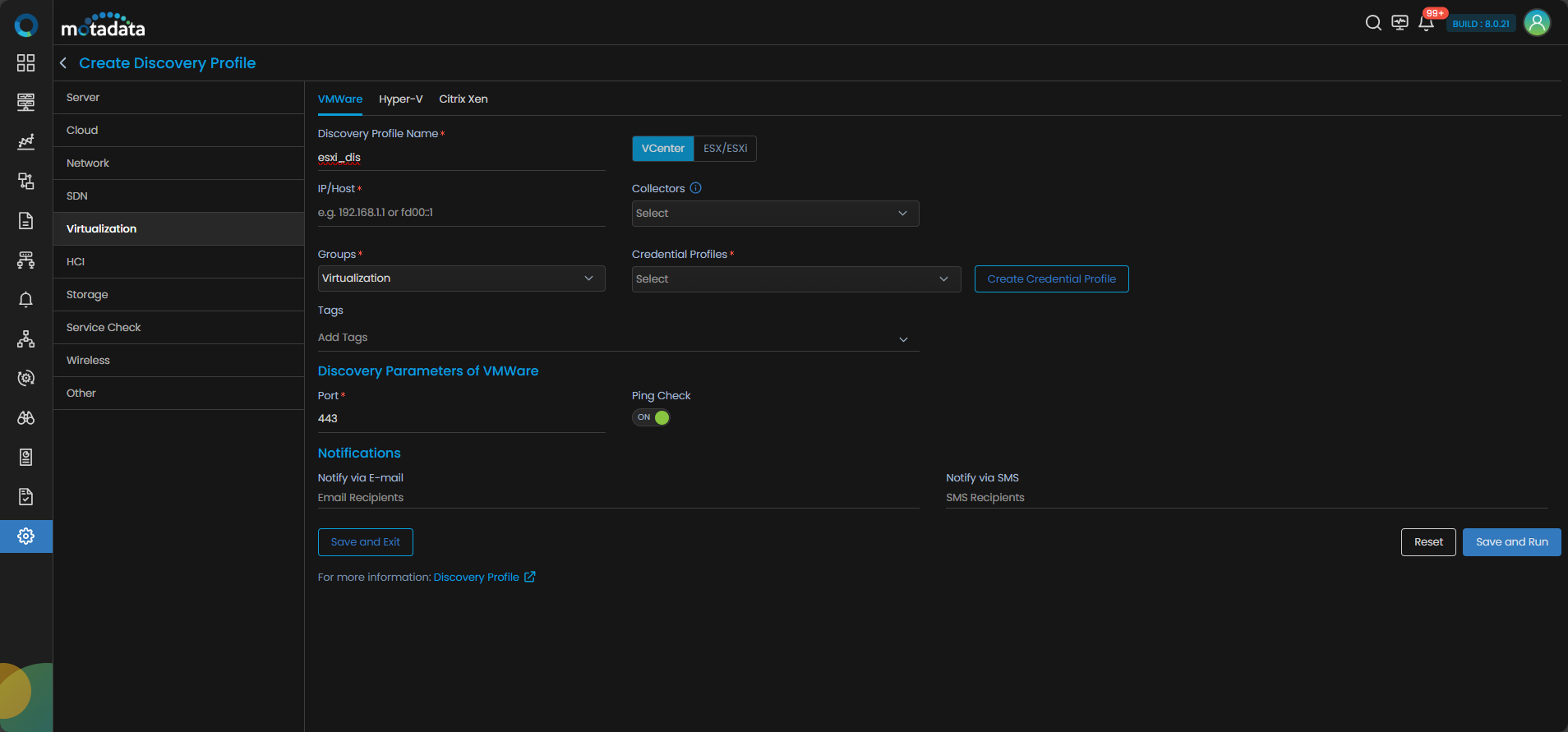
We have created a credential profile Esxi_Cred in the 1st step. After that, we have created a discovery profile Esxi_Dis in the 2nd step and assigned the credential profile to the discovery profile. After selecting, Save and Run, we have initiated a discovery run which leads us to our next step, which is, Provision the Discovered Devices as Monitors.
3. Provision the Discovered Devices as Monitors
After initiating the discovery profile execution, AIOps starts the process to discover the devices.
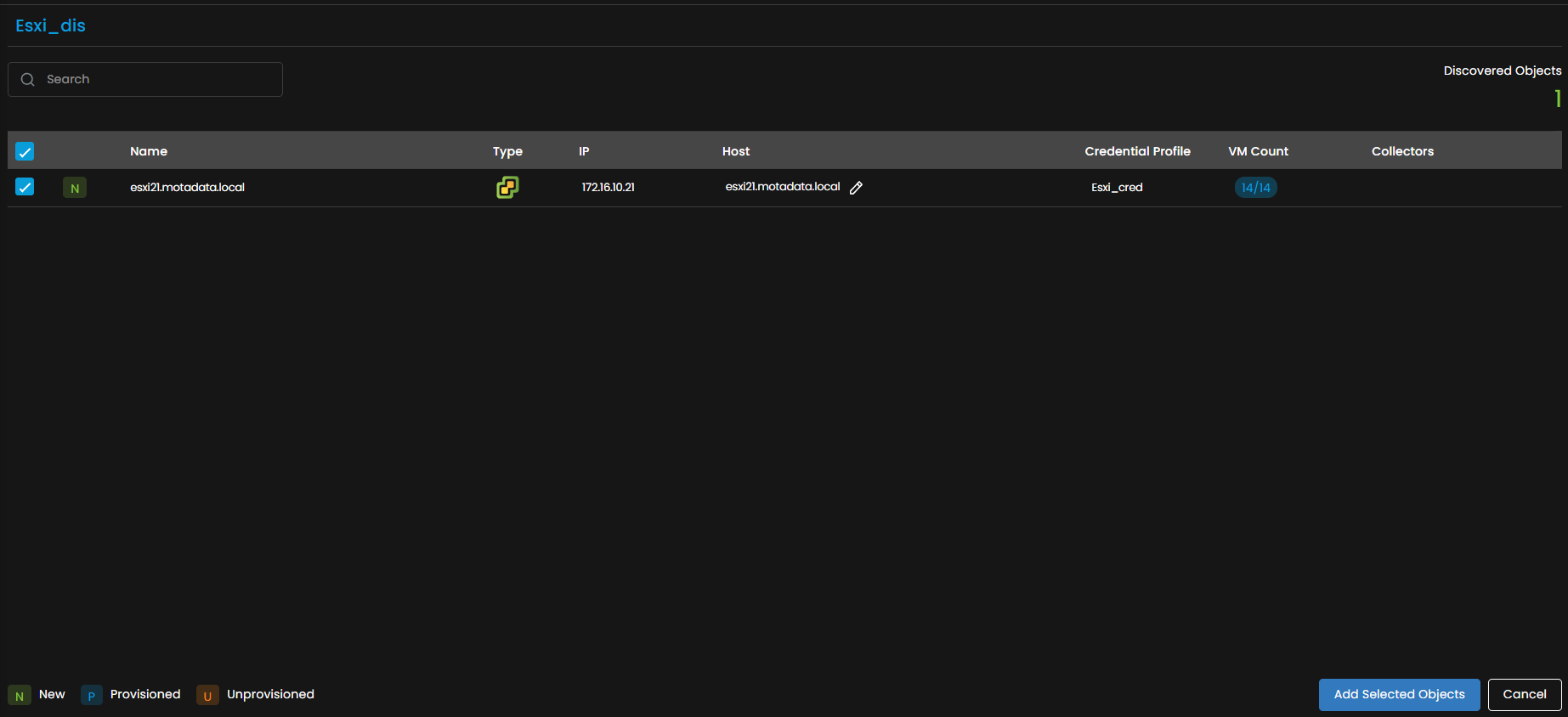
Once the discovery execution is complete, the list of all the devices discovered is displayed. Select the devices that you want to be listed as Monitors in the system.
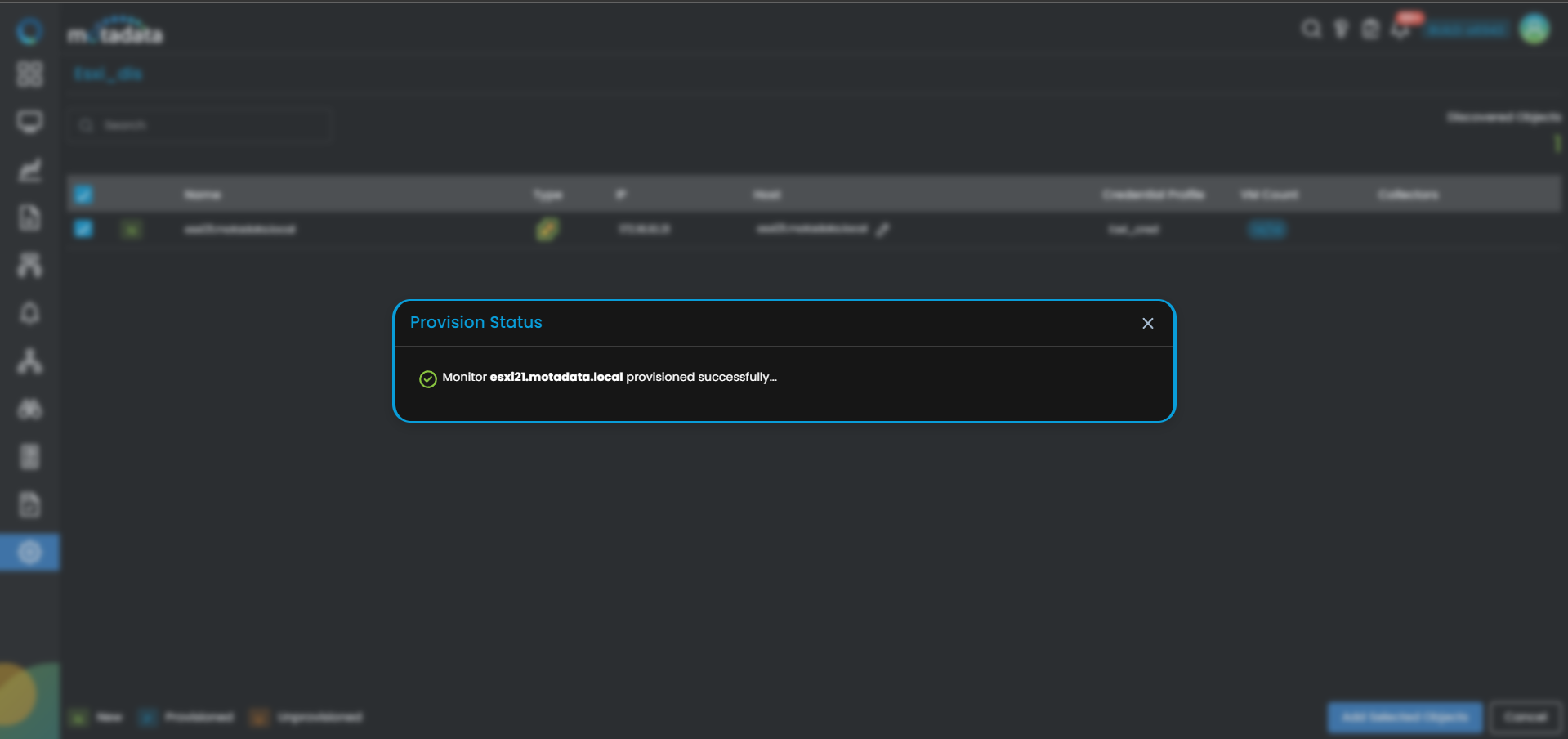
Click on Add Selected Objects to add the selected devices as Monitors. These devices listed as Monitors will now be monitored further by AIOps.
These devices can be viewed under the Monitor tab from the Main Menu. Select the Monitor tab from the main menu. After that, Select Virtualization to view all the monitors that are added to the system.
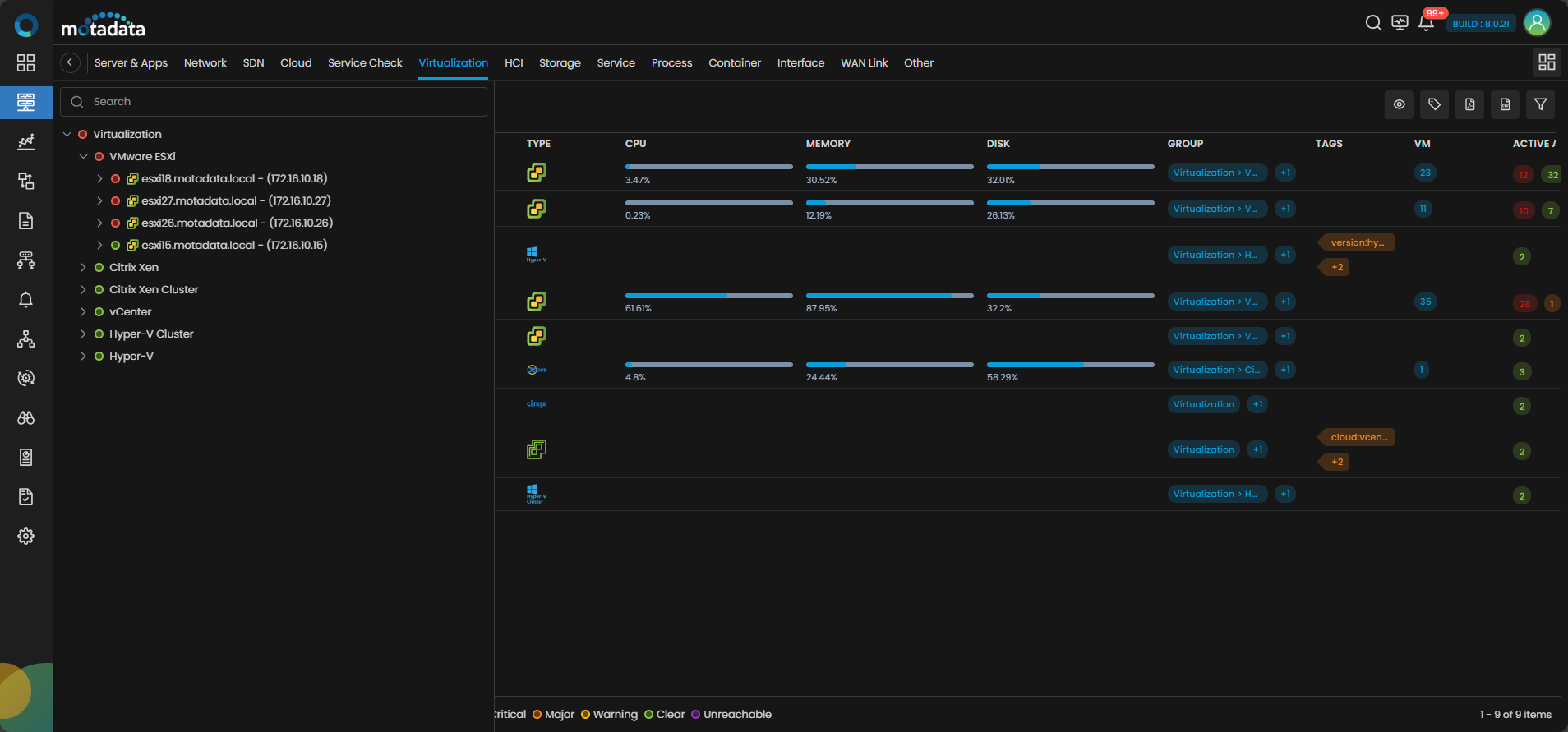
The ESXi device is now successfully added to AIOps.
Adding a vCenter
1. Create a Credential Profile
We will start by creating a credential profile for the device we are trying to add.
Navigation
Go to Menu. Select Settings . After that, Go to Discovery Settings and select Credential Profile. The credential profile screen is displayed. Select Create Credential Profile to create a new credential profile.
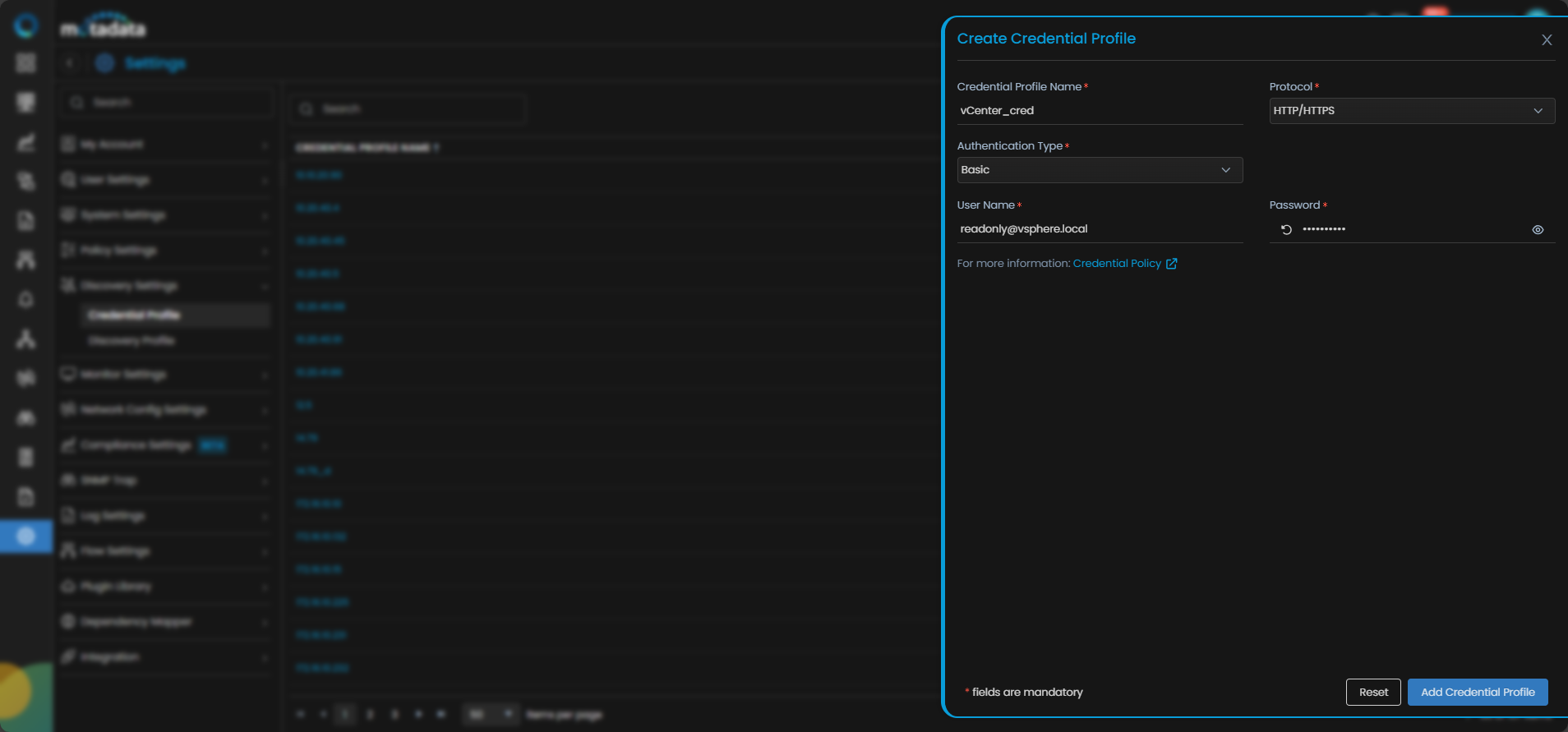
A pop-up for entering the credential profile details is displayed.
Credential Profile Parameters
Enter the required details in the pop-up as follows:
| Field | Description |
|---|---|
| Credential Profile Name | Provide a unique Credential Profile Name. This name is used to identify a credential profile. |
| Protocol | Select HTTP/HTTPS as Protocol from the drop-down. The option to provide the credential details is then displayed based on the protocol selected. |
| Username and Password | Enter these details for the device you want to monitor. |
| Authentication Type | Select the correct Authentication Type based on the authentication of the device. |
Select Reset to erase all the current field values entered in the pop-up, if required.
Select Create Credentials Profile to create the credential profile in the system. The credential profile is now created.
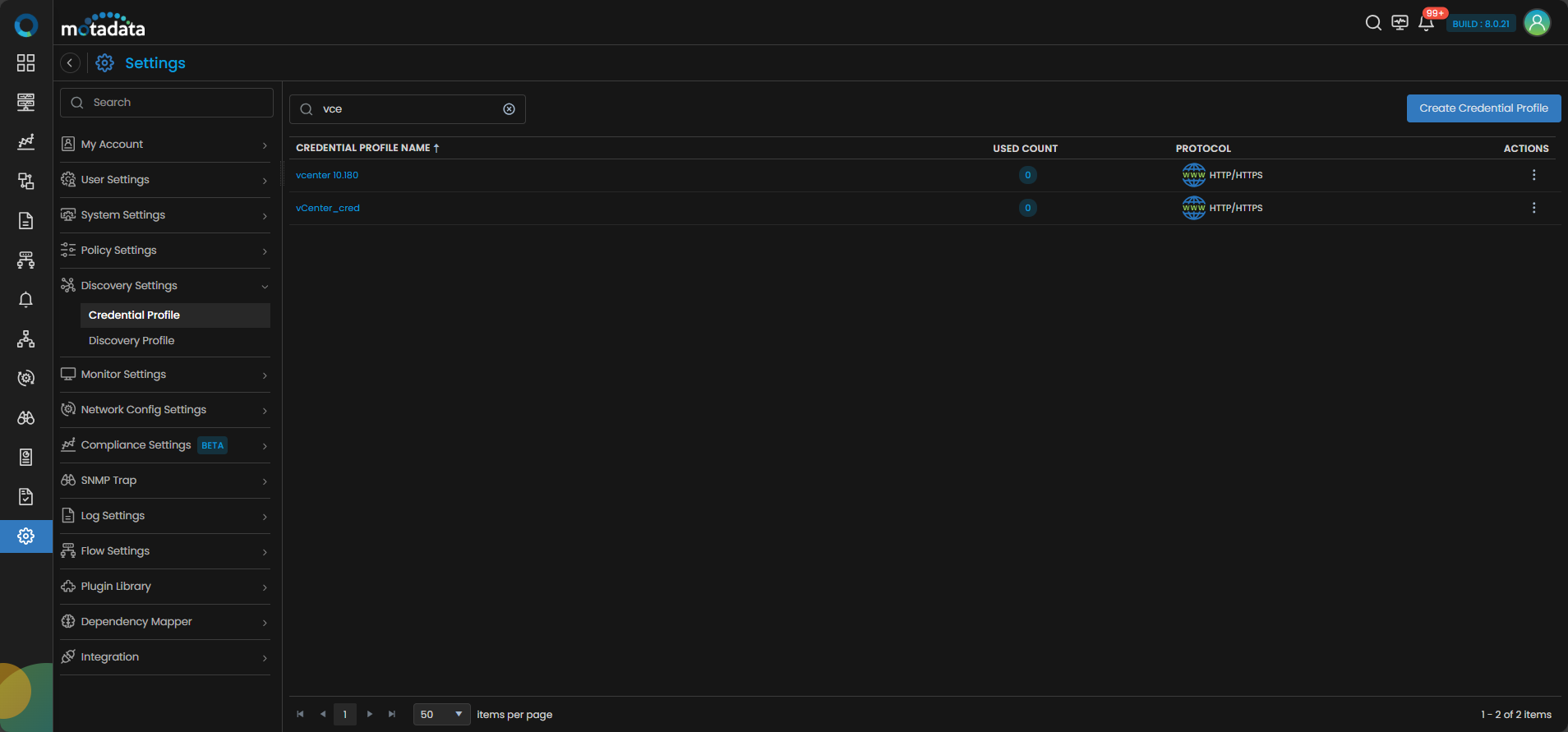
You can view the newly created profile in the credential profile by using the Search option available above the list of profiles.
Now, let's move to the next step and create a discovery profile.
2. Create a Discovery Profile
Let us create a discovery profile for the device we are trying to add. Discovery profile allows us to discover devices in an infrastructure using the device address and associated credential profile.
Navigation
Go to Menu. Select Settings . After that, Go to Discovery Settings and select Discovery Profile. The discovery profile screen is displayed. Select Create Discovery Profile to create a new discovery profile.
A new screen to create the discovery profile is now displayed. Select Virtualization from the menu.
Select VCenter to create a discovery profile.
Discovery Profile Parameters
Enter the required details in the screen as follows:
| Field | Description |
|---|---|
| Discovery Profile Name | Provide a unique Discovery Profile Name. This name is used to identify a discovery profile. |
| IP/Host | The IP address(IPv4 or IPv6) of the device to be discovered. |
| Collectors | Select one or more Collectors that should be used for collecting data from the devices discovered using this Discovery Profile. Select multiple Collectors for load balancing and failover mechanism. In case you don’t select a Collector, the AIOps shall automatically select a relevant collector to leverage the load balancing feature. |
Ensure that you select correct Collector(s) based on how you want to distribute the load across all Collectors
| Field | Description |
|---|---|
| Groups | Select one or more Groups that will be assigned to the monitors you provision using this discovery profile. |
| Credential Profile | Select a created Credential Profile to assign it to the discovery profile you are trying to create. You can also create a new credential profile from this screen using the Create Credential Profile button. In this case, we will select the credential profile vCenter_cred we created in the 1st step while creating a credential profile. |
| Tags | Select one or more Tags that you wish to assign to the discovery profile. These tags will in turn be assigned to the device that you discover. |
| Port | Port number field is already populated. |
| Ping Check | The Ping Check button is switched ON by default. This means that AIOps will only discover the device if the ping is available for that device. Toggle this button OFF if you want AIOps to discover the device withouth doing a ping check. |
| Notify Team | The system allows notifying users about new service discovery through e-mail, handle, user name, and user profiles:
|
Select Reset to erase all the current field values, if required.
Select Save and Exit if you have created the discovery profile but do do want to execute a discovery run.
Select Save and Run if you want execute the discovery run immediately after creation.
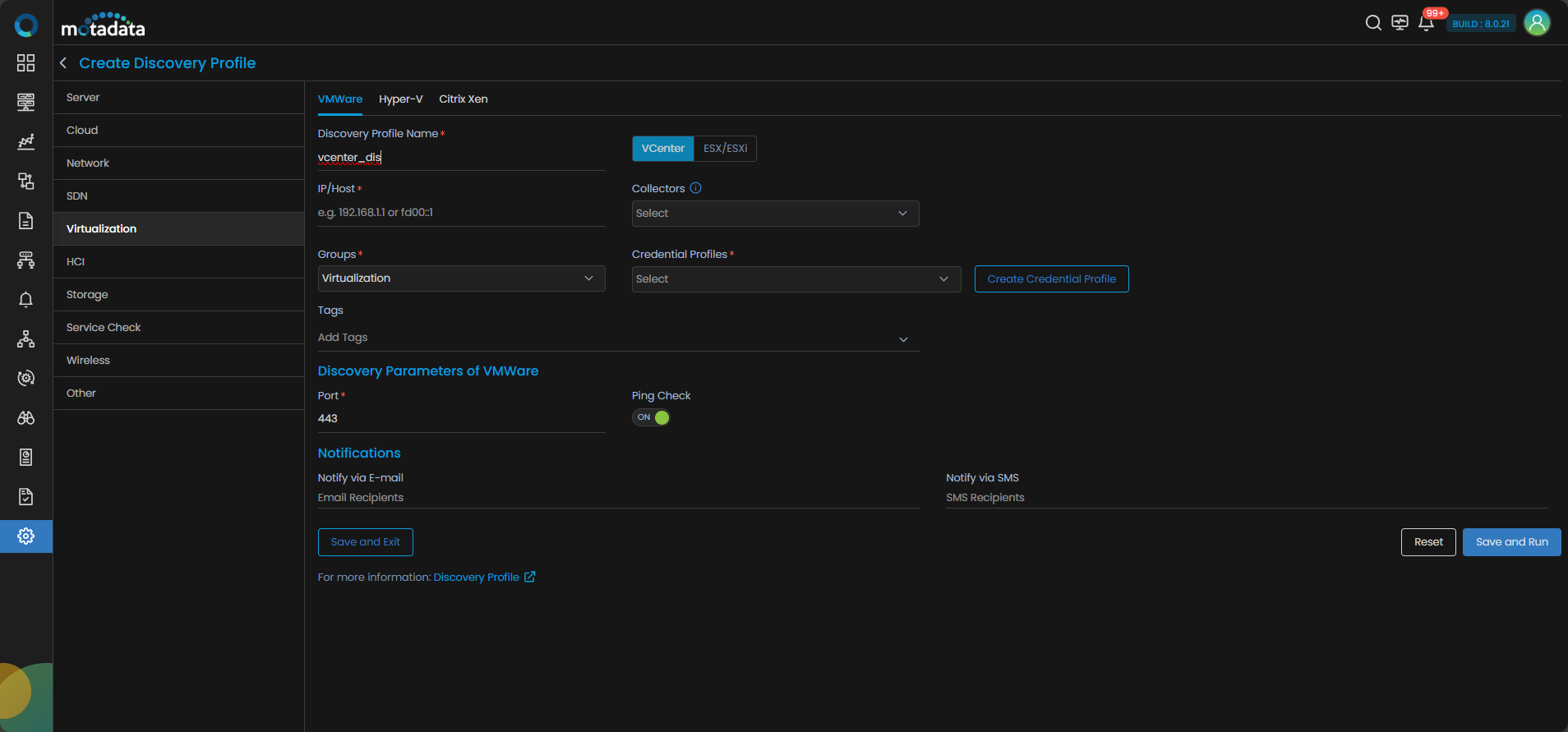
We have created a credential profile vCenter_Cred in the 1st step. After that, we have created a discovery profile vCenter_dis in the 2nd step and assigned the credential profile to the discovery profile. After selecting, Save and Run, we have initiated a discovery run which leads us to our next step, which is, Provision the Discovered Devices as Monitors.
3. Provision the Discovered Devices as Monitors
After initiating the discovery profile execution, AIOps starts the process to discover the devices.

Once the discovery execution is complete, the list of all the devices discovered is displayed. Select the devices that you want to be listed as Monitors in the system.

The Provisioning screen will show three separate tabs:
- vCenter
- ESXi Host
- Virtual Machine
Each of these tabs allows for individual selection and provisioning of discovered components.
Credential Profile Attachment to ESXi Host and Virtual Machine tabs
You can attach single or multiple credential profiles to each ESXI Host or VM via the Select Credential Profile option.
You can assign credential profiles to bulk ESXI Hosts by selecting the multiple hosts checkboxes.
A side pop-up lets you assign a credential profile, create a new one, and configure the port. After that, the system will test the profile:
- If successful, the credential profile will be applied and confirmed with a green success message.
- If failed, the credential profile will not be assigned and a red error message will be shown.
Click on Add Selected Objects to add the selected devices as Monitors. These devices listed as Monitors will now be monitored further by AIOps.
- vCenter will appear under Virtualization tab as vCenter section.
- ESXi Hosts will appear under Virtualization tab as VMware ESXi section.
- Virtual Machines will appear under Virtualization tab with its discovered vCenter or VMware ESXI and also under Server & Apps if provisioned by assigning credential profile.
The ESXi Hosts will be auto-tagged with datacenter, cluster, vcenter, esxi, depends_on
and VMs will be auto-tagged with esxi_host, type:vm, os, depends_on, and hypervisor:esxi. In case of vMotion, the assigned ESXi tag on VMs will be updated during polling.
These devices can be viewed under the Monitor tab from the Main Menu. Select the Monitor tab from the main menu. After that, Select Virtualization to view all the monitors that are added to the system.

The vCenter device is now successfully added to AIOps.
Adding a Hyper-V Device
1. Create a Credential Profile
We will start by creating a credential profile for the device we are trying to add.
Navigation
Go to Menu. Select Settings . After that, Go to Discovery Settings and select Credential Profile. The credential profile screen is displayed. Select Create Credential Profile to create a new credential profile.
A pop-up for entering the credential profile details is displayed.
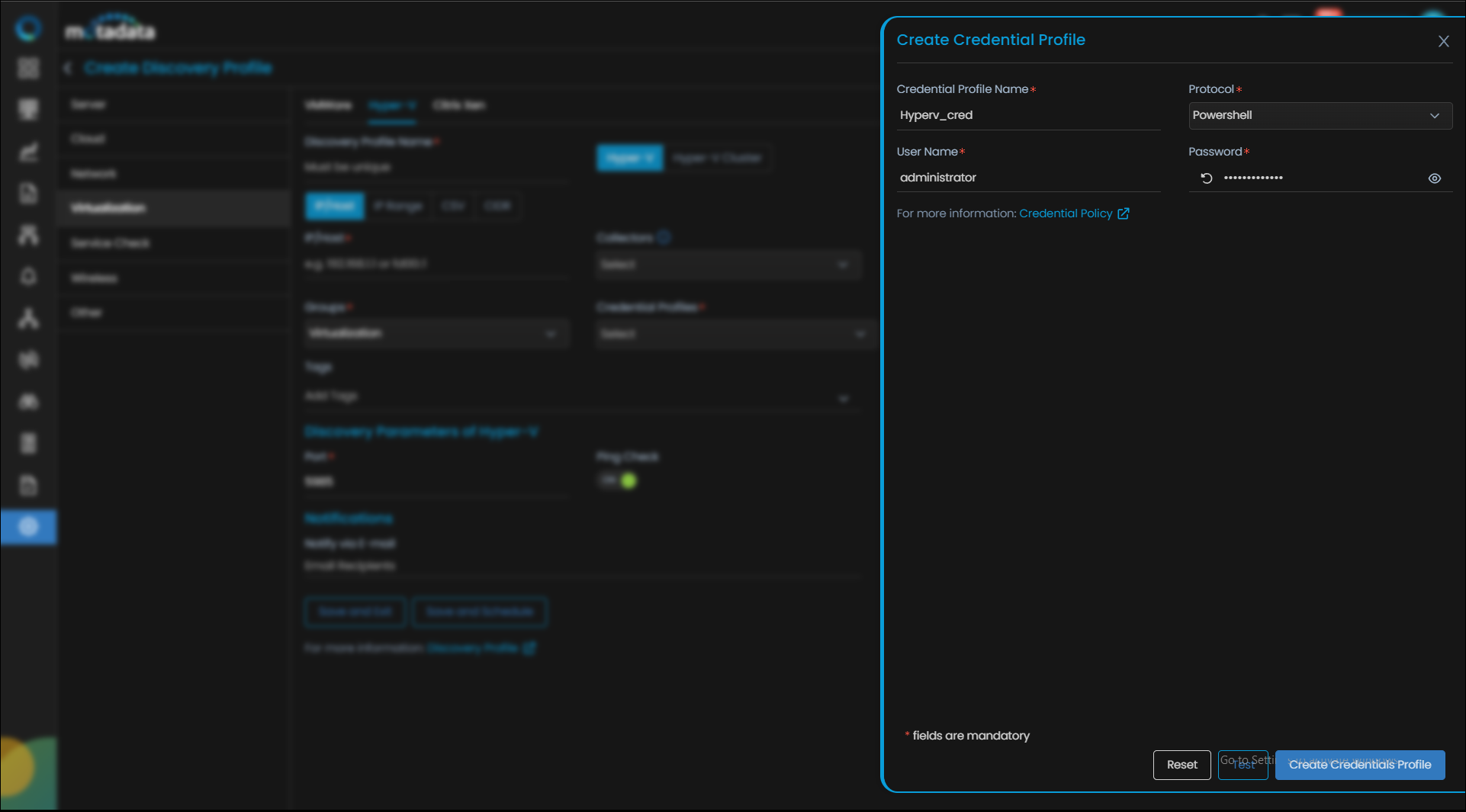
Credential Profile Parameters
Enter the required details in the pop-up as follows:
| Field | Description |
|---|---|
| Credential Profile Name | Provide a unique Credential Profile Name. This name is used to identify a credential profile. |
| Protocol | Select Powershell as Protocol from the drop-down. The option to provide the credential details is then displayed based on the protocol selected. |
| Username and Password | Enter these details for the virtual device you want to monitor. |
Select Reset to erase all the current field values entered in the pop-up, if required.
Select Add Credential Profile to create the credential profile in the system. The credential profile is now created.
You can view the newly created profile in the credential profile interface by using the Search option available above the list of profiles.
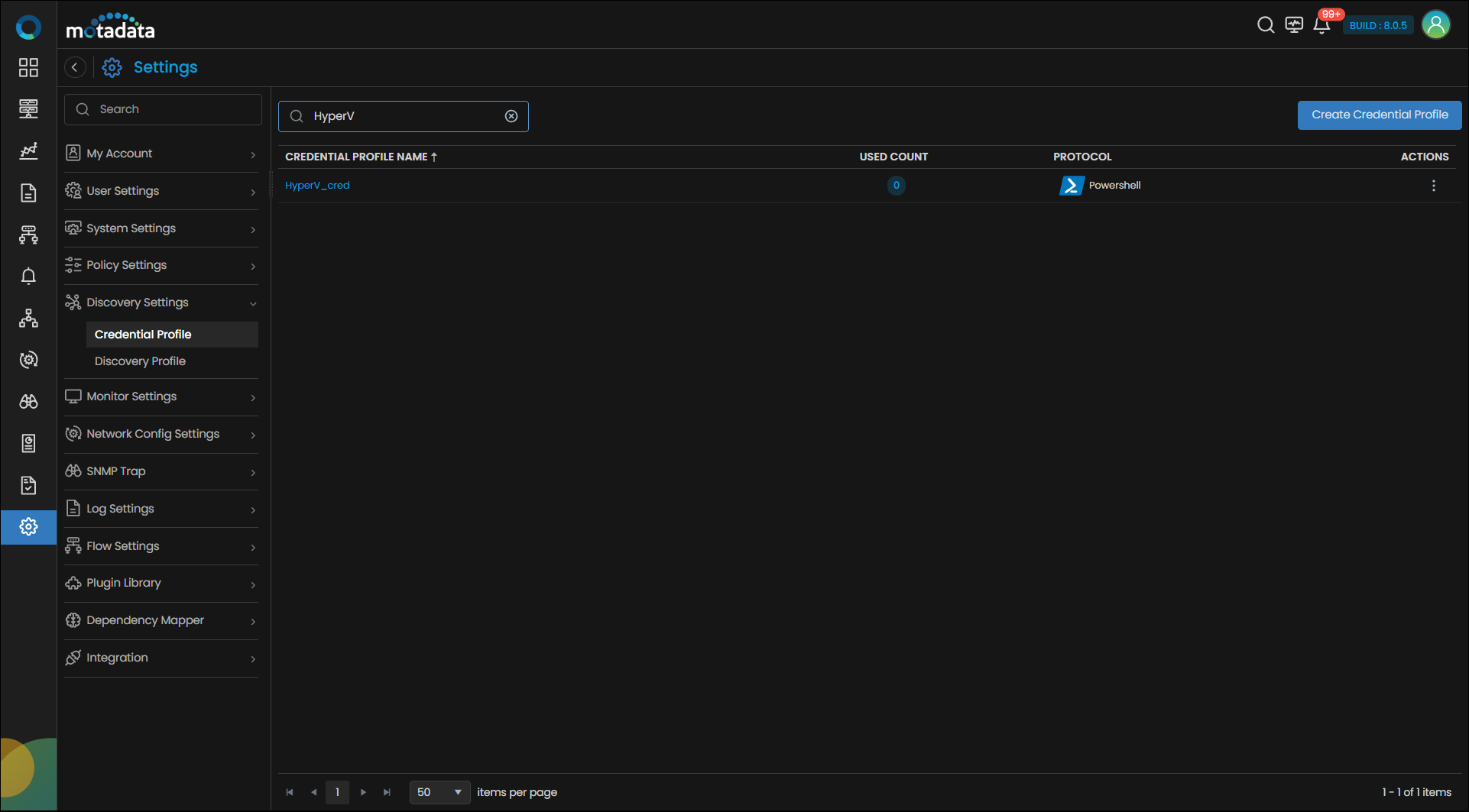
Now, let's move to the next step and create a discovery profile.
2. Create a Discovery Profile
Let us create a discovery profile for the device we are trying to add. Discovery profile allows us to discover devices in an infrastructure using the device address and associated credential profile.
Navigation
Go to Menu. Select Settings . After that, Go to Discovery Settings and select Discovery Profile. The discovery profile screen is displayed. Select Create Discovery Profile to create a new discovery profile.
A new screen to create the discovery profile is now displayed. Move to the Virtualization tab. Click on the Hyper-V tab to begin creating a discovery profile.
Discovery Profile Parameters
Enter the required details in the screen as follows:
| Field | Description |
|---|---|
| Discovery Profile Name | Provide a unique Discovery Profile Name. This name is used to identify a discovery profile. |
| IP-Host/IP Range/CIDR/CSV | The address of the device to be discovered in one of the following formats: - IP: The IP address(IPv4 or IPv6) of the device to be discovered. - IP Range: A range of IP addresses(IPv4) in case multiple devices need to be discovered using the same profile. - CIDR: A range of IP addresses(IPv4) using the CIDR notation if multiple devices need to be discovered using the same profile. - CSV: The name of the CSV file used to import a range of addresses. You can enter IPv4, IPv6, or a combination of both addresses in the CSV file that you wish to upload. |
| Collectors | Select one or more Collectors that should be used for collecting data from the devices discovered using this Discovery Profile. Select multiple Collectors for load balancing and failover mechanism. In case you don’t select a Collector, the AIOps shall automatically select a relevant collector to leverage the load balancing feature. |
Ensure that you select correct Collector(s) based on how you want to distribute the load across all Collectors.
| Field | Description |
|---|---|
| Groups | Select one or more Groups that will be assigned to the monitors you provision using this discovery profile. |
| Credential Profile | Select a created Credential Profile to assign it to the discovery profile you are trying to create. You can also create a new credential profile from this screen using the Create Credential Profile button. In this case, we will select the credential profile Hyperv_cred we created in the 1st step while creating a credential profile. |
| Tags | Select one or more Tags that you wish to assign to the discovery profile. |
| Port | The port number field is already populated. |
| Ping Check | The Ping Check button is switched ON by default. This means that AIOps will only discover the device if the ping is available for that device. Toggle this button OFF if you want AIOps to discover the device withouth doing a ping check. |
| Notify Team | The system allows notifying users about new service discovery through e-mail, handle, user name, and user profiles:
|
Select Reset to erase all the current field values, if required.
Select Save and Exit if you have created the discovery profile but do do want to execute a discovery run.
Select Save and Schedule if you have created the discovery profile and wish to schedule its run at a specific time.
Select Save and Run if you want execute the discovery run immediately after creation.
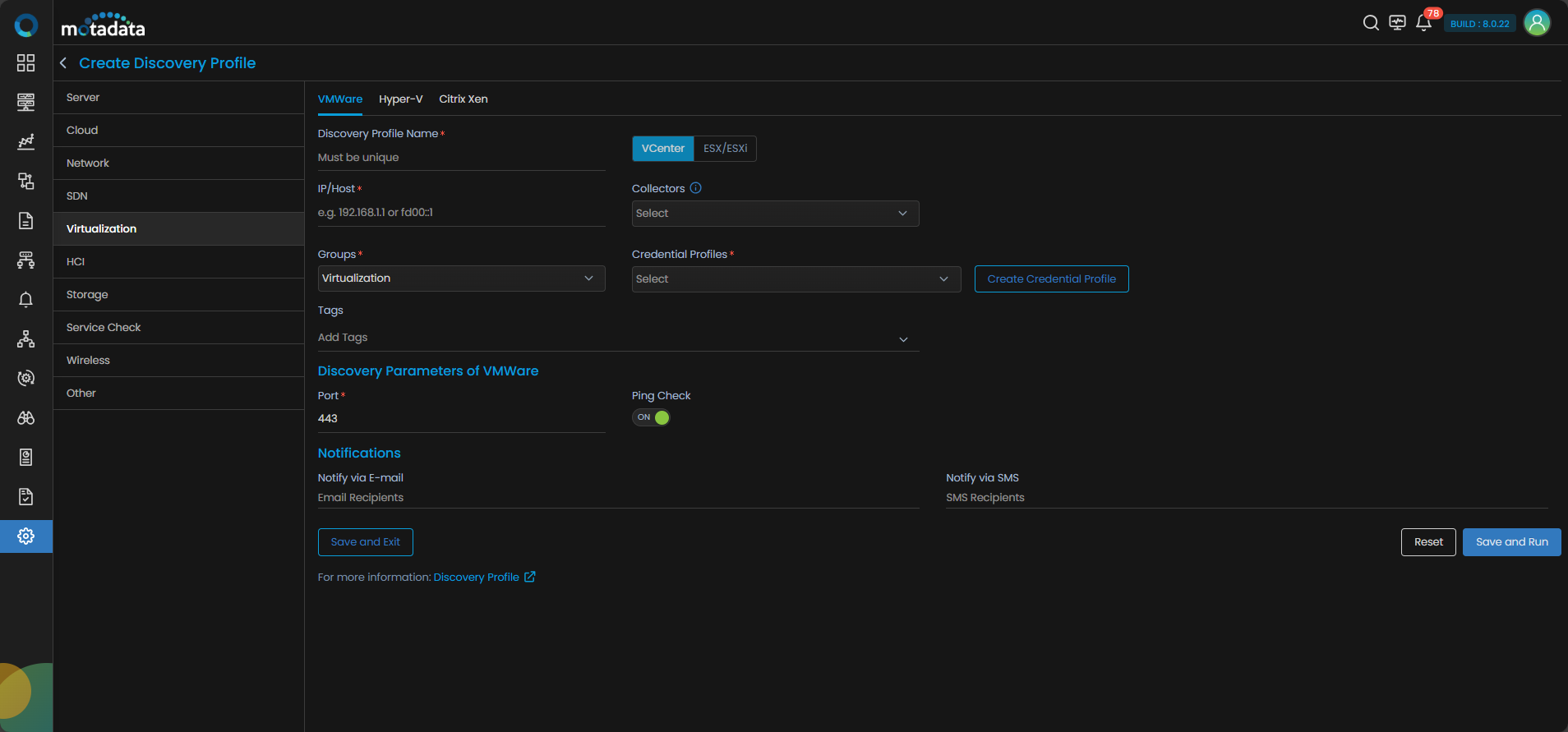
We have created a credential profile HyperV_cred in the 1st step. After that, we have created a discovery profile HyperV_dis in the 2nd step and assigned the credential profile to the discovery profile. After selecting, Save and Run, we have initiated a discovery run which leads us to our next step, which is, Provision the Discovered Devices as Monitors.
3. Provision the Discovered Devices as Monitors
After initiating the discovery profile execution, AIOps starts the process to discover the devices.
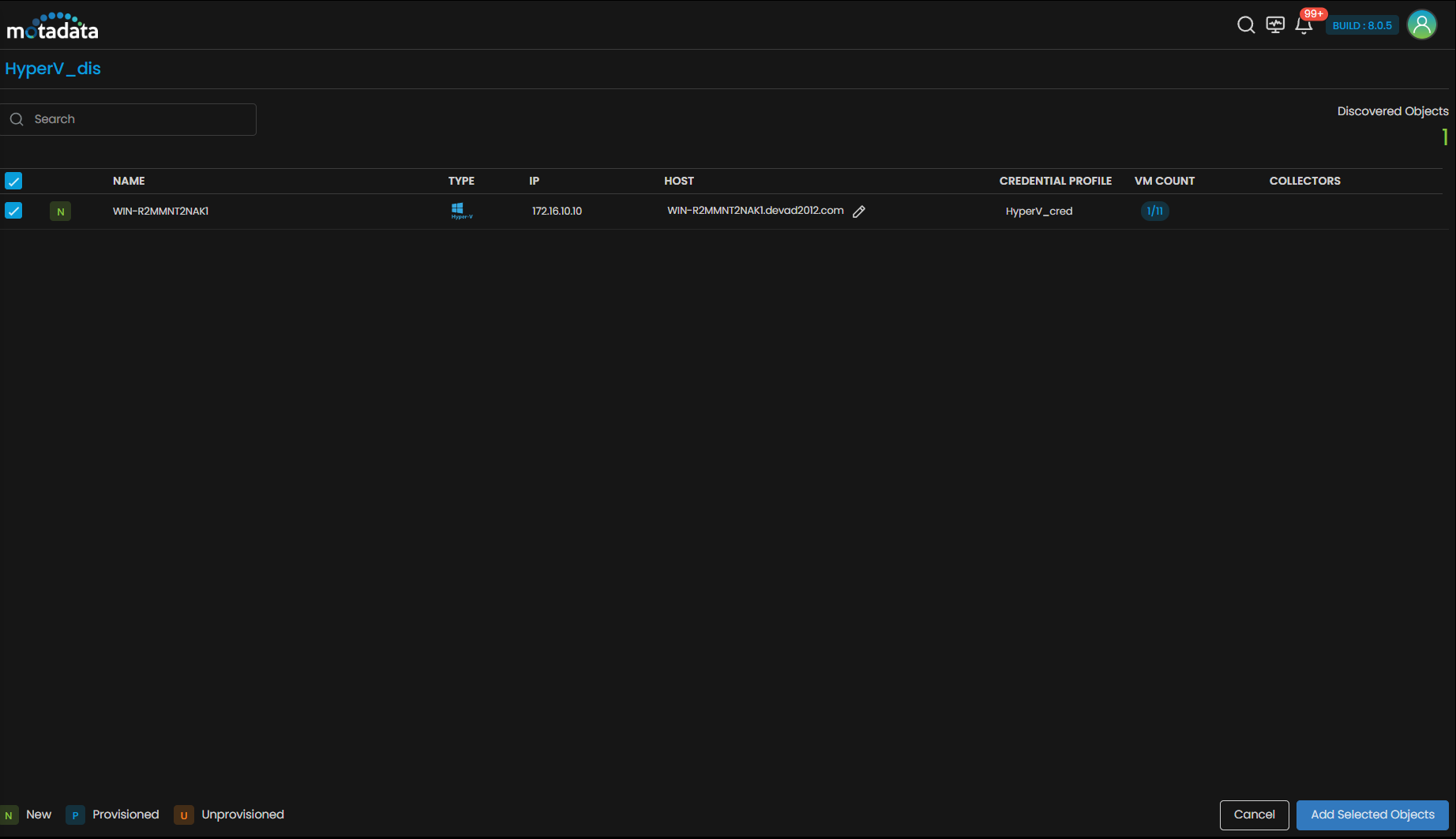
Once the discovery execution is complete, the list of all the devices discovered is displayed. Select the devices that you want to be listed as Monitors in the system.
Click on Add Selected Objects to add the selected devices as Monitors. These devices listed as Monitors will now be monitored further by AIOps.
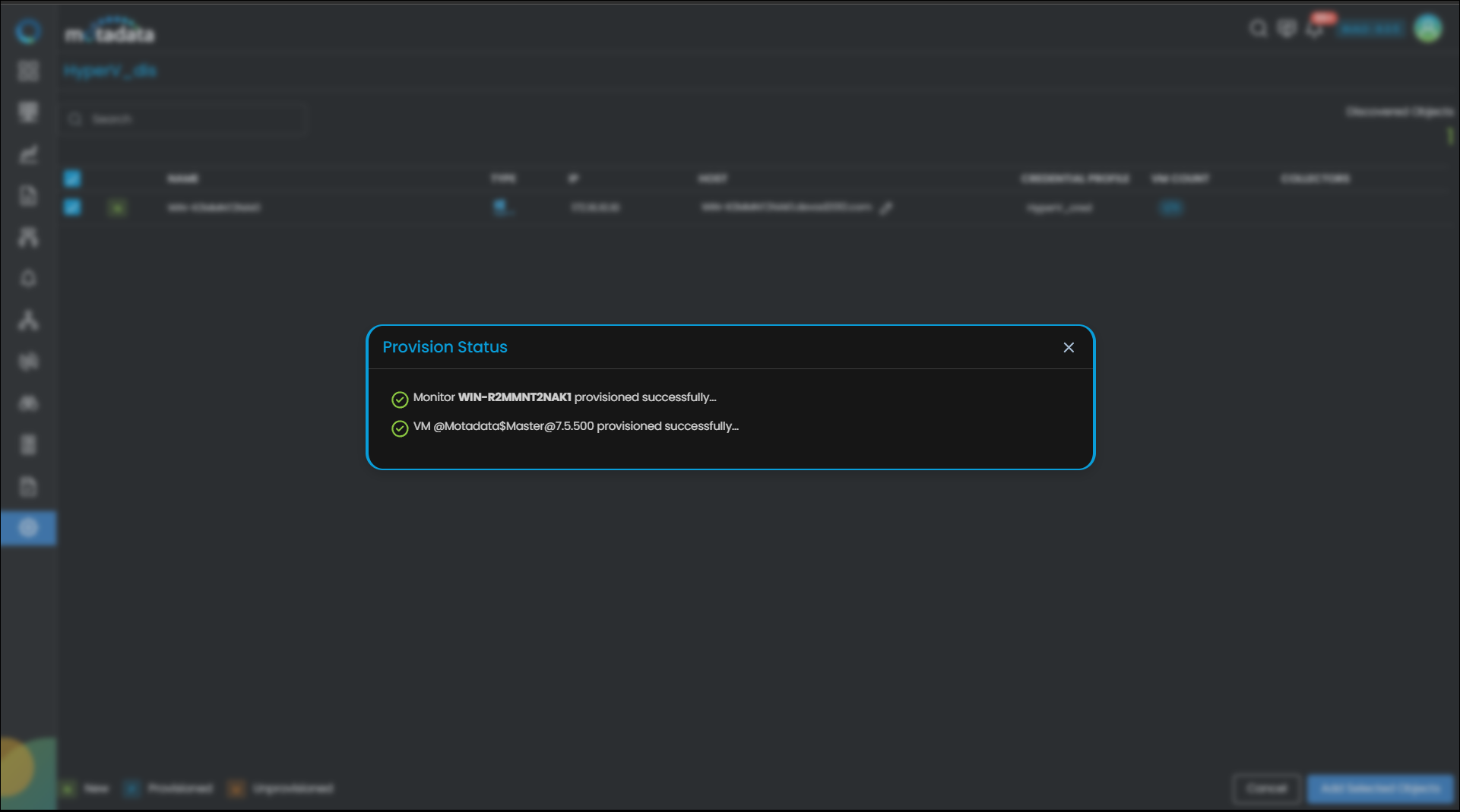
These devices can be viewed under the Monitor tab from the Main Menu. Select the Monitor tab from the main menu. After that, Select Virtualization to view all the monitors that are added to the system.
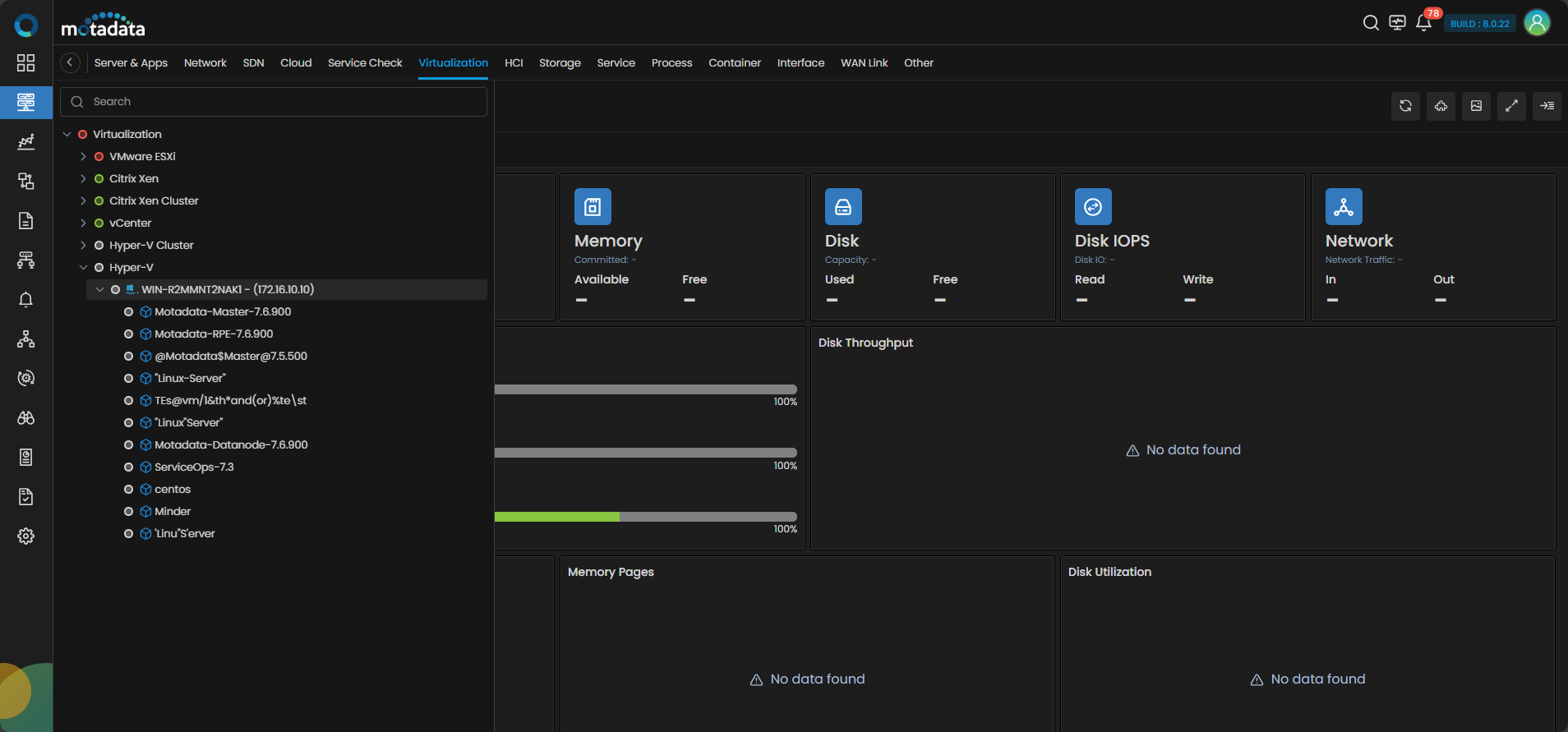
The Hyper-V devices are now successfully added to AIOps.
Adding a Hyper-V Cluster
1. Create a Credential Profile
We will start by creating a credential profile for the device we are trying to add.
Navigation
Go to Menu. Select Settings . After that, Go to Discovery Settings and select Credential Profile. The credential profile screen is displayed. Select Create Credential Profile to create a new credential profile.
A pop-up for entering the credential profile details is displayed.
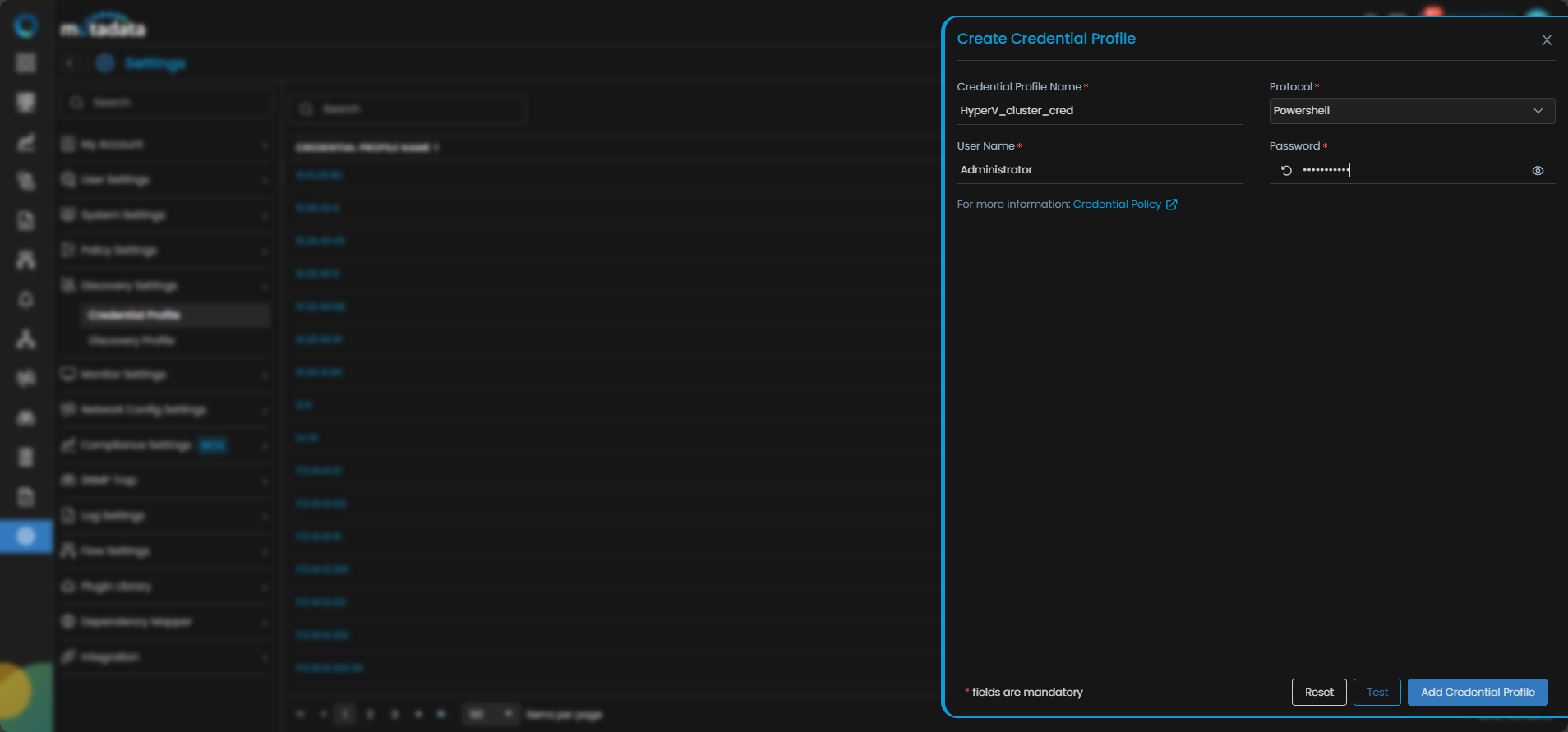
Credential Profile Parameters
Enter the required details in the pop-up as follows:
| Field | Description |
|---|---|
| Credential Profile Name | Provide a unique Credential Profile Name. This name is used to identify a credential profile. |
| Protocol | Select Powershell as Protocol from the drop-down. The option to provide the credential details is then displayed based on the protocol selected. |
| Username and Password | Enter these details for the virtual device you want to monitor. |
Select Reset to erase all the current field values entered in the pop-up, if required.
Select Add Credential Profile to create the credential profile in the system. The credential profile is now created.
You can view the newly created profile in the credential profile interface by using the Search option available above the list of profiles.
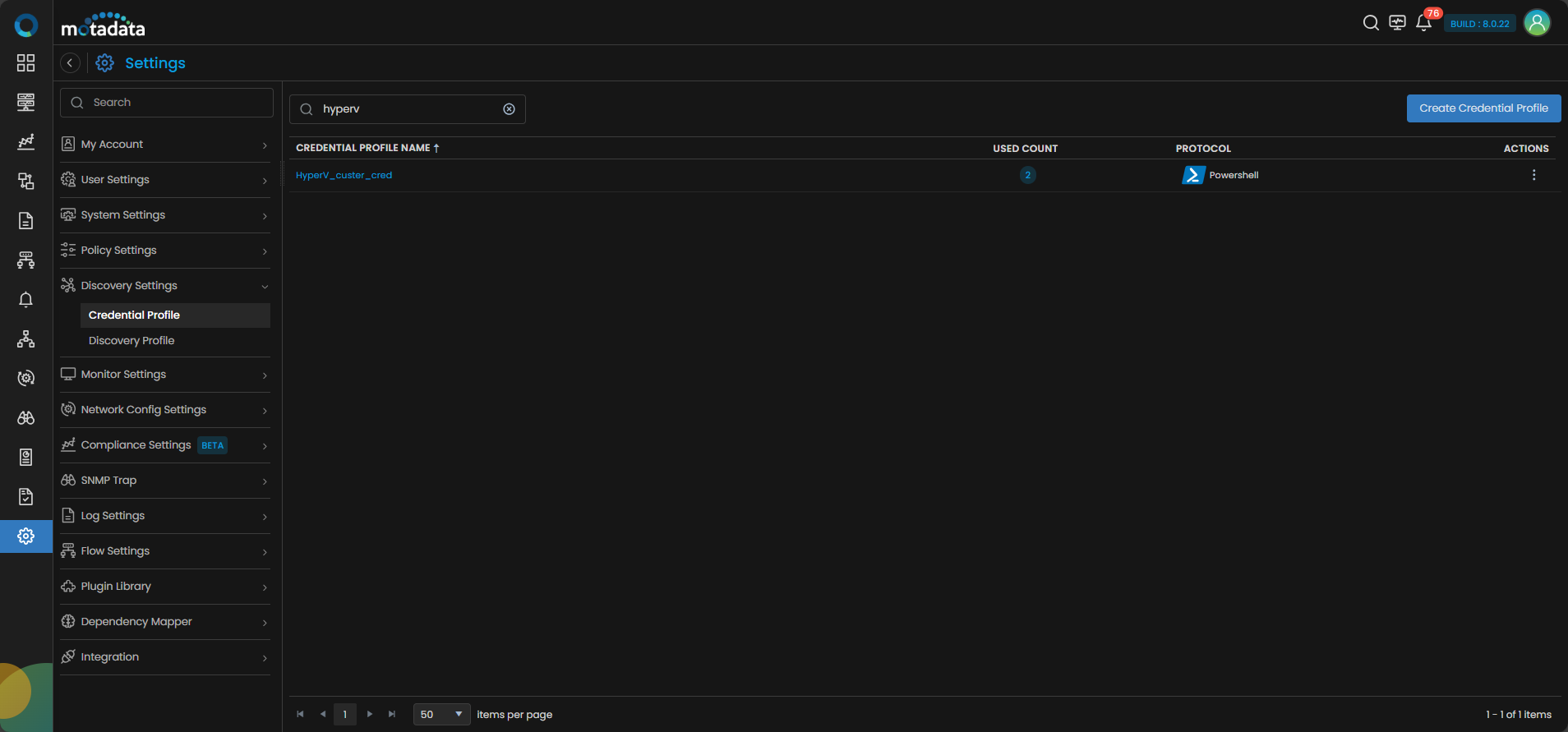
Now, let's move to the next step and create a discovery profile.
2. Create a Discovery Profile
Let us create a discovery profile for the device we are trying to add. Discovery profile allows us to discover devices in an infrastructure using the device address and associated credential profile.
Navigation
Go to Menu. Select Settings . After that, Go to Discovery Settings and select Discovery Profile. The discovery profile screen is displayed. Select Create Discovery Profile to create a new discovery profile.
A new screen to create the discovery profile is now displayed. Move to the Virtualization tab. Click on the Hyper-V tab and then select Hyper-V Cluster to create a discovery profile.
Discovery Profile Parameters
Enter the required details in the screen as follows:
| Field | Description |
|---|---|
| Discovery Profile Name | Provide a unique Discovery Profile Name. This name is used to identify a discovery profile. |
| IP/Host | The IP address(IPv4 or IPv6) of the device to be discovered. |
| Collectors | Select one or more Collectors that should be used for collecting data from the devices discovered using this Discovery Profile. Select multiple Collectors for load balancing and failover mechanism. In case you don’t select a Collector, the AIOps shall automatically select a relevant collector to leverage the load balancing feature. |
Ensure that you select correct Collector(s) based on how you want to distribute the load across all Collectors.
| Field | Description |
|---|---|
| Groups | Select one or more Groups that will be assigned to the monitors you provision using this discovery profile. |
| Credential Profile | Select a created Credential Profile to assign it to the discovery profile you are trying to create. You can also create a new credential profile from this screen using the Create Credential Profile button. In this case, we will select the credential profile HyperV_cluster_cred we created in the 1st step while creating a credential profile. |
| Tags | Select one or more Tags that you wish to assign to the discovery profile. These tags will in turn be assigned to the device that you discover. |
| Port | Port number field is already populated. |
| Ping Check | The Ping Check button is switched ON by default. This means that AIOps will only discover the device if the ping is available for that device. Toggle this button OFF if you want AIOps to discover the device withouth doing a ping check. |
| Notify Team | The system allows notifying users about new service discovery through e-mail, handle, user name, and user profiles:
|
Select Reset to erase all the current field values, if required.
Select Save and Exit if you have created the discovery profile but do do want to execute a discovery run.
Select Save and Run if you want execute the discovery run immediately after creation.
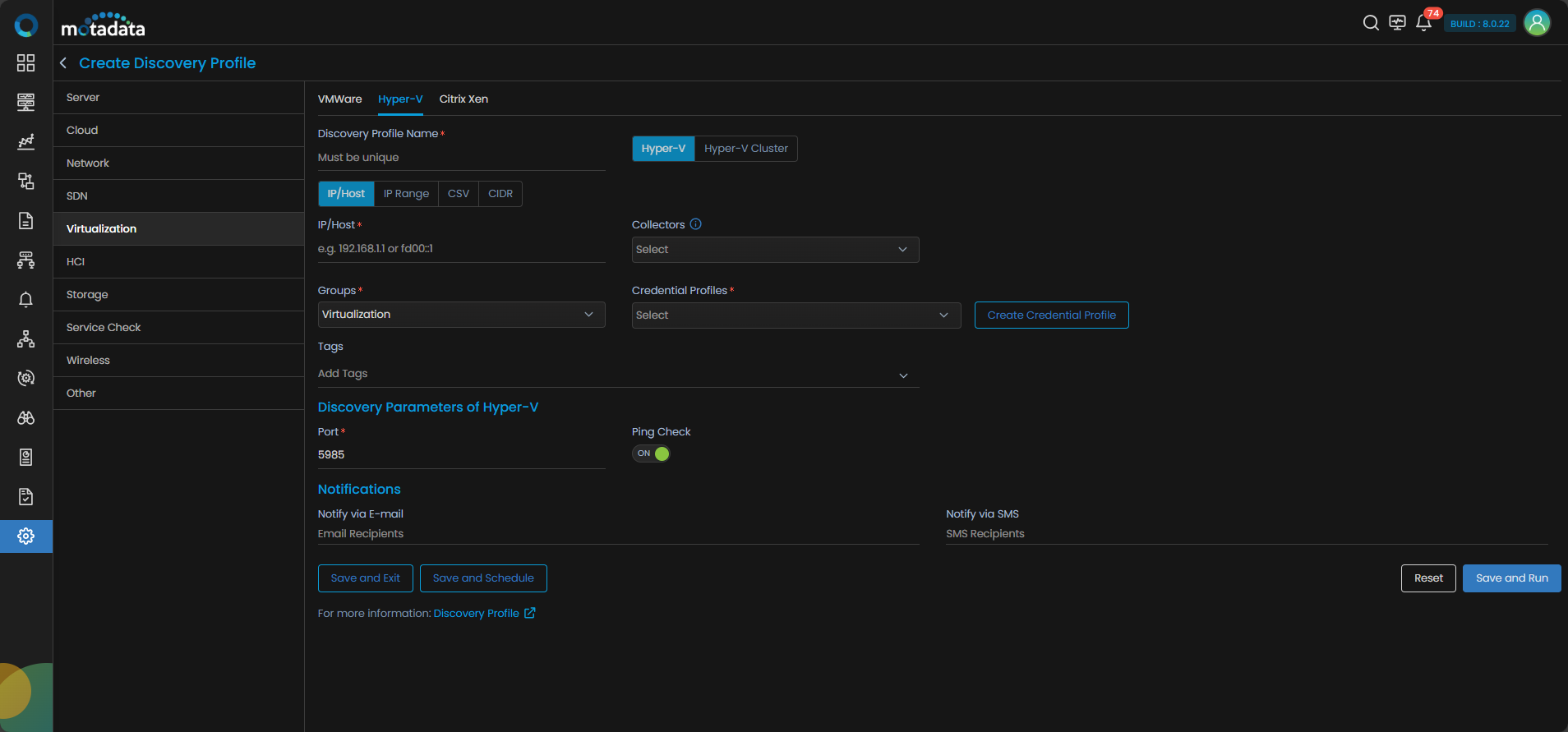
We have created a credential profile HyperV_cluster_Cred in the 1st step. After that, we have created a discovery profile HyperV_cluster_Dis in the 2nd step and assigned the credential profile to the discovery profile. After selecting, Save and Run, we have initiated a discovery run which leads us to our next step, which is, Provision the Discovered Devices as Monitors.
3. Provision the Discovered Devices as Monitors
After initiating the discovery profile execution, AIOps begins the process to discover the devices.
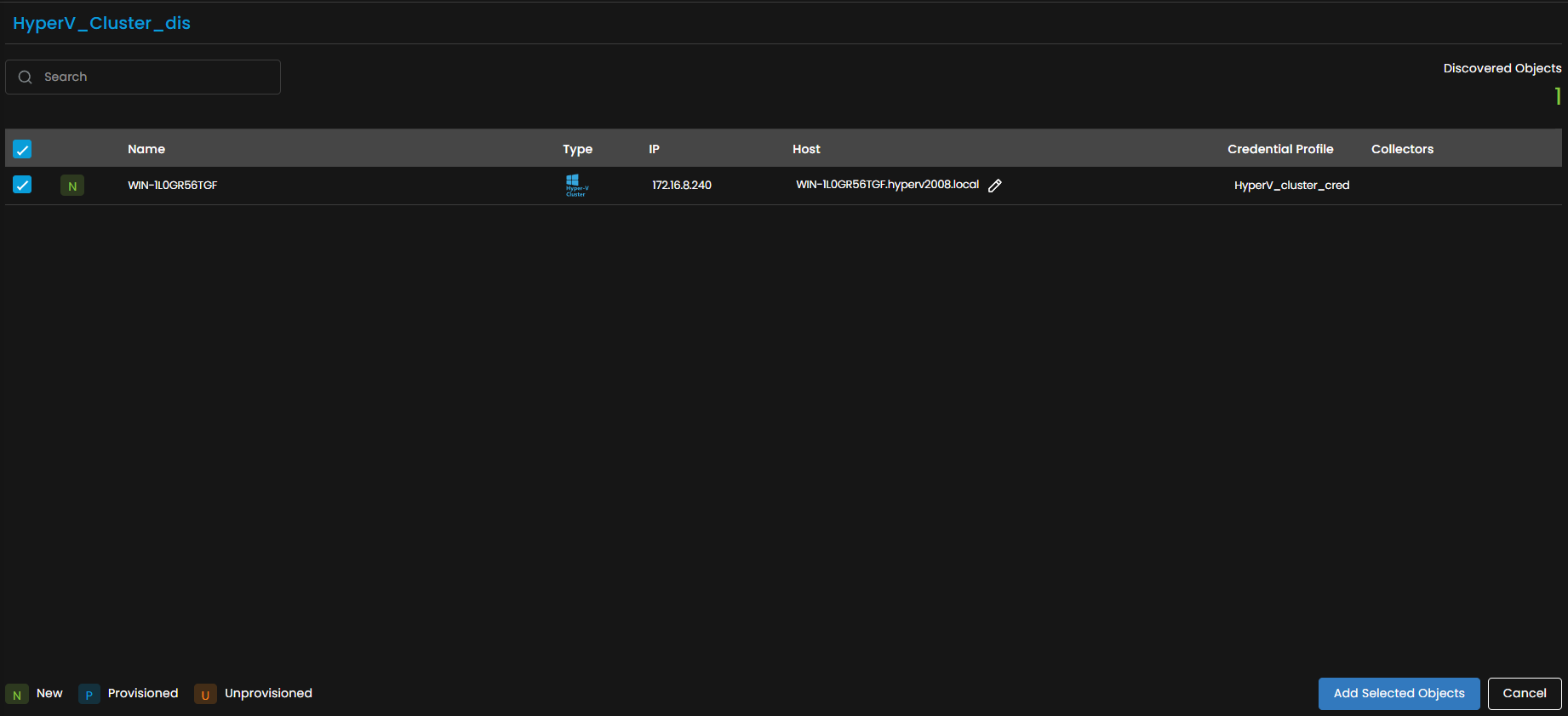
Once the discovery execution is complete, the list of all the devices discovered is displayed. Select the devices that you want to be listed as Monitors in the system.

The Provisioning screen will show three separate tabs:
- Hyper-V Failover Cluster
- Hyper-V Host
- Virtual Machine
Each of these tabs allows for individual selection and provisioning of discovered components.
Credential Profile Attachment to Hyper-V Host and Virtual Machine tabs
You can attach single or multiple credential profiles to each Hyper-V Host or Virtual Machine via the Select Credential Profile option.
You can assign credential profiles to bulk Hyper-V Hosts by selecting the multiple host checkboxes.
A side pop-up lets you assign a credential profile, create a new one, and configure the port. After that, the system will test the profile:
- If successful, the credential profile will be applied and confirmed with a green success message.
- If failed, the credential profile will not be assigned, and a red error message will be shown.
Click on Add Selected Objects to add the selected devices as Monitors. These devices will now be monitored further by AIOps.
- Hyper-V Failover Cluster will appear under the Virtualization tab as the Hyper-V Failover Cluster section.
- Hyper-V Hosts will appear under the Virtualization tab as the Microsoft Hyper-V section.
- Virtual Machines will appear under the Virtualization tab with their discovered Hyper-V Host or Hyper-V Failover Cluster, and also under Server & Apps if provisioned by assigning the credential profile.
Hyper-V Hosts will be auto-tagged with datacenter, cluster, hyperv, depends_on.
For Virtual Machines, the tags hyperv_host, type:vm, os, depends_on, and hypervisor:hyperv will be applied.
In case of vMotion, the Hyper-V Host tag on VMs will be updated during polling.
These devices can be viewed under the Monitor tab in the Main Menu. Select the Monitor tab from the main menu, then select Virtualization to view all the monitors that have been added to the system.
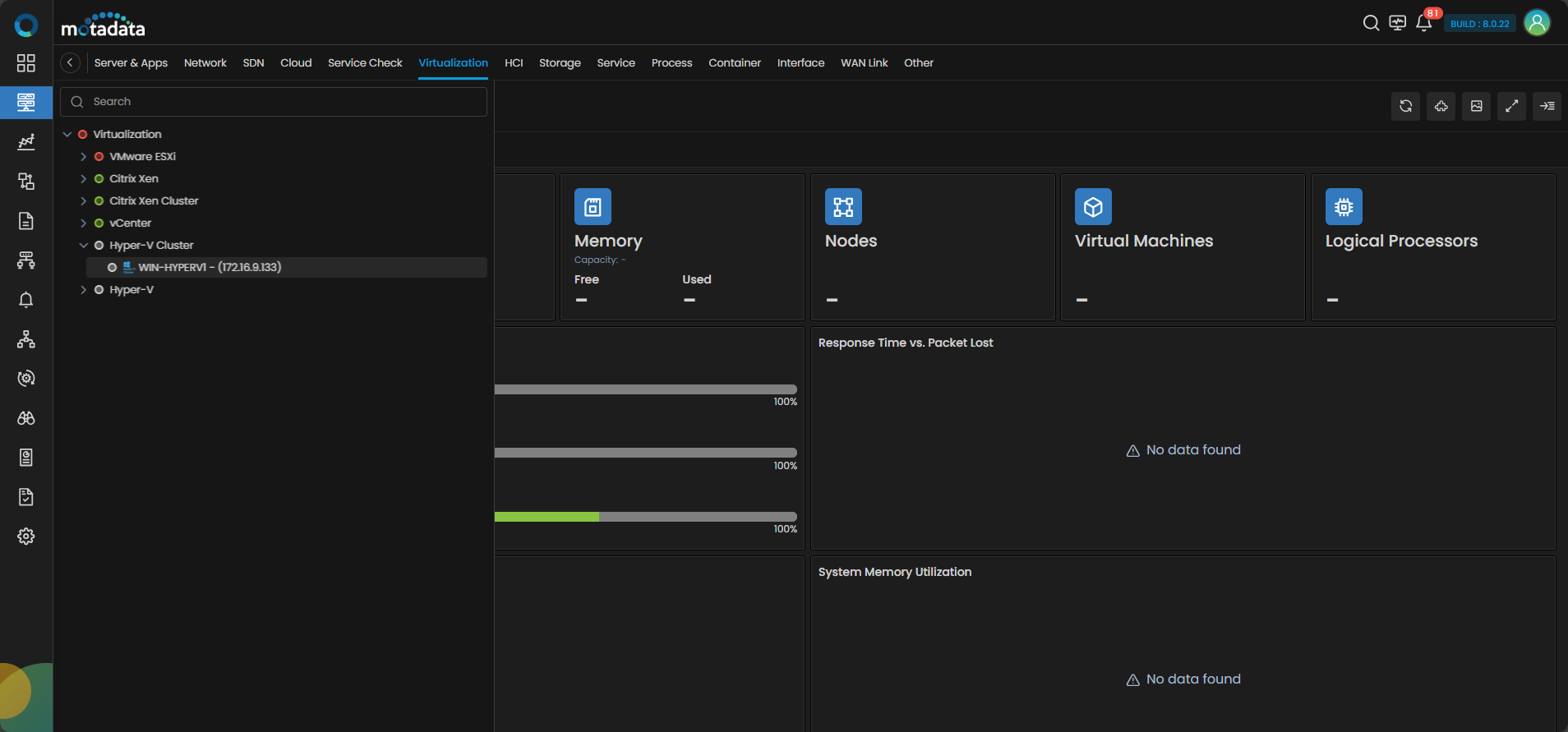
The Hyper-V Cluster devices are now successfully added to AIOps.
Adding a Proxmox VE Node device
1. Create a Credential Profile
We will start by creating a credential profile for the device we are trying to add.
Navigation
Go to Menu. Select Settings . After that, Go to Discovery Settings and select Credential Profile. The credential profile screen is displayed. Select Create Credential Profile to create a new credential profile.
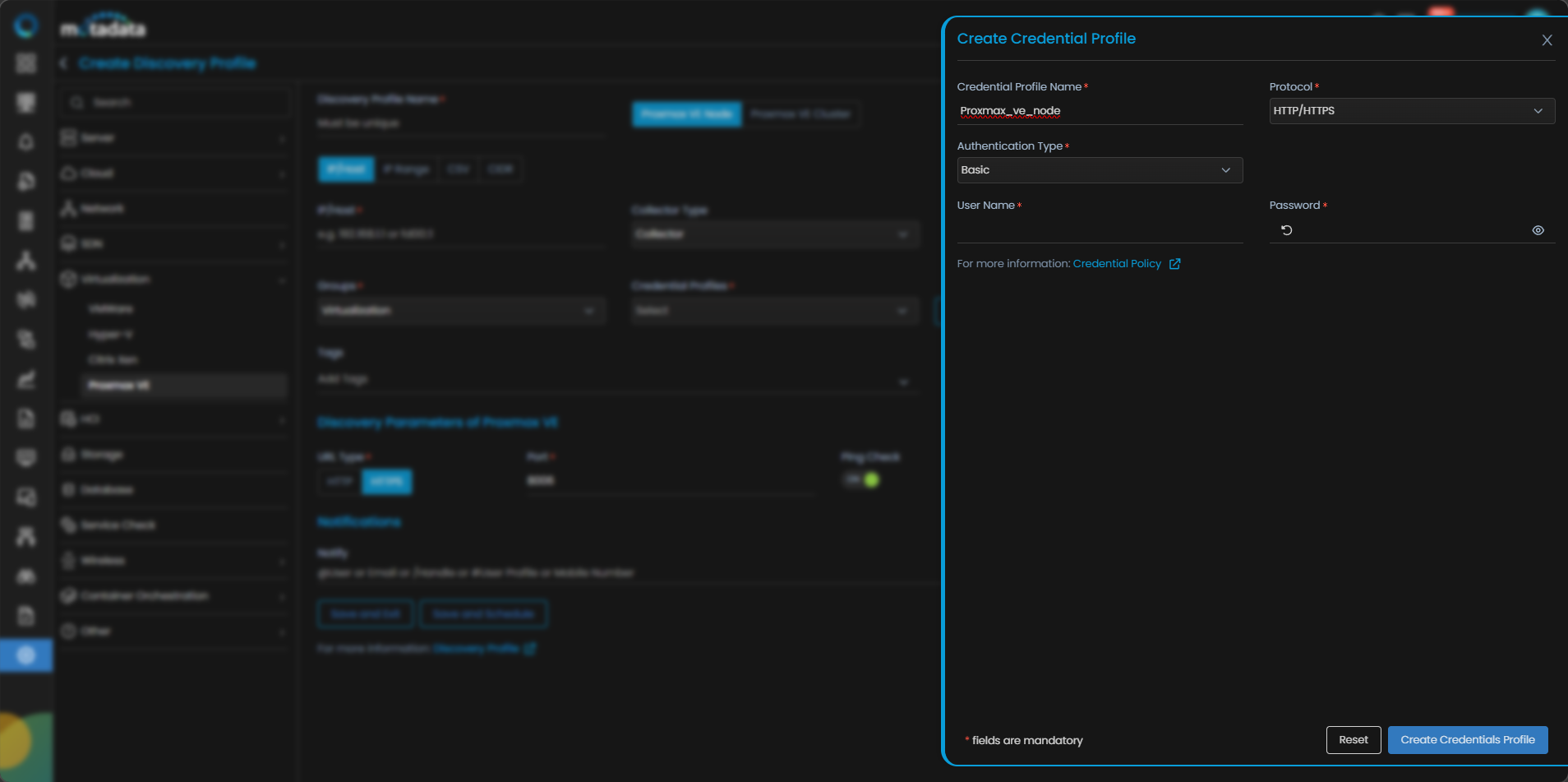
A pop-up for entering the credential profile details is displayed.
Credential Profile Parameters
Enter the required details in the pop-up as follows:
| Field | Description |
|---|---|
| Credential Profile Name | Provide a unique Credential Profile Name. This name is used to identify a credential profile. |
| Protocol | Select HTTP/HTTPS as Protocol from the drop-down. The option to provide the credential details is then displayed based on the protocol selected. |
| Username and Password | Enter these details for the virtual device you want to monitor. |
| Authentication Type | Select the correct Authentication Type based on the authentication of the device. |
Select Test to check if the credential details you provided are working against the device you want to discover by providing the details of the device IP.
Select Reset to erase all the current field values entered in the pop-up, if required.
Select Create Credential Profile to create the credential profile in the system. The credential profile is now created.
You can view the newly created profile in the credential profile interface by using the Search option available above the list of profiles.
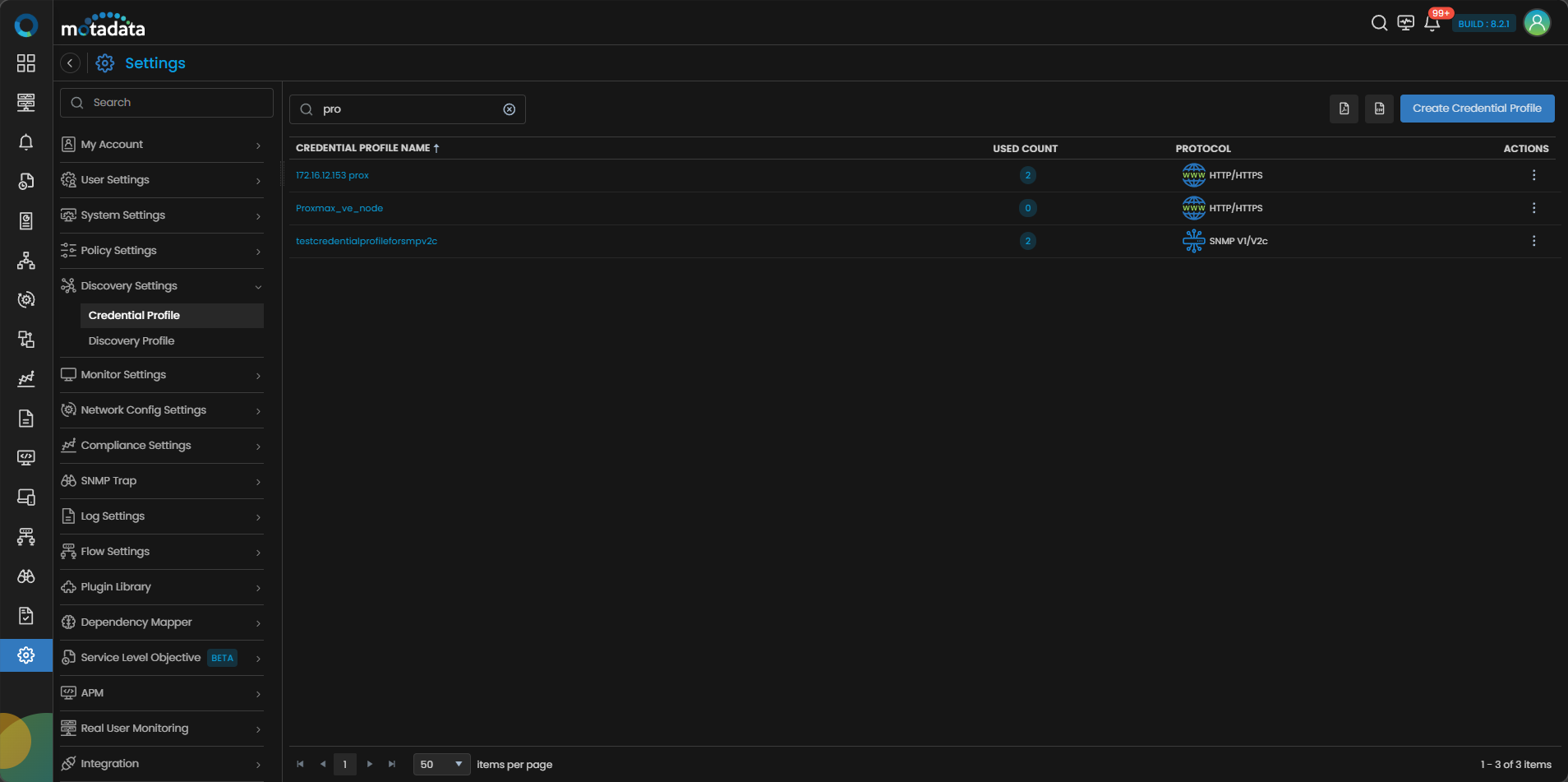
Now, let's move to the next step and create a discovery profile.
2. Create a Discovery Profile
Let us create a discovery profile for the device we are trying to add. Discovery profile allows us to discover devices in an infrastructure using the device address and associated credential profile.
Navigation
Go to Menu. Select Settings . After that, Go to Discovery Settings and select Discovery Profile. The discovery profile screen is displayed. Select Create Discovery Profile to create a new discovery profile.
A new screen to create the discovery profile is now displayed. Select Virtualization from the menu as shown below:
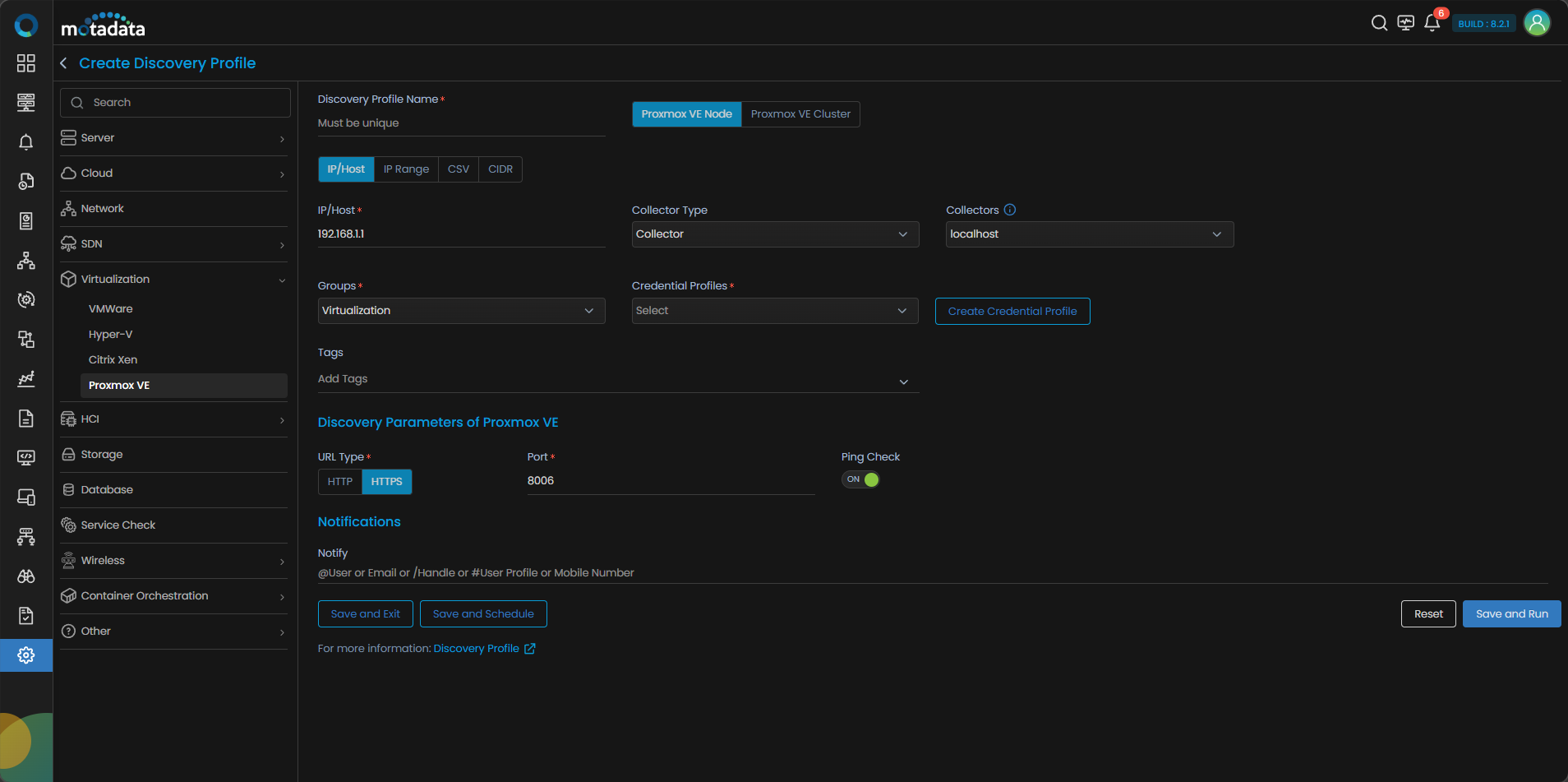
Select Proxmox VE Node to create a discovery profile.
Discovery Profile Parameters
Enter the required details in the screen as follows:
| Field | Description |
|---|---|
| Discovery Profile Name | Provide a unique Discovery Profile Name. This name is used to identify a discovery profile. |
| IP-Host/IP Range/CIDR/CSV | The address of the device to be discovered in one of the following formats: - IP: The IP address(IPv4 or IPv6) of the device to be discovered. - IP Range: A range of IP addresses(IPv4) in case multiple devices need to be discovered using the same profile. - CIDR: A range of IP addresses(IPv4) using the CIDR notation if multiple devices need to be discovered using the same profile. - CSV: The name of the CSV file used to import a range of addresses. You can enter IPv4, IPv6, or a combination of both addresses in the CSV file that you wish to upload. |
| Collectors | Select one or more Collectors that should be used for collecting data from the devices discovered using this Discovery Profile. Select multiple Collectors for load balancing and failover mechanism. In case you don’t select a Collector, the AIOps shall automatically select a relevant collector to leverage the load balancing feature. |
Ensure that you select correct Collector(s) based on how you want to distribute the load across all Collectors.
| Field | Description |
|---|---|
| Groups | Select one or more Groups that will be assigned to the monitors you provision using this discovery profile. |
| Credential Profile | Select a created Credential Profile to assign it to the discovery profile you are trying to create. You can also create a new credential profile from this screen using the Create Credential Profile button. In this case, we will select the credential profile Proxmox_ve_cred we created in the 1st step while creating a credential profile. |
| Tags | Select one or more Tags that you wish to assign to the discovery profile. |
| Port | The port number field is already populated. |
| Ping Check | The Ping Check button is switched ON by default. This means that AIOps will only discover the device if the ping is available for that device. Toggle this button OFF if you want AIOps to discover the device without doing a ping check. |
| Notify Team | The system allows notifying users about new service discovery through e-mail, handle, user name, and user profiles:
|
Select Reset to erase all the current field values, if required.
Select Save and Exit if you have created the discovery profile but do do want to execute a discovery run.
Select Save and Schedule if you have created the discovery profile and wish to schedule its run at a specific time.
Select Save and Run if you want execute the discovery run immediately after creation.
We have created a credential profile Proxmax_ve_Cred in the 1st step. After that, we have created a discovery profile Proxmax_ve_Dis in the 2nd step and assigned the credential profile to the discovery profile. After selecting, Save and Run, we have initiated a discovery run which leads us to our next step, which is, Provision the Discovered Devices as Monitors.
3. Provision the Discovered Devices as Monitors
After initiating the discovery profile execution, AIOps starts the process to discover the devices.
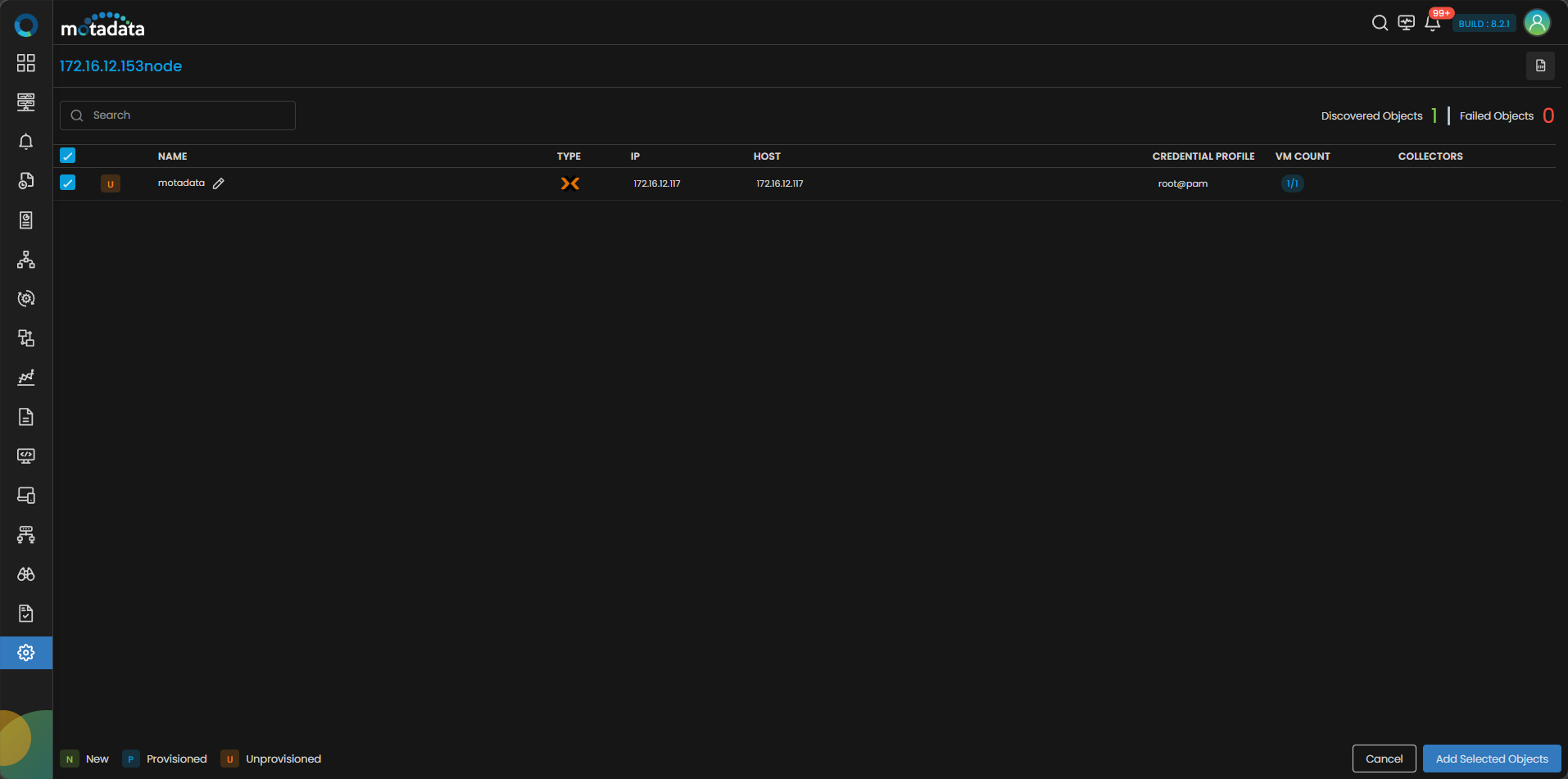
Once the discovery execution is complete, the list of all the devices discovered is displayed. Select the devices that you want to be listed as Monitors in the system.
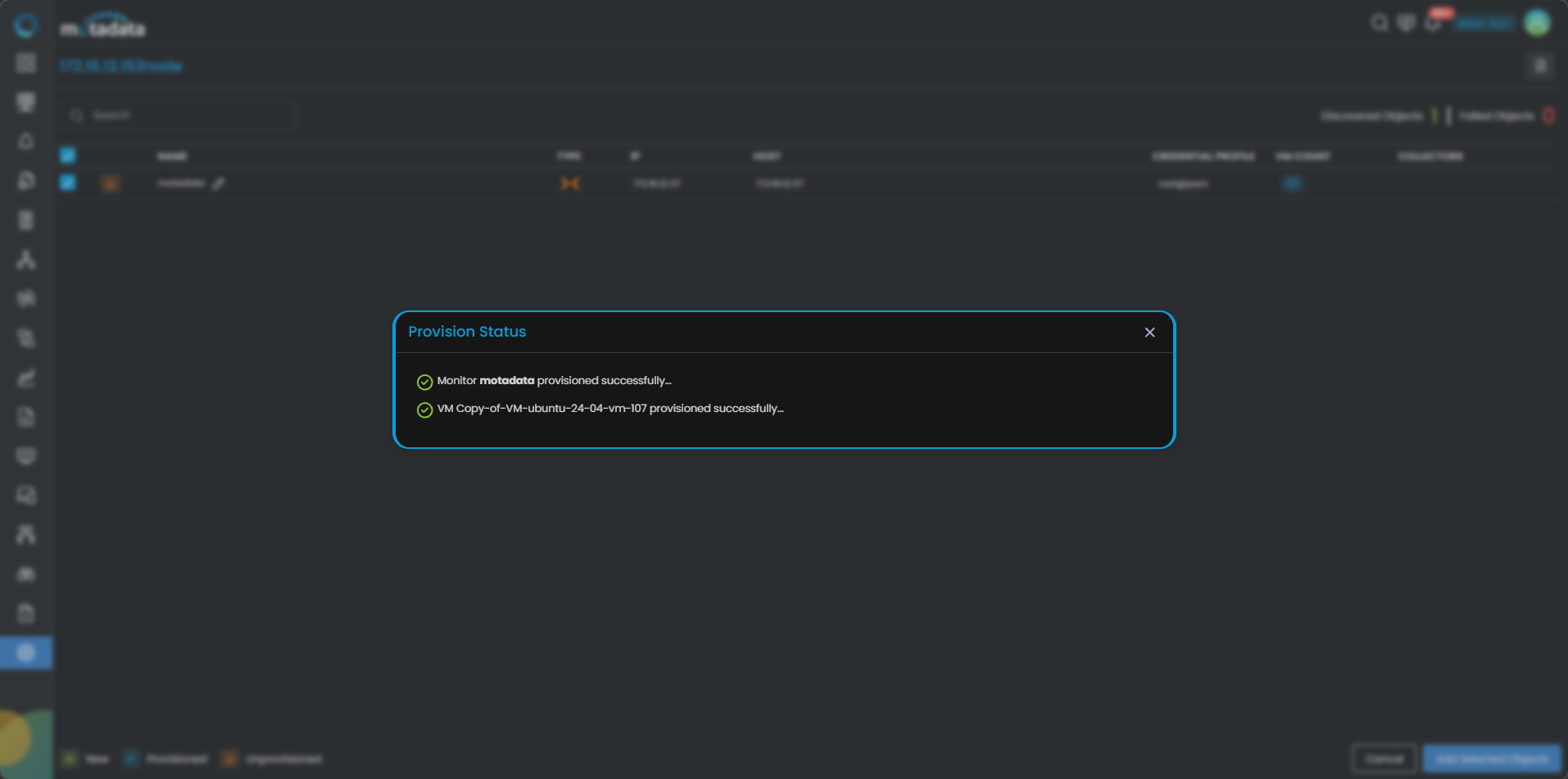
Click on Add Selected Objects to add the selected devices as Monitors. These devices listed as Monitors will now be monitored further by AIOps.
These devices can be viewed under the Monitor tab from the Main Menu. Select the Monitor tab from the main menu. After that, Select Virtualization to view all the monitors that are added to the system.
The Proxmox VE Node devices are now successfully added to AIOps.
Adding a Proxmox VE Cluster
1. Create a Credential Profile
We will start by creating a credential profile for the device we are trying to add.
Navigation
Go to Menu. Select Settings . After that, Go to Discovery Settings and select Credential Profile. The credential profile screen is displayed. Select Create Credential Profile to create a new credential profile.
A pop-up for entering the credential profile details is displayed.
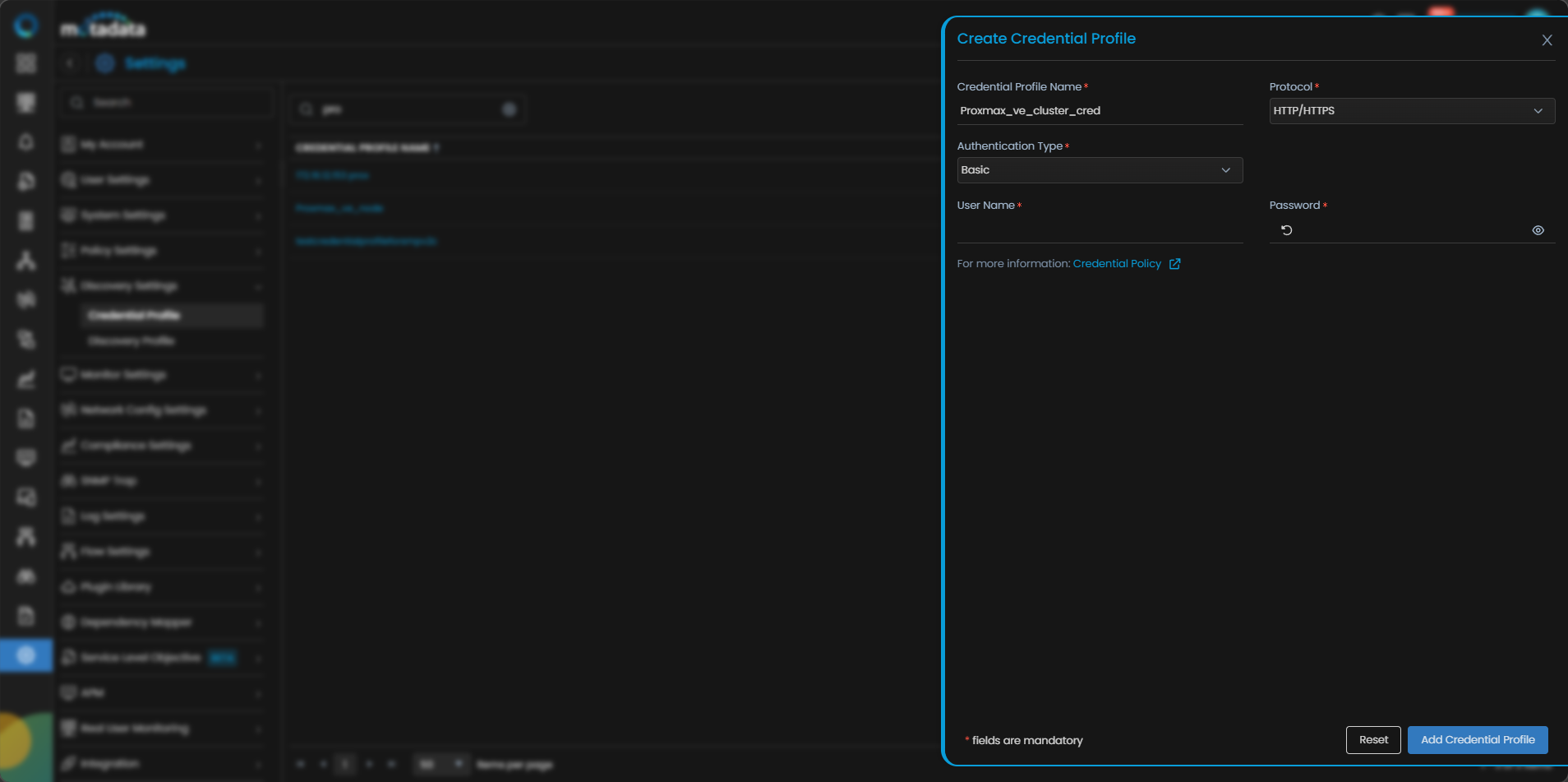
Credential Profile Parameters
Enter the required details in the pop-up as follows:
| Field | Description |
|---|---|
| Credential Profile Name | Provide a unique Credential Profile Name. This name is used to identify a credential profile. |
| Protocol | Select HTTP/HTTPS from the drop-down. The option to provide the credential details is then displayed based on the protocol selected. |
| Username and Password | Enter these details for the wireless device you want to monitor. |
| Authentication Type | Select the correct Authentication Type based on the authentication of the device. |
Select Reset to erase all the current field values entered in the pop-up, if required.
Select Create Credentials Profile to create the credential profile in the system. The credential profile is now created.
You can view the newly created profile in the credential profile interface by using the Search option available above the list of profiles.
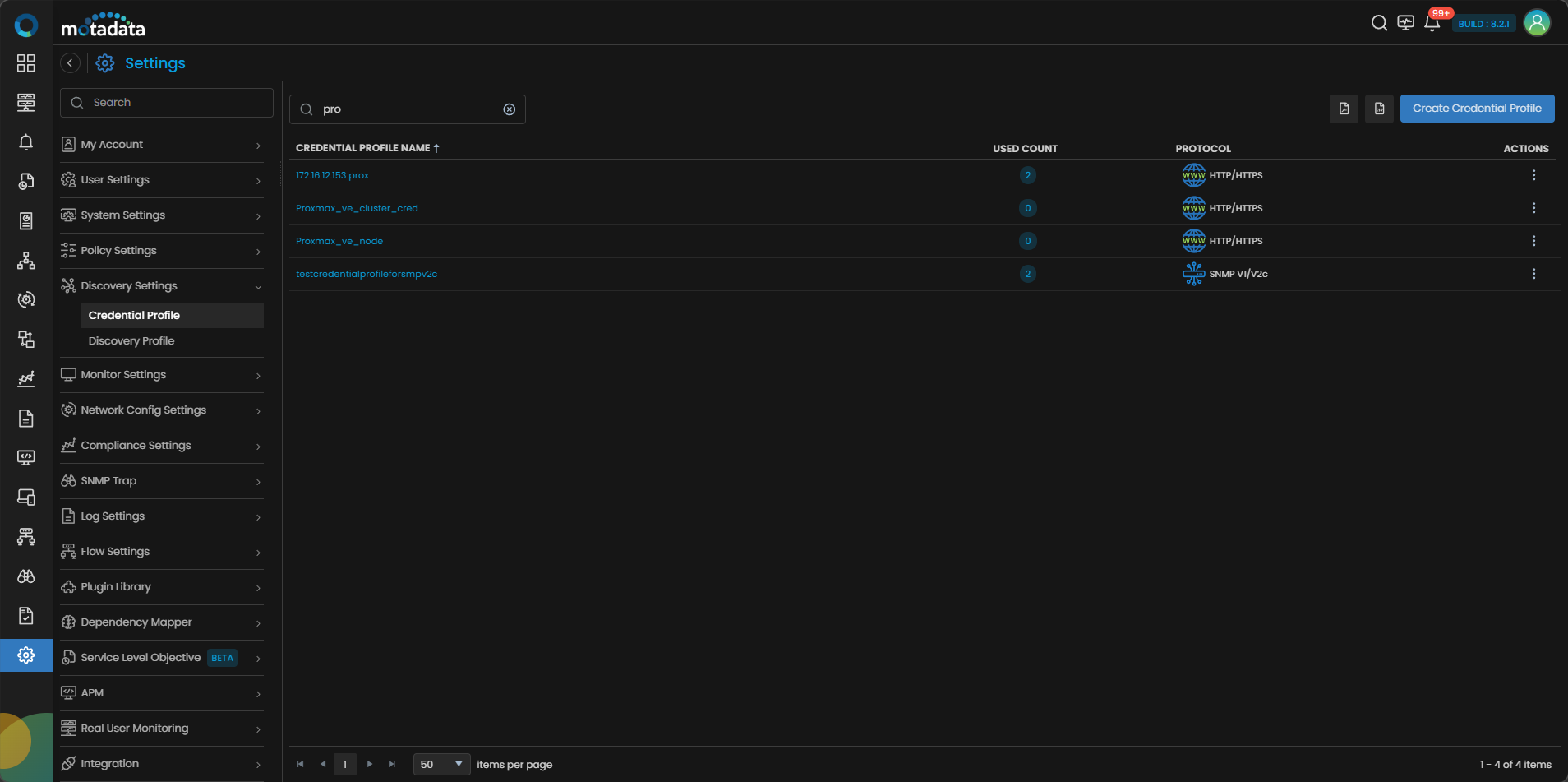
Now, let's move to the next step and create a discovery profile.
2. Create a Discovery Profile
Let us create a discovery profile for the device we are trying to add. Discovery profile allows us to discover devices in an infrastructure using the device address and associated credential profile.
Navigation
Go to Menu. Select Settings . After that, Go to Discovery Settings and select Discovery Profile. The discovery profile screen is displayed. Select Create Discovery Profile to create a new discovery profile.
A new screen to create the discovery profile is now displayed. Select Virtualization from the menu as shown below:
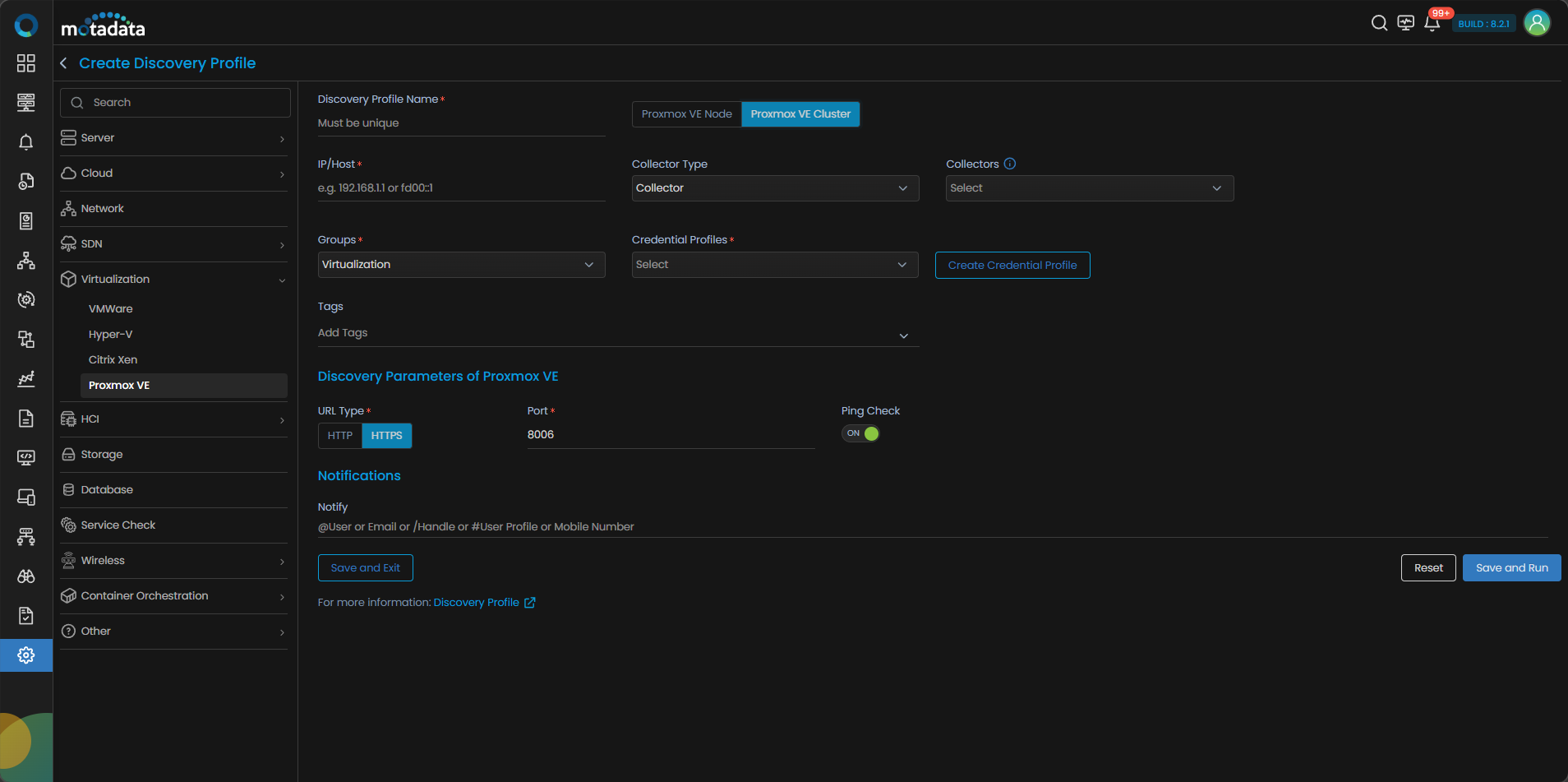
Select Proxmox VE Cluster to create a discovery profile.
Discovery Profile Parameters
Enter the required details in the screen as follows:
| Field | Description |
|---|---|
| Discovery Profile Name | Provide a unique Discovery Profile Name. This name is used to identify a discovery profile. |
| IP/Host | The IP address(IPv4 or IPv6) of the device to be discovered. |
| Collectors | Select one or more Collectors that should be used for collecting data from the devices discovered using this Discovery Profile. Select multiple Collectors for load balancing and failover mechanism. In case you don’t select a Collector, the AIOps shall automatically select a relevant collector to leverage the load balancing feature. |
You can initiate Proxmox VE Cluster discovery using the IP address of any single node, and the system will automatically discover all nodes and VMs within the cluster. The same default credentials apply to all nodes in the cluster; separate node-level credentials are not required.
Ensure that you select correct Collector(s) based on how you want to distribute the load across all Collectors.
| Field | Description |
|---|---|
| Groups | Select one or more Groups that will be assigned to the monitors you provision using this discovery profile. |
| Credential Profile | Select a created Credential Profile to assign it to the discovery profile you are trying to create. You can also create a new credential profile from this screen using the Create Credential Profile button. In this case, we will select the credential profile Proxmax_ve_cluster_cred we created in the 1st step while creating a credential profile. |
| Tags | Select one or more Tags that you wish to assign to the discovery profile. These tags will in turn be assigned to the device that you discover. |
| URL Type | Select HTTP/HTTPS as per your protocol. |
| Port | Port number field is already populated. |
| Ping Check | The Ping Check button is switched ON by default. This means that AIOps will only discover the device if the ping is available for that device. Toggle this button OFF if you want AIOps to discover the device without doing a ping check. |
| Notify Team | The system allows notifying users about new service discovery through e-mail, handle, user name, and user profiles:
|
Select Reset to erase all the current field values, if required.
Select Save and Exit if you have created the discovery profile but do do want to execute a discovery run.
Select Save and Run if you want execute the discovery run immediately after creation.
We have created a credential profile Proxmax_ve_cluster_Cred in the 1st step. After that, we have created a discovery profile Proxmax_ve_cluster_Dis in the 2nd step and assigned the credential profile to the discovery profile. After selecting, Save and Run, we have initiated a discovery run which leads us to our next step, which is, Provision the Discovered Devices as Monitors.
3. Provision the Discovered Devices as Monitors
After initiating the discovery profile execution, AIOps begins the process to discover the devices.
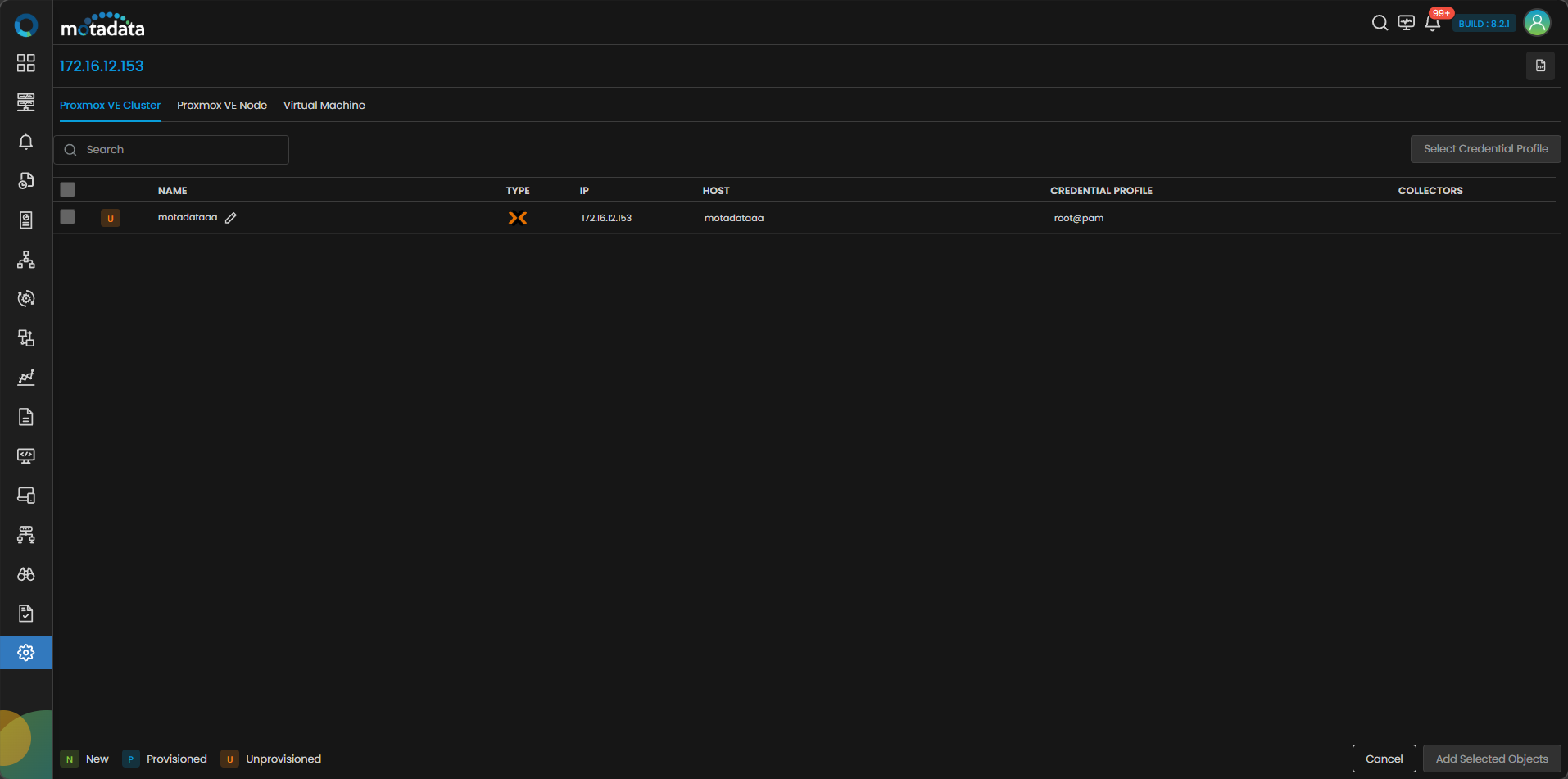
Once the discovery execution is complete, the list of all the devices discovered is displayed. Select the devices that you want to be listed as Monitors in the system.
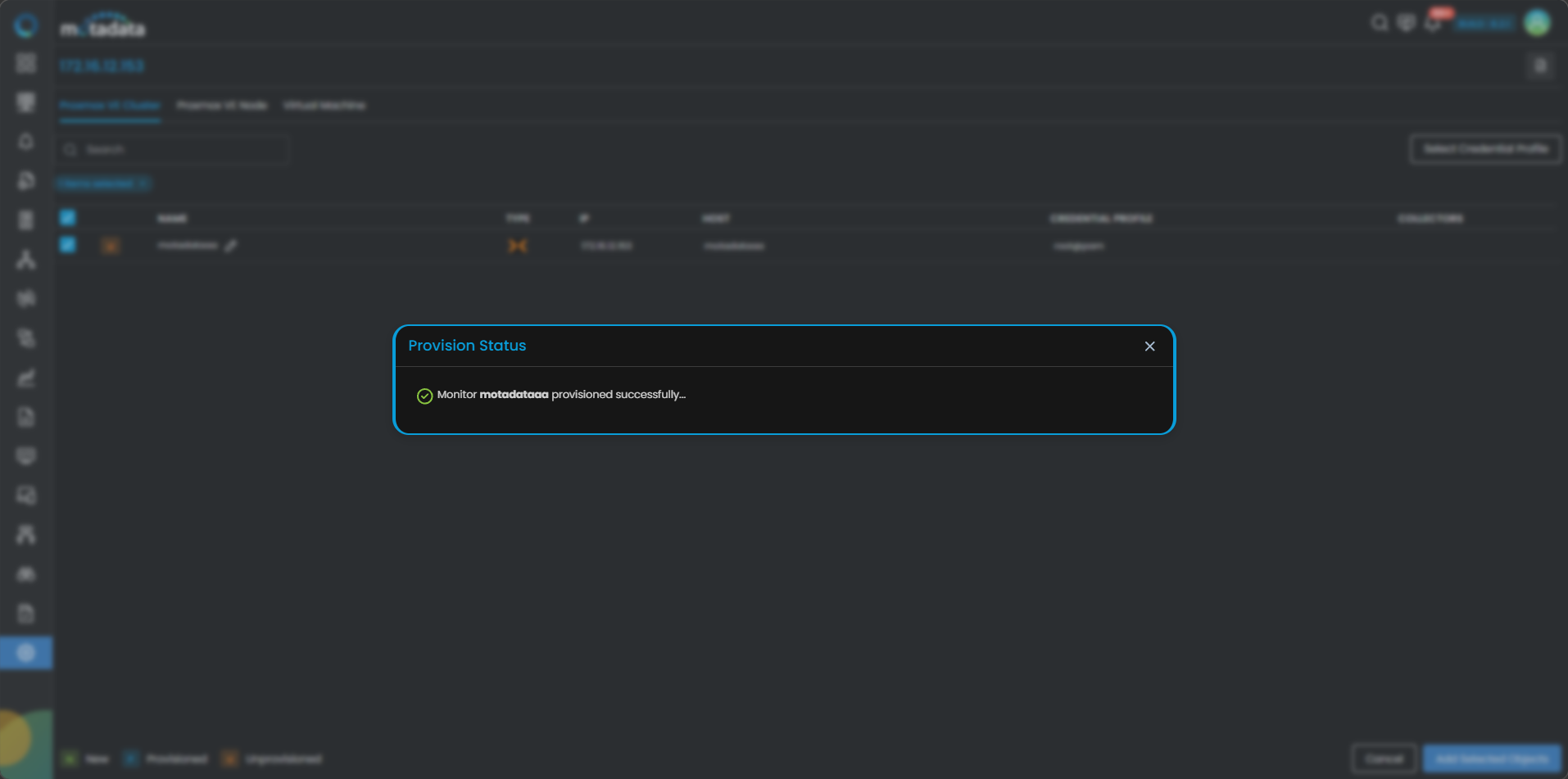
The Provisioning screen will show three separate tabs:
- Proxmax VE Cluster
- Proxmax VE Node
- Virtual Machine
Each of these tabs allows for individual selection and provisioning of discovered components. You can attach single or multiple credential profiles to each bu clicking the Select Credential Profile displayed in upper right hand side corner.
A side pop-up lets you assign a credential profile, create a new one, and configure the port. After that, the system will test the profile:
- If successful, the credential profile will be applied and confirmed with a green success message.
- If failed, the credential profile will not be assigned, and a red error message will be shown.
Click on Add Selected Objects to add the selected devices as Monitors. These devices will now be monitored further by AIOps.
- Proxmox VE Cluster will appear under the Virtualization tab as the Proxmox VE Cluster section.
- Proxmox VE Node will appear under the Virtualization tab as the Proxmox VE Node section.
- Virtual Machines will appear under the Virtualization tab with their discovered Proxmox VE Cluster or Proxmox VE Node, and also under Server & Apps if provisioned by assigning the credential profile.
Proxmox VE Nodes will be auto-tagged with resource_pool, depends_on, proxmox.
For Virtual Machines, the tags hypervisor:proxmox, depends_on, type:vm, os, and vm will be applied.
In case of VMotion, the Proxmox VE Cluster tag on VMs will be updated during polling.
These devices can be viewed under the Monitor tab from the Main Menu. Select the Monitor tab from the main menu, then select Virtualization to view all the monitors that have been added to the system.
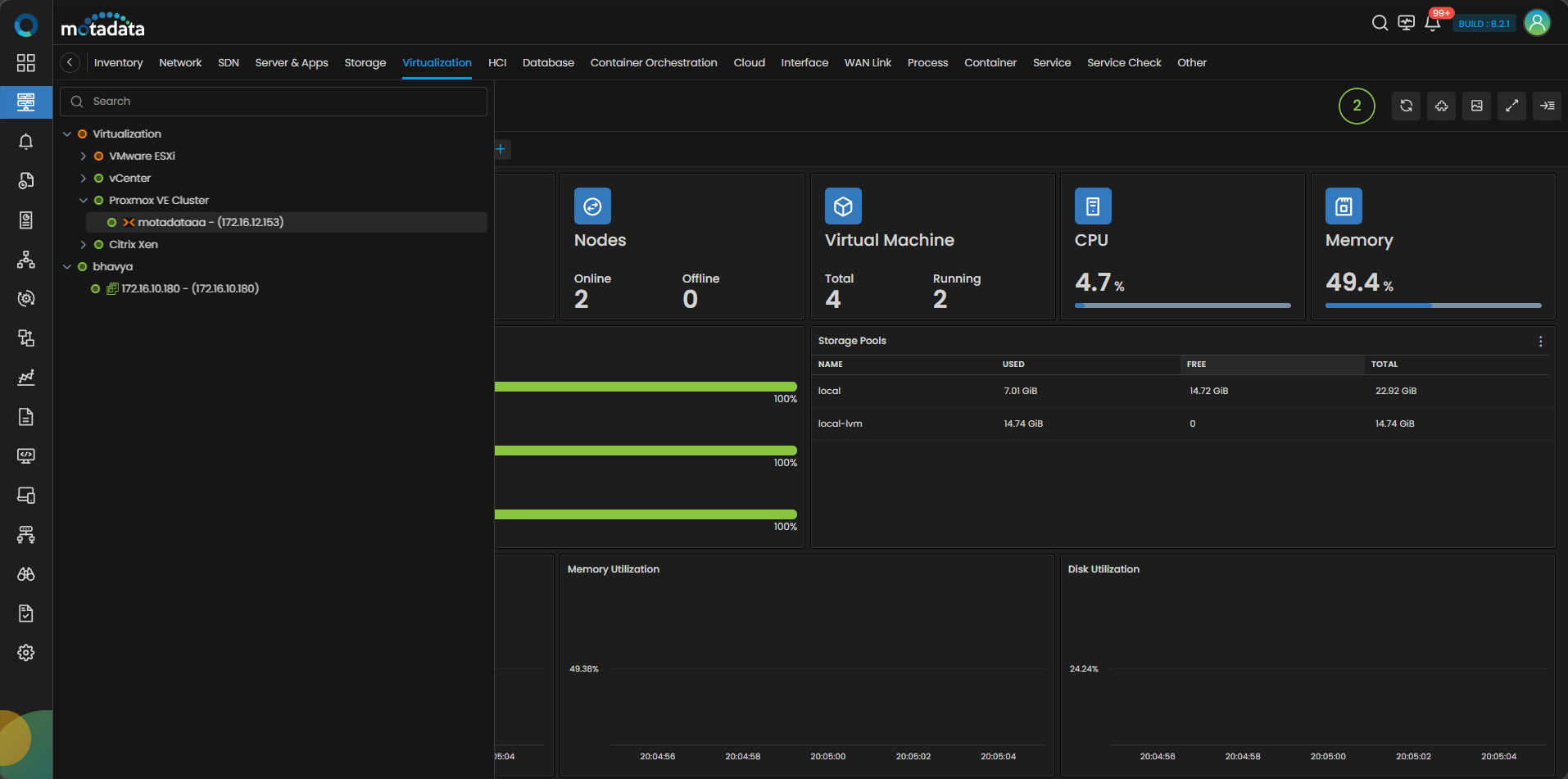
The Proxmox VE Cluster devices are now successfully added to AIOps.