Task Lifecycle
Efficient task management ensures that all activities-whether standalone or part of a larger process-are tracked, prioritized, and completed on time, supporting organizational productivity and service delivery.
This chapter explains how ServiceOps enables you to manage, customize, and track tasks across modules, ensuring visibility and control for IT Admins, Technicians, and other stakeholders.
What is a Task?
A task in ServiceOps is any unit of work that needs to be completed. Tasks include project tasks, request tasks, and other actionable items across modules.
- Standalone Tasks: Independent activities not linked to any module.
- Project Tasks: Tasks associated with a specific project, often with dependencies and milestones.
- Request Tasks: Tasks created to resolve service requests, incidents, or problems.
- Change/Release Tasks: Tasks linked to change or release management processes.
Task Lifecycle
Tasks in ServiceOps follow a structured lifecycle from creation to completion, ensuring that every piece of work is properly tracked, executed, and validated. This lifecycle provides clarity on the status of a task at any given point in time.
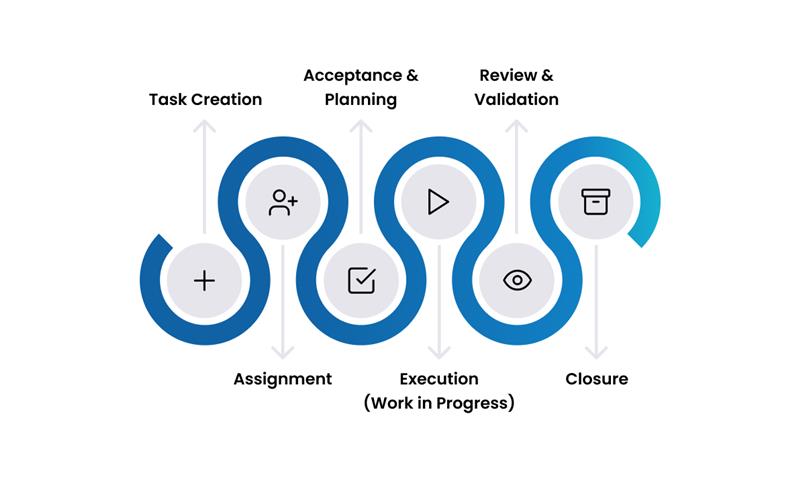
Task Creation The lifecycle begins when a task is created. This can happen in several ways:
- Manual Creation: Technicians or authorized users can create standalone tasks directly.
- Automated Creation: Tasks can be automatically generated as part of a larger process, such as fulfilling a service request, resolving an incident, or executing a change plan.
- During creation, key details are captured, including title, description, priority, and task type.
Assignment Once created, the task is assigned to the person or team responsible for its completion.
- Manual Assignment: A manager or dispatcher can manually assign the task to a specific technician or group.
- Automatic Assignment: Rules can be configured to automatically route tasks based on factors like category, priority, or technician availability.
- The assigned technician is notified that a new task requires their attention.
Acceptance & Planning The assigned technician reviews and formally accepts ownership of the task.
- Acceptance: The technician acknowledges the assignment, confirming they will work on it.
- Planning: The technician analyzes the task requirements, estimates the effort involved, and may break down the work into smaller steps using checklists.
Execution (Work in Progress) This is the phase where the actual work is performed.
- The task status is typically updated to "In Progress."
- Technicians add work logs to track the time spent and document specific actions taken.
- Comments and notes are used for collaboration or to provide status updates.
- Attachments, such as screenshots or log files, can be added to the task.
Review & Validation For certain workflows, completed work may require a review before final closure.
- The technician submits the task for validation by the original requester, a manager, or a quality assurance team.
- The reviewer assesses the work to ensure it meets all requirements. If not, the task can be reopened and returned to the execution phase with feedback.
Closure After the work is completed (and validated, if required), the task is formally closed.
- A final resolution description and closure code are typically added.
- The task becomes read-only, creating a permanent audit trail of the work performed.
- Automated notifications can be sent to inform stakeholders that the task is complete.
Key Features of Task Management
- Centralized View: See all your tasks-assigned or created-across modules in one place.
- Custom Task Types: Define and manage task types to categorize tasks (e.g., Review, Implementation, Testing).
- Task Statuses: Track progress with customizable statuses (e.g., Open, In Progress, On Hold, Closed).
- Task Forms: Customize forms to capture required information, add custom fields, and control visibility/permissions.
- Form Rules: Automate field behavior (mandatory, hidden, enabled/disabled) based on conditions.
- Search & Filters: Use simple and faceted search to quickly find relevant tasks.
- Dependency Tracking: Visualize and manage dependencies between tasks and other modules (requests, projects, changes, etc.).
- Worklogs & Comments: Add time-tracking entries and comments for collaboration and auditability.
- Bulk Actions: Edit, assign, or update multiple tasks at once.
Customizing Task Management
You can tailor task management to fit your organization's unique processes.
- Task Types: Add, edit, or reorder task types to match your specific workflows and use custom types for specialized activities.
- Task Statuses: Define custom statuses and colors to reflect your process and set a default status for all new tasks.
- Task Forms: Add system or custom fields to capture all necessary data, and control field permissions for requesters and technicians.
- Task Form Rules: Automate field behavior based on user input or context (e.g., make "Technician Group" mandatory if "Priority" is set to High).
Best Practices for Task Management
- Standardize Task Types and Statuses: Ensure consistency across teams and modules.
- Leverage Custom Fields: Capture all relevant information for each task.
- Use Form Rules for Data Quality: Automate validation and field requirements.
- Monitor Progress Regularly: Use dashboards and reports to track open, overdue, and completed tasks.
- Encourage Worklog Usage: Promote time tracking and documentation for transparency.
- Review and Refine: Periodically review task types, statuses, and forms to align with evolving processes.
Related Topics
- Projects vs Tasks: Understand the distinction between projects and tasks.
- Request Management: Managing tasks within service requests.
- Change Management: Managing tasks within change processes.
- Release Management: Managing tasks within release processes.