Package Deployment
Package Deployment is the process of remotely distributing and installing software applications and scripts across multiple endpoints in a controlled and automated manner. This ensures software standardization, saves time, and enhances security.
ServiceOps provides a centralized platform for deploying various package types—including MSI, EXE, scripts, and ZIP files—to Windows, macOS, and Linux computers. This capability is essential for everything from onboarding new employees with a standard software kit to rolling out enterprise-wide application upgrades.
Benefits of Package Deployment
- Standardized Environments: Ensure all endpoints run consistent, approved software versions, which simplifies support and reduces conflicts.
- Operational Efficiency: Automate the time-consuming manual process of software installation, freeing up IT staff for more strategic initiatives.
- Enhanced Security: Control which applications are installed in your environment and ensure they are deployed with secure configurations.
- Improved User Experience: Provide users with the software they need to be productive quickly and without complex installation procedures.
Common Use Cases
- New Employee Onboarding: Automate the installation of a standard set of software applications for new hires.
- Software Upgrades: Roll out a new version of an enterprise application to an entire department or the whole organization.
- Remote Script Execution: Deploy configuration scripts to update registry settings, apply custom configurations, or perform system maintenance tasks.
- Deploying Non-Standard Software: Distribute specialized, department-specific software to a targeted group of users.
Supported Package Types
You can deploy a wide range of package formats to suit different installation scenarios.
- MSI/MSP (Windows): The standard for Windows installers, ideal for silent, unattended installations with custom parameters.
- EXE (Windows): Deploy executable installers, with support for command-line arguments to enable silent installation.
- Scripts (Cross-Platform): Execute custom logic by deploying PowerShell scripts on Windows or Bash scripts on macOS and Linux. This is perfect for complex installations or system configuration tasks.
- ZIP (Cross-Platform): Distribute a collection of files, such as configuration files or application resources, to be extracted on the target machine.
Package Management Lifecycle
Effective package deployment follows a structured lifecycle to ensure reliability, minimize user disruption, and maintain a standardized software environment. The process can be broken down into six key stages:
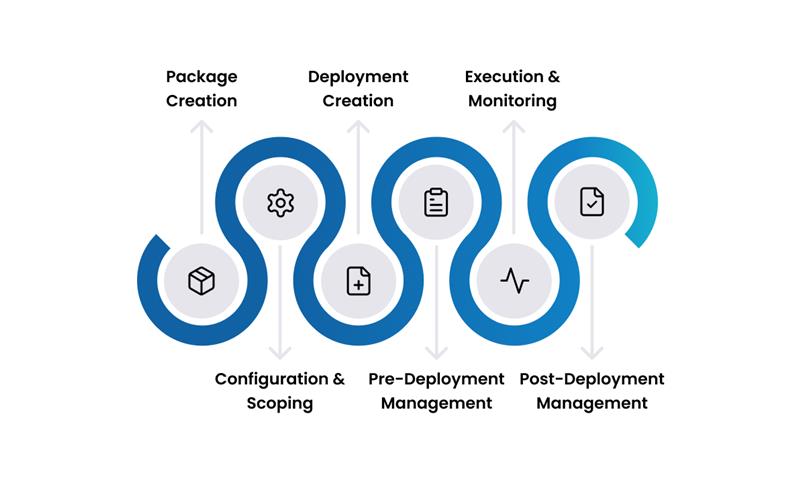
1. Package Creation At this stage, administrators create the package by bundling together files, executables, or scripts required for deployment. This includes adding metadata (name, version, description), attaching software files, installers, or patches, and ensuring package integrity through checksum/validation. This forms the foundation for all subsequent steps.
2. Configuration & Scoping Here, the administrator defines where and how the package will be deployed. This involves configuring deployment policies (e.g., retry, reboot, bandwidth throttling), scoping target endpoints (individual machines, groups, or entire remote offices), and applying conditions such as OS type, hardware specifications, or location. This ensures deployments are precise and aligned with business needs.
3. Deployment Creation The deployment plan is formalized in this step. This includes selecting the package(s) to be deployed, choosing the scoped endpoints, and defining the execution schedule (immediate, future date, recurring). This step transforms package plus configuration into a deployment job.
4. Pre-Deployment Management Before execution, the deployment undergoes validation and readiness checks. This involves a dependency/conflict check to ensure no missing prerequisites or software clashes, an optional pilot/test run on a small sample group, and schedule and resource validation to confirm timings, bandwidth, and endpoint readiness. Rollback planning is also defined, outlining what happens if the deployment fails. This stage minimizes risk and improves confidence in the deployment’s success.
5. Execution & Monitoring The deployment is launched and actively monitored. This includes publishing the deployment to endpoints, tracking installation progress, success/failure rates, and logs in real-time. It also involves detecting anomalies (e.g., network failure, partial installs) and allowing admins to intervene if necessary to pause or cancel.
6. Post-Deployment Management After execution, administrators manage the lifecycle of completed deployments. This involves updating or re-deploying packages as required, canceling or archiving old deployments, and generating reports for compliance, audit, or historical tracking. This stage ensures accountability and prepares the system for the next cycle.
Key Capabilities
Deployment & Scheduling
- Centralized Package Repository: Upload and manage all your software packages in a central file server repository.
- Flexible Deployment Policies: Create detailed policies to control the entire deployment process. Schedule installations for specific dates and times, configure retry behavior for failed attempts, and define pre- and post-deployment actions.
- Bandwidth Optimization: For multi-site organizations, use remote file servers as local distribution points. Endpoints at a branch office will download packages from their local server, saving WAN bandwidth.
- Batch Deployment: Control network traffic by deploying to a specific number of computers at a time (e.g., 50 machines every hour) instead of all at once.
Targeting & Control
- Granular Targeting: Deploy packages to specific targets, whether it's an entire remote office, a dynamic group of computers (e.g., "All Windows 11 machines"), or a custom-defined group.
- Pre- & Post-Deployment Actions: Execute custom scripts or commands before or after the main installation. For example, run a pre-deployment script to check for disk space, and a post-deployment script to apply a license key.
- User Interaction Control: Choose whether to allow users to postpone an installation or to force it at the scheduled time.
Monitoring & Reporting
- Real-time Monitoring: Track the status of your deployments in real-time from a centralized dashboard.
- Detailed Reporting: Get comprehensive reports on successful and failed installations, making it easy to identify and troubleshoot issues on specific machines.
- Software Inventory Integration: Successful deployments automatically update the software inventory for the target machines, ensuring your asset data remains accurate.
Best Practices
Planning & Preparation
- Test Before Deploying: Always test a new package on a small, representative group of test machines before rolling it out to production.
- Use Silent Install Switches: For EXE and MSI packages, find and use the correct command-line arguments for a silent or unattended installation. This prevents pop-ups and interruptions for the end-user.
- Manage Dependencies: If an application requires a prerequisite (like a specific .NET Framework version), deploy the prerequisite first or bundle them together using a script.
- Organize Your Repository: Maintain a clean and well-organized package repository with clear naming conventions and versioning.
Deployment & Execution
- Schedule During Off-Hours: Whenever possible, schedule large deployments to run during non-business hours to minimize network impact and user disruption.
- Communicate with Users: Inform users about upcoming software installations, especially if a reboot is required.
- Use Phased Rollouts: For major software deployments, use a phased approach. Start with a pilot group, then expand to departments, and finally to the entire organization.
- Monitor Actively: After launching a deployment, actively monitor its progress to quickly catch and address any widespread failures.