Login and Logout of Motadata Account
The login page allows authorized users to securely access the Motadata ObserveOps platform. It ensures that only authenticated users can view, monitor, and manage system data.
This section explains how to access the login page, log in to the platform, set a new password, and safely log out after use.
To access the login page, open a web browser and enter the Motadata ObserveOps URL.
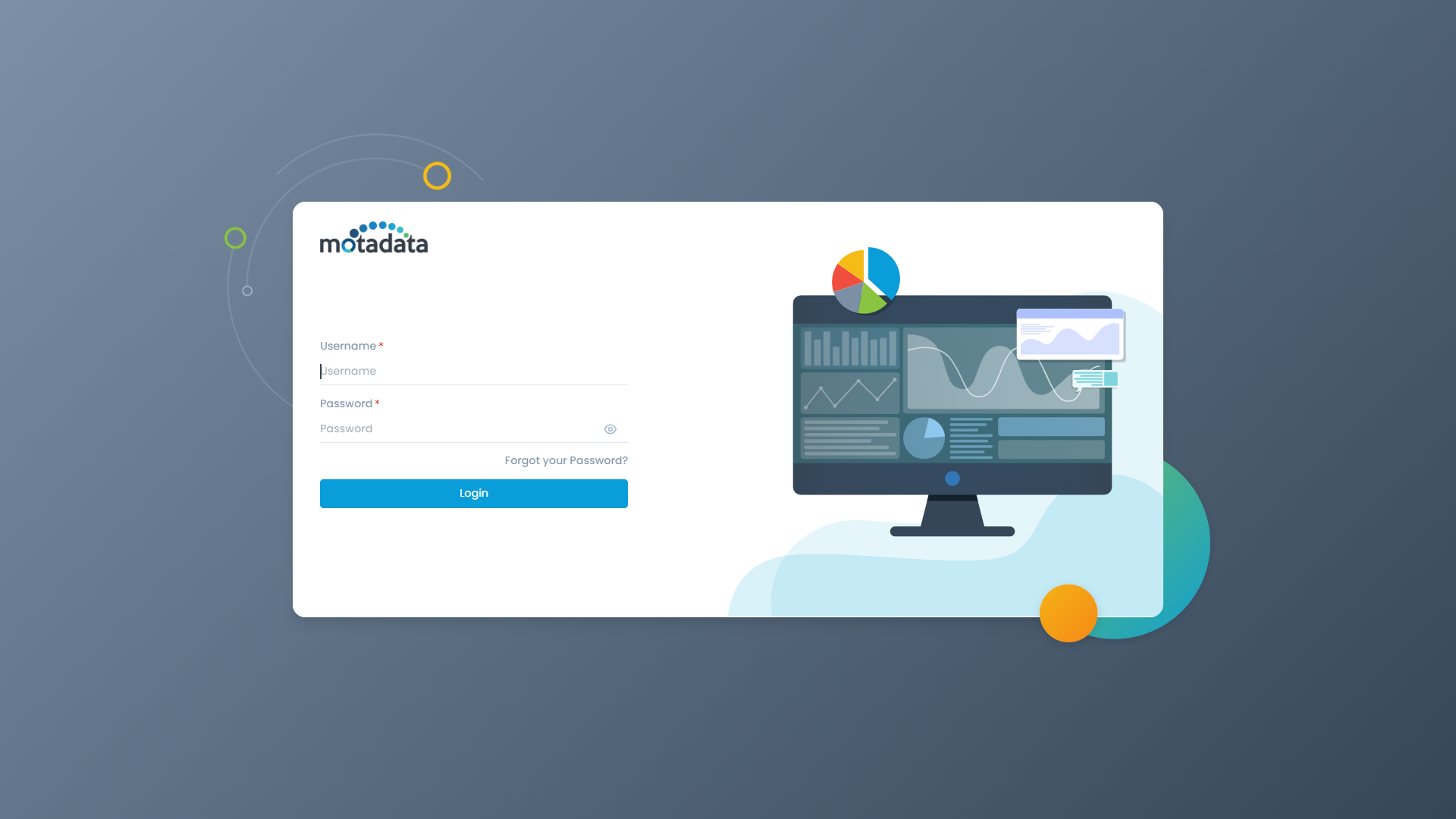
Steps to Log In
- Enter your Username and Password.
- (Optional) Click the eye icon to view the password.
- Click Login.
After successful authentication:
- You will be redirected to the dashboard, or
- You will be prompted to set a new password.
You need to set a New Password for the First-Time login under the following conditions:
- After a fresh ISO deployment (using default credentials).
- When a user account is created with the "Require password change at first login" option enabled. The following section explains how administrators can configure this setting during user creation.
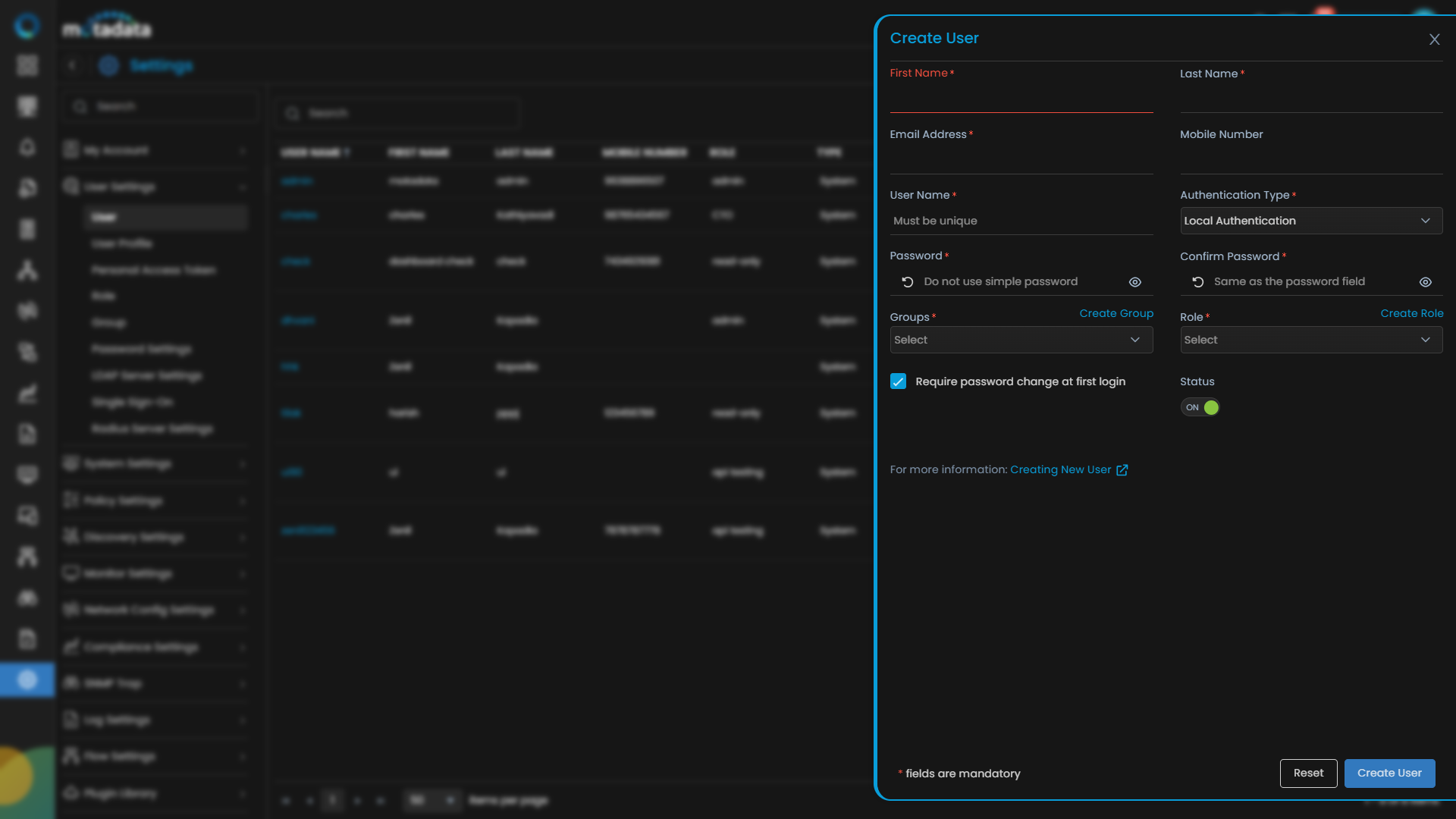
Admin Configuration (User Creation)
While creating a new user with Local Authentication, administrators can enforce password reset on first login.
Navigate to User Settings → Create User.
Select Authentication Type as Local Authentication.
Select the checkbox: Require password change at first login.
Complete the user creation process.
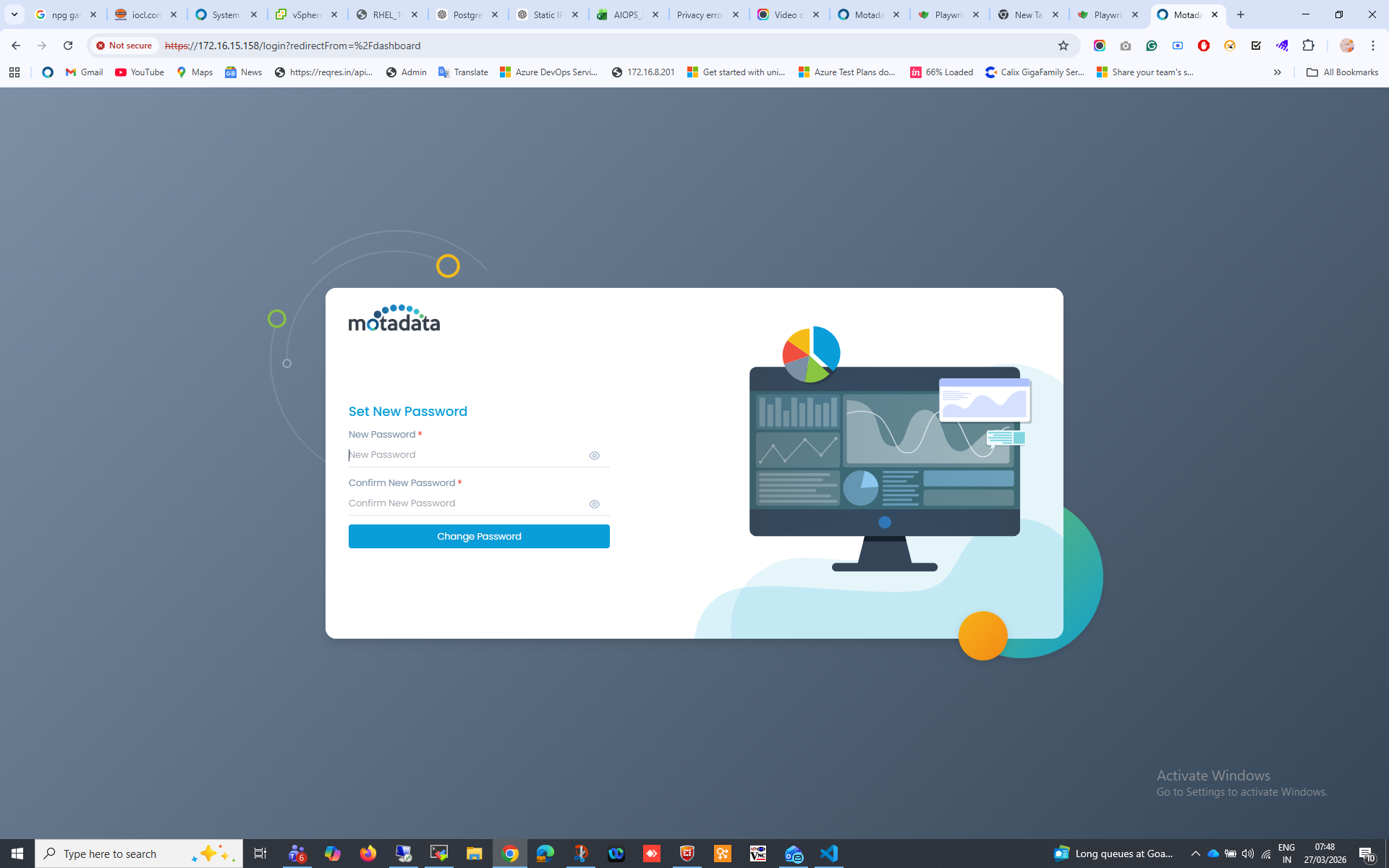
Steps to Set a New Password
Enter your Username and Password.
Click Login.
You will be redirected to the Set New Password page.
Enter:
- New Password
- Confirm New Password
Click Submit.
After successfully setting the new password, you will be redirected to the dashboard.
User Profile Menu
Click the user profile icon in the top-right corner of any screen to open the user profile menu. The menu provides quick access to your account, product resources, and appearance options.
| Option | Description |
|---|---|
| My Profile | Opens your profile settings where you can update basic information, contact details, and password. |
| Product Setup Guide | Opens the in-product setup guide with configuration walkthroughs. |
| Documentation | Opens the ObserveOps documentation site in a new tab. |
| Release Notes | Opens the release notes for the current ObserveOps release, so you can review new features, enhancements, and fixes without leaving the product. |
| Support | Opens the support portal, so you can raise a ticket or reach the ObserveOps support team directly from the product. |
| Download mobile app | Provides the download links for the ObserveOps mobile app. |
| Theme | Switches the UI theme between Dark, Light, and Auto. |
| Logout | Signs out of the ObserveOps platform. |
Logging Out
To log out of the platform:
Click the user profile icon in the top-right corner.
Select Logout.
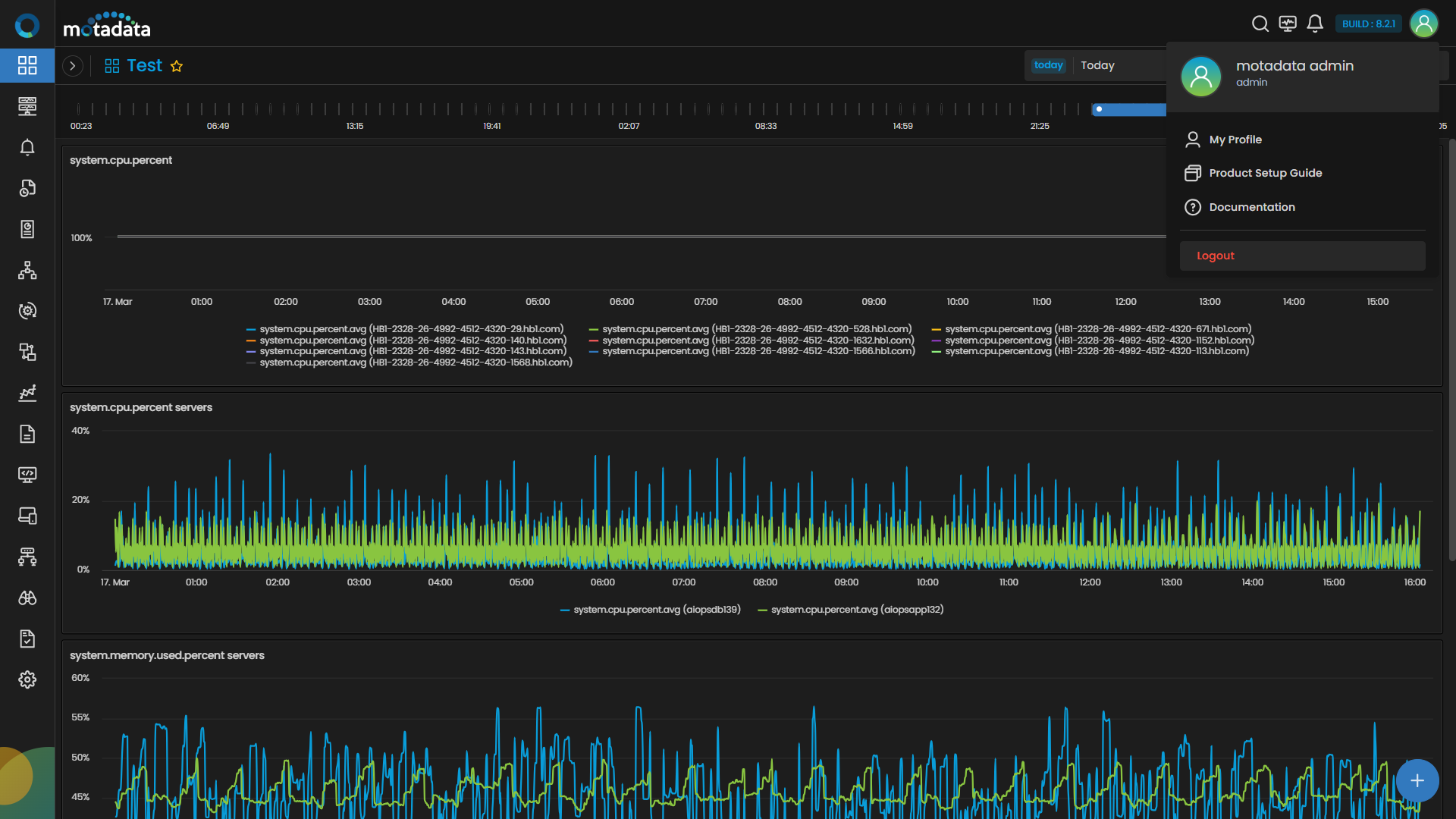
You will be redirected to the login page after logging out.
- Ensure the correct server URL is used.
- Always log out after use, especially on shared systems.