WhatsApp Integration with Motadata ObserveOps
Overview
Motadata ObserveOps (formerly known as AIOps) supports WhatsApp integration to deliver alerts directly to users through WhatsApp. This integration leverages Meta’s WhatsApp Business Platform, enabling secure, real-time communication for observability events such as alerts, incidents, and policy violations.
Once configured, Motadata ObserveOps can forward Alert notifications to WhatsApp using approved message templates, ensuring reliable delivery and compliance with Meta policies.
Prerequisites
Before configuring WhatsApp integration, ensure the following requirements are met:
- Verified Meta Business Account.
- Valid Facebook Developer Account.
- A WhatsApp Business Account linked to the Meta Business Manager.
- Access to Meta Developer Console.
- Admin access to Motadata ObserveOps.
High-Level Configuration Flow
The WhatsApp integration setup involves the following stages:
- Login to Meta Business account and app
- Enable WhatsApp products
- Generate a permanent access token
- Obtain the WhatsApp phone number ID
- Create and approve message templates
Create App
To create a WhatsApp Virtual Agent using Facebook, follow the below steps.
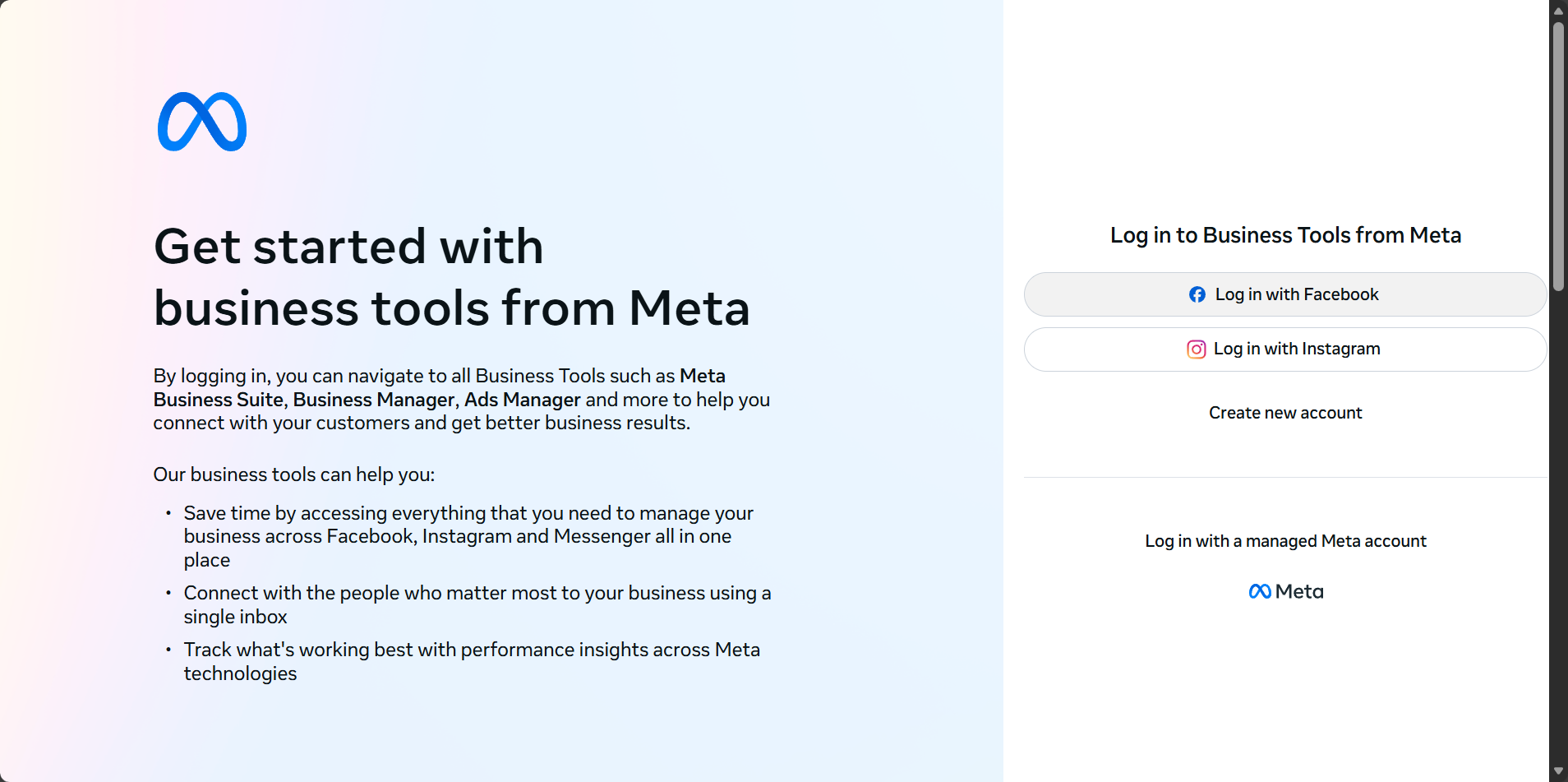
Step 1: Login to Meta Business Account
- Navigate to https://business.facebook.com.
- Log in using your Meta business account to verify your business is registered with Meta business.
This account is required to manage WhatsApp Business assets and permissions.
Step 2: Create a Meta App
- Go to https://developer.facebook.com.
- Sign in using your Facebook Developer Account and click the My Apps option.
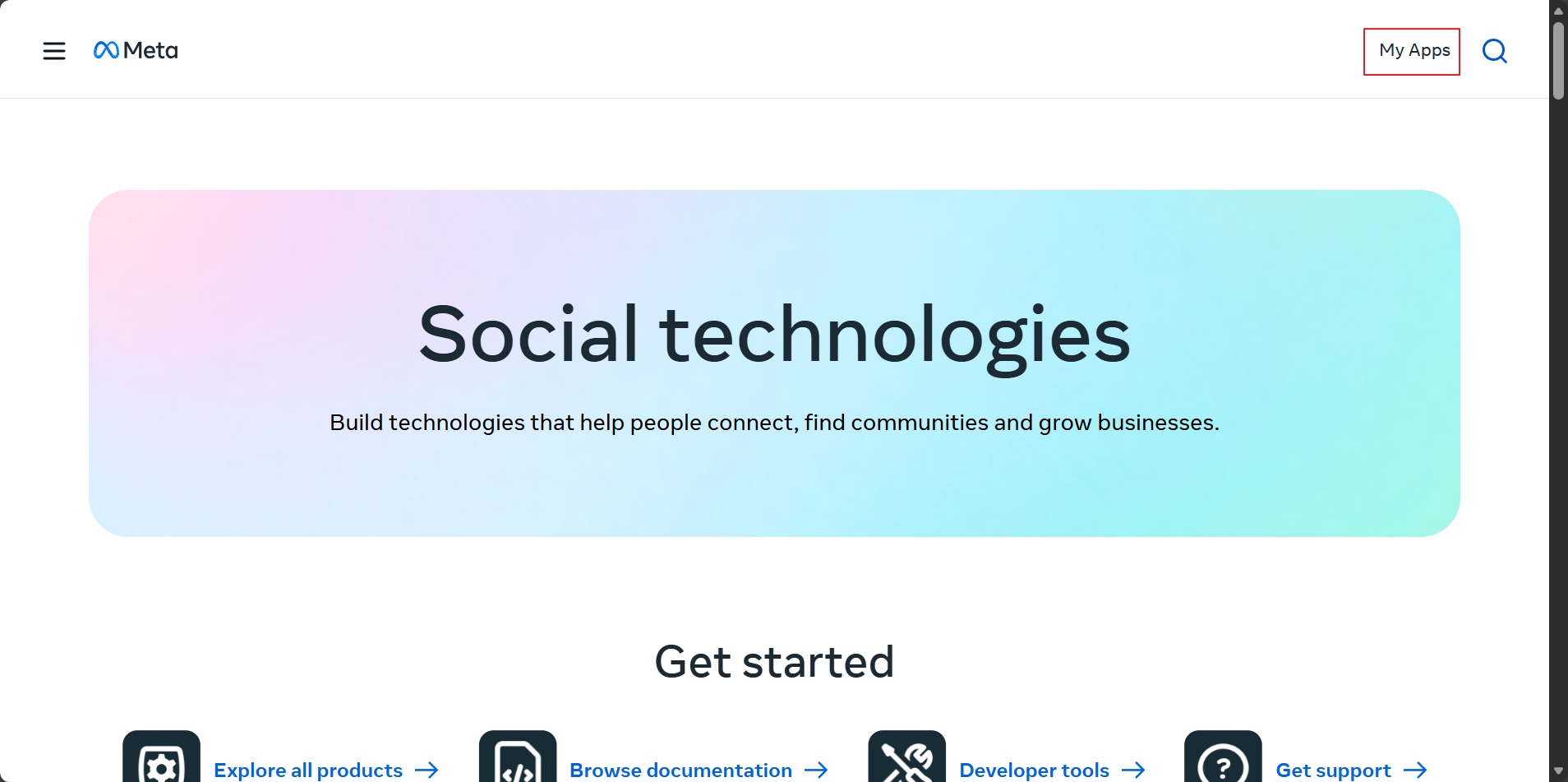
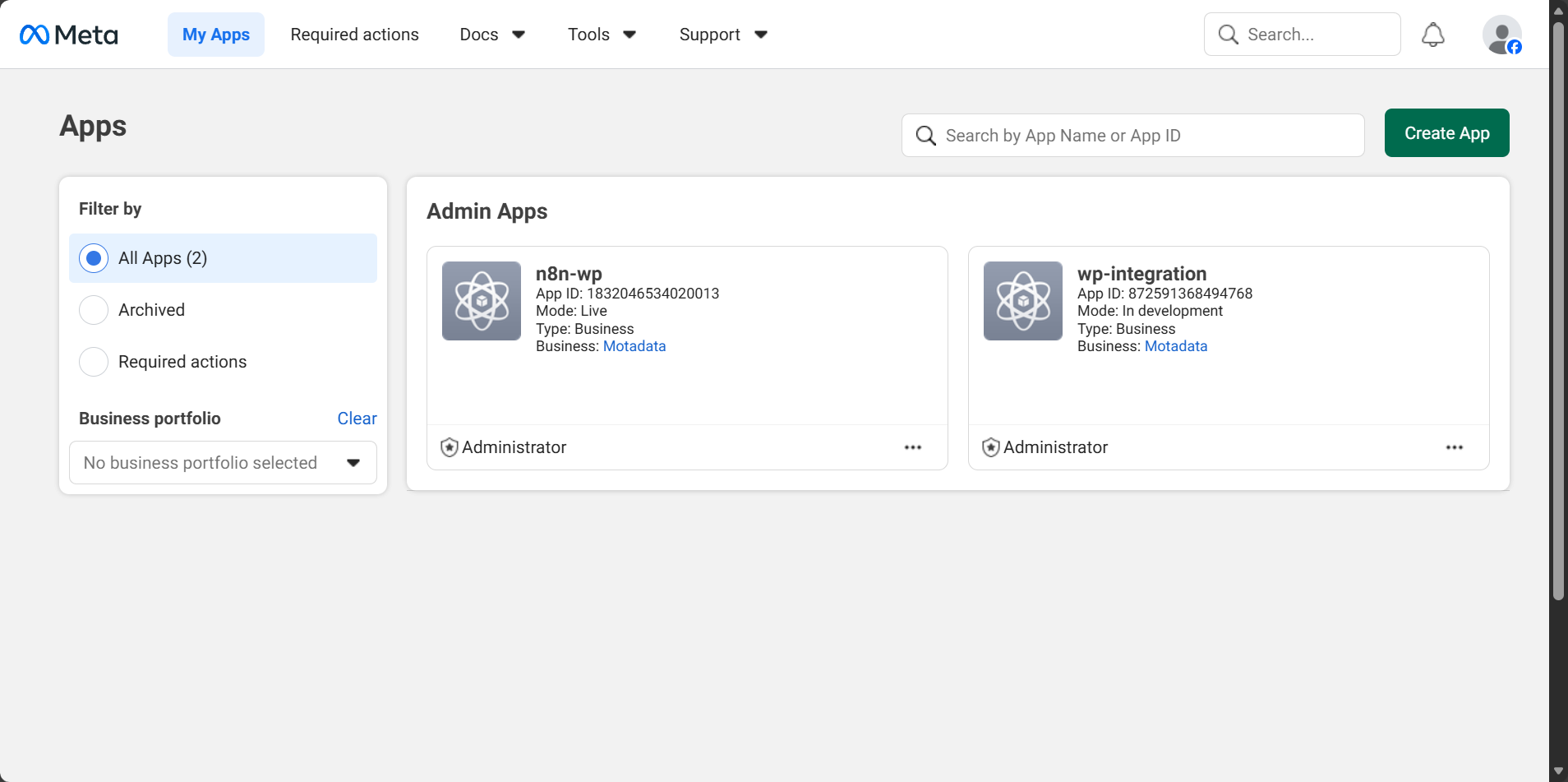
- Click the Create App button and select Create app from the pop-up..
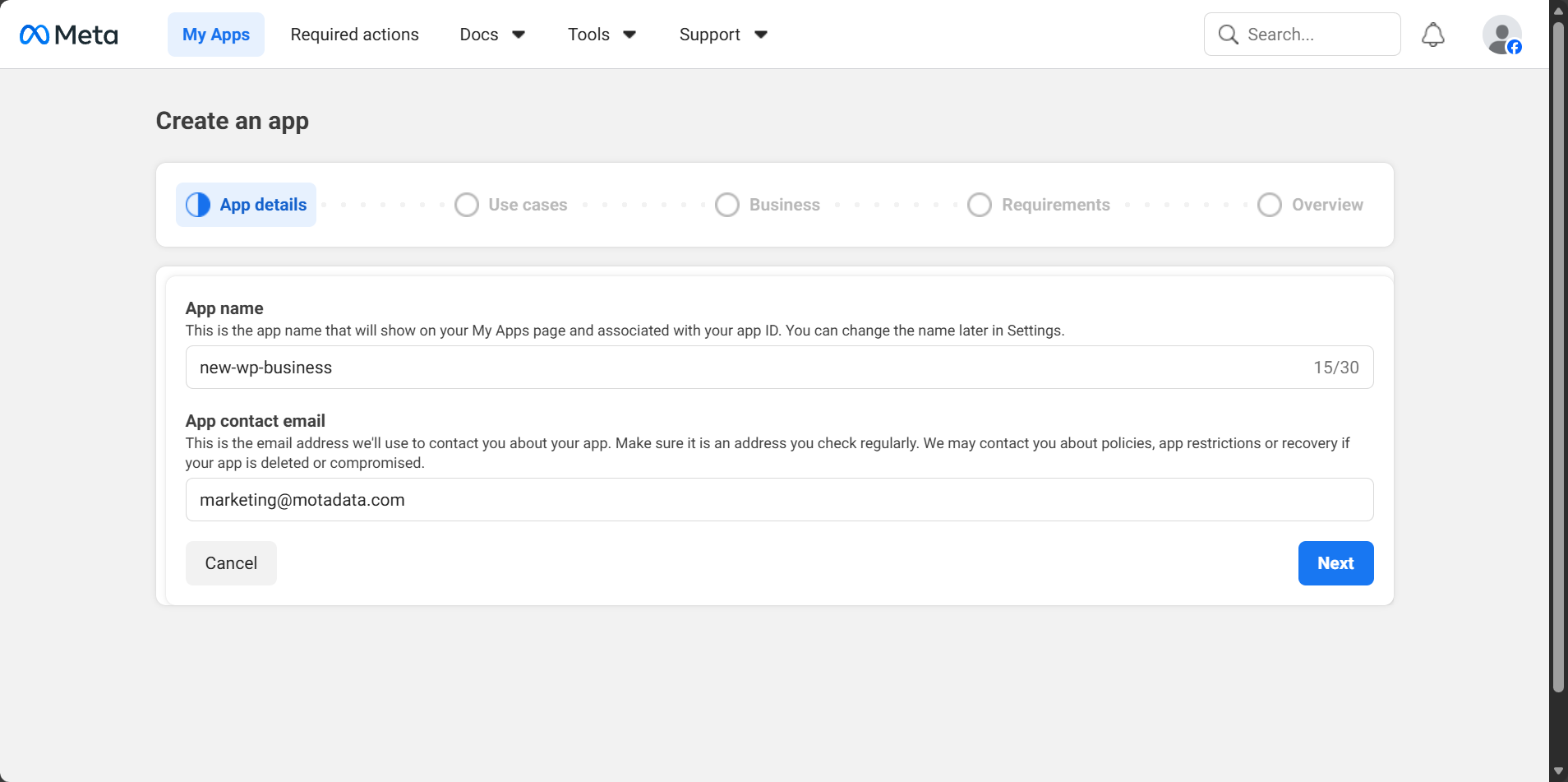
- Enter the App name and click the Next button.
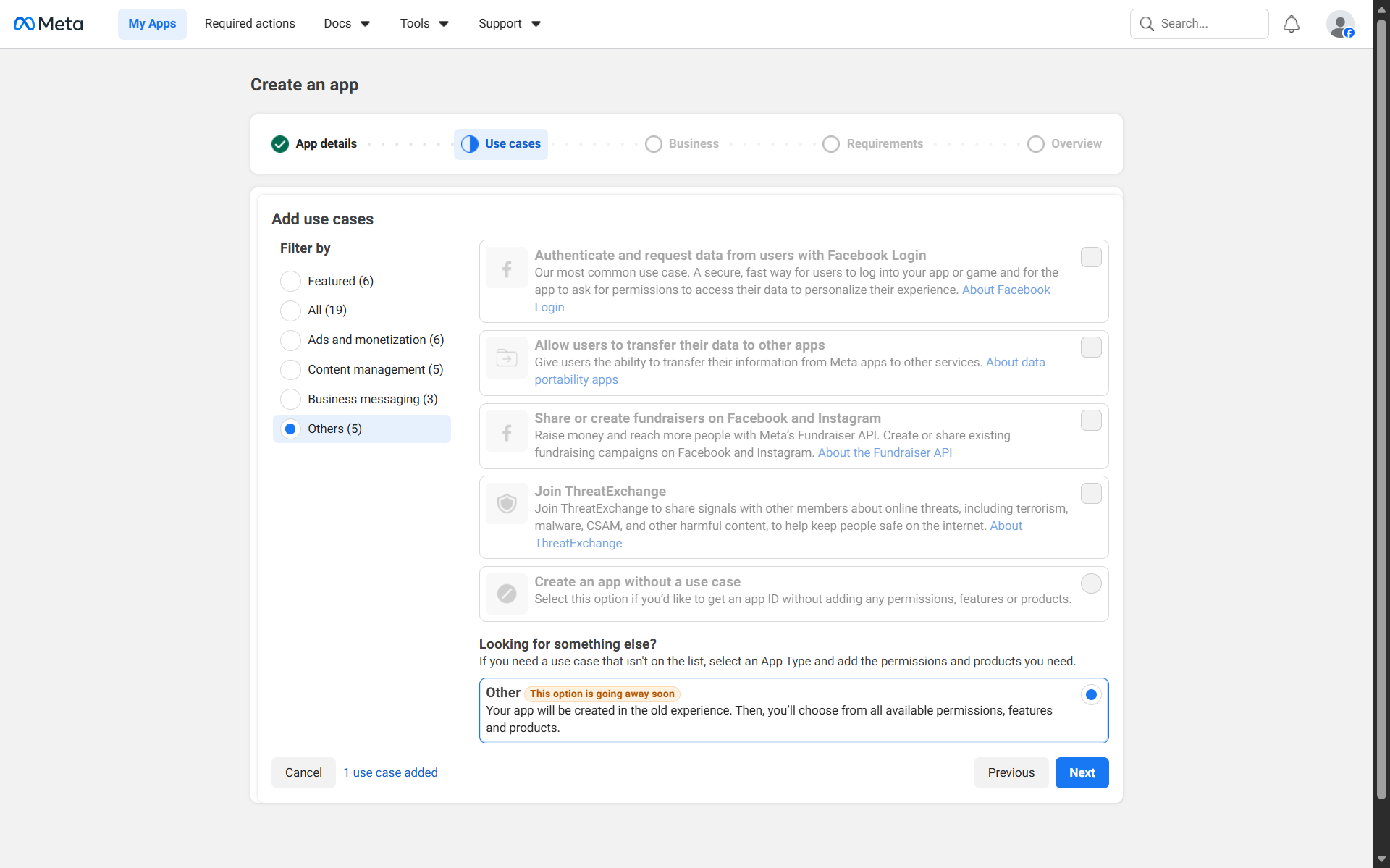
- Select Others as the use case from the All use cases displayed on the left side.
- Now, select Other from the right side of the screen and click the Next button.
- Select Business as the app type and click the Next button.
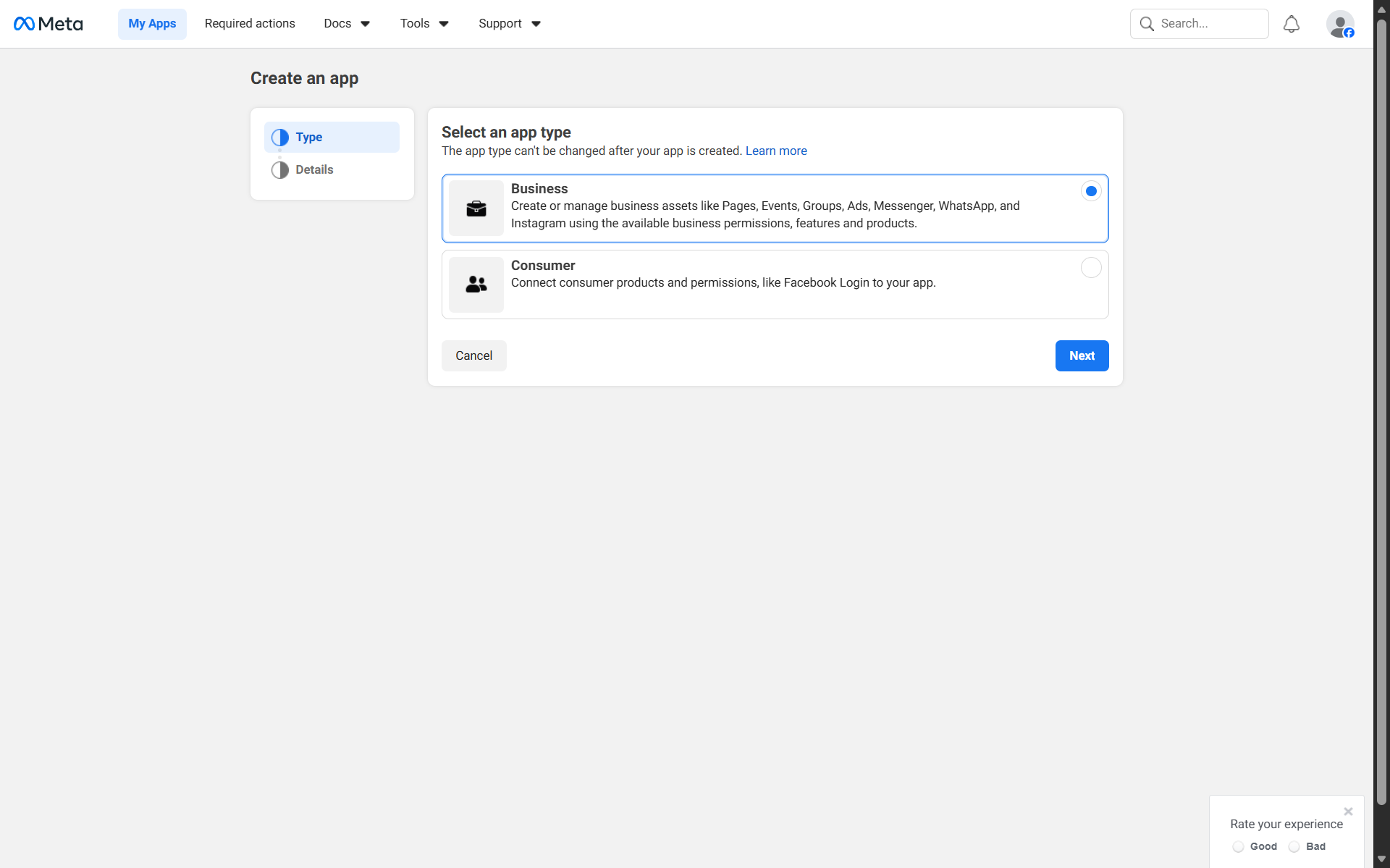
This will route you to the Details section.
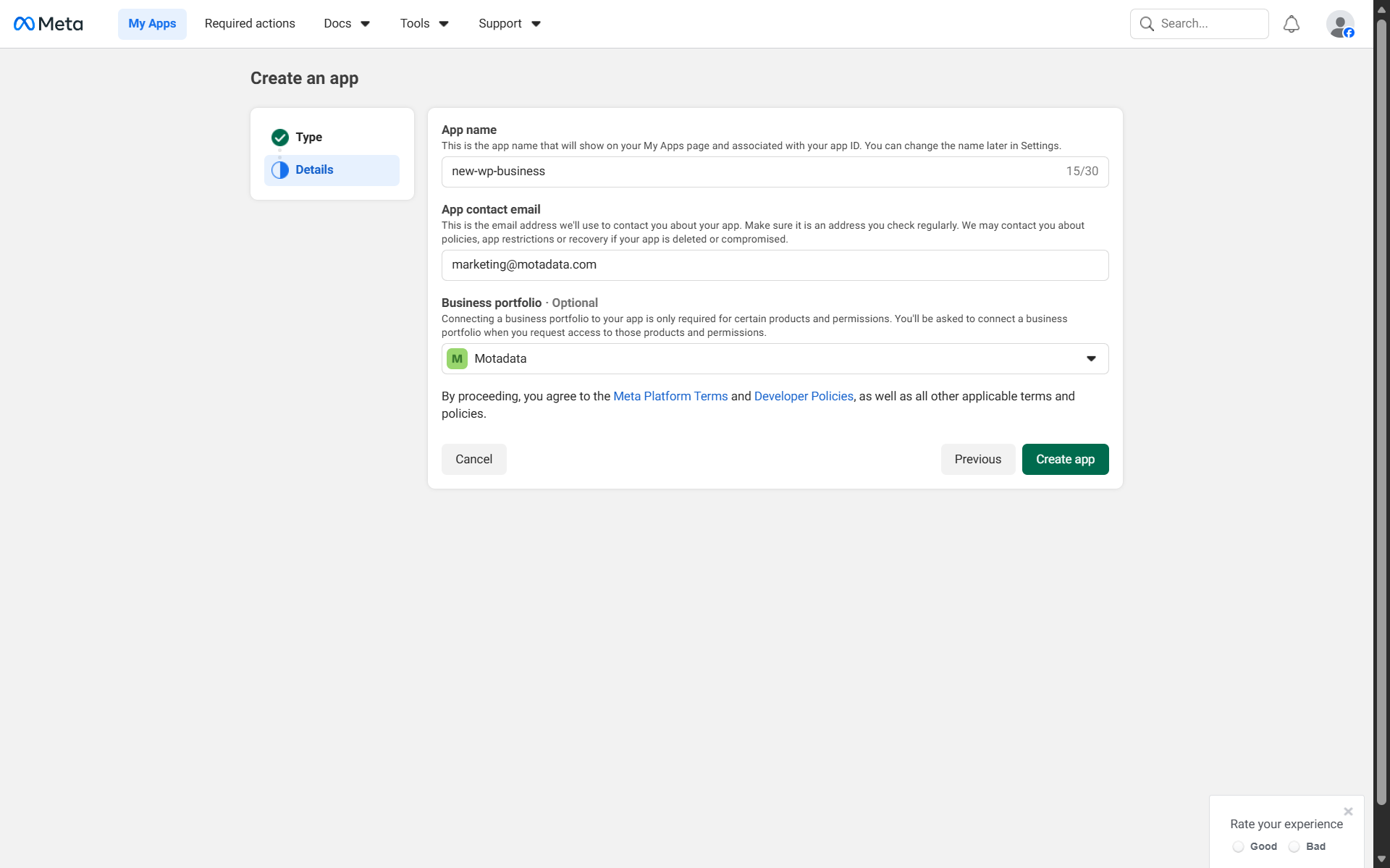
- Verify the details and select the verified meta business portfolio from the Business portfolio drop-down.
The business portfolio drop-down displays list of portfolios you have already created them.
- Click Create App button.
- Provide the password and click on Submit button.
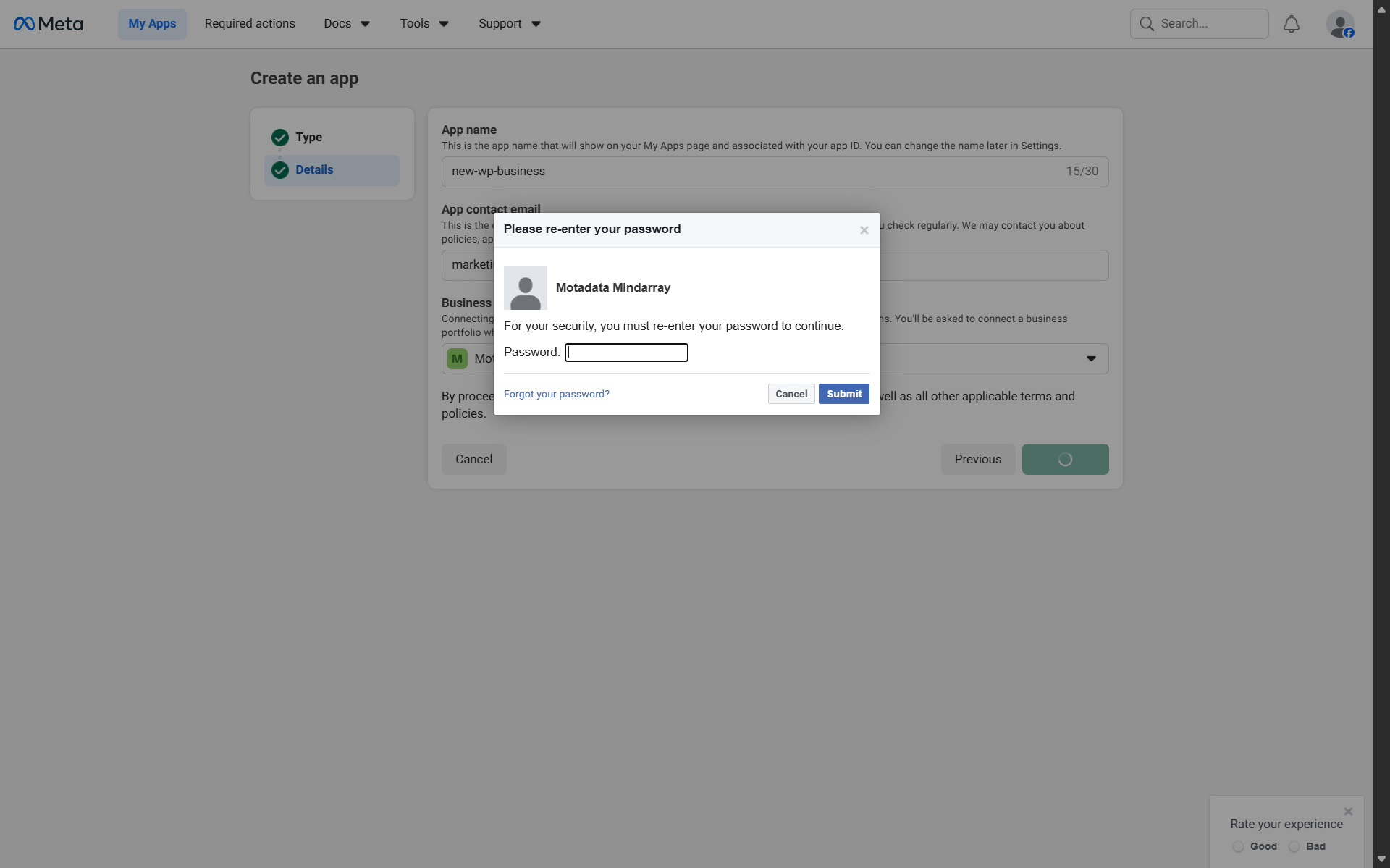
Thus, your app is created and will appear in the Apps Dashboard.
Step 3: Add WhatsApp as a product in newly created app
- Open the newly created app from the Apps dashboard by selecting it from the upper left drop-down.
- Navigate to WhatsApp from the Add product to app section and click the Set up button.
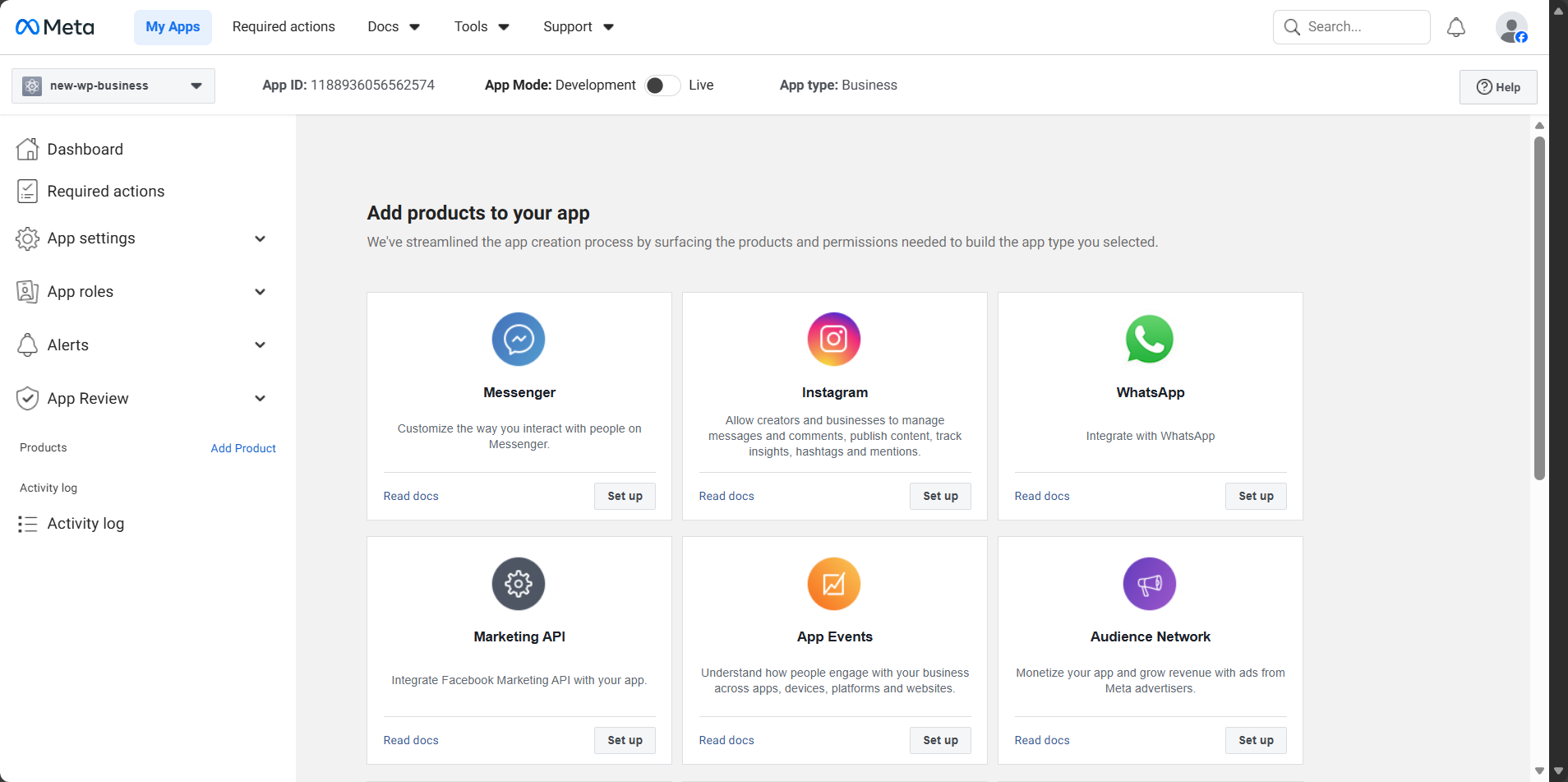
This will display the whatsapp set up landing page.
- Click the Continue button.
This will display Whatsapp in your left side bar as added product .
Step 4: Generate a Permanent Access Token
WhatsApp message delivery requires a never-expiring access token.
Create a System User
- Navigate to App Roles > Roles and click the Edit Roles in Business Manager.
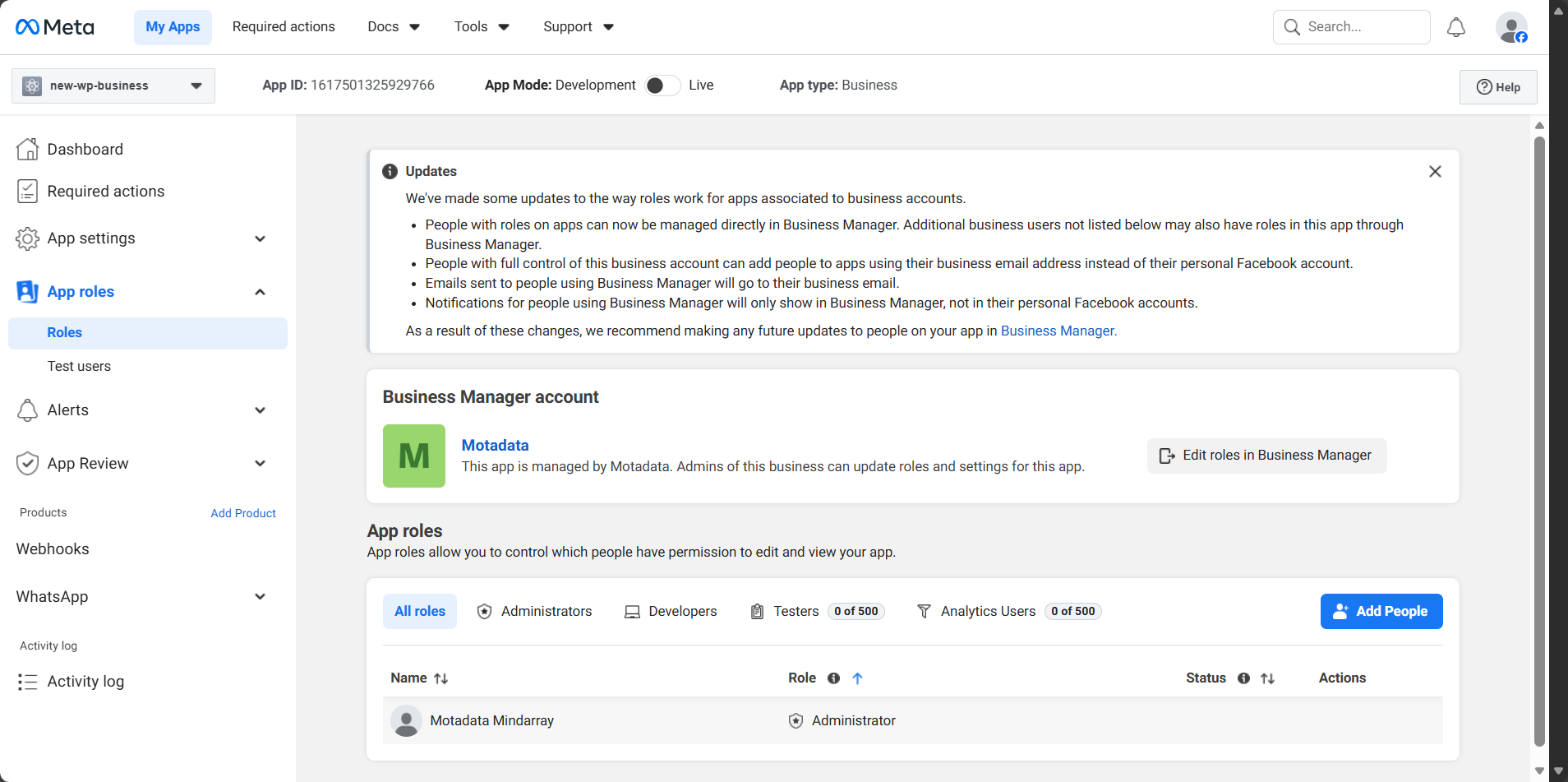
This will route you to a new tab that displays the business settings.
- From the Settings screen, go to Users > System Users.
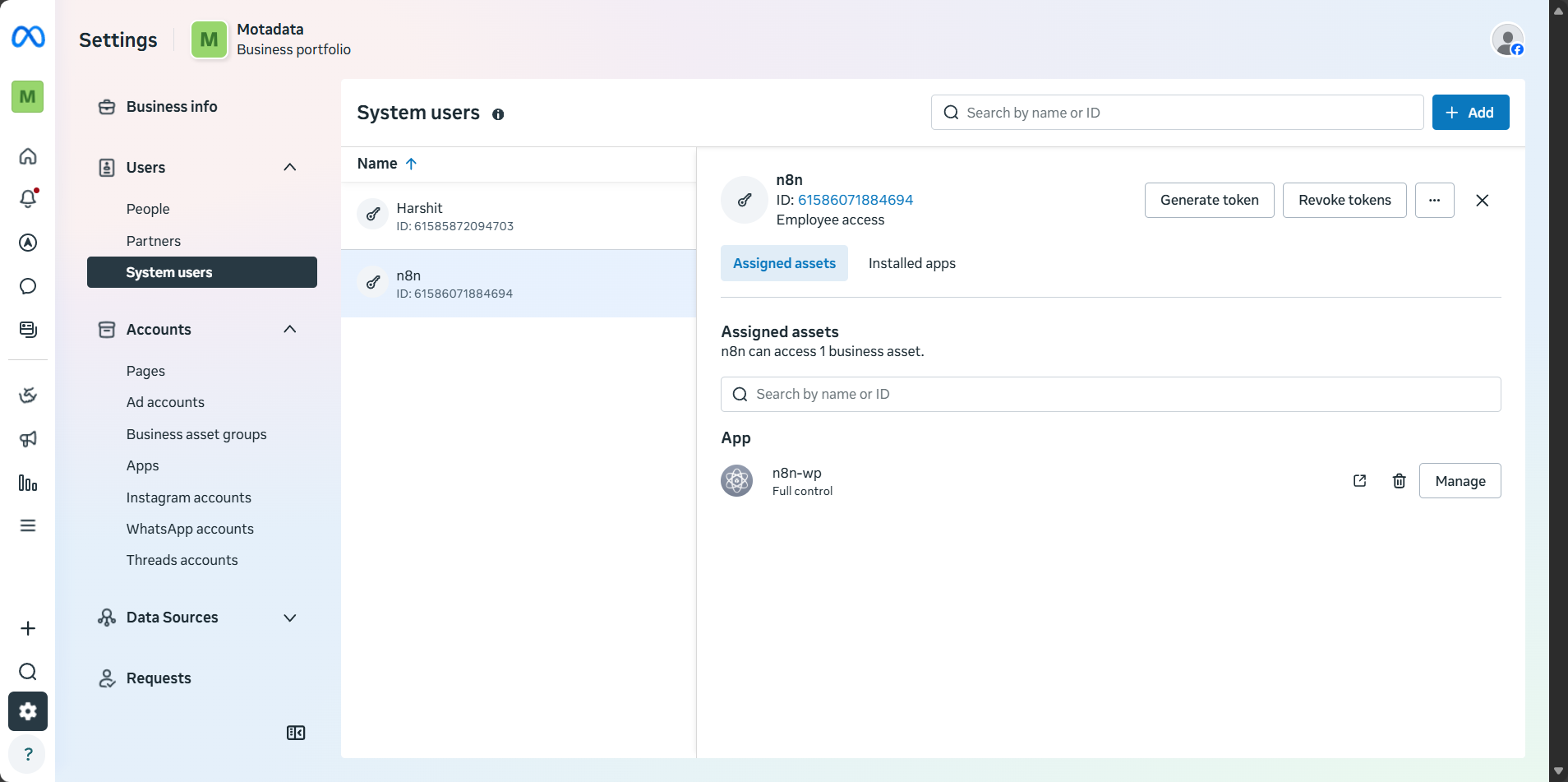
- Click the Add button and select Create a new app ID.
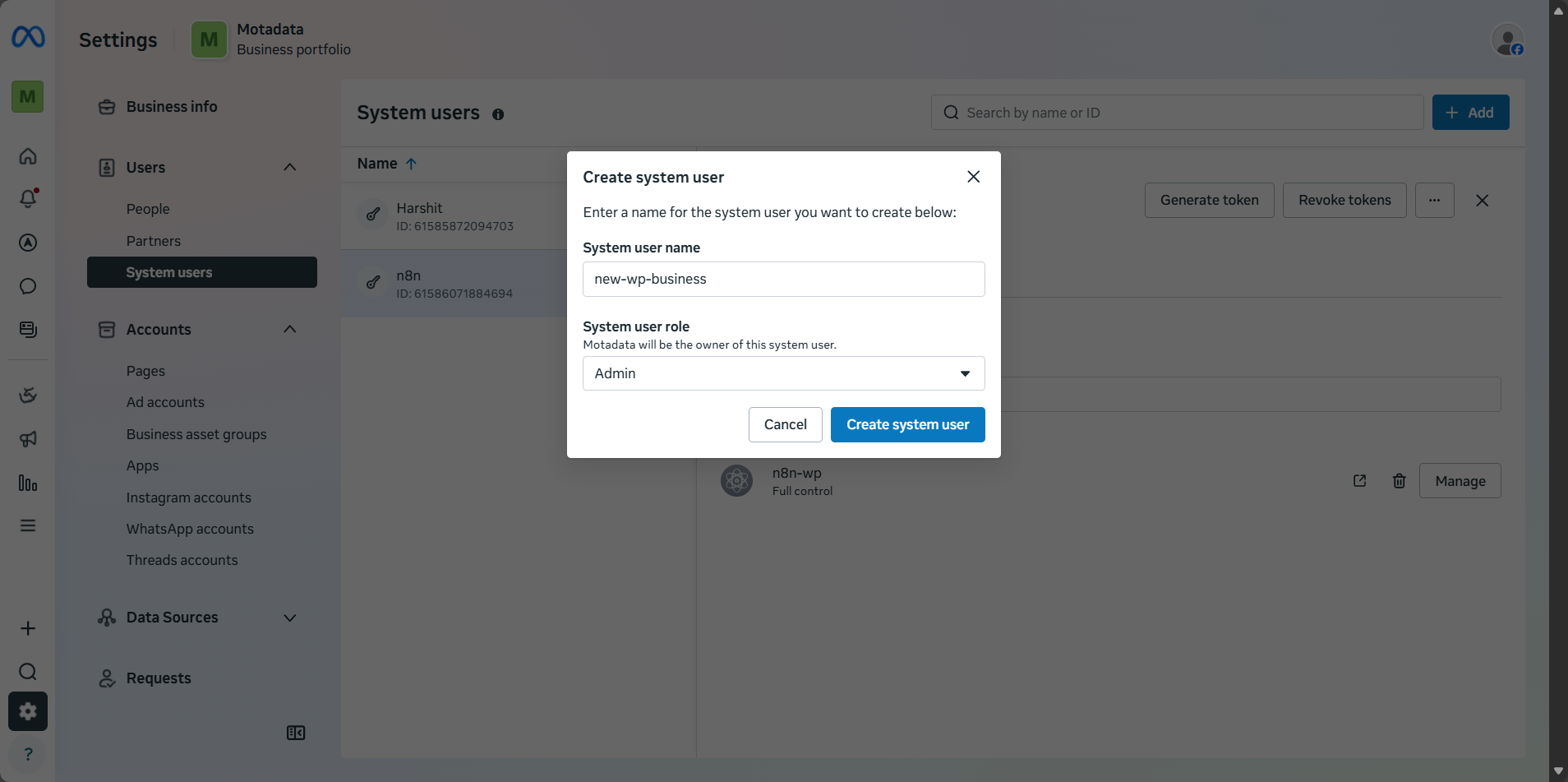
- Enter:
- System User Name
- Role: Admin (mandatory) Then, click the Create system user and follow the steps displayed on the screen to create the user successfully.
Assign App Permissions
- Select the created system user from the System Users list.
- Click the Assign Assets button from the right side of the screen.
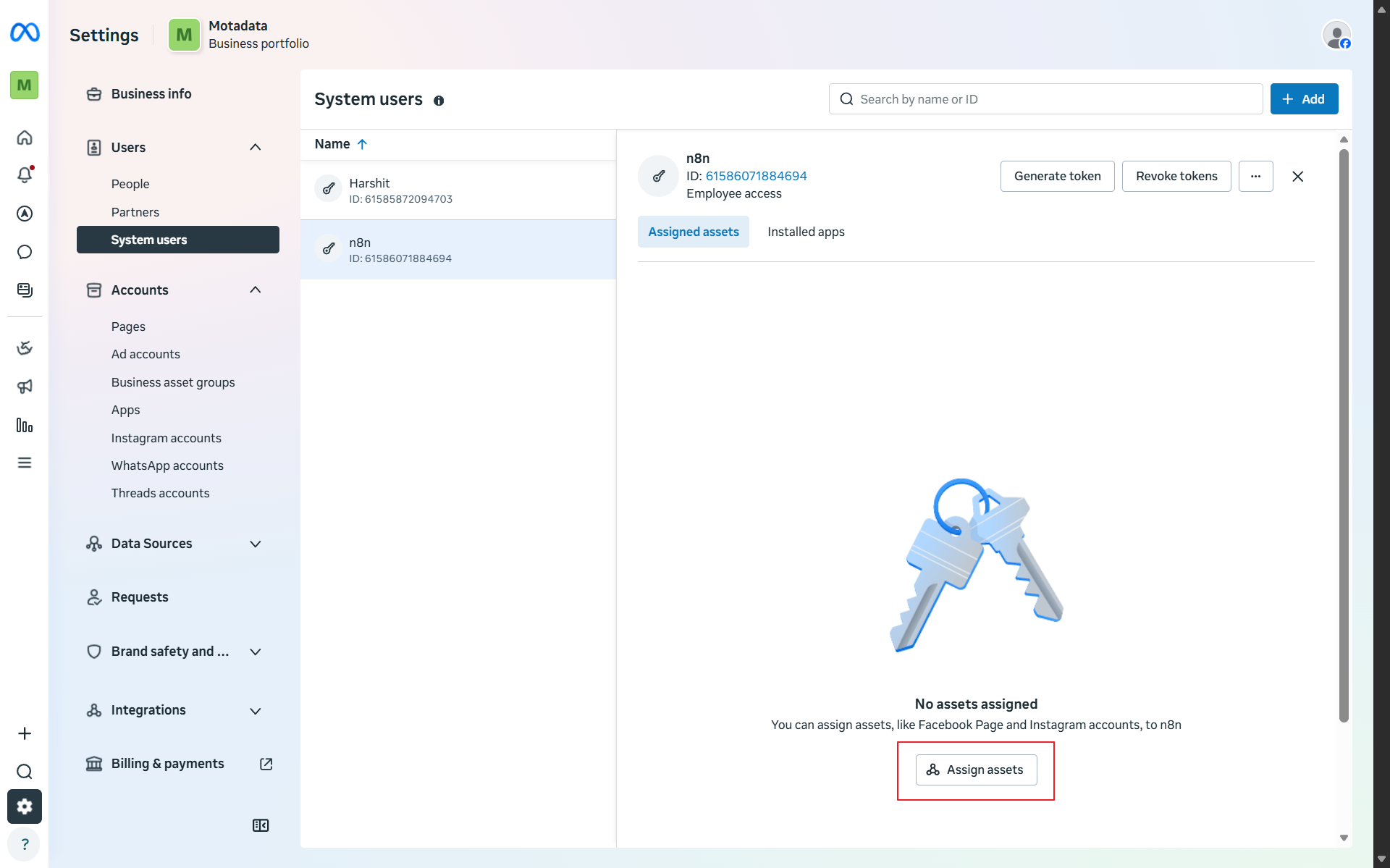
This will display the Select assets and assign permissions pop-up on the screen.
- Select the newly created App from the list for the Apps option.
- Enabling the Manage app toggle button from the Full control section will allow you to manage roles, change app settings, test the app and view analytics.
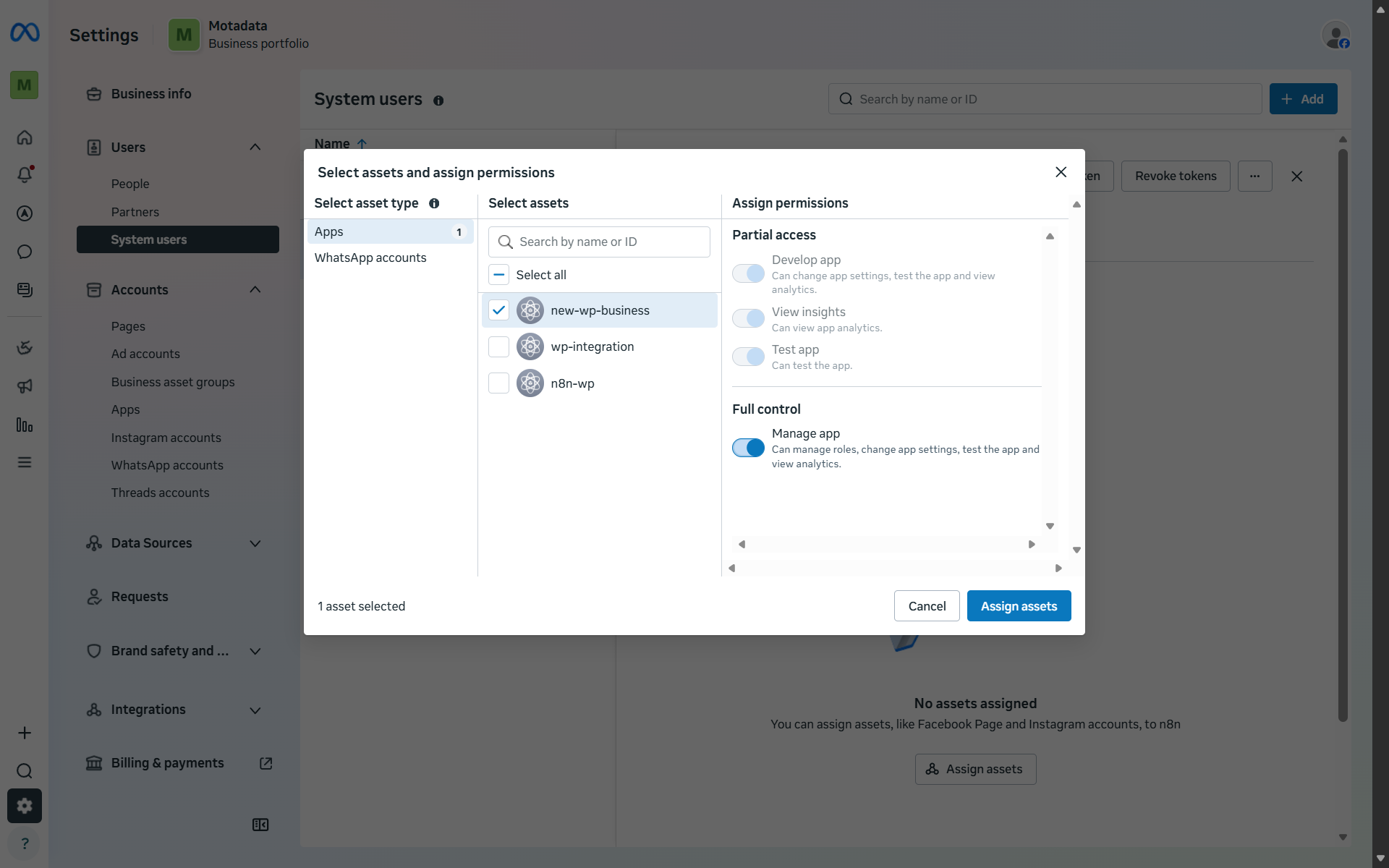
- Click the Assign assets button to assign the asset.
- Click the Done button to proceed further.
Generate Token
- Click the Generate Token option from the screen. This will display the Generate toke pop-up on the screen.
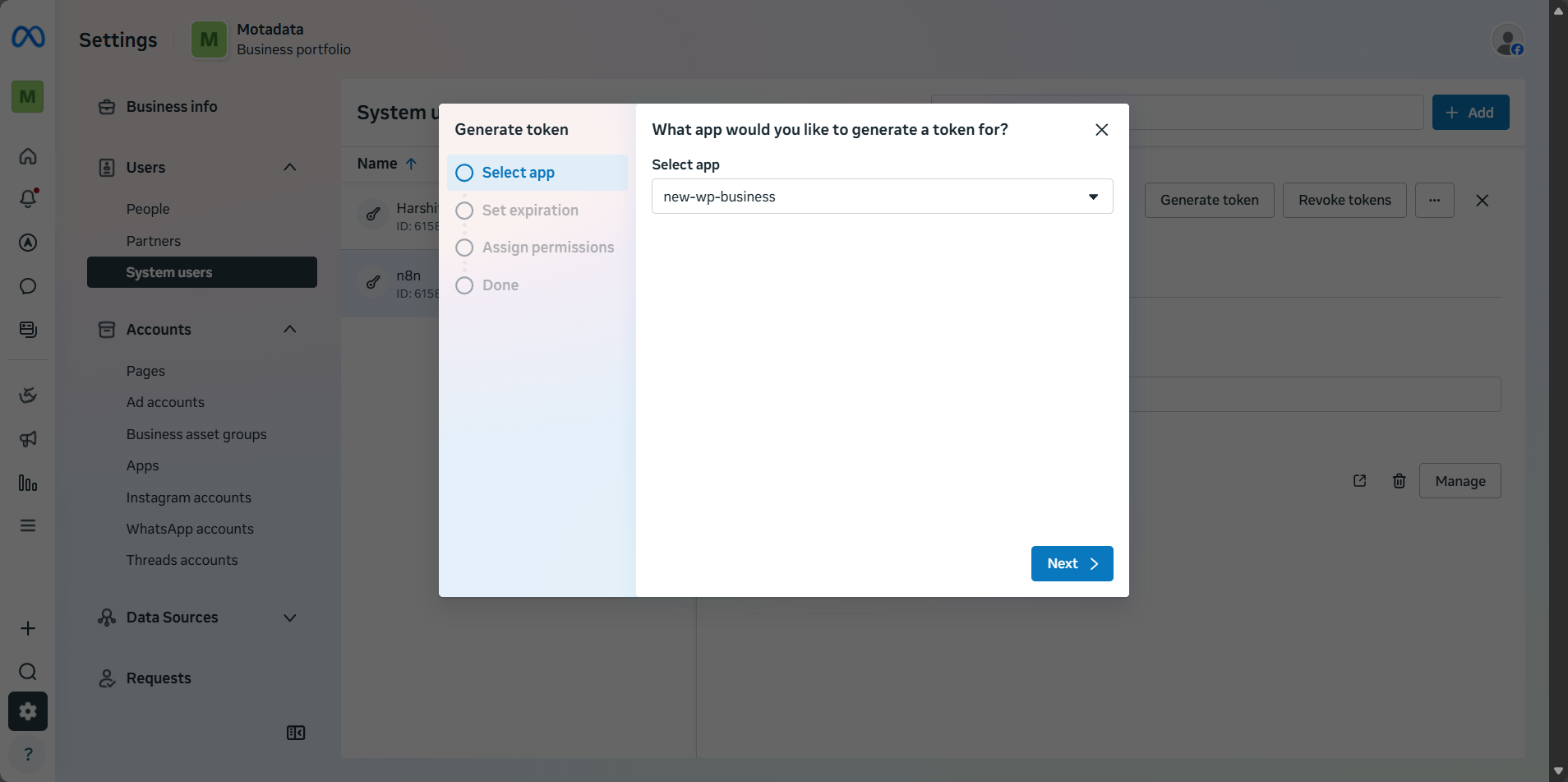
- Select the app from the drop-down for What app would you like to generate a token for? and click the Next button.
- Now, you need to Set expiration for token expiration timeline.
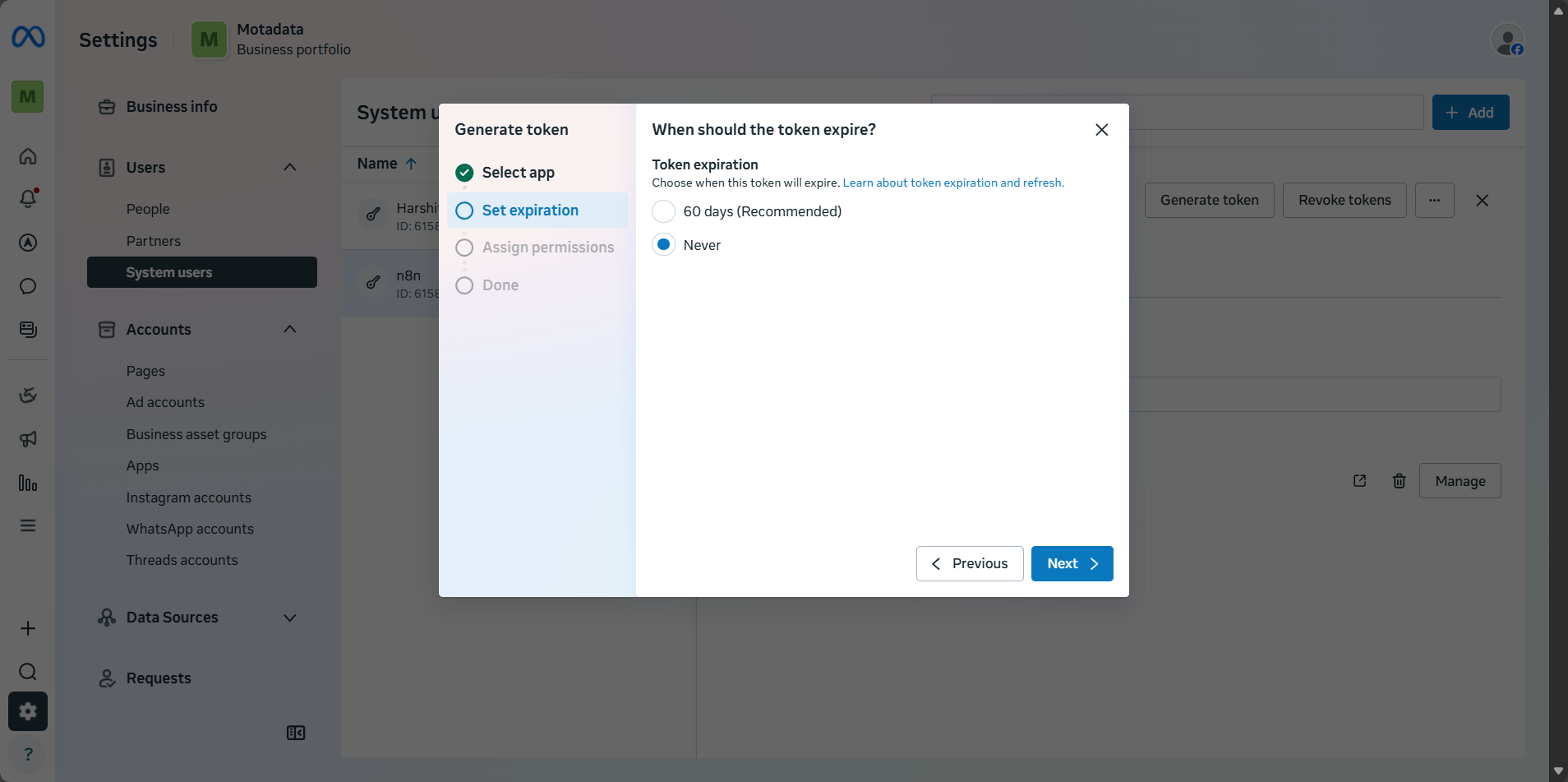
- Clicking Next you can Assign permissions by selecting it from the drop-down.
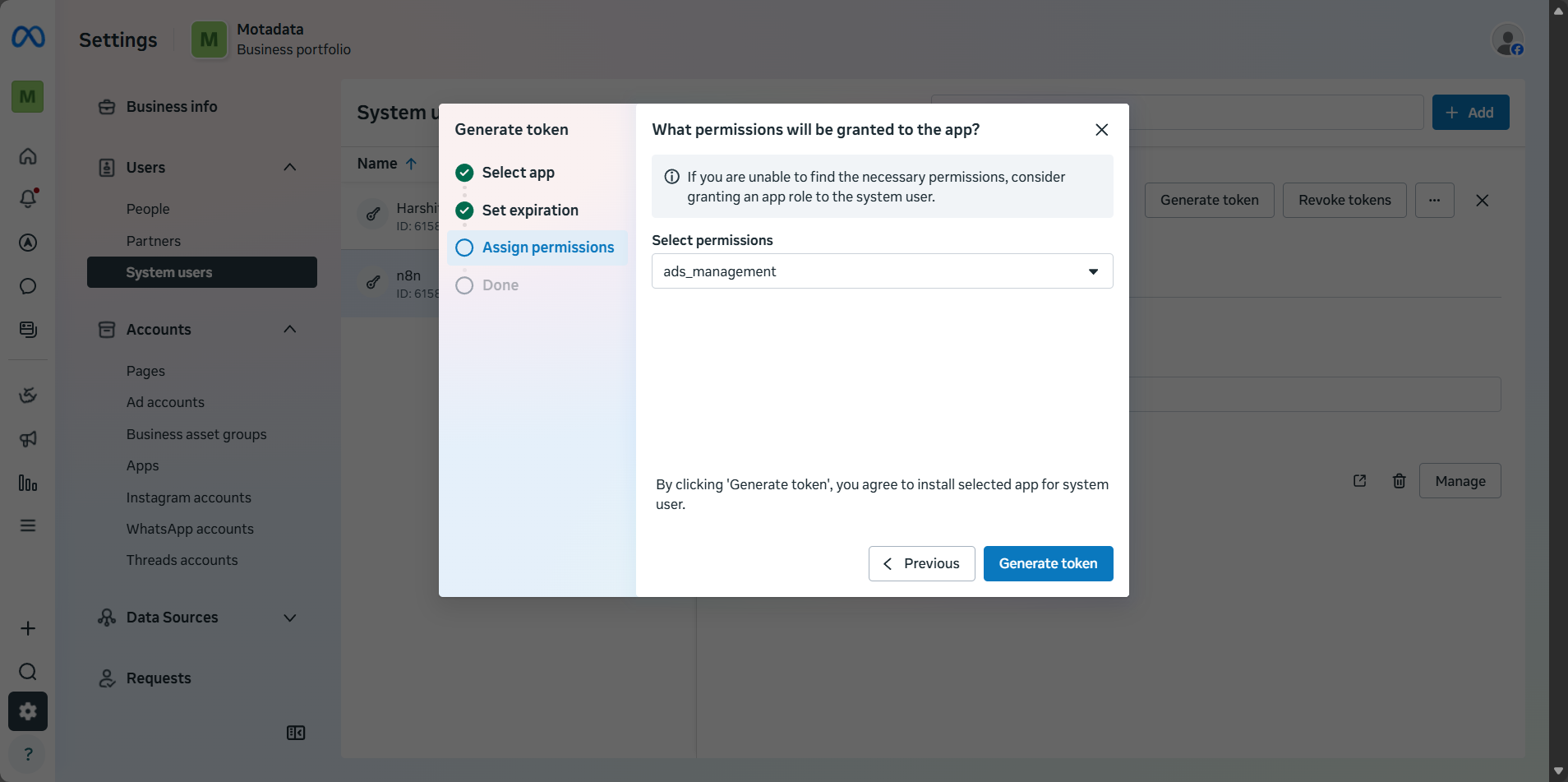
- Click the Generate token button and copy the displayed token on the screen.
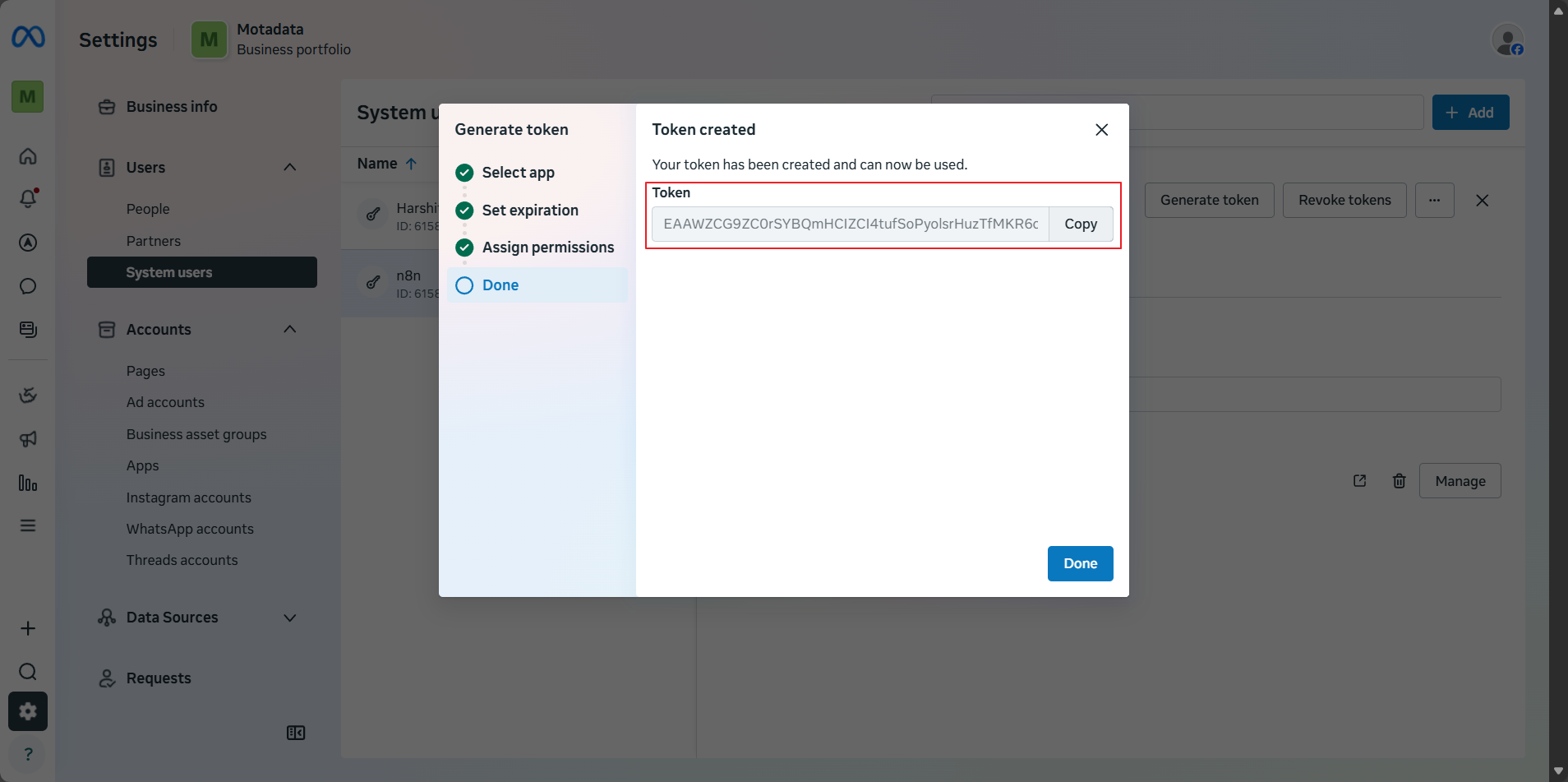
- Click the Done button to finish generating token an close the tab.
Step 5: Get WhatsApp Phone Number ID
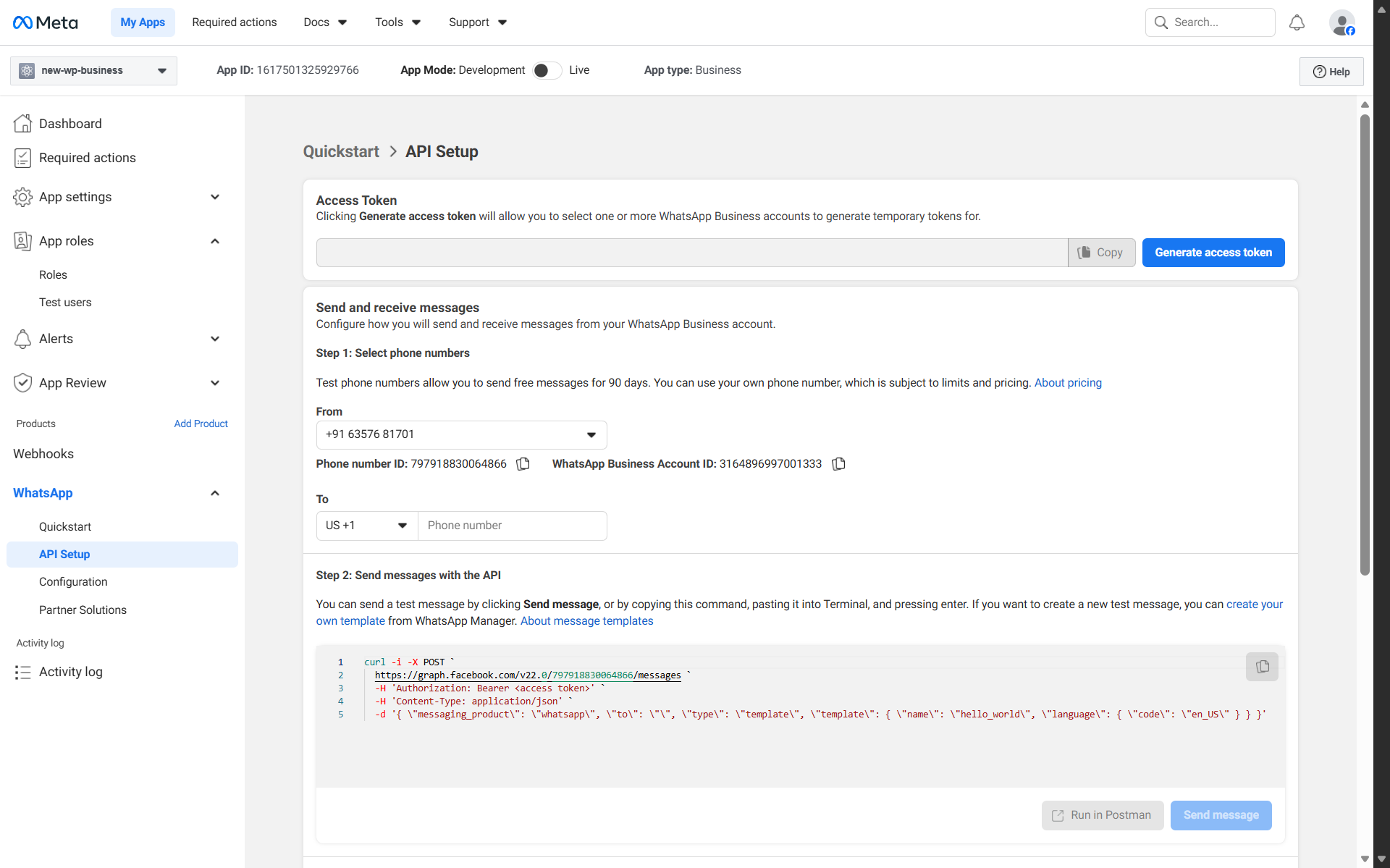
- In Meta Dashboard, go to WhatsApp > API Setup.
- Under Step 1, select the phone number from the drop-down if already configured or click the Add phone number button.
- Provide information such as WhatsApp Business display name, Category and Business description and click the Next button.
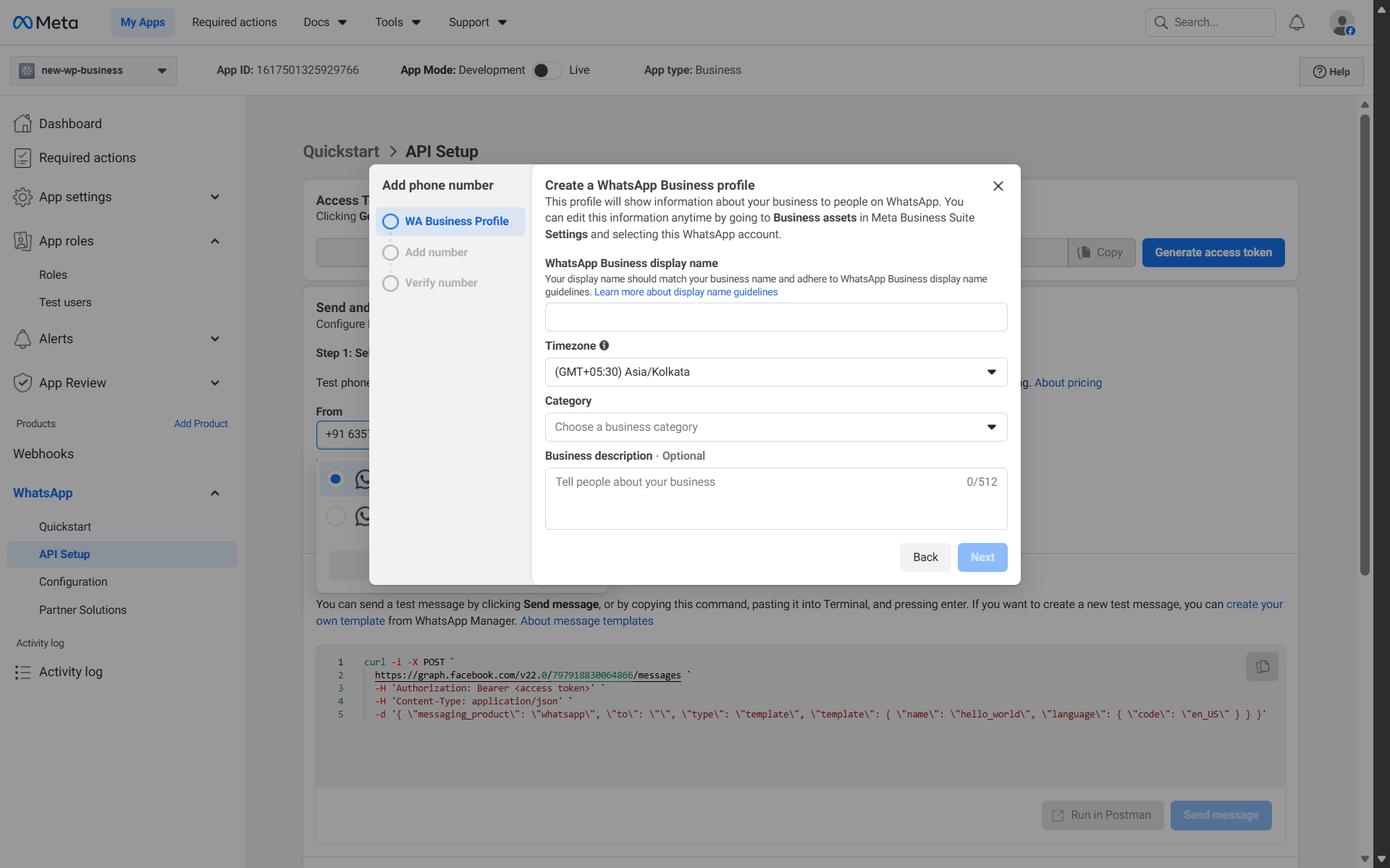
- You need to provide the phone number in Add number section and verify it by re-entering it in the Verify number section.
- Clicking the Done button you will redirected to the Api Setup screen.
- Selecting the phone number from the drop-down displays the Phone Number ID below the selected phone number.
This ID is required for sending messages so copy it.
Step 6: Create WhatsApp Message Templates
WhatsApp only allows outbound messages using approved templates.
- Click the All tools option from the left navigation bar and search for the Whatsapp Manager.
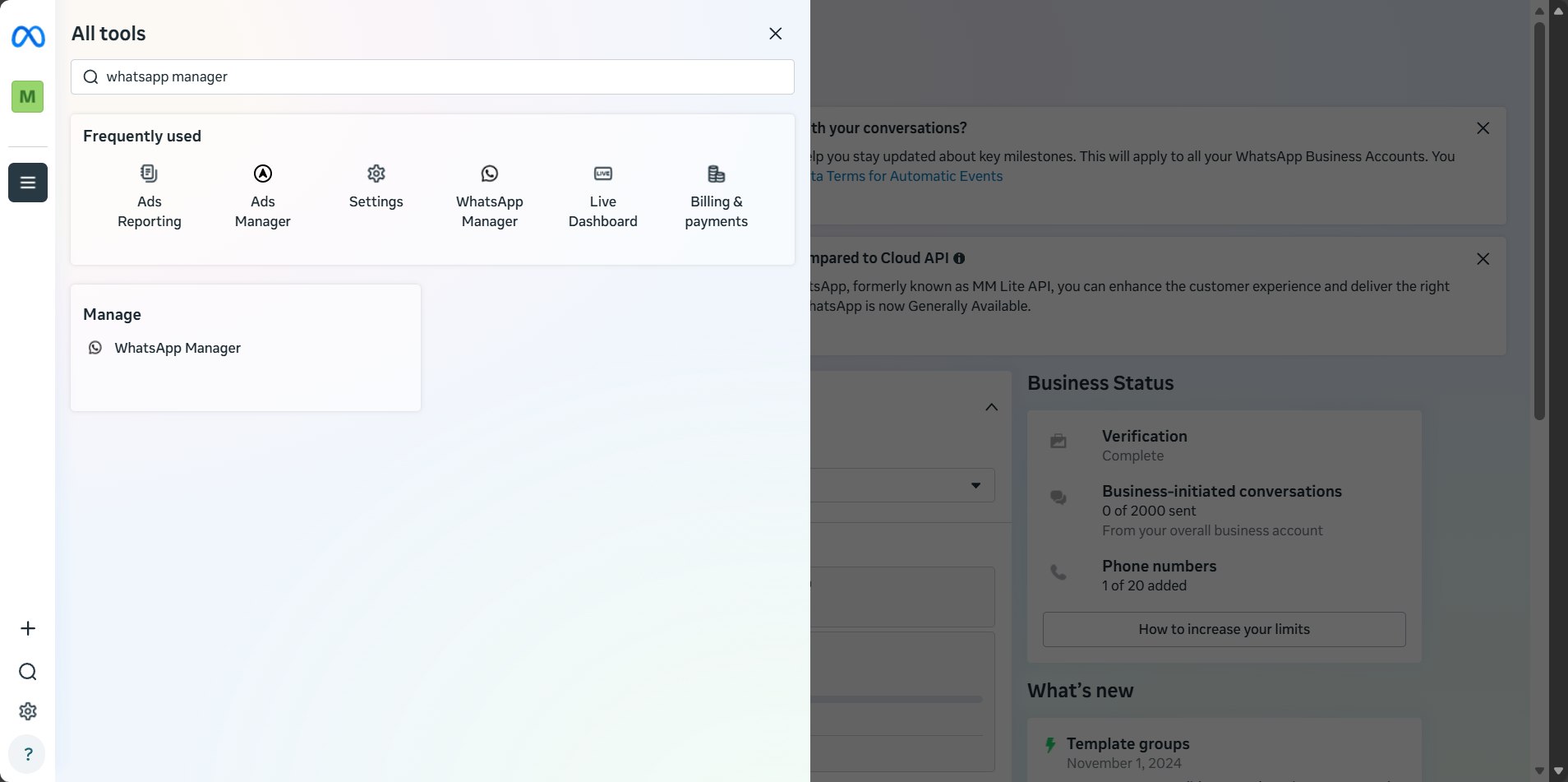
- Select the Manage Templates option from the Message templates section.
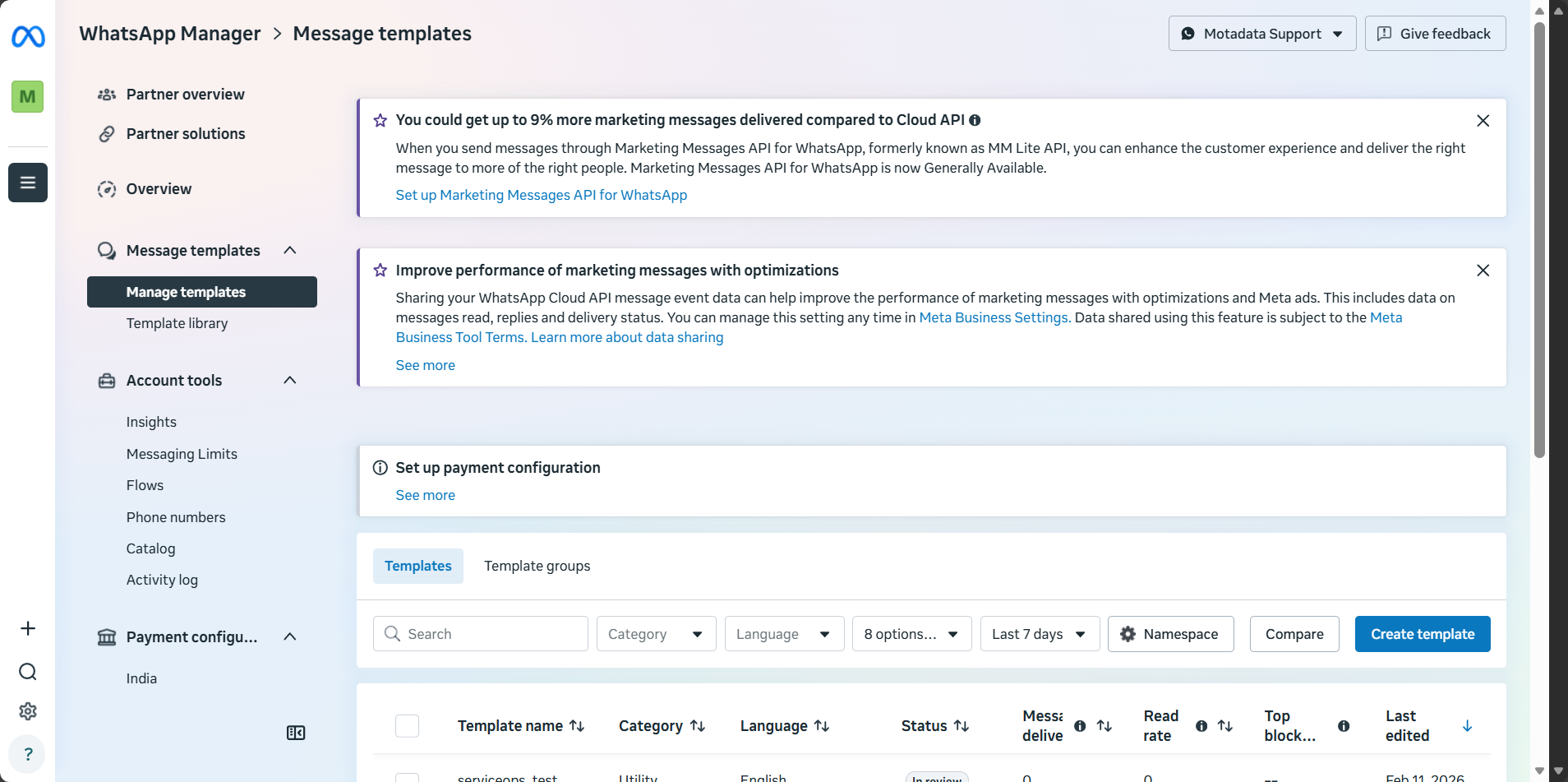
- Click the Create Template button from the right side of the screen.
- Now, set up your template by following the instructions on the screen and click the Next button.
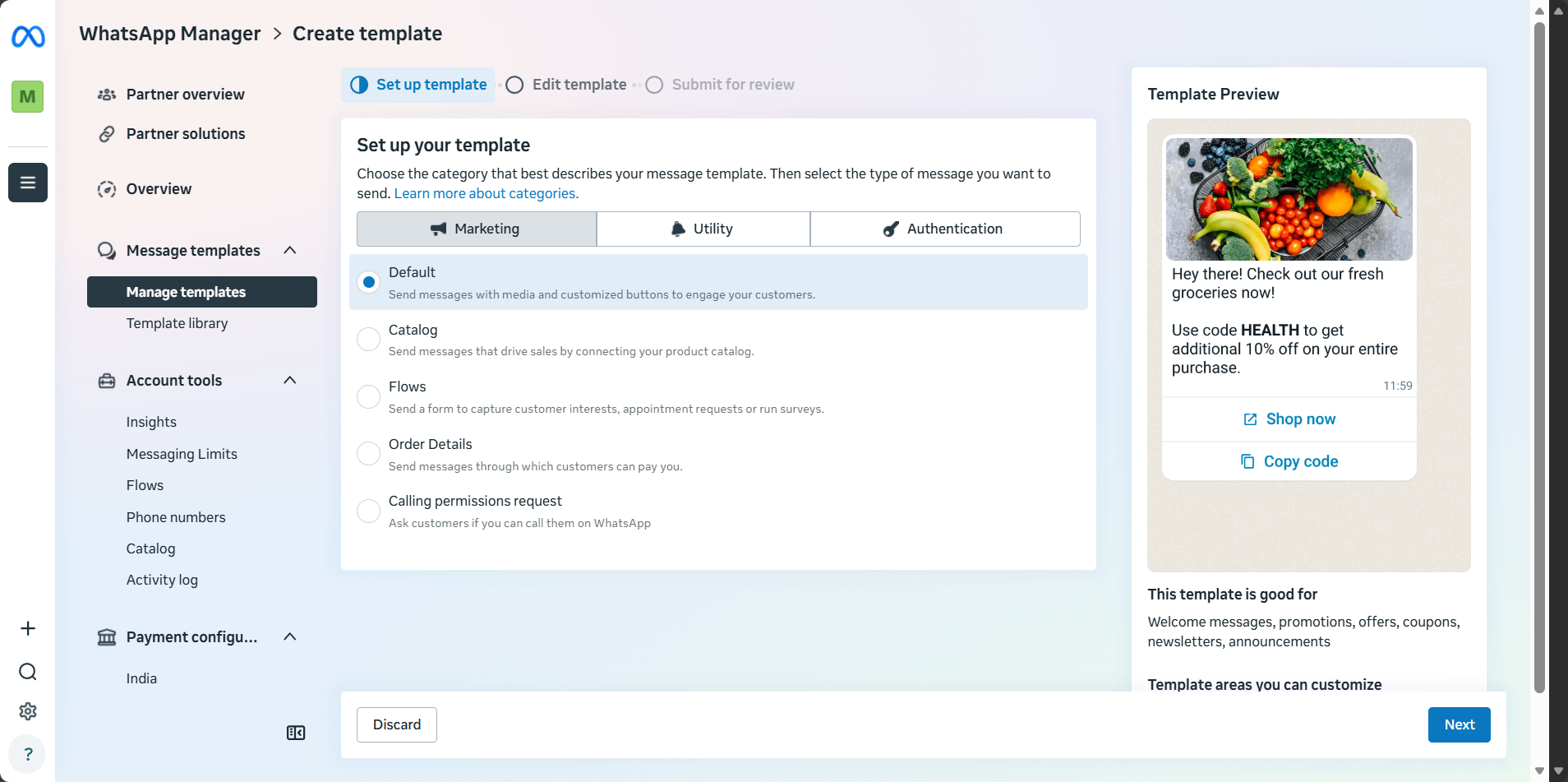
- Enter the required details for the template and click the Submit for review button.
Once approved the template is ready for use.