Microsoft Teams Integration with Motadata ObserveOps
Overview
Motadata ObserveOps (formerly known as AIOps) supports Microsoft Teams integration to deliver alerts and notifications directly to Teams channels. This integration helps operations and monitoring teams collaborate effectively by receiving real-time observability updates such as alerts, policy violations, and service health changes within Microsoft Teams.
The integration is configured using Microsoft Azure App Registration and OAuth authentication, ensuring secure and controlled access between Motadata ObserveOps and Microsoft Teams.
Prerequisites
Before configuring Microsoft Teams integration, ensure the following requirements are met:
- A valid Microsoft Azure account with required permissions (Admin access recommended).
- Access to Azure Active Directory (Entra ID).
- A Microsoft Teams account.
- An existing Teams channel to receive notifications.
- Admin access to Motadata ObserveOps.
High-Level Configuration Flow
The Microsoft Teams integration setup involves the following stages:
- Register an application in Azure Active Directory
- Configure API permissions for Microsoft Teams
- Generate a client secret
- Collect application credentials
- Configure Microsoft Teams integration in Motadata ObserveOps
- Test and verify message delivery
Step 1: Register an Application in Azure
- Log in to the Azure Portal.
- Click the App registrations option.
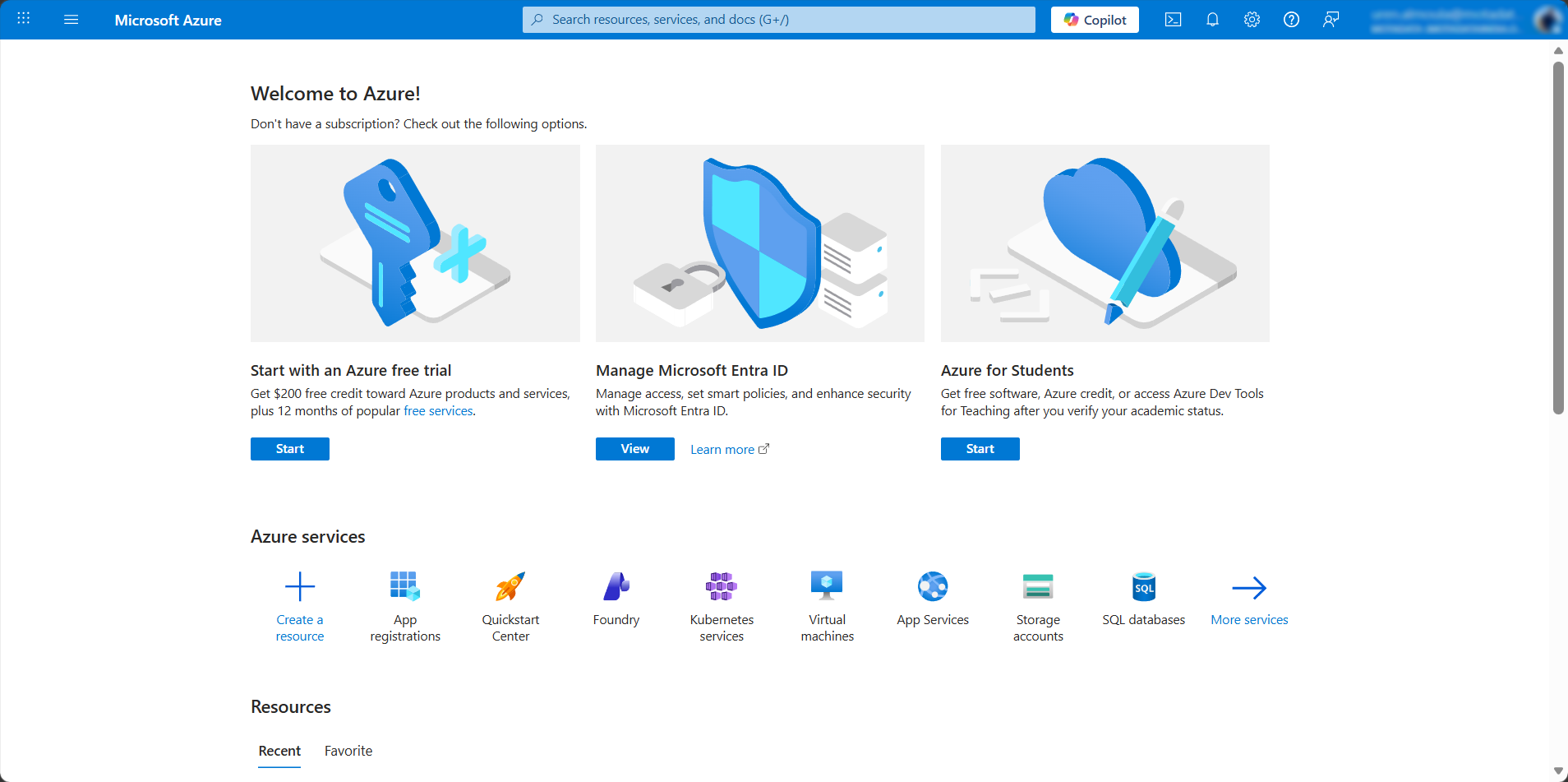
The landing page displays App Registration screen. 3. Click the New registration option.
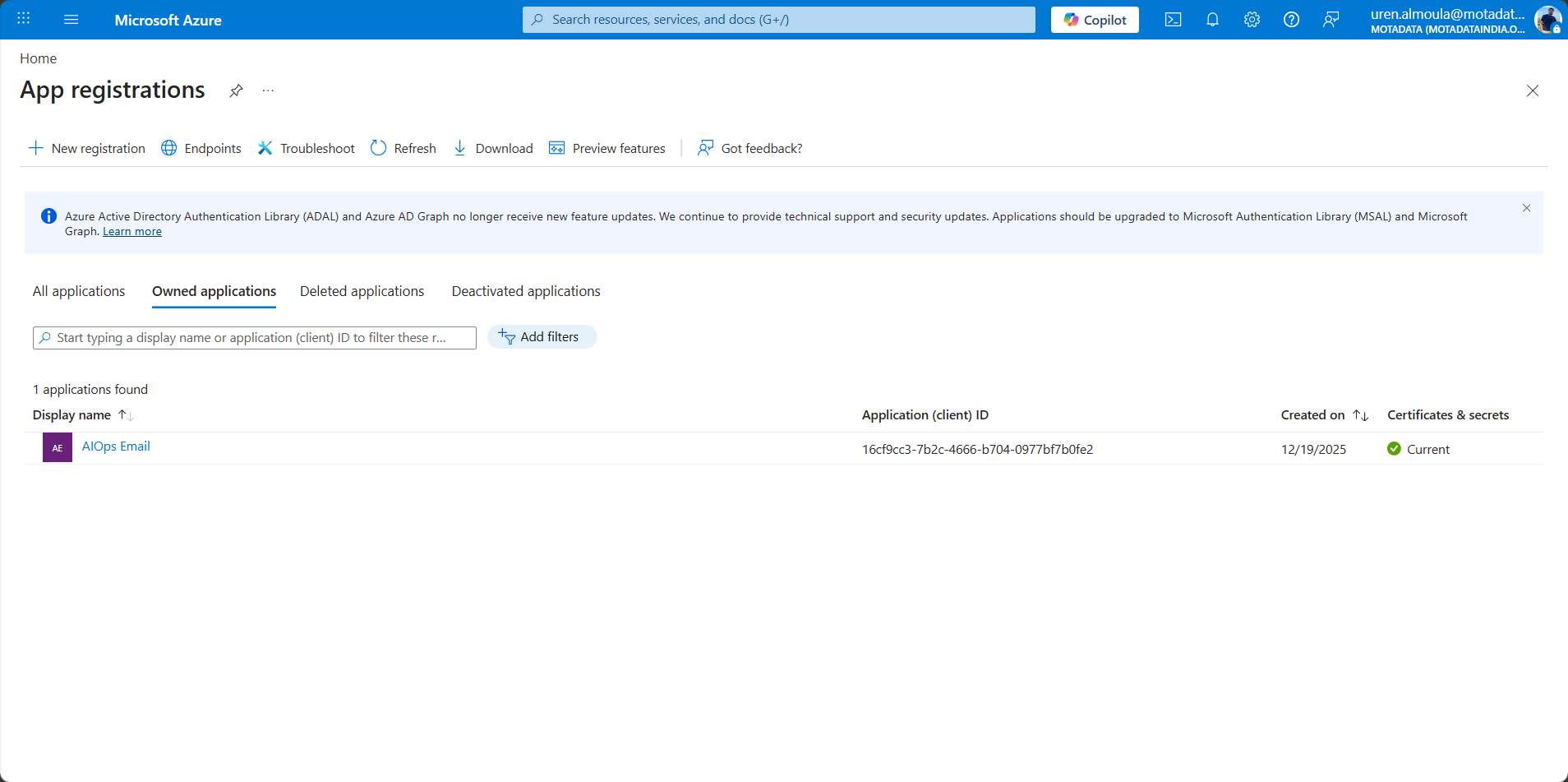
- Enter an application name.
- Under Supported account types, select the account type that can use this application or access this API.
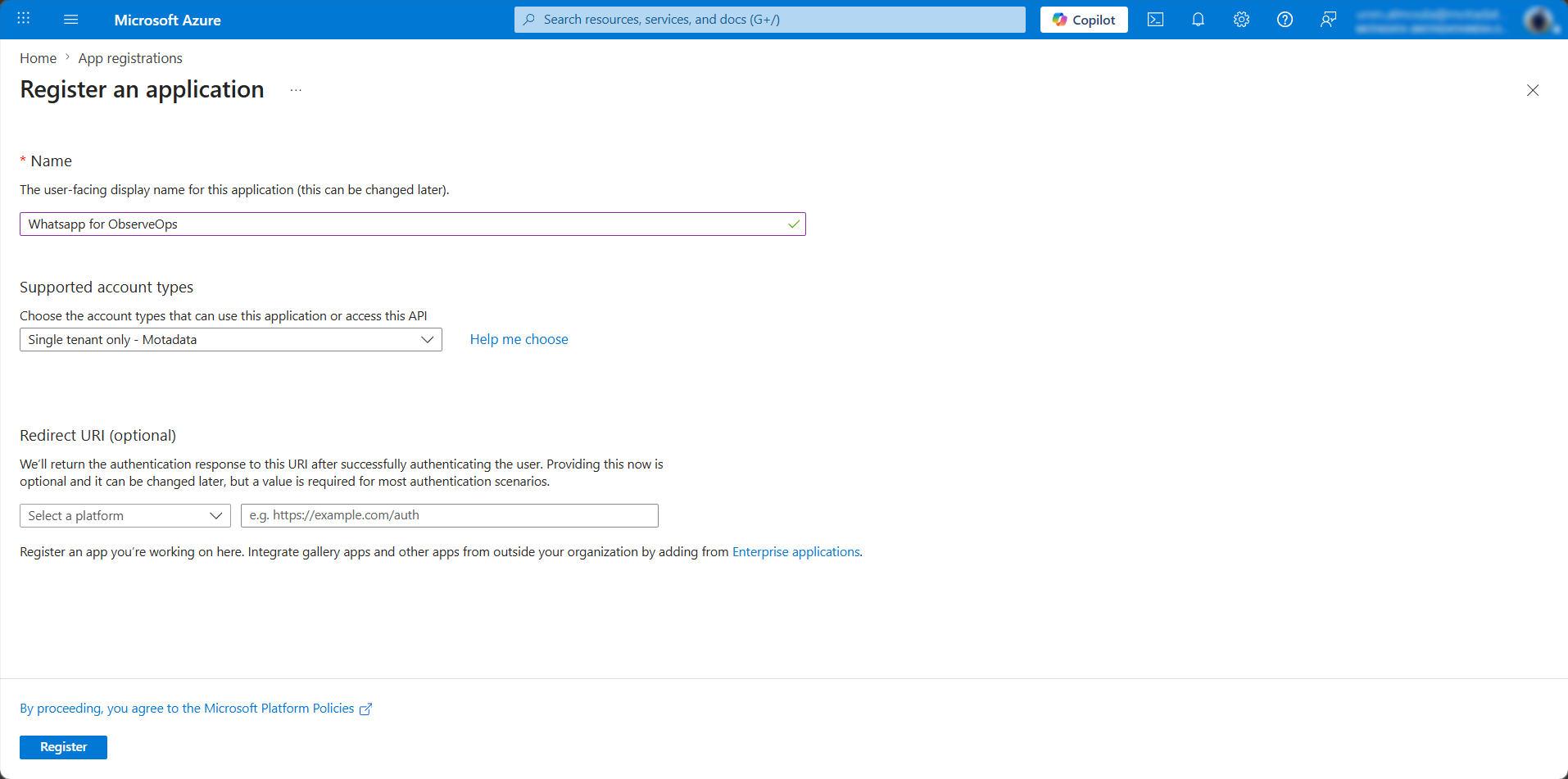
- Under Redirect URL, select Web and provide a valid redirect URL.
- Click Register to create the application.
Step 2: Configure API Permissions
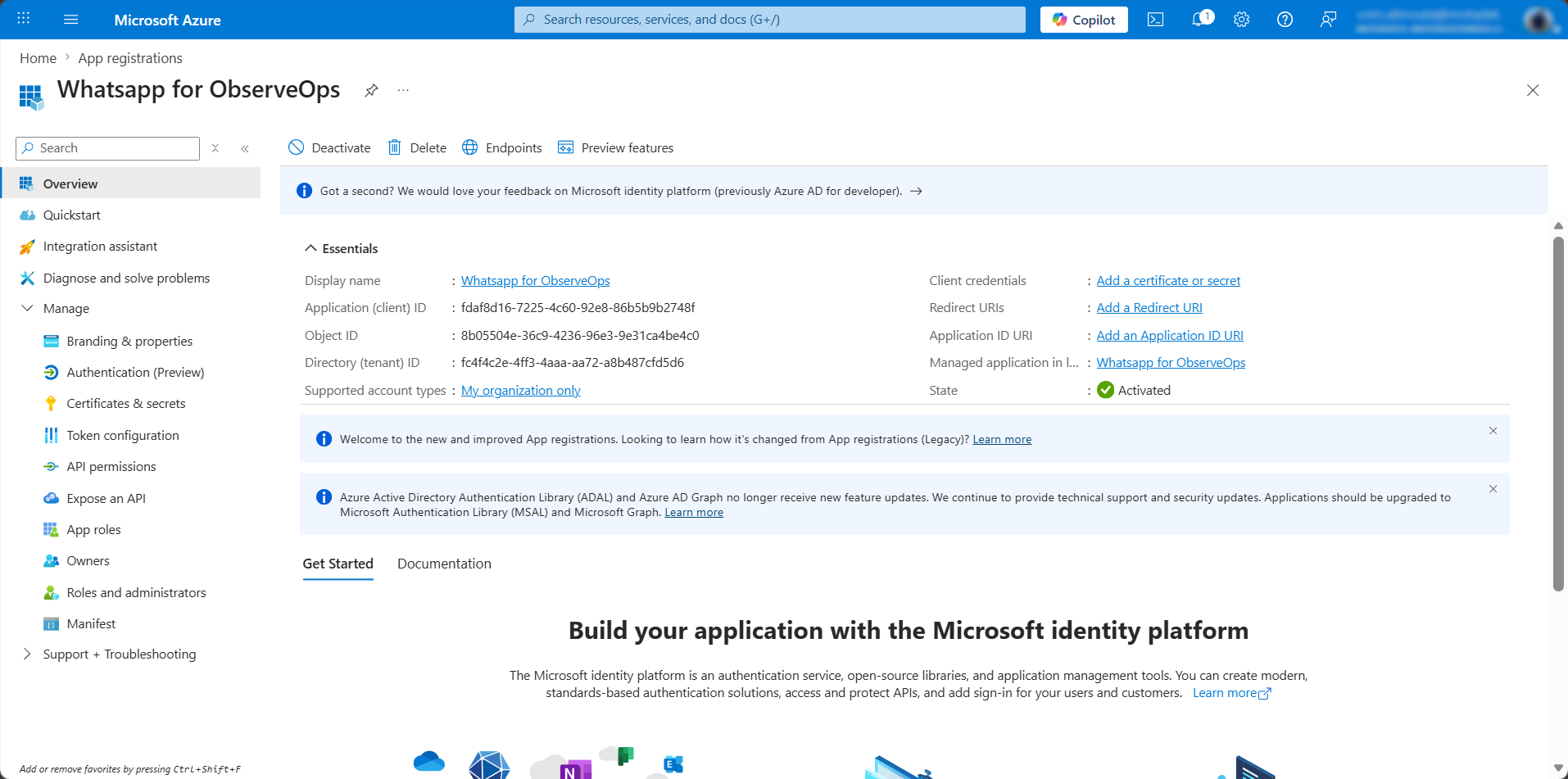
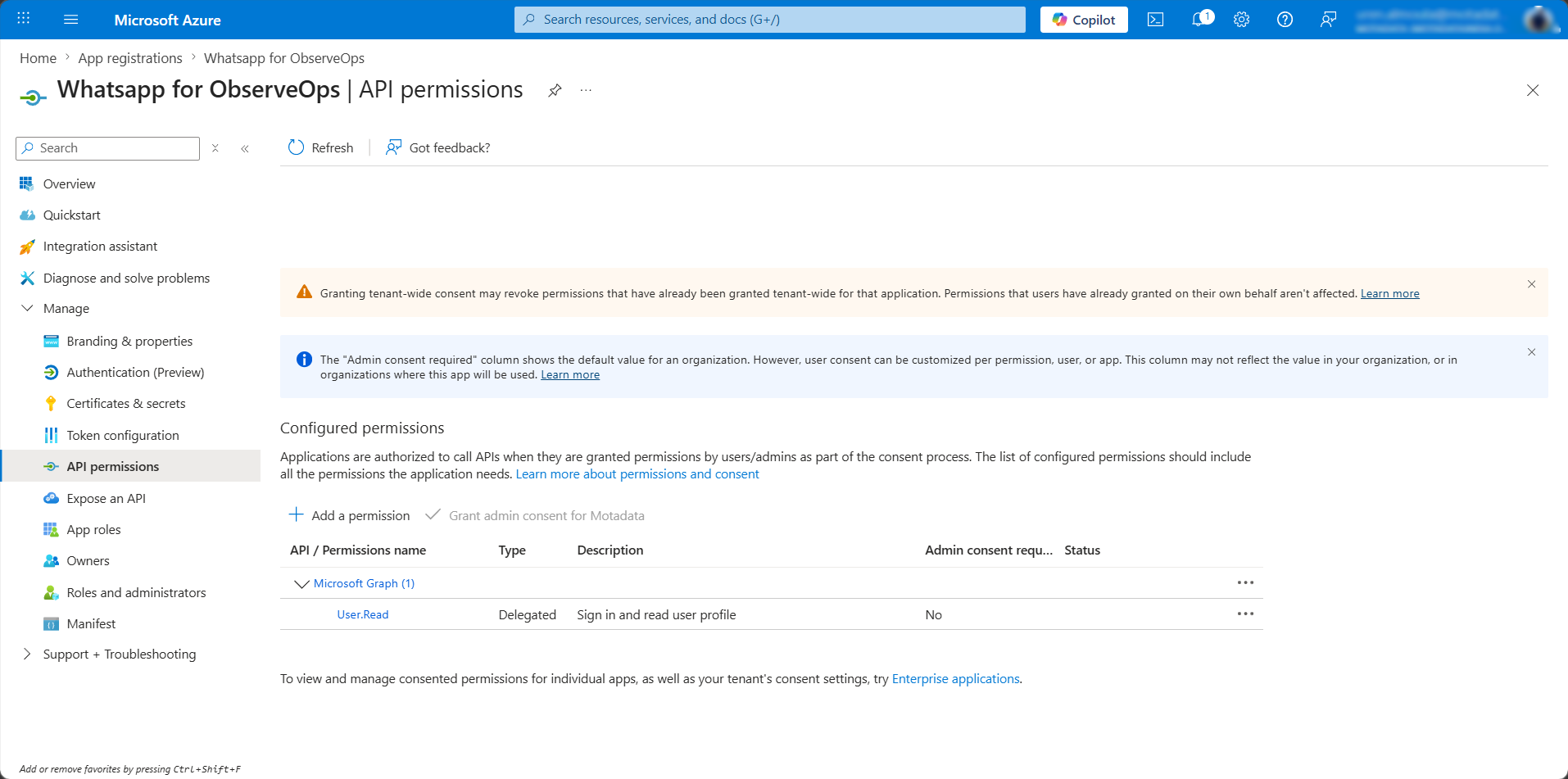
- From the registered application page, select API permissions.
- Click Add a permission.
- Select Microsoft Graph.
- Add the following delegated permissions:
- Channel.ReadBasic.All – To fetch the channels list
- Team.ReadBasic.All – To fetch the teams list
- ChannelMessage.Send – To send messages to channels
- Click Add permissions to apply the permissions.
- Click the Grant admin consent option for the required permissions.
Step 3: Generate Client Secret
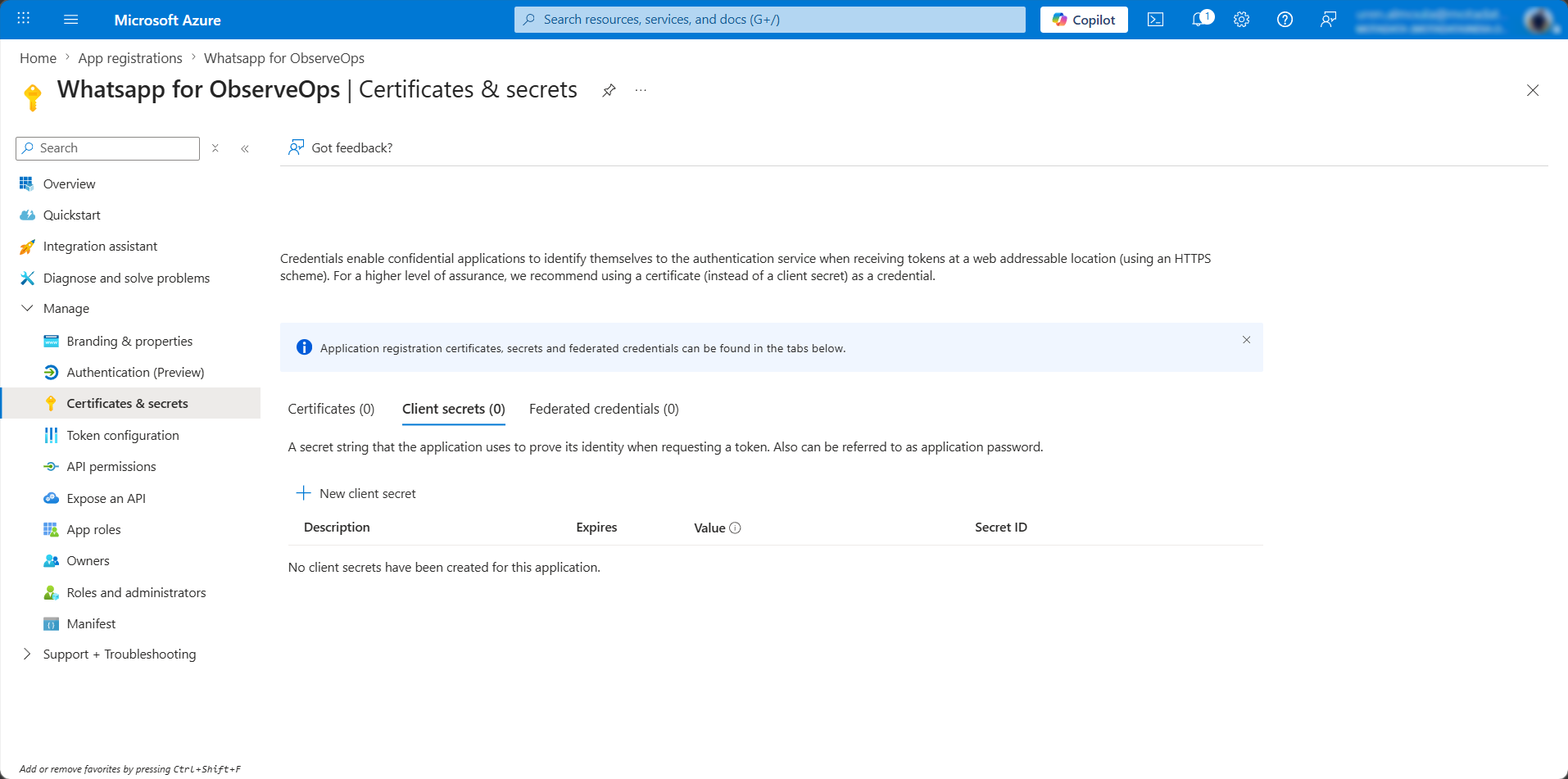
- Navigate to Certificates & secrets.
- Under Client secrets, click New client secret.
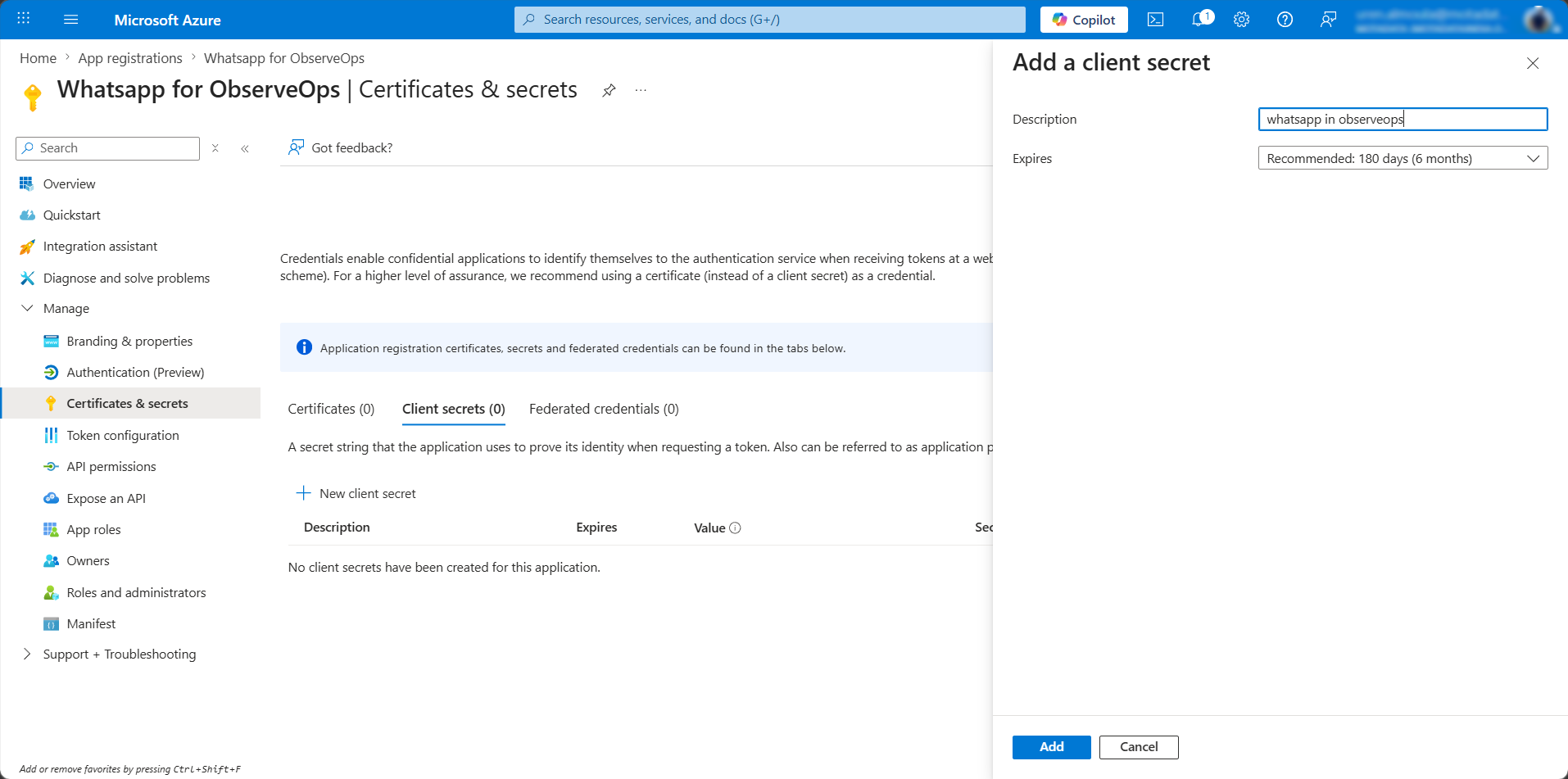
- Enter a description and select an expiration period.
- Click Add.
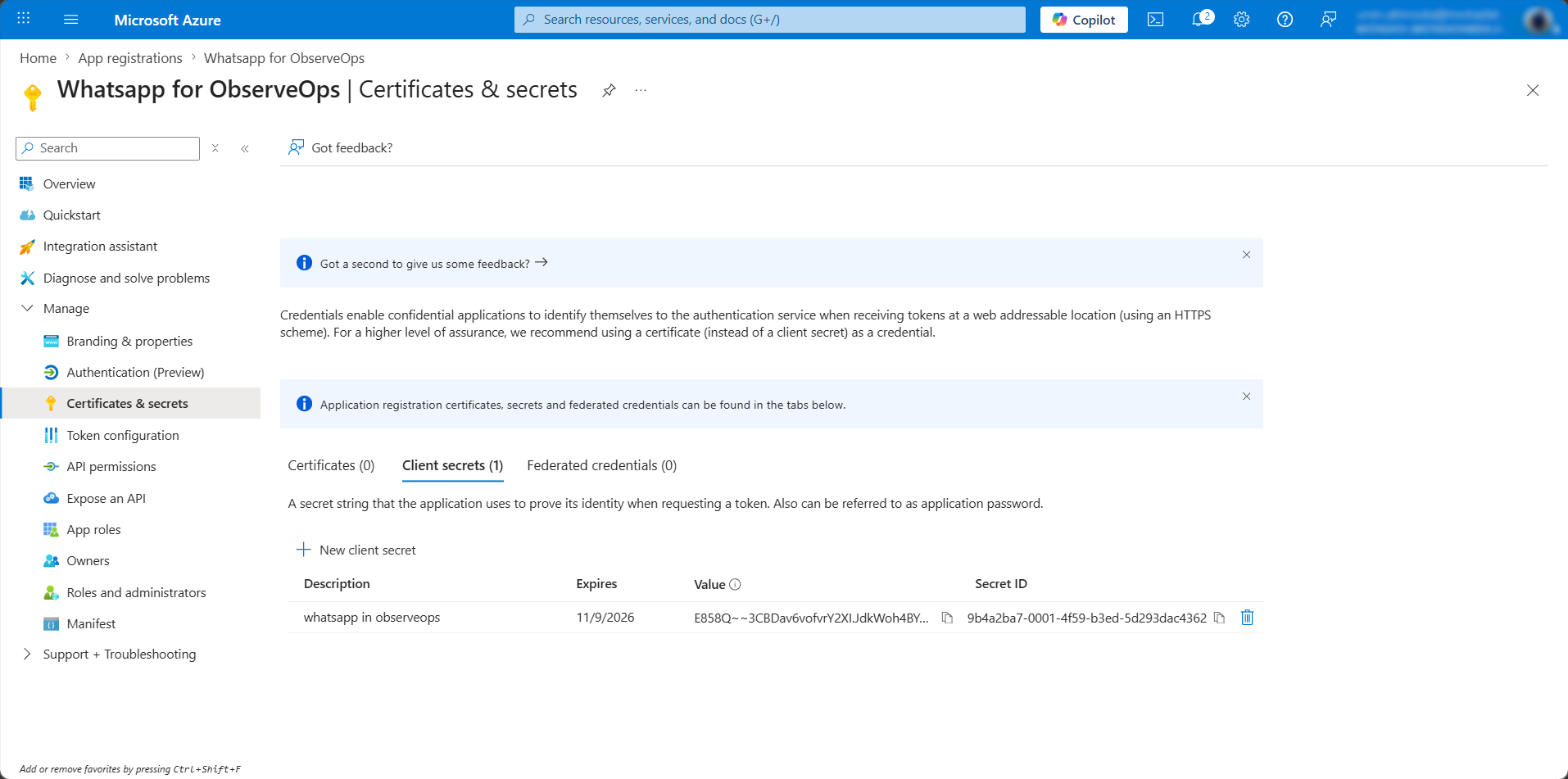
- Copy the client secret value and store it securely.
Step 4: Collect Application Details
From the Overview tab of the registered application, copy the following values:
- Application (Client) ID
- Directory (Tenant) ID
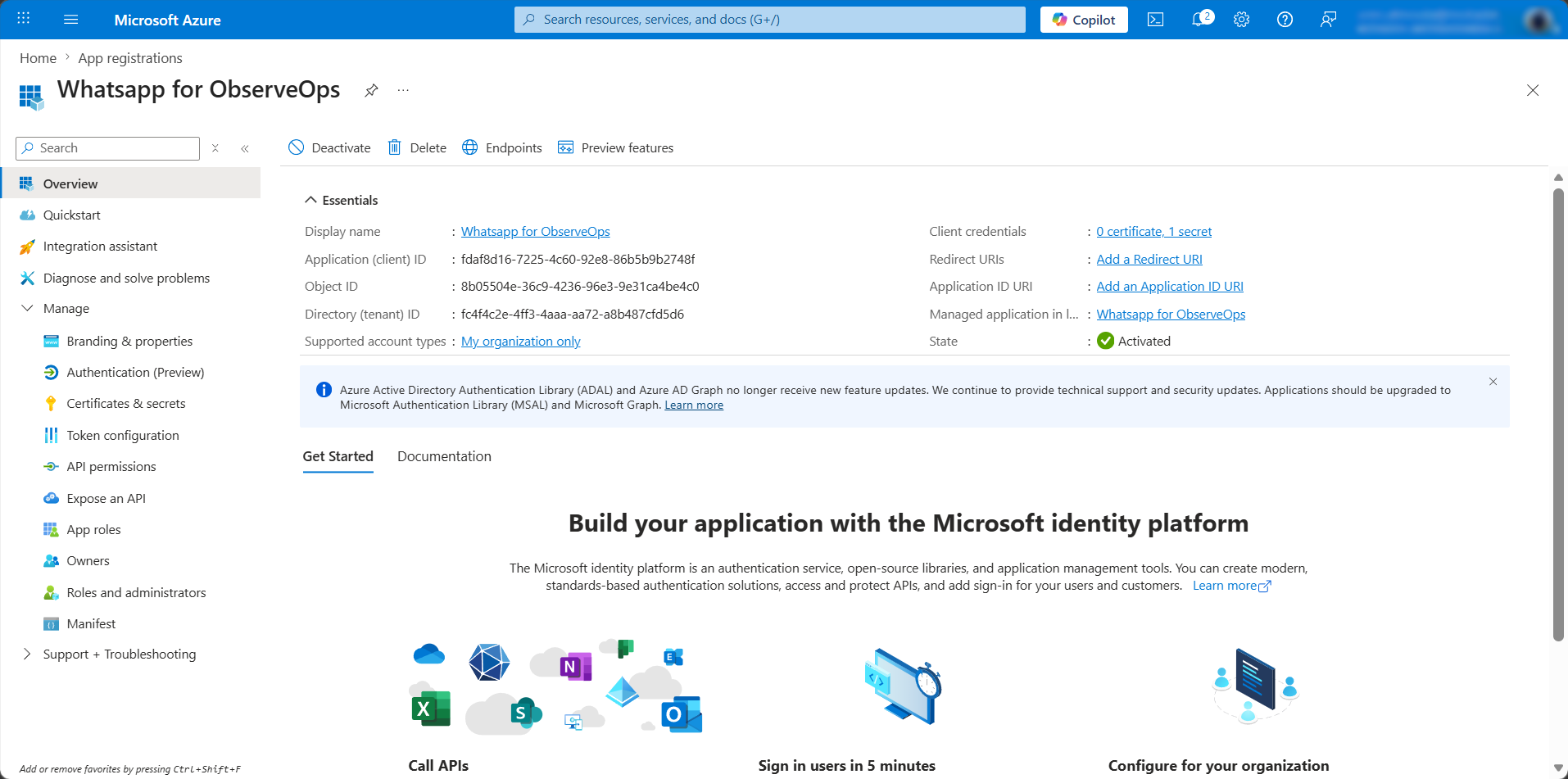
These details are required while configuring Microsoft Teams integration in Motadata ObserveOps.
Step 5: Configure Microsoft Teams in Motadata ObserveOps
- Log in to Motadata ObserveOps.
- Navigate to Settings → Integration → Microsoft Teams.
- Create or select a Credential Profile.
- Enter the following details:
- Client ID
- Client Secret
- Tenant ID
- Redirect URL
- Save the configuration.
Step 6: Testing and Verification
After completing the configuration:
- Select Microsoft Teams as a notification channel in Motadata ObserveOps.
- Trigger a test alert.
- Verify that the alert is received in the configured Teams channel.
Once configured, Microsoft Teams can be used as a reliable notification channel for alerts and observability events from Motadata ObserveOps.