Slack Integration with Motadata ObserveOps
Overview
Motadata ObserveOps (formerly known as AIOps) supports Slack integration to deliver alerts, notifications, and operational updates directly to Slack channels. This integration enables teams to stay informed about critical observability events such as alerts, policy violations, and service health changes, without leaving their collaboration workspace.
Slack integration in Motadata ObserveOps uses a secure, manifest-based OAuth flow to create and authorize a Slack App, ensuring controlled access and seamless message delivery.
Prerequisites
Before configuring Slack integration, ensure the following requirements are met:
- A valid Slack account.
- Access to a Slack workspace where the app can be installed.
- Admin access to Motadata ObserveOps.
- Permission to create and manage Slack apps.
High-Level Configuration Flow
The Slack integration setup involves the following stages:
- Generate Slack App manifest from Motadata ObserveOps.
- Sign in to Slack and select a workspace.
- Create a Slack App using the manifest.
- Collect Slack app credentials.
- Configure Slack integration in Motadata ObserveOps.
Configure Slack Integration
Step 1: Open Slack Integration in Motadata ObserveOps
- Log in to Motadata ObserveOps.
- Navigate to Settings > Integration > Slack.
- Enter the Application Name.
- Click Generate Manifest.
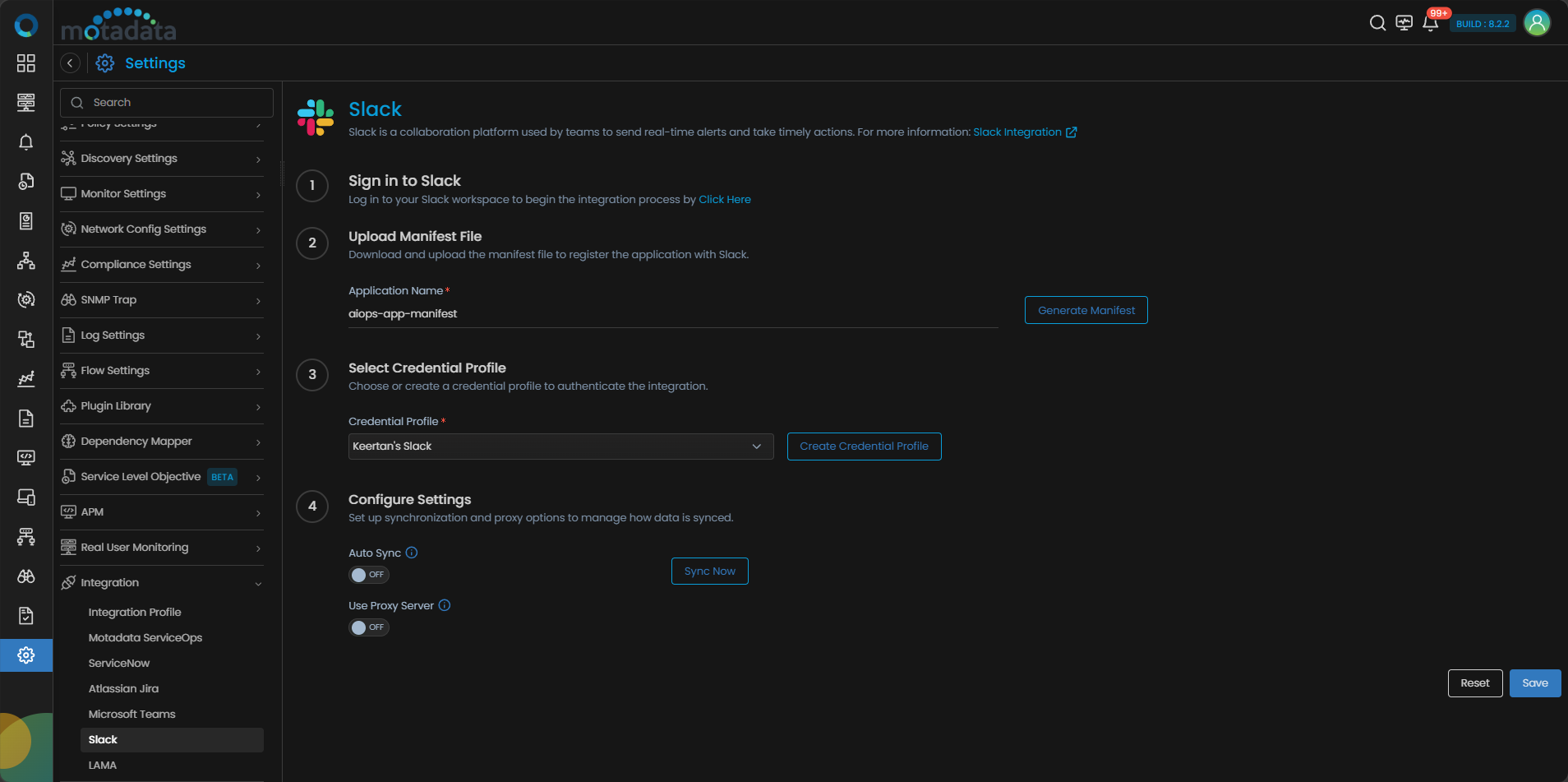
This generates a Slack App manifest required to create the app in Slack.
Step 2: Sign in to Slack
- Click Sign in to Slack.
- Enter your organization email ID.
- If you do not have an existing workspace, create a new Slack workspace.
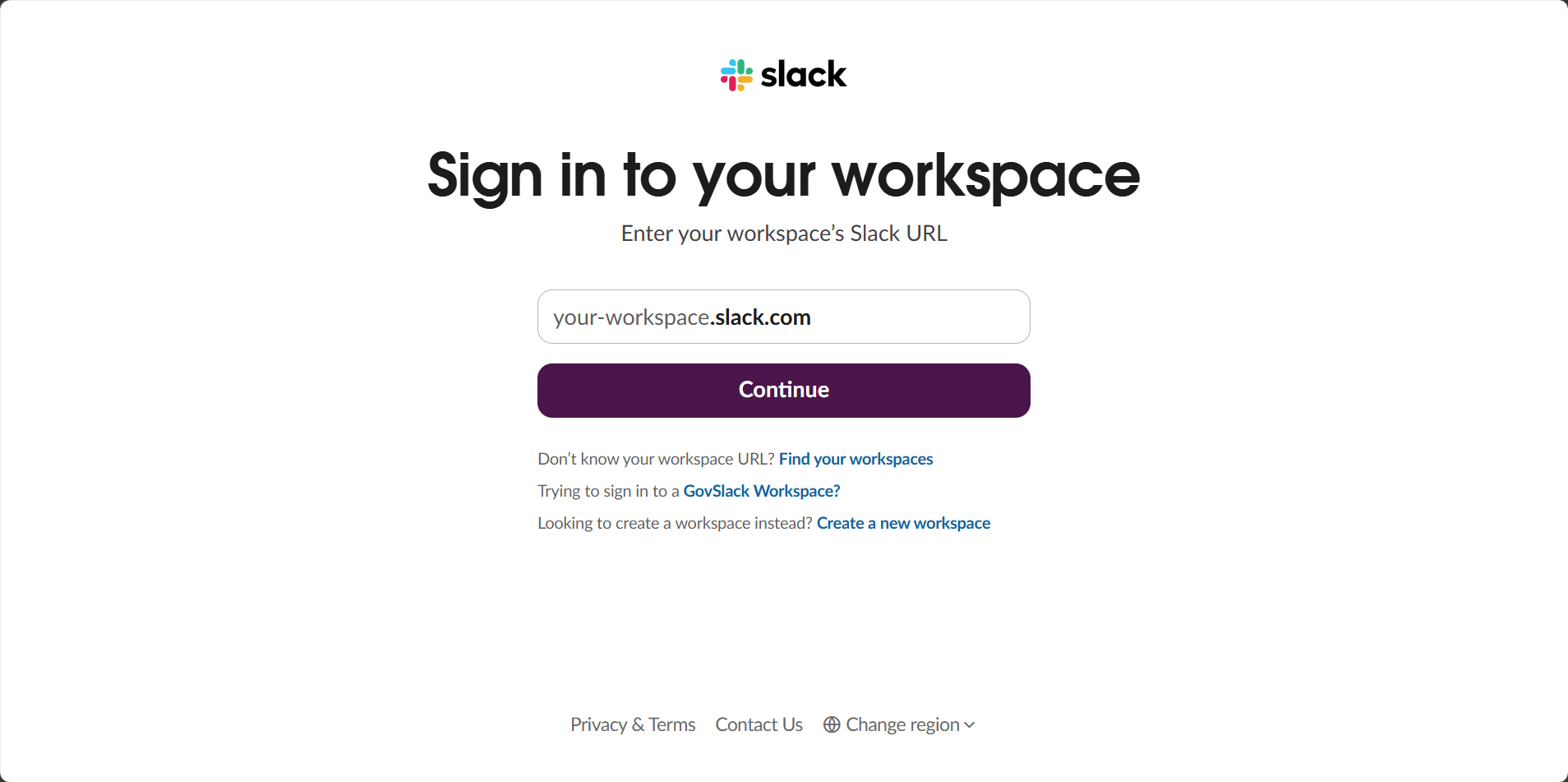
Once authenticated, you will be redirected to Slack setup.
Step 3: Create or Select a Slack Workspace
- Provide a Workspace Name.
- Complete the setup and open the workspace.
- (Optional) Create a test channel to validate notifications.
Step 4: Create Slack App Using Manifest
- Open https://api.slack.com/apps.
- Click Create New App.
- Select From a manifest.
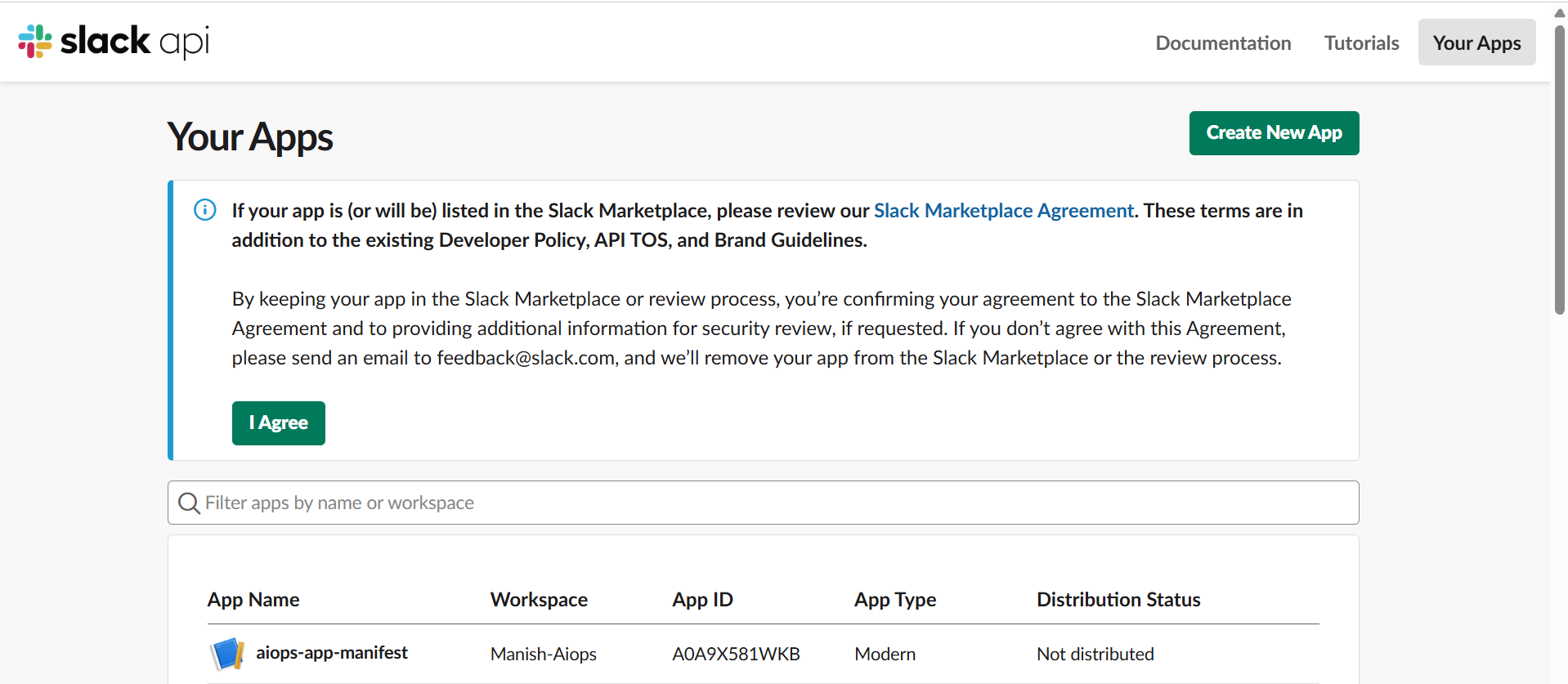
Step 5: Select Workspace for App Installation
- Choose the Slack workspace where the app should be installed.
- Click Next to continue.
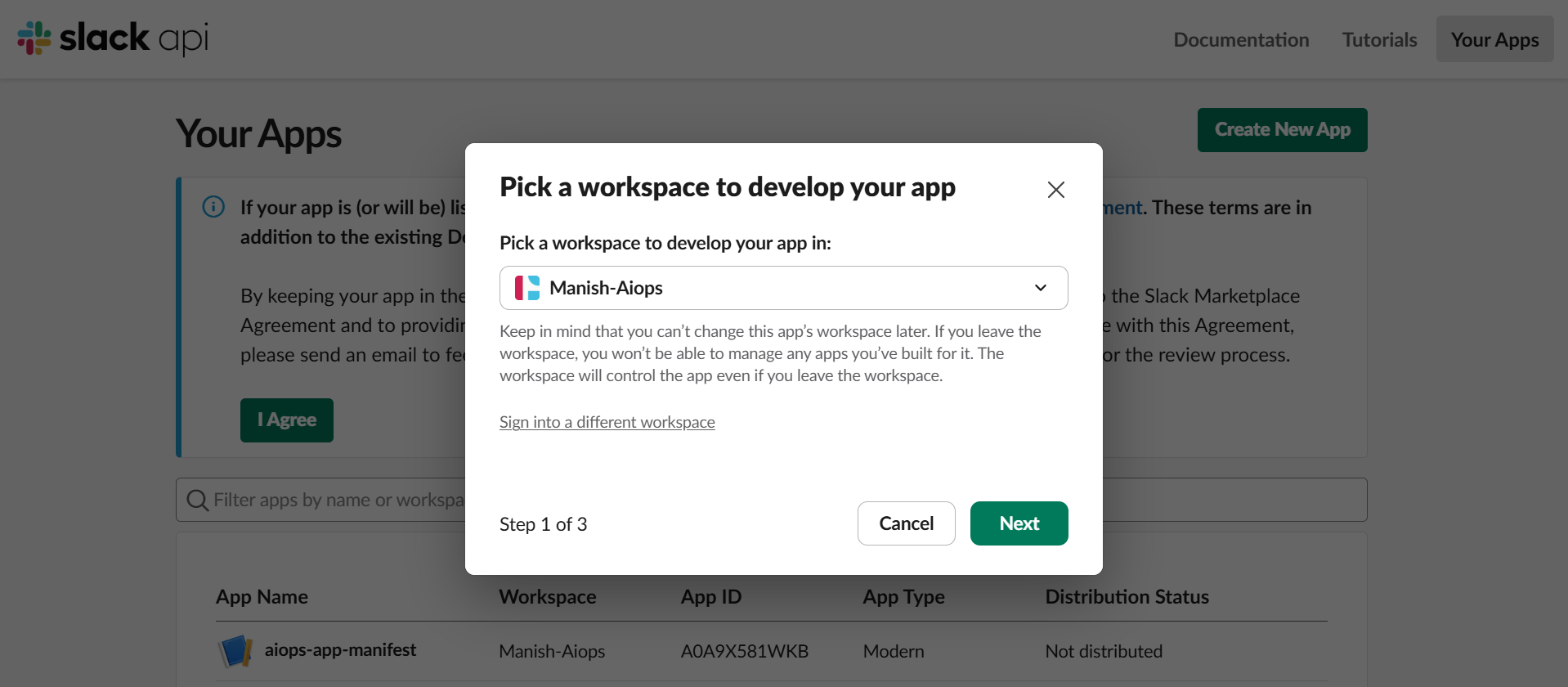
Step 6: Paste Manifest JSON
- Paste the Manifest JSON generated from Motadata ObserveOps.
- Verify redirect URLs and required scopes.
- Click Next button.
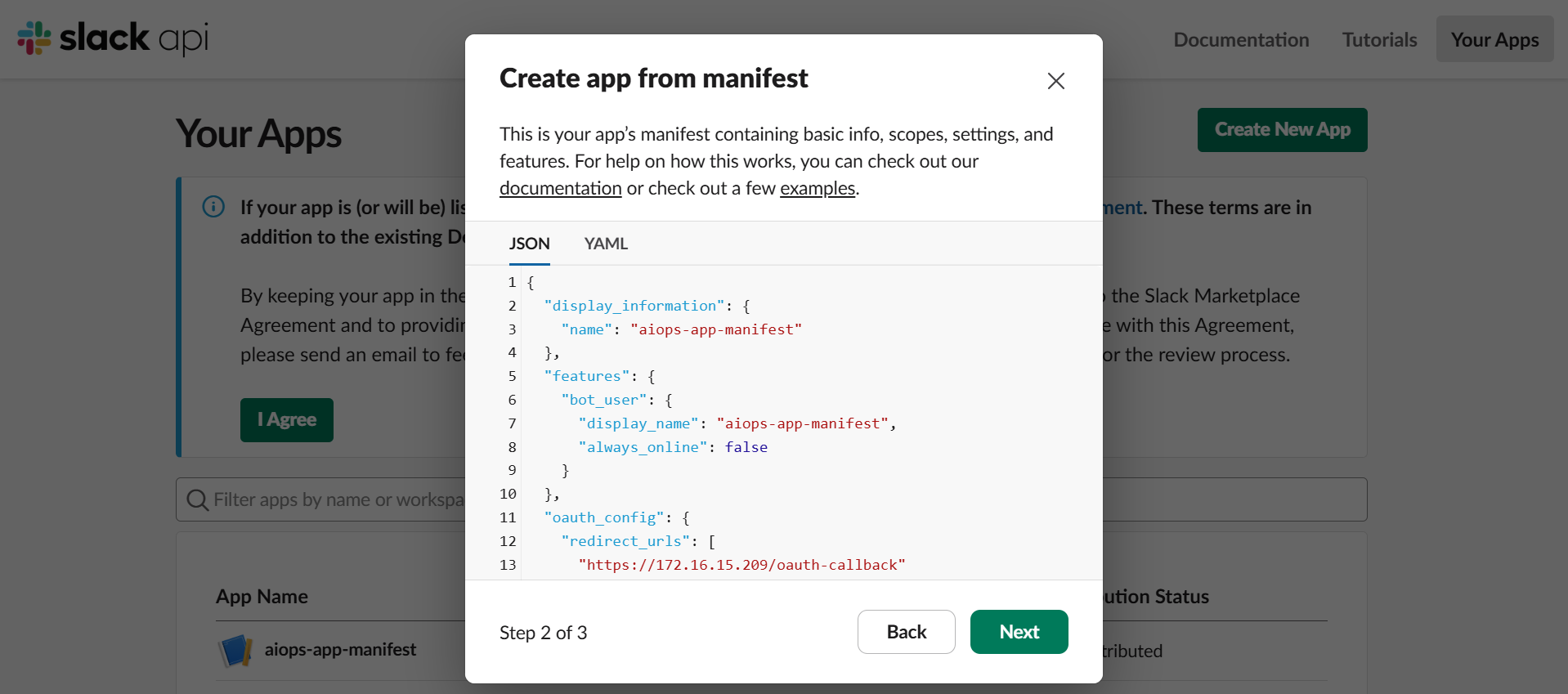
- Click Create button.
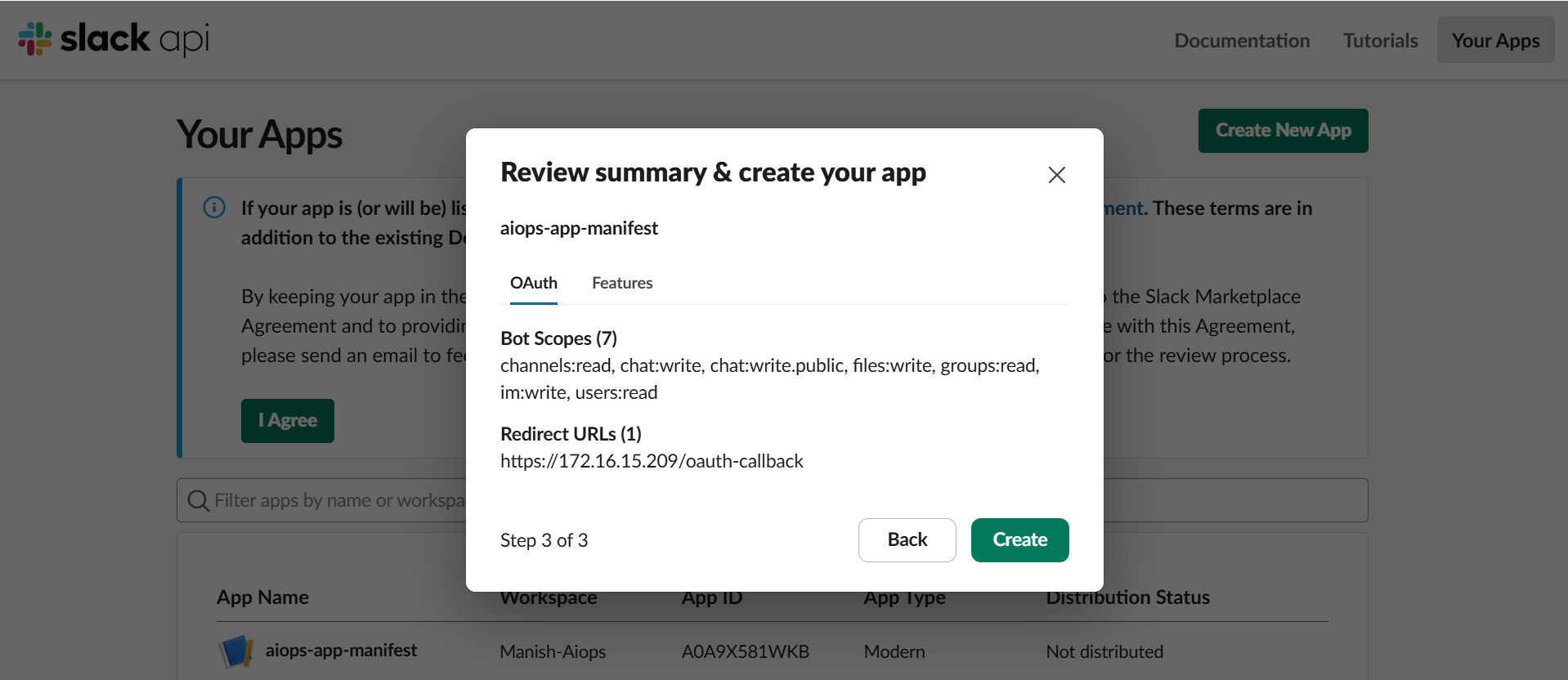
This creates the Slack app with predefined permissions required by Motadata ObserveOps.
Step 7: Verify App Creation
Once created successfully:
- The Slack app is available in your workspace.
- Navigate to the app’s Basic Information section.
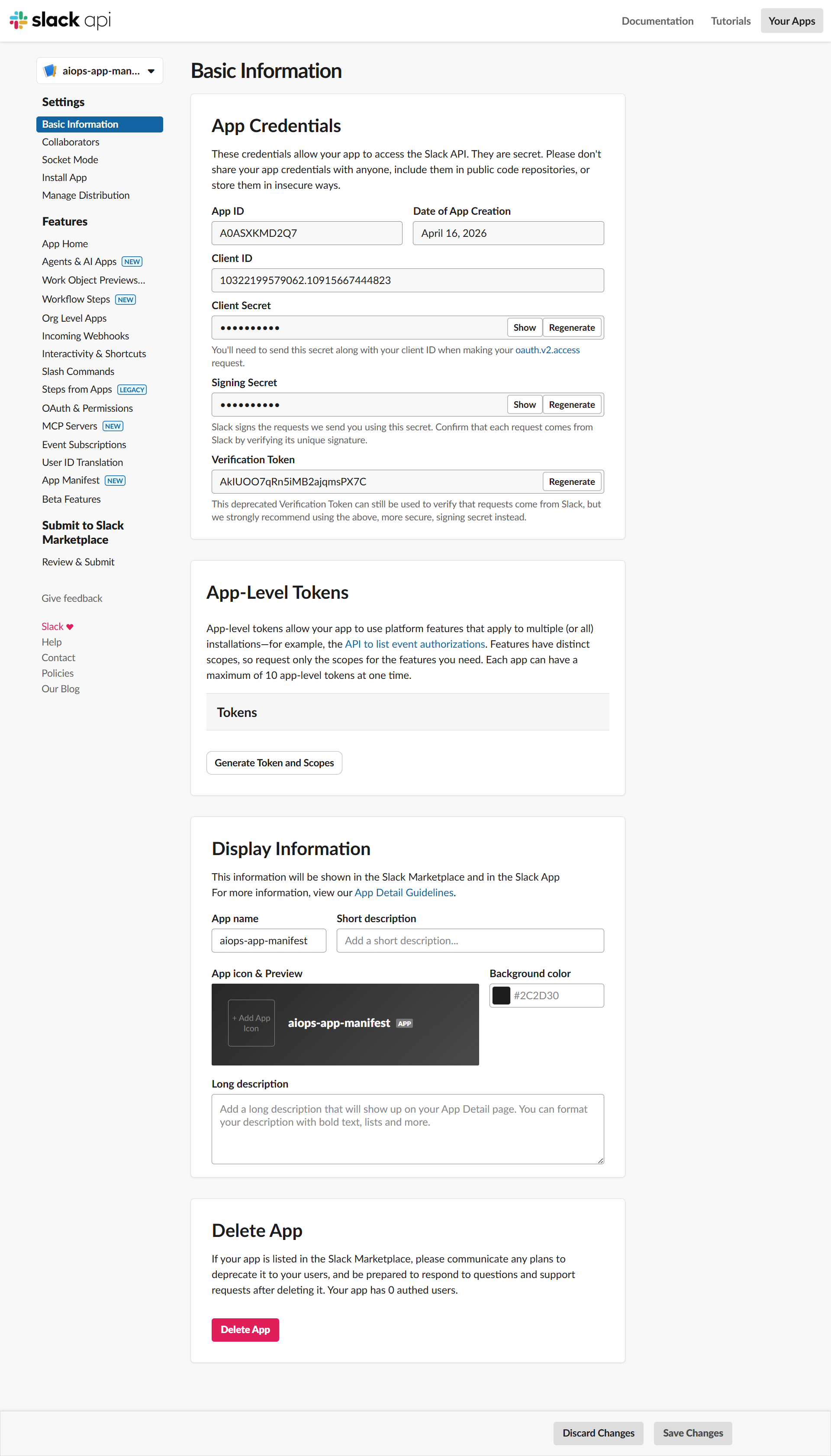
Step 8: Collect Slack App Credentials
- Go to Settings > Basic Information.
- Copy the following details:
- Client ID
- Client Secret
- Verification Token
These credentials are required to complete the integration in Motadata ObserveOps.
Step 9: Configure Slack in Motadata ObserveOps
- Return to Motadata ObserveOps > Settings > Integration > Slack.
- Create or select a Credential Profile.
- Enter:
- Client ID
- Client Secret
- Required scopes
- Save the configuration.
- Create the Slack integration profile.
Post-Configuration Usage
After completing the setup:
- Slack can be selected as a notification channel
- Alerts and policy actions can be routed to Slack
- Messages are delivered to configured channels in real time
Notes
- Slack permissions are defined through the manifest and cannot be modified directly from ObserveOps
- Any change to Slack app permissions requires regenerating the manifest and re-authorizing the app
- Ensure the Slack app remains installed in the workspace to avoid notification failures