How to Configure WhatsApp Message Templates for Notifications
Map Meta-approved WhatsApp Message Templates to notification events and workflows so that ServiceOps delivers critical ticket updates to users even when the 24-hour WhatsApp session window has closed.
By the end of this guide, you will have WhatsApp Message Templates configured for Event Notifications and Workflow actions, ensuring reliable WhatsApp delivery for all modules.
Prerequisites
Before you start, confirm the following:
- You have the Admin role in ServiceOps.
- WhatsApp integration is configured and enabled. Refer to WhatsApp Config.
- You have access to WhatsApp Manager with permission to create message templates on your WhatsApp Business Account (WABA).
- Template names follow Meta's naming rules: lowercase letters, underscores instead of spaces, no leading numbers.
- Templates do not include a Header or Footer (not supported in ServiceOps notifications).
- Templates belong to the Utility category (strictly informational, no promotional content).
- Templates are approved in English (
en) only. - Template body variables use the
{{1}},{{2}}format, numbered sequentially with no gaps. - Sample values are required for all variables when submitting the template for Meta approval.
Steps
Create the Template in WhatsApp Manager
Create and get your template approved in WhatsApp Manager before configuring anything in ServiceOps.
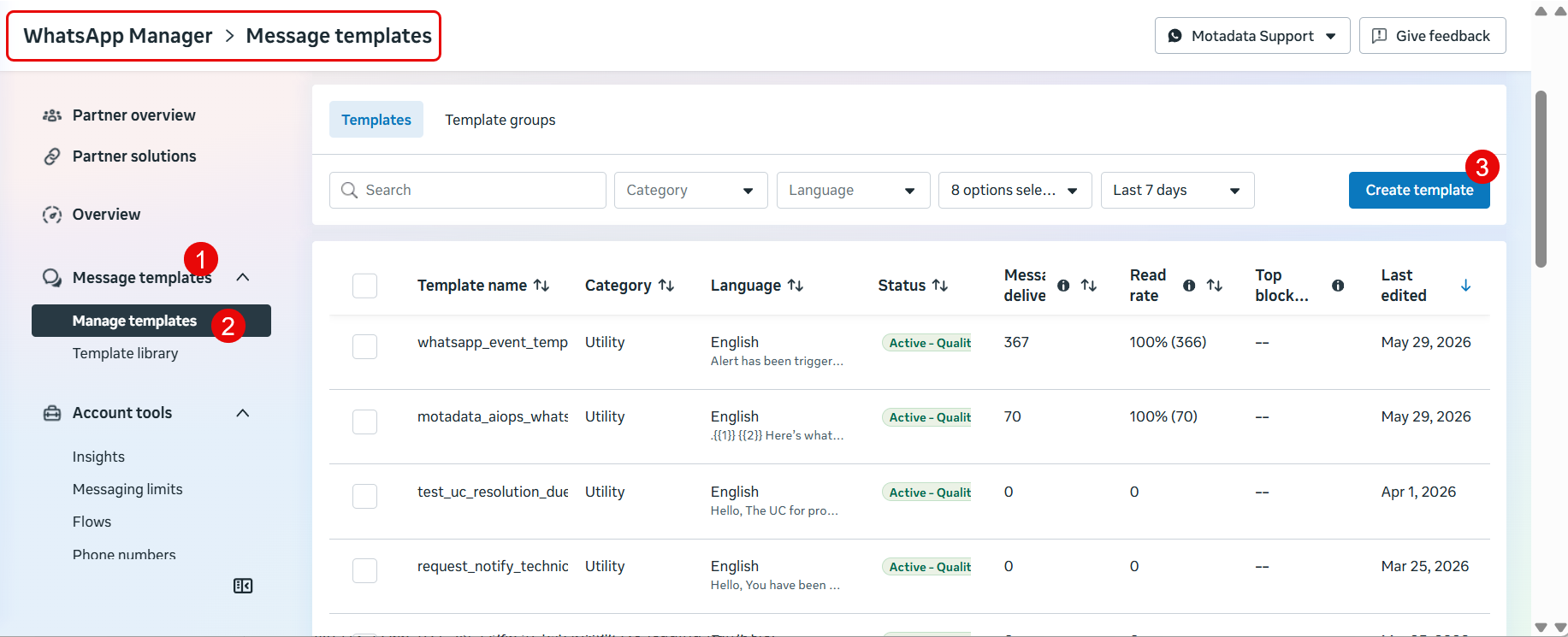
- Open WhatsApp Manager and navigate to Account Tools > Message Templates. Click Create Template.
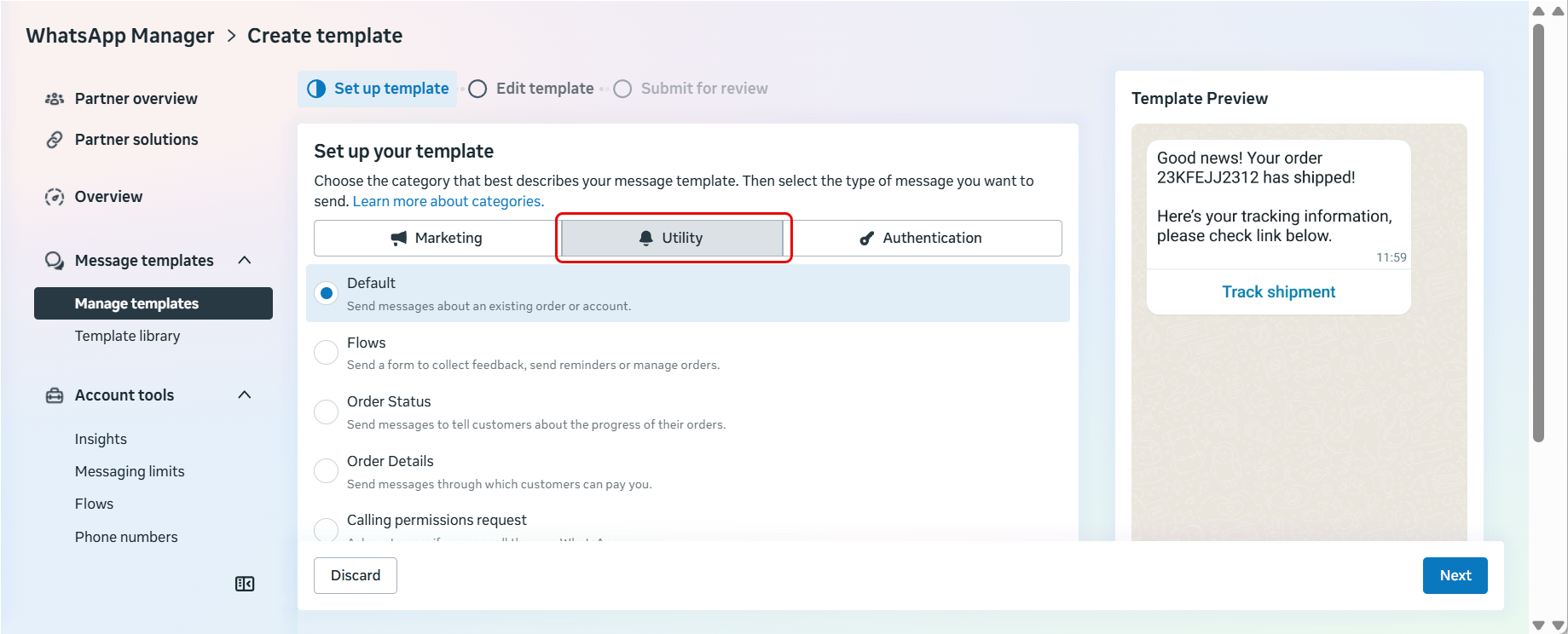
- Select Utility as the category.
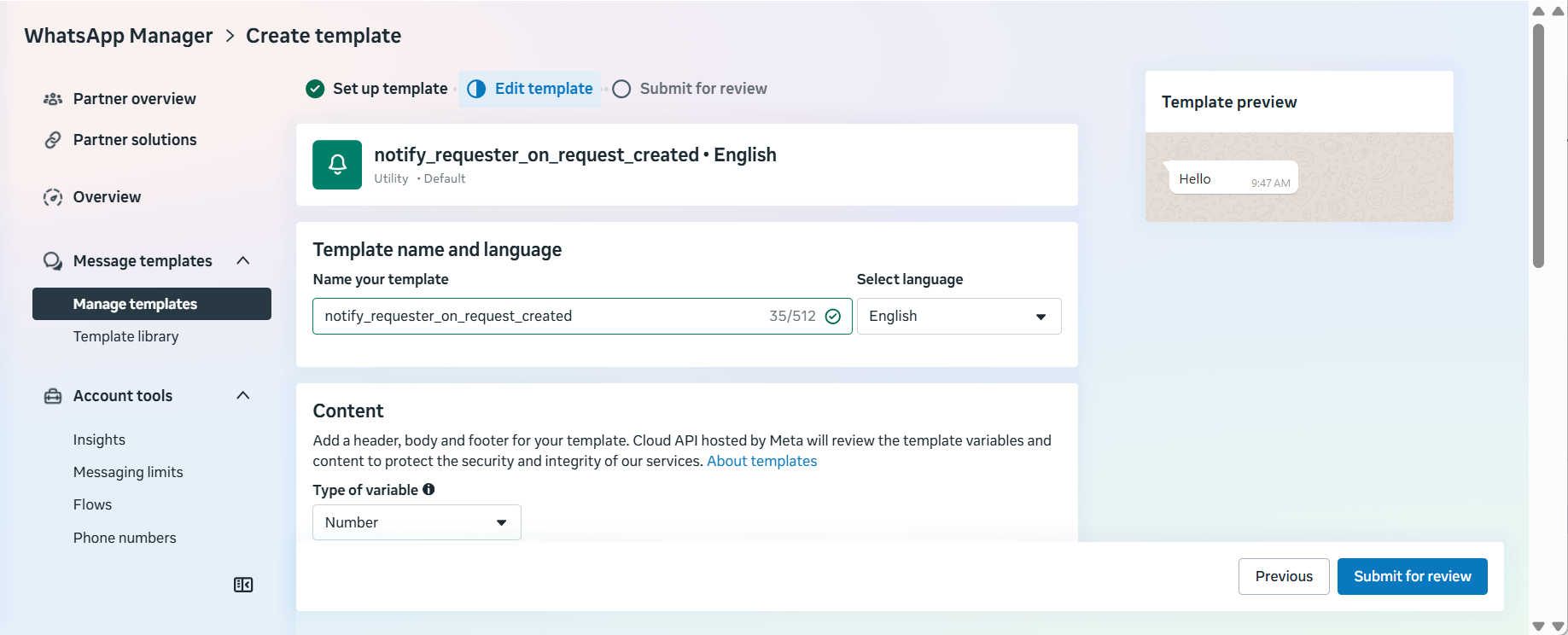
Enter the template name using lowercase letters and underscores only (for example,
notify_requester_on_request_created). No leading numbers.Select English (
en) as the language.
Write the message body. Use
{{1}},{{2}},{{3}}for dynamic values, numbered sequentially with no gaps.Variable formatVariables must follow the
{{number}}format and be numbered in order starting from{{1}}. Skipping a number (for example, using{{1}}and{{3}}without{{2}}) causes Meta to reject the template.Do not add a Header or Footer. ServiceOps does not support these in notifications.
Enter a sample value for every variable you added. Meta requires sample values to review the template.
Submit the template for approval. Meta typically reviews templates within a few minutes to 24 hours.
Once the template status shows Approved, proceed to configure it in ServiceOps.
Configure a Template in Event Notifications
- Navigate to Admin > Automation > Event Notifications > App Notification.
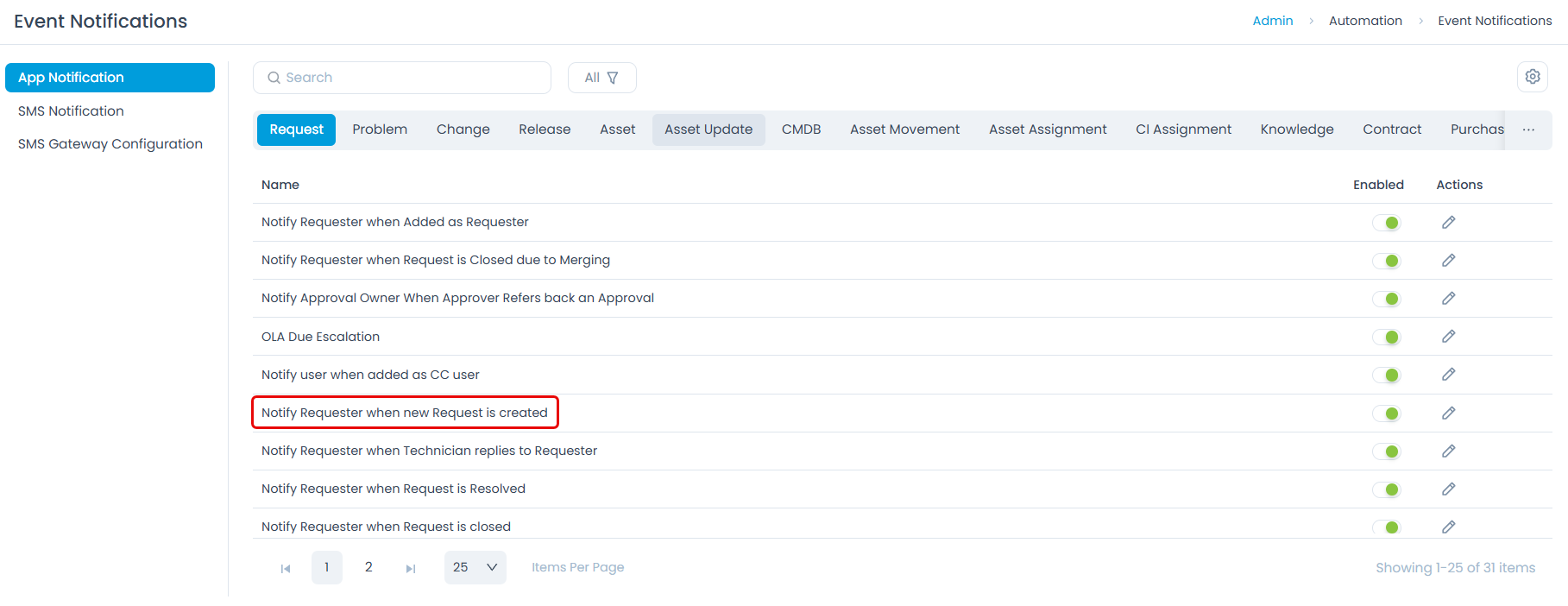
Select the module (for example, Request) and open the event notification you want to configure (for example, Notify Requester when new Request is Created).
In the Edit Content section, locate the WhatsApp channel toggle and ensure it is enabled.
Enter the approved template name in the WhatsApp Template Name field. The name must exactly match the template name in your Meta account.
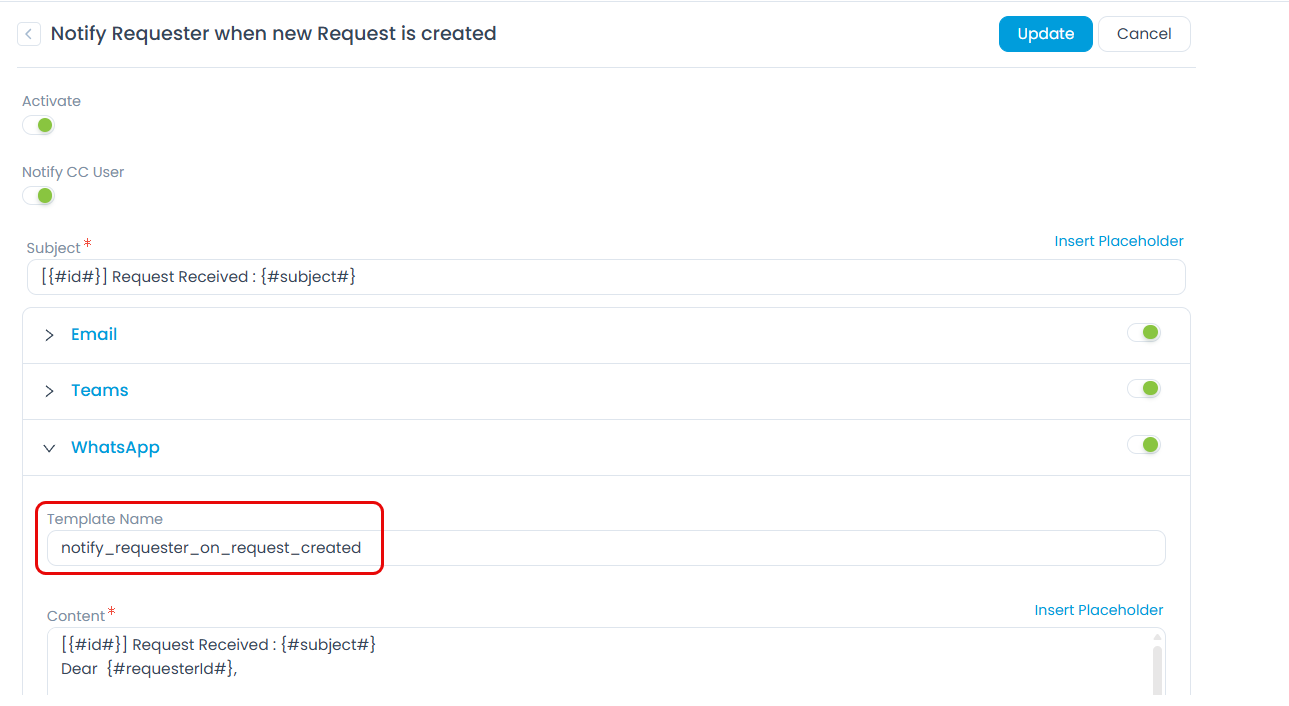
Copy the template name directly from WhatsApp Manager to avoid typos. Even a single character difference causes delivery failure.
Click Update to save the configuration.
Repeat for each event notification and module where you want template-based WhatsApp delivery.
Configure a Template in Workflow
Navigate to Admin > Automation > Workflow and open the workflow you want to configure, or create a new one.
In the workflow builder, add or select a Send WhatsApp Notification action node.
Enter the approved template name in the WhatsApp Template Name field.
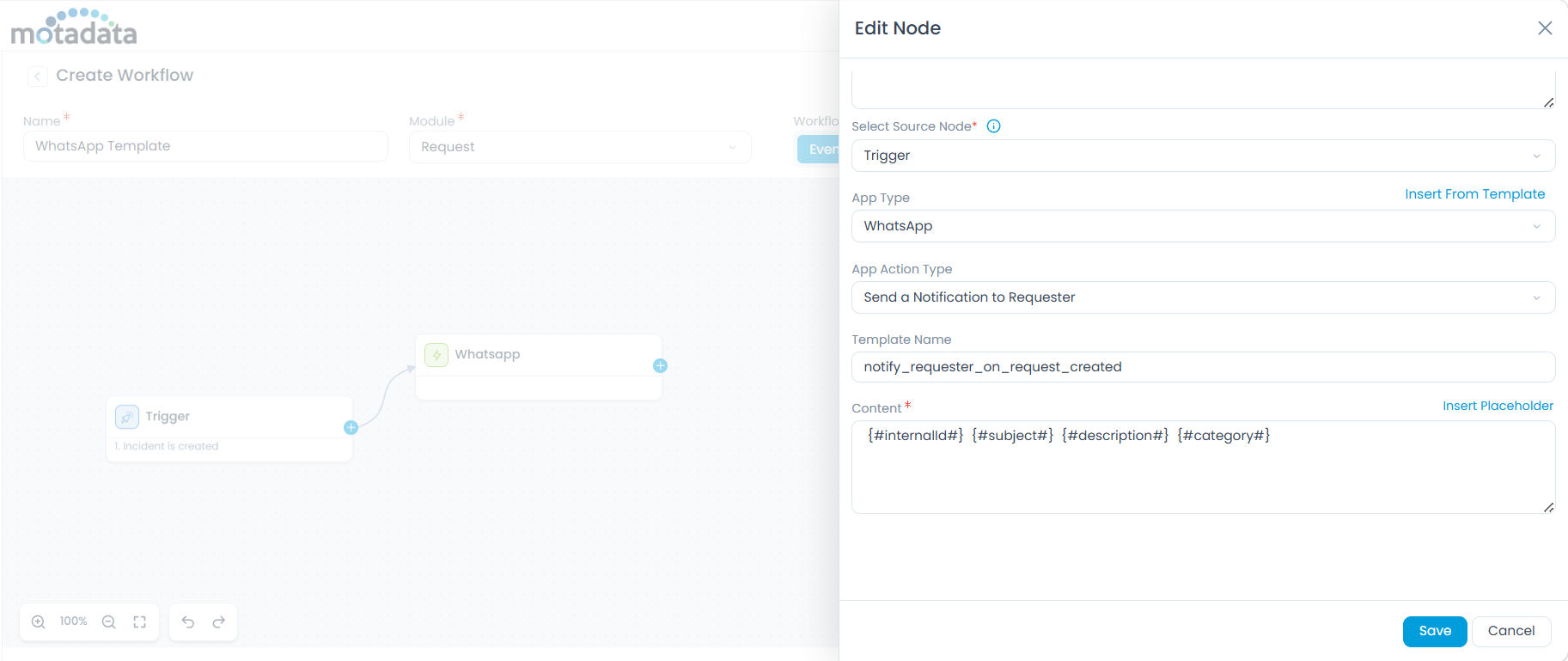
Ensure the message content configured in the workflow matches the approved template content in your Meta account, including variable order.
Click Save and publish the workflow.
Best Practices
- Maintain a mapping document listing each ServiceOps event, its WhatsApp template name, and the template variables so your team can keep them in sync.
- If a template is rejected by Meta, update both the Meta account and the corresponding ServiceOps configuration before re-submitting.
- Test template delivery by triggering the notification event in a non-production environment before rolling out to all users.
Troubleshooting
The following are common issues and their fixes when configuring WhatsApp Message Templates.
WhatsApp notification not delivered outside the 24-hour window
Cause: No WhatsApp Template Name is configured for the notification event or workflow action.
Fix: Open the event notification or workflow action and enter the approved template name in the WhatsApp Template Name field, then save.
Template delivery fails with an API error
Cause: The template name in ServiceOps does not match the approved template name in the Meta account, or the template has not yet been approved.
Fix: Log in to WhatsApp Manager and verify the exact template name and its approval status. Update the WhatsApp Template Name field in ServiceOps to match exactly.
Dynamic variables appear as blank or "N/A" in the delivered message
Cause: The ticket context is missing the field referenced by a template variable (for example, the ticket has no assignee).
Fix: Ensure the relevant fields are populated on the ticket. ServiceOps substitutes a fallback value of "N/A" for missing variables and still delivers the message.
Next Steps
- Configure WhatsApp Integration: Set up your WhatsApp Business Account and connect it to ServiceOps.
- Event Notifications Overview: Learn how to manage all notification channels and templates.