How to Configure Software Auto-Uninstallation in ServiceOps
ServiceOps lets you define prohibited software rules, scan your asset inventory for matches, and automatically uninstall flagged applications across Windows, Linux, and macOS endpoints without manual intervention.
Prerequisites
- Admin access to the ServiceOps portal.
- Motadata Agent installed and active on target endpoints for agent-based uninstallation.
- Silent uninstall commands or scripts prepared for the applications you plan to remove.
- Discovery scans completed so that software inventory is populated for your managed assets.
Steps
Step 1: Define the Prohibited Software Rule
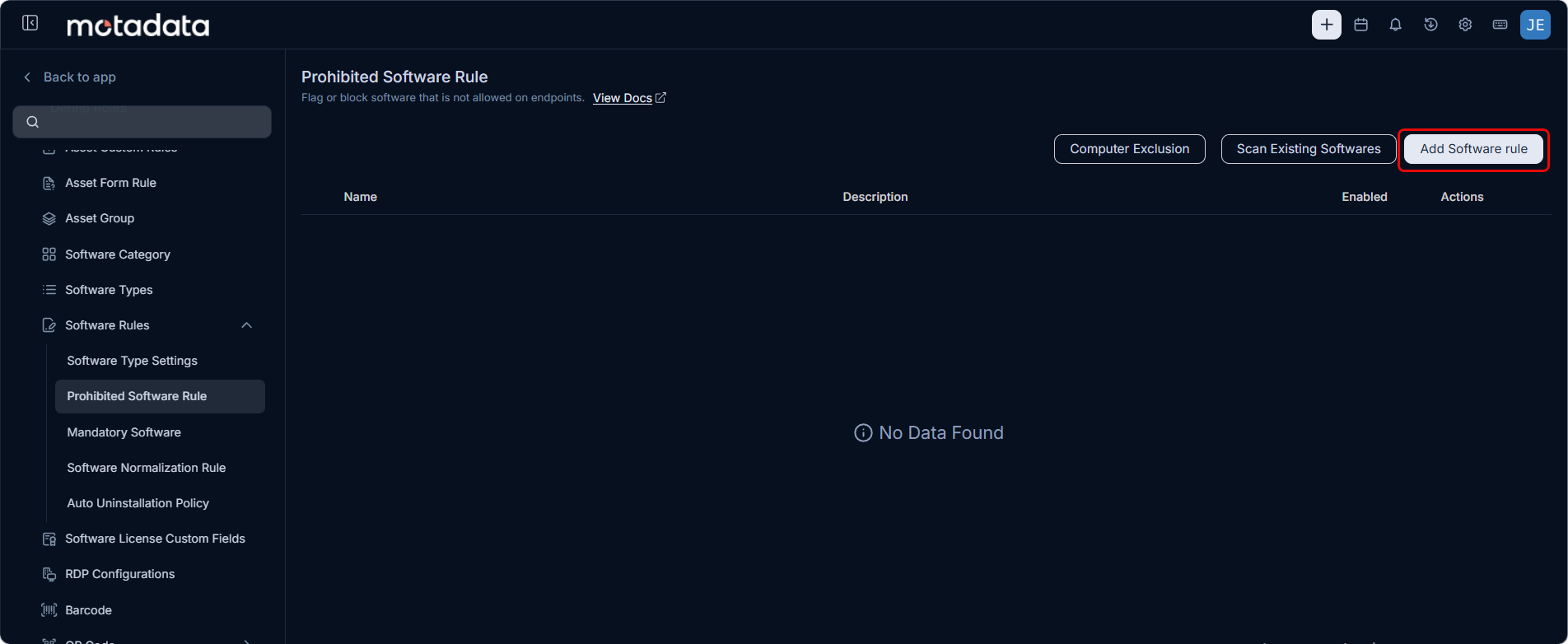
- Navigate to Admin > Asset Management > Software Rules and select the Prohibited Software Rules tab.
- Click Add Software Rule.
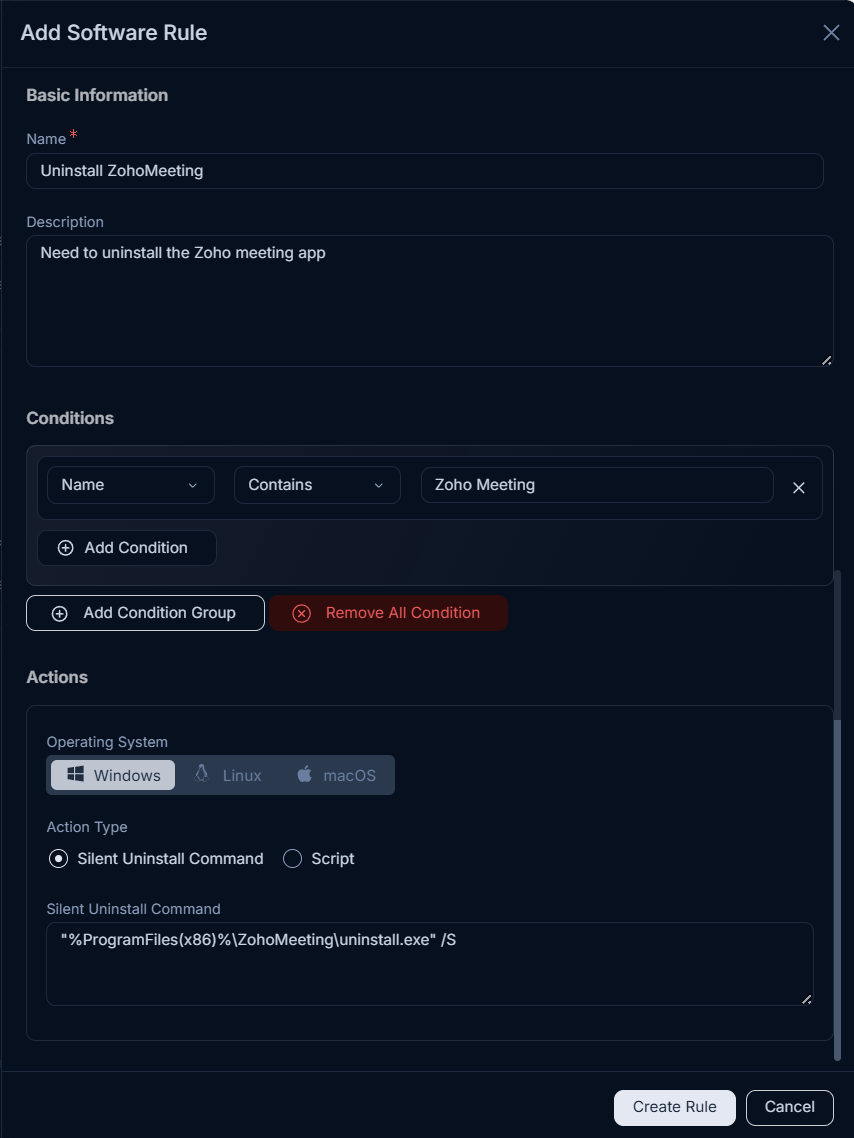
Enter the following details:
Basic Information
Field Description Name Enter a descriptive name for the rule. This is a mandatory field and the rule cannot be saved without it. For example, Uninstall Zoho Meeting. Description Enter a short description of the rule's purpose. Conditions
Each condition row has three fields. Define one or more conditions to identify prohibited software:
Field Description Parameter Select the software attribute to match. The available options are: - Name: Matches the software title, for example, Zoho Meeting.
- Vendor: Matches the manufacturer name, for example, Zoho.
- Software Type: Matches existing software classifications.
- Installation Notification: Evaluates installation alert settings.
- Version: Targets a specific version number, for example, Equals 3.0.18.
- Product: Evaluates the product-level catalog entry.
Operator Select how the parameter is evaluated, for example, Contains. Value Enter the value to match, for example, zoho meeting. Click Add Condition to add more conditions to the same group. Click Add Condition Group to add a separate condition group. Click Remove All Condition to clear all conditions.
Actions
Under the Actions section, select each Operating System tab (Windows, Linux, macOS) and configure the uninstallation payload. You do not need separate rules per operating system. For each tab, select an Action Type:
Action Type When to Use How to Configure Silent Uninstall Command The application can be removed using standard command-line switches and you do not have a separate script file. Enter the exact silent command string in the text box. For example, on Windows: "%ProgramFiles(x86)%\ZohoMeeting\uninstall.exe" /S.Script The application requires multi-step cleanup, registry key removal, or process termination before uninstalling. Two options are available: - Upload Script File: Click Attach Files to upload a pre-written script file. Supported file types:
.ps1(PowerShell),.sh(Shell/Bash),.bat(Batch). - Inline Script: Select a Script Type from the dropdown (PowerShell, Shell/Bash, or Batch) and paste your script code directly into Script Content. For example, on Linux, select Shell Script (.sh) and start your script with
#!/bin/bash.
Configure each OS tab as follows:
Windows Tab
Action Type How to Configure Silent Uninstall Command Enter the silent command string for the application. Syntax:
MsiExec.exe /X{PRODUCT_GUID} /qn /norestart.Example:
"%ProgramFiles%\uTorrent\uTorrent.exe" /UNINSTALL /S.Script Click Attach Files to upload a .ps1file, or select Script Type as PowerShell and paste your code into Script Content.Linux Tab
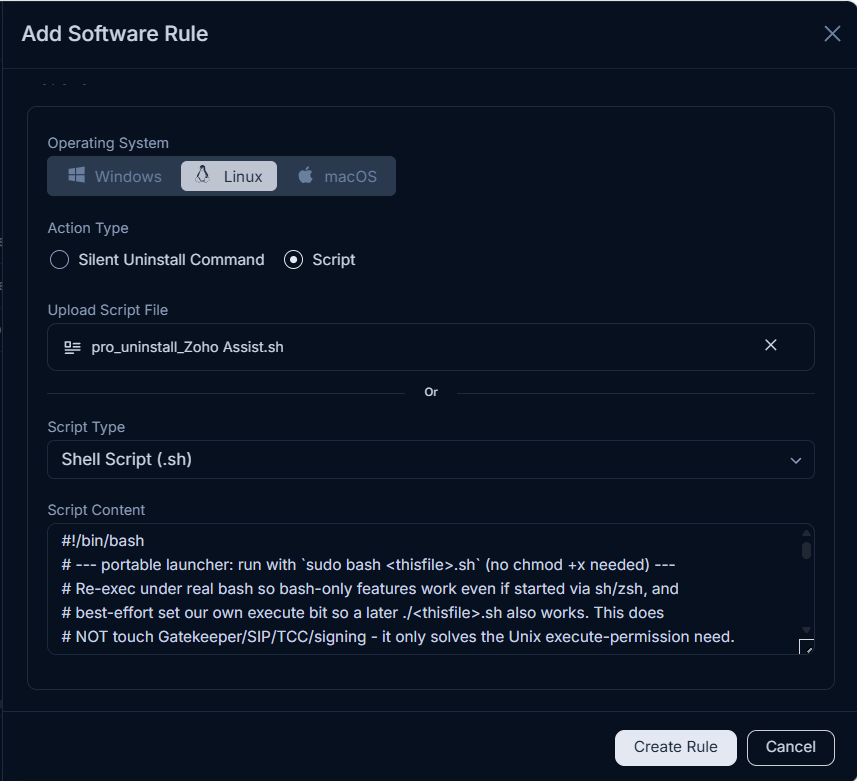
Action Type How to Configure Silent Uninstall Command Enter the package manager command for the application. Syntax: apt-get remove -y <package_name>. Example:apt-get remove -y zoom.Script Click Attach Files to upload a .shfile, or select Script Type as Shell/Bash and paste your code into Script Content. Start your script with#!/bin/bash.macOS Tab
Action Type How to Configure Silent Uninstall Command Enter the uninstallation command for the application. Syntax:
sudo rm -rf "/Applications/<AppName>.app".Example:
sudo rm -rf "/Applications/Zoom.us.app".Script Click Attach Files to upload a .shfile, or select Script Type as Shell and paste your code into Script Content.No Script? Use the Silent Command OptionIf you do not have a script file, use Silent Uninstall Command with the installer's silent switches, or paste a single-line command into Script Content after selecting your Script Type.
Agent and Agentless SupportProhibited software rules and uninstallation actions apply to software detected via both Agent-based and Agentless discovery.
After defining the command or script across all required OS tabs, click Create Rule to save all platform actions together in one unified rule. To update an existing rule, click Update instead.
Step 2: Scan Existing Software
Saving the rule does not immediately evaluate existing installations. Run a scan to flag current matches.
Return to the Prohibited Software Rules list.
Locate the rule and click Scan Existing Softwares.
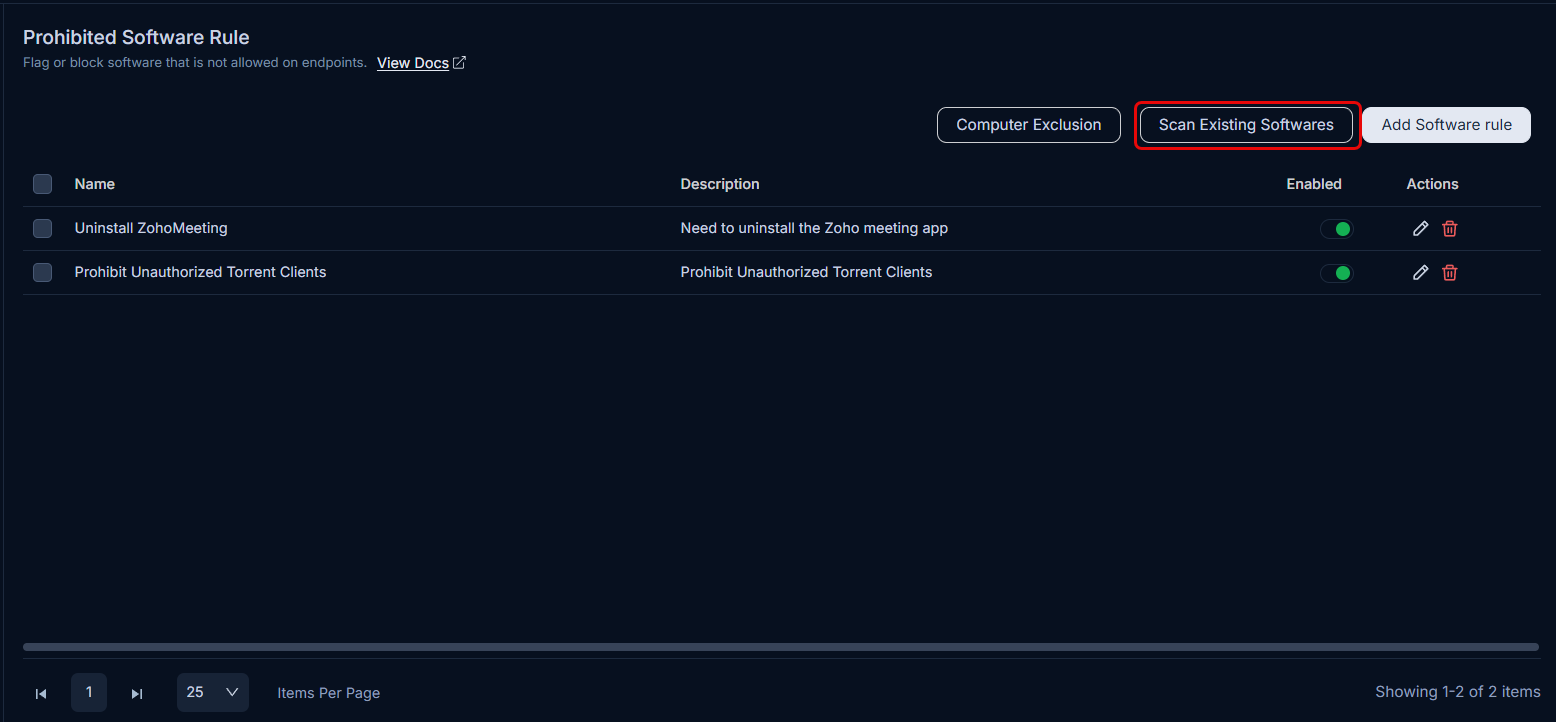
ServiceOps evaluates the discovered software inventory against the rule conditions.
Matching installations are automatically tagged as Prohibited.
Step 3: Configure the Auto Uninstallation Policy
Navigate to Admin > Asset Management > Software Rules.
Select the Auto Uninstallation Policy tab.
Click the Settings icon in the top-right corner to open the Add Auto Uninstallation Policy panel.
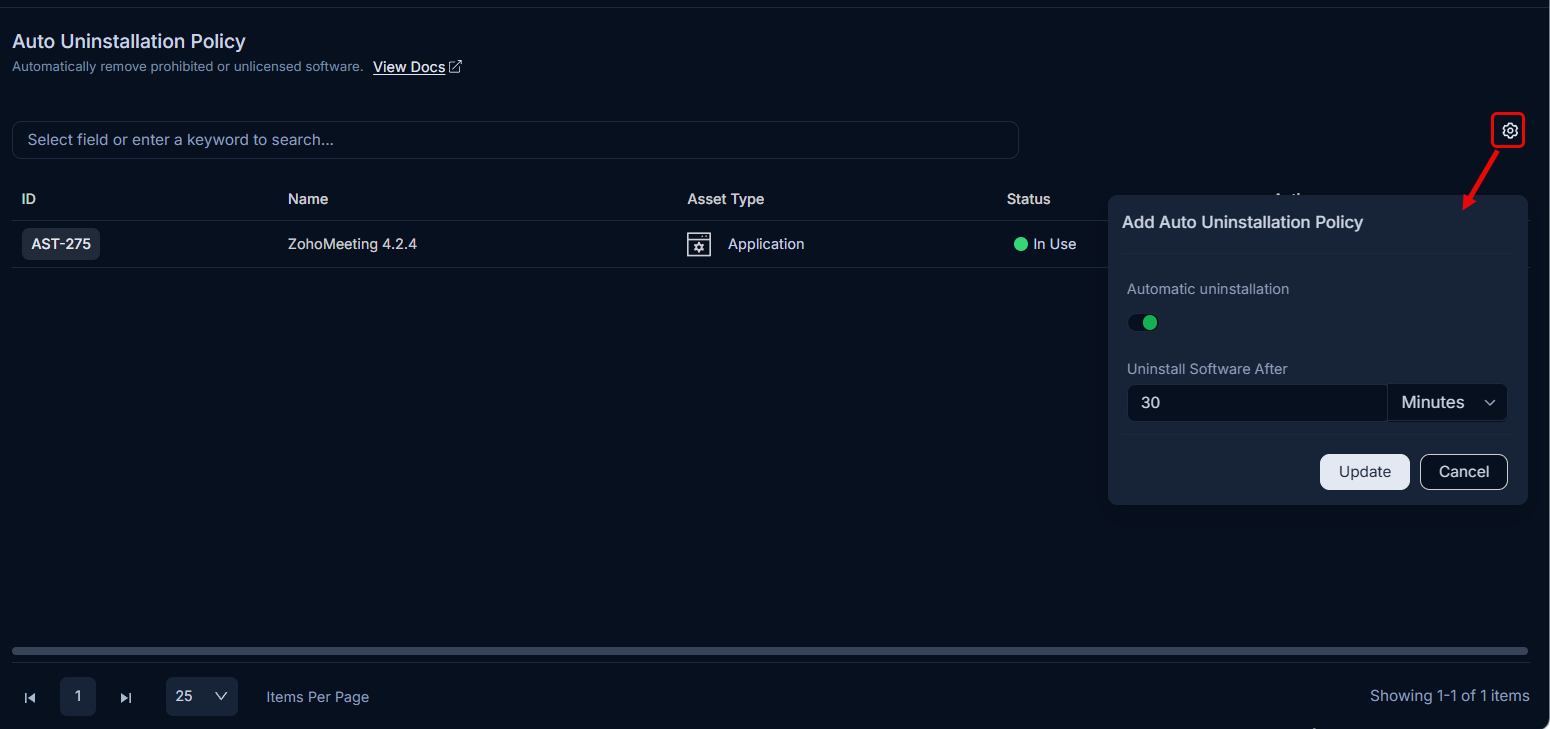
Configure the following parameters:
Parameter Description Automatic Uninstallation Toggle on to enable automatic uninstallation of prohibited software across managed endpoints. Uninstall Software After Set the time period after detection before uninstallation triggers. Enter a number and select the unit: Minutes, Hours, or Days. For example, uninstall after 30 minutes.
- Click Update to save the policy settings.
Step 4: Configure Computer Exclusions (Optional)
If required, exclude specific machines such as developer workstations or test lab PCs from the uninstallation policy.
- Go to the Exclusion List tab in the policy view.
- Click Add Exclusion.
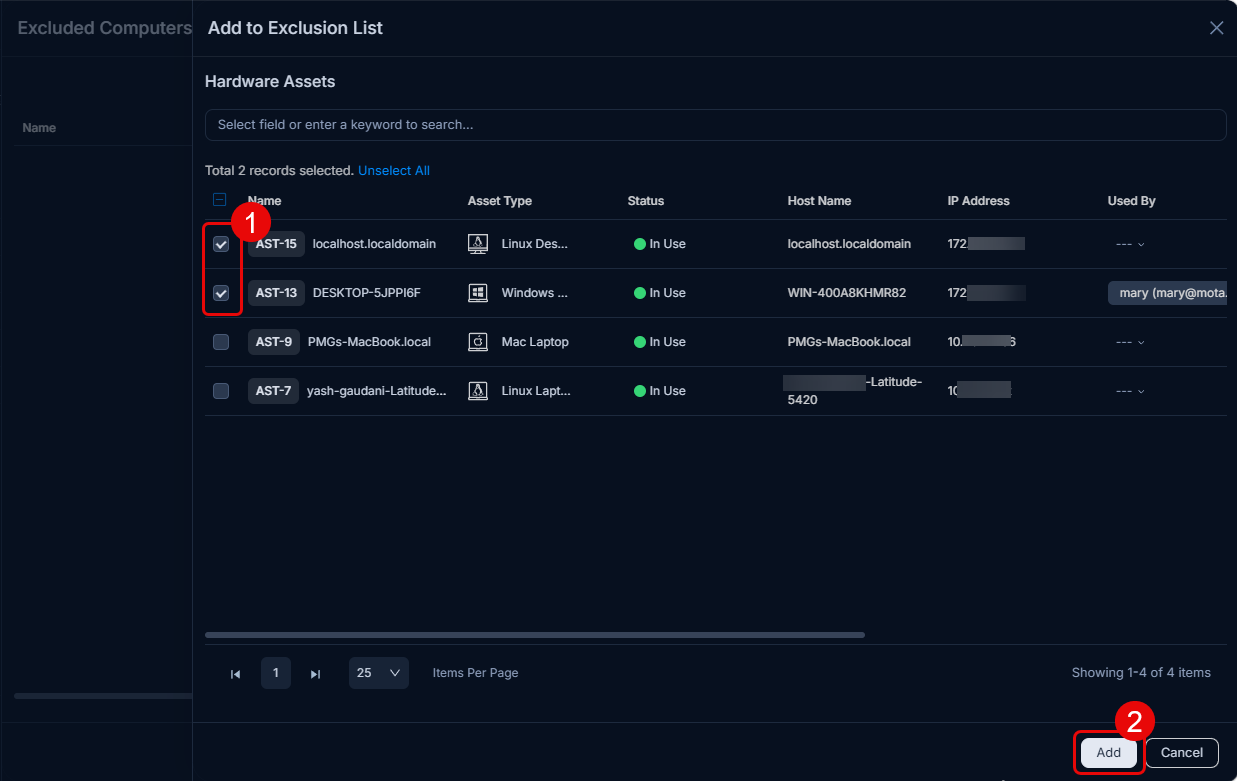
Excluded machines will not receive uninstallation payloads.
Tracking Uninstallation Status
After the policy runs, track execution from the Uninstallation tab of the Software Asset Details page. Each task moves through the following statuses:
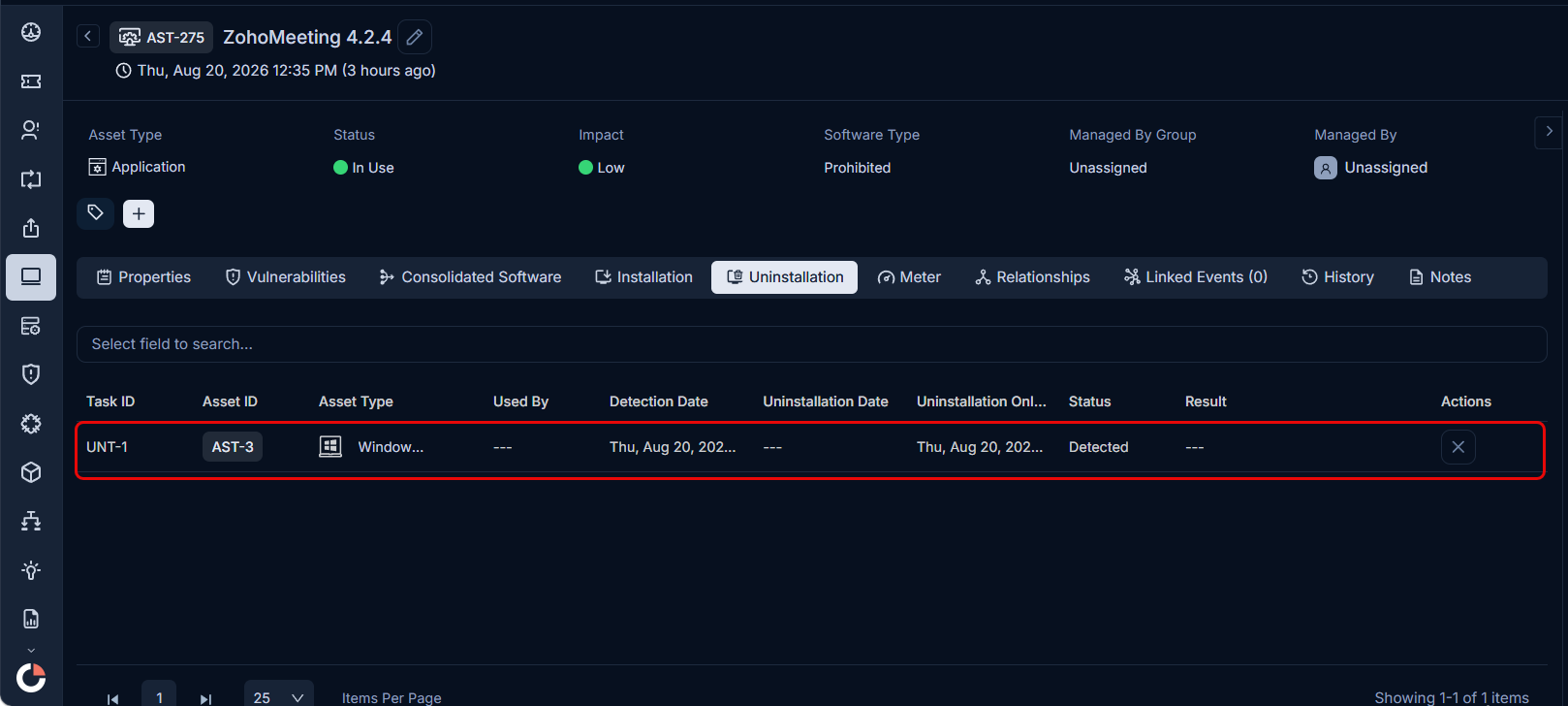
| Status | Meaning |
|---|---|
| Detected | The application is identified, marked as prohibited, and queued. It remains here until the grace period elapses and the agent executes the task. |
| Completed | The software was successfully uninstalled. The grid logs the completion time. |
| Failed | The uninstall command or script exited with an error. Open the task log to review the error output. |
Troubleshooting
Diagnose failed or stuck tasks using the console logs and endpoint log files.
Console logs:
- Go to the Auto Uninstallation Policy tab and click the Failed status link or the Log History icon on the target asset row.
- Alternatively, go to the asset's detail page and open the Uninstallation tab to view the full history of executed scripts and returned logs.
Endpoint log paths:
| OS | Log Path |
|---|---|
| Windows | C:\ProgramData\MotadataAgent\logs\agent.log |
| Linux | /opt/Motadata/agent_service/logs |
| macOS | /opt/Motadata/agent_service/logs |
For Windows, also check C:\ProgramData\MotadataAgent\temp\ to verify whether the script was downloaded to the endpoint.
Task is stuck in Detected status
Cause: The grace period has not elapsed, or the Motadata Agent on the endpoint is offline.
Fix: Verify that the scheduled uninstallation time has passed. Check the Last Communication Time on the asset detail page and confirm the Motadata Agent service is running.
Uninstallation status shows Failed
Cause: The silent command requires interactive input, or the script exited with an error.
Fix: Open the Uninstallation tab on the Software Details page to review the full execution history and agent-returned logs for the specific task.
- Navigate to the asset's detail page in ServiceOps.
- Open the software entry and select the Uninstallation tab.
- Locate the failed task row. The grid shows the Task ID, Asset ID, Detection Date, Uninstallation Date, Status, and Result.
- Review the Result column for the error output returned by the agent.
Windows PowerShell script is blocked
Cause: The client's PowerShell Execution Policy is set to Restricted via Group Policy.
Fix: Add the following bypass header to the top of your script content:
Set-ExecutionPolicy -ExecutionPolicy Bypass -Scope Process -Force
# Your uninstallation commands follow:
Get-Package -Name "ProhibitedApp" | Uninstall-Package -Force
Or invoke PowerShell with the bypass switch in your command:
powershell.exe -ExecutionPolicy Bypass -NoProfile -NonInteractive -File "C:\ProgramData\MotadataAgent\temp\uninstall.ps1"
No uninstall command found for the application
Cause: The application did not write its uninstall string to the registry.
Fix: Change the method from Pre-fill Uninstall Command to I will Specify Myself and manually enter the silent uninstall path.
Script execution fails on Linux or macOS
Cause: The ServiceOps agent daemon does not have root permissions.
Fix: Verify the agent daemon is installed as a root service and check sudoers configurations if needed.
Software was removed but still shows in ServiceOps
Cause: An inventory scan has not run since the uninstallation completed.
Fix: Go to the asset's detail page, click Scan Asset, and wait for the software list to refresh.