SNMP Walk — Full OID Subtree Retrieval in ObserveOps
SNMP Walk retrieves the complete OID subtree from a target device directly in ObserveOps. Use it to inspect raw SNMP data, verify MIB availability, or troubleshoot metric collection issues — without switching to an external SNMP tool.
Prerequisites
- You must have the Admin or NOC role.
- The target device must have SNMP enabled.
- A valid SNMP credential profile must be configured in ObserveOps, or you can create one directly from this screen.
- The Collector must have access to UDP port
161on the target device.
How It Works
ObserveOps sends SNMP GETNEXT requests from the Collector, starting at the OID you specify and walking the entire subtree beneath it. The Collector collects all returned OID-value pairs and streams the output back to the platform. Large result sets display in a paginated or scrollable view.
Navigation
Go to Main Menu > Settings > Utility > SNMP Walk.
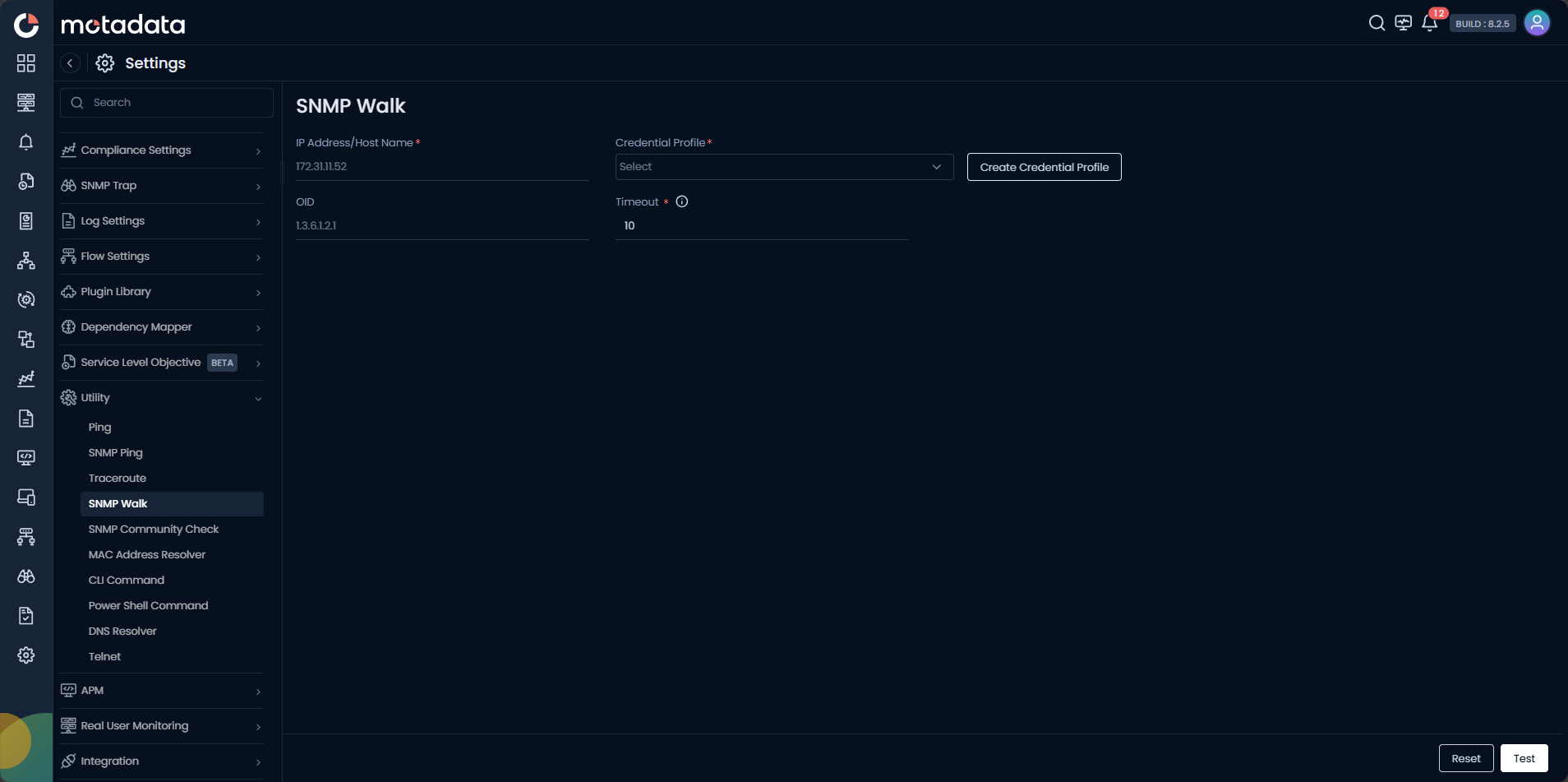
Running an SNMP Walk
Go to Settings > Utility > SNMP Walk.
| Field | Description |
|---|---|
| IP Address / Host Name | Required. Enter the IPv4 address, IPv6 address, or FQDN of the target device. |
| Credential Profile | Required. Select the SNMP credential profile to use. Select Create Credential Profile to create one inline. |
| OID | Enter the starting OID for the walk. Short OIDs such as 1.3 are accepted and walk from that point downward. |
| Port | Required. SNMP agent port on the target device. Defaults to 161. You can change the port if required. |
| Timeout | Required. Time in seconds to wait for an SNMP response before aborting the walk. Defaults to 10. |
Select Test to start the walk. Select Reset to clear the form.
Once Test is executed, the SNMP Walk results are displayed along with the walk status, indicating whether the operation has completed successfully or encountered an error. When the walk reaches the end of the available MIB view, the message "No more variables left in this MIB View (It is past the end of the MIB tree)" appears at the end of the walk output, confirming that the entire available OID subtree has been traversed.
If an error occurs, the system-generated error message and the corresponding response from the SNMP agent are displayed to provide additional visibility for troubleshooting.
Creating a Credential Profile
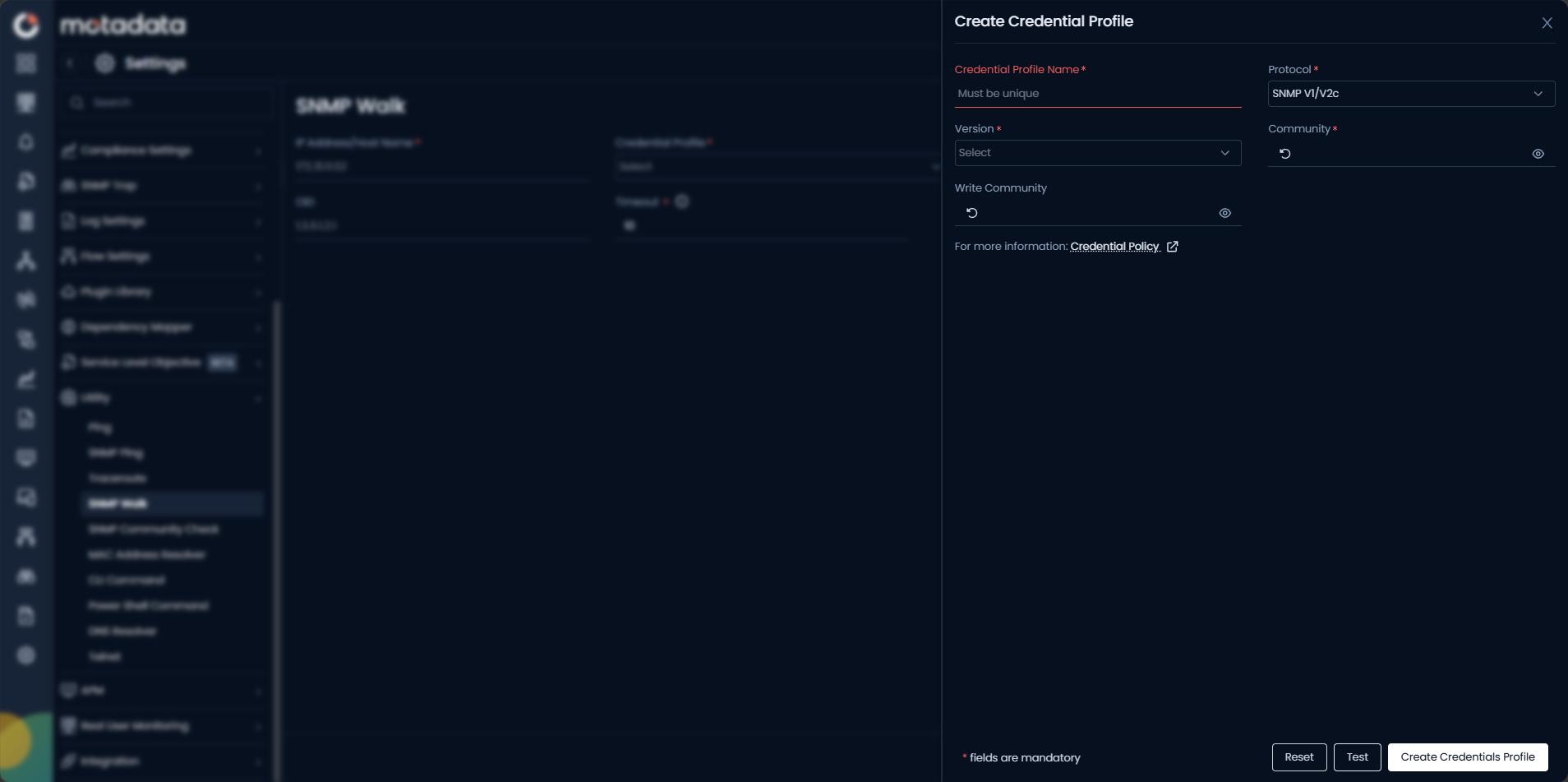
Click Create Credential Profile to open the credential dialog without leaving the screen.
| Field | Description |
|---|---|
| Credential Profile Name | Enter a unique name to identify this profile. |
| Protocol | Select SNMP V1/V2c for community-based SNMP. |
| Version | Select v1 or v2c to match the device configuration. |
| Community | Enter the read community string. |
| Write Community | Enter the write community string, if applicable. |
Click Create Credentials Profile to save.
Start with a specific OID branch rather than the full MIB root. Walking 1.3.6.1.2.1.2 (interfaces table) returns far less data than walking 1.3.6.1 and loads results faster.
Example
A monitoring engineer notices that interface utilization metrics are not populating for a new Cisco switch. They open Utility > SNMP Walk, enter the switch IP, select the v2c credential profile, and walk OID 1.3.6.1.2.1.2.2 (interfaces table). The walk returns all interface OIDs and confirms the metrics exist on the device. The engineer identifies the correct OID and adds it to the metric template.
Troubleshooting
| Issue | Cause | Fix |
|---|---|---|
| Walk returns zero results | The OID does not exist on this device, or the device does not support the requested MIB. | Try walking 1.3.6.1.2.1.1 (system group) to confirm basic MIB-II availability. |
| Walk runs and never completes | The subtree is very large and the timeout is too low. | Increase the timeout, or narrow the starting OID to a smaller subtree. |
| Authentication failure | The credential profile community string does not match the device. | Run SNMP Ping first to verify credentials before walking. |