Creating a User Profile
A User Profile lets you assign role, define scoping rules by Groups , and attach multiple users to reuse the same access configuration. This simplifies administration and keeps permissions consistent across users.
1. Role Creation
If the profile requires a role that doesn’t exist yet, create it first. Roles define what users can do (Read / Read & Write / Delete) across modules.
Navigation
Go to Menu. Select Settings  . After that, Go to User Settings
  . Select Role to display the list of all the roles in the system.
Click on the Create Role button to start creating a user.
Role Creation Screen
Provide the Role Name and the Role Description for the role that you wish to create.
Select the check-box according the permission (Read, Read & Write, and Delete) that you wish to assign to the user for a specific module.
Suppose you want to assign Read permission for Log Explorer to the user, then select the check-box as shown in the picture below.
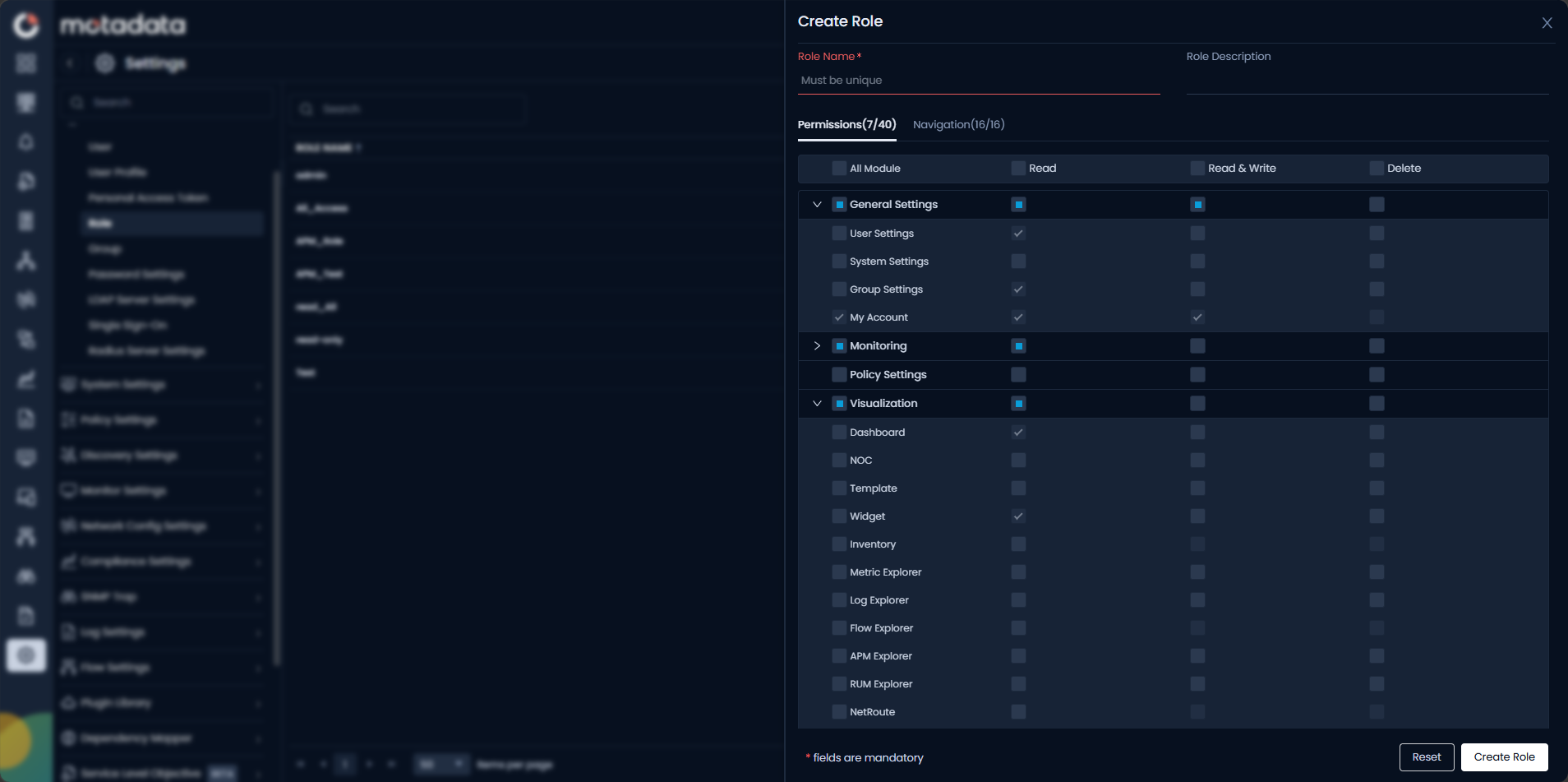
Assign all the required permissions and then select Create Role button to create the role with the configured permissions in Motadata ObserveOps .
2. User Profile Creation
Now, we need to create a profile that bundles users, role and scope in one place.
Navigation
Go to Menu. Select Settings . After that, go to User Settings . Select User Profiles to display the list of all user profiles.
Click on the Create User Profile button to start creating a profile.
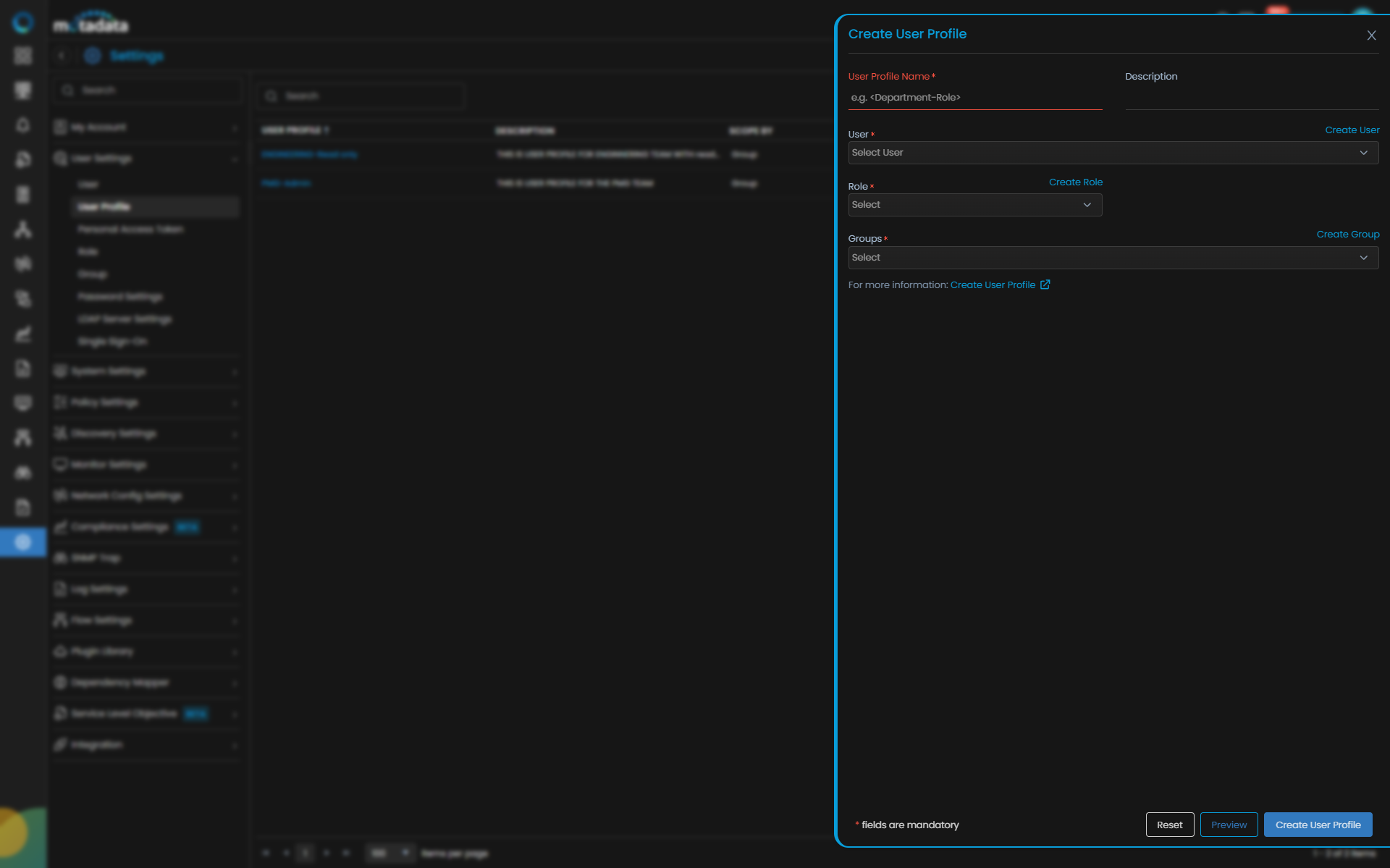
User Profile Creation Screen
Provide the details for profile creation as follows:
| Field | Description |
|---|---|
| User Profile Name | Enter a unique name for the user profile. |
| Description | Provide a short description of the profile’s purpose. |
| User | Select one or more users to attach to this profile. |
| Role | Select one role that will be applied to all users in this profile. You can also create a new role using Create Role. |
| Scope by | Choose how access is scoped. Options: Group (default) or Tag. |
| Groups | Select one or more groups to define what monitors users in this profile can access. You can also create a new group. |
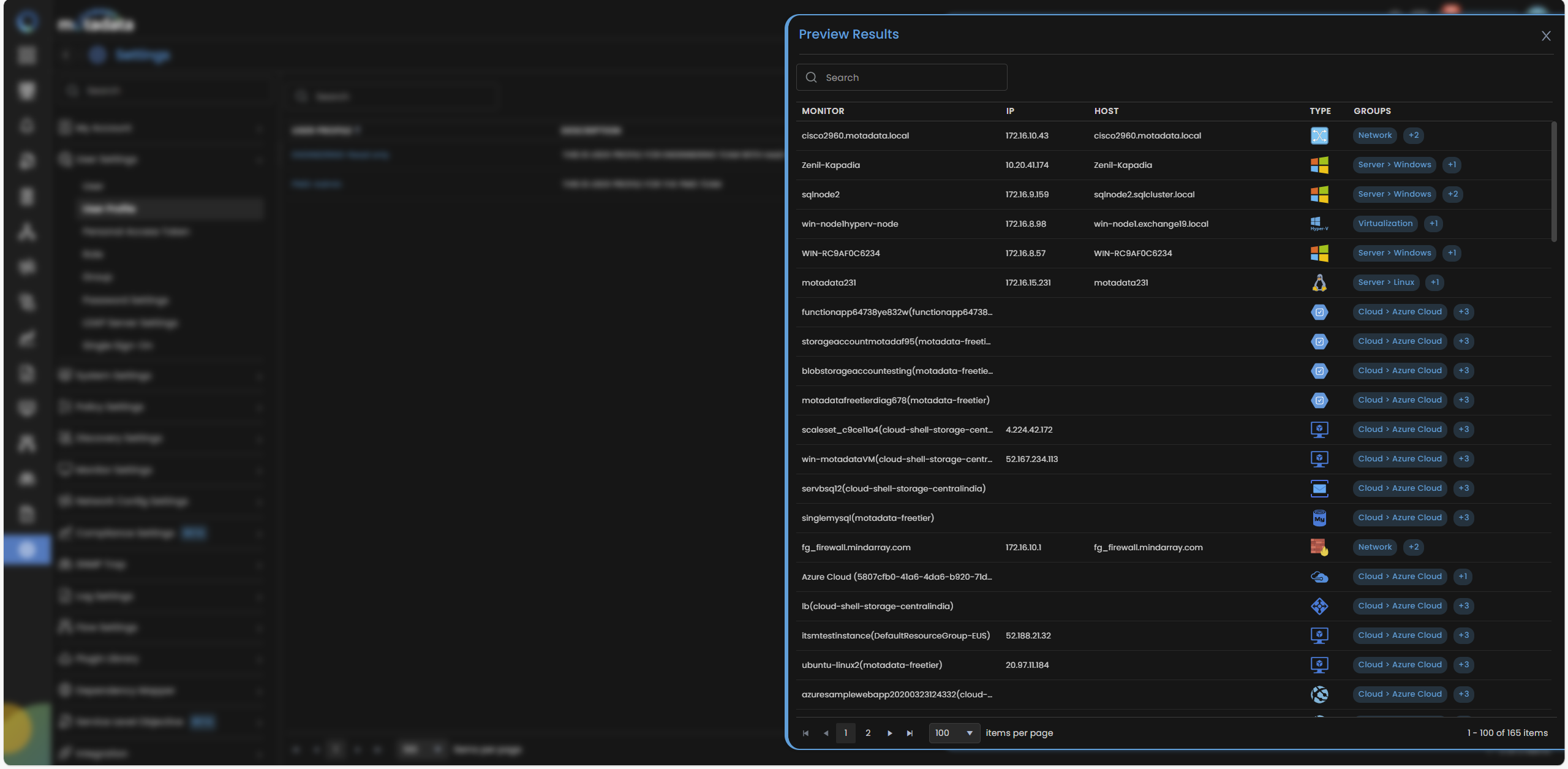
Select Preview to open a side pop-up that lists all monitors matching the configured Group .
Select Create User Profile to create the user profile in the system.
Select Reset to erase all the current field values.
3. Manage Users in a Profile
After creating a profile, you can add or remove users as needed.
Click a profile name to view details, or use Assign User or Remove Assigned User from the Action menu to add/remove users. You can also edit or delete the user profile from the action menu options.
Removing a user from a profile reverts them to a standalone user with their previously configured roles and scoping rules.
Use Export As PDF or Export As CSV to export the profile list.