NCCM Firmware Upgrade in ObserveOps
Firmware Upgrade in Motadata AIOps NCCM
Firmware upgrade in network devices refers to updating the device’s embedded software to introduce enhancements, security fixes, and stability improvements.
Motadata AIOps NCCM enables controlled and automated firmware upgrades using NCCM Device Templates. These templates define the exact command sequence required to perform firmware upgrades on supported devices, ensuring consistency and reducing manual intervention.
Enabling Firmware Upgrade
Firmware upgrade functionality is available only when the required commands are configured in the associated NCCM device template.
1. Enabling Firmware Upgrade in Device Template
- Ensure the device is available in the NCCM Explorer
- Verify that firmware upgrade commands are configured in the associated NCCM Device Template
Once enabled, the Firmware Upgrade option becomes available for the device in the NCCM Explorer.
2. Navigation
Navigate to the NCCM Explorer. Click on the Firmware Upgrade option against the device to initiate the upgrade process.
3. Firmware File Selection
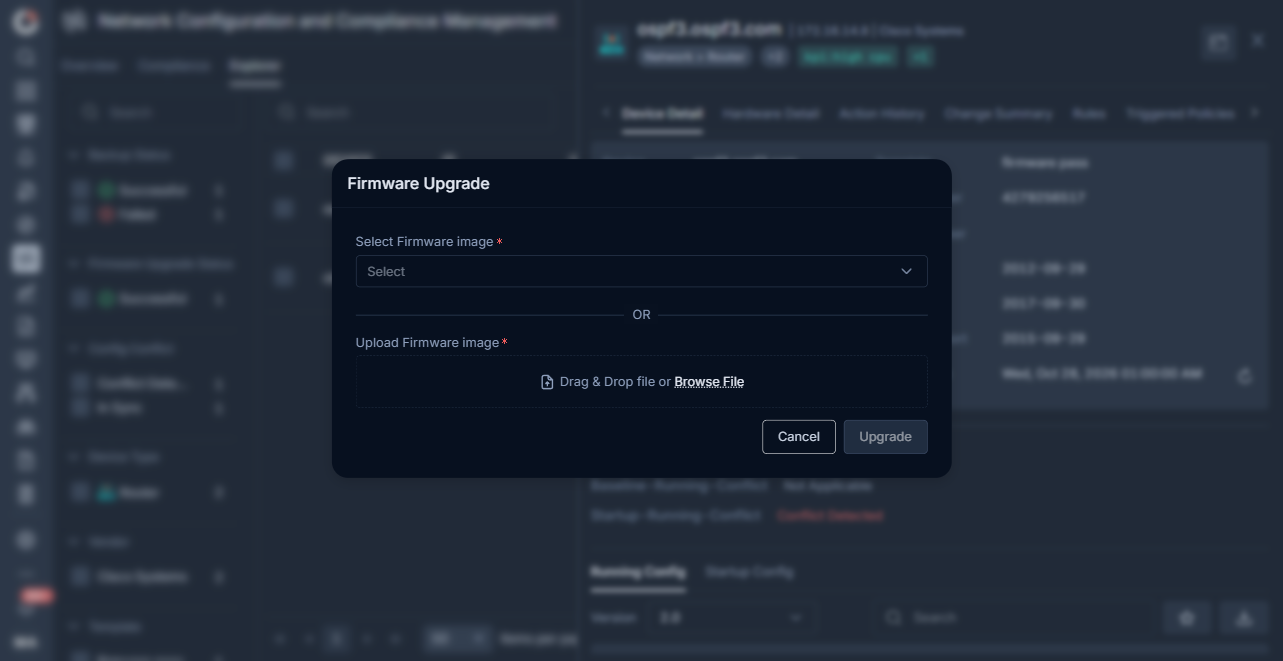
A pop-up window is displayed to select the firmware file
You can:
- Select an existing firmware file from the Select Firmware image dropdown
- Upload a new firmware file through the Upload Firmware image section (Drag & Drop file or Browse File)
Supported Firmware File Extensions
NCCM accepts the firmware image formats commonly used by supported network vendors. The following extensions are allowed by the firmware upload API:
| Vendor Family | Extension |
|---|---|
| Cisco IOS and most routers/switches | .bin |
| Cisco IOS-XE packaged images | .pkg |
| Juniper Junos | .tgz |
| Aruba AOS-CX and AOS 10 | .stm, .swi |
| ArubaOS-Switch | .swi |
| Other vendors | .tar, .tar.gz |
If the uploaded firmware extension is not in the allow-list, the upload fails with a bad-request error before the device is contacted. Confirm the image file for your device matches a supported extension before uploading.
Maximum Firmware File Size
The default maximum firmware file size that NCCM accepts for upload is 1 GB. The limit is configurable through the firmware.upload.max.size.bytes key in the backend motadata.json configuration file on the ObserveOps server. Increase the value when you need to upload firmware images larger than 1 GB. The configured value is read on the next service restart.
Contact your ObserveOps administrator to change the firmware.upload.max.size.bytes value. The setting lives in a server-side configuration file and is not exposed in the UI.
4. Starting the Upgrade
After selecting the firmware file:
- Click Upgrade to start the upgrade immediately
OR
Click Schedule Upgrade to execute the upgrade at a later time
- Select the required date and time
- Click Apply
- Click Upgrade to create the scheduled job
The system tracks the execution and monitors the upgrade progress.
If you have only the NCCM role, clicking Upgrade or Schedule Upgrade does not execute the firmware upgrade immediately. The system creates an approval request that must be reviewed and approved by a user with the NCCM Approval role before the upgrade is carried out. To learn more about requester and approver roles in the NCCM approval workflow, see NCCM Approval Workflow.
5. Completion and Status
On successful completion, the Last Performed Action column displays Firmware Upgrade Successful
In case of failure:
- The status is updated accordingly
- Click the action to view detailed failure information
Firmware Upgrade Option Unavailable
If the Firmware Upgrade option is not visible for a device, it indicates that the required firmware upgrade commands are not configured in the associated NCCM device template.
Motadata AIOps executes firmware upgrades strictly based on template-defined commands. If these commands are missing, the option remains disabled.
To enable firmware upgrade:
- Ensure the correct template is assigned
- Verify that firmware upgrade commands are configured in the template
Working with NCCM Device Templates
Firmware upgrade capability depends on how the device template is configured.
Pre-Defined NCCM Device Templates
Default templates cannot be edited directly
To add firmware upgrade commands:
- Clone the existing template
- Add the required commands
- Associate the cloned template with the device
If the required commands are already present in the default template, no additional action is needed.
Custom NCCM Device Templates
- Custom templates can be edited directly
- Add firmware upgrade commands if not already configured
- Save the template to enable firmware upgrade for the device
Thus, Firmware upgrade in NCCM provides a controlled and template-driven approach to updating device software.
By leveraging device templates, administrators can standardize upgrade procedures, reduce manual effort, and ensure consistent execution across network devices.
For detailed steps on adding firmware upgrade commands, refer to: Add Firmware Upgrade Commands